Internet Explorer Accelerators - Enable or Disable Usage

How to Enable or Disable the Use of Internet Explorer Accelerators

   Information
You can use Accelerators to search text that you select, map, e-mail, translate, or share content from any web page you’re currently viewing with just one click. Learn more. Internet Explorer comes with a selection of Accelerators included by default, but you can add or remove them as you like.

This tutorial will show you how to enable or disable the ability of all or specific users to use and access Accelerators in IE8, IE9, IE10, and IE11.

You must be logged in as an administrator to be able to do the steps in this tutorial.


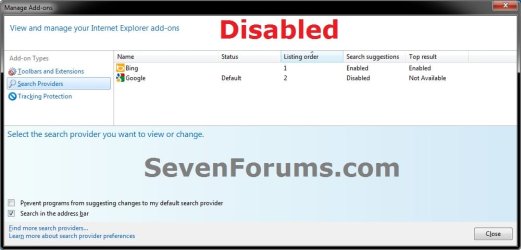
EXAMPLE: Accelerators Enabled and Disabled in Internet Explorer
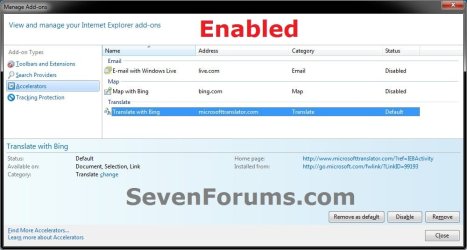
Enabled.jpg

Disabled.jpg


OPTION ONE

Using a REG File Download


NOTE: This option will affect all users on the computer.
1. To Enable "Accelerators" in Internet Explorer
NOTE: This is the default setting.
A) Click/tap on the Download button below to download the file below.
Enable_IE_Accelerators.reg

Download


B) Go to step 3.
2. To Disable "Accelerators" in Internet Explorer
A) Click/tap on the Download button below to download the file below.
Disable_IE_Accelerators.reg

Download


3. Save the .reg file to the desktop.

4. Double click/tap on the downloaded .reg file to merge it.

5. Click/tap on Run, Yes (UAC), Yes, and OK when prompted.

6. If open, close and reopen any Internet Explorer windows to apply.

7. When done, you can delete the downloaded .reg file if you like.


OPTION TWO

Through the Local Group Policy Editor


1. Open the all users, specific users or groups, or all users except administrators Local Group Policy Editor for how you want this policy applied.

2. In the left pane, click/tap on to expand User Configuration, Administrative Templates, Windows Components, Internet Explorer, and Accelerators. (see screenshot below)
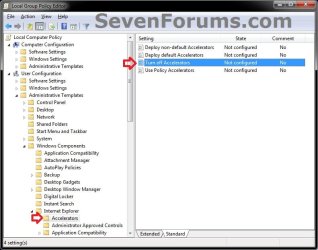
GPEDIT-1.jpg
3. In the right pane, double click/tap on Turn off Accelerators. (see screenshot above)

4. To Enable "Accelerators" in Internet Explorer
A) Select (dot) either Not Configured or Disabled. (see screenshot below step 6)
NOTE: Not Configured is the default setting.
B) Go to step 6.
5. To Disable "Accelerators" in Internet Explorer
A) Select (dot) Enabled. (see screenshot below step 6)
6. Click/tap on OK. (see screenshot below)
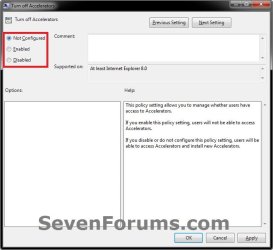
GPEDIT-2.jpg
7. Close the Local Group Policy Editor window.

8. If open, close and reopen any Internet Explorer windows to apply.
That's it,
Shawn


Attachments

Last edited:
Thank you

I must say I am finding some niche items here today while I am tweaking an automated setup
thank you all very much
Ron
 

My Computer

Computer Manufacturer/Model Number
HP
OS
Windows 7 Ultimate x64
CPU
Many
Motherboard
Many
Memory
16 GB
You're most welcome Ron. I'm glad that they are able to help. :)
 

My Computer

Computer type
PC/Desktop
Computer Manufacturer/Model Number
Self built custom
OS
64-bit Windows 11 Pro for Workstations
CPU
Intel i7-8700K OC'd to 5 GHz
Motherboard
ASUS ROG Maximus XI Formula Z390
Memory
64 GB (4x16GB) G.SKILL TridentZ RGB DDR4 3600 MHz
Graphics Card(s)
ASUS ROG-STRIX-GTX1080TI-O11G-GAMING
Sound Card
Integrated
Monitor(s) Displays
2 x Samsung Odyssey G7 27"
Screen Resolution
2560x1440
Hard Drives
1TB Samsung 990 PRO M.2,
4TB Samsung 990 PRO PRO M.2,
TerraMaster F8 SSD Plus NAS
PSU
Seasonic Prime Titanium 850W
Case
Thermaltake Core P3
Cooling
Corsair Hydro H115i
Keyboard
Logitech wireless K800
Mouse
Logitech MX Master 4
Internet Speed
2 Gb/s Download and 100 Mb/s Upload
Antivirus
Malwarebyte Anti-Malware Premium
Browser
Google Chrome
Other Info
Logitech Z625 speaker system,
Logitech BRIO 4K Pro webcam,
HP Color LaserJet Pro MFP M477fdn,
APC SMART-UPS RT 1000 XL - SURT1000XLI,
Galaxy S23 Plus phone
Thanks Shawn I had to use the download in option 1 as the stuff in Option 2 I could not make head nor tail of as whatever I did nothing came up looking anything like what was in the tutorial that related to Local Group Policy.
So if I do and there is a probably never chance of that I use the other download to enable the pop up? It is probably one of the most annoying features of Windows and why it is included is a complete mystery to me.

But hopefully it is gone now.
 

My Computer

Computer type
PC/Desktop
Computer Manufacturer/Model Number
Own build (new) Desk1 / Asus ROG Win 7 / Desk2 1st build
OS
Desk1 7 Home Prem / Desk2 10 Pro / Main lap Asus ROG 10 Pro 2 laptop Toshiba 7 Pro Asus P2520 7 & 10
CPU
Desk1 i5 3750K / Laptop i7 GTX 860M / Desk2 i5 2500
Motherboard
Desk1 Asus P877-V / Desk2 Gigabyte H67 UD3H / Laptop ?
Memory
Desk1 8GB (1866) / Desk2 16GB (1333) / Laptop 8Gb DDR3
Graphics Card(s)
Desk 1& 2NVidia GTX 650 & Laptops on board Intel
Sound Card
Desk 1 & 2 -XONAR DG Realtek High Def audio Laptop
Monitor(s) Displays
Desk 1 Benq HD 2450 / Desk2 Philips 24" / Laptop 17.5"
Screen Resolution
1920x1080 D1 & D2 & Laptop 1
Hard Drives
Desk1 Samsung 120GB 830 SSD
Asus ROG 256GB 850 Pro SSD
Desk2 Samsung 840 256 SSD
Toshiba 120GB EVO
PSU
Desk 1 Corsair HX 1050/ Laptop ? / Desk 2 Corsair HX 650
Case
Desk 1 Cooler HAF XM ? Toshiba laptop / Desk2 Coolermaster
Cooling
Fans on all Desk1 -2 Desk2 - all Coolermasters 5 Laptop ?
Keyboard
Desk 1 MS Sidewinder X6 Desk 2 MS Sidewinder X 4
Mouse
Desk 1&2 - Gigabyte MS 900 gamer - laptop - Logitec wireless
Internet Speed
ADSL2+
Other Info
One other Desktop (tester) and spare Toshba laptop both with SSD's
Running Kaspersky 2016 ISS on all machines config'd identically
Logitec audio stereo systems on each machine (x3)
Canon MG5250MFC
Router/modem TP-Link running WPA2SK
:thumbsup:
 

My Computer

Computer type
PC/Desktop
Computer Manufacturer/Model Number
Self built custom
OS
64-bit Windows 11 Pro for Workstations
CPU
Intel i7-8700K OC'd to 5 GHz
Motherboard
ASUS ROG Maximus XI Formula Z390
Memory
64 GB (4x16GB) G.SKILL TridentZ RGB DDR4 3600 MHz
Graphics Card(s)
ASUS ROG-STRIX-GTX1080TI-O11G-GAMING
Sound Card
Integrated
Monitor(s) Displays
2 x Samsung Odyssey G7 27"
Screen Resolution
2560x1440
Hard Drives
1TB Samsung 990 PRO M.2,
4TB Samsung 990 PRO PRO M.2,
TerraMaster F8 SSD Plus NAS
PSU
Seasonic Prime Titanium 850W
Case
Thermaltake Core P3
Cooling
Corsair Hydro H115i
Keyboard
Logitech wireless K800
Mouse
Logitech MX Master 4
Internet Speed
2 Gb/s Download and 100 Mb/s Upload
Antivirus
Malwarebyte Anti-Malware Premium
Browser
Google Chrome
Other Info
Logitech Z625 speaker system,
Logitech BRIO 4K Pro webcam,
HP Color LaserJet Pro MFP M477fdn,
APC SMART-UPS RT 1000 XL - SURT1000XLI,
Galaxy S23 Plus phone
Back
Top