
How to Display All Websites in Compatibility View in Internet Explorer
Information
This will show you how to turn on or off to display all websites in Compatibility View in Internet Explorer. When turned on, all websites will be displayed as if you were using an earlier version of Internet Explorer.
OPTION ONE
Display all Websites in Compatibility View in "Compatibility View Settings"
1. Open Internet Explorer.
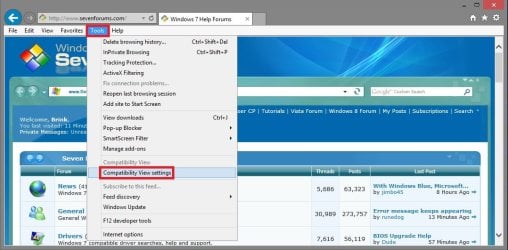
2. Click/tap on the Tools Menu Bar (ALT + T) item, and click/tap on Compatibility View Settings. (see screenshot below)
3. Do step 4 or 5 below for what you would like to do.
4. To Display All Websites in Compatibility View
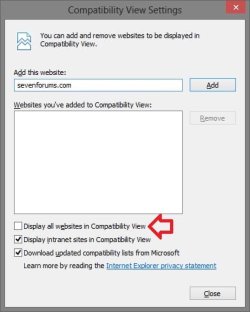
A) Check the Display all websites in Compatibility View box, and click/tap on the Close button. (see screenshot below)
NOTE: When this option is checked, the Display intranet sites in Compatibility View option will be grayed out.
5. To Not Display All Websites in Compatibility View
NOTE: This is the default setting.
A) Uncheck the Display all websites in Compatibility View box, and click/tap on the Close button. (see screenshot below)
7. Click/tap on the Close button. (See screenshots below step 5A or 6A)
NOTE: When turned on, the other options will be grayed out.
8. Close Internet Explorer when done.
OPTION TWO
Display all Websites in Compatibility View using a REG File
1. To Display All Websites in Compatibility View
A) Click/tap on the Download button below to download the file below, and go to step 3 below.
Turn_On_Display_all_websites_in_IE_Compatibility_View.reg
Download
2. To Not Display All Websites in Compatibility View
NOTE: This is the default setting.
A) Click/tap on the Download button below to download the file below, and go to step 3 below.
Turn_Off_Display_all_websites_in_IE_Compatibility_View.reg
Download
3. Save the REG file to your desktop.
4. Double click/tap on the REG file to merge it.
5. Click/tap on Run, Yes (UAC-Windows 7/8) or Continue (UAC-Vista), Yes, and OK when prompted to approve the merge.
6. When finished, you can delete the downloaded .reg file if you like.
That's it,
Shawn
Attachments
Last edited:


