
JIT Debugger Error & Program Crashes After Updating Drivers

i aM oCTaNe

New member
Local time
3:26 PM
Messages
24
Location
Crystal Lake, IL
Hey guys,

I recently went to update my mobile video card drivers on my ASUS G73JH laptop and after doing so, on boot up I would see this error message after saying my CCC.exe has crashed...
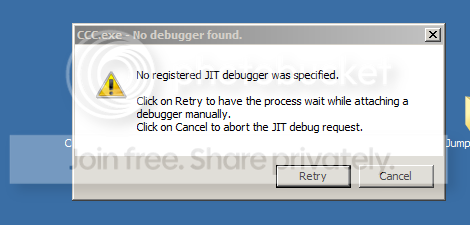
CCC_Issue_zpsbb257cd2.png


I also couldn't access any programs that make use of the video card, every time I would open one, it would crash before opening.

So I rolled back my drivers and everything is fine, but obviously, I would like to update my drivers for my video card, but not really sure what to try... any advice?

Let me know if you need any more info!
Thanks in advance,
-Rob
 

My Computer

Computer Manufacturer/Model Number
Custom Build
OS
Windows 7 64 Professional
CPU
Intel Sandybridge i7 2600k
Motherboard
ASUS P8Z68-V LE LGA 1155 Intel Z68 HDMI SATA 6Gb/s USB 3.0 A
Memory
CORSAIR Vengeance 16GB (4 x 4GB) 240-Pin DDR3 SDRAM DDR3 160
Graphics Card(s)
XFX Radeon 6870
Sound Card
Integrated
Monitor(s) Displays
Two 23" LG E2360v
Screen Resolution
1920x1080
Hard Drives
Windows: Crucial M4 CT128M4SSD2CCA - 128 GB, SATA III MLC Internal Solid State Drive (SSD)
Media: Western Digital Caviar Black WD1002FAEX 1TB 7200 RPM 64MB Cache SATA 6.0Gb/s 3.5" Internal Hard Drive -Bare Drive
PSU
OCZ Gamestream 600w (OCZGSX600)
Case
XCLIO 320 Mid-Tower
Keyboard
Razer Blackwidow
Mouse
Primary: Razer Deathadder Secondary: Razer Naga
Hm. I've found a couple of things on this and majority of them seem to suggest one of two things:

- Disable the Just-In-Time Debugger

On the Tools menu, click Options.
In the Options dialog box, select the Debugging folder.
In the Debugging folder, select the Just-In-Time page.
In the Enable Just-In-Time debugging of these types of code box, select or clear the relevant program types: Managed, Native, or Script.
To disable Just-In-Time debugging, once it has been enabled, you must be running with Administrator privileges. Enabling Just-In-Time debugging sets a registry key, and Administrator privileges are required to change that key.
Click OK.

Link for the suggestion; READ FIRST

Pay particular attention to the last two posts in that link.

- Perform a clean boot

Click Start , type msconfig in the Start Search box, and then press ENTER.
If you are prompted for an administrator password or for a confirmation, type the password, or click Continue .
On the General tab, click Selective Startup .
Under Selective Startup , click to clear the Load Startup Items check box.
Click the Services tab, click to select the Hide All Microsoft Services check box, and then click Disable All .
Click OK .
When you are prompted, click Restart .
After the computer starts, start the game or program and check whether the problem is resolved.

Link for suggestion; READ FIRST

I'll continue to look into it for you, but should you decide to do anything you should create a restore point first.
 

My Computer

Computer type
PC/Desktop
Computer Manufacturer/Model Number
Custom
OS
Windows 10 Technical Preview - x64
CPU
Core i5-3570K - 4.5GHz
Motherboard
ASUS Sabertooth Z77 [B. 2003]
Memory
G.Skill Sniper 12GB DDR3-1600
Graphics Card(s)
ASUS GeForce GTX 970 STRIX
Monitor(s) Displays
Acer K272HUL
Screen Resolution
2560x1440
Hard Drives
Samsung 840 Evo 250GB (OS), Samsung Spinpoint F3 HD103SJ 1TB (Games), Seagate Expansion 1TB (Additional storage, Backup)
PSU
Cooler Master Real Power Pro 750W, Corsair HX1000W
Case
HAF-X
Cooling
XSPC Rasa RS360
Keyboard
Gigabyte Osmium, Noppoo Choc Mid 87, Corsair K70 RGB
Mouse
Roccat Kova
Internet Speed
50 Mbps up, 50 Mbps down
Antivirus
BitDefender TS 2013, Malwarebytes AM, SUPERAntiSpyware
Browser
Google Chrome
Other Info
Razer Vespula Gaming Pad, Razer eXactMat, Blackmagic Intensity Pro, Corsair Vengeance 1500 USB Headset, Google/ASUS Nexus 7
Back
Top