Libraries Icons - Change

How to Change a Library Icon in Windows 7

   Information
This will show you how to change any Windows 7 Library icon to any icon that you would like instead of the default icon.

   Note
If you would like to use a custom library icon (.ico file) on your computer and would like it to also have it display on another computer that joined or is added to the homegroup as well, then you will need to make sure that the .ico file you are using is saved at a location that each computer on the homegroup as full access to first. For example, in a C:\Users\Public folder or shared user folder.

   Tip
For more on libraries managed code, see: Windows 7 Libraries - Managed Code - Windows 7 for Developers

   Warning
You will need to use a 256x256 pixel icon that was made for Windows 7 and Vista for them to display properly at all of the available icon view sizes in Windows 7. For more about these type of icons, see: Icons in Windows Vista


OPTION ONE

To Change a Library Icon Using the "Libraries Icons" Program


1. If you have not already, then click on the Download button below and download and save the ZIP file below to your desktop. Next, extract (drag and drop) the LibraryIconChanger.exe file from within the ZIP file.
Replace_Librarie_Icons_by_bluefisch200.zip

Download


2. Run the LibraryIconChanger.exe file.
NOTE: This is a standalone EXE file that only runs and does not install on your computer.

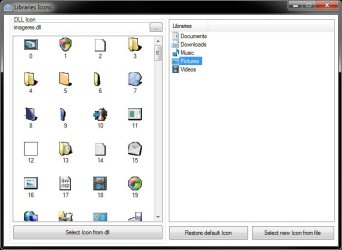
3. In the right pane, select (highlight) the library that you want to change or restore the default icon of. (see screenshot below)
Libraries_Icons.jpg
4. Do either step 5, 6, or 7 below for what you would like to do.

5. To Change a Library Icon with a Icon from a DLL File
NOTE: By default, the available DLL icons are from the C:\Windows\System32\imageres.dll file. If you would like to select a icon from within a different DLL icon, then click on the browse browse.jpg button, navigate to, and select the DLL file.
A) In the left pane, select an available icon, and click on the Select Icon from dll button. (see screenshot below step 3)

B) Go to step 8.
6. To Change a Library Icon with a Icon File of Your Choice
A) Click on the Select new Icon from file button. (see screenshot below step 3)

B) Navigate to and select a .ico file that you want to use, then click on Open.

C) Go to step 8.
7. To Restore the Default Icon of a Library
A) Click on the Restore default icon button. (see screenshot below step 3)

B) Continue on to step 8.
8. Close the Libraries Icons program. (see screenshot below step 3)

9. Log off and log on, or restart the computer to apply.


OPTION TWO

To Manually Change a Library Icon


1. Set Folder Options to Show hidden files, folders, and drives.

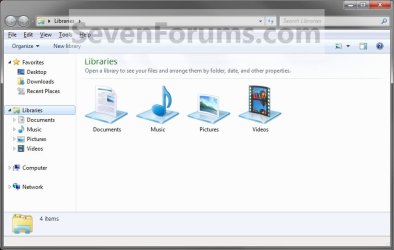
2. In Windows Explorer, navigate to the location below for the library you want to change the icon of. (See screenshot below)
Libraries folder: (ex: Documents, Music, Pictures, Videos)
C:\Users\(User Name)\AppData\Roaming\Microsoft\Windows\Libraries
For "Recorded TV" Library
C:\Users\Public\Libraries
Libraries.jpg
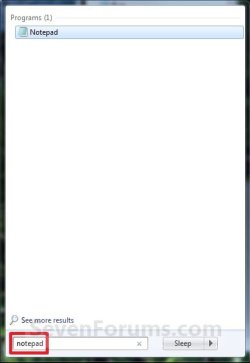
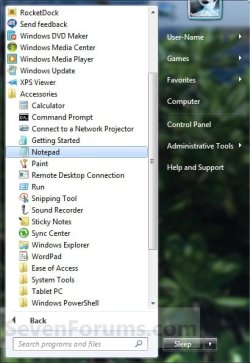
3. Open Notepad by one of the methods below. (See screenshots below)
Start_Menu1.jpg

Start_Menu2.jpg

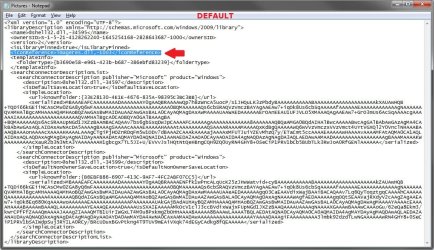
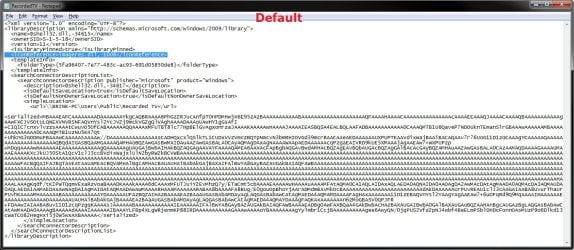
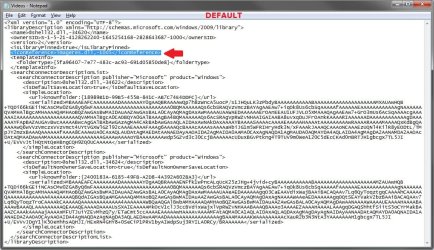
4. Drag the Library icon (from step 2) that you want to change into the blank Notepad and drop it. (See screenshots below)


NOTE: Libraries are .xml files, so they can be edited in Notepad. These are the default entries for the Libraries.
  • Documents default- <iconReference>imageres.dll,-1002</iconReference>
  • Music default - <iconReference>imageres.dll,-1004</iconReference>
  • Pictures default - <iconReference>imageres.dll,-1003</iconReference>
  • Recorded TV default - <iconReference>imageres.dll,-1008</iconReference>
  • Videos default - <iconReference>imageres.dll,-1005</iconReference>
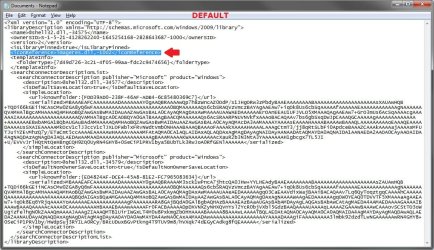
Documents.jpg

Music.jpg

Pictures.jpg

Recorded_TV.jpg

Videos.jpg

5. To Use a Custom Icon of Yours
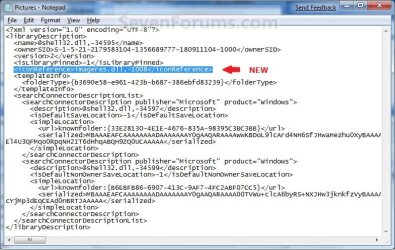
A) Look for the line below. (See screenshots above)
NOTE: If this is a new Library that you have created, then the line will not be there and you will need to add the <iconReference>"path to icon w/file extension"</iconReference> line directly under the <isLibraryPinned>-1</isLibraryPinned> line entry.
<iconReference>"path to icon w/file extension"</iconReference>
B) In Notepad, substitute path to icon w/file extension in quotes to the full path of the custom icon that you want to use for the default Library icon instead.

C) Go to step 7.
6. To Use another Windows 7 Icon
A) Download and install the free program IconViewer.
NOTE: Be sure to download the correct 32-bit or 64-bit version for your Windows 7.

B) In Windows Explorer navigate to the .exe (ex: for program icons) or .dll (ex: Windows 7 icons) file that contains the icon that you want to use for the default Library icon, then right click on the file, click on Properties, and the Icons tab. (See screenshot below)
NOTE: The most common Windows 7 icons come from the C:\Windows\System32\imageres.dll file.

C) Look for the line below. (See screenshots below step 4)
NOTE: If this is a new Library that you have created, then the line will not be there and you will need to add the <iconReference>path to icon w/file extension,-icon#</iconReference> line directly under the <isLibraryPinned>-1</isLibraryPinned> line entry.
<iconReference>path to icon w/file extension,-icon#</iconReference>
D) In Notepad, substitute path to icon w/file extension to the full path of the file that includes the icon you want from step 6B, then substitute icon# with the icon number under the icon you want from step 6B. (See screenshot below)
NOTE: If the file that includes the icon you want in step 6B is in the C:\Windows\System32 folder, then you will just need to type in the file name instead of the full path.


FOR EXAMPLE:
  • Let's say I want to change the Pictures Library icon to the icon #1008 (step 6B) included in the C:\Windows\System32\imageres.dll file. I would use imageres.dll,-1008. (See screenshot below)
  • Let's say the icon #1008 (step 6B) was included in the C:\Program Files\imageres.dll file. I would use C:\Program Files\imageres.dll,-1008 instead.
imageres_Properties.jpg
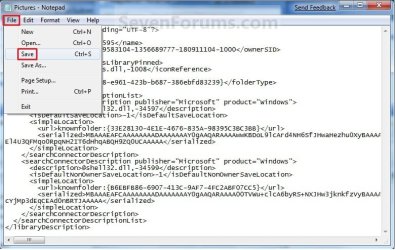
7. In Notepad, click on File and Save, then close Notepad. (See screenshot below)
Save.jpg
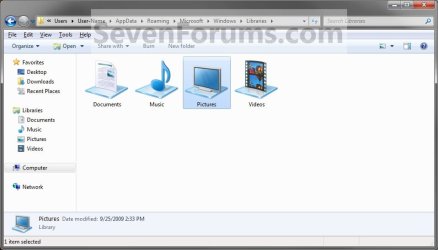
8. The Library icon will now be changed. (See screenshot below)
NOTE: For example, the default Pictures Library icon.
New_Library_Icon.jpg
9. Repeat steps 3 to 8 if you would like to change any more Library icons.

10. When done, set Folder Options to Don't show hidden files, folders, and drives.

11. Log off and log on, or restart the computer to fully apply the icon change to all locations for this library folder.
That's it,
Shawn


Related Tutorials


Attachments

  • New_Pictures.jpg
    New_Pictures.jpg
    81.4 KB · Views: 384
Last edited:
Hi, I whipped up a tiny utility for changing library icons without having to open library files manually and add lines. You can find it here: Library Icon Changer for Windows 7
 

My Computer

OS
Windows 7 Professional x64
CPU
Intel Core 2 Duo E8400 @ 3000 MHz
Motherboard
Asus P5Q PRO
Memory
G-Skill 1066 4 GB Kit
Graphics Card(s)
Powercolor AMD/Ati Radeon 4870 1 GB
Sound Card
Realtek HD Audio
Monitor(s) Displays
Samsung XL2370 23'' LED
Screen Resolution
1920x1080
Hard Drives
Maxtor 200 GB SATA II
LaCie 1TB USB
PSU
LC-Power Metatron Hyperion 700W
Cooling
Arctic Cooling Freezer 7 Pro
Keyboard
Logitech Wave Pro
Mouse
Logitech MX1100
silma, think you can create a version for x64 ? id like to try it :)
 

My Computer

Computer Manufacturer/Model Number
LG Notebook
OS
Windows 7 Ultimate x64
CPU
2.1Ghz
Motherboard
N/A
Memory
3Gb
Graphics Card(s)
nVidia 8600M GT
Sound Card
Realtek HD Audio
Monitor(s) Displays
17.1" TFT ( WSXGA+ ) - Glare
Screen Resolution
17.1"
Hard Drives
320Gig disc
PSU
N/A
Case
Laptop Case =)
Cooling
Laptop again xD
Keyboard
Builtin @ Laptop =)
Mouse
Razer Copperhead
Internet Speed
100/100Mb :) Swe Connection =D
Other Info
i eat metal :D
it's been a while since your post xTL, but this may help others.

silma's program works with x64.

thanks silma, you've said me some time today.
 

My Computer

Computer Manufacturer/Model Number
mickey megabyte 1234
OS
ultimate 64 sp1
CPU
i5 2500K [email protected]
Motherboard
MSI P67A-GD53
Memory
8 gigs GSkill Ripjaws 1600
Graphics Card(s)
amd hd6950
Sound Card
creative x-fi gamer
Monitor(s) Displays
samsung 24"
Screen Resolution
1920x1080
Hard Drives
ocz vertex 2e 60 gig, samsung f3 1tb, buffalo 2tb ext
PSU
antec 550
Case
antec three hundred
Cooling
i'm a cooling fan
Keyboard
saitek eclipse ii
Mouse
logitech g3
Internet Speed
about 4 Mbps
Other Info
i love win7
Glad I was able to help. I'd have answered before but was unable to login for some reason, then I mostly forgot ;) Yes, my application works on x64 since it was created there.

Also, altough you could use any (square) image size to fit as an icon, optimal results are yelded by using a 256x256 icon with all lesser dimensions stored. I use converticon to do that.
 

My Computer

OS
Windows 7 Professional x64
CPU
Intel Core 2 Duo E8400 @ 3000 MHz
Motherboard
Asus P5Q PRO
Memory
G-Skill 1066 4 GB Kit
Graphics Card(s)
Powercolor AMD/Ati Radeon 4870 1 GB
Sound Card
Realtek HD Audio
Monitor(s) Displays
Samsung XL2370 23'' LED
Screen Resolution
1920x1080
Hard Drives
Maxtor 200 GB SATA II
LaCie 1TB USB
PSU
LC-Power Metatron Hyperion 700W
Cooling
Arctic Cooling Freezer 7 Pro
Keyboard
Logitech Wave Pro
Mouse
Logitech MX1100
Using Library Icon Changer, when I open the .exe I get:

LibraryIconChanger has stopped working

Windows is checking for a solution to the problem...

I tried adding to Desktop, and Running as Admin. Didn't help.

As you can tell I am customising all of Windows :D
 

My Computer

Computer type
PC/Desktop
Computer Manufacturer/Model Number
Novatech iRush Pro
OS
Windows 7 Ultimate SP1 - 64 Bit
CPU
Intel Core i5 2500k
Motherboard
Foxconn H67M-S/H67M-V/H67
Memory
2x4GB DDR3 1333Hz
Graphics Card(s)
Ati Radeon 6770
Sound Card
None
Monitor(s) Displays
Samsung S22B150
Screen Resolution
1920x1080
Hard Drives
2x500GB
PSU
500W
Cooling
Fan
Keyboard
HP KU0316
Mouse
Wireless Logitech M185
Internet Speed
20MB/s
Antivirus
Avast Free
Browser
Google Chrome
Other Info
Logitech M185 Mouse
KU-M316 Keyboard
Hello Infinite,

Could be a problem with what you may have already customized on your system causing this.

How does OPTION TWO in this tutorial to manually change the icon work for you?
 

My Computer

Computer type
PC/Desktop
Computer Manufacturer/Model Number
Self built custom
OS
64-bit Windows 11 Pro for Workstations
CPU
Intel i7-8700K OC'd to 5 GHz
Motherboard
ASUS ROG Maximus XI Formula Z390
Memory
64 GB (4x16GB) G.SKILL TridentZ RGB DDR4 3600 MHz
Graphics Card(s)
ASUS ROG-STRIX-GTX1080TI-O11G-GAMING
Sound Card
Integrated
Monitor(s) Displays
2 x Samsung Odyssey G7 27"
Screen Resolution
2560x1440
Hard Drives
1TB Samsung 990 PRO M.2,
4TB Samsung 990 PRO PRO M.2,
TerraMaster F8 SSD Plus NAS
PSU
Seasonic Prime Titanium 850W
Case
Thermaltake Core P3
Cooling
Corsair Hydro H115i
Keyboard
Logitech wireless K800
Mouse
Logitech MX Master 4
Internet Speed
2 Gb/s Download and 100 Mb/s Upload
Antivirus
Malwarebyte Anti-Malware Premium
Browser
Google Chrome
Other Info
Logitech Z625 speaker system,
Logitech BRIO 4K Pro webcam,
HP Color LaserJet Pro MFP M477fdn,
APC SMART-UPS RT 1000 XL - SURT1000XLI,
Galaxy S23 Plus phone
Hello Infinite,

Could be a problem with what you may have already customized on your system causing this.

How does OPTION TWO in this tutorial to manually change the icon work for you?

Well after trying to change the Icon you made a New Tutorial for me about by editing files in Resource Hacker, my system went in a restart loop. I had to use Startup Repair to fix it.

And it removed all Icons except the ones I manually changed using Change Icons.

So I am pretty sure it isn't that.

However step 2 did work. :)
 

My Computer

Computer type
PC/Desktop
Computer Manufacturer/Model Number
Novatech iRush Pro
OS
Windows 7 Ultimate SP1 - 64 Bit
CPU
Intel Core i5 2500k
Motherboard
Foxconn H67M-S/H67M-V/H67
Memory
2x4GB DDR3 1333Hz
Graphics Card(s)
Ati Radeon 6770
Sound Card
None
Monitor(s) Displays
Samsung S22B150
Screen Resolution
1920x1080
Hard Drives
2x500GB
PSU
500W
Cooling
Fan
Keyboard
HP KU0316
Mouse
Wireless Logitech M185
Internet Speed
20MB/s
Antivirus
Avast Free
Browser
Google Chrome
Other Info
Logitech M185 Mouse
KU-M316 Keyboard
Infinite,

I'm happy to hear that OPTION TWO worked for you on changing the library icon.

I hope the rest of your customizations go well. :)
 

My Computer

Computer type
PC/Desktop
Computer Manufacturer/Model Number
Self built custom
OS
64-bit Windows 11 Pro for Workstations
CPU
Intel i7-8700K OC'd to 5 GHz
Motherboard
ASUS ROG Maximus XI Formula Z390
Memory
64 GB (4x16GB) G.SKILL TridentZ RGB DDR4 3600 MHz
Graphics Card(s)
ASUS ROG-STRIX-GTX1080TI-O11G-GAMING
Sound Card
Integrated
Monitor(s) Displays
2 x Samsung Odyssey G7 27"
Screen Resolution
2560x1440
Hard Drives
1TB Samsung 990 PRO M.2,
4TB Samsung 990 PRO PRO M.2,
TerraMaster F8 SSD Plus NAS
PSU
Seasonic Prime Titanium 850W
Case
Thermaltake Core P3
Cooling
Corsair Hydro H115i
Keyboard
Logitech wireless K800
Mouse
Logitech MX Master 4
Internet Speed
2 Gb/s Download and 100 Mb/s Upload
Antivirus
Malwarebyte Anti-Malware Premium
Browser
Google Chrome
Other Info
Logitech Z625 speaker system,
Logitech BRIO 4K Pro webcam,
HP Color LaserJet Pro MFP M477fdn,
APC SMART-UPS RT 1000 XL - SURT1000XLI,
Galaxy S23 Plus phone
Hi,
Thanks for the tutorial! There seems to be a problem when using custom icons (.ico files). Locally the custom icons work but when you use Homegroup you just get to see the 'default' library icon. Strangely, when using the .dll file instead of .ico this problem doesn't occur. Is there way to make to custom icons work with Homegroup as well?
 

My Computer

OS
Windows 7 Ultimate x64
Hello Keyms,

The only way that may work is to have the custom icon saved at a location that both computers in the homegroup have full access to, then assign the icon to the library folder. For example, in a C:\Users\Public folder or shared user folder.

Hope this helps,
Shawn
 

My Computer

Computer type
PC/Desktop
Computer Manufacturer/Model Number
Self built custom
OS
64-bit Windows 11 Pro for Workstations
CPU
Intel i7-8700K OC'd to 5 GHz
Motherboard
ASUS ROG Maximus XI Formula Z390
Memory
64 GB (4x16GB) G.SKILL TridentZ RGB DDR4 3600 MHz
Graphics Card(s)
ASUS ROG-STRIX-GTX1080TI-O11G-GAMING
Sound Card
Integrated
Monitor(s) Displays
2 x Samsung Odyssey G7 27"
Screen Resolution
2560x1440
Hard Drives
1TB Samsung 990 PRO M.2,
4TB Samsung 990 PRO PRO M.2,
TerraMaster F8 SSD Plus NAS
PSU
Seasonic Prime Titanium 850W
Case
Thermaltake Core P3
Cooling
Corsair Hydro H115i
Keyboard
Logitech wireless K800
Mouse
Logitech MX Master 4
Internet Speed
2 Gb/s Download and 100 Mb/s Upload
Antivirus
Malwarebyte Anti-Malware Premium
Browser
Google Chrome
Other Info
Logitech Z625 speaker system,
Logitech BRIO 4K Pro webcam,
HP Color LaserJet Pro MFP M477fdn,
APC SMART-UPS RT 1000 XL - SURT1000XLI,
Galaxy S23 Plus phone
Thanks very much, it worked! I also changed the folder icons of some library locations, so it's perfect now :)
 

My Computer

OS
Windows 7 Ultimate x64
You're most welcome Keyms. That's great news. :)
 

My Computer

Computer type
PC/Desktop
Computer Manufacturer/Model Number
Self built custom
OS
64-bit Windows 11 Pro for Workstations
CPU
Intel i7-8700K OC'd to 5 GHz
Motherboard
ASUS ROG Maximus XI Formula Z390
Memory
64 GB (4x16GB) G.SKILL TridentZ RGB DDR4 3600 MHz
Graphics Card(s)
ASUS ROG-STRIX-GTX1080TI-O11G-GAMING
Sound Card
Integrated
Monitor(s) Displays
2 x Samsung Odyssey G7 27"
Screen Resolution
2560x1440
Hard Drives
1TB Samsung 990 PRO M.2,
4TB Samsung 990 PRO PRO M.2,
TerraMaster F8 SSD Plus NAS
PSU
Seasonic Prime Titanium 850W
Case
Thermaltake Core P3
Cooling
Corsair Hydro H115i
Keyboard
Logitech wireless K800
Mouse
Logitech MX Master 4
Internet Speed
2 Gb/s Download and 100 Mb/s Upload
Antivirus
Malwarebyte Anti-Malware Premium
Browser
Google Chrome
Other Info
Logitech Z625 speaker system,
Logitech BRIO 4K Pro webcam,
HP Color LaserJet Pro MFP M477fdn,
APC SMART-UPS RT 1000 XL - SURT1000XLI,
Galaxy S23 Plus phone
Correction: almost perfect, unless you've found a way around this :D
 

My Computer

OS
Windows 7 Ultimate x64
LOL, well just the pinning to the Start Menu workaround there.
 

My Computer

Computer type
PC/Desktop
Computer Manufacturer/Model Number
Self built custom
OS
64-bit Windows 11 Pro for Workstations
CPU
Intel i7-8700K OC'd to 5 GHz
Motherboard
ASUS ROG Maximus XI Formula Z390
Memory
64 GB (4x16GB) G.SKILL TridentZ RGB DDR4 3600 MHz
Graphics Card(s)
ASUS ROG-STRIX-GTX1080TI-O11G-GAMING
Sound Card
Integrated
Monitor(s) Displays
2 x Samsung Odyssey G7 27"
Screen Resolution
2560x1440
Hard Drives
1TB Samsung 990 PRO M.2,
4TB Samsung 990 PRO PRO M.2,
TerraMaster F8 SSD Plus NAS
PSU
Seasonic Prime Titanium 850W
Case
Thermaltake Core P3
Cooling
Corsair Hydro H115i
Keyboard
Logitech wireless K800
Mouse
Logitech MX Master 4
Internet Speed
2 Gb/s Download and 100 Mb/s Upload
Antivirus
Malwarebyte Anti-Malware Premium
Browser
Google Chrome
Other Info
Logitech Z625 speaker system,
Logitech BRIO 4K Pro webcam,
HP Color LaserJet Pro MFP M477fdn,
APC SMART-UPS RT 1000 XL - SURT1000XLI,
Galaxy S23 Plus phone
In the meanwhile, I found out that it is possible to change the locations of the user folders (my documents etc.). This is especially useful for the 'documents' folder, since some applications don't allow you to specify a path and just put stuff in the nearest documents folder. Although more than I was happy that this is possible, I was disappointed that I didn't find this earlier... :(

So I was able to move both the user and public folders to a secondary drive and deleted the 'default' folder. The only thing I couldn't move was the 'appdata' folder, but that makes kinda sense of course.

As of now, I experienced no problems EXCEPT that the library icons are no longer in a default path that I can use across the whole network. However, I thought that I might be able to use this path:

C:\Users\User\AppData\Roaming\Microsoft\Windows\Libraries\Pictures.library-ms\Icons\Downloads.ico

Which works in Windows Explorer but doesn't work as an icon reference.. Do know why this is the case?
 

My Computer

OS
Windows 7 Ultimate x64

My Computer

Computer type
PC/Desktop
Computer Manufacturer/Model Number
Self built custom
OS
64-bit Windows 11 Pro for Workstations
CPU
Intel i7-8700K OC'd to 5 GHz
Motherboard
ASUS ROG Maximus XI Formula Z390
Memory
64 GB (4x16GB) G.SKILL TridentZ RGB DDR4 3600 MHz
Graphics Card(s)
ASUS ROG-STRIX-GTX1080TI-O11G-GAMING
Sound Card
Integrated
Monitor(s) Displays
2 x Samsung Odyssey G7 27"
Screen Resolution
2560x1440
Hard Drives
1TB Samsung 990 PRO M.2,
4TB Samsung 990 PRO PRO M.2,
TerraMaster F8 SSD Plus NAS
PSU
Seasonic Prime Titanium 850W
Case
Thermaltake Core P3
Cooling
Corsair Hydro H115i
Keyboard
Logitech wireless K800
Mouse
Logitech MX Master 4
Internet Speed
2 Gb/s Download and 100 Mb/s Upload
Antivirus
Malwarebyte Anti-Malware Premium
Browser
Google Chrome
Other Info
Logitech Z625 speaker system,
Logitech BRIO 4K Pro webcam,
HP Color LaserJet Pro MFP M477fdn,
APC SMART-UPS RT 1000 XL - SURT1000XLI,
Galaxy S23 Plus phone
Alright, thanks. I'm probably not interested in moving the 'appdata' folder. My OS drive is an SSD drive and I like the idea of having the 'appdata' folder on a faster drive and all the data on a slower HDD. Though if you don't think it matters, I'm happy to try it...

EDIT: After reading some threads about 'appdata' on HDD vs SSD, it seems that there is real benefit to leave the 'appdata' on the SSD.
 

My Computer

OS
Windows 7 Ultimate x64
Yeah, I would personally recommend to not move the user profile or any of the user folders to another location. If you wanted files to be stored on a different drive than the SSD to save space on the SSD, I would recommend to have the files in a folder where you like and include that folder in a library of your choice. :)
 

My Computer

Computer type
PC/Desktop
Computer Manufacturer/Model Number
Self built custom
OS
64-bit Windows 11 Pro for Workstations
CPU
Intel i7-8700K OC'd to 5 GHz
Motherboard
ASUS ROG Maximus XI Formula Z390
Memory
64 GB (4x16GB) G.SKILL TridentZ RGB DDR4 3600 MHz
Graphics Card(s)
ASUS ROG-STRIX-GTX1080TI-O11G-GAMING
Sound Card
Integrated
Monitor(s) Displays
2 x Samsung Odyssey G7 27"
Screen Resolution
2560x1440
Hard Drives
1TB Samsung 990 PRO M.2,
4TB Samsung 990 PRO PRO M.2,
TerraMaster F8 SSD Plus NAS
PSU
Seasonic Prime Titanium 850W
Case
Thermaltake Core P3
Cooling
Corsair Hydro H115i
Keyboard
Logitech wireless K800
Mouse
Logitech MX Master 4
Internet Speed
2 Gb/s Download and 100 Mb/s Upload
Antivirus
Malwarebyte Anti-Malware Premium
Browser
Google Chrome
Other Info
Logitech Z625 speaker system,
Logitech BRIO 4K Pro webcam,
HP Color LaserJet Pro MFP M477fdn,
APC SMART-UPS RT 1000 XL - SURT1000XLI,
Galaxy S23 Plus phone
I hope you haven't read the rant before the edit :) Anyway, I'd a problem that the libraries were no longer shared but that was because some advanced sharing settings had changed. I'll stick to the current setup (appdata on SSD, rest on HDD) for now.

BTW, do you know why this path doesn't work for library icons:

C:\Users\User\AppData\Roaming\Microsoft\Windows\Libraries\Pictures.library-ms\Icons\Downloads.ico
 

My Computer

OS
Windows 7 Ultimate x64
The .icon file would need to be in a location that all users have full access to instead. For example, in a C:\Users\Public folder instead. :)
 
Last edited:

My Computer

Computer type
PC/Desktop
Computer Manufacturer/Model Number
Self built custom
OS
64-bit Windows 11 Pro for Workstations
CPU
Intel i7-8700K OC'd to 5 GHz
Motherboard
ASUS ROG Maximus XI Formula Z390
Memory
64 GB (4x16GB) G.SKILL TridentZ RGB DDR4 3600 MHz
Graphics Card(s)
ASUS ROG-STRIX-GTX1080TI-O11G-GAMING
Sound Card
Integrated
Monitor(s) Displays
2 x Samsung Odyssey G7 27"
Screen Resolution
2560x1440
Hard Drives
1TB Samsung 990 PRO M.2,
4TB Samsung 990 PRO PRO M.2,
TerraMaster F8 SSD Plus NAS
PSU
Seasonic Prime Titanium 850W
Case
Thermaltake Core P3
Cooling
Corsair Hydro H115i
Keyboard
Logitech wireless K800
Mouse
Logitech MX Master 4
Internet Speed
2 Gb/s Download and 100 Mb/s Upload
Antivirus
Malwarebyte Anti-Malware Premium
Browser
Google Chrome
Other Info
Logitech Z625 speaker system,
Logitech BRIO 4K Pro webcam,
HP Color LaserJet Pro MFP M477fdn,
APC SMART-UPS RT 1000 XL - SURT1000XLI,
Galaxy S23 Plus phone
Back
Top