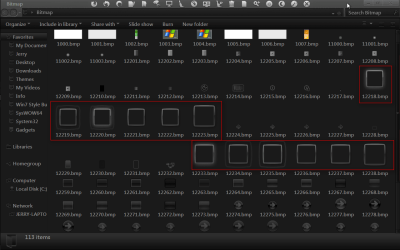
They are in the authui.dll in C:\Windows\System32 and if you have 64 bit system it will also be in C:\Windows\SysWOW64 both need edited. Use copy's of the authui.dll to edit.
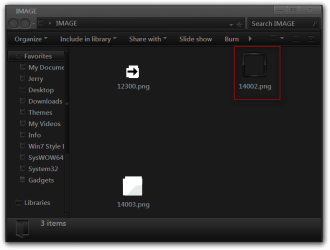
They are in a Bitmap folder look at screenshot for bitmap #s there is 1 .png in the Image folder to. I edited them all to make sure I got it.
You will need to use a resource hacker of some kind to export/import the bitmap and png images and a image editor.
Hm. Yea I've installed a different logon screen in general and took ownership of the .dll file and all that works fine, but the frame of the user picture stays as default, whereas the frame of the user picture in the start menu is actually still the way I customized it.
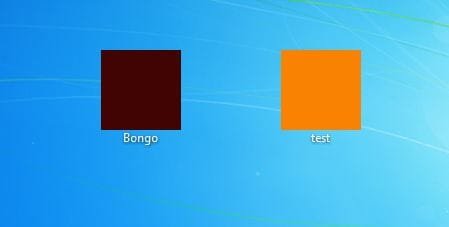
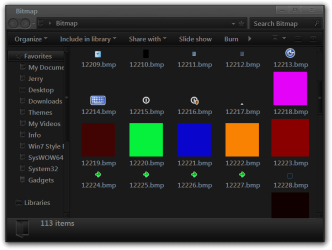
I did some testing and got this (look at screenshots for image #s) with 2 accounts I got dark red and orange (not seen when you hoover or bongo it turns to green and test turns to pink)
when you get to logon it's red.
Jerry
My Computer
Computer type
Laptop
Computer Manufacturer/Model Number
Sager NP9170
OS
Win 7 Pro x64 / Win 10 Pro
CPU
Intel(R) Core(TM) i7-3630QM CPU @ 2.40GHz
Motherboard
CLEVO P170EM
Memory
12 GB
Graphics Card(s)
(1) Intel(R) HD Graphics 4000 (2) NVIDIA GeForce GTX 675M
Sound Card
(1) Realtek High Definition Audio (2) Intel(R) Display Aud
Monitor(s) Displays
17.3
Screen Resolution
1920x1080
Hard Drives
(1) Samsung 860 EVO 500GB(OS) (1) Samsung 860 EVO 500GB(Data)
Keyboard
Backlite
Antivirus
MSE, Malwarebytes Pro
Browser
Firefox
Other Info
DESKTOP: Custom-built.
OS: Win 10 Pro x64.
CASE: Rosewill R5.
CPU: Intel I5 4670K CPU @ 3.40GHz.
CPU COOLER: Cool Master Hyper 212 EVO.
MOTHERBOARD: Asus Z87-A.
MEMORY: Kingston HyperX 2x4 GB.
GPU: Nvidia Geforce 650 TI.
PSU: Corsair TX750.
DRIVES: (1) Samsung 840 120 GB SSD (2) Western Digital blue 500 GB 7200 RPM.