MBR - Restore Windows 7 Master Boot Record

How to Restore the Windows 7 MBR (Master Boot Record)

   Information
If you have been dual booting with Linux, then you probably know one of the Linux boot managers like Grub or LILO has been installed in the MBR of your hard drive. What can you do when you no longer want Linux on that hard drive? This tutorial will show you how to use your 7 DVD and BOOTSECT.EXE to restore the "bootsector code" of the MBR and allow you to begin booting to Windows 7 again.
   Tip
You can use this method to update the bootsector code for Windows 7, Vista, XP, 2000 or switch between Bootmgr and NTLDR. Just check the Microsoft TechNet site for the correct command.


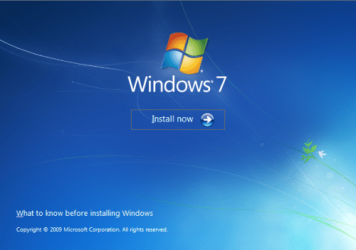
Here's How:1. Boot your computer to the Windows 7 DVD (or to a "Repair CD"). At this screen choose to install now.
25672d1251414873-mbr-restore-windows-7-master-boot-record-mbr_02.png


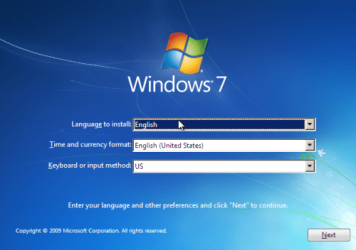
2. Select your language and click next.
25673d1251414836-mbr-restore-windows-7-master-boot-record-mbr_03.png


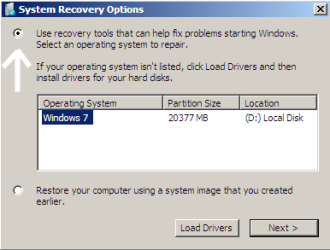
3. Click the button for "Use recovery tools".
25674d1251414836-mbr-restore-windows-7-master-boot-record-mbr_04.png


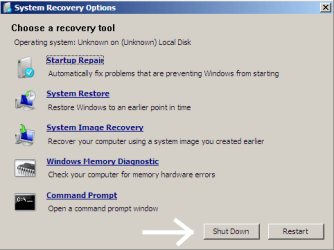
4. Then select "Command Prompt".
25675d1251414836-mbr-restore-windows-7-master-boot-record-mbr_05.png


5. When open, the command prompt will look like this:
53598d1251414836-mbr-restore-windows-7-master-boot-record-mbr_16.png


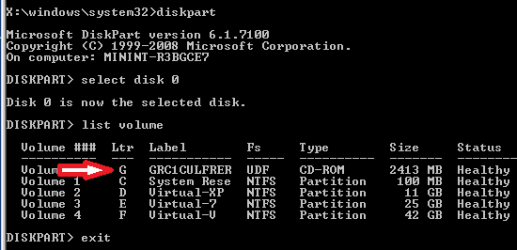
6. The command we will use, bootsect.exe, is in a folder (named boot) on the DVD.We need to know what drive letter has been assigned the DVD drive to access the folder.

Code:
Type: [B]diskpart[/B]
and press [B]Enter[/B]
 
Type: [B]select disk 0[/B] (zero)
and press [B]Enter[/B]
 
type: [B]list volume[/B]
and press [B]Enter[/B]
In this screen shot, the 7 DVD is letter: G
53599d1251414836-mbr-restore-windows-7-master-boot-record-mbr_17a.png


7. Use your DVD drive letter and

Code:
Type: [B]exit[/B]
and press [B]Enter[/B]
 
to close Diskpart
 
Type: [B]G:[/B] (use the letter of your DVD drive)
and press [B]Enter[/B]
 
Type: [B]cd boot[/B]
and press [B]Enter[/B]
 
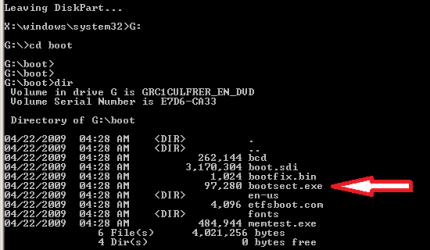
Type: [B]dir[/B]
and press [B]Enter[/B]
to verify that bootcect.exe is there (if you really need to)
53600d1251414836-mbr-restore-windows-7-master-boot-record-mbr_18a.png


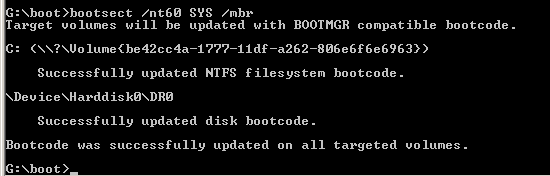
8. To restore the "bootsector code":

Code:
TYPE: [B]bootsect /nt60 SYS /mbr[/B]
and press [B]Enter[/B]
53601d1251414836-mbr-restore-windows-7-master-boot-record-mbr_19.png


NOTE: If this method fails to restore the MBR, you can try the bootrec command as it is also a tool for repairing the MBR.


9. When completed successfully,

Code:
Type: [B]exit[/B]
and press [B]Enter[/B]
This will close the command prompt window.

10. Now select Shut Down or Restart
25680d1251414836-mbr-restore-windows-7-master-boot-record-mbr_10.png


11. Then you can reboot your computer into Windows.
25681d1251414836-mbr-restore-windows-7-master-boot-record-mbr_12.png


Attachments

  • mbr_02.png
    mbr_02.png
    53.7 KB · Views: 1,640,315
  • mbr_03.png
    mbr_03.png
    54.3 KB · Views: 1,635,478
  • mbr_04.png
    mbr_04.png
    6.9 KB · Views: 1,633,763
  • mbr_05.png
    mbr_05.png
    10.5 KB · Views: 1,579,666
  • mbr_10.png
    mbr_10.png
    10.4 KB · Views: 1,576,678
  • mbr_12.png
    mbr_12.png
    5.3 KB · Views: 1,552,307
  • mbr_16.png
    mbr_16.png
    3.3 KB · Views: 1,554,623
  • mbr_17a.png
    mbr_17a.png
    3.8 KB · Views: 1,565,873
  • mbr_18a.png
    mbr_18a.png
    3.7 KB · Views: 1,620,585
  • mbr_19.png
    mbr_19.png
    2.4 KB · Views: 1,569,958
Last edited by a moderator:
Jeez! Just saved my day!, this one!

On some other forum, I found out someone had a similar issue as I did. Some virus or malware infected the system (as well as Microsoft Security Essentials or Windows Defender - it's on auto update so dont know which is running at the time).

I get a warning that there's an infection, and suddenly, BAM! Blue screen with these words: UNKNOWN HARD ERROR! And that's that. Restarted it, and it would always boot in repair mode.

I said THERE WE GO. Ironic as it is, windows backup or system restore have never worked out for me - EVER. So i knew i'd have to reinstall Windows. Not even auto repair, or the stupid auto recovery disk does anything.

And then I landed here. 4 minute later, I was back on my desktop.

Thanks, Thread starter! You just saved my day!
 

My Computer

Computer Manufacturer/Model Number
(Custom)
OS
Windows 7 Ultimate x64
CPU
Intel Core i5 3570K @ 3.4 GHz
Motherboard
ASRock Z77 Extreme 4
Memory
G.Skill Ripjaws 2GBx4 @ 1300 MHz 7-7-7-21
Graphics Card(s)
BFG-Tech GTX 285 OC
Sound Card
Creative SB X-Fi Xtreme Music
Monitor(s) Displays
Samsung P2270
Screen Resolution
1920x1080
PSU
Corsair TX 950
Case
Cooler Master HAF 932
Cooling
ASUS Silent Knight II
Keyboard
Saitek Eclipse/Cyborg
Mouse
Razer Abyssus
Internet Speed
1 Mbps
On some other forum, I found out someone had a similar issue as I did. Some virus or malware infected the system (as well as Microsoft Security Essentials or Windows Defender - it's on auto update so dont know which is running at the time).

I get a warning that there's an infection, and suddenly, BAM! Blue screen with these words: UNKNOWN HARD ERROR! And that's that. Restarted it, and it would always boot in repair mode.

I said THERE WE GO. Ironic as it is, windows backup or system restore have never worked out for me - EVER. So i knew i'd have to reinstall Windows. Not even auto repair, or the stupid auto recovery disk does anything.

And then I landed here. 4 minute later, I was back on my desktop.

Thanks, Thread starter! You just saved my day!
You are most welcome. Thanks for letting us know you found a solution here. Welcome to Windows Seven Forums.

Cheers!
Robert
 

My Computer

OS
...
Bootsect option

I wanted to 'reverse' an EasyBCD-controlled dualboot (XP Pro, then Win7) and use GAG for individual OS booting, 'coz I'm adding another XP for audio editing.
At the start of this thread, Robert (iseeuu) suggested using bootsect to modify the master boot record. I didn't realise this was possible; were you referring to the actual MBR in the first sector of the hard drive, or to the 'master boot sector' in the system volume?
Bye the way, thanks for your detailed, excellent descriptions - a great service!
Chris
PS - any tips on untangling my XP and Win7 . . . ?
 

My Computer

Computer Manufacturer/Model Number
Self assembled
OS
Windows 7 Professional 32bit
CPU
Intel i5 750
Motherboard
Gigabyte P55-A
Memory
4GB Kingston DDR3 PC3
Graphics Card(s)
Radeon HD5770
Sound Card
NI Audio Kontrol 1
Monitor(s) Displays
BenQ 22"
Hard Drives
System:
OCZ-Vertex 256GB SSD
Seagate 250GB
Seagate 500GB
Storage:
Samsung 500GB
Seagate 1TB
WD 1TB
PSU
Antec
Case
Antec
Cooling
Standard
I wanted to 'reverse' an EasyBCD-controlled dualboot (XP Pro, then Win7) and use GAG for individual OS booting, 'coz I'm adding another XP for audio editing.
At the start of this thread, Robert (iseeuu) suggested using bootsect to modify the master boot record. I didn't realise this was possible; were you referring to the actual MBR in the first sector of the hard drive, or to the 'master boot sector' in the system volume?
Bye the way, thanks for your detailed, excellent descriptions - a great service!
Chris
PS - any tips on untangling my XP and Win7 . . . ?
Hello RumJungleMusic, and welcome to Windows Seven Forums.

As to your first question: I like to think of a hard drive as a room full of file cabinets. You could of course just cut a hole in the ceiling and drop your files into the room from there. But how would you ever find anything. The master boot record tells the computer what kind of filling system is placed on the hard drive, as in the example: how many cabinets, drawers, and files and how and where to find them when the computer boots. Boot loaders like LILO and Grub over write the windows boot loaders in the MBR when they are installed. This tutorial shows how to put the Windows boot loaders back. No other changes are made to the MBR.

It is the boot loader that looks for the partition or volume marked "Active" so it can start the computer. If I understand you, the "Active Flag" is in what you described as the "master boot sector" of the individual partitions or volumes and other than being turned on or off, no changes are made to that sector.

As to your second question: we would have to know how you installed 7 in order to help you "untangle" the two. If you left the XP partition "Active" when you added 7, then most likely Windows 7 put its boot files in the XP partition. If you installed 7 by itself via a default factory install and allowed 7 to create the 100MB "System Reserved" partition to hold the boot files, different steps would be needed. In any case it is not likely that you would need to change the MBR, as you are still only using windows and your choice of new boot loader should place its own correct boot code in the correct place.

I would suggest you create a new thread with your question on how best to separate your current dual boot and include a "Screen Shot" of your Window hard drive map so we can see what you have?

Cheers!
Robert
 

My Computer

OS
...
Gracias

Wow! Thank you for this. This tutorial saved me. :)
 

My Computer

OS
Windows 7 64 bit
Followed every step.

Target volumes will be updated with BOOTMGR compatible boot code.
The system partition was not found:
The requested system device cannot be found.


Any tips?
 

My Computer

Computer Manufacturer/Model Number
Custom
OS
Windows 7
THANK YOU!!

This worked perfectly! :D I was afraid I lost my Windows partition
 

My Computer

OS
Windows 7 Home Premium 64-bit
Windows 7 Ultimate x64 after Restore Windows 7 Master Boot Record

OK i have followed the instructions and i got rid of error no such partition and now everything OK accept i cannot access boot options from windows route msconfig and through pressing f8 advanced boot options please help me
 

My Computer

OS
Windows 7 Ultimate x64
HERO.

THANK YOU. Worked perfectly, after all else failed. You are my hero.
 

My Computer

Computer type
PC/Desktop
Computer Manufacturer/Model Number
all
OS
All
When I boot to recovery environment, the folder "boot" which contains the file "bootsect" is not visible in the command prompt. I know it is on the DVD because I can see it from within Windows Explorer. These instructions worked for me in the past but I don't know whats going on now.
 

My Computer

Computer type
PC/Desktop
OS
home, 64 bit
Antivirus
United States
The help given is excellent :)
 

My Computer

Computer type
Laptop
Computer Manufacturer/Model Number
Asus
OS
Windows 7 Ultimate
Worked perfect on a laptop!

The MBR was corrupted and using usb wasn't an option on an asus laptop. Could not even us a boot disk to bypass except an original windows7 disc. Luckily I found this site through Yahoo Search and followed the instructions. Perfect!! back in business and wiping the virus out totally now, thank you so much!!!
 

My Computer

Computer type
PC/Desktop
Computer Manufacturer/Model Number
Systemax
OS
windows 7 pro x64
CPU
I7 3rd gen
Motherboard
asus
Memory
8gb
Graphics Card(s)
nvidia
Browser
mozilla
Thank you soooo much!

I had Windows 8.1 Pro Developer Preview running alongside Ubuntu, and after not having used Ubuntu in quite a while I decided to delete its partition. Apparently that partition had what I needed to boot into Windows 8 on it and I was freaking out trying to figure out what to do!

This tutorial managed to fix my issue! Thank you so much!
 

My Computer

Computer type
PC/Desktop
OS
Windows 8.1 Pro Developer Preview
I was tasked with a project in which this forum helped guide me so I'm going to post my results. I was given a acer laptop whose partition arrangement was "GPT" vs "MBR" and our encryption software did not support it. Since it is an OEM install with recovery partitions etc... which weren't needed, I nuked the acer junk and coverted the drive to MBR with paragon drive backup server v10. The conversion was a success and the OS partition was intact, however it would not boot. I went through the steps here to correct the MBR and rebuild the BCD. The computer would come to the same hardware device not found stop error and give the option to press enter or esc. I pressed enter and the OS booted "Windows 7 Pro x64." After much head scratching, I looked at the windows partition in disk management and it was shown as a logical volume and not active or primary. A EIF partition of 300mb was also shown. Both partitions contained boot info, crash dump etc. I located a free program which let me manipulate the partitions called MiniTool Partition Wizard Home Edition. I put the drive in a SATA dock on my shop computer nuked the EFI partition and expanded it to the whole drive. I then marked it primary and active. I put it back in the laptop and the stop error went away, however, the bootloader was missing. I booted to the recovery console and fixed the MBR. It booted up without error and encrypted without data loss. It appeared that the OEM boot partition was the active partition with hooks to the OS and OEM recovery partitions and was the active primary partition, so when I nuked it, the OS wasn't found because it wasn't on an active primary partition. Long story short, make the partition active and primary and repair the MBR with whatever tools you need to, startup repair will do it for you if you don't want the command line stuff. I hope this helps.
 

My Computer

Computer type
PC/Desktop
Computer Manufacturer/Model Number
Custom
OS
Windows 7 Ultimate x64
CPU
AMD Phenom II x6
Motherboard
Minix 890 itx
Memory
8gb
Graphics Card(s)
Onboard ATI
Hard Drives
WD Caviar Black SATA
unable to find 'windows 7' in recovery options

I am unable to find windows 7 in recovery options
 

My Computer

Computer type
PC/Desktop
OS
windows 7 64bit
Excellent tutorial. This one saved me big time. I was getting MissingOsLoader in Startup Repair and bootrec.exe /fixboot gave me The parameter is incorrect. Thanks much.
 

My Computer

Computer type
PC/Desktop
OS
WI
Sucess

thanks mate
windows 7 works fine 100%
:)
 

My Computer

Computer type
Laptop
Computer Manufacturer/Model Number
Dell
OS
windows 7 -32
Newbie here. Hey, I have been reading this forum about fixing the MBR. I made a sys. repair disk from my windows 7 -64bit and it does not contain "bootcect.exe" in the Boot dir. The only file is bootfix.bin. It didn't do anything. What is wrong with sys. repair disk?

Your instructions are clear and easy to follow. Where can I find this bootcect.exe?

Thanks :confused:
 

My Computer

Computer type
PC/Desktop
Computer Manufacturer/Model Number
Acer1430Z-4677
OS
windows home premium 7 - 64bit
CPU
intell Pentium Dual core US600, 1.33GHz
Motherboard
No idea
Memory
6 MB
Graphics Card(s)
internal
Hard Drives
WDC 500 GB
Antivirus
ESET
Browser
I.E.

My Computer

Computer type
PC/Desktop
Computer Manufacturer/Model Number
Self built custom
OS
64-bit Windows 11 Pro for Workstations
CPU
Intel i7-8700K OC'd to 5 GHz
Motherboard
ASUS ROG Maximus XI Formula Z390
Memory
64 GB (4x16GB) G.SKILL TridentZ RGB DDR4 3600 MHz
Graphics Card(s)
ASUS ROG-STRIX-GTX1080TI-O11G-GAMING
Sound Card
Integrated
Monitor(s) Displays
2 x Samsung Odyssey G7 27"
Screen Resolution
2560x1440
Hard Drives
1TB Samsung 990 PRO M.2,
4TB Samsung 990 PRO PRO M.2,
TerraMaster F8 SSD Plus NAS
PSU
Seasonic Prime Titanium 850W
Case
Thermaltake Core P3
Cooling
Corsair Hydro H115i
Keyboard
Logitech wireless K800
Mouse
Logitech MX Master 4
Internet Speed
2 Gb/s Download and 100 Mb/s Upload
Antivirus
Malwarebyte Anti-Malware Premium
Browser
Google Chrome
Other Info
Logitech Z625 speaker system,
Logitech BRIO 4K Pro webcam,
HP Color LaserJet Pro MFP M477fdn,
APC SMART-UPS RT 1000 XL - SURT1000XLI,
Galaxy S23 Plus phone
Back
Top