MBR - Restore Windows 7 Master Boot Record

How to Restore the Windows 7 MBR (Master Boot Record)

   Information
If you have been dual booting with Linux, then you probably know one of the Linux boot managers like Grub or LILO has been installed in the MBR of your hard drive. What can you do when you no longer want Linux on that hard drive? This tutorial will show you how to use your 7 DVD and BOOTSECT.EXE to restore the "bootsector code" of the MBR and allow you to begin booting to Windows 7 again.
   Tip
You can use this method to update the bootsector code for Windows 7, Vista, XP, 2000 or switch between Bootmgr and NTLDR. Just check the Microsoft TechNet site for the correct command.


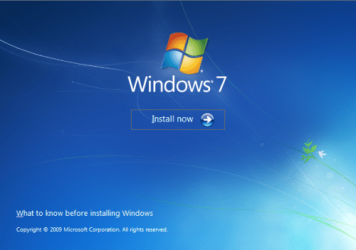
Here's How:1. Boot your computer to the Windows 7 DVD (or to a "Repair CD"). At this screen choose to install now.
25672d1251414873-mbr-restore-windows-7-master-boot-record-mbr_02.png


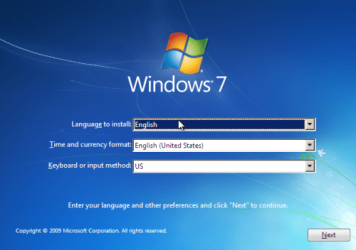
2. Select your language and click next.
25673d1251414836-mbr-restore-windows-7-master-boot-record-mbr_03.png


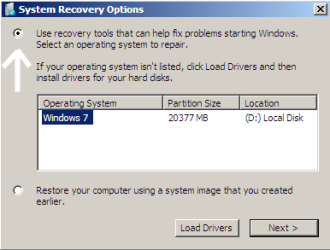
3. Click the button for "Use recovery tools".
25674d1251414836-mbr-restore-windows-7-master-boot-record-mbr_04.png


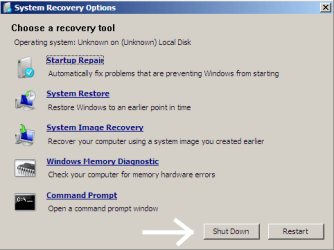
4. Then select "Command Prompt".
25675d1251414836-mbr-restore-windows-7-master-boot-record-mbr_05.png


5. When open, the command prompt will look like this:
53598d1251414836-mbr-restore-windows-7-master-boot-record-mbr_16.png


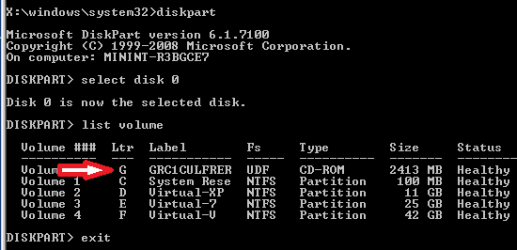
6. The command we will use, bootsect.exe, is in a folder (named boot) on the DVD.We need to know what drive letter has been assigned the DVD drive to access the folder.

Code:
Type: [B]diskpart[/B]
and press [B]Enter[/B]
 
Type: [B]select disk 0[/B] (zero)
and press [B]Enter[/B]
 
type: [B]list volume[/B]
and press [B]Enter[/B]
In this screen shot, the 7 DVD is letter: G
53599d1251414836-mbr-restore-windows-7-master-boot-record-mbr_17a.png


7. Use your DVD drive letter and

Code:
Type: [B]exit[/B]
and press [B]Enter[/B]
 
to close Diskpart
 
Type: [B]G:[/B] (use the letter of your DVD drive)
and press [B]Enter[/B]
 
Type: [B]cd boot[/B]
and press [B]Enter[/B]
 
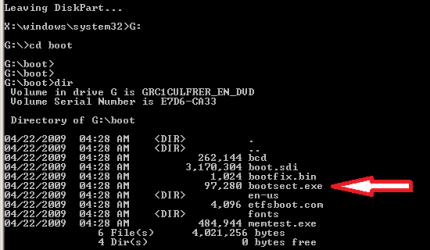
Type: [B]dir[/B]
and press [B]Enter[/B]
to verify that bootcect.exe is there (if you really need to)
53600d1251414836-mbr-restore-windows-7-master-boot-record-mbr_18a.png


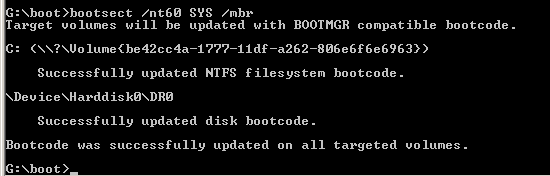
8. To restore the "bootsector code":

Code:
TYPE: [B]bootsect /nt60 SYS /mbr[/B]
and press [B]Enter[/B]
53601d1251414836-mbr-restore-windows-7-master-boot-record-mbr_19.png


NOTE: If this method fails to restore the MBR, you can try the bootrec command as it is also a tool for repairing the MBR.


9. When completed successfully,

Code:
Type: [B]exit[/B]
and press [B]Enter[/B]
This will close the command prompt window.

10. Now select Shut Down or Restart
25680d1251414836-mbr-restore-windows-7-master-boot-record-mbr_10.png


11. Then you can reboot your computer into Windows.
25681d1251414836-mbr-restore-windows-7-master-boot-record-mbr_12.png


Attachments

  • mbr_02.png
    mbr_02.png
    220.2 KB · Views: 1,640,315
  • mbr_03.png
    mbr_03.png
    212.8 KB · Views: 1,635,478
  • mbr_04.png
    mbr_04.png
    13.3 KB · Views: 1,633,763
  • mbr_05.png
    mbr_05.png
    25.7 KB · Views: 1,579,666
  • mbr_10.png
    mbr_10.png
    25 KB · Views: 1,576,678
  • mbr_12.png
    mbr_12.png
    18.2 KB · Views: 1,552,307
  • mbr_16.png
    mbr_16.png
    6.1 KB · Views: 1,554,623
  • mbr_17a.png
    mbr_17a.png
    13.4 KB · Views: 1,565,873
  • mbr_18a.png
    mbr_18a.png
    14.7 KB · Views: 1,620,585
  • mbr_19.png
    mbr_19.png
    5.3 KB · Views: 1,569,958
Last edited by a moderator:
Just wondering. I currently have a dual boot with XP. If I want to delete the XP partition can I use this method to fix the mbr after I have deleted the XP partition and resized the Win 7 partition? Or do I need to fix the mbr first and then delete the Xp partition?
 

My Computer

Computer Manufacturer/Model Number
homebuilt
OS
Win 7 64bit ultimate
CPU
i7 2600
Motherboard
MSI P67A-GD53
Memory
8Gig
Graphics Card(s)
nvidia gtx 460 (x2)
Sound Card
Realtek high definition
Monitor(s) Displays
Samsung 22" and Packard Bell 20" touchscreen
Screen Resolution
1920x1080(main) - 1600x900(touchscreen)
Hard Drives
500Gig internal Sata x2: 1Tb external networked drive
PSU
750w
Internet Speed
30 - 37mg
Just wondering. I currently have a dual boot with XP. If I want to delete the XP partition can I use this method to fix the mbr after I have deleted the XP partition and resized the Win 7 partition? Or do I need to fix the mbr first and then delete the Xp partition?
Hello Antony! and welcome to Windows Seven forums, your questions are always welcome.

I can not give an accurate answer to your question until I know more about how your OSs are arranged on your hard drive(s). However, if you installed 7 after XP and now want to remove XP then the MBR probably does not need any repair in order to boot to 7. If you just want to remove the XP choice from the boot menu, you can use "msconfig" to delete the XP entry, no MBR fix necessary. (Thanks to Snuffy for this tip!)

Cheers!

Robert
 

My Computer

OS
...
Hi
Wonder if you could help on a little problem I have.

I have got Windows 7 Ultimate and installed it on a new hard drive. After installation I partitioned the drive in Windows creating a 400GB, 100GB, 500GB. After this completed I also noticed a 100MB System Reserved section but just ignored it. Everything worked fine.

Then I think I did wrong. I wanted to create a dual boot system to also have XP on my PC and tried installing it on the 100GB partition but during instal everything crashed and now I get "Error Loading Operating System" when booting up. I have tried to repair using the Windows 7 DVD but no luck and when I look at the drives in Command Prompt they show as follows:

C: System Reserved
D: Spare Partition
E: Spare (my 2nd hard drive)
F: Windows 7 Partition

Have tried following the instructions on here and it said succesful but still will not boot. Anyone have any ideas?

Cheers
 

My Computer

OS
Windows 7
Hi
Wonder if you could help on a little problem I have.

I have got Windows 7 Ultimate and installed it on a new hard drive. After installation I partitioned the drive in Windows creating a 400GB, 100GB, 500GB. After this completed I also noticed a 100MB System Reserved section but just ignored it. Everything worked fine.

Then I think I did wrong. I wanted to create a dual boot system to also have XP on my PC and tried installing it on the 100GB partition but during instal everything crashed and now I get "Error Loading Operating System" when booting up. I have tried to repair using the Windows 7 DVD but no luck and when I look at the drives in Command Prompt they show as follows:

C: System Reserved
D: Spare Partition
E: Spare (my 2nd hard drive)
F: Windows 7 Partition

Have tried following the instructions on here and it said succesful but still will not boot. Anyone have any ideas?

Cheers
Hi Hammer100! Welcome to Windows Seven Forums.

I am not sure what caused your booting problem. However, Windows 2000 and XP use NTLDR for their boot manager and Vista and Seven use Bootmgr. So by installing XP after installing 7 the Bootmgr has probably been overwritten breaking the boot path to 7. I would suggest you install XP first and then 7 because the 7 Bootmgr will include XP in the boot menu.

Here is a link to some tutorials for dual booting: http://www.sevenforums.com/tutorials/8057-dual-boot-installation-windows-7-xp.html

If you are still having issues I can have this post moved to its own thread to get more help for you?

Cheers!
Robert
 

My Computer

OS
...
Hi Robert

Thanks for the reply. What I ended up doing for the moment was to buy a new hard drive to install Windows 7, is it possible to multi boot from two different drives or do the two OS need to be on the same physical drive?

Thanks

Dave
 

My Computer

OS
Windows 7
Hi Robert

Thanks for the reply. What I ended up doing for the moment was to buy a new hard drive to install Windows 7, is it possible to multi boot from two different drives or do the two OS need to be on the same physical drive?

Thanks

Dave
It is absolutely possible to dual boot from two or more hard drives; in fact it has some advantages. I highly recommend it to those who want to dual boot with Linux. For example, the Linux boot manager can be fully functional on its on hard drive and include your Windows OSs in its menu, while your Windows OSs can be managed with a Window's boot manager and include the Linux OS in its menu. You then control which boot manager you wish to use by using the bios to select the hard drive it will boot to. If a hard drive crashes you can still run the OSs on the good drive.

When you are installing an OS, just unplug all other hard drives and only work with one at a time.

Also, I like to set the current OS partition to C:, and give the other partitions different letters. That way the running OS is always drive C:.

There are a few Window's utilities that help edit the Window's boot manager so you can add and remove OSs from its menu, if you need them.

Later!
Robert
 

My Computer

OS
...
this way did not work on my case. i have a laptop installed windows 7, it was okay. until today i saw a article about removing the 100MB of "system reserved" partition.......and yeah...i did removed it by using my win7 installation dvd.. now my laptop wouldnt boot...it shows only operating systen not found"

i tried the method above but at Step 3, mine did not show up any operating system..all blank so i just clicked next

then at Step 9

it couldnt restore the bootsector code.
it only shows "the system partition was not found: the requested system device cannot be found"

and then everything remain the same, still cannot boot.

i know i am stupid to remove the system reserved partiton..

but i really need help here, i have imporant data in the laptop so i dont want to format and reinstall...

if anyone can help, i really appreciate
 

My Computer

OS
windows 7
this way did not work on my case. i have a laptop installed windows 7, it was okay. until today i saw a article about removing the 100MB of "system reserved" partition.......and yeah...i did removed it by using my win7 installation dvd.. now my laptop wouldnt boot...it shows only operating systen not found"

i tried the method above but at Step 3, mine did not show up any operating system..all blank so i just clicked next

then at Step 9

it couldnt restore the bootsector code.
it only shows "the system partition was not found: the requested system device cannot be found"

and then everything remain the same, still cannot boot.

i know i am stupid to remove the system reserved partiton..

but i really need help here, i have imporant data in the laptop so i dont want to format and reinstall...

if anyone can help, i really appreciate
I would suggest a "startup repair" or a "repair install" to restore your computer:

http://www.sevenforums.com/tutorials/681-startup-repair.html

http://www.sevenforums.com/tutorials/3413-repair-install.html

If that doesn't do it, you can always install 7 again on a separate hard drive or partition which will give you access to your data on your current 7 partition?

Cheers!
Robert
 

My Computer

OS
...
mbr recovery from grub dual boot

About to follow instructions, thanks.
 

My Computer

OS
win7 over vista with grub
I'm having a similar issue.

I have three hard drives. One old (6years) 150gig, a new 1TB which has XP Pro installed, and a even newer 1.5TB that I have Windows 7 installed on a 100gig partition.

I was fooling around in the BIOS trying to overclock my CPU when I reverted the BIOS back to "stock" settings.

When I did that, I forgot to go back in and make sure that my Windows 7 partition was first on the list.

Therefore, it loaded up my XP. I didn't think it was a big deal, so I restarted the computer, went back into BIOS, and chose the HDD with W7 on it.

During the restart I got an error message saying that the "NTDLR is missing" error message, and it won't boot!

I have the full install disk and have gone into the repair area but when I get to this part:

25674d1251414836-mbr-restore-windows-7-master-boot-record-mbr_04.png


I don't have any disks that show up. I says if none are showing, to click the "load drivers". I can get into my Windows 7 partition when that screen pops up, but I have no idea what or where the drivers are located????

I need to figure out this step so I can actuall fix Windows 7!

Any help is greatly appreciated!

Thanks,

Jay
 

My Computer

OS
Windows 7
During the restart I got an error message saying that the "NTDLR is missing" error message, and it won't boot!

Jay
Jay;

The "NTDLR" message means to me that the BIOS is still looking for XP. Windows 7 uses "bootmgr" so it would appear to me that the XP hard drive is set as the "Primary" in the bios. This would not alter the boot code in the MBR and would not likely need to be repaired. You might try shutting down your computer and unplug all but the Window 7 hard drive to see if it will boot. Then make sure that hard drive is set as the "Primary" in the BIOS?

Cheers!
Robert
 

My Computer

OS
...
During the restart I got an error message saying that the "NTDLR is missing" error message, and it won't boot!

Jay
Jay;

The "NTDLR" message means to me that the BIOS is still looking for XP. Windows 7 uses "bootmgr" so it would appear to me that the XP hard drive is set as the "Primary" in the bios. This would not alter the boot code in the MBR and would not likely need to be repaired. You might try shutting down your computer and unplug all but the Window 7 hard drive to see if it will boot. Then make sure that hard drive is set as the "Primary" in the BIOS?

Cheers!
Robert

Tried unpluging all the other hard drives and still getting a "boot failure"

Trying a couple other things to restore the MBR but haven't had much luck so far...

Jay
 

My Computer

OS
Windows 7
I went through the process. I unpluged all the other HDD's so only the one with W7 was listed.

I did the command prompt throught the install DVD.

I did the "bootsect/nt60 all" and it says that it fixed 1 boot.

Took DVD out, restarted the computer...

Still getting the "Boot disk failure" and asking to boot from DVD....

Not sure what else to do/try???
 

My Computer

OS
Windows 7
OK got some more info...

I figured out that my D: drive is the partition with Windows 7 installed on it.

When I went in and did a "bootsect/nt60 all" I got the following error message regarding the D: Drive

"Update may be unrealiable since the volume could not be locked during update. Access is denied"

WTF does that mean? and how do I fix it?

Thanks,
Jay
 

My Computer

OS
Windows 7
Since the bootsect doesn't seem to be working as "access is denied" I'm sure if I could get my disk drive to show up in the picture below, I could fix this real quick!

Can someone please help me with the "load drivers" section so I can get it to see the drive with Windows 7 installed on it... so I can fix it!

Thanks,

Jay


I'm having a similar issue.

I have three hard drives. One old (6years) 150gig, a new 1TB which has XP Pro installed, and a even newer 1.5TB that I have Windows 7 installed on a 100gig partition.

I was fooling around in the BIOS trying to overclock my CPU when I reverted the BIOS back to "stock" settings.

When I did that, I forgot to go back in and make sure that my Windows 7 partition was first on the list.

Therefore, it loaded up my XP. I didn't think it was a big deal, so I restarted the computer, went back into BIOS, and chose the HDD with W7 on it.

During the restart I got an error message saying that the "NTDLR is missing" error message, and it won't boot!

I have the full install disk and have gone into the repair area but when I get to this part:

25674d1251414836-mbr-restore-windows-7-master-boot-record-mbr_04.png


I don't have any disks that show up. I says if none are showing, to click the "load drivers". I can get into my Windows 7 partition when that screen pops up, but I have no idea what or where the drivers are located????

I need to figure out this step so I can actuall fix Windows 7!

Any help is greatly appreciated!

Thanks,

Jay
 
Last edited:

My Computer

OS
Windows 7
OK got some more info...

I figured out that my D: drive is the partition with Windows 7 installed on it.

When I went in and did a "bootsect/nt60 all" I got the following error message regarding the D: Drive

"Update may be unrealiable since the volume could not be locked during update. Access is denied"

WTF does that mean? and how do I fix it?

Thanks,
Jay
Good afternoon, Jay!

I would recommend to you to try a "repair install" from the 7 DVD: http://www.sevenforums.com/tutorials/668-system-recovery-options.html

Follow this tutorial ... take note that step 5 says "If Windows 7 is not listed here, or it is blank, then it is ok. Click on Next anyway." Then do the "startup repair." Please let us know if this restores access to your Windows 7?

Cheers!
 

My Computer

OS
...
Back
Top