
How to Read Event Viewer Log for Windows Memory Diagnostics Tool
Information
This will show you how to read the Event Viewer log to see the results of the Windows Memory Diagnostics Tool in Vista, Windows 7, and Windows 8.
Note
If you just ran the Windows Memory Diagnostics Tool, then it may take a bit before it actual shows up in the Event Viewer.
Warning
You will need to be logged in as administrator to be able to open Event Viewer.
Here's How:
1. If you have not already, you will need to have ran the Memory Diagnostics Tool prior before it will be in the Event Viewer System log.
2. Open the Start Menu, and type eventvwr.msc in the search box and press enter.
3. If prompted by UAC, then click on Yes (Windows 7) or Continue (Vista).
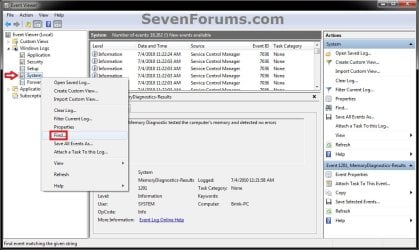
4. In the left pane of Event Viewer, double click on Windows Logs to expand it, then right click on System and click on Find. (see screenshot below)
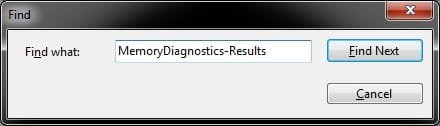
5. Copy and paste MemoryDiagnostics-Results into the line, and click on Find Next. (see screenshot below)
NOTE: You can continue to click on Find Next to search for other older system logs (if available) for the Windows Memory Diagnostics Tool to see them as well.
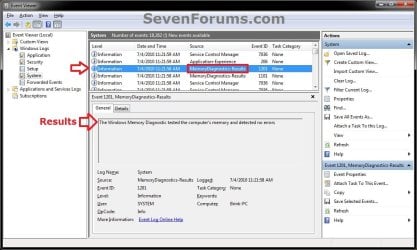
6. You will now see the system log for the results of the Windows Memory Diagnostics Tool. (see screenshot below)
7. When finished searching for Windows Memory Diagnostics Tool system logs, you can close the Find window. (see screenshot below step 5)
8. When finished, you can close Event Viewer.
That's it,
Shawn
Last edited:


