The results of my "Un-Official" Scanning Performance Test of MSE 2.0.657.0 (MSE2) on my system only (see System Specs). For the sake of brevity I have condensed this report into ranges, low to high.
Your mileage
will vary...
I preformed a total of eleven (11) scans. Four (4) Quick, Seven (7) Full, and no Custom (0).
I did them in no particular order, some were done in succession, some with time in between. The computer was running for six hours before the testing.
For an explanation to what the various scans cover while they are running, hold your mouse pointer over any selection, and a pop-up will appear with a description.
Note: When you choose Custom then click Scan Now, a selection box will appear. Click on the plus (+) sign, and make your selection of what areas of your HDD/SSD/Removable drives you would like to scan, click OK, and the scan will start. Your choices will hold the next time you use the Custom selection.
Okay, now for the cold hard facts...
The numbers below, taken from the Resource Monitor represent the range of working-set numbers from idle to when MSE first started its scan(s).
MsMpEng.EXE...3802 to 141000k
msseces.EXE.....636k to 7886k
NisSRrv.EXE......264k to 1194k
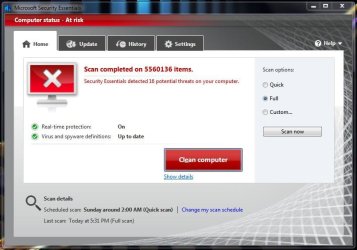
Scanned Items ranged from 12372 to 985637. The difference between a Quick, and Full scan on my HDD. 1TB with 87.863% free.
Scanning elapsed times for Quick scans were 20 to 28 seconds. For Full 35 to 40 minutes.
There are two places a user can find logs:
Event Viewer\Windows Logs\System . When the list has been generated look for Microsoft Antimalware in the Source Column. There should be two listings close together, one for the scan start, the other for the stop. The stop will list the time elapsed.
And, C:\ProgramData\Microsoft\Microsoft Antimalware\Support\ Look for a text document, MPLog-xxxxxxxx-xxxxxx with a recent date.
The only Tray icon activity I had was when MSE2 was downloading updates.
The only balloons were to warn me when I turned off the Real-Time-Protection. They came from the Taskbar\Notification Area.
There were no activity pop-ups.
Some suggestions to shorten scanning:
Use the Custom selection as described above.
Exclude known safe file types, and locations.
Monitor only incoming files in Real-Time-Protection.
Do not limit CPU usage during scan.
At this time there is not a lot of information for MSE2, but I have been keeping my eye on this site:
Microsoft Security Essentials: Getting Started and Upgrading Forum
This is a very informative link by one of our members, tw33k:
http://www.sevenforums.com/system-security/72070-whats-best-anti-virus.html
For xxxDanxxx, this link describes how to set-up a scan with Task Manager, don't know if it will be helpful or not:
MSE schedule scans





 Not infinately safe, but almost...


 )
)