navigation pane in word 2010

greenery

New member
Local time
9:31 AM
Messages
3
I've been looking through the help pages and the forum for an hour and I have to get back to work, so I'm hoping somebody can answer this question for me.

In Word 2010 the navigation pane is great, but is there a way to collapse the outline structure? When I open a doc, the nav pane is completely expanded, and as this doc is huge and has multiple nested headings, it takes a while to scroll to where I need to be. If I could show main headings only, things would be much easier.

Is there a way to do this? Any help much appreciated.
 

My Computer My Computer

Computer Manufacturer/Model Number
MacBook Pro
OS
Windows 7 (via Parallels)
Hi, greenery. I found the following information at Use outlines to structure notes and ideas - OneNote - Microsoft Office
Expand or collapse an outline

You can use the Expand and Collapse commands on the Outlining toolbar to view certain levels of the outline.

  1. Click the paragraph handle
    ZA010216148.gif
    next to any text at the level that you want to expand or collapse.
  2. If the Outlining toolbar is not already showing, point to Toolbars on the View menu, and then click Outlining.
  3. On the Outlining toolbar, do one of the following:
    • To expand the outline elements, click Expand, and then click a level to show all paragraphs that are at that level.
    • To collapse the elements, click Collapse, and then click a level to hide all paragraphs that are at that level.
Note Whenever you collapse a paragraph in an outline by clicking its handle, be sure you use the Type Text or Select Objects
ZA010216181.gif
tool instead of the Pen
ZA010216186.gif
tool.

At Expand and Collapse Headings in Word Outline it shows how to expand/collapse more than one heading section at a time by selecting the part you want to expand/collapse. Then click the appropriate button from the Outline Tools group on the Outlining tab.
 

My Computer My Computer

OS
Windows 7 & Windows Vista Ultimate
Hi Corrine -- thanks for your quick reply.

I think I was unclear in my original question. I know how to change view to "outline" and expand or collapse the document that way. What I would like to collapse is the Navigation Pane to the left of the main document, where the choices are: "browse the headings in your document" or "browse the pages in your document." find it an incredibly useful feature, but it would be 100 better if I could collapse it down to main headings. My sense is that it isn't possible.
 

My Computer My Computer

Computer Manufacturer/Model Number
MacBook Pro
OS
Windows 7 (via Parallels)
I don't use the Navigation Pane. So did some further investigation. Since the Navigation Pane is accessible by checking that option under View | Show, why not UNcheck the option. Then when you need the Navigation Pane, use the keyboard shortcut Ctrl + F.

Since it is unchecked for me, Ctrl + F worked fine to bring up the Navigation Pane. There is also the usual x to click to close the Navigation Pane.

Hope I got it right now, greenery. :)
 

My Computer My Computer

OS
Windows 7 & Windows Vista Ultimate
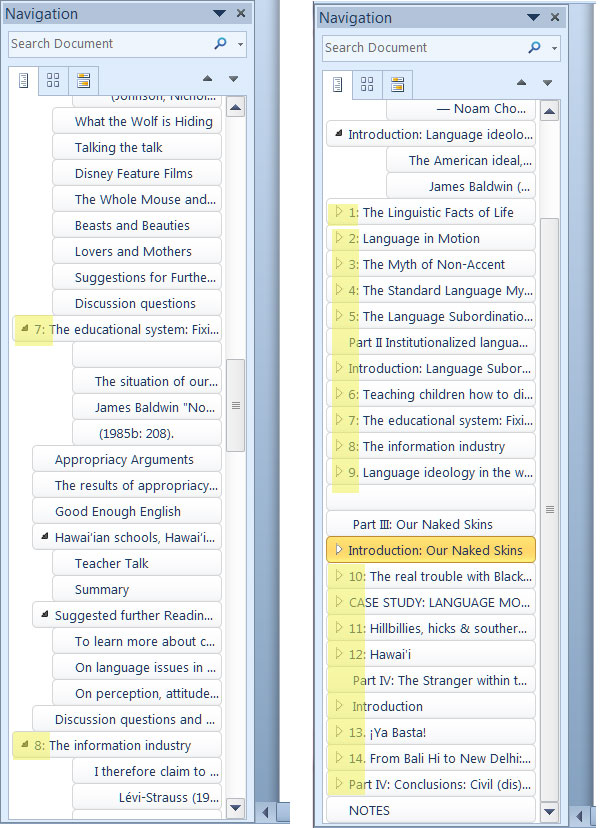
I'd be lost without the navigation pane, at least when I'm working on this huge honking manuscript. But I did try it your way. When I called up the pane with Ctrl + F, it showed up right away -- but the outline was still expanded. To make this a little, clearer, this image shows you the default navigation pane with everything expanded (on the left) and the pane after I went through and collapsed every segment by clicking on all the little triangles. What I would like (and it sounds less likely all the time) is to be able to have the default view on the nav pane collapsed, so I could jump from chapter to chapter more quickly.

Am I the only person in the Word universe with this problem?

And thanks again, I appreciate your help.

navpanword2010.jpg
 

My Computer My Computer

Computer Manufacturer/Model Number
MacBook Pro
OS
Windows 7 (via Parallels)
hi

Welcome to Seven Forums :)
In the navigation pane, right-click any of the headings>popup-menu will open with what you want ;)

hope this answers your query

Take care and regards
 

My Computer My Computer

Computer Manufacturer/Model Number
Custom
OS
Win7 HP (x64)/Win7 Ultimate (x64)
CPU
Core i7 920
Motherboard
Intel X58
Memory
6 x 2GB Corsair XMS3
Graphics Card(s)
CF HD4890
Sound Card
Asus Xonar
Monitor(s) Displays
Dell 2408WFP
Screen Resolution
1920 x 1200
Hard Drives
2 x 150GB WDC Velociraptors (Raid 0)
1 x 1TB Seagate
1 x 1.5TB Seagate
PSU
Corsair HX1000W
Case
Antec 1200
Keyboard
Razer Lycosa/N52te
Mouse
Razer Lachesis
Hi, greenery.

I don't have the answer for you sent out an inquiry to find out if subheadings can be collapsed in the Office 2010 Word Navigation Pane. I'll let you know what I find out.
 

My Computer My Computer

OS
Windows 7 & Windows Vista Ultimate
Thank you. Right clicking... seems obvious in hindsight.
 

My Computer My Computer

OS
Windows 7 Ultimate x64
By right-clicking the subject headings in the Document Map, you can even access the little 'tree' icons which give you the choices of Expanding, Collapsing, and displaying any or all of the Heading numbers.
 

My Computer My Computer

Computer Manufacturer/Model Number
HP Pavillion dv5t (generation 1)
OS
Vista 64 bit and 32 bit (SP2)
CPU
Intel(R) Core(TM)2 Duo Processor T9400 (2.53 GHz
Memory
4GB DDR2 System Memory (2 Dimm)
Graphics Card(s)
512 MB NVIDIA GeForce 9600M GT
Monitor(s) Displays
15.4" diagonal WSXGA+ High-Definition HP BrightView Widescre
Screen Resolution
1680 x 1050
Hard Drives
320GB 5400RPM SATA Hard Drive with HP ProtectSmart Hard Drive Protection
Keyboard
Built-in HP
Mouse
Built in - Synaptics TouchPad V6.5 on PS/2 Port
Internet Speed
Max
Other Info
~ Intel Next-Gen Wireless-N Mini-card w/Bluetooth ~ Blu-Ray ROM DVD+/-R/RW ~ Integ. HDTV Hybrid Tuner ~ 12 Cell Battery ~ MS Office (Home Premium) 2007 ~
Back
Top