Solved Need help setting up with SSD & HDD duo setup

dpcrowley

New member
Local time
7:43 AM
Messages
25
I just upgraded to a brand new SSD and HDD. I did a complete new installation of Windows on my SSD. Now that I'm set up I don't know where to locate my HDD. I would like an explanation about how this system works. I installed my OS on my SSD and all of my other programs/games everything on my HDD ideally? The purpose of this is to have a fast operating system? I go into BIOS>CMOS settings and IDE channel 2 master is my HDD and ide channel 3 master is my ssd with no slaves on either. I have no idea what this means. That is about as much information as I can give you now, if you can help by showing me something to read or explaining to me how to setup this system and how it works that would be greatly appreciated.

I am new to worrying about my HDD's. In the past I would just get one big HDD and not have to worry about a thing. Thanks for all your help
 

My Computer My Computer

OS
Windows 7 Professions 64-bit
I only see my SSD when I go to My Computer
 

My Computer My Computer

OS
Windows 7 Professions 64-bit
Are you using a computer that has IDE drive interfaces? Or are you just calling them IDE when they are really SATA interfaces?

Whenever you change out a drive that Windows is going to be on, that you are going to install windows to, connect ONLY that ONE drive to the system to do the install and make sure it is on SATA port 0 (zero, which in the computer world is really port 1). Do the install of Windows and then connect other drives as needed to the other main SATA ports, ports 1, 2, 3, 4 and so on.

Depending on how large a SSD is that you install I would install all normal programs to the SSD for faster loading. Games may be better installed to larger spinning HDDs. That is really up to you and the size of the SSD.

If you are still working on a computer that has ALL IDE drive interfaces then I suggest you buy a new computer. No IDE interface can benefit from having an SSD. The interface is to slow.

Good Luck.
 

My Computer My Computer

OS
7 x64
1: Fill out your system specifications so we can see what type of PC you have. At this point, we know nothing at all about it.

2: Post a screenshot of Windows Disk Management.
 

My Computer My Computer

Computer type
PC/Desktop
Computer Manufacturer/Model Number
Ignatz Special; 4 speed manual gearbox; factory air conditioning; one of one
OS
Windows 7 Home Premium SP1, 64-bit
CPU
Intel Skylake i5-6600K, not overclocked
Motherboard
AsRock Z170M Extreme 4, micro ATX
Memory
8 GB HyperX DDR4-2666 (2 x 4 GB)
Graphics Card(s)
none; graphics are integrated on CPU
Sound Card
onboard: Realtek ALC1150; external: USB Behringer UF0-202
Monitor(s) Displays
Dell S2340M 23 inch IPS
Screen Resolution
1600 x 900
Hard Drives
System: Crucial MX100 series SSD, 128 GB;
Data: Samsung Spinpoint 103SJ, 1 TB;
Backup: WD Caviar Green WD30EZRX-00D8PB0, 3 TB
PSU
Rosewill SilentNight 500 watt fanless, semi-modular
Case
Antec Solo II
Cooling
Noctua NH-U12S; Noctua F12 intake, Noctua S12A exhaust
Keyboard
Microsoft 200 6JH-00001 USB
Mouse
Dell or Microsoft optical wired; USB
Antivirus
Microsoft Security Essentials and Malwarebytes Premium
Browser
Pale Moon
Other Info
All fans PWM; speeds at idle: CPU circa 500 rpm; intake circa 600 rpm; exhaust circa 600 rpm; CPU temps 27 idle and 47 C load in a warm room (27 C/81 F) when running Intel Extreme Tuning Utility stress test.
Go to device manager Locate the other hard drive right click on it for options

After that choose populate then select disc letter If i remember correctly it won't show as a drive in my computer but will show up in Device manager and from there you have to activate it and populate the size and name it

That should be it good luck

Also look into this as these settings are better for a SSD set up http://www.sevenforums.com/tutorials/61869-ahci-enable-windows-7-vista.html?ltr=A
 

Attachments

  • disc.PNG
    disc.PNG
    4 KB · Views: 21

My Computer My Computer

Computer type
PC/Desktop
Computer Manufacturer/Model Number
CoreI7-6700K MrFingerIII Special Builds
OS
Windows 10 Home Premium 64bit sp1
CPU
Intel I7-6700K @ 4.6 Ghz 1.344 volts everyday OC
Motherboard
Asrock Fatality K6 Z170 Socket 1151
Memory
32GB G-Skill TridentZ 3200mhz 16-18-18-38 DDR4
Graphics Card(s)
Sli Gigabyte Windforce GTX 980 G1
Sound Card
AC97 Creative Rage Tactic 3D Headphones Bluetooth
Monitor(s) Displays
27" Asus ROG Swift PG278Q G-Sync 48" Vizio Smart HD TV
Screen Resolution
2560x1440p 27"- 48" Currently Gaming at 2560x1440p Res 2K
Hard Drives
250GB Samsung Evo840SSD Seagate baracuda 500 GB WD Mybook 500Gb 1TB Seagate Barracuda
PSU
HX1050w Corsair Silver 80plus certified crosfire/sli
Case
Enthod Pro Full Tower
Cooling
Corsair H110i GT 280 mm High Performance WaterBlock
Keyboard
Logitech wireless keyboard
Mouse
Logitech wireless mouse
Internet Speed
Cox Cable 100+ mb
Antivirus
WebRoot Spysweeper with Antivirus
Browser
IE-10, Chrome, Opera
Other Info
My Other Rig is a AMD FX8320E @4.6Ghz 16GB Ballistic Sport Ram
Mobo Asrock Fatality 990FX 120GB OCZ SSD 1TB Seagate Barracuda Corsair H75 Cooling PSU Corsair CX750
GPU GTX Gigabyte 970G1
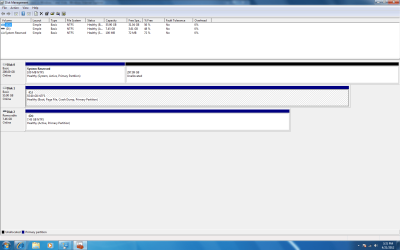
So I bought a Corsair 60 GB SSD sata 3 and a 350 GB Western Digital HDD. I have a gigabyte 880gm-d2h mobo, amd phenom 2 x4 processor. My mobo doesn't have any IDE ports so no I'm not using IDE but I am using sata 2 ports which I hope isn't a problem. I clicked to populate the drive, but I can't see where to name it. It also doesn't appear under My computer still. I also had both drives in when installing Windows, is that going to be a problem? Because I can easily reinstall if so. I attached a picture of disk management. I have a feeling it is wrong. Thanks for all your help everyone.
 

Attachments

  • Untitled.png
    Untitled.png
    42.9 KB · Views: 152

My Computer My Computer

OS
Windows 7 Professions 64-bit
It looks like the same hard drive is divided 3 times how did you get that to happen ?

I think you are good doing a clean install with out the other HD hooked up then after then install make sure you hook up the other hard drive

then reboot it should work and also don't forget the Achi feature it will improve performance
 

My Computer My Computer

Computer type
PC/Desktop
Computer Manufacturer/Model Number
CoreI7-6700K MrFingerIII Special Builds
OS
Windows 10 Home Premium 64bit sp1
CPU
Intel I7-6700K @ 4.6 Ghz 1.344 volts everyday OC
Motherboard
Asrock Fatality K6 Z170 Socket 1151
Memory
32GB G-Skill TridentZ 3200mhz 16-18-18-38 DDR4
Graphics Card(s)
Sli Gigabyte Windforce GTX 980 G1
Sound Card
AC97 Creative Rage Tactic 3D Headphones Bluetooth
Monitor(s) Displays
27" Asus ROG Swift PG278Q G-Sync 48" Vizio Smart HD TV
Screen Resolution
2560x1440p 27"- 48" Currently Gaming at 2560x1440p Res 2K
Hard Drives
250GB Samsung Evo840SSD Seagate baracuda 500 GB WD Mybook 500Gb 1TB Seagate Barracuda
PSU
HX1050w Corsair Silver 80plus certified crosfire/sli
Case
Enthod Pro Full Tower
Cooling
Corsair H110i GT 280 mm High Performance WaterBlock
Keyboard
Logitech wireless keyboard
Mouse
Logitech wireless mouse
Internet Speed
Cox Cable 100+ mb
Antivirus
WebRoot Spysweeper with Antivirus
Browser
IE-10, Chrome, Opera
Other Info
My Other Rig is a AMD FX8320E @4.6Ghz 16GB Ballistic Sport Ram
Mobo Asrock Fatality 990FX 120GB OCZ SSD 1TB Seagate Barracuda Corsair H75 Cooling PSU Corsair CX750
GPU GTX Gigabyte 970G1
Okay so I'm going to do a reinstall with only my SSD connected. I'll post back in the next day with the same device management just for confirmation that it looks correct if y'all don't mind. Thanks again
 

My Computer My Computer

OS
Windows 7 Professions 64-bit
It's best to have the SSD as disc 0, so swap the drive cables where they connect to the motherboard. The SSD should then be disc 0 and the HD should be disc 1.

Leave the HD unconnected.

You want to end up with a System Reserved on the SSD.

After you finish, check what you see in Disk Management.
 

My Computer My Computer

Computer type
PC/Desktop
Computer Manufacturer/Model Number
Ignatz Special; 4 speed manual gearbox; factory air conditioning; one of one
OS
Windows 7 Home Premium SP1, 64-bit
CPU
Intel Skylake i5-6600K, not overclocked
Motherboard
AsRock Z170M Extreme 4, micro ATX
Memory
8 GB HyperX DDR4-2666 (2 x 4 GB)
Graphics Card(s)
none; graphics are integrated on CPU
Sound Card
onboard: Realtek ALC1150; external: USB Behringer UF0-202
Monitor(s) Displays
Dell S2340M 23 inch IPS
Screen Resolution
1600 x 900
Hard Drives
System: Crucial MX100 series SSD, 128 GB;
Data: Samsung Spinpoint 103SJ, 1 TB;
Backup: WD Caviar Green WD30EZRX-00D8PB0, 3 TB
PSU
Rosewill SilentNight 500 watt fanless, semi-modular
Case
Antec Solo II
Cooling
Noctua NH-U12S; Noctua F12 intake, Noctua S12A exhaust
Keyboard
Microsoft 200 6JH-00001 USB
Mouse
Dell or Microsoft optical wired; USB
Antivirus
Microsoft Security Essentials and Malwarebytes Premium
Browser
Pale Moon
Other Info
All fans PWM; speeds at idle: CPU circa 500 rpm; intake circa 600 rpm; exhaust circa 600 rpm; CPU temps 27 idle and 47 C load in a warm room (27 C/81 F) when running Intel Extreme Tuning Utility stress test.
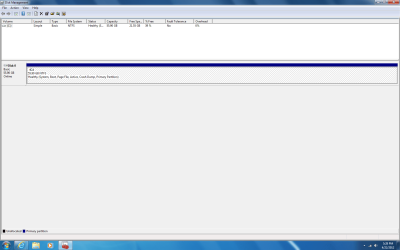
so i just reinstalled windows on my ssd. i have not yet plugged in my second hard drive but my ssd is in port 0 on my mobo. i wanted to post this picture to make sure everything is correct before i put in my second hard drive thanks
 

Attachments

  • Untitled.png
    Untitled.png
    36.2 KB · Views: 151

My Computer My Computer

OS
Windows 7 Professions 64-bit
Looks good now you can finish with hooking up the other drives
 

My Computer My Computer

Computer type
PC/Desktop
Computer Manufacturer/Model Number
CoreI7-6700K MrFingerIII Special Builds
OS
Windows 10 Home Premium 64bit sp1
CPU
Intel I7-6700K @ 4.6 Ghz 1.344 volts everyday OC
Motherboard
Asrock Fatality K6 Z170 Socket 1151
Memory
32GB G-Skill TridentZ 3200mhz 16-18-18-38 DDR4
Graphics Card(s)
Sli Gigabyte Windforce GTX 980 G1
Sound Card
AC97 Creative Rage Tactic 3D Headphones Bluetooth
Monitor(s) Displays
27" Asus ROG Swift PG278Q G-Sync 48" Vizio Smart HD TV
Screen Resolution
2560x1440p 27"- 48" Currently Gaming at 2560x1440p Res 2K
Hard Drives
250GB Samsung Evo840SSD Seagate baracuda 500 GB WD Mybook 500Gb 1TB Seagate Barracuda
PSU
HX1050w Corsair Silver 80plus certified crosfire/sli
Case
Enthod Pro Full Tower
Cooling
Corsair H110i GT 280 mm High Performance WaterBlock
Keyboard
Logitech wireless keyboard
Mouse
Logitech wireless mouse
Internet Speed
Cox Cable 100+ mb
Antivirus
WebRoot Spysweeper with Antivirus
Browser
IE-10, Chrome, Opera
Other Info
My Other Rig is a AMD FX8320E @4.6Ghz 16GB Ballistic Sport Ram
Mobo Asrock Fatality 990FX 120GB OCZ SSD 1TB Seagate Barracuda Corsair H75 Cooling PSU Corsair CX750
GPU GTX Gigabyte 970G1
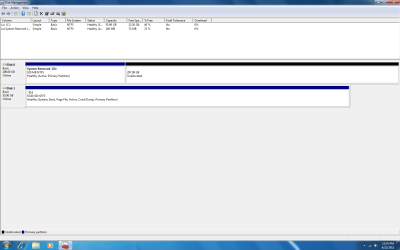
So I just plugged in my other HDD to sata port 1, and this is what disk management looks like now. under my computer there is a c: drive and a d: drive but the d drive only has 100 mb. how do i set it up so the d drive is my full HDD?
 

Attachments

  • Untitled.png
    Untitled.png
    37.7 KB · Views: 92

My Computer My Computer

OS
Windows 7 Professions 64-bit
So I bought a Corsair 60 GB SSD sata 3 and a 350 GB Western Digital HDD. I have a gigabyte 880gm-d2h mobo, amd phenom 2 x4 processor. My mobo doesn't have any IDE ports so no I'm not using IDE but I am using sata 2 ports which I hope isn't a problem. I clicked to populate the drive, but I can't see where to name it. It also doesn't appear under My computer still. I also had both drives in when installing Windows, is that going to be a problem? Because I can easily reinstall if so. I attached a picture of disk management. I have a feeling it is wrong. Thanks for all your help everyone.

You have made the Same error most new users to Win 7 have when installing or Re-installing the OS on a New drive.

That is you did not disconnect ALL OTHER drives before you installed Win 7.

For some unknown reason Win 7 and the BIOS's of most newer computer see the hard drive arrangement differently. So what happens when you install 7 with other drive connected 7 see one of the other drive as the FIRST DRIVE in the system and places the 100MB SYSTEM partition on that other drive.

You MUST disconnect ALL Other Drives BEFORE you start the 7 install. That will place both the System 100MB partition and the boot/OS partition on the drive you want 7 installed to.

If I were you I would Start Over. Disconnecting all other drives except for the SSD and then install 7 on that drive.
 

My Computer My Computer

OS
7 x64
So I just plugged in my other HDD to sata port 1, and this is what disk management looks like now. under my computer there is a c: drive and a d: drive but the d drive only has 100 mb. how do i set it up so the d drive is my full HDD?

You want System Reserved and C on the SSD, as Disc 0.

And you should have the HDD as Disc 1, with no System Reserved on Disc 1.

I'd start over. Disconnect the HDD.

As it is now, you apparently have the SSD connected to the wrong port, that's why it is Disc 1, not Disc 0. It isn't absolutely critical, but if you are early in the installation, you may as well get it right.

After you get Windows installed on the SSD as Disc 0, the SSD should have 2 partitions: System Reserved and C.

When that's all correct and done, reconnect the HDD. It should show as Disc 1. You can then delete all partitions on it and make one big D partition. You don't want a System Reserved partition on that HDD data drive.
 

My Computer My Computer

Computer type
PC/Desktop
Computer Manufacturer/Model Number
Ignatz Special; 4 speed manual gearbox; factory air conditioning; one of one
OS
Windows 7 Home Premium SP1, 64-bit
CPU
Intel Skylake i5-6600K, not overclocked
Motherboard
AsRock Z170M Extreme 4, micro ATX
Memory
8 GB HyperX DDR4-2666 (2 x 4 GB)
Graphics Card(s)
none; graphics are integrated on CPU
Sound Card
onboard: Realtek ALC1150; external: USB Behringer UF0-202
Monitor(s) Displays
Dell S2340M 23 inch IPS
Screen Resolution
1600 x 900
Hard Drives
System: Crucial MX100 series SSD, 128 GB;
Data: Samsung Spinpoint 103SJ, 1 TB;
Backup: WD Caviar Green WD30EZRX-00D8PB0, 3 TB
PSU
Rosewill SilentNight 500 watt fanless, semi-modular
Case
Antec Solo II
Cooling
Noctua NH-U12S; Noctua F12 intake, Noctua S12A exhaust
Keyboard
Microsoft 200 6JH-00001 USB
Mouse
Dell or Microsoft optical wired; USB
Antivirus
Microsoft Security Essentials and Malwarebytes Premium
Browser
Pale Moon
Other Info
All fans PWM; speeds at idle: CPU circa 500 rpm; intake circa 600 rpm; exhaust circa 600 rpm; CPU temps 27 idle and 47 C load in a warm room (27 C/81 F) when running Intel Extreme Tuning Utility stress test.
Can you look back to the last post on the first page that I made. That was when I first installed windows with the SSD in port 0 and no other HDD plugged in. It still had some sort of partition on disk 1 and the SSD on disk 0. When I plugged in the other HDD the SSD switched to disk 1 and a system reserve was created on disk 0 along with 300 gb unallocated space. is there a way I can just switch them around?
 

My Computer My Computer

OS
Windows 7 Professions 64-bit
Can you look back to the last post on the first page that I made. That was when I first installed windows with the SSD in port 0 and no other HDD plugged in. It still had some sort of partition on disk 1 and the SSD on disk 0. When I plugged in the other HDD the SSD switched to disk 1 and a system reserve was created on disk 0 along with 300 gb unallocated space. is there a way I can just switch them around?

I'm not sure which post you are referring to.

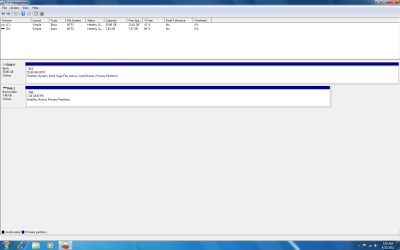
The only post I see in this thread with a picture of the SSD as disc 0 is your post number 10. That picture also shows a removable disk of about 7 GB as disk 1, but no larger HDD.

I assume you have no data on your 320 GB HDD? If that is true, you may as well delete all partitions on it in Disk Management, shut down, and then disconnect it.

If that HDD is a data drive, you don't need or want a System Reserved on it.

The picture in post 12 shows that the SSD is active, boot, and system. It should boot without the HDD connected. Confirm that it will.

The only thing wrong with the picture in post 12 is that the SSD is not disc 0 and you have a System Reserved on the HDD.
 

My Computer My Computer

Computer type
PC/Desktop
Computer Manufacturer/Model Number
Ignatz Special; 4 speed manual gearbox; factory air conditioning; one of one
OS
Windows 7 Home Premium SP1, 64-bit
CPU
Intel Skylake i5-6600K, not overclocked
Motherboard
AsRock Z170M Extreme 4, micro ATX
Memory
8 GB HyperX DDR4-2666 (2 x 4 GB)
Graphics Card(s)
none; graphics are integrated on CPU
Sound Card
onboard: Realtek ALC1150; external: USB Behringer UF0-202
Monitor(s) Displays
Dell S2340M 23 inch IPS
Screen Resolution
1600 x 900
Hard Drives
System: Crucial MX100 series SSD, 128 GB;
Data: Samsung Spinpoint 103SJ, 1 TB;
Backup: WD Caviar Green WD30EZRX-00D8PB0, 3 TB
PSU
Rosewill SilentNight 500 watt fanless, semi-modular
Case
Antec Solo II
Cooling
Noctua NH-U12S; Noctua F12 intake, Noctua S12A exhaust
Keyboard
Microsoft 200 6JH-00001 USB
Mouse
Dell or Microsoft optical wired; USB
Antivirus
Microsoft Security Essentials and Malwarebytes Premium
Browser
Pale Moon
Other Info
All fans PWM; speeds at idle: CPU circa 500 rpm; intake circa 600 rpm; exhaust circa 600 rpm; CPU temps 27 idle and 47 C load in a warm room (27 C/81 F) when running Intel Extreme Tuning Utility stress test.
yes that was my disk management previous to plugging in my larger HDD. That is what showed after I installed windows on my SSD
 

My Computer My Computer

OS
Windows 7 Professions 64-bit
Delete that System Reserved partition from the HDD.

Then disconnect the HDD.

Then connect the SSD to port 0.

Then confirm you can boot with only the SSD connected.

If you can boot with only the SSD connected, reconnect the HDD to port 1 and reboot.

You should then be able to make a single large partition on the HDD with NO System Reserved.
 

My Computer My Computer

Computer type
PC/Desktop
Computer Manufacturer/Model Number
Ignatz Special; 4 speed manual gearbox; factory air conditioning; one of one
OS
Windows 7 Home Premium SP1, 64-bit
CPU
Intel Skylake i5-6600K, not overclocked
Motherboard
AsRock Z170M Extreme 4, micro ATX
Memory
8 GB HyperX DDR4-2666 (2 x 4 GB)
Graphics Card(s)
none; graphics are integrated on CPU
Sound Card
onboard: Realtek ALC1150; external: USB Behringer UF0-202
Monitor(s) Displays
Dell S2340M 23 inch IPS
Screen Resolution
1600 x 900
Hard Drives
System: Crucial MX100 series SSD, 128 GB;
Data: Samsung Spinpoint 103SJ, 1 TB;
Backup: WD Caviar Green WD30EZRX-00D8PB0, 3 TB
PSU
Rosewill SilentNight 500 watt fanless, semi-modular
Case
Antec Solo II
Cooling
Noctua NH-U12S; Noctua F12 intake, Noctua S12A exhaust
Keyboard
Microsoft 200 6JH-00001 USB
Mouse
Dell or Microsoft optical wired; USB
Antivirus
Microsoft Security Essentials and Malwarebytes Premium
Browser
Pale Moon
Other Info
All fans PWM; speeds at idle: CPU circa 500 rpm; intake circa 600 rpm; exhaust circa 600 rpm; CPU temps 27 idle and 47 C load in a warm room (27 C/81 F) when running Intel Extreme Tuning Utility stress test.
yes that was my disk management previous to plugging in my larger HDD. That is what showed after I installed windows on my SSD

In your post #6 is when you first installed 7 on the SSD. That image shows Disk 0 as a HDD with the Sys Reserve on the HDD and unallocated space.

Then in your post #10 it looks like you just disconnected the HDD.

Not sure what you did but you need to START OVER.

With both disks connected, SSD & HDD, boot to the Win installer. Then Erase/Delete ALL Partitions on ALL drive. Then Exit out of the installer and shut the system down. Disconnect the HDD and leave ONLY the SSD connected. Then start the computer and installer again. Partition the SSD as one drive and when the installer comes up with "Windows Needs to create a second partition for Windows to run correctly" (or something like that) just click OK and let the installer install Windows. Once that is complete and the system reboots and finally loads the desktop open Disk management and look at the SSD. It should have the 100MB Sys Reserve partition with NO drive letter assigned and then the C drive (Boot, Page File, Crash Dump, Primary) partition.

Then shut the system down and connect the HDD.
 

My Computer My Computer

OS
7 x64
I just unplugged my HDD and rebooted. made sure my SSD was in sata port 0. this is what i get when i reboot
 

Attachments

  • Untitled.png
    Untitled.png
    35.3 KB · Views: 77

My Computer My Computer

OS
Windows 7 Professions 64-bit
Back
Top