No boot without installation disk

Keln

New member
Local time
11:51 PM
Messages
36
I just installed Windows 7 64 bit Home Premium yesterday from iso burned onto a disk. I have been running XP 32 Home edition for years. I installed Win7 on a different partition on the same disk as XP. If I restarted the computer without the W7 install disk in the drive, XP would boot up and I would not get a menu to choose between XP and W7 like I did back when I was running the W7 beta early in the year. When I put the install disk in, it will go straight to W7 without a menu to choose from as well. I then went into disk management in W7 and chose the W7 partition as the active disk. It listed the partition as boot, so I assumed it was good to go. I then restarted the computer without the install disk in, but I get the NTLDR missing, press ctrl+alt+del message. So I figured the boot files on the W7 partition weren't there or were corrupt, so I booted from the W7 installation disk and used the repair utility. It detected nothing to repair, so now I am stuck. Any ideas as to what I am doing wrong? Shouldn't the repair utility on the installation disk detect a missing or corrupt boot file? Or is it seeing the boot file on the XP partition and I need to delete or rename it to keep the repair tool from seeing it?

edit: I just did a search for boot.ini on my computer and it is indeed in the XP partition, but no boot.ini file on my W7 partition. What is the best way to deal with this?
 
Last edited:

My Computer

OS
W7
Alright, so I tried renaming the boot.ini file on my XP partition to boot.backup.ini, hoping it would force my system to ignore it, and ran the repair utility again from the W7 installation disk. Same thing, the utility said it didn't find anything wrong and there is still no boot.ini file on my W7 partition. I'd rather let windows make the boot.ini instead of writing one, because I am not entirely sure what I'm doing. Is there a solution out there to this problem?
 

My Computer

OS
W7

My Computers

System One System Two

  • Computer type
    PC/Desktop
    OS
    7 X64
    CPU
    i5 8400
    Motherboard
    gigabyte b365m ds3h
    Memory
    2x8gb 3200mhz
    Hard Drives
    various
    PSU
    pure power 11 400w cm
    Case
    Coolermaster
    Cooling
    cryorig m9i
  • Computer type
    PC/Desktop
    OS
    7x64
    CPU
    g5400
    Motherboard
    ga b365m ds3h
    Memory
    8gb ddr4 2400
    PSU
    xfx pro 450w
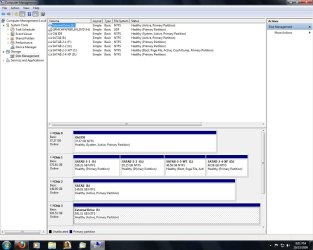
Here you go:
 

Attachments

  • DMG.jpg
    DMG.jpg
    121.1 KB · Views: 120

My Computer

OS
W7
Hi,

Boot is the partition you are currently booted into. System is the partition containing the boot critical files. 7 won't make a boot.ini on the root of the drive.

If you messed with the original XP boot.ini - put it back exactly the way it was.

I would assume the bios boot order has cdrom first, Disk0 second.

Try this:

From within 7 ( with the dvd in the drive) - as you are now, in fact.

In Disk Management, rt click the IDE partition and assign letter J.

Open an elevated command and type:

bcdboot c:\windows /s j:

then press enter

H:\boot\bootsect.exe /nt60 j: /force /mbr

then press enter.

Remove the dvd from the drive and restart.

Back in 7, open an elevated cmd and type ( press enter after each line):


bcdedit /create {ntldr} /d "Windows XP"

bcdedit /set {ntldr} device boot

bcdedit /set {ntldr} path \ntldr

bcdedit /displayorder {ntldr} /addlast


Then close cmd prompt.

Hope it helps
 

My Computers

System One System Two

  • Computer type
    PC/Desktop
    OS
    7 X64
    CPU
    i5 8400
    Motherboard
    gigabyte b365m ds3h
    Memory
    2x8gb 3200mhz
    Hard Drives
    various
    PSU
    pure power 11 400w cm
    Case
    Coolermaster
    Cooling
    cryorig m9i
  • Computer type
    PC/Desktop
    OS
    7x64
    CPU
    g5400
    Motherboard
    ga b365m ds3h
    Memory
    8gb ddr4 2400
    PSU
    xfx pro 450w
I had a sneaking suspicion you would look at that IDE drive, as I started wondering about it myself. I'll try all that and post here whether it works or not. Either way, I thank you for your help.
 

My Computer

OS
W7
I ran into a problem right away. I can't copy the boot files from the IDE...it's not quite working for some reason (says failure to copy). I haven't used that drive in a long time now because it was acting up. It has my original XP on it. I had cloned that drive to the XP partition on that SATA drive. Apparently my machine has been booting from the IDE all this time? At any rate, if I click on the IDE in explorer it show 0 files, but looking at properties it shows full. So my question is, can't I just format the IDE (assuming it will let me)? I really don't care about the data on it any more. If I do this, in effect destroying the bootfiles, would the repair feature on the disc fix my problem?
 

My Computer

OS
W7
Ok, never mind, I was reading another post, so I guess I cannot format the IDE because it is the "system". So could I simply disconnect it? I guess all I need to know is, if there are no boot files available, will the Windows 7 installation disk repair tool make them on my Windows 7 drive?
 

My Computer

OS
W7
Yes it will make the 7 critical boot files. - did you chicken out of the commands above?

You still need to do the commands to add XP to bcd after you disconnected IDE drive and run startup repair from the 7 ( may take 3 runs).

You need to make sure that Disk1 is first in Bios boot order.

You will need to also make sure vthe 3 XP bootfiles are on the 7 partition.

They are hidden files - ntldr, ntdetect.com and boot.ini
 

My Computers

System One System Two

  • Computer type
    PC/Desktop
    OS
    7 X64
    CPU
    i5 8400
    Motherboard
    gigabyte b365m ds3h
    Memory
    2x8gb 3200mhz
    Hard Drives
    various
    PSU
    pure power 11 400w cm
    Case
    Coolermaster
    Cooling
    cryorig m9i
  • Computer type
    PC/Desktop
    OS
    7x64
    CPU
    g5400
    Motherboard
    ga b365m ds3h
    Memory
    8gb ddr4 2400
    PSU
    xfx pro 450w
No, I tried the first command and it wouldn't work.

Ok, so I can disconnect the IDE, then start the computer, fire up the BIOS, make sure the boot order is DVD, then Disk 1, then save/exit, reboot on the DVD disk, run the repair tool and reboot how many ever times it takes to get it to not detect anything, then take the DVD out, boot up normal, if Win 7 comes on, then go from here:

Back in 7, open an elevated cmd and type ( press enter after each line):


bcdedit /create {ntldr} /d "Windows XP"

bcdedit /set {ntldr} device boot

bcdedit /set {ntldr} path \ntldr

bcdedit /displayorder {ntldr} /addlast


Then close cmd prompt.


Is that all correct?
 

My Computer

OS
W7
Yes.

First you need to get the 3 XP bootfiles on the 7 partition.


You could save time by running the first 2 commands on the C partition - you shouldn't need startup repair.

bcdboot c:\windows /s c:

then press enter

H:\boot\bootsect.exe /nt60 c: /force /mbr

then press enter

Take the dvd out - if Disk1 is first in Bios boot order, on restart - you will boot into 7.

Then add the XP entry.
 

My Computers

System One System Two

  • Computer type
    PC/Desktop
    OS
    7 X64
    CPU
    i5 8400
    Motherboard
    gigabyte b365m ds3h
    Memory
    2x8gb 3200mhz
    Hard Drives
    various
    PSU
    pure power 11 400w cm
    Case
    Coolermaster
    Cooling
    cryorig m9i
  • Computer type
    PC/Desktop
    OS
    7x64
    CPU
    g5400
    Motherboard
    ga b365m ds3h
    Memory
    8gb ddr4 2400
    PSU
    xfx pro 450w
The command bcdboot c:\windows /s c: results in "Failure when attempting to copy boot files"
 

My Computer

OS
W7
Ok, I got the IDE disconnected, ran the repair tool (took exactly 3 times as you said), W7 booted up fine without the Disc now. Ok, I have located the 3 XP files on my D: partition which has my XP OS on it. You said I need to put them on my W7 partition...but where? There is no i386 folder for ntldr and ntdetect.com to go into. Do I just manually copy them from my D: XP partition and into folders on my C: W7 partition?
 

My Computer

OS
W7
The 3 files go directly onto C - no folders.

To save editing boot.ini, copy the other two files onto C . Then extract this and put this boot.ini on C instead of the one you have.

View attachment BOOT.zip
 

My Computers

System One System Two

  • Computer type
    PC/Desktop
    OS
    7 X64
    CPU
    i5 8400
    Motherboard
    gigabyte b365m ds3h
    Memory
    2x8gb 3200mhz
    Hard Drives
    various
    PSU
    pure power 11 400w cm
    Case
    Coolermaster
    Cooling
    cryorig m9i
  • Computer type
    PC/Desktop
    OS
    7x64
    CPU
    g5400
    Motherboard
    ga b365m ds3h
    Memory
    8gb ddr4 2400
    PSU
    xfx pro 450w
Excellent! It works great now. I can't tell you how very grateful I am for your help. I'm sure it required a lot of patience on your part. Thanks for walking me through this little problem.
 

My Computer

OS
W7
You're welcome.

Have Fun
 

My Computers

System One System Two

  • Computer type
    PC/Desktop
    OS
    7 X64
    CPU
    i5 8400
    Motherboard
    gigabyte b365m ds3h
    Memory
    2x8gb 3200mhz
    Hard Drives
    various
    PSU
    pure power 11 400w cm
    Case
    Coolermaster
    Cooling
    cryorig m9i
  • Computer type
    PC/Desktop
    OS
    7x64
    CPU
    g5400
    Motherboard
    ga b365m ds3h
    Memory
    8gb ddr4 2400
    PSU
    xfx pro 450w
Back
Top