
How to Enable or Disable Numerical Sorting in Windows Explorer
Information
This will allow you to enable or disable having file names sorted literally (as in Windows 2000 and earlier) rather than in numerical order in Windows 7 and Windows 8.
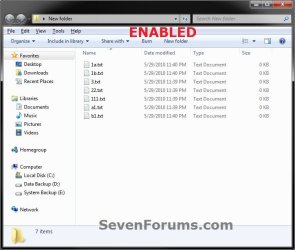
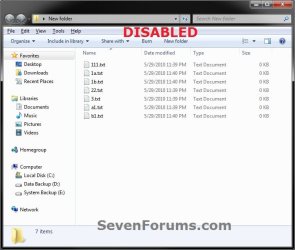
If you disable numerical sorting, Windows Explorer will sort file names by each digit in a file name (for example, 111 < 22 < 3).
If you enable (default) numerical sorting, Windows Explorer will sort file names by increasing number value (for example, 3 < 22 < 111).
If you disable numerical sorting, Windows Explorer will sort file names by each digit in a file name (for example, 111 < 22 < 3).
If you enable (default) numerical sorting, Windows Explorer will sort file names by increasing number value (for example, 3 < 22 < 111).
EXAMPLE: Numerical Sorting Enabled and Disabled
OPTION ONE
Enable or Disable Numerical Sorting using a REG File
1. Do step 2 or 3 below for what you would like to do.
2. To Enable Numerical Sorting for All Users
A) Click/tap on the Download button below to download the file below, and go to step 4 below.
Enable_Numerical_Sorting.reg
Download
3. To Disable Numerical Sorting for All Users
NOTE: This is the default setting.
A) Click/tap on the Download button below to download the file below, and go to step 4 below.
Disable_Numerical_Sorting.reg
Download
4. Save the .reg file to your desktop.
5. Double click/tap on the downloaded .reg file to merge it.
6. If prompted, click/tap on Run, Yes (UAC), Yes, and OK to approve the merge.
7. Log off and log on, or restart the computer to apply.
8. When done, you can delete the downloaded .reg file if you like.
OPTION TWO
Enable or Disable Numerical Sorting in Group Policy
1. Open the all users, specific users or groups, or all users except administrators Local Group Policy Editor for how you want this policy applied.
2. In the left pane, click/tap on to expand User Configuration, Administrative Templates, Windows Components, and Windows Explorer (Windows 7) or File Explorer (Windows 8). (see screenshot below)
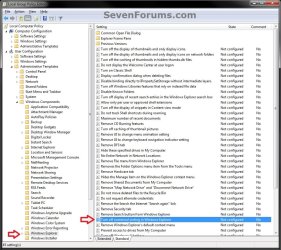
3. In the right pane, double click/tap on Turn off numerical sorting in Windows Explorer (Windows 7) or Turn off numerical sorting in File Explorer (Windows 7) to edit it. (see screenshot above)
4. Do step 5 or 6 below for what you would like to do.
5. To Enable Numerical Sorting
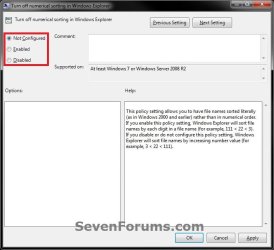
A) Select (dot) either Not Configured or Disabled, and go to step 7 below. (see screenshot below step 6)
NOTE: Not Configured is the default setting.
6. To Disable Numerical Sorting
A) Select (dot) Enabled, and go to step 7 below. (see screenshot below step 6)
6. Click/tap on OK. (see screenshot below)
7. Close the Local Group Policy Editor window.
That's it,
Shawn
Related Tutorials
- How to Change the Group by, Sort by, and Arrange by Folder View in Windows 7 Explorer
- How to Sort, Group, and Arrange Items by a Column in Windows 8 File Explorer
- How to Change the File and Folder View Arrangement in Windows 7 Explorer
- How to Change Icon Size and Layout Folder View in Windows 8 File Explorer
- How to Disable Auto Arrange in Windows 7 Explorer to have Free Sorting
- How to Disable Auto Arrange in Windows 8 Explorer to have Free Sorting
Attachments
Last edited:


