Open Command Window Here as Administrator

Add or Remove "Open Command Window Here as Administrator" to Context Menu

   Information
This will show you how to add or remove Open Command Window Here as Administrator to the context menu of a folder, drive, and desktop of all users to open an elevated command prompt with the focus at the library, folder, drive, and desktop location in Windows 7 and Windows 8.

You must be logged in as an administrator to be able to do the steps in this tutorial.

   Note
This is just like the Open Command Window Here context menu item, except that it opens an elevated "run as administrator" command prompt at the library, folder, or drive location instead.

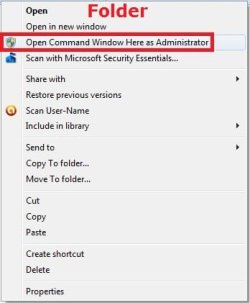
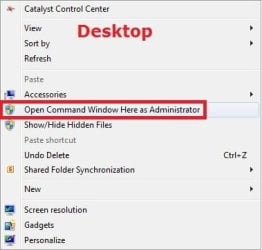
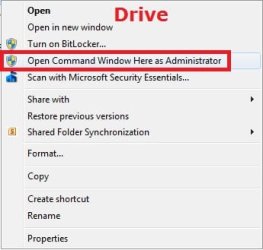
When added, you can right click on a library, folder, or drive to see the Open Command Window Here as Administrator context menu item. You will then be prompted by UAC to click on YES or type in the administrator's password.

   Warning
This will not work with Library folders.

If you added the Take Ownership context menu item, then adding Open Command Window Here as Administrator will remove and replace it for folders and drives.


EXAMPLE: Open Command Window Here as Administrator
NOTE: This is the context menu with this added and you right click on a drive, folder, or on the desktop.
Drive.jpgFolder.jpgDesktop.jpg


Here's How:

1. Do step 2, 3, or 4 below for what you would like to do.

2. Add "Open Command Window Here as Administrator" to Context Menu
A) Click/tap on the download button below to download the file below, and go to step 5 below.

Add_Open_Command_Window_Here_as_Administrator.reg


Download


3. Add Shift + Right Click "Open Command Window Here as Administrator" to Context Menu
A) Click/tap on the download button below to download the file below, and go to step 5 below.

Add_Shift+Open_Command_Window_Here_as_Administrator.reg


Download


4. Remove "Open Command Window Here as Administrator" from Context Menu
A) Click/tap on the download button below to download the file below, and go to step 5 below.

Remove_Open_Command_Window_Here_as_Administrator.reg


Download


5. Save the .reg file to your desktop.

6. Double click/tap on the downloaded .reg file to merge it.

7. When prompted, click on Run, Yes (UAC), Yes, and OK to approve merging the .reg file.

8. You can now delete the downloaded .reg file if you like.


That's it
Shawn


Attachments

Last edited:
Is there any way to change out the shift+click command prompt for a shift+click elevated command prompt?

Id rather keep the shift functionality but prefer it to be elevated :(

Ive been digging with no such luck :P
 

My Computer

Computer type
PC/Desktop
Computer Manufacturer/Model Number
HomeGrown
OS
8.1
CPU
4770k
Motherboard
OC-Force
Memory
32gb DDR3
Graphics Card(s)
Quad-SLI GTX Titan SC
Hard Drives
256gb Samsung EVO x 2 RAID0
2tb Seagate Barracuda x2 RAID0
Antivirus
YeaRight
Browser
IE
Hello Kevin,

The tutorial on the first page lets you just right click on a folder or drive to open an elevated command prompt at that location.

If you like, I could have it where you would have to use Shift with it. :)
 

My Computer

Computer type
PC/Desktop
Computer Manufacturer/Model Number
Self built custom
OS
64-bit Windows 11 Pro for Workstations
CPU
Intel i7-8700K OC'd to 5 GHz
Motherboard
ASUS ROG Maximus XI Formula Z390
Memory
64 GB (4x16GB) G.SKILL TridentZ RGB DDR4 3600 MHz
Graphics Card(s)
ASUS ROG-STRIX-GTX1080TI-O11G-GAMING
Sound Card
Integrated
Monitor(s) Displays
2 x Samsung Odyssey G7 27"
Screen Resolution
2560x1440
Hard Drives
1TB Samsung 990 PRO M.2,
4TB Samsung 990 PRO PRO M.2,
TerraMaster F8 SSD Plus NAS
PSU
Seasonic Prime Titanium 850W
Case
Thermaltake Core P3
Cooling
Corsair Hydro H115i
Keyboard
Logitech wireless K800
Mouse
Logitech MX Master 4
Internet Speed
2 Gb/s Download and 100 Mb/s Upload
Antivirus
Malwarebyte Anti-Malware Premium
Browser
Google Chrome
Other Info
Logitech Z625 speaker system,
Logitech BRIO 4K Pro webcam,
HP Color LaserJet Pro MFP M477fdn,
APC SMART-UPS RT 1000 XL - SURT1000XLI,
Galaxy S23 Plus phone
Yes, if you could provide a Reg file to make it require shift that would be excellent. As well as a means to undo it. I've been using the right click means for awhile but I'm trying to clean up my context menu a bit and the ability to use it as naturally implemented but with the prompt being an elevated one instead if standard is ideal if possible.

Thank you!
 

My Computer

Computer type
PC/Desktop
Computer Manufacturer/Model Number
HomeGrown
OS
8.1
CPU
4770k
Motherboard
OC-Force
Memory
32gb DDR3
Graphics Card(s)
Quad-SLI GTX Titan SC
Hard Drives
256gb Samsung EVO x 2 RAID0
2tb Seagate Barracuda x2 RAID0
Antivirus
YeaRight
Browser
IE
You're most welcome. :)

I added step 3 for the shift + right click option. Step 4 will still work to remove them.
 

My Computer

Computer type
PC/Desktop
Computer Manufacturer/Model Number
Self built custom
OS
64-bit Windows 11 Pro for Workstations
CPU
Intel i7-8700K OC'd to 5 GHz
Motherboard
ASUS ROG Maximus XI Formula Z390
Memory
64 GB (4x16GB) G.SKILL TridentZ RGB DDR4 3600 MHz
Graphics Card(s)
ASUS ROG-STRIX-GTX1080TI-O11G-GAMING
Sound Card
Integrated
Monitor(s) Displays
2 x Samsung Odyssey G7 27"
Screen Resolution
2560x1440
Hard Drives
1TB Samsung 990 PRO M.2,
4TB Samsung 990 PRO PRO M.2,
TerraMaster F8 SSD Plus NAS
PSU
Seasonic Prime Titanium 850W
Case
Thermaltake Core P3
Cooling
Corsair Hydro H115i
Keyboard
Logitech wireless K800
Mouse
Logitech MX Master 4
Internet Speed
2 Gb/s Download and 100 Mb/s Upload
Antivirus
Malwarebyte Anti-Malware Premium
Browser
Google Chrome
Other Info
Logitech Z625 speaker system,
Logitech BRIO 4K Pro webcam,
HP Color LaserJet Pro MFP M477fdn,
APC SMART-UPS RT 1000 XL - SURT1000XLI,
Galaxy S23 Plus phone
Windows Libraries

Normally Libraries has no support for "Open command window here", however it can be added using this registry entry:

Code:
Windows Registry Editor Version 5.00
[HKEY_CLASSES_ROOT\LibraryFolder\background\shell\cmd]
@="@shell32.dll,-8506"

[HKEY_CLASSES_ROOT\LibraryFolder\background\shell\cmd\command]
@="cmd.exe /s /k pushd \"%V\""

Therefore the Administrator version can easily be added:

Code:
Windows Registry Editor Version 5.00
[HKEY_CLASSES_ROOT\LibraryFolder\background\shell\runas]
"HasLUAShield"=""
@="Open command window here as Administrator"

[HKEY_CLASSES_ROOT\LibraryFolder\background\shell\runas\command]
@="cmd.exe /s /k pushd \"%V\""
 

My Computer

Computer type
PC/Desktop
OS
Windows 7 Ultimate x64
Thank you greens, and welcome to Seven Forums. I added this to the tutorial to help others. :)
 

My Computer

Computer type
PC/Desktop
Computer Manufacturer/Model Number
Self built custom
OS
64-bit Windows 11 Pro for Workstations
CPU
Intel i7-8700K OC'd to 5 GHz
Motherboard
ASUS ROG Maximus XI Formula Z390
Memory
64 GB (4x16GB) G.SKILL TridentZ RGB DDR4 3600 MHz
Graphics Card(s)
ASUS ROG-STRIX-GTX1080TI-O11G-GAMING
Sound Card
Integrated
Monitor(s) Displays
2 x Samsung Odyssey G7 27"
Screen Resolution
2560x1440
Hard Drives
1TB Samsung 990 PRO M.2,
4TB Samsung 990 PRO PRO M.2,
TerraMaster F8 SSD Plus NAS
PSU
Seasonic Prime Titanium 850W
Case
Thermaltake Core P3
Cooling
Corsair Hydro H115i
Keyboard
Logitech wireless K800
Mouse
Logitech MX Master 4
Internet Speed
2 Gb/s Download and 100 Mb/s Upload
Antivirus
Malwarebyte Anti-Malware Premium
Browser
Google Chrome
Other Info
Logitech Z625 speaker system,
Logitech BRIO 4K Pro webcam,
HP Color LaserJet Pro MFP M477fdn,
APC SMART-UPS RT 1000 XL - SURT1000XLI,
Galaxy S23 Plus phone
I've been looking for some time for a way to add Open Command Window Here as Administrator to the file context menu. Does anyone know a solution?

Since Vista forward it is possible to get Open Command Window Here in explorer right-side (file) pane, provided you can right-click on a completely blank line (not just a blank area), such as in the area below the list of files.

There is no such blank area if the list of files exceeds a page full though, so this is not too convenient. And no way to get an elevated CMD window AFAIK.

I did add an Open CMD window to the file's send-to options on the context menu, this is very convenient. But I don't know how to modify it to open as elevated? Maybe someone knows how?

To add Open CMD window to the file's send-to options, do the following. Works for me in all versions of Windows from NT on up.

Find the user's send-to folder for the version of windows. Create a batch file there, I call mine OpenCMDPromptHere.bat.
echo off
%~d1
CD %~dp1
CMD /K

OpenCMDPromptHere.bat will now show up as an entry under user's send-to menu for files.

Thank you for any help getting an elevated prompt onto the file context menu directly, or in the file's send-to menu similar to the above.

Kind regards.
 

My Computer

Computer type
PC/Desktop
OS
Win7 Pro SP1 64-bit
Hello appyface, :)

Usually when you "open a command prompt here", it's for a location instead of file.

Opening a file in a command prompt will essential be the same as just opening the file.

If you're just wanting to open a file elevated, then the "Run as administrator" context menu will basically serve the purpose you want for application files (ex: ".exe").

Was there some specific task you were wanting to do that this doesn't apply to?
 

My Computer

Computer type
PC/Desktop
Computer Manufacturer/Model Number
Self built custom
OS
64-bit Windows 11 Pro for Workstations
CPU
Intel i7-8700K OC'd to 5 GHz
Motherboard
ASUS ROG Maximus XI Formula Z390
Memory
64 GB (4x16GB) G.SKILL TridentZ RGB DDR4 3600 MHz
Graphics Card(s)
ASUS ROG-STRIX-GTX1080TI-O11G-GAMING
Sound Card
Integrated
Monitor(s) Displays
2 x Samsung Odyssey G7 27"
Screen Resolution
2560x1440
Hard Drives
1TB Samsung 990 PRO M.2,
4TB Samsung 990 PRO PRO M.2,
TerraMaster F8 SSD Plus NAS
PSU
Seasonic Prime Titanium 850W
Case
Thermaltake Core P3
Cooling
Corsair Hydro H115i
Keyboard
Logitech wireless K800
Mouse
Logitech MX Master 4
Internet Speed
2 Gb/s Download and 100 Mb/s Upload
Antivirus
Malwarebyte Anti-Malware Premium
Browser
Google Chrome
Other Info
Logitech Z625 speaker system,
Logitech BRIO 4K Pro webcam,
HP Color LaserJet Pro MFP M477fdn,
APC SMART-UPS RT 1000 XL - SURT1000XLI,
Galaxy S23 Plus phone
Hello Brink,

Thank you for your reply.

I'm very sorry I wasn't clear. I wish to open CMD as Administrator for the directory location where the file is, but from the file's context menu.

I have achieved this for normal CMD window with the send-to menu method I gave. But I don't know how to modify that method to also provide an elevated CMD window from file's send-to menu.

And I haven't found any other way to add CMD window (or CMD as Administrator window) to the file's context menu so far.

For me it's a fair pain to traverse the left pane directory tree for the subdirectory (which I don't usually have expanded) just so I can get to the context menu.

It's less of pain to navigate up a level from the file pane and get to the subdirectory context menu that way, but if there are many subdirectories it's still not the friendliest method.

If there is a fully-blank area below the file list the normal CMD window can be gotten with shift-right-click in native Windows (since Vista), but not the CMD as Administrator window AFAIK. And there is no blank area below when the file list exceeds one page, that I can find.

It is just so very convenient to have CMD window available from the file's context menu. That is why I wish to add the elevated option there, if it is possible?

Kind regards.
 

My Computer

Computer type
PC/Desktop
OS
Win7 Pro SP1 64-bit
I'm not sure how to do so from the file's context menu as well.

You should be able to Shift+right click on the background of the window the file is located to see Open Command Window Here as Administrator.

If you don't, then see if you do after using the download from step 2 or 3.
 

My Computer

Computer type
PC/Desktop
Computer Manufacturer/Model Number
Self built custom
OS
64-bit Windows 11 Pro for Workstations
CPU
Intel i7-8700K OC'd to 5 GHz
Motherboard
ASUS ROG Maximus XI Formula Z390
Memory
64 GB (4x16GB) G.SKILL TridentZ RGB DDR4 3600 MHz
Graphics Card(s)
ASUS ROG-STRIX-GTX1080TI-O11G-GAMING
Sound Card
Integrated
Monitor(s) Displays
2 x Samsung Odyssey G7 27"
Screen Resolution
2560x1440
Hard Drives
1TB Samsung 990 PRO M.2,
4TB Samsung 990 PRO PRO M.2,
TerraMaster F8 SSD Plus NAS
PSU
Seasonic Prime Titanium 850W
Case
Thermaltake Core P3
Cooling
Corsair Hydro H115i
Keyboard
Logitech wireless K800
Mouse
Logitech MX Master 4
Internet Speed
2 Gb/s Download and 100 Mb/s Upload
Antivirus
Malwarebyte Anti-Malware Premium
Browser
Google Chrome
Other Info
Logitech Z625 speaker system,
Logitech BRIO 4K Pro webcam,
HP Color LaserJet Pro MFP M477fdn,
APC SMART-UPS RT 1000 XL - SURT1000XLI,
Galaxy S23 Plus phone
Perhaps someone out there knows to modify the .bat file I gave, to open elevated CMD prompt instead of normal one. I hope they find this thread and tell us :-)

How do you get a 'background' to right-click on when the file pane is completely full? The only way I can get a context menu with Open CMD options is in the completely blank area below all files. (I'm in details view.) No such area is available when files exceed a page? (Yes I applied the .REG file from tutorial.)
 

My Computer

Computer type
PC/Desktop
OS
Win7 Pro SP1 64-bit
How do you get a 'background' to right-click on when the file pane is completely full? The only way I can get a context menu with Open CMD options is in the completely blank area below all files. (I'm in details view.) No such area is available when files exceed a page? (Yes I applied the .REG file from tutorial.)

You should be able to scroll down in the window or drag the window border until there's a blank space in the background to right click on.
 

My Computer

Computer type
PC/Desktop
Computer Manufacturer/Model Number
Self built custom
OS
64-bit Windows 11 Pro for Workstations
CPU
Intel i7-8700K OC'd to 5 GHz
Motherboard
ASUS ROG Maximus XI Formula Z390
Memory
64 GB (4x16GB) G.SKILL TridentZ RGB DDR4 3600 MHz
Graphics Card(s)
ASUS ROG-STRIX-GTX1080TI-O11G-GAMING
Sound Card
Integrated
Monitor(s) Displays
2 x Samsung Odyssey G7 27"
Screen Resolution
2560x1440
Hard Drives
1TB Samsung 990 PRO M.2,
4TB Samsung 990 PRO PRO M.2,
TerraMaster F8 SSD Plus NAS
PSU
Seasonic Prime Titanium 850W
Case
Thermaltake Core P3
Cooling
Corsair Hydro H115i
Keyboard
Logitech wireless K800
Mouse
Logitech MX Master 4
Internet Speed
2 Gb/s Download and 100 Mb/s Upload
Antivirus
Malwarebyte Anti-Malware Premium
Browser
Google Chrome
Other Info
Logitech Z625 speaker system,
Logitech BRIO 4K Pro webcam,
HP Color LaserJet Pro MFP M477fdn,
APC SMART-UPS RT 1000 XL - SURT1000XLI,
Galaxy S23 Plus phone
Right-clicking or shift-right-clicking in 'white space' (where there is file information somewhere on that line) doesn't bring up the CMD window options for me.

The only place I can get the options to come up is below the file list, on a completely blank line. But explorer won't give me that blank line when the file list exceeds one page, regardless of the size of the explorer window. I tried doing this in C:\windows directory, for example.
 

My Computer

Computer type
PC/Desktop
OS
Win7 Pro SP1 64-bit
How about to the right of the file?

If expanding the right border doesn't help, you should also be able to temporarily shrink the width of a column to be able to get enough blank space in the folder window background to Shift+right click on.

Does maximizing the window full screen help?
 

My Computer

Computer type
PC/Desktop
Computer Manufacturer/Model Number
Self built custom
OS
64-bit Windows 11 Pro for Workstations
CPU
Intel i7-8700K OC'd to 5 GHz
Motherboard
ASUS ROG Maximus XI Formula Z390
Memory
64 GB (4x16GB) G.SKILL TridentZ RGB DDR4 3600 MHz
Graphics Card(s)
ASUS ROG-STRIX-GTX1080TI-O11G-GAMING
Sound Card
Integrated
Monitor(s) Displays
2 x Samsung Odyssey G7 27"
Screen Resolution
2560x1440
Hard Drives
1TB Samsung 990 PRO M.2,
4TB Samsung 990 PRO PRO M.2,
TerraMaster F8 SSD Plus NAS
PSU
Seasonic Prime Titanium 850W
Case
Thermaltake Core P3
Cooling
Corsair Hydro H115i
Keyboard
Logitech wireless K800
Mouse
Logitech MX Master 4
Internet Speed
2 Gb/s Download and 100 Mb/s Upload
Antivirus
Malwarebyte Anti-Malware Premium
Browser
Google Chrome
Other Info
Logitech Z625 speaker system,
Logitech BRIO 4K Pro webcam,
HP Color LaserJet Pro MFP M477fdn,
APC SMART-UPS RT 1000 XL - SURT1000XLI,
Galaxy S23 Plus phone
No, to the right of the file line doesn't bring up any CMD window option. Maximizing doesn't work because the file list is still greater than one page, and scrolling to very bottom doesn't offer any blank line.


BUT - I just solved it with my send-to menu method. Don't know why I didn't think of this before.

1. Created shortcut to my OpenCMDPromptHere.bat file and renamed it OpenCMDPromptElev

2. Run as administrator is greyed out on Compatibility tab, BUT is still available under Shortcut tab, Advanced button.

Both normal and elevated CMD windows are available in the file's send-to menu now - and they both work.
 

My Computer

Computer type
PC/Desktop
OS
Win7 Pro SP1 64-bit
Great job. :party:
 

My Computer

Computer type
PC/Desktop
Computer Manufacturer/Model Number
Self built custom
OS
64-bit Windows 11 Pro for Workstations
CPU
Intel i7-8700K OC'd to 5 GHz
Motherboard
ASUS ROG Maximus XI Formula Z390
Memory
64 GB (4x16GB) G.SKILL TridentZ RGB DDR4 3600 MHz
Graphics Card(s)
ASUS ROG-STRIX-GTX1080TI-O11G-GAMING
Sound Card
Integrated
Monitor(s) Displays
2 x Samsung Odyssey G7 27"
Screen Resolution
2560x1440
Hard Drives
1TB Samsung 990 PRO M.2,
4TB Samsung 990 PRO PRO M.2,
TerraMaster F8 SSD Plus NAS
PSU
Seasonic Prime Titanium 850W
Case
Thermaltake Core P3
Cooling
Corsair Hydro H115i
Keyboard
Logitech wireless K800
Mouse
Logitech MX Master 4
Internet Speed
2 Gb/s Download and 100 Mb/s Upload
Antivirus
Malwarebyte Anti-Malware Premium
Browser
Google Chrome
Other Info
Logitech Z625 speaker system,
Logitech BRIO 4K Pro webcam,
HP Color LaserJet Pro MFP M477fdn,
APC SMART-UPS RT 1000 XL - SURT1000XLI,
Galaxy S23 Plus phone
hello
i followed the post of how to integrate "open command windows here as administrator" with the help of registray file that add the command to the context menu of windows explorer (that you posted for download) and it works fine. as well as the other post of adding the "take ownership" of file or folder also with help of registray file. both of the files works fine and add the appropriate command to the context menu of windows explorer. but for some reason i don't understand they can't be added both to the context menu and everytime i double click the registray file of one of them the other dissapire from the context menu. any one know why?
 

My Computer

Computer type
Laptop
Computer Manufacturer/Model Number
asus m50sv
OS
Windows 7 Ultimate x64
CPU
T9300
Just my assumption,

If there using the same ROOT then they would overide the each other.

I've got admin command prompt on my task bar, the Take Ownership option is dangerous in the wrong hands if you DONT know what your doing LEAVE IT ALONE.

Roy
 

My Computer

Computer type
PC/Desktop
Computer Manufacturer/Model Number
medionl/Aspire 6930G/acer x55a
OS
W7 home premium 32bit/W7HP 64bit/w10 tp insider ring
CPU
E5300 dual core
Motherboard
medion MS7366
Memory
3gb
Graphics Card(s)
Nvidia Geforce 7100 Nforce 630i
Monitor(s) Displays
avixc
Internet Speed
n (isp resticted to 72)
Antivirus
mse/pands
Browser
palemoon
Other Info
Belkin Fd7050 n USB using Railink RT2870 drivers, more upto date
Just my assumption,

If there using the same ROOT then they would overide the each other.

I've got admin command prompt on my task bar, the Take Ownership option is dangerous in the wrong hands if you DONT know what your doing LEAVE IT ALONE.

Roy

:thumbsup:

Jack
 

My Computer

Computer type
PC/Desktop
Computer Manufacturer/Model Number
Home made Desktop
OS
Windows 10 Pro. 64/ version 1709 Windows 7 Pro/64
CPU
Intel i7-6800K @ 4.3
Motherboard
ASUS X-99 Deluxe II
Memory
Corsair Platinum 16 gig @2400
Graphics Card(s)
EVGA GTX 1070 OC
Monitor(s) Displays
Asus 27" LED LCD/VE278Q
Screen Resolution
1920-1080 or 1280-720 HDMI
Hard Drives
INTEL SSD 730-240 Gb Sata 3.0/
PSU
EVGA Platium 1200W
Case
Phanteks Luxe Tempered Glass 8 fans/ one radiator
Cooling
XSPC/ Water Cooled CPU
Keyboard
Das 4 Professional
Mouse
Logitech M705/MX Anywhere 2-S
Internet Speed
100 mbits
Antivirus
Microsoft Security Essentials/ Malwarebytes Premium 3.0/ SAS
Browser
I.E. 11 default/Firefox/ ISP Time Warner Cable/Spectrum
Other Info
LG BluRay Burner/
Sound system-KLipsch-THX/
Icy Dock ssd Hot Swap bays.
I made a version for admin and non-admin command windows that will not trash the Take Ownership registry entry and also works in library-folders.

NOTE: The admin command windows gets launched by a powershell instance that is hosted inside of another command window, so what you see is one command window that opens and closes and then an admin command window that opens.

Open_in_Terminal.reg
Code:
 Windows Registry Editor Version 5.00

; Admin versions.

; Right click on a folder in a directory.
[-HKEY_CLASSES_ROOT\Directory\shell\OpenCommandWindowHereAsAdministrator]
[HKEY_CLASSES_ROOT\Directory\shell\OpenCommandWindowHereAsAdministrator]
@="Open in Terminal (Admin)"
"Icon"="cmd.exe"
"HasLUAShield"=""
"Position"="middle"
[HKEY_CLASSES_ROOT\Directory\shell\OpenCommandWindowHereAsAdministrator\command]
@="cmd.exe /c powershell.exe -Command \"Start-Process cmd -Verb runas -ArgumentList '/k pushd \"%1\"'\""

; Right click on nothing in a directory, i.e. the "background" of the directory.
[-HKEY_CLASSES_ROOT\Directory\Background\shell\OpenCommandWindowHereAsAdministrator]
[HKEY_CLASSES_ROOT\Directory\Background\shell\OpenCommandWindowHereAsAdministrator]
@="Open in Terminal (Admin)"
"Icon"="cmd.exe"
"HasLUAShield"=""
"Position"="middle"
[HKEY_CLASSES_ROOT\Directory\Background\shell\OpenCommandWindowHereAsAdministrator\command]
@="cmd.exe /c powershell.exe -Command \"Start-Process cmd -Verb runas -ArgumentList '/k pushd \"%V\"'\""

; Right click on nothing in a library directory, i.e. the "background" of the library directory.
[-HKEY_CLASSES_ROOT\LibraryFolder\Background\shell\OpenCommandWindowHereAsAdministrator]
[HKEY_CLASSES_ROOT\LibraryFolder\Background\shell\OpenCommandWindowHereAsAdministrator]
@="Open in Terminal (Admin)"
"Icon"="cmd.exe"
"HasLUAShield"=""
"Position"="middle"
[HKEY_CLASSES_ROOT\LibraryFolder\Background\shell\OpenCommandWindowHereAsAdministrator\command]
@="cmd.exe /c powershell.exe -Command \"Start-Process cmd -Verb runas -ArgumentList '/k pushd \"%V\"'\""

; Right click on a file in a directory.
[-HKEY_CLASSES_ROOT\*\shell\OpenWithCommandWindowAsAdministrator]
[HKEY_CLASSES_ROOT\*\shell\OpenWithCommandWindowAsAdministrator]
@="Open in Terminal (Admin)"
"Icon"="cmd.exe"
"HasLUAShield"=""
"Position"="middle"
[HKEY_CLASSES_ROOT\*\shell\OpenWithCommandWindowAsAdministrator\command]
@="cmd.exe /c powershell.exe -Command \"Start-Process cmd -Verb runas -ArgumentList '/k pushd \\\"%W \\\" && \\\"%1\\\"'\""

; Non-Admin versions.

; Right click on a folder in a directory.
[-HKEY_CLASSES_ROOT\Directory\shell\OpenCommandWindowHere]
[HKEY_CLASSES_ROOT\Directory\shell\OpenCommandWindowHere]
@="Open in Terminal"
"Icon"="cmd.exe"
"Position"="middle"
[HKEY_CLASSES_ROOT\Directory\shell\OpenCommandWindowHere\command]
@="cmd.exe /k pushd \"%1\""

; Right click on nothing in a directory, i.e. the "background" of the directory.
[-HKEY_CLASSES_ROOT\Directory\Background\shell\OpenCommandWindowHere]
[HKEY_CLASSES_ROOT\Directory\Background\shell\OpenCommandWindowHere]
@="Open in Terminal"
"Icon"="cmd.exe"
"Position"="middle"
[HKEY_CLASSES_ROOT\Directory\Background\shell\OpenCommandWindowHere\command]
@="cmd.exe /k pushd \"%V\""

; Right click on nothing in a library directory, i.e. the "background" of the library directory.
[-HKEY_CLASSES_ROOT\LibraryFolder\Background\shell\OpenCommandWindowHere]
[HKEY_CLASSES_ROOT\LibraryFolder\Background\shell\OpenCommandWindowHere]
@="Open in Terminal"
"Icon"="cmd.exe"
"Position"="middle"
[HKEY_CLASSES_ROOT\LibraryFolder\Background\shell\OpenCommandWindowHere\command]
@="cmd.exe /k pushd \"%V\""

; Right click on a file in a directory.
[-HKEY_CLASSES_ROOT\*\shell\OpenWithCommandWindow]
[HKEY_CLASSES_ROOT\*\shell\OpenWithCommandWindow]
@="Open in Terminal"
"Icon"="cmd.exe"
"Position"="middle"
[HKEY_CLASSES_ROOT\*\shell\OpenWithCommandWindow\command]
@="cmd.exe /k pushd \"%W\" && \"%1\""


Open_in_Terminal_Remover.reg
Code:
Windows Registry Editor Version 5.00

[-HKEY_CLASSES_ROOT\Directory\shell\OpenCommandWindowHereAsAdministrator]
[-HKEY_CLASSES_ROOT\Directory\Background\shell\OpenCommandWindowHereAsAdministrator]
[-HKEY_CLASSES_ROOT\LibraryFolder\Background\shell\OpenCommandWindowHereAsAdministrator]
[-HKEY_CLASSES_ROOT\*\shell\OpenWithCommandWindowAsAdministrator]
[-HKEY_CLASSES_ROOT\Directory\shell\OpenCommandWindowHere]
[-HKEY_CLASSES_ROOT\Directory\Background\shell\OpenCommandWindowHere]
[-HKEY_CLASSES_ROOT\LibraryFolder\Background\shell\OpenCommandWindowHere]
[-HKEY_CLASSES_ROOT\*\shell\OpenWithCommandWindow]

EDIT: I also have this posted on stackoverflow which might be easier to read: How can I open a cmd window in a specific location? - Stack Overflow
 
Last edited:

My Computer

Computer type
PC/Desktop
OS
Windows 10
Back
Top