Open with - Add Program

How to Add a Program to "Open with" in Windows 7

   Information
When you right click on a file and click Open with, a list of registered programs are displayed to open the file with.

This tutorial will show you how to add a program to Open with in Windows 7.


EXAMPLE: Open with
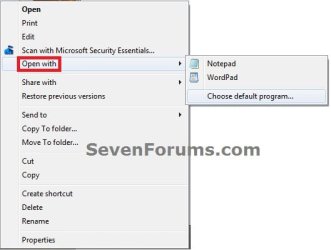
Open_with.jpgChoose_default_program.jpg


OPTION ONE

To Manually Add a Program to "Open with"


NOTE: This will not always register the program and add it to the Open with window for next time.
1. For how, see: How to Change the Default Program a File Type Opens with in Windows 7


OPTION TWO

Add Program to "Open with" Using a Program


NOTE: The program OpenWithAdd can be helpful in circumstances when Option One does not add the program to "Open with". OpenWithAdd will register the program and add it to "Open with" a lot easier.
WRITTEN BY: Ramesh Srinivasan
1. Go to: Registering programs with the "Open With" dialog

2. Click on the OpenWithAdd.zip download link at the link above to download the file.

3. Save it to your Desktop and extract the two files OpenWithAdd.exe and readme.txt.
NOTE: OpenWithAdd.exe is stand-alone exe file that does not install on your computer. You can move this file to where you want and create a shortcut for it.

4. Click on OpenWithAdd.exe to open the program.

5. Type in the full path of the exe file of the program you want to add to Open With, or click the browse (...) button. (see screenshot below)
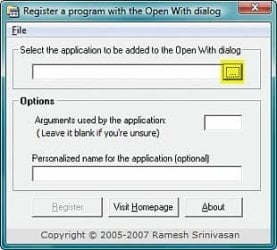
ow1.jpg
6. If you clicked browse (...), then navigate to the exe file of the program you want to add to Open With. (see screenshot below)
A) Click on Select.
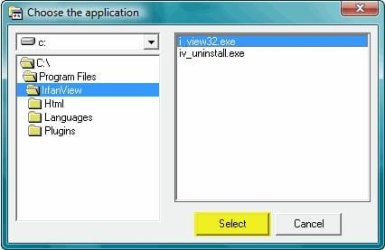
Select.jpg
7. Click on Register. (see screenshot below)
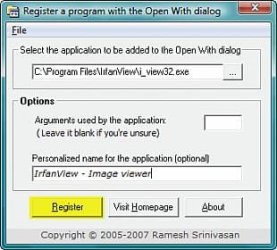
ow3.jpg
8. It is now added. (see screenshot below)
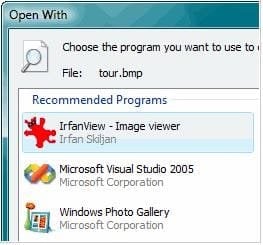
Open_With_After.jpg
That's it,
Shawn


Last edited:
Nice find Shawn

Have been using openwith view to remove some from the list now I can add some too

Thanks

Danny
 

My Computer

Computer Manufacturer/Model Number
acer aspire 5935g
OS
Windows 7 Home Premium x64 SP1
CPU
intel(R)core(TM)2 duo CPU T6600 @ 2.20GHz
Motherboard
intel gm45/gm47 revision 07
Memory
3 gb ddr3
Graphics Card(s)
ati radeon hd4570/512mb
Monitor(s) Displays
lop156wh2-tle1 15.3 flat
Screen Resolution
1366x768
Hard Drives
OCZ-Agility3 60gig ssd
320gig external hdd
500gig external hdd
Mouse
Optical
Internet Speed
30Mbps Down/30Mbps Up
Thank you Danny. :)
 

My Computer

Computer type
PC/Desktop
Computer Manufacturer/Model Number
Self built custom
OS
64-bit Windows 11 Pro for Workstations
CPU
Intel i7-8700K OC'd to 5 GHz
Motherboard
ASUS ROG Maximus XI Formula Z390
Memory
64 GB (4x16GB) G.SKILL TridentZ RGB DDR4 3600 MHz
Graphics Card(s)
ASUS ROG-STRIX-GTX1080TI-O11G-GAMING
Sound Card
Integrated
Monitor(s) Displays
2 x Samsung Odyssey G7 27"
Screen Resolution
2560x1440
Hard Drives
1TB Samsung 990 PRO M.2,
4TB Samsung 990 PRO PRO M.2,
TerraMaster F8 SSD Plus NAS
PSU
Seasonic Prime Titanium 850W
Case
Thermaltake Core P3
Cooling
Corsair Hydro H115i
Keyboard
Logitech wireless K800
Mouse
Logitech MX Master 4
Internet Speed
2 Gb/s Download and 100 Mb/s Upload
Antivirus
Malwarebyte Anti-Malware Premium
Browser
Google Chrome
Other Info
Logitech Z625 speaker system,
Logitech BRIO 4K Pro webcam,
HP Color LaserJet Pro MFP M477fdn,
APC SMART-UPS RT 1000 XL - SURT1000XLI,
Galaxy S23 Plus phone
Sadly, the above methods don't give me what I need, because:

  1. I like to open files with a specific program sometimes, but not all the time. So, while I need the program to be in the "Open with" menu, I don't always want to choose the "Always use the selected program to open this kind of file" option.
  2. The 'OpenWithAdd' program looks like a nice little tool, but I seriously prefer making changes directly, even in the registry if necessary. It's not a problem for me, I've been there many times, and always take all precautions when doing so.
If there is a way to add a program to the menu other than the two options above, please post it. :)
 

My Computer

Computer type
Laptop
Computer Manufacturer/Model Number
Dell Inspiron 1750
OS
Microsoft Windows 7 Home Premium 64-bit 7601 Multiprocessor Free Service Pack 1
CPU
Pentium(R) Dual-Core CPU T4500 @ 2.30GHz
Motherboard
Dell Inc. 0F642T
Memory
3.00 GB
Graphics Card(s)
(1) Mobile Intel(R) 4 Series Express Chipset Family (2) Mo
Sound Card
IDT High Definition Audio CODEC
Monitor(s) Displays
Generic PnP Monitor - 17.1"
Screen Resolution
1600 x 900 x 32 bits (4294967296 colors) @ 60 Hz
Hard Drives
(1) WDC WD10JPVT-55A1YT0 (2) SAMSUNG HD204UI USB Device
Mouse
IntelliPoint (Microsoft) USB Wireless Mouse 4000
Antivirus
Outpost Security Suite Pro
Browser
Firefox, Chrome, Seamonkey, Opera, Internet Explorer
Hello cbiweb,

When you right click on a file and click on "Open with", you could select a listed program to open the file with that program for just that one time. This is what this tutorial is for to add programs to this list.

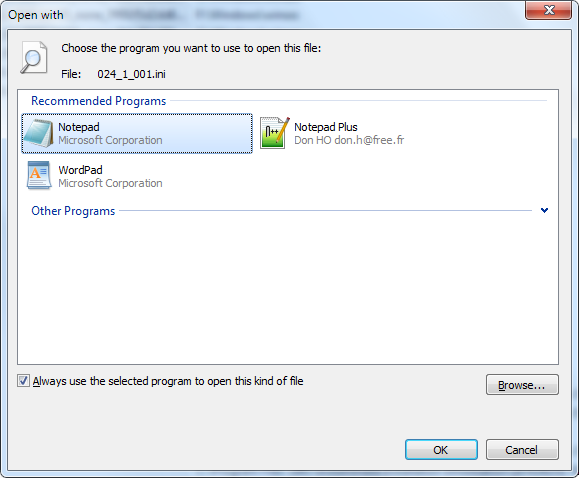
If you used the "Choose default program" option in the "Open with" context menu, then you have a choice to make it the default program or for just that one time. If you don't want the program to become the default program, then you would uncheck the Always use the selected program to open this kind of file option first.

If you like, you could use the tutorial below to have the Always use the selected program to open this kind of file box unchecked by default instead of checked to help.

http://www.sevenforums.com/tutorial...elected-program-always-checked-unchecked.html

Hope this helps, :)
Shawn
 

My Computer

Computer type
PC/Desktop
Computer Manufacturer/Model Number
Self built custom
OS
64-bit Windows 11 Pro for Workstations
CPU
Intel i7-8700K OC'd to 5 GHz
Motherboard
ASUS ROG Maximus XI Formula Z390
Memory
64 GB (4x16GB) G.SKILL TridentZ RGB DDR4 3600 MHz
Graphics Card(s)
ASUS ROG-STRIX-GTX1080TI-O11G-GAMING
Sound Card
Integrated
Monitor(s) Displays
2 x Samsung Odyssey G7 27"
Screen Resolution
2560x1440
Hard Drives
1TB Samsung 990 PRO M.2,
4TB Samsung 990 PRO PRO M.2,
TerraMaster F8 SSD Plus NAS
PSU
Seasonic Prime Titanium 850W
Case
Thermaltake Core P3
Cooling
Corsair Hydro H115i
Keyboard
Logitech wireless K800
Mouse
Logitech MX Master 4
Internet Speed
2 Gb/s Download and 100 Mb/s Upload
Antivirus
Malwarebyte Anti-Malware Premium
Browser
Google Chrome
Other Info
Logitech Z625 speaker system,
Logitech BRIO 4K Pro webcam,
HP Color LaserJet Pro MFP M477fdn,
APC SMART-UPS RT 1000 XL - SURT1000XLI,
Galaxy S23 Plus phone
Just to append to Brink's advice (above) to cbiweb manually managing creation of openwith programs...

Using regshot, I see that openwithadd creates the following keys
HKLM\SOFTWARE\Classes\Applications\notepad++.exe
HKLM\SOFTWARE\Classes\Applications\notepad++.exe\shell
HKLM\SOFTWARE\Classes\Applications\notepad++.exe\shell\open
HKLM\SOFTWARE\Classes\Applications\notepad++.exe\shell\open\command
HKU\S-1-5-21-612895722-2077341535-3648626709-1000\Software\Classes\Applications
HKU\S-1-5-21-612895722-2077341535-3648626709-1000\Software\Classes\Applications\notepad++.exe
HKU\S-1-5-21-612895722-2077341535-3648626709-1000\Software\Classes\Applications\notepad++.exe\shell
HKU\S-1-5-21-612895722-2077341535-3648626709-1000_Classes\Applications
HKU\S-1-5-21-612895722-2077341535-3648626709-1000_Classes\Applications\notepad++.exe
HKU\S-1-5-21-612895722-2077341535-3648626709-1000_Classes\Applications\notepad++.exe\shell

The SID is just your comp's ID. I suspect that the first path is a shortcut, and the HKU address is where it's @ ;D

Combining this with brink's above advice should get you the desired functionality - without any dependence on 3rd party tools :D

NB: do (of course) make sure you correctly program any parameters required for execution...
 

My Computer

Computer type
Laptop
Computer Manufacturer/Model Number
Dell
OS
Windows 7 Ultimate 64bit
CPU
2.2
Memory
8Gb
Graphics Card(s)
NVIDIA
Screen Resolution
1280/762
Mouse
built in pad || iphone || MS wireless
Internet Speed
100MB
Antivirus
Avast
Browser
Chrome, Chrome portable
cbiweb (and others!) here's some info and examples that may help better manage windows program associations...

Re the above (Using openwith to add notepad++), I first used RegShot to capture the regchanges.

using everything I checked some associations... I like how notepad and wordpad are quickly available, I'd also like Notepad++ to be in this openwith context-menu

HKEY_CLASSES_ROOT\*\OpenWithList
lyqPAid.png


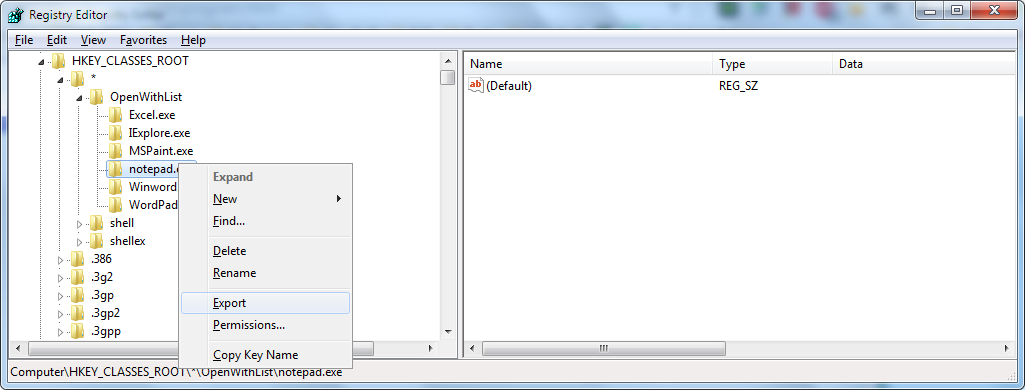
Using Nirsoft's OpenWithView I see that notepad++ is known as notepad++.exe, so I can just

1 - export the notepad.exe
6NhmHng.png


2- update (save) the .reg so it refers to notepad++
SmnsPJu.png


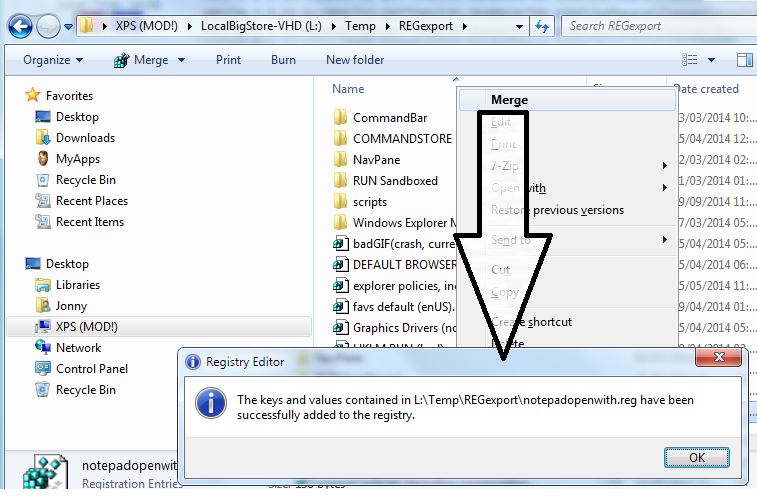
3- import the new reg
nlCBodD.png


Even after restarting explorer, that didn't do it!...

TAKE 2

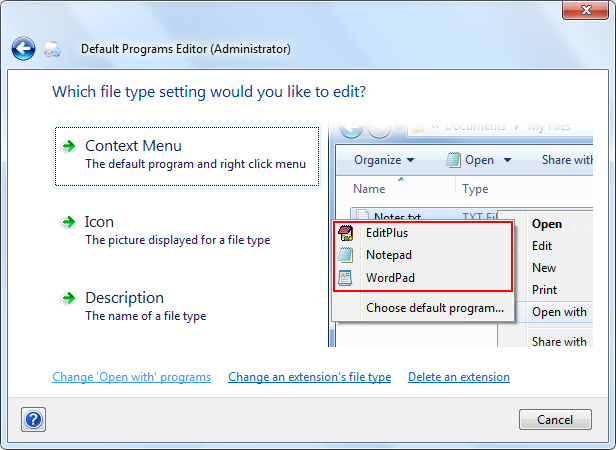
Using DefaultProgramsEditor I found the Recommended Programs - for each file type.

w0gfh4m.png


I first tried with notepad++, but it failed. analysis of the reg. (alternative save option) indicated that maybe the program can't handle special characters like + in the filename... the reg didn't work.

KL4yX4Y.png


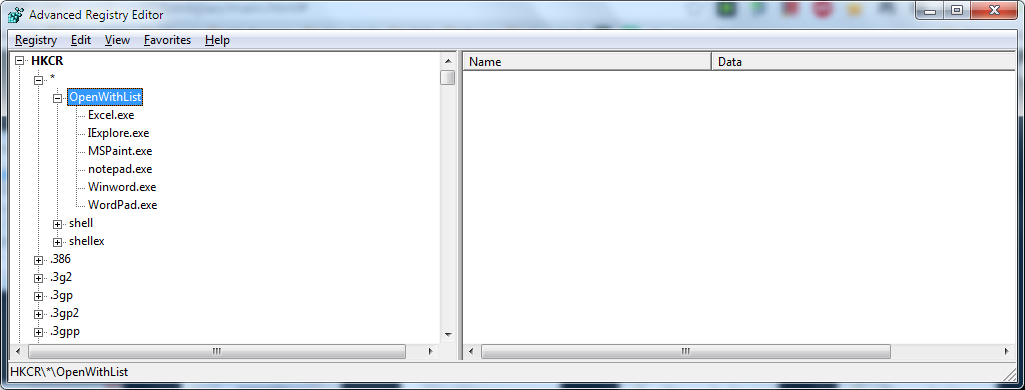
Gave it another go, with "Advanced Registry Editor" (target aregedt.exe) and it worked.

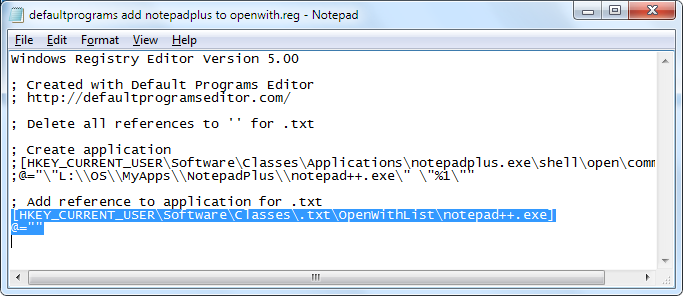
Amended the reg so it simply adds notepad++.exe (already a known application @ HKEY_LOCAL_MACHINE\SOFTWARE\Classes\Applications\notepad++.exe) to the HKCU .txt OpenWithList, et voile

TNt2Mud.png


pIuJl04.png


Feeling fortunate and brave, I thought I'd add an * entry...
iTAGk2m.png


No go. Notepad is the only app that's close to being available on OpenWith context for all entries...
 

My Computer

Computer type
Laptop
Computer Manufacturer/Model Number
Dell
OS
Windows 7 Ultimate 64bit
CPU
2.2
Memory
8Gb
Graphics Card(s)
NVIDIA
Screen Resolution
1280/762
Mouse
built in pad || iphone || MS wireless
Internet Speed
100MB
Antivirus
Avast
Browser
Chrome, Chrome portable
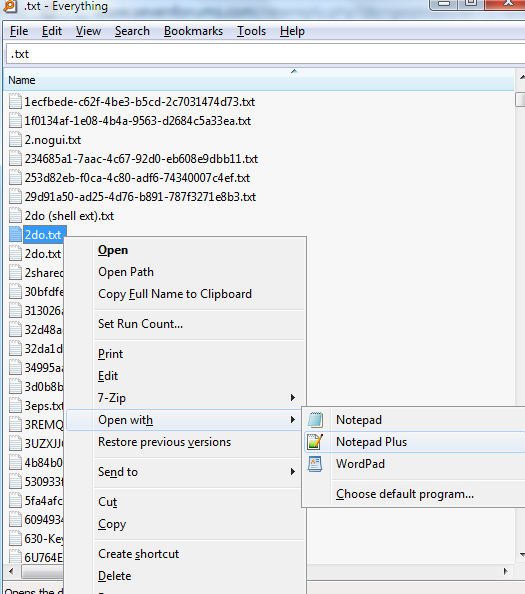
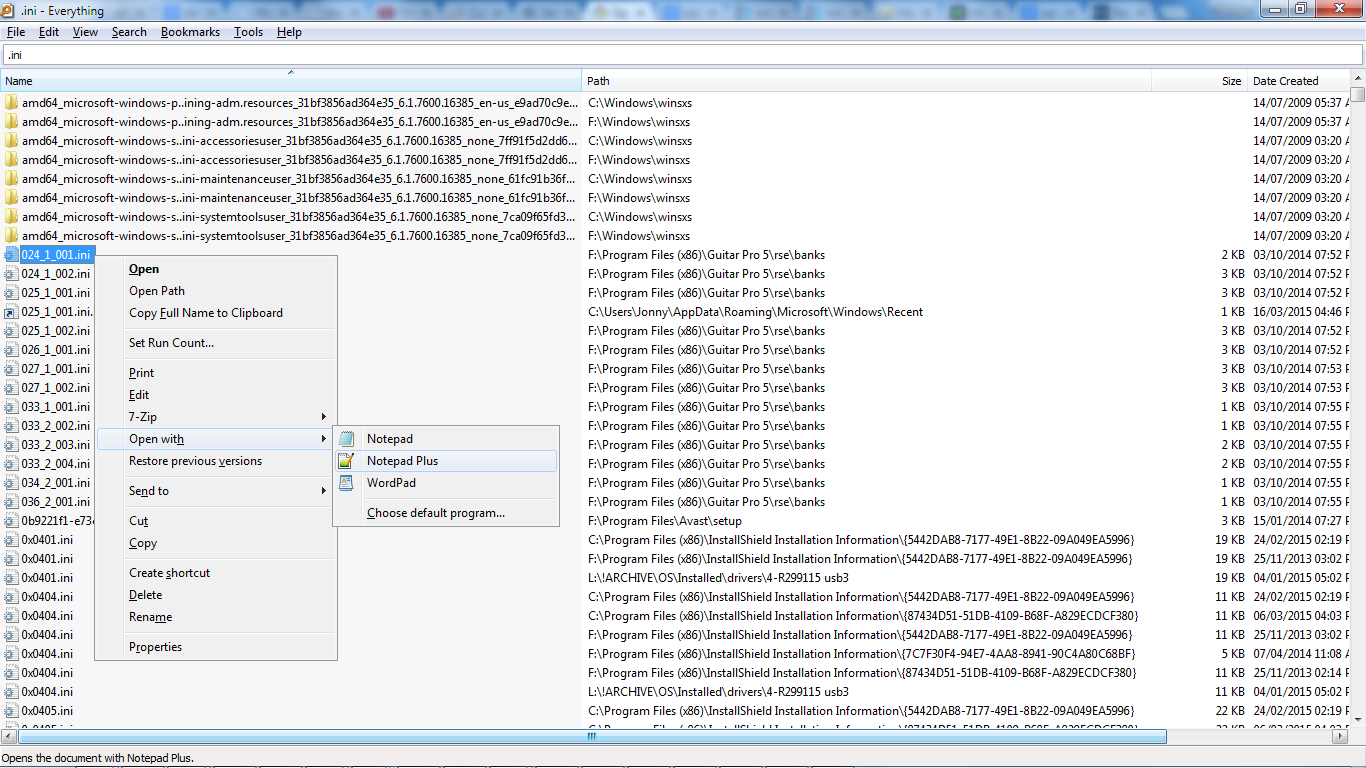
On closer inspection, once I'd added notepadplus to 'other programs' using the above method, I found that that program was directly available from the OpenWith context (along with notepad/wordpad etc) and promoted to the Recommended Programs list for that file type...

CkYMZjE.png


DQtuDDw.png


The final touch for me would be removing paint +photoviewer from other programs when "opening with" ... they have no place there (paint can't open .ini's!)

Any ideas?
 

My Computer

Computer type
Laptop
Computer Manufacturer/Model Number
Dell
OS
Windows 7 Ultimate 64bit
CPU
2.2
Memory
8Gb
Graphics Card(s)
NVIDIA
Screen Resolution
1280/762
Mouse
built in pad || iphone || MS wireless
Internet Speed
100MB
Antivirus
Avast
Browser
Chrome, Chrome portable
Option 1 only tells you how to make a program be the default for that file type, it does not explain how to manually add a program to the "Open With" dialog box/right-click context menu. Option 2 sounds like it can add a program to the menu without making the program the default program but it doesn't explain how to do it manually either.

How do I manually do this without the use of a program that obfuscates how you do it? Windows 8.1 Update 1.
 
Last edited:

My Computer

OS
Windows 7 x64
Hello Franpa,

A program is added to the "Open with" context menu when it's made the default program. Afterwards, you can change the default program back to what you want, and still have the other program listed in Open with. :)
 

My Computer

Computer type
PC/Desktop
Computer Manufacturer/Model Number
Self built custom
OS
64-bit Windows 11 Pro for Workstations
CPU
Intel i7-8700K OC'd to 5 GHz
Motherboard
ASUS ROG Maximus XI Formula Z390
Memory
64 GB (4x16GB) G.SKILL TridentZ RGB DDR4 3600 MHz
Graphics Card(s)
ASUS ROG-STRIX-GTX1080TI-O11G-GAMING
Sound Card
Integrated
Monitor(s) Displays
2 x Samsung Odyssey G7 27"
Screen Resolution
2560x1440
Hard Drives
1TB Samsung 990 PRO M.2,
4TB Samsung 990 PRO PRO M.2,
TerraMaster F8 SSD Plus NAS
PSU
Seasonic Prime Titanium 850W
Case
Thermaltake Core P3
Cooling
Corsair Hydro H115i
Keyboard
Logitech wireless K800
Mouse
Logitech MX Master 4
Internet Speed
2 Gb/s Download and 100 Mb/s Upload
Antivirus
Malwarebyte Anti-Malware Premium
Browser
Google Chrome
Other Info
Logitech Z625 speaker system,
Logitech BRIO 4K Pro webcam,
HP Color LaserJet Pro MFP M477fdn,
APC SMART-UPS RT 1000 XL - SURT1000XLI,
Galaxy S23 Plus phone
Yes, that's how it should work. However that doesn't seem to work for VirtualDub 64bit. I can make VirtualDub the default program for AVI files but I can never add it to the Open With context menu or the dialog box that appears when choosing "Choose default program".

So I can't seemingly have Media Player Classic as the default program with a right-click menu option to open in Virtual Dub.
 

My Computer

OS
Windows 7 x64
Seems like an issue with VirtualDub. You might also contact the developers to see if they know of a solution, or come up with one.

Is VirtualDub listed in Default Programs? If not, then it's definitely an issue with the program not being fully compatible.
 

My Computer

Computer type
PC/Desktop
Computer Manufacturer/Model Number
Self built custom
OS
64-bit Windows 11 Pro for Workstations
CPU
Intel i7-8700K OC'd to 5 GHz
Motherboard
ASUS ROG Maximus XI Formula Z390
Memory
64 GB (4x16GB) G.SKILL TridentZ RGB DDR4 3600 MHz
Graphics Card(s)
ASUS ROG-STRIX-GTX1080TI-O11G-GAMING
Sound Card
Integrated
Monitor(s) Displays
2 x Samsung Odyssey G7 27"
Screen Resolution
2560x1440
Hard Drives
1TB Samsung 990 PRO M.2,
4TB Samsung 990 PRO PRO M.2,
TerraMaster F8 SSD Plus NAS
PSU
Seasonic Prime Titanium 850W
Case
Thermaltake Core P3
Cooling
Corsair Hydro H115i
Keyboard
Logitech wireless K800
Mouse
Logitech MX Master 4
Internet Speed
2 Gb/s Download and 100 Mb/s Upload
Antivirus
Malwarebyte Anti-Malware Premium
Browser
Google Chrome
Other Info
Logitech Z625 speaker system,
Logitech BRIO 4K Pro webcam,
HP Color LaserJet Pro MFP M477fdn,
APC SMART-UPS RT 1000 XL - SURT1000XLI,
Galaxy S23 Plus phone
I'd be curious if all 64bit programs are simply excluded from the list. I can make it the default program for AVI files but I can't make it appear in the right-click context menu or the "Choose default program..." prompt. I guess I'll either post on the technet forums and see if someone there knows what's up, as well as contact the VirtualDub developer.

It does not appear in Default Programs either.

Edit: Well, thanks for trying.
 

My Computer

OS
Windows 7 x64
I use Windows 10 and would like to once Explorer.exe allows me to choose the program that I want to open the .iso files.
I would like added "Open with" "VLC media player" for the .iso file in addition to programs that are already in the list.


My Computer

OS
Windows 7 Ultimate 64-bit
CPU
Intel Core 2 Duo CPU E8400 3.00 GHz
Motherboard
S775 ASUS Maximus Formula x38 PCIe
Memory
2x OCZ 1066 MHz DDR2 No-ECC 4096MO Reaper Kit
Graphics Card(s)
BFG PCIe GF9 GeForce 9800 GX2 1024M
Sound Card
PCI Express X-Fi Titanium Fatal1ty Pro Series
Monitor(s) Displays
SamSung SyncMaster 2493 HM
Hard Drives
4 x Seagate ST3500320AS
PSU
Antec Sonata Plus 550 Watts
Case
Antec Sonata Plus 550
Cooling
Passive (Motherboard)
Hello MrSeven, :)

The program must support opening .iso files to be able to be added to "Open with".
 

My Computer

Computer type
PC/Desktop
Computer Manufacturer/Model Number
Self built custom
OS
64-bit Windows 11 Pro for Workstations
CPU
Intel i7-8700K OC'd to 5 GHz
Motherboard
ASUS ROG Maximus XI Formula Z390
Memory
64 GB (4x16GB) G.SKILL TridentZ RGB DDR4 3600 MHz
Graphics Card(s)
ASUS ROG-STRIX-GTX1080TI-O11G-GAMING
Sound Card
Integrated
Monitor(s) Displays
2 x Samsung Odyssey G7 27"
Screen Resolution
2560x1440
Hard Drives
1TB Samsung 990 PRO M.2,
4TB Samsung 990 PRO PRO M.2,
TerraMaster F8 SSD Plus NAS
PSU
Seasonic Prime Titanium 850W
Case
Thermaltake Core P3
Cooling
Corsair Hydro H115i
Keyboard
Logitech wireless K800
Mouse
Logitech MX Master 4
Internet Speed
2 Gb/s Download and 100 Mb/s Upload
Antivirus
Malwarebyte Anti-Malware Premium
Browser
Google Chrome
Other Info
Logitech Z625 speaker system,
Logitech BRIO 4K Pro webcam,
HP Color LaserJet Pro MFP M477fdn,
APC SMART-UPS RT 1000 XL - SURT1000XLI,
Galaxy S23 Plus phone
Back
Top