Open with - Clean Up and Remove Programs

How to Clean Up and Remove Programs from the "Open with" Context Menu

   Information
This will show you how to enable and disable programs that are listed in the Open with right click context menu in Windows 7 and Vista.

If you disable a program, it will be removed from the Open with context menu.

If you enable or re-enable a program, it will be added back to the Open with context menu.

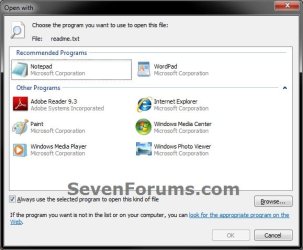
EXAMPLE: Open with
NOTE: This is when you right click on a file and select Open with (left screenshot), or select Open with and click on Choose default program (right screenshot). Open_with.jpg
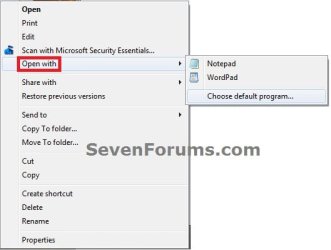
Choose_default_program.jpg


Here's How: 1. If you have not already, you will need to download, extract all files, and run the free OpenWithView program.
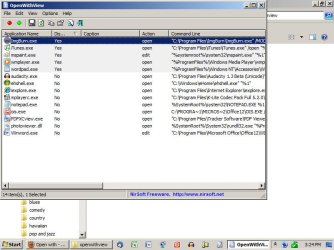
NOTE: OpenWithView is a standalone exe program, so it does not install on your computer. You would just run it instead. OpenWithView.jpg
2. To Disable and Remove a Program from "Open with" Context Menu A) In OpenWithView, select and right click on one or more listed Application Name (program) that you want to remove from "Open with".
NOTE: You can select more than one Application Name by pressing and holding the CTRL key while selecting the programs, then release the CTRL key when ready to right click on one of the highlighted (selected) programs.

B) Click on Disable Selected Items.
NOTE: You will notice that under the Disabled column, it will now change to Yes to confirm that it has been disabled.
3. To Enable and Add Back a Disabled Program to "Open with" Context Menu A) In OpenWithView, select and right click on one or more listed Application Name (program) that you want to re-enable and add back to "Open with".
NOTE: You can select more than one Application Name by pressing and holding the CTRL key while selecting the programs, then release the CTRL key when ready to right click on one of the highlighted (selected) programs.

B) Click on Enable Selected Items.
NOTE: You will notice that under the Disabled column, it will now change to No to confirm that it has been enabled again.
4. When finished, you can close OpenWithView.
That's it,
Shawn


Last edited:
Good Tutorial .. Thanks Shawn !!
 

My Computer

Computer Manufacturer/Model Number
Samsung NP550P5C-S02IN
OS
Windows 7 Ultimate - 64-bit | Windows 8 Pro - 64-bit
CPU
Intel® Core™ i7 Processor 3,610QM (2.30Hz, 6MB L3 Cach
Memory
8 GB
Graphics Card(s)
NVIDIA® GeForce® GT 650M 2GB Graphics, Optimus™ techno
Sound Card
SoundAlive™ JBL 3 Speakers (With sub-Woofer)
Monitor(s) Displays
39.62cm (15.6) SuperBright 300nit HD+ LED Display
Screen Resolution
1,600 x 900, Anti-Reflective
Hard Drives
1TB S-ATA II Hard Drive (5,400RPM)
Great job .. thank you very much
 

My Computer

OS
windows 7
You're most welcome guys. Thank you. :)
 

My Computer

Computer type
PC/Desktop
Computer Manufacturer/Model Number
Self built custom
OS
64-bit Windows 11 Pro for Workstations
CPU
Intel i7-8700K OC'd to 5 GHz
Motherboard
ASUS ROG Maximus XI Formula Z390
Memory
64 GB (4x16GB) G.SKILL TridentZ RGB DDR4 3600 MHz
Graphics Card(s)
ASUS ROG-STRIX-GTX1080TI-O11G-GAMING
Sound Card
Integrated
Monitor(s) Displays
2 x Samsung Odyssey G7 27"
Screen Resolution
2560x1440
Hard Drives
1TB Samsung 990 PRO M.2,
4TB Samsung 990 PRO PRO M.2,
TerraMaster F8 SSD Plus NAS
PSU
Seasonic Prime Titanium 850W
Case
Thermaltake Core P3
Cooling
Corsair Hydro H115i
Keyboard
Logitech wireless K800
Mouse
Logitech MX Master 4
Internet Speed
2 Gb/s Download and 100 Mb/s Upload
Antivirus
Malwarebyte Anti-Malware Premium
Browser
Google Chrome
Other Info
Logitech Z625 speaker system,
Logitech BRIO 4K Pro webcam,
HP Color LaserJet Pro MFP M477fdn,
APC SMART-UPS RT 1000 XL - SURT1000XLI,
Galaxy S23 Plus phone
Shawn:

I'm having trouble with this.

I want to control what is shown in the "open with" menu when I right click an mp3, a WAV, or a JPG--and possibly other file types.

I have used Open With View.

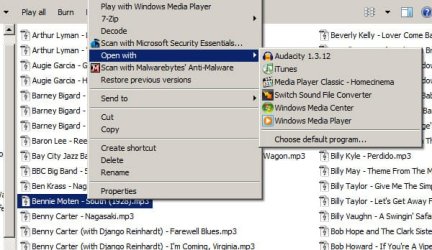
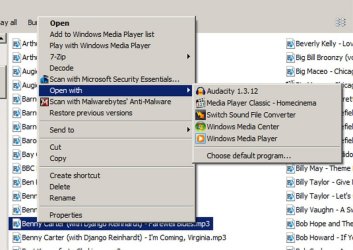
Below are 2 pictures. The first shows the choices I am offered under "open with" when I right click an mp3. Notice there are 6 choices. I want only 2: Audacity and Media Player Classic. I don't want to see the other 4.

The second picture shows what I see in the Open With View program. Note that I-tunes is supposedly disabled. Yet it still shows, as seen in the first picture. Same situation with Windows Media Player--it's disabled, but is still shown on the "open with" context menu.

The other apps I want to remove from the list (Switch and Windows Media Center) don't even appear in the list of applications shown in the Open With View menu.

So, I am obviously not understanding something. How do I remove those 4 unwanted items?

Thanks for any help.
 

Attachments

  • open with choices in explorer.jpg
    open with choices in explorer.jpg
    50.2 KB · Views: 21,284
  • open with view.jpg
    open with view.jpg
    71.1 KB · Views: 984

My Computer

Computer type
PC/Desktop
Computer Manufacturer/Model Number
Ignatz Special; 4 speed manual gearbox; factory air conditioning; one of one
OS
Windows 7 Home Premium SP1, 64-bit
CPU
Intel Skylake i5-6600K, not overclocked
Motherboard
AsRock Z170M Extreme 4, micro ATX
Memory
8 GB HyperX DDR4-2666 (2 x 4 GB)
Graphics Card(s)
none; graphics are integrated on CPU
Sound Card
onboard: Realtek ALC1150; external: USB Behringer UF0-202
Monitor(s) Displays
Dell S2340M 23 inch IPS
Screen Resolution
1600 x 900
Hard Drives
System: Crucial MX100 series SSD, 128 GB;
Data: Samsung Spinpoint 103SJ, 1 TB;
Backup: WD Caviar Green WD30EZRX-00D8PB0, 3 TB
PSU
Rosewill SilentNight 500 watt fanless, semi-modular
Case
Antec Solo II
Cooling
Noctua NH-U12S; Noctua F12 intake, Noctua S12A exhaust
Keyboard
Microsoft 200 6JH-00001 USB
Mouse
Dell or Microsoft optical wired; USB
Antivirus
Microsoft Security Essentials and Malwarebytes Premium
Browser
Pale Moon
Other Info
All fans PWM; speeds at idle: CPU circa 500 rpm; intake circa 600 rpm; exhaust circa 600 rpm; CPU temps 27 idle and 47 C load in a warm room (27 C/81 F) when running Intel Extreme Tuning Utility stress test.
Hello Ignatzatsonic,

You might also check at the registry location below for each file extenstion to delete the program that you do not want in "Open With" for that file extension.

How to Remove Programs from the "Open With" List

HKEY_CURRENT_USER\Software\Microsoft\Windows\CurrentVersion\ Explorer\FileExts\.extension\OpenWithList


Hope this helps,
Shawn
 

My Computer

Computer type
PC/Desktop
Computer Manufacturer/Model Number
Self built custom
OS
64-bit Windows 11 Pro for Workstations
CPU
Intel i7-8700K OC'd to 5 GHz
Motherboard
ASUS ROG Maximus XI Formula Z390
Memory
64 GB (4x16GB) G.SKILL TridentZ RGB DDR4 3600 MHz
Graphics Card(s)
ASUS ROG-STRIX-GTX1080TI-O11G-GAMING
Sound Card
Integrated
Monitor(s) Displays
2 x Samsung Odyssey G7 27"
Screen Resolution
2560x1440
Hard Drives
1TB Samsung 990 PRO M.2,
4TB Samsung 990 PRO PRO M.2,
TerraMaster F8 SSD Plus NAS
PSU
Seasonic Prime Titanium 850W
Case
Thermaltake Core P3
Cooling
Corsair Hydro H115i
Keyboard
Logitech wireless K800
Mouse
Logitech MX Master 4
Internet Speed
2 Gb/s Download and 100 Mb/s Upload
Antivirus
Malwarebyte Anti-Malware Premium
Browser
Google Chrome
Other Info
Logitech Z625 speaker system,
Logitech BRIO 4K Pro webcam,
HP Color LaserJet Pro MFP M477fdn,
APC SMART-UPS RT 1000 XL - SURT1000XLI,
Galaxy S23 Plus phone
Shawn:

Thanks for that. I will check it out and report back if I still fail.
 

My Computer

Computer type
PC/Desktop
Computer Manufacturer/Model Number
Ignatz Special; 4 speed manual gearbox; factory air conditioning; one of one
OS
Windows 7 Home Premium SP1, 64-bit
CPU
Intel Skylake i5-6600K, not overclocked
Motherboard
AsRock Z170M Extreme 4, micro ATX
Memory
8 GB HyperX DDR4-2666 (2 x 4 GB)
Graphics Card(s)
none; graphics are integrated on CPU
Sound Card
onboard: Realtek ALC1150; external: USB Behringer UF0-202
Monitor(s) Displays
Dell S2340M 23 inch IPS
Screen Resolution
1600 x 900
Hard Drives
System: Crucial MX100 series SSD, 128 GB;
Data: Samsung Spinpoint 103SJ, 1 TB;
Backup: WD Caviar Green WD30EZRX-00D8PB0, 3 TB
PSU
Rosewill SilentNight 500 watt fanless, semi-modular
Case
Antec Solo II
Cooling
Noctua NH-U12S; Noctua F12 intake, Noctua S12A exhaust
Keyboard
Microsoft 200 6JH-00001 USB
Mouse
Dell or Microsoft optical wired; USB
Antivirus
Microsoft Security Essentials and Malwarebytes Premium
Browser
Pale Moon
Other Info
All fans PWM; speeds at idle: CPU circa 500 rpm; intake circa 600 rpm; exhaust circa 600 rpm; CPU temps 27 idle and 47 C load in a warm room (27 C/81 F) when running Intel Extreme Tuning Utility stress test.
Shawn:

No joy.

I went to your link and noticed it did not specify Win 7, so I then entered "Remove Programs from the "Open With" List" under advanced search at the MS Win 7 site.

That lead me here:

Remove Right Click File Association

which gives the same location in the registry as you provided--so I guess your link is also valid for Win 7.

However..........

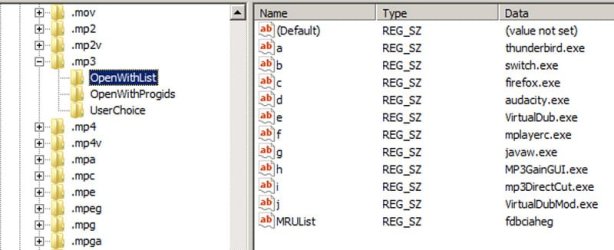
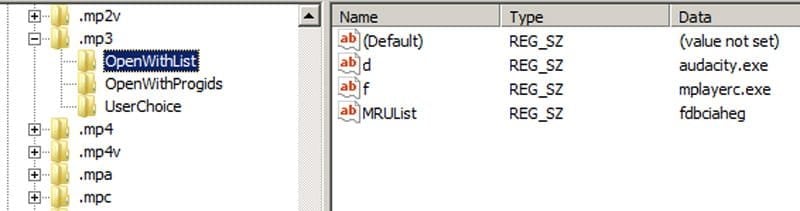
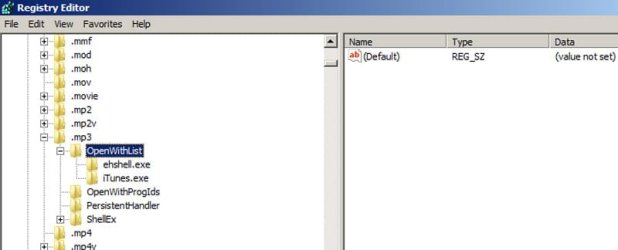
See the before and after pix below of the MP3 registry key at that registry location.

In the before pic you will see the numerous choices shown before I made an edit. Notice that several of the choices shown do NOT actually appear when I right click an mp3.

Also notice that I-Tunes, which does appear when I right click an mp3, does NOT appear on this list in the registry.

I made the edit anyway, removing everything but Audacity, mplayerc (Media Player Classic), default, and MRU list--as shown in the after pic.

The result---no change in the listed items when right clicking an mp3.

Next advice? Other similar locations in the registry? Removing either MRUlist or Default?
 

Attachments

  • regedit-mp3openwithlist.JPG
    regedit-mp3openwithlist.JPG
    38.6 KB · Views: 964
  • regedit-mp3openwithlistafter.JPG
    regedit-mp3openwithlistafter.JPG
    22.3 KB · Views: 860

My Computer

Computer type
PC/Desktop
Computer Manufacturer/Model Number
Ignatz Special; 4 speed manual gearbox; factory air conditioning; one of one
OS
Windows 7 Home Premium SP1, 64-bit
CPU
Intel Skylake i5-6600K, not overclocked
Motherboard
AsRock Z170M Extreme 4, micro ATX
Memory
8 GB HyperX DDR4-2666 (2 x 4 GB)
Graphics Card(s)
none; graphics are integrated on CPU
Sound Card
onboard: Realtek ALC1150; external: USB Behringer UF0-202
Monitor(s) Displays
Dell S2340M 23 inch IPS
Screen Resolution
1600 x 900
Hard Drives
System: Crucial MX100 series SSD, 128 GB;
Data: Samsung Spinpoint 103SJ, 1 TB;
Backup: WD Caviar Green WD30EZRX-00D8PB0, 3 TB
PSU
Rosewill SilentNight 500 watt fanless, semi-modular
Case
Antec Solo II
Cooling
Noctua NH-U12S; Noctua F12 intake, Noctua S12A exhaust
Keyboard
Microsoft 200 6JH-00001 USB
Mouse
Dell or Microsoft optical wired; USB
Antivirus
Microsoft Security Essentials and Malwarebytes Premium
Browser
Pale Moon
Other Info
All fans PWM; speeds at idle: CPU circa 500 rpm; intake circa 600 rpm; exhaust circa 600 rpm; CPU temps 27 idle and 47 C load in a warm room (27 C/81 F) when running Intel Extreme Tuning Utility stress test.
Hmmm.....curiouser and curiouser.

I then go here:


http://www.sevenforums.com/tutorials/19449-default-file-type-associations-restore.html

and restore the mp3 default file associations.

A right click on an mp3 now shows only 4 items:

Media Player Classic
Switch
Windows Media Center
Windows Media Player

Why in the world would Switch and Media Player Classic be mp3 defaults when they are not even part of Windows?

The registry now shows no "OpenWithList" at all at that location--so how do I now remove Switch, Media Center, and Media Player?

At least it got rid of some right click items.
 

My Computer

Computer type
PC/Desktop
Computer Manufacturer/Model Number
Ignatz Special; 4 speed manual gearbox; factory air conditioning; one of one
OS
Windows 7 Home Premium SP1, 64-bit
CPU
Intel Skylake i5-6600K, not overclocked
Motherboard
AsRock Z170M Extreme 4, micro ATX
Memory
8 GB HyperX DDR4-2666 (2 x 4 GB)
Graphics Card(s)
none; graphics are integrated on CPU
Sound Card
onboard: Realtek ALC1150; external: USB Behringer UF0-202
Monitor(s) Displays
Dell S2340M 23 inch IPS
Screen Resolution
1600 x 900
Hard Drives
System: Crucial MX100 series SSD, 128 GB;
Data: Samsung Spinpoint 103SJ, 1 TB;
Backup: WD Caviar Green WD30EZRX-00D8PB0, 3 TB
PSU
Rosewill SilentNight 500 watt fanless, semi-modular
Case
Antec Solo II
Cooling
Noctua NH-U12S; Noctua F12 intake, Noctua S12A exhaust
Keyboard
Microsoft 200 6JH-00001 USB
Mouse
Dell or Microsoft optical wired; USB
Antivirus
Microsoft Security Essentials and Malwarebytes Premium
Browser
Pale Moon
Other Info
All fans PWM; speeds at idle: CPU circa 500 rpm; intake circa 600 rpm; exhaust circa 600 rpm; CPU temps 27 idle and 47 C load in a warm room (27 C/81 F) when running Intel Extreme Tuning Utility stress test.
You might also check the location below to see what is listed.

HKEY_CLASSES_ROOT\.extension\OpenWithList
 

My Computer

Computer type
PC/Desktop
Computer Manufacturer/Model Number
Self built custom
OS
64-bit Windows 11 Pro for Workstations
CPU
Intel i7-8700K OC'd to 5 GHz
Motherboard
ASUS ROG Maximus XI Formula Z390
Memory
64 GB (4x16GB) G.SKILL TridentZ RGB DDR4 3600 MHz
Graphics Card(s)
ASUS ROG-STRIX-GTX1080TI-O11G-GAMING
Sound Card
Integrated
Monitor(s) Displays
2 x Samsung Odyssey G7 27"
Screen Resolution
2560x1440
Hard Drives
1TB Samsung 990 PRO M.2,
4TB Samsung 990 PRO PRO M.2,
TerraMaster F8 SSD Plus NAS
PSU
Seasonic Prime Titanium 850W
Case
Thermaltake Core P3
Cooling
Corsair Hydro H115i
Keyboard
Logitech wireless K800
Mouse
Logitech MX Master 4
Internet Speed
2 Gb/s Download and 100 Mb/s Upload
Antivirus
Malwarebyte Anti-Malware Premium
Browser
Google Chrome
Other Info
Logitech Z625 speaker system,
Logitech BRIO 4K Pro webcam,
HP Color LaserJet Pro MFP M477fdn,
APC SMART-UPS RT 1000 XL - SURT1000XLI,
Galaxy S23 Plus phone
I don't have a .extension within hkey classes root.

The nearest to that would be .ext, which doesn't appear to be relevant. See picture below.

Nor do I any longer see a .extension location at HKEY_CURRENT_USER\Software\Microsoft\Windows\CurrentVersion\ Explorer\FileExts.

I don't know why that is. I did nothing deliberate as far as I know beyond deleting a few entries under extensions and then restoring mp3 defaults as mentioned in above posts.

A right click on an mp3 now shows 5 choices under "open with". See pic below. All I want to see there is the first 2 choices--Audacity and Media Player Classic.

I think I will do a system restore to a couple of days ago and take a fresh look.
 

Attachments

  • extnotextension.JPG
    extnotextension.JPG
    21.6 KB · Views: 276
  • mp3rightclick901.JPG
    mp3rightclick901.JPG
    70.7 KB · Views: 241

My Computer

Computer type
PC/Desktop
Computer Manufacturer/Model Number
Ignatz Special; 4 speed manual gearbox; factory air conditioning; one of one
OS
Windows 7 Home Premium SP1, 64-bit
CPU
Intel Skylake i5-6600K, not overclocked
Motherboard
AsRock Z170M Extreme 4, micro ATX
Memory
8 GB HyperX DDR4-2666 (2 x 4 GB)
Graphics Card(s)
none; graphics are integrated on CPU
Sound Card
onboard: Realtek ALC1150; external: USB Behringer UF0-202
Monitor(s) Displays
Dell S2340M 23 inch IPS
Screen Resolution
1600 x 900
Hard Drives
System: Crucial MX100 series SSD, 128 GB;
Data: Samsung Spinpoint 103SJ, 1 TB;
Backup: WD Caviar Green WD30EZRX-00D8PB0, 3 TB
PSU
Rosewill SilentNight 500 watt fanless, semi-modular
Case
Antec Solo II
Cooling
Noctua NH-U12S; Noctua F12 intake, Noctua S12A exhaust
Keyboard
Microsoft 200 6JH-00001 USB
Mouse
Dell or Microsoft optical wired; USB
Antivirus
Microsoft Security Essentials and Malwarebytes Premium
Browser
Pale Moon
Other Info
All fans PWM; speeds at idle: CPU circa 500 rpm; intake circa 600 rpm; exhaust circa 600 rpm; CPU temps 27 idle and 47 C load in a warm room (27 C/81 F) when running Intel Extreme Tuning Utility stress test.
Sorry, you would substitute .extension in the registry path I posted above for the actual file extension (ex: .mp3) instead. ;)

HKEY_CLASSES_ROOT\.extension\OpenWithList
 
Last edited:

My Computer

Computer type
PC/Desktop
Computer Manufacturer/Model Number
Self built custom
OS
64-bit Windows 11 Pro for Workstations
CPU
Intel i7-8700K OC'd to 5 GHz
Motherboard
ASUS ROG Maximus XI Formula Z390
Memory
64 GB (4x16GB) G.SKILL TridentZ RGB DDR4 3600 MHz
Graphics Card(s)
ASUS ROG-STRIX-GTX1080TI-O11G-GAMING
Sound Card
Integrated
Monitor(s) Displays
2 x Samsung Odyssey G7 27"
Screen Resolution
2560x1440
Hard Drives
1TB Samsung 990 PRO M.2,
4TB Samsung 990 PRO PRO M.2,
TerraMaster F8 SSD Plus NAS
PSU
Seasonic Prime Titanium 850W
Case
Thermaltake Core P3
Cooling
Corsair Hydro H115i
Keyboard
Logitech wireless K800
Mouse
Logitech MX Master 4
Internet Speed
2 Gb/s Download and 100 Mb/s Upload
Antivirus
Malwarebyte Anti-Malware Premium
Browser
Google Chrome
Other Info
Logitech Z625 speaker system,
Logitech BRIO 4K Pro webcam,
HP Color LaserJet Pro MFP M477fdn,
APC SMART-UPS RT 1000 XL - SURT1000XLI,
Galaxy S23 Plus phone
Give me that entire path again?

I just did a system restore to Aug 30, before I got involved in this thread. After the restore, I do not see a .extension key at HKEY_CURRENT_USER\Software\Microsoft\Windows\CurrentVersion\ Explorer\FileExts\.

I did have that location 24 hours ago.

I see .exe followed by .flac

Sorry, you would substitute .extension in the registry path I posted above for the actual file extension (ex: .mp3) instead. ;)

HKEY_CLASSES_ROOT\.extension\OpenWithList


I do not have:

HKEY_CLASSES_ROOT\.extension\OpenWithList

I have:

HKEY_CLASSES_ROOT\.ext

followed by

HKEY_CLASSES_ROOT\.eyb

This is after system restore to Aug 30.
 

My Computer

Computer type
PC/Desktop
Computer Manufacturer/Model Number
Ignatz Special; 4 speed manual gearbox; factory air conditioning; one of one
OS
Windows 7 Home Premium SP1, 64-bit
CPU
Intel Skylake i5-6600K, not overclocked
Motherboard
AsRock Z170M Extreme 4, micro ATX
Memory
8 GB HyperX DDR4-2666 (2 x 4 GB)
Graphics Card(s)
none; graphics are integrated on CPU
Sound Card
onboard: Realtek ALC1150; external: USB Behringer UF0-202
Monitor(s) Displays
Dell S2340M 23 inch IPS
Screen Resolution
1600 x 900
Hard Drives
System: Crucial MX100 series SSD, 128 GB;
Data: Samsung Spinpoint 103SJ, 1 TB;
Backup: WD Caviar Green WD30EZRX-00D8PB0, 3 TB
PSU
Rosewill SilentNight 500 watt fanless, semi-modular
Case
Antec Solo II
Cooling
Noctua NH-U12S; Noctua F12 intake, Noctua S12A exhaust
Keyboard
Microsoft 200 6JH-00001 USB
Mouse
Dell or Microsoft optical wired; USB
Antivirus
Microsoft Security Essentials and Malwarebytes Premium
Browser
Pale Moon
Other Info
All fans PWM; speeds at idle: CPU circa 500 rpm; intake circa 600 rpm; exhaust circa 600 rpm; CPU temps 27 idle and 47 C load in a warm room (27 C/81 F) when running Intel Extreme Tuning Utility stress test.
You would substitute .extension in the registry path I posted above for the actual file extension (ex: .mp3) instead.
wink.gif


HKEY_CLASSES_ROOT\.extension\OpenWithList


For example, for .mp3 you would use this path:

HKEY_CLASSES_ROOT\.mp3\OpenWithList
 

My Computer

Computer type
PC/Desktop
Computer Manufacturer/Model Number
Self built custom
OS
64-bit Windows 11 Pro for Workstations
CPU
Intel i7-8700K OC'd to 5 GHz
Motherboard
ASUS ROG Maximus XI Formula Z390
Memory
64 GB (4x16GB) G.SKILL TridentZ RGB DDR4 3600 MHz
Graphics Card(s)
ASUS ROG-STRIX-GTX1080TI-O11G-GAMING
Sound Card
Integrated
Monitor(s) Displays
2 x Samsung Odyssey G7 27"
Screen Resolution
2560x1440
Hard Drives
1TB Samsung 990 PRO M.2,
4TB Samsung 990 PRO PRO M.2,
TerraMaster F8 SSD Plus NAS
PSU
Seasonic Prime Titanium 850W
Case
Thermaltake Core P3
Cooling
Corsair Hydro H115i
Keyboard
Logitech wireless K800
Mouse
Logitech MX Master 4
Internet Speed
2 Gb/s Download and 100 Mb/s Upload
Antivirus
Malwarebyte Anti-Malware Premium
Browser
Google Chrome
Other Info
Logitech Z625 speaker system,
Logitech BRIO 4K Pro webcam,
HP Color LaserJet Pro MFP M477fdn,
APC SMART-UPS RT 1000 XL - SURT1000XLI,
Galaxy S23 Plus phone
At Hkey classes root mp3, under Openwithlist, I show this.

Right click choices for mp3 are I-tunes, MPC, Switch, Windows Media Center, and Windows Media Player.

I want MPC and Audacity only.
 

Attachments

  • Untitled-1.jpg
    Untitled-1.jpg
    22.1 KB · Views: 294

My Computer

Computer type
PC/Desktop
Computer Manufacturer/Model Number
Ignatz Special; 4 speed manual gearbox; factory air conditioning; one of one
OS
Windows 7 Home Premium SP1, 64-bit
CPU
Intel Skylake i5-6600K, not overclocked
Motherboard
AsRock Z170M Extreme 4, micro ATX
Memory
8 GB HyperX DDR4-2666 (2 x 4 GB)
Graphics Card(s)
none; graphics are integrated on CPU
Sound Card
onboard: Realtek ALC1150; external: USB Behringer UF0-202
Monitor(s) Displays
Dell S2340M 23 inch IPS
Screen Resolution
1600 x 900
Hard Drives
System: Crucial MX100 series SSD, 128 GB;
Data: Samsung Spinpoint 103SJ, 1 TB;
Backup: WD Caviar Green WD30EZRX-00D8PB0, 3 TB
PSU
Rosewill SilentNight 500 watt fanless, semi-modular
Case
Antec Solo II
Cooling
Noctua NH-U12S; Noctua F12 intake, Noctua S12A exhaust
Keyboard
Microsoft 200 6JH-00001 USB
Mouse
Dell or Microsoft optical wired; USB
Antivirus
Microsoft Security Essentials and Malwarebytes Premium
Browser
Pale Moon
Other Info
All fans PWM; speeds at idle: CPU circa 500 rpm; intake circa 600 rpm; exhaust circa 600 rpm; CPU temps 27 idle and 47 C load in a warm room (27 C/81 F) when running Intel Extreme Tuning Utility stress test.
Check these locations to see if you have them listed here to remove.

HKEY_CLASSES_ROOT\.mp3\OpenWithProgids

HKEY_CURRENT_USER\Software\Microsoft\Windows\CurrentVersion\ Explorer\FileExts\.mp3\OpenWithProgids
 

My Computer

Computer type
PC/Desktop
Computer Manufacturer/Model Number
Self built custom
OS
64-bit Windows 11 Pro for Workstations
CPU
Intel i7-8700K OC'd to 5 GHz
Motherboard
ASUS ROG Maximus XI Formula Z390
Memory
64 GB (4x16GB) G.SKILL TridentZ RGB DDR4 3600 MHz
Graphics Card(s)
ASUS ROG-STRIX-GTX1080TI-O11G-GAMING
Sound Card
Integrated
Monitor(s) Displays
2 x Samsung Odyssey G7 27"
Screen Resolution
2560x1440
Hard Drives
1TB Samsung 990 PRO M.2,
4TB Samsung 990 PRO PRO M.2,
TerraMaster F8 SSD Plus NAS
PSU
Seasonic Prime Titanium 850W
Case
Thermaltake Core P3
Cooling
Corsair Hydro H115i
Keyboard
Logitech wireless K800
Mouse
Logitech MX Master 4
Internet Speed
2 Gb/s Download and 100 Mb/s Upload
Antivirus
Malwarebyte Anti-Malware Premium
Browser
Google Chrome
Other Info
Logitech Z625 speaker system,
Logitech BRIO 4K Pro webcam,
HP Color LaserJet Pro MFP M477fdn,
APC SMART-UPS RT 1000 XL - SURT1000XLI,
Galaxy S23 Plus phone
Check these locations to see if you have them listed here to remove.

HKEY_CLASSES_ROOT\.mp3\OpenWithProgids

HKEY_CURRENT_USER\Software\Microsoft\Windows\CurrentVersion\ Explorer\FileExts\.mp3\OpenWithProgids

I tunes and Switch are shown in your first link.

The only choices at your second link are default and WMP11.AssocFile.mp3--I assume the latter is Windows Media Player.

Windows Media Center does not show at either location--but does show on right click.

I could fiddle with the apps mentioned yesterday--Open With Add and Open With View, but as of yesterday disabling did not properly change choices under right click.

Or I could outright delete the entries from the registry. I'm not clear on which should be done--if any.
 

My Computer

Computer type
PC/Desktop
Computer Manufacturer/Model Number
Ignatz Special; 4 speed manual gearbox; factory air conditioning; one of one
OS
Windows 7 Home Premium SP1, 64-bit
CPU
Intel Skylake i5-6600K, not overclocked
Motherboard
AsRock Z170M Extreme 4, micro ATX
Memory
8 GB HyperX DDR4-2666 (2 x 4 GB)
Graphics Card(s)
none; graphics are integrated on CPU
Sound Card
onboard: Realtek ALC1150; external: USB Behringer UF0-202
Monitor(s) Displays
Dell S2340M 23 inch IPS
Screen Resolution
1600 x 900
Hard Drives
System: Crucial MX100 series SSD, 128 GB;
Data: Samsung Spinpoint 103SJ, 1 TB;
Backup: WD Caviar Green WD30EZRX-00D8PB0, 3 TB
PSU
Rosewill SilentNight 500 watt fanless, semi-modular
Case
Antec Solo II
Cooling
Noctua NH-U12S; Noctua F12 intake, Noctua S12A exhaust
Keyboard
Microsoft 200 6JH-00001 USB
Mouse
Dell or Microsoft optical wired; USB
Antivirus
Microsoft Security Essentials and Malwarebytes Premium
Browser
Pale Moon
Other Info
All fans PWM; speeds at idle: CPU circa 500 rpm; intake circa 600 rpm; exhaust circa 600 rpm; CPU temps 27 idle and 47 C load in a warm room (27 C/81 F) when running Intel Extreme Tuning Utility stress test.
My long story short (or at least kinda short). Unfortunately the OpenWithView by nirsoft can be useless which is sad considering they have some great apps. Though I guess it's not entirely their fault but rather the idiots that designed the registry.

While I was trying to shorted my Open With list, specifically one thing I wanted was to remove Internet Explorer and other things from .gif's Open With list.

I checked the "HKEY_CURRENT_USER\Software\Microsoft\Windows\CurrentVersion\Explorer\FileExts\.ext\OpenWithList" without luck (it did not list all the apps being associated), and eventually searched the registry for "C:\Program Files\Internet Explorer\iexplore.exe" (or whatever unwanted app's path was on the list) and then searched within those results for gif and found "giffile" and deleting that finally removed IE from gifs Open With. I also noticed "giffile" was in the .gif "OpenWithProgids" so perhaps IE associating itself with "giffile" is an elaborate way to connect it to .gif files.

Also searching the registry for "Capabilities" or "FileAssociations" seems to show which files applications are trying to associate themselves with. After deleting a bunch of things within all these searches I finally have a sensible list of apps on my Open With lists. This is what it took to get mine the way it wanted.

Big thanks to Microsoft for being incredibly stupid about the registry as usual and having tons of ways to do something making it impossible/ridiculous to try and manage. Of course it would be to intelligent to have a section in the registry where all file associations, including the open with lists, are managed from so it could be sensibly and easily controlled.

edit.....

Using regedit to search the registry is not really an option, using a decent registry tool like "Reg Organizer" is needed if you want to get anything done.
 

My Computer

OS
option huh?
remove paint +photoviewer from 'global' OpenWith dialog-other programs

My long story short (or at least kinda short). Unfortunately the OpenWithView by nirsoft can be useless which is sad considering they have some great apps. Though I guess it's not entirely their fault but rather the idiots that designed the registry.

While I was trying to shorted my Open With list, specifically one thing I wanted was to remove Internet Explorer and other things from .gif's Open With list.

I checked the "HKEY_CURRENT_USER\Software\Microsoft\Windows\CurrentVersion\Explorer\FileExts\.ext\OpenWithList" without luck (it did not list all the apps being associated), and eventually searched the registry for "C:\Program Files\Internet Explorer\iexplore.exe" (or whatever unwanted app's path was on the list) and then searched within those results for gif and found "giffile" and deleting that finally removed IE from gifs Open With. I also noticed "giffile" was in the .gif "OpenWithProgids" so perhaps IE associating itself with "giffile" is an elaborate way to connect it to .gif files.

Also searching the registry for "Capabilities" or "FileAssociations" seems to show which files applications are trying to associate themselves with. After deleting a bunch of things within all these searches I finally have a sensible list of apps on my Open With lists. This is what it took to get mine the way it wanted.

Big thanks to Microsoft for being incredibly stupid about the registry as usual and having tons of ways to do something making it impossible/ridiculous to try and manage. Of course it would be to intelligent to have a section in the registry where all file associations, including the open with lists, are managed from so it could be sensibly and easily controlled.

edit.....

Using regedit to search the registry is not really an option, using a decent registry tool like "Reg Organizer" is needed if you want to get anything done.

I've just seen some of these capabilities whilst trying to see why Windows is treating Paint + Photo Viewer like globalfilehandlers, when they probably can't even open every type of image-file, let alone ALL the other filetypes...

HKEY_LOCAL_MACHINE\SOFTWARE\Microsoft\Windows Photo Viewer\Capabilities\FileAssociations lists some supported filetypes.

Original full-whinge here

Browser/Brink, did you ever find anything that controlled the ubiquitous nature of these two little apps?

I've already removed from HKEY_LOCAL_MACHINE\SOFTWARE\Classes\*\OpenWithList and performed numerous searches (using regscanner, although I don't know how to do advanced searching like regex)

It's just annoyingly typical bad design that Microsoft suggests these image-viewing apps in the OpenWith dialog of every file!
 

My Computer

Computer type
Laptop
Computer Manufacturer/Model Number
Dell
OS
Windows 7 Ultimate 64bit
CPU
2.2
Memory
8Gb
Graphics Card(s)
NVIDIA
Screen Resolution
1280/762
Mouse
built in pad || iphone || MS wireless
Internet Speed
100MB
Antivirus
Avast
Browser
Chrome, Chrome portable
Found the solution - quite simple -using nirsoft's openwithview I disabled the offenders. this adds the noopenwith entries, and doesn't seem to affect the opening of images ... sweet!
 

My Computer

Computer type
Laptop
Computer Manufacturer/Model Number
Dell
OS
Windows 7 Ultimate 64bit
CPU
2.2
Memory
8Gb
Graphics Card(s)
NVIDIA
Screen Resolution
1280/762
Mouse
built in pad || iphone || MS wireless
Internet Speed
100MB
Antivirus
Avast
Browser
Chrome, Chrome portable
Back
Top