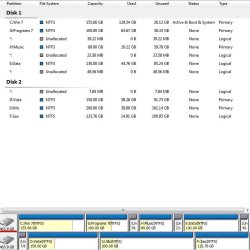
Partition Wizard

Seeing that C is at the back of the drive instead of being the first primary on the drive which the Windows installer always look for I would already had nuked the drive and created all new partitions to the desired sizes with the C up front followed by the other two. You are trying to cramp the OS partition at the back end of the drive instead.
 

My Computers

System One System Two

  • Computer type
    PC/Desktop
    Computer Manufacturer/Model Number
    Custom builds = 2
    OS
    W7 Ultimate x64/W10 Pro x64/W11 Pro Triple Boot - Main PC W7 Remote PC Micro ATX W7 Pro x64/W11 Pro
    CPU
    AMD Phenom II X4 975 Deneb 3.6ghz - 965 2nd remote pc
    Motherboard
    Gigabyte GA-790XTA-UD4-Gigabyte GA-880GM-D2H remote pc
    Memory
    Kingston Hyper X DDR3 1600 1.5v 16gb - Hyper X Fury 8gb 2nd
    Graphics Card(s)
    MSI HD Radeon 5750 1gb - MSI HD Radeon 6450 on mini tower
    Sound Card
    Creative Labs X-Fi Xtreme Audio P - Realtek onooard 2nd case
    Monitor(s) Displays
    ASUS VW199T-P 19" HP 2082a Main-HP 2082a 20" remote pc
    Screen Resolution
    Asus 1440x900 - HP 1600x900
    Hard Drives
    WD Black 1TB HD per OS W7, W10, and pending W11 presently on 500gb OS Drive - Pending Triple 1TB HDs for Spanned Storage/backup volume
    Single 2TB external USB enclosure, single 1TB System 7 Host/Boot drive, Pending 8TB external HD for system image b
    PSU
    Corsair 750TX - primary / Corsair CX600 - second
    Case
    Antec 900-2 - SSD compatible / NZXT Vulcan mini tower
    Cooling
    Zalman CNPS9900A
    Keyboard
    AZIO L70 Backlit Letters Gaming - ONN Cordless/USB
    Mouse
    MSI DS200 Programmable, Logitech Cordless
    Internet Speed
    30mbps upgrade - primary hard wired - mini tower usb WiFi
    Antivirus
    GFI VIPRE Internet Security 2014 on W7 2016 beta on W10,
    Browser
    Cyberfox, WaterFox 64bit FF variants, FireFox x64, Pale Moon
    Other Info
    Accomdata fan cooled usb 2.0 PIDE/Sata II, III external enclosure.
    Sambient usb/eSata PATA/Sata II, III external enclosure.
  • Computer type
    PC/Desktop
    System Manufacturer/Model Number
    CUSTOM ASSEMBLY
    OS
    W7 Pro x64/W11 Pro
    CPU
    AMD Deneb 3.6ghz - 965
    Motherboard
    Gigabyte GA-880GM-D2H remote pc
    Memory
    Kingston Hyper X Fury 8gb
    Graphics Card(s)
    MSI HD Radeon 6450 DVI Output
    Sound Card
    Realtek onooard Creative or Other separate PENDING
    Monitor(s) Displays
    VIZIO 32" LCD TV Separate LCD Pending
    Screen Resolution
    1600x1080
    Hard Drives
    WD 500GB OS Host/Boot WD Green 1TB Storage/Backup
    PSU
    Corsair 600W - THERMALTAKE 600W spare case
    Case
    NZXT Vulcan mini tower
    Cooling
    Twin 120mm Top Fans - 240mm Side Cover
    Keyboard
    ONN Cordless/USB Logitech Cordless
    Mouse
    ONN USB/Cordless - Logitech Cordless
    Internet Speed
    DSL 5G
    Browser
    MS Edge, FireFox, WaterFox x64, FireFox Nightly
    Other Info
    OS Testing-Remote Access to Main TeamViewer
Night Hawk C drive is the first primary drive. If I look at My PC, Disk Management or Windows Explorer C drive is always listed first.

First I would like to thank everyone for their patience and indulgence.

I followed the instructions given by nssgnim and SIW2, which are are identical in nature.


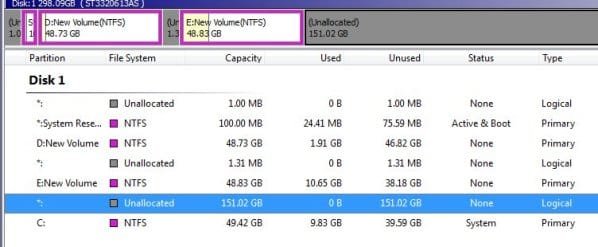
I resized C and it now looked like this:

after resize C drive.jpg

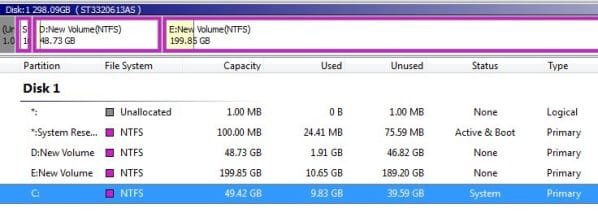
That looked like it was supposed to so I resized E and it looked this:

after resize E drive.jpg

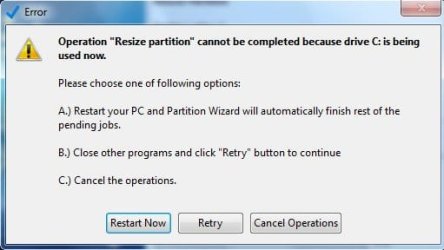
Again everything was as it should be so I click Apply and got this:

warning about resize C.jpg

So I said to self, boot up from the Boot CD and C drive will NOT be running. So I booted from the Boot CD and all was fine except this got this warning (Sorry NO Pictures):

Warning:

DO NOT take the following operations, for these will cause your system to be unbootable.

1. Moving/Resizing system partition of Windows Vista/ Windows 2008/ Windows 7.

2. Creating/Deleting any partitions of Windows 2000/ Windows XP / Windows 2003.

Note the words used at the very first of the warning "will cause", not may cause or anything less.

That brought everything to a halt. Other than doing another clean install of Windows 7, I really don't know what to do. For now Win 7 is working fine, I just don't have access to all the space on the HDD. So I guess I will wait until the final version of Win 7 comes out in October and then clean install it.

Again thanks for all the help.
 

My Computer

OS
Windows 7 Pro
CPU
Intel(R) Pentium(R) Duel CPU E2200 2.20 Ghz
Motherboard
GA-G41M-ES2L
Memory
4 gb 2.96 Usable
Graphics Card(s)
Onboard
Sound Card
Onboard
Hard Drives
2 - 1TB WD Sata Drives
That is normal.

If you move your windows partition to a different location - you won't automatically boot straight back into it.

That is because bootmgr ( he lives in the little 100mb patition ) will still be looking for the original location of your windows partition.

You did everything right.

After you click Apply - you would need to let bootmgr know the new location of the windows partition.

PW won't do that for you automatically.

Running startup repair from the 7 dvd will update the bcd store - that contains the info which lets bootmgr know where the windows partition is.

You can then boot in as usual.
 

My Computers

System One System Two

  • Computer type
    PC/Desktop
    OS
    7 X64
    CPU
    i5 8400
    Motherboard
    gigabyte b365m ds3h
    Memory
    2x8gb 3200mhz
    Hard Drives
    various
    PSU
    pure power 11 400w cm
    Case
    Coolermaster
    Cooling
    cryorig m9i
  • Computer type
    PC/Desktop
    OS
    7x64
    CPU
    g5400
    Motherboard
    ga b365m ds3h
    Memory
    8gb ddr4 2400
    PSU
    xfx pro 450w
huffman:
Do not use PW boot cd to resize your partition in this case. Use its Windows application and Simply click "Restart Now" after you perform all steps SIW2 posted before, and you can forget about this post forever :D

SIW2:
you surely an expert, my hats off
 

My Computer

OS
VISTA
huffman:
Do not use PW boot cd to resize your partition in this case. Use its Windows application and Simply click "Restart Now" after you perform all steps SIW2 posted before, and you can forget about this post forever :D

SIW2:
you surely an expert, my hats off
+1 on that. I Knew I would learn something by jumping in on this thread. I am anxious to see if OP resolved his problem.
 

My Computer

Computer Manufacturer/Model Number
Gateway GT5692
OS
Windows 7 Ulti. x64
CPU
AMD Phenom 8450 triple-core 2.10 ghz
Memory
4GB
Graphics Card(s)
ATI Radion HD 3200
Monitor(s) Displays
Gateway FPD1775W
Screen Resolution
1280x720
Hard Drives
465.6613 Gibibytes
Either nssgnim or SIW2

Let me make sure I have this straight:

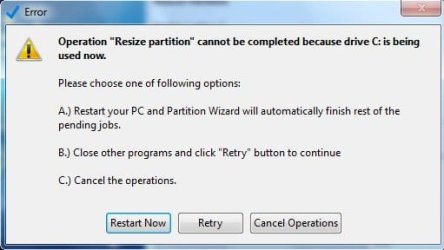
Using the installed PW, I go through the size changes for C and then E then click Apply. I get this warning:

warning about resize C.jpg

There I click "Restart Now"??
 

My Computer

OS
Windows 7 Pro
CPU
Intel(R) Pentium(R) Duel CPU E2200 2.20 Ghz
Motherboard
GA-G41M-ES2L
Memory
4 gb 2.96 Usable
Graphics Card(s)
Onboard
Sound Card
Onboard
Hard Drives
2 - 1TB WD Sata Drives
What you did in post 23 looks right - you just need to Apply it.

You can perform exactly the same steps using the boot disc - but it seems the installed version will do the same thing. PW loads itself into Ram and does it from there on restart.

Once you have finished partitioning, you won't be able to boot straight into windows - you need to run startup repair from the 7 dvd. That will adjust the bcd entries for you.
 

My Computers

System One System Two

  • Computer type
    PC/Desktop
    OS
    7 X64
    CPU
    i5 8400
    Motherboard
    gigabyte b365m ds3h
    Memory
    2x8gb 3200mhz
    Hard Drives
    various
    PSU
    pure power 11 400w cm
    Case
    Coolermaster
    Cooling
    cryorig m9i
  • Computer type
    PC/Desktop
    OS
    7x64
    CPU
    g5400
    Motherboard
    ga b365m ds3h
    Memory
    8gb ddr4 2400
    PSU
    xfx pro 450w
Restart Now
Restart Now
Restart Now
Restart Now
Restart Now
Restart Now

and keep your finger crossed :)
 

My Computer

OS
VISTA
Houston WE have BLASTOFF.

It took an extra step but now I have all the partitions at or near the size I wanted and as far as I can tell everything works.

When I got to the restart button, I clicked the Restart button. At restart, PW booted up before windows was loaded and went through what it said was both of the steps. This was NOT true in some respects, but it did allow me to do another resize. This is what PW looked like after it went through the restart procedures:

PM_after _restart.jpg

From there I did another resize making Edrive the size I wanted and the unallocated space zero. This time Windows did not have to restart, it did the resize of E with windows running. After this, PW looked like this"

Edrive_afterhadtoresizeagain.jpg

I certainly appreciate all the help. You guys are great.
 

My Computer

OS
Windows 7 Pro
CPU
Intel(R) Pentium(R) Duel CPU E2200 2.20 Ghz
Motherboard
GA-G41M-ES2L
Memory
4 gb 2.96 Usable
Graphics Card(s)
Onboard
Sound Card
Onboard
Hard Drives
2 - 1TB WD Sata Drives
That looks right to me. Don't worry about the little 1mb unallocated on the left - just leave that as it is.

You didn't mention using startup repair.

Glad it worked for you.
 

My Computers

System One System Two

  • Computer type
    PC/Desktop
    OS
    7 X64
    CPU
    i5 8400
    Motherboard
    gigabyte b365m ds3h
    Memory
    2x8gb 3200mhz
    Hard Drives
    various
    PSU
    pure power 11 400w cm
    Case
    Coolermaster
    Cooling
    cryorig m9i
  • Computer type
    PC/Desktop
    OS
    7x64
    CPU
    g5400
    Motherboard
    ga b365m ds3h
    Memory
    8gb ddr4 2400
    PSU
    xfx pro 450w
You didn't mention using startup repair.

Never had to do anything after the last run on PW. Could not ask for it to run any smoother.
 

My Computer

OS
Windows 7 Pro
CPU
Intel(R) Pentium(R) Duel CPU E2200 2.20 Ghz
Motherboard
GA-G41M-ES2L
Memory
4 gb 2.96 Usable
Graphics Card(s)
Onboard
Sound Card
Onboard
Hard Drives
2 - 1TB WD Sata Drives
hi SIW2

Please could you help me about partition in my HP Pavilion, windows 7 started?. I have 240 gb in C (OS) but i have 03 more partition (Recovery, HP Tools, and System) .
With partition wizard I can shrink my C partition until 40 gb (it is i want) and the 200 gb became in "Unallocated space" but in this unallocated space I could´t create a new partition. The massage is "There no a MBR slots on the disk"...what can I do?

I want to create a new partition with my 200 gb to put My Documents here and separate fron the C (OS).

Thanks
Regards
Luchokike123
 

My Computer

OS
Windows 7
Are you running Partition Wizard from the boot CD?

edit: It sounds like what happened is you already have 4 primary partitions. That's the max. There's only 4 spaces in the MBR partition table. You need to convert(usually the last) one to an extended partition. Then inside that you can make many logical partitions.

I have Partition Wizard but I haven't used it yet. I'd look for a forum on their site for particular things about using their software. Just be careful when you convert a primary to an extended you don't lose your data. You may want to make backups of everything first.
 

My Computer

Computer Manufacturer/Model Number
HP Media Center
OS
Windows 7 32 bit
CPU
AMD 5200+ dual core
Memory
2 GB
Graphics Card(s)
NVidia GeForce 6150SE 128 MB
Monitor(s) Displays
CRT
Screen Resolution
1280x1024
Hard Drives
500 GB Sata internal :

SIIG USB 3.0 docking stations w/WD Caviar Black 6 Gb/s drives
Keyboard
PS/2
Mouse
PS/2 Wheel Mouse
Other Info
SIIG USB 3.0 PCIexpress card.
Hi there Miles Ahead

No, I dont runnin partition Wizard from Boot CD , I had installed the partition wizard in my laptop. So I running double clicking in the desktop icon.

In My Windows 7 Disk manager I see 4 partitions
C: operating system + My Documents
D: recovery
*: HP Tools
*: System
How can i convert or craete extend partition?. About my data my laptop is new so i dont have any document yet. Can you please guide me about create extend partition from primary partition with Partition Wizard?

Are you sure that only 4 partitions is the limit?
I hope you can help me please
Thanks
Regards
Luchokike123
 

My Computer

OS
Windows 7
Hi there Miles Ahead

No, I dont runnin partition Wizard from Boot CD , I had installed the partition wizard in my laptop. So I running double clicking in the desktop icon.

In My Windows 7 Disk manager I see 4 partitions
C: operating system + My Documents
D: recovery
*: HP Tools
*: System
How can i convert or craete extend partition?. About my data my laptop is new so i dont have any document yet. Can you please guide me about create extend partition from primary partition with Partition Wizard?

Are you sure that only 4 partitions is the limit?
I hope you can help me please
Thanks
Regards
Luchokike123

The limit is 4 primary partitions. You need to change one of the primary partitions into an extended partition. See this article:

Change partition type between logical and primary without data losing.
 

My Computer

Computer Manufacturer/Model Number
HP Media Center
OS
Windows 7 32 bit
CPU
AMD 5200+ dual core
Memory
2 GB
Graphics Card(s)
NVidia GeForce 6150SE 128 MB
Monitor(s) Displays
CRT
Screen Resolution
1280x1024
Hard Drives
500 GB Sata internal :

SIIG USB 3.0 docking stations w/WD Caviar Black 6 Gb/s drives
Keyboard
PS/2
Mouse
PS/2 Wheel Mouse
Other Info
SIIG USB 3.0 PCIexpress card.
Hi,

That is a little awkward.

If you alter one of the oem partitions ( recovery or tools) you likely won't be able to access it.

You could make the C partition into your "System" partition, then delete the 100 mb partition.

You would then have a free slot.

You can do it with this.

View attachment sisparV5.zip

Rt click and Run as Admin on Sispar.cmd
 

My Computers

System One System Two

  • Computer type
    PC/Desktop
    OS
    7 X64
    CPU
    i5 8400
    Motherboard
    gigabyte b365m ds3h
    Memory
    2x8gb 3200mhz
    Hard Drives
    various
    PSU
    pure power 11 400w cm
    Case
    Coolermaster
    Cooling
    cryorig m9i
  • Computer type
    PC/Desktop
    OS
    7x64
    CPU
    g5400
    Motherboard
    ga b365m ds3h
    Memory
    8gb ddr4 2400
    PSU
    xfx pro 450w
Hi there Miles Ahead

No, I dont runnin partition Wizard from Boot CD , I had installed the partition wizard in my laptop. So I running double clicking in the desktop icon.

In My Windows 7 Disk manager I see 4 partitions
C: operating system + My Documents
D: recovery
*: HP Tools
*: System
How can i convert or craete extend partition?. About my data my laptop is new so i dont have any document yet. Can you please guide me about create extend partition from primary partition with Partition Wizard?

Are you sure that only 4 partitions is the limit?
I hope you can help me please
Thanks
Regards
Luchokike123

Hello to all!I'm italian so first of all I apologise for my english.
I bought a notebook HP dv6 2135sl with W7 and I have the same problem.

The partitions are all primary and the order is the sequent:
C (450GB)
hp tool (99MB)
recovery (16GB)
sistem (199MB)

I would like to decrease C until 50GB and create two other partitions: J (Programmes 150GB) and K(Data 250GB). Is it possible? I understood that I have to change one of the 4 partitions into extended. Which one is the best?Can I use only PM or I need the operation that SIW2 was starting describing a week ago?How?
Thank you to all!!!!!!
 

My Computer

OS
windows XP, Windows 7
Resize partitions

I'm trying to resize some partitions in one of my hd but I already have 4 partitions. How can I solve the problem? I want to increase C: adding 40Gb from H: and also increase G: adding 40 Gb from E: drive.
Can someone explain me jow to do it with PW?
I enclose a screenshot from PW
Thanks a lot
 

Attachments

  • 1.JPG
    1.JPG
    62.9 KB · Views: 34

My Computer

OS
Windows 7
hi...just want to share my experience, after i am reading all comments for this thread. i can use partition wizard, and the maximum dirve are 2 (C and D, 2 others are for system and HP_Tools, my laptop is HP DV6-3127DX).

I have faced a same problem before like huffman on last sept 2009,

Again everything was as it should be so I click Apply and got this:


and this message comes up because I pass the maximum limit of shrink volume for drive C. then I just change the shrink volume, it is working. before I have C 440GB, D 20GB, now C 230GB, D 230GB
 

My Computer

OS
Windows 7 Home Premium 32bit.
I'm trying to resize some partitions in one of my hd but I already have 4 partitions. How can I solve the problem? I want to increase C: adding 40Gb from H: and also increase G: adding 40 Gb from E: drive.
Can someone explain me jow to do it with PW?
I enclose a screenshot from PW
Thanks a lot

You have to jiggle it about a bit, decreasing first whilst using the option where to place the now unallocated space. In your case 'before'.

Then work backwards until you have the unallocated spaces after the C:\. Then you can enlarge the C:\

Bit fiddly and time consuming but can be done.
 

My Computer

Computer Manufacturer/Model Number
Novatech (UK) iRush Pro
OS
MSDN Home Premium
CPU
Intel i5
Motherboard
Intel DP55WB
Memory
4Gb
Graphics Card(s)
ATI Radeon HD 5770
Sound Card
On Board
Monitor(s) Displays
Philips 170B
Hard Drives
1 x 1Tb
(7 Partitions)
PSU
750W
Case
Antec 300
Cooling
Tricool Fans
Keyboard
Microsoft 3000 Wireless
Mouse
Microsoft 5000 Wireless BlueTrack
Internet Speed
6.1 Mbps
Back
Top