
You are using an out of date browser. It may not display this or other websites correctly.
You should upgrade or use an alternative browser.
You should upgrade or use an alternative browser.
please help me - serious issue ;(
- Thread starter Marrrcus
- Start date

In the Control Panel underneath Programs click Uninstall a program & see if it is listed there.
Have you a System Restore point before IE9 Beta was installed, try that as a last resort if you have one.
Possible solutions - Impossible to uninstall IE9 beta
Have you a System Restore point before IE9 Beta was installed, try that as a last resort if you have one.
Possible solutions - Impossible to uninstall IE9 beta
My Computer
- Computer Manufacturer/Model Number
- Acer Aspire 5742
- OS
- Windows 7 Ultimate x64 SP1
- CPU
- Intel Core i3-370M @ 2.4GHz
- Motherboard
- Mobile Intel HM55 Express Chipset
- Memory
- 6GB 1333MHz DDR3
- Graphics Card(s)
- Intel GMA HD
- Monitor(s) Displays
- 15.6" HD Acer CineCrystal LED LCD
- Screen Resolution
- 1366×768
- Hard Drives
- 320GB (5400 RPM) SATA
- PSU
- 65W
- Mouse
- Microsoft Wireless Optical Mouse 3000
- Internet Speed
- 6Mbps
- Other Info
- WEI Score: 4.6
In the Control Panel underneath Programs click Uninstall a program & see if it is listed there.
Have you a System Restore point before IE9 Beta was installed, try that as a last resort if you have one.
Possible solutions - Impossible to uninstall IE9 beta
Thank you but it is not listed on the Uninstall Program
and i have System Restore only for 1 month, and i installed IE9 Beta1 maybe 2 month's ago
 ?
? i've tried the most but nothing, but why has not microsoft released an UNINSTALL TOOL for IE9 BETA1 ?
thnx.
My Computer
- OS
- windows 7 32 ult

Go into Programs and Features, click on Show installed updates on the left, scroll down the list to see Windows Internet Explorer 9, you know the rest...
My Computer
- Computer type
- Laptop
- Computer Manufacturer/Model Number
- HP 17-ak0xx, dv7 3173nr
- OS
- Win7 Home Premium x64 W10Pro&Home
- CPU
- A12 9720p 4+8 TurionII M520
- Motherboard
- HP 3839
- Memory
- 6GB 8GB
- Graphics Card(s)
- R7
- Monitor(s) Displays
- 24" sa550
- Screen Resolution
- 1600x900 1920x1080
- Mouse
- Logitechx2
- Internet Speed
- 120Mb/s down 12up
Go into Programs and Features, click on Show installed updates on the left, scroll down the list to see Windows Internet Explorer 9, you know the rest...
IT IS EMPTY ON THE SHOW INSTALLED UPDATES !!! nothing in there.
so what to do please
?My Computer
- OS
- windows 7 32 ult
Do you have other problems with Windows 7, or is this the only one....
My Computer
- Computer type
- Laptop
- Computer Manufacturer/Model Number
- HP 17-ak0xx, dv7 3173nr
- OS
- Win7 Home Premium x64 W10Pro&Home
- CPU
- A12 9720p 4+8 TurionII M520
- Motherboard
- HP 3839
- Memory
- 6GB 8GB
- Graphics Card(s)
- R7
- Monitor(s) Displays
- 24" sa550
- Screen Resolution
- 1600x900 1920x1080
- Mouse
- Logitechx2
- Internet Speed
- 120Mb/s down 12up

- Local time
- 11:37 AM
- Messages
- 1,036
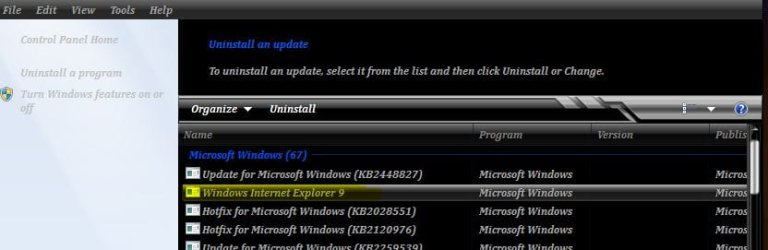
I'm not sure about the solution but its there in my installed updates list from where I can uninstall it.
How did you install it? Via WU or net? I downloaded it's installer off the net and not through Windows Update. Maybe if that has something to do with your problem.
How did you install it? Via WU or net? I downloaded it's installer off the net and not through Windows Update. Maybe if that has something to do with your problem.
Attachments
My Computer
- Computer Manufacturer/Model Number
- HCL
- OS
- Winbdows 7 ultimate x64 | Ubuntu 12.04 x64 LTS
- CPU
- Core 2 Duo e7400 @ 2.90GHz
- Motherboard
- Gigabyte G31M-ES2L
- Memory
- 3GB DDR2
- Graphics Card(s)
- Asus Nvidia GTX 560Ti 1GB
- Sound Card
- On-board
- Monitor(s) Displays
- HCL eZeeBee 18.5" LCD
- Screen Resolution
- 1366x768 @ 60Hz
- Hard Drives
- Western Digital 320GB
- PSU
- Corsair CX500 V2 500W
- Cooling
- Stock
- Keyboard
- Stock
- Mouse
- Stock
- Internet Speed
- 15-25kBps D/L | 10kBps U/L | Hey Don't laugh
I know this isn't exactly a great solution & by no way guaranteed to work but you could try updating your IE9 Beta to the leaked build from here - http://www.sevenforums.com/browsers-mail/126587-latest-internet-explorer-9-beta-release.html & see if the option to uninstall appears in the Installed Updates page.
My Computer
- Computer Manufacturer/Model Number
- Acer Aspire 5742
- OS
- Windows 7 Ultimate x64 SP1
- CPU
- Intel Core i3-370M @ 2.4GHz
- Motherboard
- Mobile Intel HM55 Express Chipset
- Memory
- 6GB 1333MHz DDR3
- Graphics Card(s)
- Intel GMA HD
- Monitor(s) Displays
- 15.6" HD Acer CineCrystal LED LCD
- Screen Resolution
- 1366×768
- Hard Drives
- 320GB (5400 RPM) SATA
- PSU
- 65W
- Mouse
- Microsoft Wireless Optical Mouse 3000
- Internet Speed
- 6Mbps
- Other Info
- WEI Score: 4.6
I know this isn't exactly a great solution & by no way guaranteed to work but you could try updating your IE9 Beta to the leaked build from here - http://www.sevenforums.com/browsers-mail/126587-latest-internet-explorer-9-beta-release.html & see if the option to uninstall appears in the Installed Updates page.
the problem is: i installed few updates from Windows Update and they do not appear in the VIEW INSTALLED UPDATES eather
? and i have IE9 Beta1 in other language so i really need help plz ?
My Computer
- OS
- windows 7 32 ult
- Local time
- 11:37 AM
- Messages
- 1,036
Try to reset windows updates and see how it goes- http://www.sevenforums.com/tutorials/91738-windows-update-reset.html
My Computer
- Computer Manufacturer/Model Number
- HCL
- OS
- Winbdows 7 ultimate x64 | Ubuntu 12.04 x64 LTS
- CPU
- Core 2 Duo e7400 @ 2.90GHz
- Motherboard
- Gigabyte G31M-ES2L
- Memory
- 3GB DDR2
- Graphics Card(s)
- Asus Nvidia GTX 560Ti 1GB
- Sound Card
- On-board
- Monitor(s) Displays
- HCL eZeeBee 18.5" LCD
- Screen Resolution
- 1366x768 @ 60Hz
- Hard Drives
- Western Digital 320GB
- PSU
- Corsair CX500 V2 500W
- Cooling
- Stock
- Keyboard
- Stock
- Mouse
- Stock
- Internet Speed
- 15-25kBps D/L | 10kBps U/L | Hey Don't laugh
Try to reset windows updates and see how it goes- http://www.sevenforums.com/tutorials/91738-windows-update-reset.html
I just did but still nothing appears in the List
any other suggestions please anyone ?
why don't Microsoft release a UNINSTALL TOOL for IE9 Beta1 ?
My Computer
- OS
- windows 7 32 ult

Make sure you checked what I highlighted in red. It isn't listed as IE 9.To uninstall Internet Explorer
The following instructions apply to both Windows 7 and Windows Vista.
- Click the Start button
, type Programs and Features in the search box, and then click View installed updates in the left pane.
- Under Uninstall an update, scroll down to the Microsoft Windows section.
- Right-click Windows Internet Explorer 9, click Uninstall, and then, when prompted, click Yes.
- Click one of the following:
- Restart now (to finish the process of uninstalling Internet Explorer 9, and restore the previous version of Internet Explorer).
- Restart later (to wait until you shut down or restart your computer).
Mike
My Computer
- Computer Manufacturer/Model Number
- Hopalong/ Godzilla
- OS
- Windows7 Pro 64bit SP-1; Windows XP Pro 32bit
- CPU
- Intel Core i7-870 Lynnfield 2.93GHz LGA 1156 95W Quad-Core
- Motherboard
- ASUS P7P55D-E PRO
- Memory
- 8GB@1400MHz Crucial Ballistix DDR3-1600 4x2GB
- Graphics Card(s)
- ASUS ENGTX460 DirectCU/2DI/1GD5 1GB 256-bit GDDR5
- Sound Card
- VIA Onboard
- Monitor(s) Displays
- Asus VS248H-P 24"; Samsung SyncMaster 941BW 19"ws
- Screen Resolution
- 1920x1080; 1440x900
- Hard Drives
- Samsung 830 120GB SSD
Intel 320 120GB SSD
Western Digital Caviar Black WD7501AALS 750GB 7200 RPM SATA 3.0Gb/s
Western Digital Caviar Black WD6401AALS 640GB 7200 RPM SATA 3.0Gb/s
- PSU
- COOLER MASTER Silent Pro RS850-AMBAJ3-US 850W Modular
- Case
- COOLER MASTER HAF 932 RC-932-KKN5-GP Black
- Cooling
- Scythe "Mugen-2 Rev.B" (2 ScytheKaze-Jyuni PWM fans)
- Keyboard
- Logitech K-320
- Mouse
- Kensington
- Antivirus
- Avast Inernet Suite
- Browser
- IE 9 ; Chrome

To uninstall IE9 beta
Go to Control Panel>Programs>Program and features>Installed Updates
Then Uninstall it ( see screenshot)
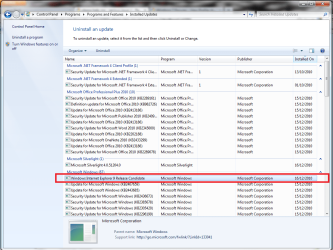
Go to Control Panel>Programs>Program and features>Installed Updates
Then Uninstall it ( see screenshot)
My Computer
- Computer type
- PC/Desktop
- Computer Manufacturer/Model Number
- Custom Build
- OS
- Windows 10 Pro x64, Arch Linux
- CPU
- Intel Core 2 Quad Q8200 OC'd 3.08GHz
- Motherboard
- Asus Rampage formula LGA775
- Memory
- 8GB DDR2 900Mhz
- Graphics Card(s)
- MSI GT730 2GB GDDR5 (Kepler)
- Sound Card
- Supreme FX2
- Monitor(s) Displays
- Samsung LS22F350 LED
- Screen Resolution
- 1080P
- Hard Drives
- Kingston SSDNow UV400 120GB, 500GB Hitachi, 2TB Samsung, 500GB Seagate FreeAgent, 640GB Samsung, 160GB Toshiba (Arch)
- PSU
- AeroCool 500W Bronze
- Cooling
- Cooler Master V6 + 3X fans
- Keyboard
- Prolink keyboard
- Mouse
- Logitech M705
- Internet Speed
- 1MiB/s
- Browser
- Chrome Beta
You've might have read these answers, and yes, they're listed for IE 9 beta 6, but they might work for IE 9 beta 1 too? I don't know, as I don't have IE installed to try them out (or even IE 8 for that matter  .)
.)
1. How to uninstall ie9 beta 64 bit? it is not in the list of installed updates.
2. uninstalling ie9 beta
.)1. How to uninstall ie9 beta 64 bit? it is not in the list of installed updates.
2. uninstalling ie9 beta
i want to uninstall IE9 beta1
i can not find it in View Installed Updates because it is empty.
is there any other way to uninstall it please ?
thnx.
My Computer
- Computer Manufacturer/Model Number
- HP DV6 1330sa
- OS
- Windows 7 Professional 64 Bit SP1
- CPU
- INTEL DUAL CORE 2.1Ghz
- Motherboard
- N/A
- Memory
- 4GB DDR3
- Graphics Card(s)
- INTEL
- Sound Card
- LAPTOP
- Monitor(s) Displays
- 2
- Screen Resolution
- 3200x1080
- Hard Drives
- 250GB
- PSU
- LAPTOP
- Case
- LAPTOP
- Cooling
- LAPTOP
- Keyboard
- SOLID YEAR 260U
- Mouse
- USB
- Internet Speed
- 20 MB/S
Another from MS.
You can remove IE9 Beta using the following steps.
1. Close all programs.
2. Click Start, and then click Control Panel.
3. Click Uninstall a Program under the Programs category
4. In the Tasks pane, click View installed updates.
5. In the list of installed updates, double-click Windows Internet Explorer 9.
6. In the Uninstall an update dialog box, click Yes.
Note If you are prompted for an administrator password or for confirmation, type the password, or click Continue.
7. Follow the instructions to uninstall Internet Explorer 9.
8. When the uninstall program is finished, restart your computer.
9. After you restart your computer, open Internet Explorer.
10. Click About Internet Explorer on the Help menu. If Internet Explorer 7 or 8 appears in the About Internet Explorerdialog box, then you have successfully completed the uninstall.
My Computer
- Computer Manufacturer/Model Number
- Hopalong/ Godzilla
- OS
- Windows7 Pro 64bit SP-1; Windows XP Pro 32bit
- CPU
- Intel Core i7-870 Lynnfield 2.93GHz LGA 1156 95W Quad-Core
- Motherboard
- ASUS P7P55D-E PRO
- Memory
- 8GB@1400MHz Crucial Ballistix DDR3-1600 4x2GB
- Graphics Card(s)
- ASUS ENGTX460 DirectCU/2DI/1GD5 1GB 256-bit GDDR5
- Sound Card
- VIA Onboard
- Monitor(s) Displays
- Asus VS248H-P 24"; Samsung SyncMaster 941BW 19"ws
- Screen Resolution
- 1920x1080; 1440x900
- Hard Drives
- Samsung 830 120GB SSD
Intel 320 120GB SSD
Western Digital Caviar Black WD7501AALS 750GB 7200 RPM SATA 3.0Gb/s
Western Digital Caviar Black WD6401AALS 640GB 7200 RPM SATA 3.0Gb/s
- PSU
- COOLER MASTER Silent Pro RS850-AMBAJ3-US 850W Modular
- Case
- COOLER MASTER HAF 932 RC-932-KKN5-GP Black
- Cooling
- Scythe "Mugen-2 Rev.B" (2 ScytheKaze-Jyuni PWM fans)
- Keyboard
- Logitech K-320
- Mouse
- Kensington
- Antivirus
- Avast Inernet Suite
- Browser
- IE 9 ; Chrome
Similar threads

- Replies
- 5
- Views
- 3K

- Replies
- 3
- Views
- 2K
- Replies
- 4
- Views
- 7K
- Replies
- 3
- Views
- 6K

- Replies
- 15
- Views
- 11K