problem removing system partition

bizoot

New member
Local time
1:58 PM
Messages
30
Hey yall.
to sum up the issue:
I was using dual boot (win7 + vista)
wanted to remain only with win 7
formatted vista partition (don't know how I succeeded eventually...)
now, win 7 boots fine
but I still have the vista partition which is empty, except for BOOT FILES ON IT!!!! (win 7 partition does NOT have boot files or bootmgr).
when entering disk management, I cannot delete old vista partition (marked as system) but I really want to :)

what should I do?
THANKS!
 

My Computer

OS
win 7 x64
CPU
intel e8400 3ghz oc'd to 3.8
Motherboard
gigabyte ga-p35c-ds3
Memory
corsair 2X1024 1066mhz
Graphics Card(s)
Nvidia gtx 280
Sound Card
onboard
PSU
corsair 750tx
Case
thermaltake something
Before you do anything else, do an image backup of BOTH partitions to a third partition or a second hard drive. Just in case!

1) Are both partitions on the same HDD?

2) If so, which one is the FIRST partition? The Win7 OS partition you want to keep or the empty, except for the bootloader, Vista partition that you want for delete?

Answer those two questions and someone will respond. I have not corrected this exact setup yet but am about to on one of my HDDs..... :D
 

My Computer

OS
XP Pro & Vista Home Premium (x86); Windows Ultimate 7600 x64 Retail
I get asked this often . It is quite straightforward.

Assuming 7 is on C (if not, use the appropriate drive letter).

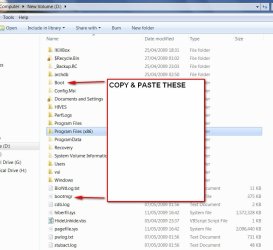
1. Copy and paste bootmgr and the pale yellow Boot folder onto C.

(You will get a message bcd is in use and can't be copied - skip it and copy the rest).

bootmgr&bootfolder.JPG

2. Open an elevated cmd prompt and type:

bcdedit /export C:\Boot\bcd

then press enter. Close cmd prompt.

3. In Disk Management , rt click C and Mark as Active. Reboot.

That's it.


Hi Muad,

I do this as a matter of course. I copy the bootfiles ( including bcd) as above - onto all the o/s partitions.

Then if needed, just marking any one of them Active switches system status to that partition ( only works on Primary partitions, of course).
 

My Computers

System One System Two

  • Computer type
    PC/Desktop
    OS
    7 X64
    CPU
    i5 8400
    Motherboard
    gigabyte b365m ds3h
    Memory
    2x8gb 3200mhz
    Hard Drives
    various
    PSU
    pure power 11 400w cm
    Case
    Coolermaster
    Cooling
    cryorig m9i
  • Computer type
    PC/Desktop
    OS
    7x64
    CPU
    g5400
    Motherboard
    ga b365m ds3h
    Memory
    8gb ddr4 2400
    PSU
    xfx pro 450w
actually i couldn't wait so I did it myself and it works great :)
went to repair from win7 installation cd and did something over there...
only issue now is when I open "msconfig" and go to "boot" tab, I see there:
"windows 7 ultimate (recovered)".
should this bother me? this "recovered" issue?
thanks! :)
 

My Computer

OS
win 7 x64
CPU
intel e8400 3ghz oc'd to 3.8
Motherboard
gigabyte ga-p35c-ds3
Memory
corsair 2X1024 1066mhz
Graphics Card(s)
Nvidia gtx 280
Sound Card
onboard
PSU
corsair 750tx
Case
thermaltake something
Not sure what you did - did you mark 7 partition Active before running startup repair?

Is 7 partition now showing as "System" in Disk Management?

If you want to get of the (recovered) bit, boot into 7, open an elevated cmd prompt and type:

bcdedit /set {current} description "Windows 7"

then press enter.

You can put any name you like between the " ".
 

My Computers

System One System Two

  • Computer type
    PC/Desktop
    OS
    7 X64
    CPU
    i5 8400
    Motherboard
    gigabyte b365m ds3h
    Memory
    2x8gb 3200mhz
    Hard Drives
    various
    PSU
    pure power 11 400w cm
    Case
    Coolermaster
    Cooling
    cryorig m9i
  • Computer type
    PC/Desktop
    OS
    7x64
    CPU
    g5400
    Motherboard
    ga b365m ds3h
    Memory
    8gb ddr4 2400
    PSU
    xfx pro 450w
actually i couldn't wait so I did it myself and it works great :)
went to repair from win7 installation cd and did something over there...
only issue now is when I open "msconfig" and go to "boot" tab, I see there:
"windows 7 ultimate (recovered)".
should this bother me? this "recovered" issue?
thanks! :)

The "(recovered)" status is normal because it was "recovered" by a Win7 bootcd repair operation.

You can edit the description per SIW2's instructions or using the EasyBCD tool.

P.S. I always, and still do, recommend an image backup when tinkering with the boot loaders. But to each their own. :)
 

My Computer

OS
XP Pro & Vista Home Premium (x86); Windows Ultimate 7600 x64 Retail
Thanks guys yur all great I got rid of this "recovered" issue...
All is working good so far...
:)
 

My Computer

OS
win 7 x64
CPU
intel e8400 3ghz oc'd to 3.8
Motherboard
gigabyte ga-p35c-ds3
Memory
corsair 2X1024 1066mhz
Graphics Card(s)
Nvidia gtx 280
Sound Card
onboard
PSU
corsair 750tx
Case
thermaltake something
I get asked this often . It is quite straightforward.

Assuming 7 is on C (if not, use the appropriate drive letter).

1. Copy and paste bootmgr and the pale yellow Boot folder onto C.

(You will get a message bcd is in use and can't be copied - skip it and copy the rest).

View attachment 23844

2. Open an elevated cmd prompt and type:

bcdedit /export C:\Boot\bcd

then press enter. Close cmd prompt.

3. In Disk Management , rt click C and Mark as Active. Reboot.

That's it.


Hi Muad,

I do this as a matter of course. I copy the bootfiles ( including bcd) as above - onto all the o/s partitions.

Then if needed, just marking any one of them Active switches system status to that partition ( only works on Primary partitions, of course).
hi, i have the same problem as the topic starter (thought i don't know why...), i followed your steps and it didn't helped... maybe there's something different in the problem (for example, in your third step u said to mark C: as active, but it already is)?
anyway what i would like to do is move the bootfiles from G: (where they are now) to C: not just copy them... i don't want my G: partition to be labeled as system, otherwise it will be included in the backup and it is 100gb of non sensible data (:o;))
what can i do? i looked a bit into bcdedit but i'd prefer to be guided eheh
 

My Computer

OS
Windows 7 Professional 64bit
You haven't given any information about your setup.

I would take a wild guess you have 2 hard drives.

Make the HD containing C the first in the bios boot order.
 

My Computers

System One System Two

  • Computer type
    PC/Desktop
    OS
    7 X64
    CPU
    i5 8400
    Motherboard
    gigabyte b365m ds3h
    Memory
    2x8gb 3200mhz
    Hard Drives
    various
    PSU
    pure power 11 400w cm
    Case
    Coolermaster
    Cooling
    cryorig m9i
  • Computer type
    PC/Desktop
    OS
    7x64
    CPU
    g5400
    Motherboard
    ga b365m ds3h
    Memory
    8gb ddr4 2400
    PSU
    xfx pro 450w
oops sorry! yes, i have more than 1 hd, actually this is the situation:

it's in italian but i hope u can understand... apart from "avvio" which means boot i think the rest it's pretty obvious...
anyway now i will reboot to check, but i'm pretty sure that the first drive in the bios it's alredy the right one...
 

My Computer

OS
Windows 7 Professional 64bit
no it isn't... dammit, that was pretty lame, sorry! anywy now if i follow ur procedure above and then i change the hd order i should be ok, right? i'll give it a try
 

My Computer

OS
Windows 7 Professional 64bit
no, it didn't work... i tried also booting with windows 7 dvd... tried to automatically fix boot but it found nothing... i went to che console, but i couldn't find any useful command like the old fixboot etc...
 

My Computer

OS
Windows 7 Professional 64bit
ok i solved it using bootrec.exe
 

My Computer

OS
Windows 7 Professional 64bit
damn, this is unbelievable!! after i fixed the boot with bootrec i can boot without the disk that was labeled as system before (now it isn't anymore), but if i try to delete the bootmgr and the Boot directory on that disk i can't!!! but i can delete it on c:!!! how the hell is this possible? now the disk order in the bios is right!!
 

My Computer

OS
Windows 7 Professional 64bit
You need to use Diskpart or free Partition Wizard bootable CD to mark each of the partitions besides Win7 inactive, then make sure Win7 is marked Active.

Now boot the Win7 DVD Repair console or Repair CD, click through to Recovery Tools list to run Startup Repair up to 3 separate times with reboots, as it will attempt to repair and then finally write the MBR to Win7.
 
everything seems ok now except for the fact that i still have the Boot directory in G: and i can't delete it (with alle the sub-dirs too), but i could delete bootmgr and all the files in those directory from recovery shell
 

My Computer

OS
Windows 7 Professional 64bit
You can't delete boot files from G because it is marked System Active, as is F marked active.

As stated earlier, you need to mark those partitions inactive using Diskpart commands, or using free Partition Wizard bootable CD. Then mark Win7 partition Active.

Next write the MBR (from G) to Win7 partition by booting the Win7 DVD repair console, click through to Recovery Tools list to run Startup Repair up to 3 separate times.

If you have any questions about performing these operations or need additional help, just ask rather than ignoring it.
 
no i have inactived them now! the only ctive partition is c:!
 

My Computer

OS
Windows 7 Professional 64bit
And which is System drive?

Post back a screenshot of your full Disk management drive map, using Snipping Tool in Start Menu.
 
Back
Top