
Recycle Bin - Pin to Taskbar

How to Pin the Recycle Bin to the Windows 7 Taskbar


   Information
The Recycle Bin provides a safety net when deleting files or folders. When you delete any of these items from your hard disk, Windows places it in the Recycle Bin and the Recycle Bin icon changes from empty to full.

This will show you how to create a Recycle Bin shortcut with Empty Recycle Bin in the context menu, and how to pin this shortcut to the taskbar as a toolbar.

   Note
Removable drives do not use or have a Recycyle Bin. Files deleted from removable drives are permanently deleted instead.


EXAMPLE: Recycle Bin Unpinned and Pinned from the Taskbar

Taskbar-1.PNG

Taskbar-2.PNG

Taksbar_Left.jpg
Here's How:
1. Make sure the Recycle Bin is on the desktop.
Recycle Bin on desktop.PNG
2. Right click on the desktop and select New and Folder , then rename it anything you like. (i.e. Trash Bin)
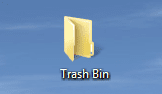
New Folder on desktop.PNG
3. Drag & drop the Recycle Bin on the new Folder to create a shortcut.
NOTE: You could also Pin to Start Menu this new Recycle Bin shortcut by pressing and holding Shift, then right click on the shortcut, and click on Pin to Start Menu.
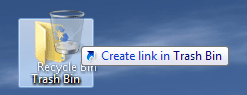
Drag & drop recycle bin.png
4. Save the new Folder (containing Recycle Bin shortcut) to the directory of your choice (i.e. C:\Trash Bin) by dragging and dropping.
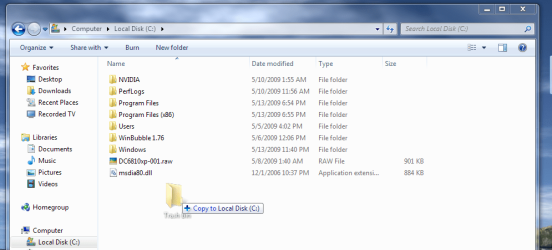
Drag & drop new Folder.png
5. UnLock the taskbar.

6. Right-click on the taskbar and select Toolbar and New toolbar...
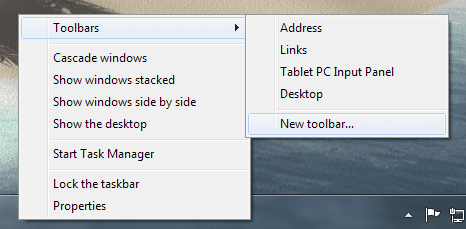
Toolbars-New toolbar.png
7. Navigate to the location you saved the New Folder (Ex: Trash Bin), select it and click on the Select Folder button.
Choose a folder.png
8. This places the new Toolbar and a Separator (dotted lines) on the taskbar.
New Toolbar and Separator.PNG
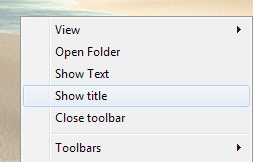
9. Right click on the Separator and uncheck Show Text and Show Title.
Show title.png
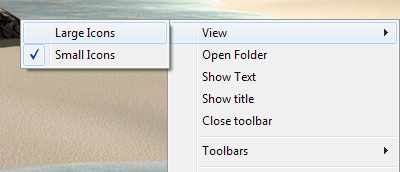
10. Right click on the Separator and select View and Large Icons.
Large Icons.png
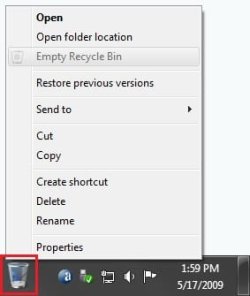
11. You now have the Recycle Bin pinned to the taskbar.
Recycle_Bin.jpg
12. To Keep the Recycle Bin on Right Side of Taskbar
A) Left click on the Separator to the left of the folder and hold, then drag it to the left and right to make any adjustments to how you want the Recycle Bin positioned on the right side of the taskbar. (See screenshot above)

B) Release the left click when done.

C) Go to step 14.
13. To Have the Recycle Bin on Left Side of Taskbar
A) Left click on the Separator of the pinned taskbar programs on the far left side and hold, then drag it to the right past the Recycle Bin and release. (See screenshot below)

Left-1.jpg
B) Left click on the Separator of the pinned taskbar programs on the now right side and hold, then drag it to the left next to the Recycle Bin and release. (See screenshot below)

Left-2.jpg
14. Lock the taskbar.

15. Remove the Recycle Bin from the desktop.

   Note
You do know that when you drag & drop copied shortcuts from the Start Menu in with the Recycle Bin shortcut, that those automatically become Quick Launch items beside the Recycle Bin. By doing it that way you can "kill two birds with one stone".(See screenshot below)

Recycle Bin - Quick Launch Combo.PNG
Enjoy,


Last edited by a moderator:
It worked all right for up to week ago. Then after last windows update (I think) after every restart toolbar with recycle bin and some other shortcuts disappear from taskbar. I repeat the procedure several times but it disappear again.

Anyone have similar problem?
 

My Computer

OS
Windows 7 x64 ultimate
It worked all right for up to week ago. Then after last windows update (I think) after every restart toolbar with recycle bin and some other shortcuts disappear from taskbar. I repeat the procedure several times but it disappear again.

Anyone have similar problem?


Fixed. Changed my theme a little then saved it.
 

My Computer

OS
Windows 7 x64 ultimate
Hello Drago, and welcome to Seven Forums.

That's great news. Thank you for posting back with your results. :)
 

My Computer

Computer type
PC/Desktop
Computer Manufacturer/Model Number
Self built custom
OS
64-bit Windows 11 Pro for Workstations
CPU
Intel i7-8700K OC'd to 5 GHz
Motherboard
ASUS ROG Maximus XI Formula Z390
Memory
64 GB (4x16GB) G.SKILL TridentZ RGB DDR4 3600 MHz
Graphics Card(s)
ASUS ROG-STRIX-GTX1080TI-O11G-GAMING
Sound Card
Integrated
Monitor(s) Displays
2 x Samsung Odyssey G7 27"
Screen Resolution
2560x1440
Hard Drives
1TB Samsung 990 PRO M.2,
4TB Samsung 990 PRO PRO M.2,
TerraMaster F8 SSD Plus NAS
PSU
Seasonic Prime Titanium 850W
Case
Thermaltake Core P3
Cooling
Corsair Hydro H115i
Keyboard
Logitech wireless K800
Mouse
Logitech MX Master 4
Internet Speed
2 Gb/s Download and 100 Mb/s Upload
Antivirus
Malwarebyte Anti-Malware Premium
Browser
Google Chrome
Other Info
Logitech Z625 speaker system,
Logitech BRIO 4K Pro webcam,
HP Color LaserJet Pro MFP M477fdn,
APC SMART-UPS RT 1000 XL - SURT1000XLI,
Galaxy S23 Plus phone
To those posters that are neurotic like me and hate how it sometimes makes the bin icon off center since it's smaller (or in my case with the taskbar on the left edge it left aligns it instead of centering it like other icons), just click the add the "Show Title" (step 9) again and it will center it horizontally.
 

My Computer

OS
Windows 7 Professional X64
To those posters that are neurotic like me and hate how it sometimes makes the bin icon off center since it's smaller (or in my case with the taskbar on the left edge it left aligns it instead of centering it like other icons), just click the add the "Show Title" (step 9) again and it will center it horizontally.

"Show Title" did not do it for me, but "Show Text" did! ;)
Of coarse you end up with the text below the icon, which is ok for me as long as the icon is centered.
 

My Computer

Computer type
PC/Desktop
Computer Manufacturer/Model Number
Micro Stars Int. / U230 Light-087US
OS
Windows 7 Home Premium 64bit SP1
CPU
AMD Athlon™ Neo MV-40 Processor Technology 1.60 GHz
Motherboard
AMD RS-880MN+SB710
Memory
4 GB
Graphics Card(s)
ATI Radeon HD3200
Monitor(s) Displays
LCD 11.6" HD
Screen Resolution
1366 x 768
Hard Drives
250GB SATA
Internet Speed
Gigabit LAN 10/100/1000
Other Info
3.3 lbs (with 4hour 6 cell battery)
1.3 MP Webcam
USB2.0 X 3
HDMI out
What want to throw my 2cents in there.
I have a habit where when I right-click on my new Recycle Bin in the Taskbar to select "Delete" on reflex instead of "Empty Recycle Bin". So I changed the security permissions on the shortcut file to Deny->Write. I get a few extra dialogs but it helps to keep me from having to go to the real Recycle Bin, open it up and then restore the shortcut.
If there was a way to remove the context menu items from that shortcut (in other words have it on a file by file bases) so that only things like what you would normally find with the Recycle Bin, then it would be even closer to perfect.
 

My Computer

OS
Windows 7 Home Premium 64bit
No matter what is the size of the icon if you set large icons the height of the task bar is increased and the gap will always be there.
As a proof try to enable the toolbar "links" that by default is empty and set large icons. The gap will be created.
I created the Recycle Bin on my Taskbar awhile ago and a few hours ago I noticed this gap. I was so sure it didn't used to be there I spent the next few hours trying to revert it back, including several System Restores. Nothing worked. I now know why.

And btw the gap disappears magically if you unlock the toolbar, increase height, move it to the opposite side of the screen, resize it to minimum height and move it back to the original position. The problem is that when you reboot the gap reappears.
You life saver!

I was so sure I didn't used to have the gap and must've done this at some point. I hibernate so rarely have to reboot.

Whilst it's a pain having to do that, given that I rarely reset, I'll just do that each time. I REALLY hate the gap and the Small Icon view means you cannot see the picture clearly enough to see if you've got anything in the Recycle Bin.

So it's worth jigging it about once per session.
 

My Computer

OS
Windows 7 Home Premium x64
I had completely forgotten about this until this latest reply.

Some time back I found a great program called minibin. You can find it here: MiniBin by Mike Edward Moras (e-sushi)

It's an icon that sits in your system tray that gives you quick access to the Recycle Bin to open and empty it. When the icon is empty the Recycle Bin is empty. When you delete something the minibin icon starts to fill up. You can hover the mouse over the icon and it'll show a tooltip that displays how much is in there. Double click the icon will ask if you want to empty the Recycle Bin, which you can disable both settings if you want. You can right-click and choose Open, allowing you to open the Recycle Bin to see what is there and to do whatever.
It works on Windows 2000 and up to Windows 8. I'm still running a version from early 2011 and I see now that is was recently updated. There are instructions on making a portable version as well. You can also customize the icons for both full and empty.

I have found this to be better looking than the method explained here. No offense.
 

My Computer

OS
Windows 7 Home Premium 64bit
great tutorial,
now i can make windows look more like mac osx.. though it takes too many steps to do something as easy as that

thanks
 

My Computer

OS
windows 7 pro
What a great idea - thankyou so much. Apologies for bringing this old 'un up but I hope it will be okay as it is a Tutorial.

I have all black icons but of the standard size; have followed the instructions and got my rubbish bin icon on the left.
I think I must have gone wrong somewhere even though I tried it all again as there is a distinct gap between my angry (full) icon and the next one - same applies for my happy (empty) one.

Here's with the Taskbar unlocked ....
Capture2.jpg
Capture2.jpg


and here with it locked ....
Capture1.jpg


Is there a way to appease my must-be-right obsession please?
Capture2.jpg.html
 

My Computer

Computer type
PC/Desktop
Computer Manufacturer/Model Number
Dell
OS
Windows 7 Pro 64bit
CPU
Intel (R) Core(TM) i3-3320 CPU @ 3.30ghz
Motherboard
Dell Inc OT 10XY version A01
Memory
4GB
Graphics Card(s)
Intel(R) HT Graphics
Sound Card
ATI HDMI Audio
Monitor(s) Displays
Acer AL1714
Screen Resolution
1280 - 1024
Hard Drives
KC 45
SATA 3.0, 6.0Gb/s (Current 3.0Gb/s)
ATA8-ACS T 13/1699-D revision 4
RMP(R/s) 7200
PSU
Not known
Case
Not known
Cooling
Not known
Keyboard
Standard Keyboard
Mouse
Konig
Internet Speed
Ping:12ms Down:37.44 Mb/s Up:9.51 Mb/s
Antivirus
Avast Internet Security
Browser
Firefox (and occasionally Internet Explorer)
Other Info
Regularly use ...
~ Super AntiSpyware
~ Malwarebytes Anti-Malware
~ Wise Care365
~ CCleaner
~ Dropbox (for backups)
and defrag once a month
Hello MadMudMob, :)

The small gap would be normal since the Recycle Bin added to the taskbar is technically a toolbar instead of a pinned app. The gap would be for the separator line you see in your top screenshot seen when you have the taskbar unlocked.

About all you can do is to drag the separator line to the left of the pinned icons as close as you can to the Recycle Bin toolbar item to minimize the gap as much as possisble.
 

My Computer

Computer type
PC/Desktop
Computer Manufacturer/Model Number
Self built custom
OS
64-bit Windows 11 Pro for Workstations
CPU
Intel i7-8700K OC'd to 5 GHz
Motherboard
ASUS ROG Maximus XI Formula Z390
Memory
64 GB (4x16GB) G.SKILL TridentZ RGB DDR4 3600 MHz
Graphics Card(s)
ASUS ROG-STRIX-GTX1080TI-O11G-GAMING
Sound Card
Integrated
Monitor(s) Displays
2 x Samsung Odyssey G7 27"
Screen Resolution
2560x1440
Hard Drives
1TB Samsung 990 PRO M.2,
4TB Samsung 990 PRO PRO M.2,
TerraMaster F8 SSD Plus NAS
PSU
Seasonic Prime Titanium 850W
Case
Thermaltake Core P3
Cooling
Corsair Hydro H115i
Keyboard
Logitech wireless K800
Mouse
Logitech MX Master 4
Internet Speed
2 Gb/s Download and 100 Mb/s Upload
Antivirus
Malwarebyte Anti-Malware Premium
Browser
Google Chrome
Other Info
Logitech Z625 speaker system,
Logitech BRIO 4K Pro webcam,
HP Color LaserJet Pro MFP M477fdn,
APC SMART-UPS RT 1000 XL - SURT1000XLI,
Galaxy S23 Plus phone
Thankyou :)
 

My Computer

Computer type
PC/Desktop
Computer Manufacturer/Model Number
Dell
OS
Windows 7 Pro 64bit
CPU
Intel (R) Core(TM) i3-3320 CPU @ 3.30ghz
Motherboard
Dell Inc OT 10XY version A01
Memory
4GB
Graphics Card(s)
Intel(R) HT Graphics
Sound Card
ATI HDMI Audio
Monitor(s) Displays
Acer AL1714
Screen Resolution
1280 - 1024
Hard Drives
KC 45
SATA 3.0, 6.0Gb/s (Current 3.0Gb/s)
ATA8-ACS T 13/1699-D revision 4
RMP(R/s) 7200
PSU
Not known
Case
Not known
Cooling
Not known
Keyboard
Standard Keyboard
Mouse
Konig
Internet Speed
Ping:12ms Down:37.44 Mb/s Up:9.51 Mb/s
Antivirus
Avast Internet Security
Browser
Firefox (and occasionally Internet Explorer)
Other Info
Regularly use ...
~ Super AntiSpyware
~ Malwarebytes Anti-Malware
~ Wise Care365
~ CCleaner
~ Dropbox (for backups)
and defrag once a month
You're welcome. :)
 

My Computer

Computer type
PC/Desktop
Computer Manufacturer/Model Number
Self built custom
OS
64-bit Windows 11 Pro for Workstations
CPU
Intel i7-8700K OC'd to 5 GHz
Motherboard
ASUS ROG Maximus XI Formula Z390
Memory
64 GB (4x16GB) G.SKILL TridentZ RGB DDR4 3600 MHz
Graphics Card(s)
ASUS ROG-STRIX-GTX1080TI-O11G-GAMING
Sound Card
Integrated
Monitor(s) Displays
2 x Samsung Odyssey G7 27"
Screen Resolution
2560x1440
Hard Drives
1TB Samsung 990 PRO M.2,
4TB Samsung 990 PRO PRO M.2,
TerraMaster F8 SSD Plus NAS
PSU
Seasonic Prime Titanium 850W
Case
Thermaltake Core P3
Cooling
Corsair Hydro H115i
Keyboard
Logitech wireless K800
Mouse
Logitech MX Master 4
Internet Speed
2 Gb/s Download and 100 Mb/s Upload
Antivirus
Malwarebyte Anti-Malware Premium
Browser
Google Chrome
Other Info
Logitech Z625 speaker system,
Logitech BRIO 4K Pro webcam,
HP Color LaserJet Pro MFP M477fdn,
APC SMART-UPS RT 1000 XL - SURT1000XLI,
Galaxy S23 Plus phone
Back
Top

