
Remote Desktop Connection (RDC) - Network

How to Enable Windows to Make and Accept a Remote Desktop Connection

   Information
This tutorial will show you how to enable Remote Desktop Connection, and to connect remotely in Vista, Windows 7, and Windows 8.


   Warning
While all editions of Vista, Windows 7, and Windows 8 can be a remote desktop client...
  • Only the Vista Business, Ultimate, and Enterprise editions can host a remote desktop connection.
  • Only the Windows 7 Professional, Ultimate, and Enterprise editions can host a remote desktop connection.
  • Only the Windows 8 Pro and Enterprise editions can host a remote desktop connection.


FIRST

To Enable Remote Connection


1. Go to Control Panel>System>Advanced System Settings
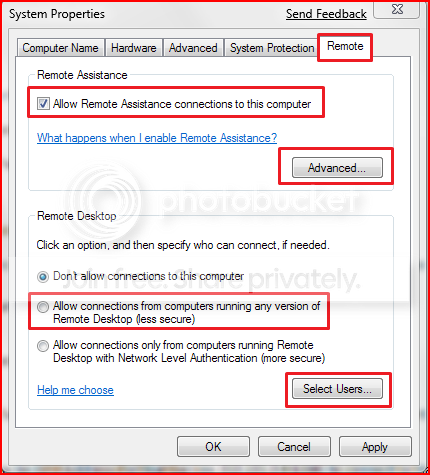
SystemProperties.png

2. Go to Remote tab.

3. Under Remote Assistance, put a check mark on Allow Remote Assistance connections to this computer.
Note: This automatically adds Remote Desktop exception to Windows Firewall.

4. Click on Apply.


OPTION ONE

To Connect to a Remote Desktop (Local Area Connectivity)


1. Go to Start>All Programs>Accessories>Remote Desktop Connection
NOTE: You could also press the Windows + R keys to open the Run dialog, type mstsc.exe, and press Enter.
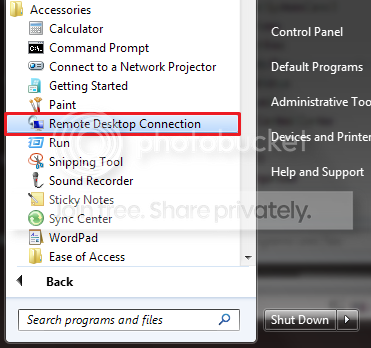
RDCLocation.png

2. Enter the Computer Name or IP address of the computer you wish to connect to.
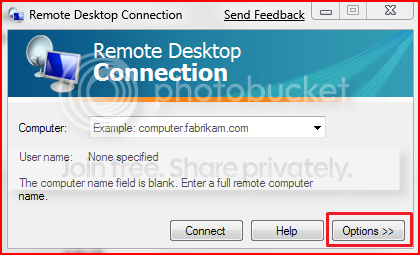
RemoteDesktopConnection.png

3. For more connection options, click on Options
NOTE: Here you can save the connection profile, adjust display properties, run specified programs upon connection, adjust connection bandwidth, etc. For more information on specific tabs, click on Help.
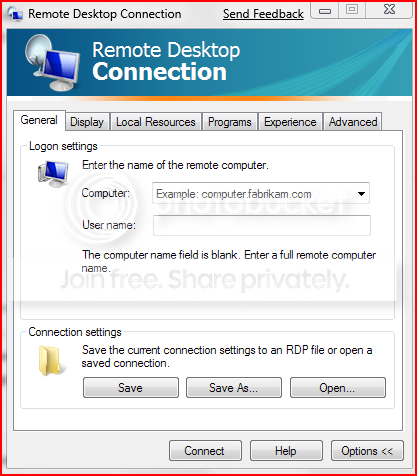
RemoteDesktopConnectionExpanded.png

4. Click on Connect.

5. Enter your log in credentials of a user account on the remote computer that is allowed to do a remote desktop connection.
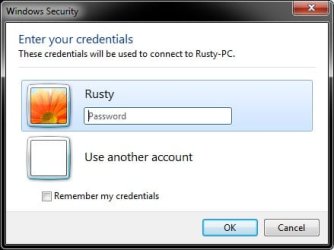
Credentials.jpg


OPTION TWO

Enable Windows to Accept Remote Desktop Connection (Local Area Connectivity)


1. Go to Control Panel>System>Advanced System Settings
SystemProperties.png

2. Go to Remote tab.

3. Under Remote Assistance, put a check mark on Allow Remote Assistance connections to this computer
Note: This automatically adds Remote Desktop exception in Windows Firewall.

4. Click on Advanced...
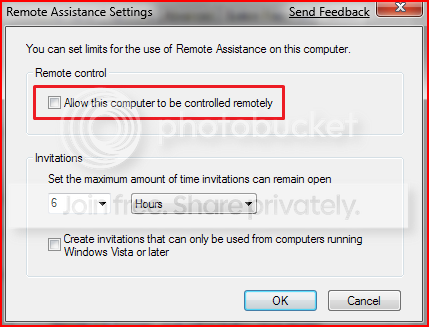
RemoteAssistantSettings.png

5. Put a check mark on Allow this computer to be controlled remotely.

6. Click on OK.
Note: This automatically adds Remote Assistance exception in Windows Firewall.

7. Remote Desktop Connection behind a router (Single computer)
A) Configure your router's port forwarding to allow connections on port 3389
B) Now in RDC just type the IP address supplied by your ISP
8. Remote Desktop Connection behind a router (Multiple computers)
A) For each computer you want to remotely connect to you have to configure each computer to listen to different ports to avoid port conflicts by changing the registry key in:

HKEY_LOCAL_MACHINE\System\CurrentControlSet\Control\Terminal Server\WinStations\RDP-Tcp\PortNumber
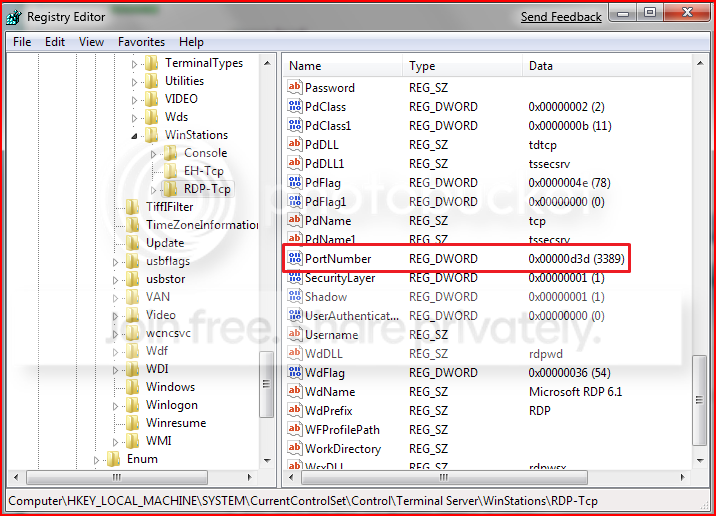
PortConfiguration.png

B) Port Numbers are in Decimal format
Note: To avoid conflict with other programs it is suggested to select a port between 49152 and 65535.

C) Now take that number you've chosen your computer to listen to and configure your router to port forward to that number

D) To connect to that computer your format will now be ISPIPAddress:PortNumber (ex. 222.222.2.8:1234) to connect to that specific computer behind the router
Important: If you have a firewall software running, that too has to be configured to allow communication to the port you opened in your router as well.

Note: The above steps assumes that you're not part of a domain.

 
Last edited by a moderator:
I'm having the same problem described below. My host machine is running Win7 Pro 32Bit, and I'm able to connect to it from WITHIN my home network using a laptop running Vista Home Premium, but cannot for the life of me connect from outside my home. I'm attempting to connect to my home PC (Win7 Pro) from my office. My office PC is running WinXP PRO SP3. I've forwarded ports through my router and beleive everything is configured accordingly.


I'm having exactly the same problem. My laptop is 7 Ultimate and the desktop is 7 Pro. I disabled Kaspersky firewall on both thinking it might be a trusted zone thing, but still won't work through the router. Has anyone figure this out yet?

Thanks.

Yup, port 3389 is forwarding to the PC with Win7, and the PC with Win7 is accepting RDC automatically...

I beleive that the PC with Win7 is properly configured because I can use RDC from my laptop (WinXP) to connect to it if I input the Win7's local IP address to connect to...

so this works:

Laptop ---->LAN-----> Win7

but this doesnt:

Laptop----->Internet----->Router------>Win7

:cry:
Let's go through the basics here.

Unless you changed the Remote Desktop port in the registry, it should be 3389.

In the router, forward External Port: 3389 to Internal Port: 3389. Protocol is TCP.

Make sure you give your host PC a static IP address, something outside the DHCP range of your router (assuming you use DHCP).

For example, my DHCP server (built into my router) is told to hand out IP addresses in the range 192.168.1.100 - 192.168.1.120. If that is the case, tell your computer to manually use something less than 100 or greater than 120. Say 192.168.1.70.

Forward that port to 192.168.1.70.

On the host machine, turn off all firewalls. That will eliminate 3rd-party applications from this.

Now, on your laptop, are you entering in your computer name, or IP address, into the Remote Desktop field? If you haven't tried already, try the IP address.
 

My Computer

Computer Manufacturer/Model Number
Custom
OS
Windows 7 Professional x64
CPU
Intel i7 2600K OC'd @ 4620 MHz
Motherboard
Asus P8Z68-V Pro
Memory
16GB GSkill Sniper 2133 Mhz (4x4GB)
Graphics Card(s)
EVGA GeForce GTX 480 SuperClocked+
Sound Card
Realtek High Definition Audio
Monitor(s) Displays
2x Acer S273HLbmii 27"
Screen Resolution
2 x 1920x1080
Hard Drives
64GB Crucial M4 SSD

Storage: Hitachi 1TB 5400RPM, Samsung 1.5TB 5400RPM
PSU
Corsair HW Series 750w (modular)
Case
Cooler Master HAF 932 Advanced Blue Edition
Cooling
CM Hyper 212+ CPU cooler, 3x 230mm + 1x 140mm case fans
Keyboard
Logitech MK320 (wireless)
Mouse
Logitech MK320 (wireless)
Internet Speed
30 Mb/s : 2 Mb/s
Just to clarify, I'm not running any 3rd party Internet Security/Firewall app.. only AVG Free anti virus.

When I connect to the host PC (Win7 Pro Machine) using the laptop, I'm typing in the internal IP address for that PC which is 192.168.1.105. Connection works no problem.

I checked my Windows Firewall settings and both INBOUND rules for Remote Desktop are set accordingly and configured to port 3389. One rule is for Domain access, the other is for Public/External access.

I'll assigning a Static IP to the host machine to see if it changes anything, but I did check this morning and it still has an assigned IP of 192.168.1.105 from the router. So it hasn't changed.

Now there's one thing I'm uncertain on.. my router has both Port Forwarding and Port Trigerring.. I configured the Port Forwarding but didn't touch the other.... could that make a difference? I have a TP-Link router, model# TL-WR1043ND

Thanks for the reply!! If any of the above makes you think of something else please let me know :)

Eric
 

My Computer

Computer Manufacturer/Model Number
Clone (Custom Build)
OS
Windows 7 Pro x32
CPU
Intel E8400
Motherboard
Asus P5K
Memory
4GB Kingston HyperX
Graphics Card(s)
Radeon HD
Sound Card
XFI 7.1
Monitor(s) Displays
Samsung LCD
Hard Drives
WD Raptor - 74GB
Seagate 1TB
PSU
Corsair 650 Watt
Case
Antec
Cooling
Multiple Fans
Keyboard
Standard USB
Mouse
Logitech Wireless
Internet Speed
10MB
Sorry I was mistaken.. my router does not have BOTH port forwarding and triggering.

Under Forwarding I have the following options: Virtual Servers, Port Triggering, DMZ, UPnP.

When I select Port Triggering I have the following fields to fill in:
Trigger Port - Set to 3389
Trigger Protocol - Set to ALL
Incoming Port - Set to 3389
Incoming Protocol - Set to ALL

There's no option to enter the IP of the PC that's hosting the RDC.


Under Virtual Servers I have the following fields to fill in:
Server Port:
IP Address:
Protocol:
Status:

Maybe I need to configure the Virtual Server settings??

FYI - Did a ping test from work to my Modem with no problem
 

My Computer

Computer Manufacturer/Model Number
Clone (Custom Build)
OS
Windows 7 Pro x32
CPU
Intel E8400
Motherboard
Asus P5K
Memory
4GB Kingston HyperX
Graphics Card(s)
Radeon HD
Sound Card
XFI 7.1
Monitor(s) Displays
Samsung LCD
Hard Drives
WD Raptor - 74GB
Seagate 1TB
PSU
Corsair 650 Watt
Case
Antec
Cooling
Multiple Fans
Keyboard
Standard USB
Mouse
Logitech Wireless
Internet Speed
10MB
SUCCESS!!

I figured out my problem, I had to configure my router using the "Virtual Servers" option under Forwarding (Port Forwarding). It's now working like a charm!!

thanks for the help everyone!

Eric
 

My Computer

Computer Manufacturer/Model Number
Clone (Custom Build)
OS
Windows 7 Pro x32
CPU
Intel E8400
Motherboard
Asus P5K
Memory
4GB Kingston HyperX
Graphics Card(s)
Radeon HD
Sound Card
XFI 7.1
Monitor(s) Displays
Samsung LCD
Hard Drives
WD Raptor - 74GB
Seagate 1TB
PSU
Corsair 650 Watt
Case
Antec
Cooling
Multiple Fans
Keyboard
Standard USB
Mouse
Logitech Wireless
Internet Speed
10MB
I figured out my problem, I had to configure my router using the "Virtual Servers" option under Forwarding (Port Forwarding). It's now working like a charm!!

thanks for the help everyone!

Eric
Thanks for the report Eric. I'll have to look into that option.
 

My Computer

Computer Manufacturer/Model Number
Custom
OS
Windows 7 Professional x64
CPU
Intel i7 2600K OC'd @ 4620 MHz
Motherboard
Asus P8Z68-V Pro
Memory
16GB GSkill Sniper 2133 Mhz (4x4GB)
Graphics Card(s)
EVGA GeForce GTX 480 SuperClocked+
Sound Card
Realtek High Definition Audio
Monitor(s) Displays
2x Acer S273HLbmii 27"
Screen Resolution
2 x 1920x1080
Hard Drives
64GB Crucial M4 SSD

Storage: Hitachi 1TB 5400RPM, Samsung 1.5TB 5400RPM
PSU
Corsair HW Series 750w (modular)
Case
Cooler Master HAF 932 Advanced Blue Edition
Cooling
CM Hyper 212+ CPU cooler, 3x 230mm + 1x 140mm case fans
Keyboard
Logitech MK320 (wireless)
Mouse
Logitech MK320 (wireless)
Internet Speed
30 Mb/s : 2 Mb/s

My Computer

OS
Windows 7 Ultimate x64 SP1 | OSX Lion 10.7 x64
CPU
Intel Core i5 750
Motherboard
Asus P7P55D LE
Memory
4x Corsair Value DDR-3 1333MHz 2Gb
Graphics Card(s)
Sapphire HD4850 512Mb HDMI+DVI+VGA
Sound Card
Sound Blaster Audigy 2 ZS Platinum
Monitor(s) Displays
Samsung Syncmaster 245BW
Screen Resolution
1920x1200
Hard Drives
Samsung Spinpoint 160Gb
Seagate Barracuda 200Gb
PSU
Seventeam 650W ATX 2.3
Case
Coolermaster Centurion 532
Cooling
Stock cooling system
Keyboard
Logitech G15 Gaming Keyboard
Mouse
Razer Deathadder
Internet Speed
10Mbit Down / 1Mbit Up ADSL2+M
Other Info
Apple AirPort Extreme 802.11n (single band)
1Tb External USB HDD (AEBS volume)
Linksys WAG120N ADSL2+ Modem/Router
Bug RDP7

I've noticed a bug with RDP 6.1.7600. When I try to remote control another user on our Windows Server 2003 machine, I get an error that says "because of a protocol error, this session will be disconnected" and my RDP session is logged out. The error only happens when I try to control a Neoware Thin Clients. Is it because the RDP protocol versions are different?


Or you know wher is the problem???

TY
 

My Computer

OS
Windows 7 Pro
RDC Login Screen

Hi, great site you have here.

Looking for a little help regarding RDC. I have been searching (honest) around for an explanation but can't seem to find anything relevant.

I can RDC from my Win 7 laptop to my Win 7 desktop fine but while viewing my desktop I noticed on its primary monitor the display shows the windows login screen. That's fine for most things but I use the desktop to stream movies to the TV.

So when I'm connected through RDC and try to play a movie I don't see any activity on the desktop. Is that normal for RDC?

I also use Teamviewer but just thought I'd try some other options out.

Thanks in advance for the help.
 

My Computer

OS
Windows 7 Ultimate x64
Hi, great site you have here.

Looking for a little help regarding RDC. I have been searching (honest) around for an explanation but can't seem to find anything relevant.

I can RDC from my Win 7 laptop to my Win 7 desktop fine but while viewing my desktop I noticed on its primary monitor the display shows the windows login screen. That's fine for most things but I use the desktop to stream movies to the TV.

So when I'm connected through RDC and try to play a movie I don't see any activity on the desktop. Is that normal for RDC?

I also use Teamviewer but just thought I'd try some other options out.

Thanks in advance for the help.
Hello,

That is normal. There is a "hack" out there to change it, but I can't recommend it.

RDC is not like TeamViewer, where the remote user just controls the computer. RDC users actually log in remotely.

TeamViewer should be compared to Remote Assistance, not Remote Desktop, really.
 

My Computer

Computer Manufacturer/Model Number
Custom
OS
Windows 7 Professional x64
CPU
Intel i7 2600K OC'd @ 4620 MHz
Motherboard
Asus P8Z68-V Pro
Memory
16GB GSkill Sniper 2133 Mhz (4x4GB)
Graphics Card(s)
EVGA GeForce GTX 480 SuperClocked+
Sound Card
Realtek High Definition Audio
Monitor(s) Displays
2x Acer S273HLbmii 27"
Screen Resolution
2 x 1920x1080
Hard Drives
64GB Crucial M4 SSD

Storage: Hitachi 1TB 5400RPM, Samsung 1.5TB 5400RPM
PSU
Corsair HW Series 750w (modular)
Case
Cooler Master HAF 932 Advanced Blue Edition
Cooling
CM Hyper 212+ CPU cooler, 3x 230mm + 1x 140mm case fans
Keyboard
Logitech MK320 (wireless)
Mouse
Logitech MK320 (wireless)
Internet Speed
30 Mb/s : 2 Mb/s
Thanks a lot for the reply Lancaster.

Could you elaborate on the differences between Teamviewer and RDC please?
 

My Computer

OS
Windows 7 Ultimate x64

My Computer

Computer type
PC/Desktop
Computer Manufacturer/Model Number
Built them myself, Science Experiments !
OS
Win7 Enterprise, Win7 x86 (Ult 7600), Win7 x64 Ult 7600, TechNet RTM on AMD x64 (2.8Ghz)
CPU
AMD fx8350 4ghz, AMD-32 2400mhz, AMD-64 3200mhz, AMDx64 2.8G
Motherboard
SIS 755, ECS-K8M890M-M (Ult 7600), GigaByte & others
Memory
2gb, 4gb on the Ult 7600, 4gb on Technet RTM, 32gb on FX8350
Graphics Card(s)
Draw my own Graphics, several nVidia cards
Sound Card
on motherboard
Monitor(s) Displays
19" flat scr, 28" I-Inc widescr,22" Emprex Widescr, 23" Acer
Screen Resolution
1280 x 1024, 1440 x 900, 1920 x 1080
Hard Drives
6 pata Ide HD's & 2 Sata HD's
added 80gb external on Ult 7600 computer,
numerous extra 1tb, 2TB, 3Tb SATA HD's
A collection of ext HD Docks w/ HDs
PSU
430w, 550w, 600w, 700, 800, etc
Case
All Generic Full Towers
Cooling
Open Air & a few fans, some w/ colored LEDs
Keyboard
Compaq & Dell recycled from GoodWill
Mouse
Made in China Optical Wired Mouse
Internet Speed
Fast Cable InterNet
Antivirus
AVG Free on 24 different Desktops, NO Problems!
Browser
IE 8 is preferred, but use FireFox sometimes
Other Info
Linksys Routers, switches, & Hubs
Too Many USB Flash Drives to count, Biggest is 64GB !
Eight computers in my home network.
Sixteen computers at my business network.
Linked via TeamViewer !
Lots of old used spare computer parts everywhere!
I'd be lost without Teamviewer. Been using it for months now.
 

My Computer

OS
Windows 7 Ultimate x64
TeamViewer is a third-party application, designed for remote desktop and tech support purposes.

RDC is Microsoft's built-in program; the modern equivalent of Terminal Services in the Dark Ages. It just allows you to log in remotely, instead of locally (at your computer). You wouldn't expect to be able to log in to the same account on more than one location. A single person can be using it at one time.

When you log into an account remotely, it logs the local user out, and gives access to the remote user instead.

Remote Assistance is intended for tech support purposes. The person with computer problems can send an invitation to someone else, who can use that to look at the other person's screen. If the helper clicks on a button, they can request permission from the client to control the computer. If the client confirms, Remote Assistance functions exactly like TeamViewer.
 

My Computer

Computer Manufacturer/Model Number
Custom
OS
Windows 7 Professional x64
CPU
Intel i7 2600K OC'd @ 4620 MHz
Motherboard
Asus P8Z68-V Pro
Memory
16GB GSkill Sniper 2133 Mhz (4x4GB)
Graphics Card(s)
EVGA GeForce GTX 480 SuperClocked+
Sound Card
Realtek High Definition Audio
Monitor(s) Displays
2x Acer S273HLbmii 27"
Screen Resolution
2 x 1920x1080
Hard Drives
64GB Crucial M4 SSD

Storage: Hitachi 1TB 5400RPM, Samsung 1.5TB 5400RPM
PSU
Corsair HW Series 750w (modular)
Case
Cooler Master HAF 932 Advanced Blue Edition
Cooling
CM Hyper 212+ CPU cooler, 3x 230mm + 1x 140mm case fans
Keyboard
Logitech MK320 (wireless)
Mouse
Logitech MK320 (wireless)
Internet Speed
30 Mb/s : 2 Mb/s
Basically TeamViewer is like someone watching you over your shoulder they can watch you or ask for permission to take over the machine and control it.

With RDC it is like you are physically at the computer, you login (with your username and password) and start working, only one person can view this at a time. This mode is helpful if you need access to your machine from a distance.

Hope this Helps,
let us know if you further assistance

Ryan

EDIT: Lancaster's post has some more detail into it..
 

My Computer

Computer Manufacturer/Model Number
HP Pavilion dv5 Notebook PC
OS
Windows Seven x64
CPU
2.2 GHz Dual Core
Motherboard
Quanta 3600
Memory
4GB
Graphics Card(s)
ATI Mobility RADEON HD 3470
Sound Card
ATI
Monitor(s) Displays
Laptop
Hard Drives
ATA Hitachi HTS543215 (5400RPM)
Case
Laptop
Cooling
Fan
Internet Speed
Basic DSL 1.5 up and Down
Right cool thanks guys.

I suppose I'll stick with Teamviewer most of the time then. It's installed on all my family members computers anyway and suits my multimedia needs.

Thanks again.
 

My Computer

OS
Windows 7 Ultimate x64
That's fine. :)

One more thing I should have added: TeamViewer is free for personal use only. If you want to use it for tech support for commercial purposes, you should purchase a licence. If you're just working on family computers, that's fine. Just when money gets involved...
 

My Computer

Computer Manufacturer/Model Number
Custom
OS
Windows 7 Professional x64
CPU
Intel i7 2600K OC'd @ 4620 MHz
Motherboard
Asus P8Z68-V Pro
Memory
16GB GSkill Sniper 2133 Mhz (4x4GB)
Graphics Card(s)
EVGA GeForce GTX 480 SuperClocked+
Sound Card
Realtek High Definition Audio
Monitor(s) Displays
2x Acer S273HLbmii 27"
Screen Resolution
2 x 1920x1080
Hard Drives
64GB Crucial M4 SSD

Storage: Hitachi 1TB 5400RPM, Samsung 1.5TB 5400RPM
PSU
Corsair HW Series 750w (modular)
Case
Cooler Master HAF 932 Advanced Blue Edition
Cooling
CM Hyper 212+ CPU cooler, 3x 230mm + 1x 140mm case fans
Keyboard
Logitech MK320 (wireless)
Mouse
Logitech MK320 (wireless)
Internet Speed
30 Mb/s : 2 Mb/s
How can I disable remote desktop.
 

My Computer

Computer Manufacturer/Model Number
Dell Inspiron 6000
OS
Windows 7 Ultimate x32bit
Memory
1Gb
Hard Drives
60Gb Internal
Mouse
Dell
I cant get RDC to connect

I have Win 7 Ultimate 64 bit and set up all the above settings to allow remote access. When I try to access the machine (from an XP machine on the same in-house network or from my work XP Pro machine outside the network) I get the the login screen asking me to select the user and enter my PASSWORD. I selected the User and entered the Password that I use for a direct login on the win 7 machine and get a message that my password is incorrect. I am able to go directly to that Win 7 machine and log on locally using the same Password so, it cant be password related (yes i checked CAPS LOCK) and it cant be user name as I am clicking on the user avatar. Am I missing something in the setup?
Note: prior to win 7 machine, I had an XP machine and never had issues connecting remotely.

I have seen this question asked several times on different forums but no-one ever attempts to answer
 

My Computer

OS
Windows 7 Ultimate x64
Hello,

Are you able to connect to any other computers with your XP machine? Also, can any other computers connect to your Windows 7 machine?

I remember I had that problem with my XP laptop and 7 desktop; I wish I could remember it more clearly. What service pack is installed on the XP machine?
 

My Computer

Computer Manufacturer/Model Number
Custom
OS
Windows 7 Professional x64
CPU
Intel i7 2600K OC'd @ 4620 MHz
Motherboard
Asus P8Z68-V Pro
Memory
16GB GSkill Sniper 2133 Mhz (4x4GB)
Graphics Card(s)
EVGA GeForce GTX 480 SuperClocked+
Sound Card
Realtek High Definition Audio
Monitor(s) Displays
2x Acer S273HLbmii 27"
Screen Resolution
2 x 1920x1080
Hard Drives
64GB Crucial M4 SSD

Storage: Hitachi 1TB 5400RPM, Samsung 1.5TB 5400RPM
PSU
Corsair HW Series 750w (modular)
Case
Cooler Master HAF 932 Advanced Blue Edition
Cooling
CM Hyper 212+ CPU cooler, 3x 230mm + 1x 140mm case fans
Keyboard
Logitech MK320 (wireless)
Mouse
Logitech MK320 (wireless)
Internet Speed
30 Mb/s : 2 Mb/s
Back
Top