Remote Desktop Connection (RDC) - Network

How to Enable Windows to Make and Accept a Remote Desktop Connection

   Information
This tutorial will show you how to enable Remote Desktop Connection, and to connect remotely in Vista, Windows 7, and Windows 8.


   Warning
While all editions of Vista, Windows 7, and Windows 8 can be a remote desktop client...
  • Only the Vista Business, Ultimate, and Enterprise editions can host a remote desktop connection.
  • Only the Windows 7 Professional, Ultimate, and Enterprise editions can host a remote desktop connection.
  • Only the Windows 8 Pro and Enterprise editions can host a remote desktop connection.


FIRST

To Enable Remote Connection


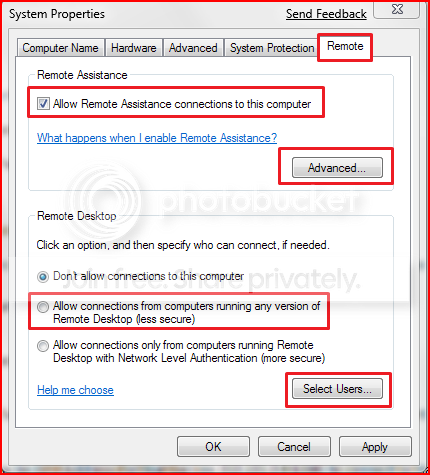
1. Go to Control Panel>System>Advanced System Settings
SystemProperties.png

2. Go to Remote tab.

3. Under Remote Assistance, put a check mark on Allow Remote Assistance connections to this computer.
Note: This automatically adds Remote Desktop exception to Windows Firewall.

4. Click on Apply.


OPTION ONE

To Connect to a Remote Desktop (Local Area Connectivity)


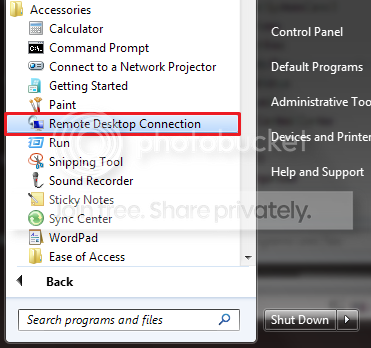
1. Go to Start>All Programs>Accessories>Remote Desktop Connection
NOTE: You could also press the Windows + R keys to open the Run dialog, type mstsc.exe, and press Enter.
RDCLocation.png

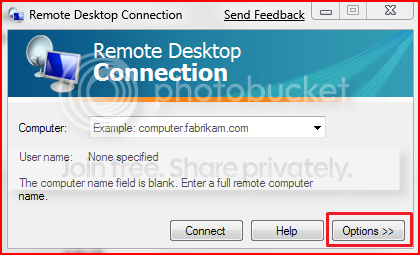
2. Enter the Computer Name or IP address of the computer you wish to connect to.
RemoteDesktopConnection.png

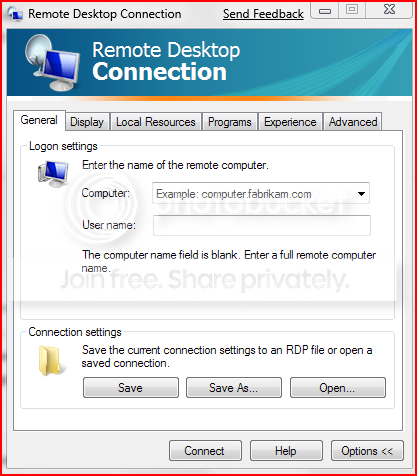
3. For more connection options, click on Options
NOTE: Here you can save the connection profile, adjust display properties, run specified programs upon connection, adjust connection bandwidth, etc. For more information on specific tabs, click on Help.
RemoteDesktopConnectionExpanded.png

4. Click on Connect.

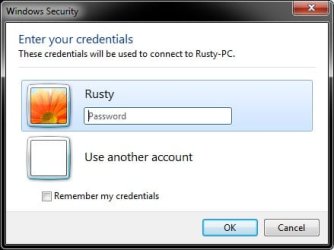
5. Enter your log in credentials of a user account on the remote computer that is allowed to do a remote desktop connection.
Credentials.jpg


OPTION TWO

Enable Windows to Accept Remote Desktop Connection (Local Area Connectivity)


1. Go to Control Panel>System>Advanced System Settings
SystemProperties.png

2. Go to Remote tab.

3. Under Remote Assistance, put a check mark on Allow Remote Assistance connections to this computer
Note: This automatically adds Remote Desktop exception in Windows Firewall.

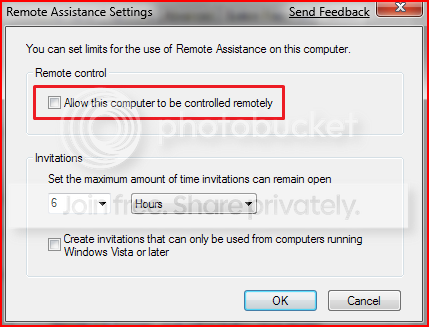
4. Click on Advanced...
RemoteAssistantSettings.png

5. Put a check mark on Allow this computer to be controlled remotely.

6. Click on OK.
Note: This automatically adds Remote Assistance exception in Windows Firewall.

7. Remote Desktop Connection behind a router (Single computer)
A) Configure your router's port forwarding to allow connections on port 3389
B) Now in RDC just type the IP address supplied by your ISP
8. Remote Desktop Connection behind a router (Multiple computers)
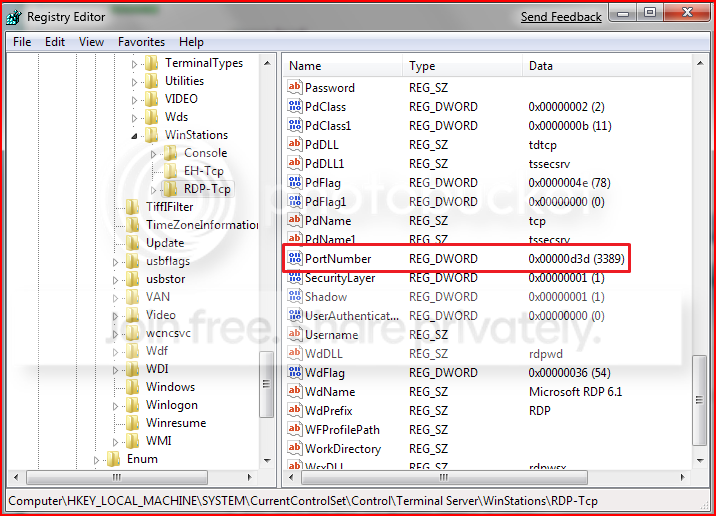
A) For each computer you want to remotely connect to you have to configure each computer to listen to different ports to avoid port conflicts by changing the registry key in:

HKEY_LOCAL_MACHINE\System\CurrentControlSet\Control\Terminal Server\WinStations\RDP-Tcp\PortNumber
PortConfiguration.png

B) Port Numbers are in Decimal format
Note: To avoid conflict with other programs it is suggested to select a port between 49152 and 65535.

C) Now take that number you've chosen your computer to listen to and configure your router to port forward to that number

D) To connect to that computer your format will now be ISPIPAddress:PortNumber (ex. 222.222.2.8:1234) to connect to that specific computer behind the router
Important: If you have a firewall software running, that too has to be configured to allow communication to the port you opened in your router as well.

Note: The above steps assumes that you're not part of a domain.

 
Last edited by a moderator:
Fixed It

I found that it was the F-Secure Anti Virus blocking incoming connections. I set up the exceptions and all is good to go.
 

My Computer

Computer Manufacturer/Model Number
home built
OS
Windows 7 RC 64 Bit
CPU
INTEL 2.66 Quad Core
Motherboard
ASUS
Memory
12 GB
Graphics Card(s)
Nvidia G Force 9600GT
Sound Card
none
Monitor(s) Displays
2-Samsung 24"
Hard Drives
320 GB SATA
Case
Antec
I have not tried it, but here is a link that describes how to enable it:
Windows 7 : Enable Multiple User Access Login/Concurrent User Sessions

I just tried this method for Windows 7 RTM and it is not working.

I am not sure if this thread is still being monitored at all, but I ran into an issue with Remote Desktop that I have not been able to find an answer. When accessing my desktop system, using my home network, I click on Internet explorer and it flashes on the screen for a split second and then closes. No instances of it in the task manager. Cannot even open links from other programs (i.e. e-mails for Outlook). Any thoughts or suggestions would be appreciated. This used to work using RDC on XP and Vista; I am just wondering if there is a new setting that I am now missing somewhere. Thank you for your time and response.

Check your RDP settings to make sure that they are not set to minimum values (i.e. dial-up). Also, check your IE itself - might be a rogue addon there that is causing it fits when you try to run it in a RD session.

Whiskey,
The answer is no. You can't run multiple concurrent RDC sessions on the same PC. You can only be logged on one at a time.

Clem

That seems to be the case, even when trying to use How to Enable Concurrent Sessions for Remote Desktop in Windows 7 RTM

NOT SO FAST...

There is a working method for using RDC to login to a machine concurrently and unseen. It is here in the forum. I will search for the thread.

Worked in pre-RTM, but is not working for me in RTM, neither 32bit nor 64bit.

Nos,
I've been using RDC with my clients that have XP for years. When I ran into this original issue with Win 7, after posting my problem on this forum, I did a ton of research and found an interesting item (can't remember where... :)). I've always changed the listening ports on systems behind the router then created specific rules to forward to the individual systems. The item I found indicated you don't have to do that. Everything is the same except for two steps:

1. Leave the listening ports all set to default (3389)
2. When a connection request comes in, it will have the "new" port attached to it (ex. 77.44.123.6:4001). The firewall rule you create will now forward the "new" port (in this case 4001) to port 3389 on the specific system you want the "new" port to access.

Using the above example, if the system you want to access is 192.168.1.35, the rule would forward a request coming to 77.44.123.6:4001 to 192.168.1.35 port 3389. It actually makes perfect sense and doesn't require modifying the registry! I've tested it and it works perfectly each time.

Clem

Exactly how I am doing it as well.


See above

When I try to set Remote settings in the Remote tab I've only see Allow remote assistance, but nothing to select users. Is that have something with the version of the OS, or administrative privileges?
I'm using RTM Home Premium x64 and I do have Administrative account.
Any suggestions? What I did wrong? :huh:

I think it might be based upon your Home Premium versus the Business / Ultimate versions. This table may be handy: Remote Desktop Services (Terminal Services) Team Blog : Remote Desktop Connection 7 for Windows 7, Windows XP & Windows Vista
 

My Computers

System One System Two

  • Computer type
    PC/Desktop
    Computer Manufacturer/Model Number
    The Beast Model A (homebrew)
    OS
    Windows 11 21H2 Current build
    CPU
    AMD Ryzen 9 3950X
    Motherboard
    MSI MEG X570 GODLIKE
    Memory
    4 * 32 GB - Corsair Vengeance 3600 MHz
    Graphics Card(s)
    EVGA GeForce RTX 3080 Ti XC3 ULTRA GAMING (12G-P5-3955-KR)
    Sound Card
    Realtek® ALC1220 Codec
    Monitor(s) Displays
    2x Eve Spectrum ES07D03 4K Gaming Monitor (Matte) | Eve Spec
    Screen Resolution
    3x 3840 x 2160
    Hard Drives
    3x Samsung 980 Pro NVMe PCIe 4 M.2 2 TB SSD (MZ-V8P2T0B/AM) } 3x Sabrent Rocket NVMe 4.0 1 TB SSD
    PSU
    PC Power & Cooling’s Silencer Series 1050 Watt, 80 Plus Plat
    Case
    Fractal Design Define 7 XL Dark ATX Full Tower Case
    Cooling
    SteelSeries Apex Pro Wired Gaming Keyboard
    Keyboard
    SteelSeries Apex Pro
    Mouse
    Logitech MX Master 3S | MX Master 3 for business
    Internet Speed
    AT&T LightSpeed Gigabit Duplex Ftth
    Antivirus
    Windows Defender + MB 3
    Browser
    Nightly (default) + Firefox (stable),Chrome, Edge
  • Computer type
    PC/Desktop
    System Manufacturer/Model Number
    Dell Latitude E5470
    OS
    ChromeOS Flex Dev Channel (current)
    CPU
    Intel(R) Core(TM) i5-6300U CPU @ 2.40GHz, 2501 Mhz, 2 Core(s), 4 Logical Processor(s)
    Motherboard
    Dell
    Memory
    16 GB
    Graphics Card(s)
    Intel(R) HD Graphics 520
    Sound Card
    Intel(R) HD Graphics 520 + RealTek Audio
    Monitor(s) Displays
    Dell laptop display 15"
    Screen Resolution
    1920 * 1080
    Hard Drives
    Toshiba 128GB M.2 22300 drive
    INTEL Cherryville 520 Series SSDSC2CW180A 180 GB SATA III SSD
    PSU
    Dell
    Case
    Dell
    Cooling
    Dell
    Keyboard
    Dell
    Mouse
    Logitech MX Master 3S (shared w. Sys 1) | Dell TouchPad
    Internet Speed
    AT&T LightSpeed Gigabit Duplex Ftth

My Computer

Computer Manufacturer/Model Number
Tx2500z Tablet Pc/Homemade Server
OS
Windows 7 Ult x64(x2), HomePrem x32(x4), Server 08 (+VM), 08 R2 (VM) , SuSe 11.2 (VM), XP 32 (VM)
CPU
Turion X2 ultra (oh well came with laptop)/P4 @3.2 (yes P4)
Motherboard
IDK HP Motherboard / Intel DG965SS
Memory
OCZ Dual Channel 4GB kit/ 1gb Dual Channel
Graphics Card(s)
HD 3200 graphics /GMA x3100 (yay for intergrated!!)
Sound Card
Realtek HD Audio(mic working, well sort of)/Siig IC-70012
Monitor(s) Displays
built-in Hp 12" laptop screen/ Acer 19"
Screen Resolution
1280x800 /1440x900
Cooling
All Air Cooled
Mouse
Logi MX Rev. /MS Wheel Optical 1.1A /Logitech Optical Mouse
Internet Speed
College baby but its still routed through vpn to 1536k...
Other Info
love my wacom pen and pressure sensitivity...
wished it worked in 7, SUSE for that matter though
i have 2 pc,
a pc with windows 7 and a pc with xp.
i can't remote XP from windows 7.
how can i remote xp from winows 7 ?

sory my engkish is too bad
 

My Computer

OS
hardy heron, windows 7, windows XP
i have 2 pc,
a pc with windows 7 and a pc with xp.
i can't remote XP from windows 7.
how can i remote xp from winows 7 ?

sory my engkish is too bad
No solution in this post by me, sorry to say.

Just wanted to say "Welcome",

and tell you that you have a beautiful name,

same as my first-born daughter.

So, "Welcome, Natasha!"

And don't worry about the English, its not a big deal... :)

(If you have XP and w7, where does the 'Ubuntu' fit?)
(This might assist the troubleshooters here.)
 

My Computer

Computer Manufacturer/Model Number
Gateway GT5056
OS
XP_Pro, W7_7201, W7RC.vhd, SciLinux5.3, Fedora12, Fedora9_2x, OpenSolaris_09-06
CPU
AMD 64x2
Motherboard
Yes
Memory
1 gig
Graphics Card(s)
Dunno
Sound Card
Realtek something
Monitor(s) Displays
Samsung SyncMaster 940MW w/TV
Screen Resolution
1280x1024
Hard Drives
250 GB WD, USB Seagate Freedesk 1.5 T
Internet Speed
Cable modem
Other Info
1 + 1 = 10b,
7 + 7 = 16o,
a + b = 15h.
sorry i am newbie ..
your daughter'name is same with my real name.thank you:)
spec my pc i7 920 with dual boot OS hardyheron and windows 7 64bit.
the other pc is sempron platform with windows Xp sp2 32 bit

i can't conect to sempron using remote desktop from windows 7 to windows XP. do you have solution for that?

thanks
natasha


i have 2 pc,
a pc with windows 7 and a pc with xp.
i can't remote XP from windows 7.
how can i remote xp from winows 7 ?

sory my engkish is too bad
No solution in this post by me, sorry to say.

Just wanted to say "Welcome",

and tell you that you have a beautiful name,

same as my first-born daughter.

So, "Welcome, Natasha!"

And don't worry about the English, its not a big deal... :)

(If you have XP and w7, where does the 'Ubuntu' fit?)
(This might assist the troubleshooters here.)
 

My Computer

OS
hardy heron, windows 7, windows XP
I'm afraid that my remote desktop connect tab looks nothing like the one in the tutorial. I have one machine that is on my home network that has Windows 7 Ultimate (RTM from my TechNet subscription) that I want to use to connect to another machine on my network that has Windows 7 Home Premium (again, RTM from my TechNet subscription). I use the same user name on both machines, but with different passwords (to disincline my kids from using my machines when they have their own).

I've done everything I can to try to setup the Win 7 HP machine to accept Remote Connections, but I can't seem to connect to it. I do have one drive on the Win 7 Ultimate machine setup as an autoconnect network drive for the Win 7 HP machine so I can transfer files. I used to have a drive setup the other way as well, but Win 7 appears to only let you do this in one direction - complaining that there are too many connections otherwise.

I'm at a loss as to what to do next. Part of the reason I'm posting here rather than a more generic forum is to stop the "Switch to Linux" comments. So please, help a fellow MS fan out!
 

My Computer

Computer Manufacturer/Model Number
Gigabyte T1028 and Core i7 Custom PC and ASUS CG5290 Desktop
OS
Win 7 Ultimate 32/ Win 7 Ultimate 64/ Win 7 Home Premium 64
CPU
Atom N280/ Core i7/ Core i7
Memory
2 Gigs/ 6 Gigs/ 9 Gigs
Graphics Card(s)
Intel G950/ ATi Radeon 4850x2/ NVidia GeForce GTX 260
Monitor(s) Displays
Built in 10.1 inch/ Magnavox 32" LCD TV/ ACER H233H 23 inch
Hard Drives
Corsair 128 Gig SSD/ Hitachi HDT721010SLA360 (1 TB)/ Hitachi HDT721010SLA360 (1 TB)
When I'm using my Remote Desktop on another computer in my home, I can access it and I did it while they remain logged in with no idea i also have control of there computer. Now my question is how can i watch what they are doing, because when they are on a website on firefox it wont let me even open firefox much less monitor what website they are on. I couldn't find this on the forum, but maybe I missed it. Any help would be appreciated, I would like to know so I can monitor my kids. I have the my computer and their computer both running Windows 7 Professional (from the msdn release).
 

My Computer

OS
Windows 7
hi, does anybody know if it is possible to login on same computer using different accounts at the same time?
i would like to use my computer though remote connection, while anyone else use it.
i did all steps in the tutorial, but currently w7 asks local user to disconnect when i'am logging in via remote desktop :(

thanks.

Whiskey:

Have you been drinking too much of yourself???

Think about your question... you are remotely controlling a PC, so how can 2 people use it at the same time? If 2 people cant use it locally at the same time how can they share it remotely?

But I believe you might remotely control a VM on that machine... anyone tried this?

And...

When I'm using my Remote Desktop on another computer in my home, I can access it and I did it while they remain logged in with no idea i also have control of there computer.

IT DOES NOT WORK THIS WAY... No way can you be logged in as one user and login as another without that user getting a prompt to allow you to remotely control.

The remote user gets the following message: LOGON MESSAGE: Another user is currently logged on to this computer. If you continue, this user has to disconnect from this computer. Do you wish to continue?

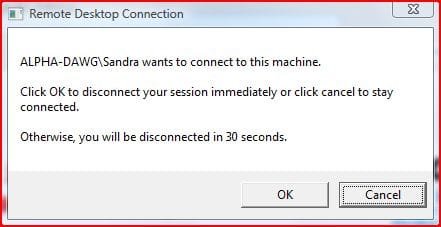
If the remote user chooses to continue, the other user will get the following dialog box:
RDP 2@once_3.JPG
 
Last edited:

My Computer

Computer Manufacturer/Model Number
Homebrew PC - "Alpha_Dawg"
OS
Windows 7 Ultimate 64 bit Steve Ballmer Signature Edition
CPU
Intel Core 2 Quad - Q9550 - 2.83GHz stock - OC'd to 3.6GHz
Motherboard
Gigabyte EP45-UD3P
Memory
4GB DDR2 800MHz (PC6400) OCZ Reaper
Graphics Card(s)
Nvidia GE Force 8800 GTS
Sound Card
Asus Xonar DX
Monitor(s) Displays
Samsung SyncMaster 2333HD
Screen Resolution
1920 x 1080
Hard Drives
WD Caviar Black 750GB - 7200RPM - 32MB cache
WD Caviar Green 1.5TB - 5400RPM - 64MB cache
WD Caviar Green 2.0TB - 5400RPM - 64MB cache
PSU
PC Power & Cooling Silencer 750
Case
Gigabyte 3D Aurora
Cooling
Case is Air - 5ea. 120mm fans (mix of Arctic and Xigmatec)
Keyboard
MS Natural Wireless KB
Mouse
MS Wireless Mouse
Internet Speed
50 mbps down/5 mbps up
Other Info
AVerMedia - AVerTVHD G2 Dual Tuner Card
Oh hey there, how you doin? I've just registered and hope you guys might be able to help me...

I have Windows7 on this machine and all I am trying to do is set up Remote Desktop to connect to this PC from work.

I am behind a router, my PC is on 192.168.1.3 and have forward the default Remote Desktop port (3389) to that IP.

Now, when I use my WinXP laptop (same network) to test it, I only seem to be able to connect to my Win7 machine sucessfully by using a local ip (192.168.1.3) but if I type the IP address for my router there I just get: "Remote Desktop Disconected-> This computer cant connect to the remote computer..."

I have gone on a website which scans for open ports and 3389 is opened, the router is pointing that port to this machine and yet I cant seem to connect for some reason, have tried switching the firewall off on both machines and same issue.

I do have a proper user/password so its not because of a blank password either.

So I am very confused, the Desktop Connection works from within the LAN, which means there isnt any settings that need modifying on the Win7 machine, the router is forwarding the 3389 port to the machine and I have confirmed the port is opened, have tried disabling firewall on router, setting my machine (.3) as a DMZ server, even adding the :3389 after the IP address from the WinXP laptop and still... no joy....

Any ideas?
 

My Computer

OS
Win7
Oh hey there, how you doin? I've just registered and hope you guys might be able to help me...

I have Windows7 on this machine and all I am trying to do is set up Remote Desktop to connect to this PC from work.

I am behind a router, my PC is on 192.168.1.3 and have forward the default Remote Desktop port (3389) to that IP.

Now, when I use my WinXP laptop (same network) to test it, I only seem to be able to connect to my Win7 machine sucessfully by using a local ip (192.168.1.3) but if I type the IP address for my router there I just get: "Remote Desktop Disconected-> This computer cant connect to the remote computer..."

I have gone on a website which scans for open ports and 3389 is opened, the router is pointing that port to this machine and yet I cant seem to connect for some reason, have tried switching the firewall off on both machines and same issue.

I do have a proper user/password so its not because of a blank password either.

So I am very confused, the Desktop Connection works from within the LAN, which means there isnt any settings that need modifying on the Win7 machine, the router is forwarding the 3389 port to the machine and I have confirmed the port is opened, have tried disabling firewall on router, setting my machine (.3) as a DMZ server, even adding the :3389 after the IP address from the WinXP laptop and still... no joy....

Any ideas?

When you say that your router is forwarding port 3389 to the machine, you mean the IP of the Win7 PC, right? You did set the Win7 PC to accept RDC automatically, right?
 

My Computer

Computer Manufacturer/Model Number
Homebrew PC - "Alpha_Dawg"
OS
Windows 7 Ultimate 64 bit Steve Ballmer Signature Edition
CPU
Intel Core 2 Quad - Q9550 - 2.83GHz stock - OC'd to 3.6GHz
Motherboard
Gigabyte EP45-UD3P
Memory
4GB DDR2 800MHz (PC6400) OCZ Reaper
Graphics Card(s)
Nvidia GE Force 8800 GTS
Sound Card
Asus Xonar DX
Monitor(s) Displays
Samsung SyncMaster 2333HD
Screen Resolution
1920 x 1080
Hard Drives
WD Caviar Black 750GB - 7200RPM - 32MB cache
WD Caviar Green 1.5TB - 5400RPM - 64MB cache
WD Caviar Green 2.0TB - 5400RPM - 64MB cache
PSU
PC Power & Cooling Silencer 750
Case
Gigabyte 3D Aurora
Cooling
Case is Air - 5ea. 120mm fans (mix of Arctic and Xigmatec)
Keyboard
MS Natural Wireless KB
Mouse
MS Wireless Mouse
Internet Speed
50 mbps down/5 mbps up
Other Info
AVerMedia - AVerTVHD G2 Dual Tuner Card
Yup, port 3389 is forwarding to the PC with Win7, and the PC with Win7 is accepting RDC automatically...

I beleive that the PC with Win7 is properly configured because I can use RDC from my laptop (WinXP) to connect to it if I input the Win7's local IP address to connect to...

so this works:

Laptop ---->LAN-----> Win7

but this doesnt:

Laptop----->Internet----->Router------>Win7

:cry:
 

My Computer

OS
Win7
RDP from XP to W7 Home Premium

I've followed all the instructions on this thread but still I can't connect to my Windows 7 64 bit Home Premium PC from my Windows XP SP3 laptop.

I'm trying it first with both computers on my local home network, and I've tried connecting to both the direct IP address and the computer name, but the connection request just times out.

RDP from my laptop to other XP computers in my business domain works.
My home PC cannot be in the domain, could this be the problem?

Thanks for any suggestions

Richard
 

My Computer

Computer Manufacturer/Model Number
Home Built
OS
W7 Home Premium 64bit
CPU
Athlon II X4 620
Motherboard
Gigabyte GA-MA78GM-UD2H
Memory
2 x 2GB DDR2
Graphics Card(s)
on board
Sound Card
on board
PSU
Arctic Power 500W
Case
Casecom KB-7760 Black ATX Midi Tower
Try it and see, but it sounds like you have some other issues!
 

My Computer

Computer Manufacturer/Model Number
Homebrew PC - "Alpha_Dawg"
OS
Windows 7 Ultimate 64 bit Steve Ballmer Signature Edition
CPU
Intel Core 2 Quad - Q9550 - 2.83GHz stock - OC'd to 3.6GHz
Motherboard
Gigabyte EP45-UD3P
Memory
4GB DDR2 800MHz (PC6400) OCZ Reaper
Graphics Card(s)
Nvidia GE Force 8800 GTS
Sound Card
Asus Xonar DX
Monitor(s) Displays
Samsung SyncMaster 2333HD
Screen Resolution
1920 x 1080
Hard Drives
WD Caviar Black 750GB - 7200RPM - 32MB cache
WD Caviar Green 1.5TB - 5400RPM - 64MB cache
WD Caviar Green 2.0TB - 5400RPM - 64MB cache
PSU
PC Power & Cooling Silencer 750
Case
Gigabyte 3D Aurora
Cooling
Case is Air - 5ea. 120mm fans (mix of Arctic and Xigmatec)
Keyboard
MS Natural Wireless KB
Mouse
MS Wireless Mouse
Internet Speed
50 mbps down/5 mbps up
Other Info
AVerMedia - AVerTVHD G2 Dual Tuner Card
Can someone explain how to change the RDP Port while I am in a domain? I changed the listening port through regedit, but could not edit the firewall rule.
 

My Computer

OS
Win 7 Pro
I think it should be stated in the tutorial - preferably at the front - that if you have Windows 7 Home Premium (or below) then you do NOT see Remote Desktop options on the Remote tab!

Furthermore, the following should be made clear:

For all versions of Windows 7:

  • Your machine can connect to other desktops remotely using Remote Desktop client.
Home Premium and below:

  • Your machine cannot act as a remote desktop host (that is, be connected to from another computer) since terminal services are disabled entirely.
Professional, Enterprise and Ultimate:

  • Your machine can act as a remote desktop host (that is, be connected to from another computer).
  • Only a single user can connect to your machine at a time, since the usual terminal services 'feature' means that a second connecting user will terminate the session of the first. Amazingly, this happens 'by design'...
 

My Computer

OS
Windows 7
John,

Thanks very much for this clarification:

Home Premium and below:

  • Your machine cannot act as a remote desktop host (that is, be connected to from another computer) since terminal services are disabled entirely.
That explains my problems.

Richard
 

My Computer

Computer Manufacturer/Model Number
Home Built
OS
W7 Home Premium 64bit
CPU
Athlon II X4 620
Motherboard
Gigabyte GA-MA78GM-UD2H
Memory
2 x 2GB DDR2
Graphics Card(s)
on board
Sound Card
on board
PSU
Arctic Power 500W
Case
Casecom KB-7760 Black ATX Midi Tower
RDC with specific port forwarding- routr-multiple comps

Hello All! New to the forum but I felt inclined to share my experience of the windows 7 RDC environment as well as Vista.
Top Marks to the details above, exactly as is written however we came across a cpl of points in our small business network - 5-8 users. We have a router with port forwarding enabled and so each computer operates on a different port (multiple computers behind a router). We have a couple of of switches on our network as well - Our office spans two "condos".

We are all in the process of upgrading to windows 7 and had the following issue with the firewall. After allowing remote desktop on the firwall settings (in and out - public and domain) we could not figure out what else we had to do to enable the remote desktop connection. Two computers upgraded from vista ultimate worked fine and two upgraded from XP could not connect. We figured there was some setting that had been preserved in the upgrade (from Vista) but not the clean install (from XP). Turns out that it is necessary to do the following.

Start (round button!) > Control Panel > Windows Firewall > Advanced Settings (Left hand side of screen) > Inbound Rule (left hand side) > New Rule (Right Hand Side) > Select PORT radio button > TCP radio button and enter the specific port > hit next and voila - remote desktop with port forwarding enabled.

Seems pretty silly looking back however thought I would share this in case other people waste 4 hours on a silly problem!!
 
Last edited:

My Computer

OS
Windows 7
Still an issue to figure out...

Greetings all.. I just joined, and posted a question, but when i went back and looked at MrHawkings comment, everything was cleared up. Thanks Hawkings. :)
 
Last edited:

My Computer

Computer Manufacturer/Model Number
Sony Vaio / RB VGC-RB30
OS
Windows 7
CPU
Intel Pentium 4 530J 3.00 GHz
Memory
2 Gb
Monitor(s) Displays
2 x 1280 x 1024 LCD
Unfortunately, it is not. The only OS I have seen allow this are the server platforms...

And Thanks for the tut Nos :)
 

My Computer

OS
7
Back
Top