
How to Remove Background Images to have Only Solid Colors in Windows 7
Information
This will show you how to turn on or off the Remove background images (where available) option to only be able to use solid colors (black by default) for your desktop background in Windows 7 or Vista.
EXAMPLE: Desktop Background Image before (off) and after (on)


Here's How:
1. Open the Control Panel (icon view), and double click on the Ease of Access Center icon.
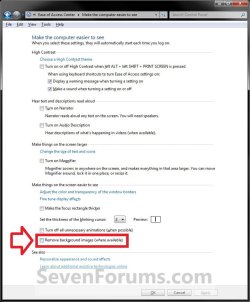
2. Click on the Make the computer easier to see link. (see screenshot below)

3. To Be able to Use Images for your Desktop Background
A) Uncheck the Remove background images (where available) box, and click on OK. (see screenshot below)
NOTE: This is the default settting.
B) Go to step 5.
4. To Only Be able to Use Solid Colors for your Desktop Background
A) Check the Remove background images (where available) box, and click on OK. (see screenshot above)
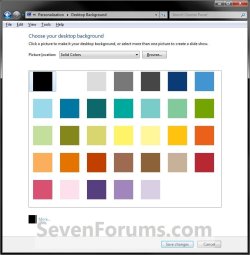
B) Your desktop background will now be solid black.
C) You will now find that even though all options to change the theme and desktop background to any image are available, you will only be able to change the desktop background to a solid color of your choice instead.
5. Close the Ease of Access Center.
That's it,
Shawn
Related Tutorials
- How to Change the Windows 7 Desktop Background
- How to Create a Change "Desktop Background" Shortcut in Vista and Windows 7
- How to Specify a Desktop Background for All Users
- How to Change the Desktop Background in Windows 7 Starter and Home Basic Editions
- How to Allow or Prevent Changing Desktop Background in Windows 7
- How to "Turn off all unnecessary animations" in Windows 7 and Vista
- How to Play a Music Video as the Desktop Background
Last edited:


