
You are using an out of date browser. It may not display this or other websites correctly.
You should upgrade or use an alternative browser.
You should upgrade or use an alternative browser.
Remove XP Partition From Dual Boot
- Thread starter Styl
- Start date

- Local time
- 4:39 PM
- Messages
- 50,634
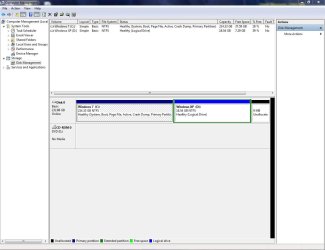
Please post back here a screenshot of your full Disk Management map, using the Snipping Tool in Start Menu, attaching file using paper clip in reply box.
While we are looking it over to advise you better, you can download and burn to CD the best tool for this job, free Partition Wizard: http://www.partitionwizard.com/download.html
You will also need your bootable Win7 installer or Repair disk.
While we are looking it over to advise you better, you can download and burn to CD the best tool for this job, free Partition Wizard: http://www.partitionwizard.com/download.html
You will also need your bootable Win7 installer or Repair disk.
- Local time
- 4:39 PM
- Messages
- 50,634
Wow, this may be the easiest one I've seen out of about 100 we've done here since Win7 release.
Just delete XP partition in Win7 Disk Management.
If the Boot Menu remains, download and install EasyBCD and remove XP listing on Add/Remove tab.
Also check for a listing to delete in msconfig Boot tab.
View attachment 43052
Just delete XP partition in Win7 Disk Management.
If the Boot Menu remains, download and install EasyBCD and remove XP listing on Add/Remove tab.
Also check for a listing to delete in msconfig Boot tab.
View attachment 43052
- Local time
- 4:39 PM
- Messages
- 50,634
Didn't see that coming. I definitely thought it would be a bit harder than that. Will it be as easy to merge the new free space into Windows 7?
You can recover the space into your Win7 drive by Extending it in Disk Mgmt.
Last edited:
Cannot Set W7 Partition as Active
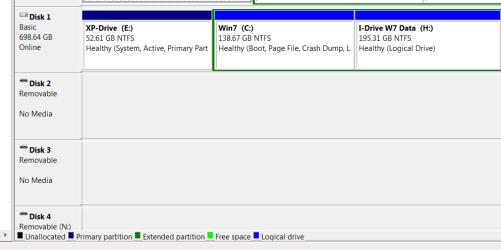
I am having problems in removing the XP dual boot partition. I successfully ran Partition Wizard to set the XP partition as inactive but the "Set Active" button for the W7 Partition is grayed out. I ran Startup Repair 3 times and all tests passed.
As you notice, the W7 partition is a logical drive. I cannot remove the remaining XP system files from the XP partition. Where do I go from here to remove the remaining XP files?
I am having problems in removing the XP dual boot partition. I successfully ran Partition Wizard to set the XP partition as inactive but the "Set Active" button for the W7 Partition is grayed out. I ran Startup Repair 3 times and all tests passed.
As you notice, the W7 partition is a logical drive. I cannot remove the remaining XP system files from the XP partition. Where do I go from here to remove the remaining XP files?
My Computer
- OS
- Windows 7
- Local time
- 4:39 PM
- Messages
- 50,634
Back up your files and a Win7 Backup Image externally. Backup Complete Computer - Create an Image Backup
Download Partition Wizard CD, burn to CD using Windows Image Burner, Boot CD, right click Win7 partition>Modify>Convert to Primary, OK. How to set partition as Primary or Logical with Partition Wizard
Now right click Win7 partition>Modify:Set to Active, OK. How to Set Active/Inactive partition -Partition Wizard Video Help.
Now right click XP partition>Delete. OK.
Now right click Win7 partition>Resize>drag left border all the way to the left over deleted XP space, OK. Partition Wizard to Resize Partition - Video Help.
Resize remaining partitions as you please, OK. Apply all steps.
Boot into Win7 DVD to run Startup Repair - Run 3 Separate Times until Win7 boots on its own and holds the System flag on its partition.
Download Partition Wizard CD, burn to CD using Windows Image Burner, Boot CD, right click Win7 partition>Modify>Convert to Primary, OK. How to set partition as Primary or Logical with Partition Wizard
Now right click Win7 partition>Modify:Set to Active, OK. How to Set Active/Inactive partition -Partition Wizard Video Help.
Now right click XP partition>Delete. OK.
Now right click Win7 partition>Resize>drag left border all the way to the left over deleted XP space, OK. Partition Wizard to Resize Partition - Video Help.
Resize remaining partitions as you please, OK. Apply all steps.
Boot into Win7 DVD to run Startup Repair - Run 3 Separate Times until Win7 boots on its own and holds the System flag on its partition.
Last edited:
Hello,
I've searched and read a lot of topics from this forum and tried some combination, but i didn't succeed.
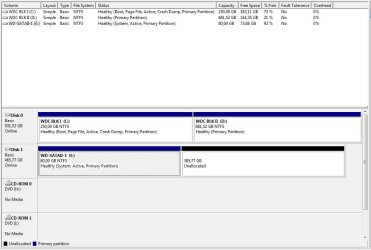
I have the following case, 2 raid 1 matrix as shown in the images attached. On the second one, i had windows XP and when i have installed the new MB, it did recognized the matrix and read all the files on it. When i installed the new OS Win 7, i did install it on the new matrix, only that now it sees the second matrix as system matrix.
Tried with PW, but it does not recognizes the first matrix and i don't have what to set as active or else, and if i delete the second matrix and reboot then repair with the OS dvd, it reconstructs the old matrix no. 2.
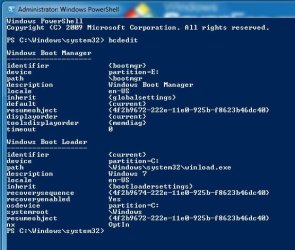
Also there is a print screen from bcdedit with the status of the bcd shop.
Can you please help me ? I want to delete the partition from the second matrix and create one big partition of ~500GB.
Many thanks in advance.
Mircea
I've searched and read a lot of topics from this forum and tried some combination, but i didn't succeed.
I have the following case, 2 raid 1 matrix as shown in the images attached. On the second one, i had windows XP and when i have installed the new MB, it did recognized the matrix and read all the files on it. When i installed the new OS Win 7, i did install it on the new matrix, only that now it sees the second matrix as system matrix.
Tried with PW, but it does not recognizes the first matrix and i don't have what to set as active or else, and if i delete the second matrix and reboot then repair with the OS dvd, it reconstructs the old matrix no. 2.
Also there is a print screen from bcdedit with the status of the bcd shop.
Can you please help me ? I want to delete the partition from the second matrix and create one big partition of ~500GB.
Many thanks in advance.
Mircea
Attachments
My Computer
- OS
- windows 7 enterprise x64
- CPU
- intel core 2 duo E67750 @2.66GHz
- Motherboard
- Asus P5QD Turbo
- Memory
- 4 GB
- Graphics Card(s)
- Asus NVIDIA GeForce 8800GTS
- Sound Card
- on board
- Monitor(s) Displays
- LG 227WT
- Hard Drives
- 2 x WDC Sata II BLACK 500GB
2 x WDC Sata I 250 GB
- Local time
- 4:39 PM
- Messages
- 50,634
Try using this method to mark Win7 partition Active: Partition - Mark as Active - Windows 7 Forums.URL
Then boot the WIn7 DVD Repair console or REpair CD, accept any offered Repair on the 7 partition, if it fails boot back into Recovery Tools list to run Startup Repair up to 3 separate times with reboots to write the System boot files to Win7: Startup Repair - Run 3 Separate Times
If this fails, you'll need to unplug the DISK1 matrix during repairs, or wipe it first using Diskpart: Clean and Clean All with Diskpart Command
Then boot the WIn7 DVD Repair console or REpair CD, accept any offered Repair on the 7 partition, if it fails boot back into Recovery Tools list to run Startup Repair up to 3 separate times with reboots to write the System boot files to Win7: Startup Repair - Run 3 Separate Times
If this fails, you'll need to unplug the DISK1 matrix during repairs, or wipe it first using Diskpart: Clean and Clean All with Diskpart Command
The best solution is the most simple one  . The C partition was active, so i had disk 1 disabled from BIOS, ran Startup Repair once, reboot and it worked. Then i had disk 1 re-enabled from bios and now it's all fine. Thanks for the "unplugged" idea.
. The C partition was active, so i had disk 1 disabled from BIOS, ran Startup Repair once, reboot and it worked. Then i had disk 1 re-enabled from bios and now it's all fine. Thanks for the "unplugged" idea.My Computer
- OS
- windows 7 enterprise x64
- CPU
- intel core 2 duo E67750 @2.66GHz
- Motherboard
- Asus P5QD Turbo
- Memory
- 4 GB
- Graphics Card(s)
- Asus NVIDIA GeForce 8800GTS
- Sound Card
- on board
- Monitor(s) Displays
- LG 227WT
- Hard Drives
- 2 x WDC Sata II BLACK 500GB
2 x WDC Sata I 250 GB
Similar threads
- Replies
- 8
- Views
- 26K

- Replies
- 4
- Views
- 687
- Replies
- 3
- Views
- 3K

- Replies
- 6
- Views
- 8K
- Replies
- 44
- Views
- 7K