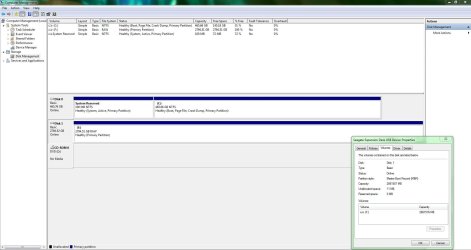
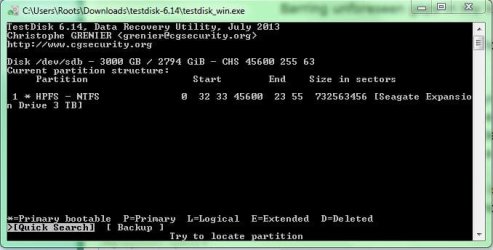
Your Seagate 3 TB external drive is a GPT drive.
I shall straight away get into Data Recovery mode using Test Disk.
You must have an empty formatted drive of adequate capacity connected to copy all data into it. If that drive does not have sufficient capacity then you have to select only the important files and copy those to it when we come to that ( and if we come to it

. Yep, Data Recovery is a dirty job with results unpredictable,except in most simple cases.)
Read Part 1 and Part 2 of my guide here
http://www.sevenforums.com/software/190430-regain-lost-drive-using-test-disk-illustrated-guide.html
Download TestDisk Windows version 6.14
TestDisk Download - CGSecurity , extract it to your C drive. Right click on testdisk.exe in Testdisk-6.14 folder and run as administrator.
Ready to go?
First screen - No Log [ENTER]
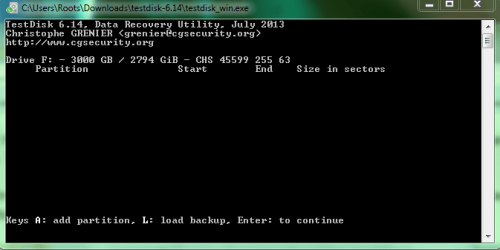
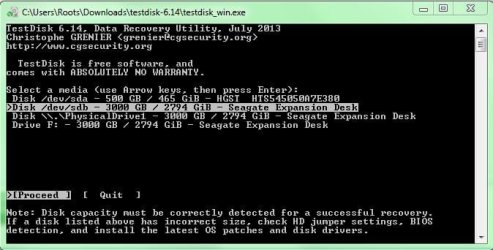
Second Screen: You must be seeing three drives. Your system drive , your faulty drive and your destination drive to copy from your faulty drive.
( As a matter of fact you can go upto this stage without a destination drive connected just to make sure that your faulty drive is visible to TestDisk. If it is visible then close TestDisk by clicking on X on top right corner, connect your destination drive and start TestDisk all over again.)
Select your faulty drive , Proceed [ENTER]
Third Screen :Here you will
select [EFI GPT] [ENTER]
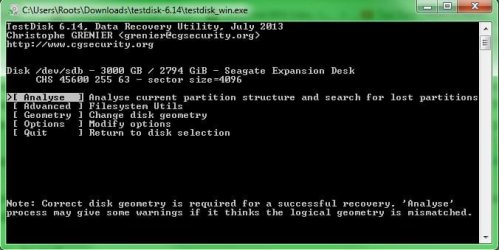
Fourth Screen: Analyse [ENTER]
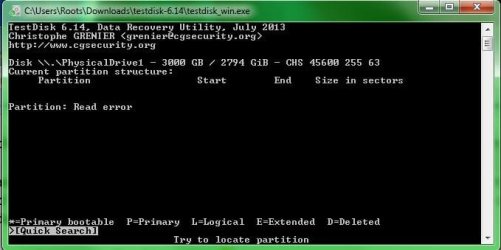
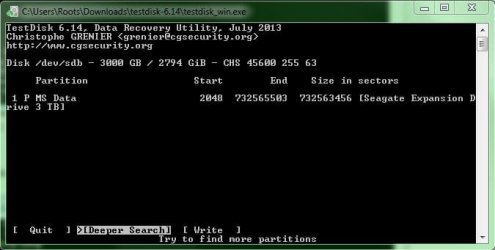
Fifth Screen: 1. If TestDisk is able to find the valid Partition Table, the partition/s will be indicated followed by the message No partition is bootable.
2. If not, you will get only No parttion is bootable message.
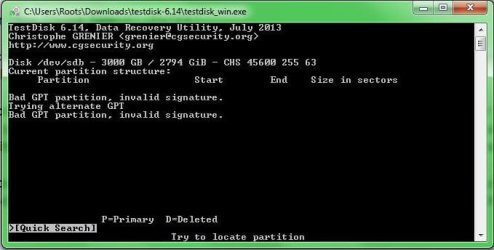
In either case,[Quick Search] [ENTER]
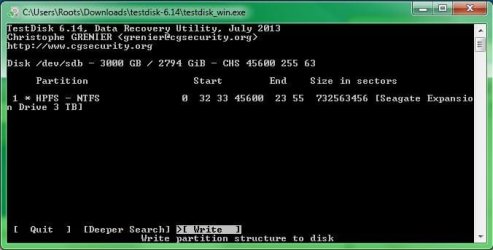
Sixth Screen: If 1. above (partitions found), you will straight away get a screen saying Structure
OK ......blah, blah...
If 2. above(no partitions found) you will get a question "Should TestDisk search for partition
created by Vista or later? [Y/N] (answer yes if you are unsure) Press [Y]. If TestDisk finds
the partition/s, these will be indicated in the next screen saying Structure OK.... blah blah
When you come to this screen saying structure OK ..... blah blah, halt halt halt. if you read it carefully it says 'P- list files" and that is what you will do. It is capital P.So select the partition and press Shift+P and all the files will be listed.
Select the files you want to copy and copy it to the destination drive.
How to copy the files to your destination drive:
http://www.sevenforums.com/hardware...suddenly-became-unllocated-3.html#post2395385
You can also try to use "Partition Copy" in Partition Wizard Home Edition
Free download Magic Partition Manager Software, partition magic alternative, free partition magic, partition magic Windows 7 and server partition software - Partition Wizard Online
If your faulty drive is visible in Partition Wizard you can select the partition and use "Copy Partition" in it to copy to the destination drive. Ideally your destination drive should be the same Seagate, same model 3 TB drive or any drive greater than 3TB say 4 TB.



 .
.