Search Index Broken, Rebuilding won't help

Chlikaflok

New member
Local time
1:38 PM
Messages
3
Hi SevenForums,

I've been having this problem since I installed Windows 7, but I haven't gotten to it before today... When I installed Windows 7, I set up everything, including the search index. I wanted it to search my music library, most of my documents, and my videos, which amounts to ~16,000 files. I set up the checkmarks good, i.e. checking My Documents, and unchecking individual unwanted folders within.

For whatever reason, I search for a music file, which the index finds, then I search for another music file from the same artist, which is in the same folder, and the index can't find it... I rebuilt my index a few times over the last few months to try and fix the issue, but it never works, it just always gives the same mistakes over and over again.

Now I try to remove all the folders from the index and start over again, and Windows remembers all the choices I made, so if I uncheck My Documents, but had manually selected a sub-folder within a folder I unchecked, said sub-folder stays checked. I understand this last sentence was not as clear as it could be, but I can't find the words to say it better...

I'd like to completely reset the windows search index settings and parameters, so that it erases the index, forgets any presets it currently knows, and just lets me try all over again, so maybe it would finally work.

Can anyone help me?

Thanks,
Raphaël Tremblay Lessard / Chlikaflok
 

My Computer My Computer

Computer Manufacturer/Model Number
DELL Inspiron 1720
OS
Windows 7 Professional
CPU
Core2Duo T9300
Graphics Card(s)
NVidia GeForce 8600m GT 256 Mb
Welcome to SF!

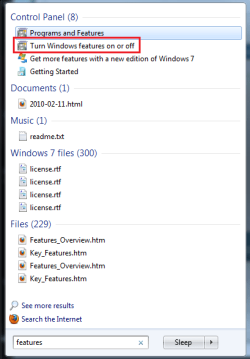
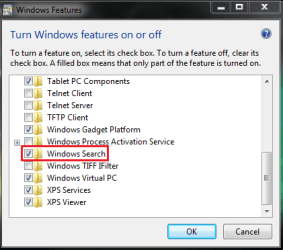
Try disabling search, rebooting, and enabling it again.

Capture.PNG

Capture1.PNG
 

My Computer My Computer

Computer Manufacturer/Model Number
Custom
OS
Windows 7 Professional x64
CPU
Intel i7 2600K OC'd @ 4620 MHz
Motherboard
Asus P8Z68-V Pro
Memory
16GB GSkill Sniper 2133 Mhz (4x4GB)
Graphics Card(s)
EVGA GeForce GTX 480 SuperClocked+
Sound Card
Realtek High Definition Audio
Monitor(s) Displays
2x Acer S273HLbmii 27"
Screen Resolution
2 x 1920x1080
Hard Drives
64GB Crucial M4 SSD

Storage: Hitachi 1TB 5400RPM, Samsung 1.5TB 5400RPM
PSU
Corsair HW Series 750w (modular)
Case
Cooler Master HAF 932 Advanced Blue Edition
Cooling
CM Hyper 212+ CPU cooler, 3x 230mm + 1x 140mm case fans
Keyboard
Logitech MK320 (wireless)
Mouse
Logitech MK320 (wireless)
Internet Speed
30 Mb/s : 2 Mb/s
Thanks for welcoming me!

I've just tried what you suggested, it's still rebuilding the index, but from what I'm seeing it's doing the same as before. I'll wait until the index is done rebuilding itself before jumping to conclusions though.
 

My Computer My Computer

Computer Manufacturer/Model Number
DELL Inspiron 1720
OS
Windows 7 Professional
CPU
Core2Duo T9300
Graphics Card(s)
NVidia GeForce 8600m GT 256 Mb
No cigar.. I'm having the same problems as before.

This pretty weird... guess I'll live with it until my next reinstall... :(

Thanks for the help,
Chlikaflok
 

My Computer My Computer

Computer Manufacturer/Model Number
DELL Inspiron 1720
OS
Windows 7 Professional
CPU
Core2Duo T9300
Graphics Card(s)
NVidia GeForce 8600m GT 256 Mb

My Computer My Computer

Computer Manufacturer/Model Number
Custom
OS
Windows 7 Professional x64
CPU
Intel i7 2600K OC'd @ 4620 MHz
Motherboard
Asus P8Z68-V Pro
Memory
16GB GSkill Sniper 2133 Mhz (4x4GB)
Graphics Card(s)
EVGA GeForce GTX 480 SuperClocked+
Sound Card
Realtek High Definition Audio
Monitor(s) Displays
2x Acer S273HLbmii 27"
Screen Resolution
2 x 1920x1080
Hard Drives
64GB Crucial M4 SSD

Storage: Hitachi 1TB 5400RPM, Samsung 1.5TB 5400RPM
PSU
Corsair HW Series 750w (modular)
Case
Cooler Master HAF 932 Advanced Blue Edition
Cooling
CM Hyper 212+ CPU cooler, 3x 230mm + 1x 140mm case fans
Keyboard
Logitech MK320 (wireless)
Mouse
Logitech MK320 (wireless)
Internet Speed
30 Mb/s : 2 Mb/s
Similar problem here. Rebuilt the index and now Win Explorer search will not find folders sitting in plain view.

I've been computing since 1997 and have tried every basic setting anyone has thought of and nothing has mattered. To make it worse, one day last week it started working. The next day it wouldn't find anything again and I didn't change anything in-between. :confused:
 

My Computer My Computer

Computer Manufacturer/Model Number
Acer Veriton
OS
Win 7
CPU
Intel
This finally worked for me.

OK this worked for me. Credit for the Regedit part goes to Samhrutha G S at Microsoft Support. :tip:

Important: The instructions below contain steps that tell you how to modify the registry. However, serious problems might occur if you modify the registry incorrectly. Therefore, make sure that you follow these steps carefully. For added protection, back up the registry before you modify it. Then, you can restore the registry if a problem occurs. For more information view the article in the Microsoft Knowledge Base: How to back up and restore the registry in Windows

1. Click Windows + R (Opens run window)

2. Type regedit and press Enter.

3. In registry editor, windows locate: HKEY_LOCAL_MACHINE\SOFTWARE\Microsoft\Windows Search
In the right pane, right click on SetupCompletedSuccessfully and click on Modify.

NOTE: If SetupCompletedSuccessfully is not there, then in the right pane, right click on a empty area and click on ‘New’ select ‘DWORD (32 bit)’ Value and type SetupCompletedSuccessfully and press Enter.

4. Type 0 and click on OK.
NOTE: This is the number zero.

5. Close Regedit.

6. Restart the computer.
NOTE:
Resetting the registry to 0 will also remove the drivesfrom the list of “Included Locations” you may have set previously in Indexing Options.
So you will want to add those back in through the “Modify” button. > Show All Locations > Check the drives you want indexed.
Next in Indexing Options you can click through > Modify> rebuild new index.

I did one more step just to make sure before rebuilding the index. I went into Control Panel> Indexing Options and created a new location and new folder for the index.

I then deleted the old index through explorer.

Then I hit the rebuild index button.

I had a suspicion that simply rebuilding the index was not creating a whole new data set; for one thing, the index was being rebuilt too fast, like in under a half hour on a machine with 700 Gigs of files. Second, it wasn’t changing anything for the better.
So out went the old index.

My theory was that Win 7 may be “borrowing” the possibly corrupt data from the first file to build the new index as quickly as possible. But I have not tried this procedure without making a new index folder to see whether deleting the old one is necessary after resetting the SetupCompletedSuccessfully value.

About 3 hours later, the index was rebuilt and indexed search for files and folder contents is working.

PS:
It’s good to be aware that there is another place where Windows has search settings. In Control Panel > Folder Options > Search Tab. Make sure the box is clear for “Don’t Use The Index While Searching The File System”. Also choose other options you want there. I selected “Include Subfolders” and “Find Partial Matches”.
 

My Computer My Computer

Computer Manufacturer/Model Number
Acer Veriton
OS
Win 7
CPU
Intel
Was helpful for restoring index default folders on Windows 10

Excellent instructions on how to rebuild the index and restore the default folders. It actually was useful for my Windows 10 build as I had seemingly had a corrupt database of locations with the different versions of MS Office I had on my computer. Thanks!
 

My Computer My Computer

Computer Manufacturer/Model Number
Custom system
OS
Windows 7 Premium 64bit
CPU
Intel Core 2 Duo E8400 - 3GHz
Motherboard
Abit IP35 Pro
Memory
4GB Corsair - DDR2
Graphics Card(s)
Asus/nVIDIA GeForce EN8600GT
Sound Card
On Board
Monitor(s) Displays
2
Screen Resolution
High
Hard Drives
3 Samsung 7200's - 500/250/160GB
PSU
SeaSonic 450W
Case
LianLi
Internet Speed
Cable
Back
Top