
How to Select Items with Check Boxes in Windows 7
Information
This will show you how to add a check box to Windows Explorer to help make selecting multiple files, folders, or drives at once easier in Windows 7.
When check boxes is used, you can now just hover the mouse pointer over each item and check the check box to select the item.
When check boxes is used, you can now just hover the mouse pointer over each item and check the check box to select the item.
Note
By default, you could select multiple files and folders using keyboard shortcuts.
To select random multiple files or folders:
Press and hold the Ctrl key while clicking on a file or folder to select them, then release the Ctrl key when finished.
To Select everything inbetween two selected files or folders including the selected files and folders:
Select a file or folder, press and hold the Shift key, click on another file or folder to select them and everything inbetween them, then release the Shift key.
To select random multiple files or folders:
Press and hold the Ctrl key while clicking on a file or folder to select them, then release the Ctrl key when finished.
To Select everything inbetween two selected files or folders including the selected files and folders:
Select a file or folder, press and hold the Shift key, click on another file or folder to select them and everything inbetween them, then release the Shift key.
EXAMPLE: Selecting Items with a Check Box
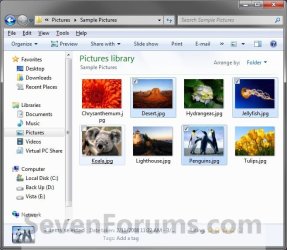
OPTION ONE
Using Folder Options
1. Open Folder Options, and click on the View tab. (see screenshot below)
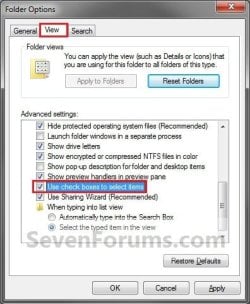
2. To Use Check Boxes to Select Items
A) Check the Use check boxes to select items box, then click on OK. (see screenshot above)
3. To Not Use Check Boxes to Select Items
NOTE: This is the default setting.
A) Uncheck the Use check boxes to select items box, then click on OK. (see screenshot below step 1)
OPTION TWO
Using a REG File Download
1. To Use Check Boxes to Select Items
A) Click on the Download button below to download the file below.
Turn_On_Check_Boxes_to_Select_Items.reg
Download
B) Go to step 3.
2. To Not Use Check Boxes to Select Items
NOTE: This is the default setting.
A) Click on the Download button below to download the file below.
Turn_Off_Check_Boxes_to_Select_Items.reg
Download
3. Click on Save, and save the .reg file to the desktop.
4. Right click on the downloaded .reg file and click on Merge.
5. Click on Run, Yes, Yes, and OK when prompted.
6. Log off and log on, or restart the computer to apply.
That's it,
Shawn
Related Tutorials
- How to Open Items with a Single-Click or Double-Click in Windows 7
- How to Enable or Disable Point to Select using Single-click to Open an Item
- How to Activate a Window by Hovering Over it with the Mouse Pointer
- How to Add "Select all" to the Context Menu in Windows 7
- How to Change the Action "When typing into list view" in Windows File Explorer
Attachments
Last edited:


