
Show Desktop Shortcut - Create

How to Create a "Show Desktop" Shortcut in Windows 7 and Windows 8


   Information
Show Desktop was a feature present in Windows XP and Windows Vista, but has been changed to the Aero Peek/Show Desktop button on the bottom right corner of the screen, near the Notification Area in Windows 7 and Windows 8.

This tutorial will show you how to create or download a Show Desktop shortcut that you can use anywhere in Windows 7 and Windows 8.

   Note
By default in Windows 7, the taskbar button on the far right side is for Show Desktop and Aero Peek.
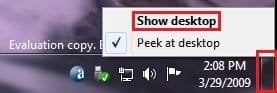
Show_Desktop.jpg


OPTION ONE

To Download the "Show Desktop" Shortcut


1. Click/tap on the Download button below to download the Show_Desktop.zip file.

Download


2. Save the .zip file to your desktop.

3. Open the .zip file, and extract (drag and drop) the Show Desktop shortcut to your desktop.

4. Unblock the Show Desktop shortcut.

5. In Windows 7, you can now Pin to Taskbar or Pin to Start Menu, add to Quick Launch, assign a keyboard shortcut to it, or move this shortcut to where you like for easy use.

6. In Windows 8 and 8.1, you can Pin to Taskbar on desktop, Pin to Start screen, add to Quick Launch,assign a keyboard shortcut to it, or move this shortcut to where you like for easy use.

7. When finished, you can delete the downloaded .zip file if you like.


OPTION TWO

To Manually Create the "Show Desktop" Shortcut


1. Right click or press and hold on an empty area on your desktop, and click/tap on New and Shortcut.

2. Copy and paste the location below into the location area, and click/tap on Next. (see screenshot below)
%windir%\explorer.exe shell:::{3080F90D-D7AD-11D9-BD98-0000947B0257}
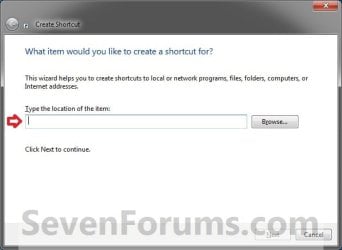
Step1.jpg

3. Type Show Desktop for the name, and click/tap on the Finish button. (see screenshot below)
NOTE: You can name this anything you would like though.
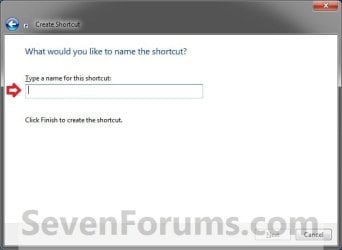
Step2.jpg
4. Right click or press and hold on the new Show Desktop shortcut, and click/tap on Properties.

5. Click/tap on the Shortcut tab, then click/tap on the Change Icon button. (see screenshot below)
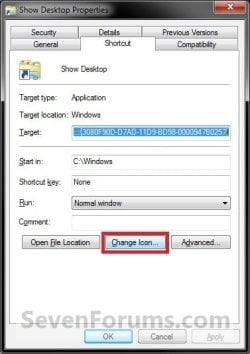
Step3.jpg
6. In the line under "Look for icons in this file", copy and paste the location below, and press Enter. (see screenshot below)
%SystemRoot%\system32\imageres.dll
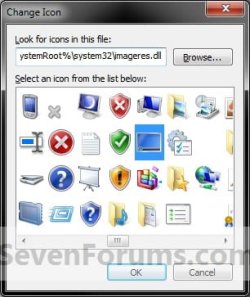
Step4.jpg
7. Select the icon highlighted in blue above, and click/tap on OK. (see screenshot above)
NOTE: You can use any icon that you would like instead though.

8. Click/tap on OK. (see screenshot below)
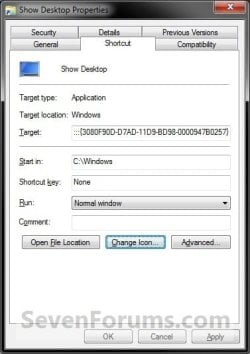
Step5.jpg
9. In Windows 7, you can now Pin to Taskbar or Pin to Start Menu, add to Quick Launch, assign a keyboard shortcut to it, or move this shortcut to where you like for easy use.

10. In Windows 8 and 8.1, you can Pin to Taskbar on desktop, Pin to Start screen, add to Quick Launch, assign a keyboard shortcut to it, or move this shortcut to where you like for easy use.


Hope this helps,
Victor Ly


Attachments
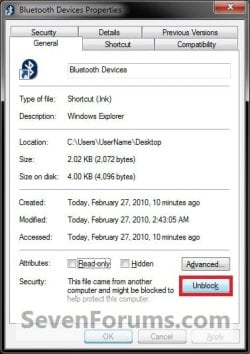
  • Show_Desktop.zip
    Show_Desktop.zip
    834 bytes · Views: 65,896
  • Unblock.jpg
    Unblock.jpg
    34.4 KB · Views: 17,197
Last edited by a moderator:
fyi, this utility provides much quicker access to the desktop on my win7-32 computer, than the other show-desktop methods presented in this thread. If the taskbar entry were hidden and a shortcut assigned (e.g. with autohotkey), this might come as close at it gets to a win-d replacement.

1 Hour Software by Skrommel - DonationCoder.com -Desktop.exe
 

My Computer

Computer Manufacturer/Model Number
Sony Vaio X
OS
Win7 Prof 32bit
CPU
Atom Z550
Memory
2GB
Hard Drives
SSD
Hi i am unable to pin the desktop icon please help

Regards
Trojanhorse
 

My Computer

OS
Windows 7 Ultimate x64
Motherboard
DH55TC Intel
Memory
4GBRAM
Monitor(s) Displays
LG W2053TP
Internet Speed
512 Kbps
Hello Trojanhorse,

If you use the "Show Desktop" shortcut from OPTION ONE, do you have a "Pin to Taskbar" option when you right click on the shortcut after extracting it from the downloaded ZIP file?
 

My Computer

Computer type
PC/Desktop
Computer Manufacturer/Model Number
Self built custom
OS
64-bit Windows 11 Pro for Workstations
CPU
Intel i7-8700K OC'd to 5 GHz
Motherboard
ASUS ROG Maximus XI Formula Z390
Memory
64 GB (4x16GB) G.SKILL TridentZ RGB DDR4 3600 MHz
Graphics Card(s)
ASUS ROG-STRIX-GTX1080TI-O11G-GAMING
Sound Card
Integrated
Monitor(s) Displays
2 x Samsung Odyssey G7 27"
Screen Resolution
2560x1440
Hard Drives
1TB Samsung 990 PRO M.2,
4TB Samsung 990 PRO PRO M.2,
TerraMaster F8 SSD Plus NAS
PSU
Seasonic Prime Titanium 850W
Case
Thermaltake Core P3
Cooling
Corsair Hydro H115i
Keyboard
Logitech wireless K800
Mouse
Logitech MX Master 4
Internet Speed
2 Gb/s Download and 100 Mb/s Upload
Antivirus
Malwarebyte Anti-Malware Premium
Browser
Google Chrome
Other Info
Logitech Z625 speaker system,
Logitech BRIO 4K Pro webcam,
HP Color LaserJet Pro MFP M477fdn,
APC SMART-UPS RT 1000 XL - SURT1000XLI,
Galaxy S23 Plus phone
Dear Brink,

Thanks it works i was trying to create and then pin it on task bar :)

Regards
Trojanhorse
 

My Computer

OS
Windows 7 Ultimate x64
Motherboard
DH55TC Intel
Memory
4GBRAM
Monitor(s) Displays
LG W2053TP
Internet Speed
512 Kbps
You're most welcome. :)
 

My Computer

Computer type
PC/Desktop
Computer Manufacturer/Model Number
Self built custom
OS
64-bit Windows 11 Pro for Workstations
CPU
Intel i7-8700K OC'd to 5 GHz
Motherboard
ASUS ROG Maximus XI Formula Z390
Memory
64 GB (4x16GB) G.SKILL TridentZ RGB DDR4 3600 MHz
Graphics Card(s)
ASUS ROG-STRIX-GTX1080TI-O11G-GAMING
Sound Card
Integrated
Monitor(s) Displays
2 x Samsung Odyssey G7 27"
Screen Resolution
2560x1440
Hard Drives
1TB Samsung 990 PRO M.2,
4TB Samsung 990 PRO PRO M.2,
TerraMaster F8 SSD Plus NAS
PSU
Seasonic Prime Titanium 850W
Case
Thermaltake Core P3
Cooling
Corsair Hydro H115i
Keyboard
Logitech wireless K800
Mouse
Logitech MX Master 4
Internet Speed
2 Gb/s Download and 100 Mb/s Upload
Antivirus
Malwarebyte Anti-Malware Premium
Browser
Google Chrome
Other Info
Logitech Z625 speaker system,
Logitech BRIO 4K Pro webcam,
HP Color LaserJet Pro MFP M477fdn,
APC SMART-UPS RT 1000 XL - SURT1000XLI,
Galaxy S23 Plus phone
Thanks for this thread Brink! Is it possible to delete the show desktop on the right side?
 

My Computer

OS
Windows 7 Home 64
Hello Alan, and welcome to Seven Forums.

You're most welcome. You might see if the free 3rd party app below may be able to work to remove the "Show Desktop" button on the taskbar.


Hope this helps, :)
Shawn
 
Last edited:

My Computer

Computer type
PC/Desktop
Computer Manufacturer/Model Number
Self built custom
OS
64-bit Windows 11 Pro for Workstations
CPU
Intel i7-8700K OC'd to 5 GHz
Motherboard
ASUS ROG Maximus XI Formula Z390
Memory
64 GB (4x16GB) G.SKILL TridentZ RGB DDR4 3600 MHz
Graphics Card(s)
ASUS ROG-STRIX-GTX1080TI-O11G-GAMING
Sound Card
Integrated
Monitor(s) Displays
2 x Samsung Odyssey G7 27"
Screen Resolution
2560x1440
Hard Drives
1TB Samsung 990 PRO M.2,
4TB Samsung 990 PRO PRO M.2,
TerraMaster F8 SSD Plus NAS
PSU
Seasonic Prime Titanium 850W
Case
Thermaltake Core P3
Cooling
Corsair Hydro H115i
Keyboard
Logitech wireless K800
Mouse
Logitech MX Master 4
Internet Speed
2 Gb/s Download and 100 Mb/s Upload
Antivirus
Malwarebyte Anti-Malware Premium
Browser
Google Chrome
Other Info
Logitech Z625 speaker system,
Logitech BRIO 4K Pro webcam,
HP Color LaserJet Pro MFP M477fdn,
APC SMART-UPS RT 1000 XL - SURT1000XLI,
Galaxy S23 Plus phone
How to correctly remove "show desktop"

Hi Brink,
What is the proper way to remove the "show desktop" app. ? I don't see it in the win "add&remove" of
the control panel.
Thanks
 

My Computer

OS
win7 64bit
Hello Tony, and welcome to Seven Forums.

If you mean from the default "Show Desktop" button on the taskbar, then the link below is about the best option to use since there's not a way to do so normally in Windows.


Hope this helps, :)
Shawn
 
Last edited:

My Computer

Computer type
PC/Desktop
Computer Manufacturer/Model Number
Self built custom
OS
64-bit Windows 11 Pro for Workstations
CPU
Intel i7-8700K OC'd to 5 GHz
Motherboard
ASUS ROG Maximus XI Formula Z390
Memory
64 GB (4x16GB) G.SKILL TridentZ RGB DDR4 3600 MHz
Graphics Card(s)
ASUS ROG-STRIX-GTX1080TI-O11G-GAMING
Sound Card
Integrated
Monitor(s) Displays
2 x Samsung Odyssey G7 27"
Screen Resolution
2560x1440
Hard Drives
1TB Samsung 990 PRO M.2,
4TB Samsung 990 PRO PRO M.2,
TerraMaster F8 SSD Plus NAS
PSU
Seasonic Prime Titanium 850W
Case
Thermaltake Core P3
Cooling
Corsair Hydro H115i
Keyboard
Logitech wireless K800
Mouse
Logitech MX Master 4
Internet Speed
2 Gb/s Download and 100 Mb/s Upload
Antivirus
Malwarebyte Anti-Malware Premium
Browser
Google Chrome
Other Info
Logitech Z625 speaker system,
Logitech BRIO 4K Pro webcam,
HP Color LaserJet Pro MFP M477fdn,
APC SMART-UPS RT 1000 XL - SURT1000XLI,
Galaxy S23 Plus phone
Hi Shawn,
Thank you for the prompt reply.
I'd like to remove the "show desktop" created by option 1 recommended by Vic Ly(from the first page of this thread.
I already unpinned it from taskbar, but the shortcut (?) is still present on desktop and when I hovered the mouse over it : it says "Location: explorer(C:\windows)"
I don't know whether just hit delete the "show desktop" shortcut on desktop is enough or not ?
Best Regards
 

My Computer

OS
win7 64bit
Hi Shawn,
Thank you for the prompt reply.
I'd like to remove the "show desktop" created by option 1 recommended by Vic Ly(from the first page of this thread.
I already unpinned it from taskbar, but the shortcut (?) is still present on desktop and when I hovered the mouse over it : it says "Location: explorer(C:\windows)"
I don't know whether just hit delete the "show desktop" shortcut on desktop is enough or not ?
Best Regards

Ah, ok Tony.

Yes, you would just delete the shortcut to remove it. :)
 
Last edited:

My Computer

Computer type
PC/Desktop
Computer Manufacturer/Model Number
Self built custom
OS
64-bit Windows 11 Pro for Workstations
CPU
Intel i7-8700K OC'd to 5 GHz
Motherboard
ASUS ROG Maximus XI Formula Z390
Memory
64 GB (4x16GB) G.SKILL TridentZ RGB DDR4 3600 MHz
Graphics Card(s)
ASUS ROG-STRIX-GTX1080TI-O11G-GAMING
Sound Card
Integrated
Monitor(s) Displays
2 x Samsung Odyssey G7 27"
Screen Resolution
2560x1440
Hard Drives
1TB Samsung 990 PRO M.2,
4TB Samsung 990 PRO PRO M.2,
TerraMaster F8 SSD Plus NAS
PSU
Seasonic Prime Titanium 850W
Case
Thermaltake Core P3
Cooling
Corsair Hydro H115i
Keyboard
Logitech wireless K800
Mouse
Logitech MX Master 4
Internet Speed
2 Gb/s Download and 100 Mb/s Upload
Antivirus
Malwarebyte Anti-Malware Premium
Browser
Google Chrome
Other Info
Logitech Z625 speaker system,
Logitech BRIO 4K Pro webcam,
HP Color LaserJet Pro MFP M477fdn,
APC SMART-UPS RT 1000 XL - SURT1000XLI,
Galaxy S23 Plus phone
You're most welcome. :)
 

My Computer

Computer type
PC/Desktop
Computer Manufacturer/Model Number
Self built custom
OS
64-bit Windows 11 Pro for Workstations
CPU
Intel i7-8700K OC'd to 5 GHz
Motherboard
ASUS ROG Maximus XI Formula Z390
Memory
64 GB (4x16GB) G.SKILL TridentZ RGB DDR4 3600 MHz
Graphics Card(s)
ASUS ROG-STRIX-GTX1080TI-O11G-GAMING
Sound Card
Integrated
Monitor(s) Displays
2 x Samsung Odyssey G7 27"
Screen Resolution
2560x1440
Hard Drives
1TB Samsung 990 PRO M.2,
4TB Samsung 990 PRO PRO M.2,
TerraMaster F8 SSD Plus NAS
PSU
Seasonic Prime Titanium 850W
Case
Thermaltake Core P3
Cooling
Corsair Hydro H115i
Keyboard
Logitech wireless K800
Mouse
Logitech MX Master 4
Internet Speed
2 Gb/s Download and 100 Mb/s Upload
Antivirus
Malwarebyte Anti-Malware Premium
Browser
Google Chrome
Other Info
Logitech Z625 speaker system,
Logitech BRIO 4K Pro webcam,
HP Color LaserJet Pro MFP M477fdn,
APC SMART-UPS RT 1000 XL - SURT1000XLI,
Galaxy S23 Plus phone
Option 2 worked great, thanks A TON!

Option 2 worked great, thanks A TON! That has been driving me crazy since I moved to Win7
 

My Computer

Computer type
PC/Desktop
OS
windows 7, 64 bit
This was exactly what I was looking for! Thank you!
 

My Computer

Computer type
PC/Desktop
OS
Windows 7 64 bit
Excellent

Great boss. It is a fantastic idea which works as exactly same like in old windows xp... Thanks a lot. This is exactly correct creation.
 

My Computer

Computer type
PC/Desktop
Computer Manufacturer/Model Number
custom build
OS
Windows 7 Ultimate 32 bit
If you have not upgraded to Windows 8.1 yet. For Windows 8 and 8 Pro or any OS that does not go to Desktop automatically

"Boot To The Desktop"

Make sure you have "Hide extensions for known file types" unchecked in Folder Options. Just for file verification purposes.
Re-check it afterwards if you want.

Create the "Show Desktop" file:

Open a 'Text Editor' like Notepad. (not Word or Wordpad)
Copy and Paste or type the following into the text editor:

[Shell]
Command=2
IconFile=explorer.exe,3
[Taskbar]
Command=ToggleDesktop

Do not have any extra spaces at the top and do not "Carriage Return" (enter) to next line at the end.

Save the file as - Show Desktop.scf (actually any name you want, just remember it)
When you see the file it will have the Desktop icon but it will not have .scf at the end even with "Hide extensions for known file types" unchecked. Right click the file and go to properties. It should have "Type of file: File Explorer Command (.scf)" and the name should be just "Show Desktop" with no extension.

Copy the file to the "Start Menu\Programs\Startup" folder.

There are more than one "Startup" folders in Windows 8 and 8 Pro. (In other Windows Version look for one similar to this one. Some are for current user and some are for all users.) Put it in this one:

C:\ProgramData\Microsoft\Windows\Start Menu\Programs\Startup

Close everything down. Restart your computer.

When it boots up, it will pause at the "Start" screen until it reads the contents of Startup.
It will then go to the Desktop with nothing opened up.

Side note: If you want something to open automatically when you boot up, put it in this same Startup folder after Show Desktop.
 

My Computer

Computer type
PC/Desktop
OS
Windows 8 Core 64-bit
Back
Top