Solved shrink free disk space

dorothyr

New member
Member
Local time
7:50 AM
Messages
47
I was dual booting Windows 7 with Linux. I erased the linux partition because I could not shrink its partition. now I have “free space” where it was and cannot shrink it. I want to reinstall Linux in a smaller partition but the linux installer is not recognizing windows.
 

My Computer

Computer type
PC/Desktop
Computer Manufacturer/Model Number
custom, HP case
OS
windows 7
CPU
Pintium 4 CPU 2,8 GHz
Memory
2.00 GB RAM
Antivirus
none
What exactly do you mean that you cannot "shrink" free space, and that Linux installer is not recognizing Windows?

Please post a screenshot of the partition layout in Windows's Disk Management or Linux's gparted (or the command line output of fdisk or gdisk or such if you use that).
 

My Computer

Computer type
PC/Desktop
OS
Windows 7 Ultimate x64 (single boot)
Antivirus
Cryptoprevent
Browser
Pale Moon
when I try to shrink the space and install linux to smaller partition, The size of the disk partition is the same as the minimum size, so any smaller size I enter to change to just gets the message that it is unacceptable.

With windows installed, I try to add Linux. The installer should recognize that windows is there and offer to install linux alongside it, but it just sees the whole hard disk as available which is going to erase windows if I hit install.

From the windows 7 disk mgr I see the space once occupied by linux as “free space”, but cannot shrink it.

I don’t know how to state it more simply.
 

My Computer

Computer type
PC/Desktop
Computer Manufacturer/Model Number
custom, HP case
OS
windows 7
CPU
Pintium 4 CPU 2,8 GHz
Memory
2.00 GB RAM
Antivirus
none
lB1klTMLBk5cNAAAAAElFTkSuQmCC
 

My Computer

Computer type
PC/Desktop
Computer Manufacturer/Model Number
custom, HP case
OS
windows 7
CPU
Pintium 4 CPU 2,8 GHz
Memory
2.00 GB RAM
Antivirus
none
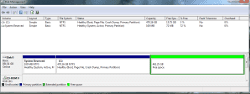
disk mgmt attached
 

Attachments

  • disk mgmt.png
    disk mgmt.png
    4.2 KB · Views: 18

My Computer

Computer type
PC/Desktop
Computer Manufacturer/Model Number
custom, HP case
OS
windows 7
CPU
Pintium 4 CPU 2,8 GHz
Memory
2.00 GB RAM
Antivirus
none
Uhh I can only see a tiny thumbnail here, not sure if it's a problem with Sevenforums or my browser or you uploaded a 250x94 pixel picture.

The green part is free space, I can't read the amount but it looks like you have 48 GB. That should be more than enough for any Linux distro. Try adding a new empty non-formatted partition into that space using Windows, then installing Linux on that partition.
 

My Computer

Computer type
PC/Desktop
OS
Windows 7 Ultimate x64 (single boot)
Antivirus
Cryptoprevent
Browser
Pale Moon
I am not concerned with installing Linux right now. I want to enlarge the partition windows is using into the space Linux occupied before I erased it.
 

My Computer

Computer type
PC/Desktop
Computer Manufacturer/Model Number
custom, HP case
OS
windows 7
CPU
Pintium 4 CPU 2,8 GHz
Memory
2.00 GB RAM
Antivirus
none
Oh sorry I thought you wanted to make more space to have a bigger Linux partition.

You can enlarge the Windows partition by right-clicking on it and selecting Extend volume. If it's not the rightmost one (immediately left of the green free space box), you'll have to move the other ones further towards the end of the HDD
 

My Computer

Computer type
PC/Desktop
OS
Windows 7 Ultimate x64 (single boot)
Antivirus
Cryptoprevent
Browser
Pale Moon
Yeah , I know. But it doesn’t work. Did you really read my post?
 

My Computer

Computer type
PC/Desktop
Computer Manufacturer/Model Number
custom, HP case
OS
windows 7
CPU
Pintium 4 CPU 2,8 GHz
Memory
2.00 GB RAM
Antivirus
none
I can't really see your screenshot, but it looks like a light green header within a dark green outline. In Disk Management that usually denotes an Extended partition. You cannot expand partition 2 because there is another partition (the Extended partition) in the way.

Many people fail to understand the distinction between "Free Space" and "Unallocated Space". (That's not surprising, given Microsoft itself has a predilection for misusing terminology -- hence, the confusion nowadays with seemingly simple terms like "drive" or "boot partition".) In this case, Free Space means unused space *within* a partition, while Unallocated Space would mean space *not part of* any partition. Disk Management can only expand a partition (such as partition 2) into Unallocated Space. It cannot expand into Free Space because the partition enclosing the Free Space is ... [drumroll], a *partition* ... and in the way.

This might all be a little more obvious to you if you were using a real partition manager. A real partition manager would clearly show the green area as being a partition. Disk Management is not a real partition manager, it only pretends to be one. It's function-limited and glosses over the details of what's going on, leading to confusion and misunderstanding.

You should be able to right-click the green area and select "Delete". That should return the space to "Unallocated", and subsequently allow you to expand partition 2.

 

My Computer

Computer type
PC/Desktop
Computer Manufacturer/Model Number
Dell Optiplex 7050
OS
Windows 7/8.1/10 multiboot
CPU
Intel Core i7-7700
Motherboard
Dell, Intel Q270 chipset
Memory
48GB (2x16GB Crucial DDR4-3200 + 2x8GB Hynix DDR4-2400)
Graphics Card(s)
Intel HD630 + AMD Radeon R7 450 PCIe
Monitor(s) Displays
Asus VC279 (27")
Screen Resolution
1920x1080
Hard Drives
Toshiba M.2 NVMe (256GB),
Samsung 960 Evo (500GB),
WD Red Plus 80EFBX (8TB)
So I "right-click the green area and select "Delete"." I get this message, " This is an extended partition. The partition will become inaccessible if you delete it. Are you sure you what to delete this partition?"


I have gotten a gparted disk and tried it. Had a hard time getting it to work at all and when I did, it doesn't see any partitions either.
 

My Computer

Computer type
PC/Desktop
Computer Manufacturer/Model Number
custom, HP case
OS
windows 7
CPU
Pintium 4 CPU 2,8 GHz
Memory
2.00 GB RAM
Antivirus
none
Before you can expand part.2 you must move the front edge of part.3 (the Extended partition) toward the right to make room into which part.2 can expand. But as I indicated, Disk Management is a crippled partition manager. One of its limitations is it cannot move the front edge of any partition.

A real partition manager would be able to shrink part.3 from the back (right) end to leave some unallocated space, then slide the whole partition to the right so the unallocated space is in front of it instead of behind it. With that, part.2 could then be expanded into the unallocated space.

While a real partition manager is preferable, you could still do this with Disk Management, but because of its limitations you would have to first entirely delete the Extended partition. After that, you can expand part.2 the desired amount, and if there is still unallocated space remaining you can recreate a new part.3 out of what's left.
 

My Computer

Computer type
PC/Desktop
Computer Manufacturer/Model Number
Dell Optiplex 7050
OS
Windows 7/8.1/10 multiboot
CPU
Intel Core i7-7700
Motherboard
Dell, Intel Q270 chipset
Memory
48GB (2x16GB Crucial DDR4-3200 + 2x8GB Hynix DDR4-2400)
Graphics Card(s)
Intel HD630 + AMD Radeon R7 450 PCIe
Monitor(s) Displays
Asus VC279 (27")
Screen Resolution
1920x1080
Hard Drives
Toshiba M.2 NVMe (256GB),
Samsung 960 Evo (500GB),
WD Red Plus 80EFBX (8TB)
Please read my last post. cannot delete extended partition. tried gparted.
 

My Computer

Computer type
PC/Desktop
Computer Manufacturer/Model Number
custom, HP case
OS
windows 7
CPU
Pintium 4 CPU 2,8 GHz
Memory
2.00 GB RAM
Antivirus
none
BrainDamage

ctrl+ + to enlarge window, ctrl+ - to shrink window ctrl+ 0 (zero) to restore original window size.

Still can't read it, too blurred to read the text below the green portion of the disk report.
 

My Computer

Computer type
PC/Desktop
Computer Manufacturer/Model Number
HP Desktop & Compaq Laptop
OS
Win 10 x64, Linux Lite, Win 7 x64, BlackArch, & Kali
Hard Drives
Samsung 850 Pro 256Gb,
Hitachi HDD 1Tb,
Crucial MX SSD 250Gb
Segate 3Tb USB 3.0 Ext. Backup HDD
Internet Speed
150Mbps dn, 20Mbps up
Antivirus
Avast Free, Malwarebytes Anti-Exploit & Anti-Ransomware
Browser
Firefox, Chrome, Opera, & VPN
dorothyr

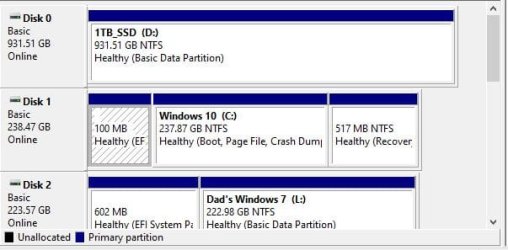
How did you obtain the image? You have way to much white space.

I use windows snipping tool for my post or printscreen if I wish to post the entire windows.

How to take screenshots with the Snipping Tool in Windows

Cropped with snipping tool

Capture.JPG

Save it to your desktop, default is Capture.jpg, then upload it, then navigate to where you wish to place the image, and leave the cursor there, at the top of the window you're working in click on the paper clip, choose Capture.jpg. and save or go advanced, preview post, and save.

Capture1.JPG

Snick
 

My Computer

Computer type
PC/Desktop
Computer Manufacturer/Model Number
HP Desktop & Compaq Laptop
OS
Win 10 x64, Linux Lite, Win 7 x64, BlackArch, & Kali
Hard Drives
Samsung 850 Pro 256Gb,
Hitachi HDD 1Tb,
Crucial MX SSD 250Gb
Segate 3Tb USB 3.0 Ext. Backup HDD
Internet Speed
150Mbps dn, 20Mbps up
Antivirus
Avast Free, Malwarebytes Anti-Exploit & Anti-Ransomware
Browser
Firefox, Chrome, Opera, & VPN

My Computers

System One System Two

My Computer

Computer type
PC/Desktop
Computer Manufacturer/Model Number
HP Desktop & Compaq Laptop
OS
Win 10 x64, Linux Lite, Win 7 x64, BlackArch, & Kali
Hard Drives
Samsung 850 Pro 256Gb,
Hitachi HDD 1Tb,
Crucial MX SSD 250Gb
Segate 3Tb USB 3.0 Ext. Backup HDD
Internet Speed
150Mbps dn, 20Mbps up
Antivirus
Avast Free, Malwarebytes Anti-Exploit & Anti-Ransomware
Browser
Firefox, Chrome, Opera, & VPN
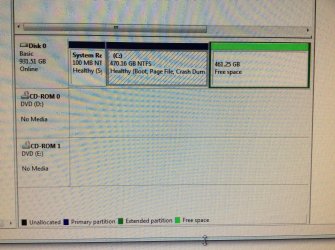
iPad. photo attached. Cant use win 7 to communicate, no support for it.

Need some sort of disk mgr e evidently, on a disk.
 

Attachments

  • 10FD675F-7553-4BC3-B715-7441CF6BA61C.jpg
    10FD675F-7553-4BC3-B715-7441CF6BA61C.jpg
    1.1 MB · Views: 1

My Computer

Computer type
PC/Desktop
Computer Manufacturer/Model Number
custom, HP case
OS
windows 7
CPU
Pintium 4 CPU 2,8 GHz
Memory
2.00 GB RAM
Antivirus
none
Can’t delete.
 

Attachments

  • CA19C5AA-F26A-4DA6-B7B0-7C0B1FA52347.jpg
    CA19C5AA-F26A-4DA6-B7B0-7C0B1FA52347.jpg
    863 KB · Views: 0

My Computer

Computer type
PC/Desktop
Computer Manufacturer/Model Number
custom, HP case
OS
windows 7
CPU
Pintium 4 CPU 2,8 GHz
Memory
2.00 GB RAM
Antivirus
none
So I "right-click the green area and select "Delete"." I get this message, " This is an extended partition. The partition will become inaccessible if you delete it. Are you sure you what to delete this partition?"

I have gotten a gparted disk and tried it. Had a hard time getting it to work at all and when I did, it doesn't see any partitions either.

You appear to have a misunderstanding as to how you extend a partition into Free Space. YOU CANNOT DELETE FREE SPACE, THERE IS NOTHING TO DELETE IS FREE. You have been trying to delete nothing, i.e. free space.

Here are 6 ways to extend a partition in Windows without data loss
and
extend C drive with unallocated space but not with Free space partition

Success, found what I was really looking for a video
Re-Allocate free space - YouTube

Here's more info
Difference Between unallocated and Free Space - It Still Works

Gotta' love Google

Snick
 
Last edited:

My Computer

Computer type
PC/Desktop
Computer Manufacturer/Model Number
HP Desktop & Compaq Laptop
OS
Win 10 x64, Linux Lite, Win 7 x64, BlackArch, & Kali
Hard Drives
Samsung 850 Pro 256Gb,
Hitachi HDD 1Tb,
Crucial MX SSD 250Gb
Segate 3Tb USB 3.0 Ext. Backup HDD
Internet Speed
150Mbps dn, 20Mbps up
Antivirus
Avast Free, Malwarebytes Anti-Exploit & Anti-Ransomware
Browser
Firefox, Chrome, Opera, & VPN
Back
Top