SSD / HDD : Optimize for Windows Reinstallation

How to Optimize an SSD / HDD When You're Ready to Reinstall the Operating System

This will show how to remove / over-write all existing data from a Solid State Drive (SSD) or a Hard Disk Drive (HDD), it'll work for both, then how to create a partition and then format that partition before install begins so you have a clean drive to start the installation with.

   Note

Before you start this, in the Windows start menu search box type diskmgmt.msc right click the entry and click "Run as Administrator" if you get a User Account Control (UAC) prompt enter your user credentials and click Yes; make very sure you know the correct drive number of the drive you want to do this to if you have more than one SSD / HDD in the machine, you don't want to do the wrong one.
   Warning

Do not do this to any SSD or HDD that has data on it you don't want to lose, the first thing this does is to mark the drive as "Unallocated Space" and then writes zeroes ( 0's ) to the entire drive, it's known as a "Secure Erase" and it will make data un-recoverable, it cannot be done to just a single partition on a drive, it will do the whole drive.
You have been warned!
   Information

It may be a help to over-write the HDD Master Boot Record (MBR) before you start any other procedure using the diskpart clean command, rather than the clean all; it takes just seconds to complete so you will have "unallocated" space to use either the Windows installer to create and format the partition(s) or use diskpart for that, however you choose.

Let's get started!


Step One

Boot To DISKPART


If need be, view this tutorial at the link below for an out-line of the process.
How to Boot to DISKPART at PC Startup

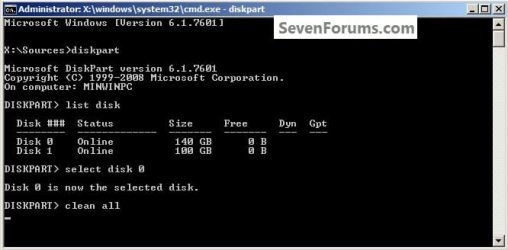
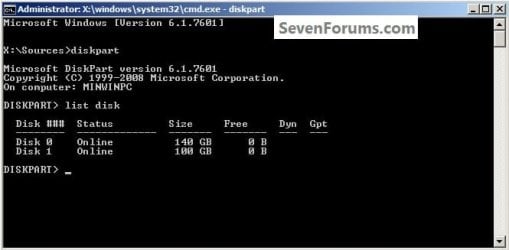
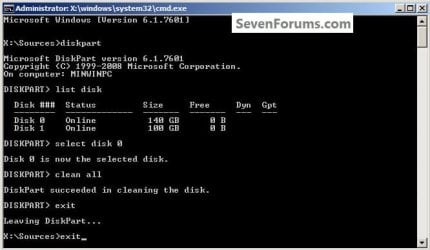
1) In the command window that opens type diskpart then hit the <enter> key then type list disk <enter> if you have more than one SSD / HDD in the machine it'll list them all.

Have a look here to view additional important information on this entire process.
click any image to enlarge
One_1.jpg
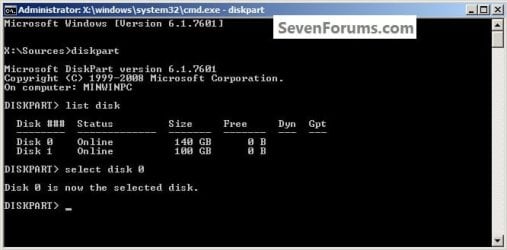
2) Now in the command window type select disk # (# = target disk number) then <enter>, you will get "Disk # is now the selected disk".
One_2.jpg
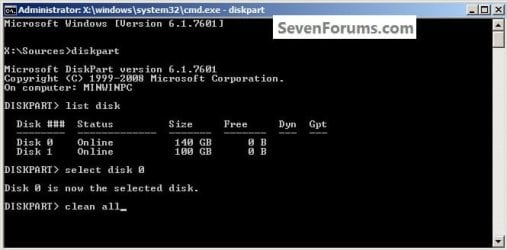
3) Now type clean <enter> you will get a blinking cursor telling you that clean all is working like in the second snip down, just relax and let it work.
One_3.1.jpg
One_3.2.jpg
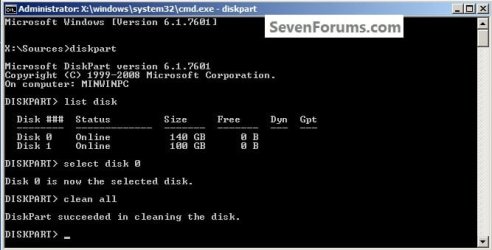
4) When it finishes you'll get "DiskPart succeeded in cleaning the disk" in the command window.
One_4.1.jpg
To leave diskpart at any time and return to the Windows 7 installer type exit two (2) separate times and hit <enter> after each and you will be returned to the installer to continue the installation process.
One_4.2.jpg


Step Two

Create a Partition


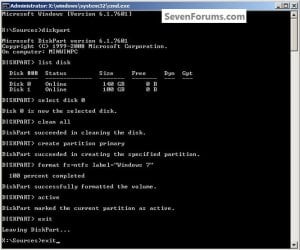
1) Create a single partition of the entire HDD / SSD

Still in the same command window, to create a partition of the entire HDD / SSD, it is suggested if you are using one of the larger, 1 - 2TB HDDs that you use the outline in #2 below to create a single 100GB partition to do the installation to or #3 below if you would like to include the new Windows 7 System Reserved partition, as we're now seeing serious issues with some trying to install to such large partitions.

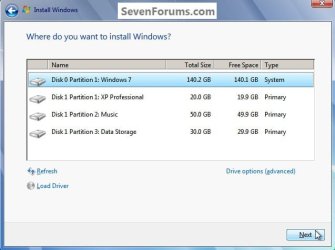
Do not format the created partition(s) with the installer if you create them using this process as the installer will delete all this info, the second snip shows how to select "where to install" during the installation process, click to highlight/select the "Windows 7" partition and click next.

Now skip down to #5 below to start the installation.
click any image to enlarge
Two_1.1.jpg
Two_1.2.jpg
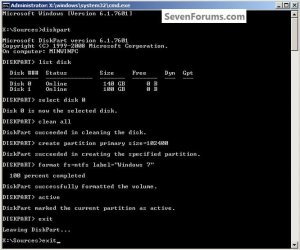
2) Create a specific size partition

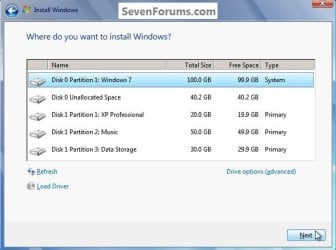
If you wanted to create a specific size partition, say 100GB you would add the size you want to create in MBs like in the command below.
create partition primary size=102400 <enter>
1024MB = 1GB - 1024x100 = 102400, you can use/create any size you like.

You can always extend the Windows partition to include the remaining unallocated space on the HDD / SSD or create additional Primary partitions or an Extended partition after the installation completes if you choose.

Do not format the created partition(s) with the installer if you create them using this process as the installer will delete all this info, the second snip shows how to select "where to install" during the installation process, click to highlight/select the "Windows 7" partition and click next.

Now skip down to #5 below to start the installation.
Two_2.1.jpg
Two_2.2.jpg
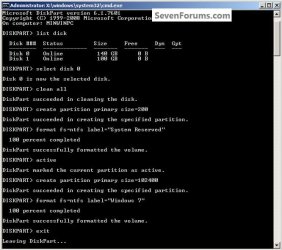
3) Create the System Reserved partition

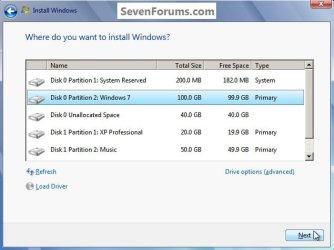
If you should want to add the "System Reserved" partition back after the clean all, see this snip; of course you would have to select to install Windows 7 to the partition labeled as "Windows 7" during the install and do not format either partition with the installer.

The reason for suggesting to create the System Reserved at 200MB instead of the new default of 100MB is an attempt to curb some of the issues we're now seeing with the partition being too small when dual/multi booting and it also being needed for use with the Windows 7 Backup and Restore and BitLocker programs.

You can always extend the Windows partition to include the remaining unallocated space on the HDD / SSD or create additional Primary partitions or an Extended partition after the installation completes if you choose.

The second snip shows how to select "where to install" during the installation process, click to highlight/select the "Windows 7" partition and click next.
Two_3.1.jpg
Two_3.2.jpg
4) See this tutorial for the "align" argument

Align a Solid State Drive for Windows Installation
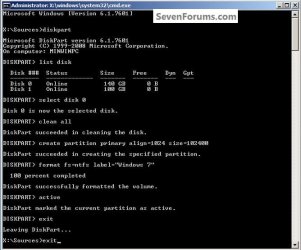
Two_4.1.jpg
5) That's it, you're now done with the command window, type exit <enter> to leave diskpart and exit <enter> again to close the command window; if you're using a Windows 7 full installer it will go to the "Select Language" screen to continue the installation process as usual.

For those using a created repair CD or a Vista installer type exit <enter> to leave diskpart and exit <enter> again to close the command window; at the System Recovery Options dialog box that's still open click Restart to finish the process.
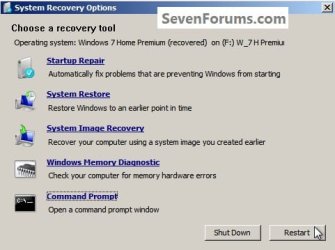
Restart.jpg
Enjoy! :)


Last edited by a moderator:
Hello BFK,

Thanks for you your answer.

I should only be posting in this thread, not two of them, I don't want to confuse things.

Just to recap.

I tried your fine tutorial, trying to write zeros to my Revodrive, Windows couldn't see the drive in diskpart booting from win dvd. It could see the drive when going to diskpart in normal boot up though, but told me I couldn't wipe the drive because it had the OS on it, (sensible I suppose).

So it seems I can't do your tutorial because of the drive itself.

I had a look about and found something on the OCZ website about secure erase a revo for win users through Linux, above me! Looks like the raid array has to be deleted, or such.

I had a look at the link you provided, thanks, but nothing for Revo.

I have reinstalled win 7 over the top of old install. I would have liked to wipe the drive clean before hand, but it might be a bit over my head.

Ok I've just looked at your reply in the other thread and will have a go at that tutorial and post back my results..
Thanks for your help.

James
 

My Computer My Computer

Computer type
PC/Desktop
OS
Win pro 64bit
CPU
i7-980X
Motherboard
X58A-UD3R
Memory
Corsair Dominator CMP12GX3M3A1600C9 9-9-9-24 X2
Graphics Card(s)
Asus Geforce GTX 560 Ti
Sound Card
none
Monitor(s) Displays
Eizo x 2
Screen Resolution
1200x1600
Hard Drives
Revo 240gb,
Samsung 840 pro OS
Samsung 840 Scratch
WD 1TB x 3.
PSU
Siverstone
Case
Corsair 700d
Cooling
Noctua 140
ok, so, Partition wizard shows four drives for the one Revodrive, each one has 55.9 gb allocated, raid 0, I suppose. One of the discs has other (The OS) and the 100mb partition on.

Not sure if I should start wiping any of these discs, might it muck up the drive?

Hmm, curly one indeed.

cheers
 

My Computer My Computer

Computer type
PC/Desktop
OS
Win pro 64bit
CPU
i7-980X
Motherboard
X58A-UD3R
Memory
Corsair Dominator CMP12GX3M3A1600C9 9-9-9-24 X2
Graphics Card(s)
Asus Geforce GTX 560 Ti
Sound Card
none
Monitor(s) Displays
Eizo x 2
Screen Resolution
1200x1600
Hard Drives
Revo 240gb,
Samsung 840 pro OS
Samsung 840 Scratch
WD 1TB x 3.
PSU
Siverstone
Case
Corsair 700d
Cooling
Noctua 140
Maybe I'm not comprehending what you mean be a "Revodrive" will you please enlighten me?


To da a wipe clean all to a Windows "System" drive/partition you have to boot the Windows 7 DVD to diskpart.

DISKPART : At PC Startup
 

My Computer My Computer

Computer Manufacturer/Model Number
* BFK Customs *
OS
W 7 64-bit Ultimate
CPU
Intel Q9550 Yorkfield
Motherboard
ASUS P5Q Pro
Memory
8GB Dominator 8500C5D
Graphics Card(s)
ATI : XFX 5870
Sound Card
Realtek HD Audio 7-1
Monitor(s) Displays
1x 47" LCD HDMI & 3x 26" LCD HDMI
Screen Resolution
1920x1080P & 1920x1200
Hard Drives
1x 80GB Intel X25-M G2 SSD : 1x 500GB & 1x 640GB WD Caviar Black(s)
PSU
Corsair 620HX
Case
Cooler Master RC-690
Cooling
Tuniq Tower 120, 2x 140mm and 3x 120mm case fans
Keyboard
Microsoft 500
Mouse
Razer Diamondback 3G
Internet Speed
14 Mb/s
Other Info
1x Koutech 3Gb/s SATA HDD Hot Swap Rack

My Computer My Computer

Computer type
PC/Desktop
OS
Microsoft Windows 10 Professional / Windows 7 Professional
CPU
Intel i5-3570
Motherboard
Lenovo Mahobay
Memory
16GB DDR3
Graphics Card(s)
AMD Radeon HD 7850 2GB
Sound Card
(1) Realtek HD Audio (2) AMD HD Audio
Monitor(s) Displays
LG LS192WS
Screen Resolution
1440 x 900 @ 32bit color
Hard Drives
(1) SUV300S37A/120G (2) ST3500413AS SATA Disk Device AHCI mode enabled.
PSU
Corsair HX620
Case
Thermaltake V4 Black Edition
Cooling
Cooler Master Hyper 212 + Artic Silver 5 on CPU/GPU
Keyboard
Dell SK-8115
Mouse
Razer Copperhead with MAPED mat (awesome!)
Internet Speed
100 Mbps up/down
Browser
Chrome

Thanks mate, that helps.


This is the first thing that caught my eye, does your mainboard support booting from this type device?


Note: Before installing the RevoDrive it is important to check the settings/capabilities on your motherboard. If you plan on using the RevoDrive as a boot drive please check that your motherboard supports boot over PCI-E. Please check with your motherboard manufacturer for the latest platform information and BIOS updates. If you have any installation or compatibility questions about the RevoDrive, please visit our forums or call OCZ Customer Service for recommendations.
 

My Computer My Computer

Computer Manufacturer/Model Number
* BFK Customs *
OS
W 7 64-bit Ultimate
CPU
Intel Q9550 Yorkfield
Motherboard
ASUS P5Q Pro
Memory
8GB Dominator 8500C5D
Graphics Card(s)
ATI : XFX 5870
Sound Card
Realtek HD Audio 7-1
Monitor(s) Displays
1x 47" LCD HDMI & 3x 26" LCD HDMI
Screen Resolution
1920x1080P & 1920x1200
Hard Drives
1x 80GB Intel X25-M G2 SSD : 1x 500GB & 1x 640GB WD Caviar Black(s)
PSU
Corsair 620HX
Case
Cooler Master RC-690
Cooling
Tuniq Tower 120, 2x 140mm and 3x 120mm case fans
Keyboard
Microsoft 500
Mouse
Razer Diamondback 3G
Internet Speed
14 Mb/s
Other Info
1x Koutech 3Gb/s SATA HDD Hot Swap Rack
Yeah, sorry Revodrive is a PCI card with ssd on it.

The drive does boot fine, no problems there, I have had the OS running no problems.

I just wanted to reinstall the OS again as I'd tinkered with it too much and wanted it back to fresh. I have tried to boot the Windows 7 DVD to diskpart at start up but it does not recognise the Revodrive for some reason.

thanks
 

My Computer My Computer

Computer type
PC/Desktop
OS
Win pro 64bit
CPU
i7-980X
Motherboard
X58A-UD3R
Memory
Corsair Dominator CMP12GX3M3A1600C9 9-9-9-24 X2
Graphics Card(s)
Asus Geforce GTX 560 Ti
Sound Card
none
Monitor(s) Displays
Eizo x 2
Screen Resolution
1200x1600
Hard Drives
Revo 240gb,
Samsung 840 pro OS
Samsung 840 Scratch
WD 1TB x 3.
PSU
Siverstone
Case
Corsair 700d
Cooling
Noctua 140
Hello again.


Burn this to CD and boot it to see if it recognizes the SSD card, if so see if Option Three is possible though for the entire card and not just partition-specific as the out-line is for.


Partition Wizard : Use the Bootable CD
 

My Computer My Computer

Computer Manufacturer/Model Number
* BFK Customs *
OS
W 7 64-bit Ultimate
CPU
Intel Q9550 Yorkfield
Motherboard
ASUS P5Q Pro
Memory
8GB Dominator 8500C5D
Graphics Card(s)
ATI : XFX 5870
Sound Card
Realtek HD Audio 7-1
Monitor(s) Displays
1x 47" LCD HDMI & 3x 26" LCD HDMI
Screen Resolution
1920x1080P & 1920x1200
Hard Drives
1x 80GB Intel X25-M G2 SSD : 1x 500GB & 1x 640GB WD Caviar Black(s)
PSU
Corsair 620HX
Case
Cooler Master RC-690
Cooling
Tuniq Tower 120, 2x 140mm and 3x 120mm case fans
Keyboard
Microsoft 500
Mouse
Razer Diamondback 3G
Internet Speed
14 Mb/s
Other Info
1x Koutech 3Gb/s SATA HDD Hot Swap Rack
BFK,

Thanks, yeah I did that and found that the drive shows but is seperated into four chunks at 55gb each, one chunk has the OP on it.

The four seperate drives are set up as a raid array, and I don't know if I should be wiping any or all of them. I suppose the array will build itself again when the drives drivers are installed when the new OS goes on to it.
 

My Computer My Computer

Computer type
PC/Desktop
OS
Win pro 64bit
CPU
i7-980X
Motherboard
X58A-UD3R
Memory
Corsair Dominator CMP12GX3M3A1600C9 9-9-9-24 X2
Graphics Card(s)
Asus Geforce GTX 560 Ti
Sound Card
none
Monitor(s) Displays
Eizo x 2
Screen Resolution
1200x1600
Hard Drives
Revo 240gb,
Samsung 840 pro OS
Samsung 840 Scratch
WD 1TB x 3.
PSU
Siverstone
Case
Corsair 700d
Cooling
Noctua 140
BFK,

Thanks, yeah I did that and found that the drive shows but is seperated into four chunks at 55gb each, one chunk has the OP on it.

The four seperate drives are set up as a raid array, and I don't know if I should be wiping any or all of them. I suppose the array will build itself again when the drives drivers are installed when the new OS goes on to it.


I don't have much practical experience with RAID and am reluctant to suggest other options; one question though, did you set this up this way or does the SSD card do it automatically at installation?
 

My Computer My Computer

Computer Manufacturer/Model Number
* BFK Customs *
OS
W 7 64-bit Ultimate
CPU
Intel Q9550 Yorkfield
Motherboard
ASUS P5Q Pro
Memory
8GB Dominator 8500C5D
Graphics Card(s)
ATI : XFX 5870
Sound Card
Realtek HD Audio 7-1
Monitor(s) Displays
1x 47" LCD HDMI & 3x 26" LCD HDMI
Screen Resolution
1920x1080P & 1920x1200
Hard Drives
1x 80GB Intel X25-M G2 SSD : 1x 500GB & 1x 640GB WD Caviar Black(s)
PSU
Corsair 620HX
Case
Cooler Master RC-690
Cooling
Tuniq Tower 120, 2x 140mm and 3x 120mm case fans
Keyboard
Microsoft 500
Mouse
Razer Diamondback 3G
Internet Speed
14 Mb/s
Other Info
1x Koutech 3Gb/s SATA HDD Hot Swap Rack
when installing the OS the drivers are asked for, it's then the raid is set up I suppose.

The last OS install I did I partitioned the drive, 150gb for the OS, this included the small 100mb partition that windows created automaticly, and remainder for storage. In disc management I see the three partitions yet when I boot with partition wizard I see the 4 separate drives as raid on which the OS is on one.
 

My Computer My Computer

Computer type
PC/Desktop
OS
Win pro 64bit
CPU
i7-980X
Motherboard
X58A-UD3R
Memory
Corsair Dominator CMP12GX3M3A1600C9 9-9-9-24 X2
Graphics Card(s)
Asus Geforce GTX 560 Ti
Sound Card
none
Monitor(s) Displays
Eizo x 2
Screen Resolution
1200x1600
Hard Drives
Revo 240gb,
Samsung 840 pro OS
Samsung 840 Scratch
WD 1TB x 3.
PSU
Siverstone
Case
Corsair 700d
Cooling
Noctua 140
Maybe you should take up where you left off in the other thread you created at the installation forum here at Seven Forums; my concern is I don't have the expertise to help you further, not the least of which is harm to the SSD card its-self.

Perhaps someone with in-depth knowledge of this particular card will assist you and I will be watching to see if you find an outcome; my apologies that I can be no further help to you at this point in the discussion.
 

My Computer My Computer

Computer Manufacturer/Model Number
* BFK Customs *
OS
W 7 64-bit Ultimate
CPU
Intel Q9550 Yorkfield
Motherboard
ASUS P5Q Pro
Memory
8GB Dominator 8500C5D
Graphics Card(s)
ATI : XFX 5870
Sound Card
Realtek HD Audio 7-1
Monitor(s) Displays
1x 47" LCD HDMI & 3x 26" LCD HDMI
Screen Resolution
1920x1080P & 1920x1200
Hard Drives
1x 80GB Intel X25-M G2 SSD : 1x 500GB & 1x 640GB WD Caviar Black(s)
PSU
Corsair 620HX
Case
Cooler Master RC-690
Cooling
Tuniq Tower 120, 2x 140mm and 3x 120mm case fans
Keyboard
Microsoft 500
Mouse
Razer Diamondback 3G
Internet Speed
14 Mb/s
Other Info
1x Koutech 3Gb/s SATA HDD Hot Swap Rack
no probs BFK, I suppose this hasn't come up that often, thanks for your help

cheers
 

My Computer My Computer

Computer type
PC/Desktop
OS
Win pro 64bit
CPU
i7-980X
Motherboard
X58A-UD3R
Memory
Corsair Dominator CMP12GX3M3A1600C9 9-9-9-24 X2
Graphics Card(s)
Asus Geforce GTX 560 Ti
Sound Card
none
Monitor(s) Displays
Eizo x 2
Screen Resolution
1200x1600
Hard Drives
Revo 240gb,
Samsung 840 pro OS
Samsung 840 Scratch
WD 1TB x 3.
PSU
Siverstone
Case
Corsair 700d
Cooling
Noctua 140

My Computer My Computer

Computer Manufacturer/Model Number
* BFK Customs *
OS
W 7 64-bit Ultimate
CPU
Intel Q9550 Yorkfield
Motherboard
ASUS P5Q Pro
Memory
8GB Dominator 8500C5D
Graphics Card(s)
ATI : XFX 5870
Sound Card
Realtek HD Audio 7-1
Monitor(s) Displays
1x 47" LCD HDMI & 3x 26" LCD HDMI
Screen Resolution
1920x1080P & 1920x1200
Hard Drives
1x 80GB Intel X25-M G2 SSD : 1x 500GB & 1x 640GB WD Caviar Black(s)
PSU
Corsair 620HX
Case
Cooler Master RC-690
Cooling
Tuniq Tower 120, 2x 140mm and 3x 120mm case fans
Keyboard
Microsoft 500
Mouse
Razer Diamondback 3G
Internet Speed
14 Mb/s
Other Info
1x Koutech 3Gb/s SATA HDD Hot Swap Rack
Hello Joules, thanks and I'm glad you find it useful.
 

My Computer My Computer

Computer Manufacturer/Model Number
* BFK Customs *
OS
W 7 64-bit Ultimate
CPU
Intel Q9550 Yorkfield
Motherboard
ASUS P5Q Pro
Memory
8GB Dominator 8500C5D
Graphics Card(s)
ATI : XFX 5870
Sound Card
Realtek HD Audio 7-1
Monitor(s) Displays
1x 47" LCD HDMI & 3x 26" LCD HDMI
Screen Resolution
1920x1080P & 1920x1200
Hard Drives
1x 80GB Intel X25-M G2 SSD : 1x 500GB & 1x 640GB WD Caviar Black(s)
PSU
Corsair 620HX
Case
Cooler Master RC-690
Cooling
Tuniq Tower 120, 2x 140mm and 3x 120mm case fans
Keyboard
Microsoft 500
Mouse
Razer Diamondback 3G
Internet Speed
14 Mb/s
Other Info
1x Koutech 3Gb/s SATA HDD Hot Swap Rack
So i wrote clean all in Diskpat and than nothing blinked or anything.
I can't write anything there.
Is it okay? or is my PC so messed up that it can't even do that.
 
Last edited:

My Computer My Computer

Computer Manufacturer/Model Number
Arvutikeskus
OS
Windows 7 Home Premium x64
CPU
Intel Core i7-950
Motherboard
Gigabyte X58A-UD3R
Memory
6GB
Graphics Card(s)
GTX 470
Sound Card
Realtek
Monitor(s) Displays
Samsung SyncMastrer 920n
Hard Drives
Western Digital Caviar Black WD1002FAEX
Case
Lancool K62
Hello NorthSide, welcome to Seven Forums!


Go through the first 2 steps in this same tutorial again, maybe you left something out.
 

My Computer My Computer

Computer Manufacturer/Model Number
* BFK Customs *
OS
W 7 64-bit Ultimate
CPU
Intel Q9550 Yorkfield
Motherboard
ASUS P5Q Pro
Memory
8GB Dominator 8500C5D
Graphics Card(s)
ATI : XFX 5870
Sound Card
Realtek HD Audio 7-1
Monitor(s) Displays
1x 47" LCD HDMI & 3x 26" LCD HDMI
Screen Resolution
1920x1080P & 1920x1200
Hard Drives
1x 80GB Intel X25-M G2 SSD : 1x 500GB & 1x 640GB WD Caviar Black(s)
PSU
Corsair 620HX
Case
Cooler Master RC-690
Cooling
Tuniq Tower 120, 2x 140mm and 3x 120mm case fans
Keyboard
Microsoft 500
Mouse
Razer Diamondback 3G
Internet Speed
14 Mb/s
Other Info
1x Koutech 3Gb/s SATA HDD Hot Swap Rack
I checked everything, i guess that i might have just missed it or something.
i've got a lot of stuff on me right now so i have to alot of things at the same time, so could be my blooper.

Thanks anyway.
 

My Computer My Computer

Computer Manufacturer/Model Number
Arvutikeskus
OS
Windows 7 Home Premium x64
CPU
Intel Core i7-950
Motherboard
Gigabyte X58A-UD3R
Memory
6GB
Graphics Card(s)
GTX 470
Sound Card
Realtek
Monitor(s) Displays
Samsung SyncMastrer 920n
Hard Drives
Western Digital Caviar Black WD1002FAEX
Case
Lancool K62
That's ok mate, just be sure to do the steps exactly and let me know the outcome.
 

My Computer My Computer

Computer Manufacturer/Model Number
* BFK Customs *
OS
W 7 64-bit Ultimate
CPU
Intel Q9550 Yorkfield
Motherboard
ASUS P5Q Pro
Memory
8GB Dominator 8500C5D
Graphics Card(s)
ATI : XFX 5870
Sound Card
Realtek HD Audio 7-1
Monitor(s) Displays
1x 47" LCD HDMI & 3x 26" LCD HDMI
Screen Resolution
1920x1080P & 1920x1200
Hard Drives
1x 80GB Intel X25-M G2 SSD : 1x 500GB & 1x 640GB WD Caviar Black(s)
PSU
Corsair 620HX
Case
Cooler Master RC-690
Cooling
Tuniq Tower 120, 2x 140mm and 3x 120mm case fans
Keyboard
Microsoft 500
Mouse
Razer Diamondback 3G
Internet Speed
14 Mb/s
Other Info
1x Koutech 3Gb/s SATA HDD Hot Swap Rack
I must admitt, im blind.
Everything worked out alright.
Thanks for this fantastic tutorial.
It took me about 2h to do it on a 1000Gb disk.
 

My Computer My Computer

Computer Manufacturer/Model Number
Arvutikeskus
OS
Windows 7 Home Premium x64
CPU
Intel Core i7-950
Motherboard
Gigabyte X58A-UD3R
Memory
6GB
Graphics Card(s)
GTX 470
Sound Card
Realtek
Monitor(s) Displays
Samsung SyncMastrer 920n
Hard Drives
Western Digital Caviar Black WD1002FAEX
Case
Lancool K62
Hello again NorthSide, don't be concerned, we all have our moments.


Good to see you got it sorted and thanks for the update.
 

My Computer My Computer

Computer Manufacturer/Model Number
* BFK Customs *
OS
W 7 64-bit Ultimate
CPU
Intel Q9550 Yorkfield
Motherboard
ASUS P5Q Pro
Memory
8GB Dominator 8500C5D
Graphics Card(s)
ATI : XFX 5870
Sound Card
Realtek HD Audio 7-1
Monitor(s) Displays
1x 47" LCD HDMI & 3x 26" LCD HDMI
Screen Resolution
1920x1080P & 1920x1200
Hard Drives
1x 80GB Intel X25-M G2 SSD : 1x 500GB & 1x 640GB WD Caviar Black(s)
PSU
Corsair 620HX
Case
Cooler Master RC-690
Cooling
Tuniq Tower 120, 2x 140mm and 3x 120mm case fans
Keyboard
Microsoft 500
Mouse
Razer Diamondback 3G
Internet Speed
14 Mb/s
Other Info
1x Koutech 3Gb/s SATA HDD Hot Swap Rack
Back
Top