SSD / HDD : Optimize for Windows Reinstallation

How to Optimize an SSD / HDD When You're Ready to Reinstall the Operating System

This will show how to remove / over-write all existing data from a Solid State Drive (SSD) or a Hard Disk Drive (HDD), it'll work for both, then how to create a partition and then format that partition before install begins so you have a clean drive to start the installation with.

   Note

Before you start this, in the Windows start menu search box type diskmgmt.msc right click the entry and click "Run as Administrator" if you get a User Account Control (UAC) prompt enter your user credentials and click Yes; make very sure you know the correct drive number of the drive you want to do this to if you have more than one SSD / HDD in the machine, you don't want to do the wrong one.
   Warning

Do not do this to any SSD or HDD that has data on it you don't want to lose, the first thing this does is to mark the drive as "Unallocated Space" and then writes zeroes ( 0's ) to the entire drive, it's known as a "Secure Erase" and it will make data un-recoverable, it cannot be done to just a single partition on a drive, it will do the whole drive.
You have been warned!
   Information

It may be a help to over-write the HDD Master Boot Record (MBR) before you start any other procedure using the diskpart clean command, rather than the clean all; it takes just seconds to complete so you will have "unallocated" space to use either the Windows installer to create and format the partition(s) or use diskpart for that, however you choose.

Let's get started!


Step One

Boot To DISKPART


If need be, view this tutorial at the link below for an out-line of the process.
How to Boot to DISKPART at PC Startup

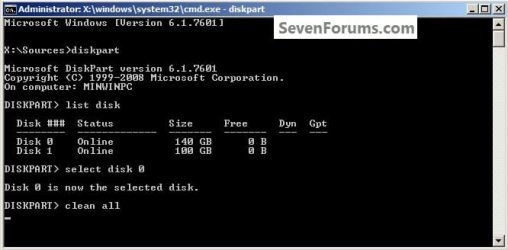
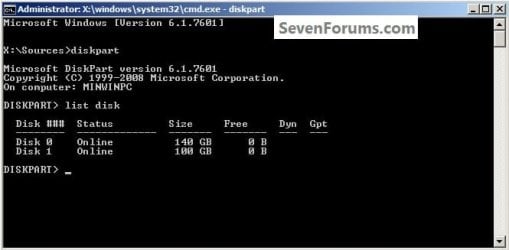
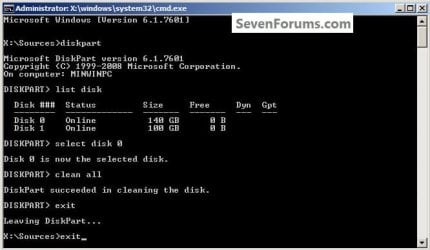
1) In the command window that opens type diskpart then hit the <enter> key then type list disk <enter> if you have more than one SSD / HDD in the machine it'll list them all.

Have a look here to view additional important information on this entire process.
click any image to enlarge
One_1.jpg
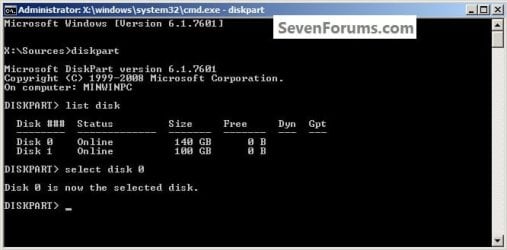
2) Now in the command window type select disk # (# = target disk number) then <enter>, you will get "Disk # is now the selected disk".
One_2.jpg
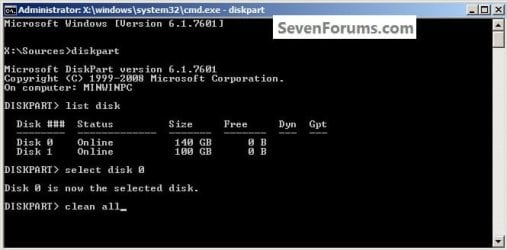
3) Now type clean <enter> you will get a blinking cursor telling you that clean all is working like in the second snip down, just relax and let it work.
One_3.1.jpg
One_3.2.jpg
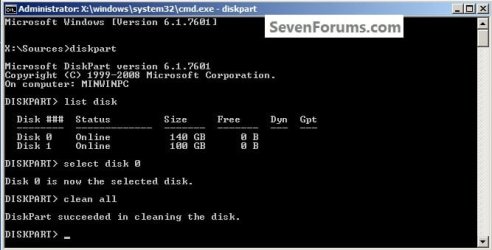
4) When it finishes you'll get "DiskPart succeeded in cleaning the disk" in the command window.
One_4.1.jpg
To leave diskpart at any time and return to the Windows 7 installer type exit two (2) separate times and hit <enter> after each and you will be returned to the installer to continue the installation process.
One_4.2.jpg


Step Two

Create a Partition


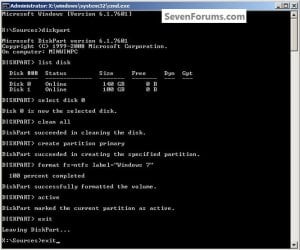
1) Create a single partition of the entire HDD / SSD

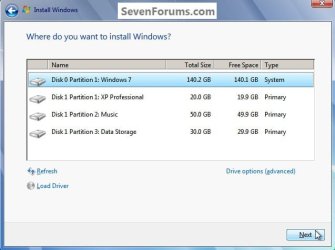
Still in the same command window, to create a partition of the entire HDD / SSD, it is suggested if you are using one of the larger, 1 - 2TB HDDs that you use the outline in #2 below to create a single 100GB partition to do the installation to or #3 below if you would like to include the new Windows 7 System Reserved partition, as we're now seeing serious issues with some trying to install to such large partitions.

Do not format the created partition(s) with the installer if you create them using this process as the installer will delete all this info, the second snip shows how to select "where to install" during the installation process, click to highlight/select the "Windows 7" partition and click next.

Now skip down to #5 below to start the installation.
click any image to enlarge
Two_1.1.jpg
Two_1.2.jpg
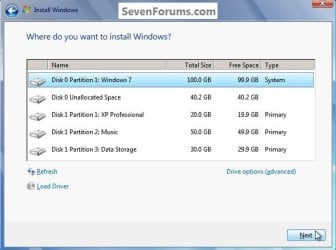
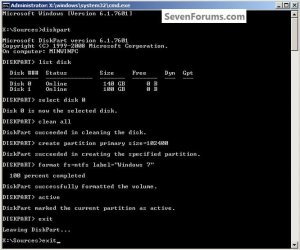
2) Create a specific size partition

If you wanted to create a specific size partition, say 100GB you would add the size you want to create in MBs like in the command below.
create partition primary size=102400 <enter>
1024MB = 1GB - 1024x100 = 102400, you can use/create any size you like.

You can always extend the Windows partition to include the remaining unallocated space on the HDD / SSD or create additional Primary partitions or an Extended partition after the installation completes if you choose.

Do not format the created partition(s) with the installer if you create them using this process as the installer will delete all this info, the second snip shows how to select "where to install" during the installation process, click to highlight/select the "Windows 7" partition and click next.

Now skip down to #5 below to start the installation.
Two_2.1.jpg
Two_2.2.jpg
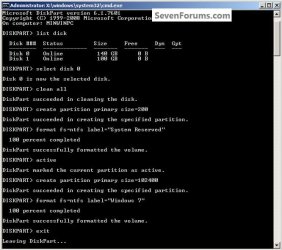
3) Create the System Reserved partition

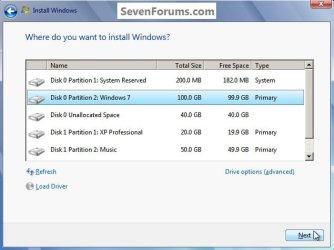
If you should want to add the "System Reserved" partition back after the clean all, see this snip; of course you would have to select to install Windows 7 to the partition labeled as "Windows 7" during the install and do not format either partition with the installer.

The reason for suggesting to create the System Reserved at 200MB instead of the new default of 100MB is an attempt to curb some of the issues we're now seeing with the partition being too small when dual/multi booting and it also being needed for use with the Windows 7 Backup and Restore and BitLocker programs.

You can always extend the Windows partition to include the remaining unallocated space on the HDD / SSD or create additional Primary partitions or an Extended partition after the installation completes if you choose.

The second snip shows how to select "where to install" during the installation process, click to highlight/select the "Windows 7" partition and click next.
Two_3.1.jpg
Two_3.2.jpg
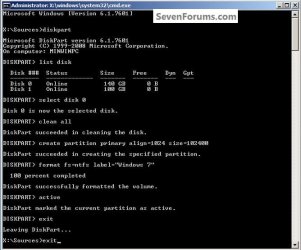
4) See this tutorial for the "align" argument

Align a Solid State Drive for Windows Installation
Two_4.1.jpg
5) That's it, you're now done with the command window, type exit <enter> to leave diskpart and exit <enter> again to close the command window; if you're using a Windows 7 full installer it will go to the "Select Language" screen to continue the installation process as usual.

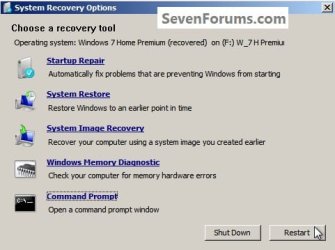
For those using a created repair CD or a Vista installer type exit <enter> to leave diskpart and exit <enter> again to close the command window; at the System Recovery Options dialog box that's still open click Restart to finish the process.
Restart.jpg
Enjoy! :)


Last edited by a moderator:
I see you got the clean to run are you trying to install Windows or do a secure erase of the entire Hard Disk Drive?


click to enlarge
clean.jpg
 

My Computer My Computer

Computer Manufacturer/Model Number
* BFK Customs *
OS
W 7 64-bit Ultimate
CPU
Intel Q9550 Yorkfield
Motherboard
ASUS P5Q Pro
Memory
8GB Dominator 8500C5D
Graphics Card(s)
ATI : XFX 5870
Sound Card
Realtek HD Audio 7-1
Monitor(s) Displays
1x 47" LCD HDMI & 3x 26" LCD HDMI
Screen Resolution
1920x1080P & 1920x1200
Hard Drives
1x 80GB Intel X25-M G2 SSD : 1x 500GB & 1x 640GB WD Caviar Black(s)
PSU
Corsair 620HX
Case
Cooler Master RC-690
Cooling
Tuniq Tower 120, 2x 140mm and 3x 120mm case fans
Keyboard
Microsoft 500
Mouse
Razer Diamondback 3G
Internet Speed
14 Mb/s
Other Info
1x Koutech 3Gb/s SATA HDD Hot Swap Rack
im trying to install bro...but when im on the where to install windows on the box it only have Disk 0 unallocated and the total size is 00mb and 00mb free.. and when im trying to make a new partition ill press the (New) but i cant create...
 

My Computer My Computer

OS
Windows 7 Home Premium 32bit
Hello.
DISKPART : At PC Startup


Let's start from scratch.

Using the Method One listed in this tutorial linked above, from the beginning.

Run just these commands in this order hitting enter after each, what happens?

diskpart

select disk 0

clean all
 

My Computer My Computer

Computer Manufacturer/Model Number
* BFK Customs *
OS
W 7 64-bit Ultimate
CPU
Intel Q9550 Yorkfield
Motherboard
ASUS P5Q Pro
Memory
8GB Dominator 8500C5D
Graphics Card(s)
ATI : XFX 5870
Sound Card
Realtek HD Audio 7-1
Monitor(s) Displays
1x 47" LCD HDMI & 3x 26" LCD HDMI
Screen Resolution
1920x1080P & 1920x1200
Hard Drives
1x 80GB Intel X25-M G2 SSD : 1x 500GB & 1x 640GB WD Caviar Black(s)
PSU
Corsair 620HX
Case
Cooler Master RC-690
Cooling
Tuniq Tower 120, 2x 140mm and 3x 120mm case fans
Keyboard
Microsoft 500
Mouse
Razer Diamondback 3G
Internet Speed
14 Mb/s
Other Info
1x Koutech 3Gb/s SATA HDD Hot Swap Rack
did you saw my post on page 26 bro? i already did that..and i posted the result..
 

My Computer My Computer

OS
Windows 7 Home Premium 32bit
did you saw my post on page 26 bro? i already did that..and i posted the result..

If you can get the clean to run have you tried to start the install right after that finishes?
 

My Computer My Computer

Computer Manufacturer/Model Number
* BFK Customs *
OS
W 7 64-bit Ultimate
CPU
Intel Q9550 Yorkfield
Motherboard
ASUS P5Q Pro
Memory
8GB Dominator 8500C5D
Graphics Card(s)
ATI : XFX 5870
Sound Card
Realtek HD Audio 7-1
Monitor(s) Displays
1x 47" LCD HDMI & 3x 26" LCD HDMI
Screen Resolution
1920x1080P & 1920x1200
Hard Drives
1x 80GB Intel X25-M G2 SSD : 1x 500GB & 1x 640GB WD Caviar Black(s)
PSU
Corsair 620HX
Case
Cooler Master RC-690
Cooling
Tuniq Tower 120, 2x 140mm and 3x 120mm case fans
Keyboard
Microsoft 500
Mouse
Razer Diamondback 3G
Internet Speed
14 Mb/s
Other Info
1x Koutech 3Gb/s SATA HDD Hot Swap Rack
before anything else..first i want tot say thank you for helping me on my problem..i appreciate it bro.. btw yes bro i did...but when im on the When to install windows.. the only partition that i see is Disk 0 Unallocated total size 00mb free size 00mb and at the drivers option i only can click load driver refresh and New but then when ill start to make a new partition it wont allow me.. itll say that it must be 0mb... :(
 

My Computer My Computer

OS
Windows 7 Home Premium 32bit
Hello again and it is my pleasure to help.


Perhaps you will get some other ideas if you start a new thread at the installation sub-forum, just click the link below and I will watch that thread to see if you are getting help as I am running out of ideas. ;)


Installation & Setup
 

My Computer My Computer

Computer Manufacturer/Model Number
* BFK Customs *
OS
W 7 64-bit Ultimate
CPU
Intel Q9550 Yorkfield
Motherboard
ASUS P5Q Pro
Memory
8GB Dominator 8500C5D
Graphics Card(s)
ATI : XFX 5870
Sound Card
Realtek HD Audio 7-1
Monitor(s) Displays
1x 47" LCD HDMI & 3x 26" LCD HDMI
Screen Resolution
1920x1080P & 1920x1200
Hard Drives
1x 80GB Intel X25-M G2 SSD : 1x 500GB & 1x 640GB WD Caviar Black(s)
PSU
Corsair 620HX
Case
Cooler Master RC-690
Cooling
Tuniq Tower 120, 2x 140mm and 3x 120mm case fans
Keyboard
Microsoft 500
Mouse
Razer Diamondback 3G
Internet Speed
14 Mb/s
Other Info
1x Koutech 3Gb/s SATA HDD Hot Swap Rack
What do you recommend?

I have the Windows 7 Home Premium Upgrade DVD and just successfully completed a "clean all" as described in your DiskPart instructions (I previously had Windows Vista Home Premium 32bit O/S installed...now nothing, of course). Since I only have an 80GB HDD that will never need the dual-boot feature, how do you suggest I best partition my drive (e.g., recommended space allocation for Windows 7, recommended space allocation for System Reserved (or none whatsoever?), create a separate partition for Program Files or just use the C: volume/partition)?

Thank you!

NOTE: Of course this is an extremely small HDD I'm working with, but this is not my primary computer and simply want it running as clean as possible with the best performance possible.
 

My Computer My Computer

Computer Manufacturer/Model Number
Dell Inspiron E1505 (Model MM061)
OS
Windows Vista Home Premium 32bit
CPU
Intel® Core 2 Duo T7200 (2.00GHz, 4MB L2 Cache, 667MHz FSB)
Memory
2GB DDR2 SDRAM at 667MHZ, 2 DIMM
Graphics Card(s)
256MB ATI MOBILITY™ RADEON® X1400 HyperMemory
Sound Card
Integrated Audio
Monitor(s) Displays
LCD Panel 15.4 inch Wide Screen XGA Display with TrueLife™
Screen Resolution
1280x800
Hard Drives
80GB SATA Hard Drive (5400RPM)
Hello BartleDoo, welcome to Seven Forums!


After the clean all finishes "exit" out of diskpart and let the Windows 7 installer create and format a single partition for the install, that will automatically give you the "System Reserved" partition and just let all the other files reside where Windows places them.
 

My Computer My Computer

Computer Manufacturer/Model Number
* BFK Customs *
OS
W 7 64-bit Ultimate
CPU
Intel Q9550 Yorkfield
Motherboard
ASUS P5Q Pro
Memory
8GB Dominator 8500C5D
Graphics Card(s)
ATI : XFX 5870
Sound Card
Realtek HD Audio 7-1
Monitor(s) Displays
1x 47" LCD HDMI & 3x 26" LCD HDMI
Screen Resolution
1920x1080P & 1920x1200
Hard Drives
1x 80GB Intel X25-M G2 SSD : 1x 500GB & 1x 640GB WD Caviar Black(s)
PSU
Corsair 620HX
Case
Cooler Master RC-690
Cooling
Tuniq Tower 120, 2x 140mm and 3x 120mm case fans
Keyboard
Microsoft 500
Mouse
Razer Diamondback 3G
Internet Speed
14 Mb/s
Other Info
1x Koutech 3Gb/s SATA HDD Hot Swap Rack
Product key not working

I followed your instructions exactly, but now at the Windows product key screen, it is saying that "The product key is not valid". I just purchased this genuine copy of "Windows 7 Home Premium Upgrade" yesterday at Wal-Mart. Ideas?
 

My Computer My Computer

Computer Manufacturer/Model Number
Dell Inspiron E1505 (Model MM061)
OS
Windows Vista Home Premium 32bit
CPU
Intel® Core 2 Duo T7200 (2.00GHz, 4MB L2 Cache, 667MHz FSB)
Memory
2GB DDR2 SDRAM at 667MHZ, 2 DIMM
Graphics Card(s)
256MB ATI MOBILITY™ RADEON® X1400 HyperMemory
Sound Card
Integrated Audio
Monitor(s) Displays
LCD Panel 15.4 inch Wide Screen XGA Display with TrueLife™
Screen Resolution
1280x800
Hard Drives
80GB SATA Hard Drive (5400RPM)
Hello BartleDoo, and welcome to Seven Forums.

It sounds like you made a mistake while entering the product key. Triple check each and every number and character from the COA sticker as you enter it. Sometimes the ones like o (letter) and 0 (zero) or l (L) and I (i) look the same.
 

My Computer My Computer

Computer type
PC/Desktop
Computer Manufacturer/Model Number
Self built custom
OS
64-bit Windows 11 Pro for Workstations
CPU
Intel i7-8700K OC'd to 5 GHz
Motherboard
ASUS ROG Maximus XI Formula Z390
Memory
64 GB (4x16GB) G.SKILL TridentZ RGB DDR4 3600 MHz
Graphics Card(s)
ASUS ROG-STRIX-GTX1080TI-O11G-GAMING
Sound Card
Integrated
Monitor(s) Displays
2 x Samsung Odyssey G7 27"
Screen Resolution
2560x1440
Hard Drives
1TB Samsung 990 PRO M.2,
4TB Samsung 990 PRO PRO M.2,
TerraMaster F8 SSD Plus NAS
PSU
Seasonic Prime Titanium 850W
Case
Thermaltake Core P3
Cooling
Corsair Hydro H115i
Keyboard
Logitech wireless K800
Mouse
Logitech MX Master 4
Internet Speed
2 Gb/s Download and 100 Mb/s Upload
Antivirus
Malwarebyte Anti-Malware Premium
Browser
Google Chrome
Other Info
Logitech Z625 speaker system,
Logitech BRIO 4K Pro webcam,
HP Color LaserJet Pro MFP M477fdn,
APC SMART-UPS RT 1000 XL - SURT1000XLI,
Galaxy S23 Plus phone
Just got off the phone with Microsoft--problem solved. The error was NOT due to entering an invalid key. I will try to post the fix later this week.
 

My Computer My Computer

Computer Manufacturer/Model Number
Dell Inspiron E1505 (Model MM061)
OS
Windows Vista Home Premium 32bit
CPU
Intel® Core 2 Duo T7200 (2.00GHz, 4MB L2 Cache, 667MHz FSB)
Memory
2GB DDR2 SDRAM at 667MHZ, 2 DIMM
Graphics Card(s)
256MB ATI MOBILITY™ RADEON® X1400 HyperMemory
Sound Card
Integrated Audio
Monitor(s) Displays
LCD Panel 15.4 inch Wide Screen XGA Display with TrueLife™
Screen Resolution
1280x800
Hard Drives
80GB SATA Hard Drive (5400RPM)
That's great news BartleDoo. I look forward to seeing what your solution was. :)
 

My Computer My Computer

Computer type
PC/Desktop
Computer Manufacturer/Model Number
Self built custom
OS
64-bit Windows 11 Pro for Workstations
CPU
Intel i7-8700K OC'd to 5 GHz
Motherboard
ASUS ROG Maximus XI Formula Z390
Memory
64 GB (4x16GB) G.SKILL TridentZ RGB DDR4 3600 MHz
Graphics Card(s)
ASUS ROG-STRIX-GTX1080TI-O11G-GAMING
Sound Card
Integrated
Monitor(s) Displays
2 x Samsung Odyssey G7 27"
Screen Resolution
2560x1440
Hard Drives
1TB Samsung 990 PRO M.2,
4TB Samsung 990 PRO PRO M.2,
TerraMaster F8 SSD Plus NAS
PSU
Seasonic Prime Titanium 850W
Case
Thermaltake Core P3
Cooling
Corsair Hydro H115i
Keyboard
Logitech wireless K800
Mouse
Logitech MX Master 4
Internet Speed
2 Gb/s Download and 100 Mb/s Upload
Antivirus
Malwarebyte Anti-Malware Premium
Browser
Google Chrome
Other Info
Logitech Z625 speaker system,
Logitech BRIO 4K Pro webcam,
HP Color LaserJet Pro MFP M477fdn,
APC SMART-UPS RT 1000 XL - SURT1000XLI,
Galaxy S23 Plus phone
Hi,

I have a laptop Asus g75vw, got it without windows and i tried to install windows 7 ultimate x64 on SSD but when i select the partition the "next" button freeze.

Any idea?

If someone here know how to fix this issue and to install windows on SSD and with free time to assist me please contact me. I am agree to pay for assistance, i just want to have windows on my ssd.

Or maybe you can tell me how to do it, i do have some knowledge on computers.

thanks
 

My Computer My Computer

OS
Windows 7 Ultimate x64
Hello ciprianpt, welcome to Seven Forums!


If the installer is one you acquired perhaps the ISO file is bad and another will work; or if you burned it to DVD, another burn is needed, use ImgBurn at no greater than x4 speed with a verify.
ImgBurn Free ISO Burning Software
 

My Computer My Computer

Computer Manufacturer/Model Number
* BFK Customs *
OS
W 7 64-bit Ultimate
CPU
Intel Q9550 Yorkfield
Motherboard
ASUS P5Q Pro
Memory
8GB Dominator 8500C5D
Graphics Card(s)
ATI : XFX 5870
Sound Card
Realtek HD Audio 7-1
Monitor(s) Displays
1x 47" LCD HDMI & 3x 26" LCD HDMI
Screen Resolution
1920x1080P & 1920x1200
Hard Drives
1x 80GB Intel X25-M G2 SSD : 1x 500GB & 1x 640GB WD Caviar Black(s)
PSU
Corsair 620HX
Case
Cooler Master RC-690
Cooling
Tuniq Tower 120, 2x 140mm and 3x 120mm case fans
Keyboard
Microsoft 500
Mouse
Razer Diamondback 3G
Internet Speed
14 Mb/s
Other Info
1x Koutech 3Gb/s SATA HDD Hot Swap Rack
Hi,

I tried to reinstall OS again and for this time worked to select the SSD right now i am in the middle of process.

Thanks for your help.
 

My Computer My Computer

OS
Windows 7 Ultimate x64
Hi,

I tried to reinstall OS again and for this time worked to select the SSD right now i am in the middle of process.

Thanks for your help.


You're welcome, good to see you got it working and be sure to keep us informed.
 

My Computer My Computer

Computer Manufacturer/Model Number
* BFK Customs *
OS
W 7 64-bit Ultimate
CPU
Intel Q9550 Yorkfield
Motherboard
ASUS P5Q Pro
Memory
8GB Dominator 8500C5D
Graphics Card(s)
ATI : XFX 5870
Sound Card
Realtek HD Audio 7-1
Monitor(s) Displays
1x 47" LCD HDMI & 3x 26" LCD HDMI
Screen Resolution
1920x1080P & 1920x1200
Hard Drives
1x 80GB Intel X25-M G2 SSD : 1x 500GB & 1x 640GB WD Caviar Black(s)
PSU
Corsair 620HX
Case
Cooler Master RC-690
Cooling
Tuniq Tower 120, 2x 140mm and 3x 120mm case fans
Keyboard
Microsoft 500
Mouse
Razer Diamondback 3G
Internet Speed
14 Mb/s
Other Info
1x Koutech 3Gb/s SATA HDD Hot Swap Rack
I bought a couple of ssd's to install on separate laptops. I have a thermaltake docking station and have a spare notebook running Windows 7. Can I just run all these partition tools from within the Windows 7 OS or will I need to create a Windows USB boot drive?

I plan to dock my ssd's and then perform the diskpart, clean, and create a single partition for each of the ssd from within a running Windows 7 environment, if these are at all possible. If not, then I will have to go with the Windows 7 usb boot disk method provided by Bare Foot Kid. :)
 

My Computer My Computer

OS
Windows 7 Professional 64 bit
Hello internalaudit, welcome to Seven Forums!


You should be able to do what you want from an elevated command window from the Windows desktop.
 

My Computer My Computer

Computer Manufacturer/Model Number
* BFK Customs *
OS
W 7 64-bit Ultimate
CPU
Intel Q9550 Yorkfield
Motherboard
ASUS P5Q Pro
Memory
8GB Dominator 8500C5D
Graphics Card(s)
ATI : XFX 5870
Sound Card
Realtek HD Audio 7-1
Monitor(s) Displays
1x 47" LCD HDMI & 3x 26" LCD HDMI
Screen Resolution
1920x1080P & 1920x1200
Hard Drives
1x 80GB Intel X25-M G2 SSD : 1x 500GB & 1x 640GB WD Caviar Black(s)
PSU
Corsair 620HX
Case
Cooler Master RC-690
Cooling
Tuniq Tower 120, 2x 140mm and 3x 120mm case fans
Keyboard
Microsoft 500
Mouse
Razer Diamondback 3G
Internet Speed
14 Mb/s
Other Info
1x Koutech 3Gb/s SATA HDD Hot Swap Rack
Back
Top