SSD / HDD : Optimize for Windows Reinstallation

How to Optimize an SSD / HDD When You're Ready to Reinstall the Operating System

This will show how to remove / over-write all existing data from a Solid State Drive (SSD) or a Hard Disk Drive (HDD), it'll work for both, then how to create a partition and then format that partition before install begins so you have a clean drive to start the installation with.

   Note

Before you start this, in the Windows start menu search box type diskmgmt.msc right click the entry and click "Run as Administrator" if you get a User Account Control (UAC) prompt enter your user credentials and click Yes; make very sure you know the correct drive number of the drive you want to do this to if you have more than one SSD / HDD in the machine, you don't want to do the wrong one.
   Warning

Do not do this to any SSD or HDD that has data on it you don't want to lose, the first thing this does is to mark the drive as "Unallocated Space" and then writes zeroes ( 0's ) to the entire drive, it's known as a "Secure Erase" and it will make data un-recoverable, it cannot be done to just a single partition on a drive, it will do the whole drive.
You have been warned!
   Information

It may be a help to over-write the HDD Master Boot Record (MBR) before you start any other procedure using the diskpart clean command, rather than the clean all; it takes just seconds to complete so you will have "unallocated" space to use either the Windows installer to create and format the partition(s) or use diskpart for that, however you choose.

Let's get started!


Step One

Boot To DISKPART


If need be, view this tutorial at the link below for an out-line of the process.
How to Boot to DISKPART at PC Startup

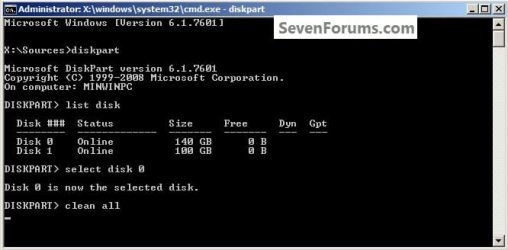
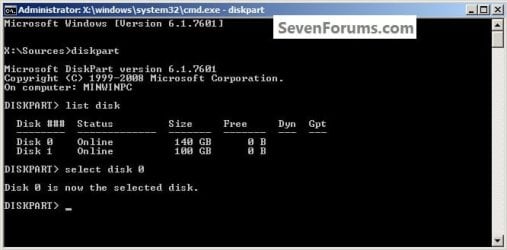
1) In the command window that opens type diskpart then hit the <enter> key then type list disk <enter> if you have more than one SSD / HDD in the machine it'll list them all.

Have a look here to view additional important information on this entire process.
click any image to enlarge
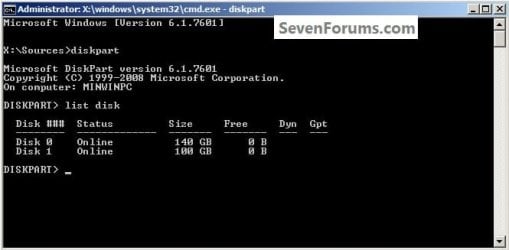
One_1.jpg
2) Now in the command window type select disk # (# = target disk number) then <enter>, you will get "Disk # is now the selected disk".
One_2.jpg
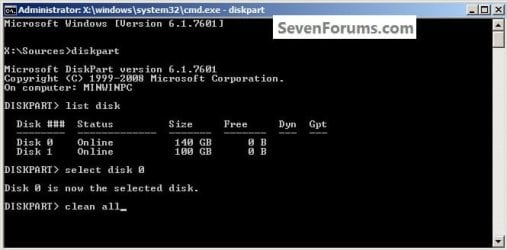
3) Now type clean <enter> you will get a blinking cursor telling you that clean all is working like in the second snip down, just relax and let it work.
One_3.1.jpg
One_3.2.jpg
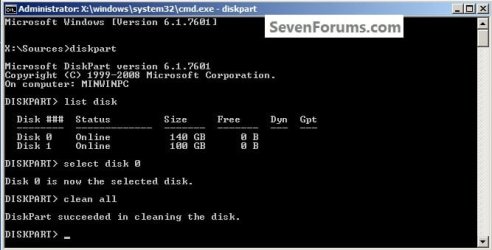
4) When it finishes you'll get "DiskPart succeeded in cleaning the disk" in the command window.
One_4.1.jpg
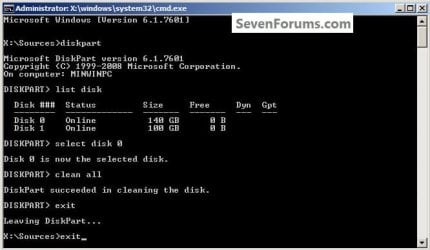
To leave diskpart at any time and return to the Windows 7 installer type exit two (2) separate times and hit <enter> after each and you will be returned to the installer to continue the installation process.
One_4.2.jpg


Step Two

Create a Partition


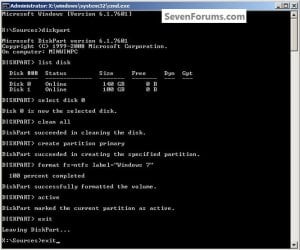
1) Create a single partition of the entire HDD / SSD

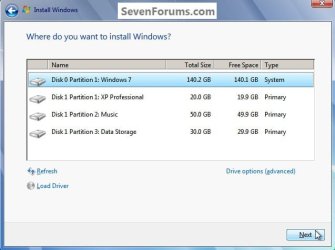
Still in the same command window, to create a partition of the entire HDD / SSD, it is suggested if you are using one of the larger, 1 - 2TB HDDs that you use the outline in #2 below to create a single 100GB partition to do the installation to or #3 below if you would like to include the new Windows 7 System Reserved partition, as we're now seeing serious issues with some trying to install to such large partitions.

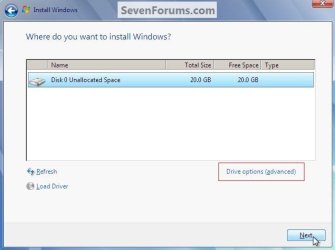
Do not format the created partition(s) with the installer if you create them using this process as the installer will delete all this info, the second snip shows how to select "where to install" during the installation process, click to highlight/select the "Windows 7" partition and click next.

Now skip down to #5 below to start the installation.
click any image to enlarge
Two_1.1.jpg
Two_1.2.jpg
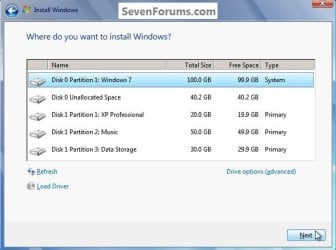
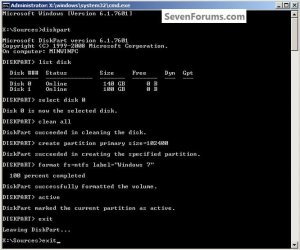
2) Create a specific size partition

If you wanted to create a specific size partition, say 100GB you would add the size you want to create in MBs like in the command below.
create partition primary size=102400 <enter>
1024MB = 1GB - 1024x100 = 102400, you can use/create any size you like.

You can always extend the Windows partition to include the remaining unallocated space on the HDD / SSD or create additional Primary partitions or an Extended partition after the installation completes if you choose.

Do not format the created partition(s) with the installer if you create them using this process as the installer will delete all this info, the second snip shows how to select "where to install" during the installation process, click to highlight/select the "Windows 7" partition and click next.

Now skip down to #5 below to start the installation.
Two_2.1.jpg
Two_2.2.jpg
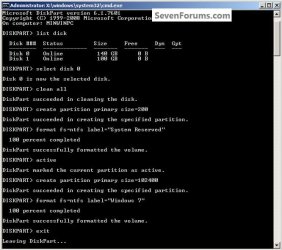
3) Create the System Reserved partition

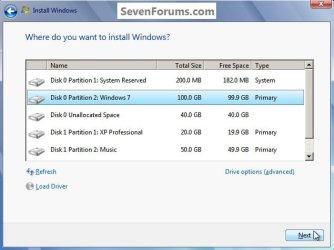
If you should want to add the "System Reserved" partition back after the clean all, see this snip; of course you would have to select to install Windows 7 to the partition labeled as "Windows 7" during the install and do not format either partition with the installer.

The reason for suggesting to create the System Reserved at 200MB instead of the new default of 100MB is an attempt to curb some of the issues we're now seeing with the partition being too small when dual/multi booting and it also being needed for use with the Windows 7 Backup and Restore and BitLocker programs.

You can always extend the Windows partition to include the remaining unallocated space on the HDD / SSD or create additional Primary partitions or an Extended partition after the installation completes if you choose.

The second snip shows how to select "where to install" during the installation process, click to highlight/select the "Windows 7" partition and click next.
Two_3.1.jpg
Two_3.2.jpg
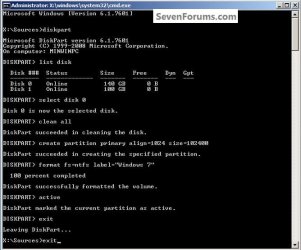
4) See this tutorial for the "align" argument

Align a Solid State Drive for Windows Installation
Two_4.1.jpg
5) That's it, you're now done with the command window, type exit <enter> to leave diskpart and exit <enter> again to close the command window; if you're using a Windows 7 full installer it will go to the "Select Language" screen to continue the installation process as usual.

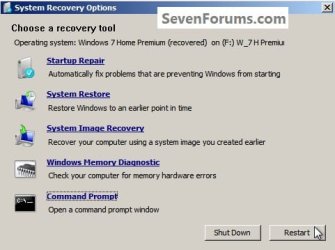
For those using a created repair CD or a Vista installer type exit <enter> to leave diskpart and exit <enter> again to close the command window; at the System Recovery Options dialog box that's still open click Restart to finish the process.
Restart.jpg
Enjoy! :)


Last edited by a moderator:
Dear BFK and Dave76


Unless of course you guys know a miracle solution for fixing MS Product keys?

Thanks again for all your help, you guys have been a blessing!!!

Cheers

Stephen

from Richmond, London, England


Hello again Stephen.


You asked and we obliged! ;)

Clean Install with a Upgrade Windows 7 Version


I'm very glad to see you getting this sorted, thanks for the update.
 

My Computer My Computer

Computer Manufacturer/Model Number
* BFK Customs *
OS
W 7 64-bit Ultimate
CPU
Intel Q9550 Yorkfield
Motherboard
ASUS P5Q Pro
Memory
8GB Dominator 8500C5D
Graphics Card(s)
ATI : XFX 5870
Sound Card
Realtek HD Audio 7-1
Monitor(s) Displays
1x 47" LCD HDMI & 3x 26" LCD HDMI
Screen Resolution
1920x1080P & 1920x1200
Hard Drives
1x 80GB Intel X25-M G2 SSD : 1x 500GB & 1x 640GB WD Caviar Black(s)
PSU
Corsair 620HX
Case
Cooler Master RC-690
Cooling
Tuniq Tower 120, 2x 140mm and 3x 120mm case fans
Keyboard
Microsoft 500
Mouse
Razer Diamondback 3G
Internet Speed
14 Mb/s
Other Info
1x Koutech 3Gb/s SATA HDD Hot Swap Rack
Dear BFK and Dave76

Almost there! Thanks so much for all the advice.

Anyway a quick update ...

I decided to go for broke and cleaned ALL the discs. This fixed the install issue - THANKS!!!

...
Unless of course you guys know a miracle solution for fixing MS Product keys?

Thanks again for all your help, you guys have been a blessing!!!

Cheers

Stephen

You are welcome.

Glad that you got it installed.

Thanks for letting us know your progress.

BFK gave you a good link on how to proceed.

Any other questions, just ask...
 

My Computer My Computer

Computer type
PC/Desktop
Computer Manufacturer/Model Number
76~2.0
OS
Windows 7 Ult x64 - SP1/ Windows 8 Pro x64
CPU
Intel Core i5-3570K 4.6GHz
Motherboard
Gigabyte GA-Z77X UD3H, f18
Memory
8GB (2X4GB) DDR3 1600 Corsair Vengeance CL8 1.5v
Graphics Card(s)
Sapphire HD 7770 Vapor-X OC 1GB DDR5
Sound Card
Onboard VIA VT2021
Monitor(s) Displays
22" LCD Dell
Screen Resolution
1680x1050
Hard Drives
Samsung 840Pro 128GB SSD,
Seagate Barracuda 500GB SATA2 7200rpm 32MB cache, Seagate Barracuda 1TB SATA2 7200rpm 32MB cache,
PSU
Corsair HX650W
Case
Cooler Master Storm Scout
Cooling
Corsair H80 2x12cm Noctua NF P12 , 2x14cm case fans
Keyboard
Logitech Wave
Mouse
CM Sentinel
Internet Speed
Dismal
Antivirus
Avast
Browser
Opera Next
Other Info
Haswell laptop: HP Envy 17t-j, i7-4700MQ, GeForce 740M 2GB DDR3, 17.3" Full HD 1920x1080, 16GB RAM, Samsung 840 Pro 128GB, 1TB Hitachi 7200 HDD,
Desktop: eSATA ports,
External eSATA Seagate 500GB SATA2 7200rpm,
External WD USB 500GB
Hello again BFK and Dave76

All good!! I followed the link you gave me and Install worked fine - awesome, thanks very much!


Now I've posted another question about sound card drivers, but I thought it was best to put it under "sound and videop cards" so I'm hoping somebody will have the answer to my driver problem. Most stuff installed fine but my sound card doesn't work. Still, I'm very happy with teh W7 install!!

Thanks!

Stephen
 

My Computer My Computer

Computer Manufacturer/Model Number
Alienware ALX51
OS
Windows 7 Ultimate x64
CPU
Intel
Motherboard
NVIDIA
Memory
4GB
Graphics Card(s)
NVDIA GeForce dual 8800
Sound Card
Logitech
Monitor(s) Displays
Dell Ultrasharp
Hard Drives
1TB RAID (2 x 500GB) Hitachi
2 x 1TB Hitachi
PSU
Alienware
Case
Alienware
Cooling
Alienware
Hello Stephen, glad you got it running and thanks for the update.
 

My Computer My Computer

Computer Manufacturer/Model Number
* BFK Customs *
OS
W 7 64-bit Ultimate
CPU
Intel Q9550 Yorkfield
Motherboard
ASUS P5Q Pro
Memory
8GB Dominator 8500C5D
Graphics Card(s)
ATI : XFX 5870
Sound Card
Realtek HD Audio 7-1
Monitor(s) Displays
1x 47" LCD HDMI & 3x 26" LCD HDMI
Screen Resolution
1920x1080P & 1920x1200
Hard Drives
1x 80GB Intel X25-M G2 SSD : 1x 500GB & 1x 640GB WD Caviar Black(s)
PSU
Corsair 620HX
Case
Cooler Master RC-690
Cooling
Tuniq Tower 120, 2x 140mm and 3x 120mm case fans
Keyboard
Microsoft 500
Mouse
Razer Diamondback 3G
Internet Speed
14 Mb/s
Other Info
1x Koutech 3Gb/s SATA HDD Hot Swap Rack
Hello Stephen, there're a lot of very helpful tutorials here, glad that you got it working.
 

My Computer My Computer

Computer type
PC/Desktop
Computer Manufacturer/Model Number
76~2.0
OS
Windows 7 Ult x64 - SP1/ Windows 8 Pro x64
CPU
Intel Core i5-3570K 4.6GHz
Motherboard
Gigabyte GA-Z77X UD3H, f18
Memory
8GB (2X4GB) DDR3 1600 Corsair Vengeance CL8 1.5v
Graphics Card(s)
Sapphire HD 7770 Vapor-X OC 1GB DDR5
Sound Card
Onboard VIA VT2021
Monitor(s) Displays
22" LCD Dell
Screen Resolution
1680x1050
Hard Drives
Samsung 840Pro 128GB SSD,
Seagate Barracuda 500GB SATA2 7200rpm 32MB cache, Seagate Barracuda 1TB SATA2 7200rpm 32MB cache,
PSU
Corsair HX650W
Case
Cooler Master Storm Scout
Cooling
Corsair H80 2x12cm Noctua NF P12 , 2x14cm case fans
Keyboard
Logitech Wave
Mouse
CM Sentinel
Internet Speed
Dismal
Antivirus
Avast
Browser
Opera Next
Other Info
Haswell laptop: HP Envy 17t-j, i7-4700MQ, GeForce 740M 2GB DDR3, 17.3" Full HD 1920x1080, 16GB RAM, Samsung 840 Pro 128GB, 1TB Hitachi 7200 HDD,
Desktop: eSATA ports,
External eSATA Seagate 500GB SATA2 7200rpm,
External WD USB 500GB
Nice work, I suppose this also works for Vista?
 

My Computers My Computers

System One System Two

  • Computer type
    PC/Desktop
    Computer Manufacturer/Model Number
    PowerSpec G164
    OS
    WIN10
    CPU
    AMD Ryzen 5 3600 6-Core Processor 3.59 GHz
    Memory
    16.0 GB
    Internet Speed
    VERY FAST>>>!!!
  • Antivirus
    ESET Security Premium
Nice work, I suppose this also works for Vista?


Hello mate.


I just had a go in VirtualBox with Vista and it will not open a command window using the Shift+F10 key combo as in Option One; you would have to use either the full installer Vista DVD or a repair CD to boot to the recovery options as outlined in Option Two in this tutorial.

Using that method it will work in Vista. ;)
 

My Computer My Computer

Computer Manufacturer/Model Number
* BFK Customs *
OS
W 7 64-bit Ultimate
CPU
Intel Q9550 Yorkfield
Motherboard
ASUS P5Q Pro
Memory
8GB Dominator 8500C5D
Graphics Card(s)
ATI : XFX 5870
Sound Card
Realtek HD Audio 7-1
Monitor(s) Displays
1x 47" LCD HDMI & 3x 26" LCD HDMI
Screen Resolution
1920x1080P & 1920x1200
Hard Drives
1x 80GB Intel X25-M G2 SSD : 1x 500GB & 1x 640GB WD Caviar Black(s)
PSU
Corsair 620HX
Case
Cooler Master RC-690
Cooling
Tuniq Tower 120, 2x 140mm and 3x 120mm case fans
Keyboard
Microsoft 500
Mouse
Razer Diamondback 3G
Internet Speed
14 Mb/s
Other Info
1x Koutech 3Gb/s SATA HDD Hot Swap Rack
the command to create a primary partition with a given size is: (This example: 100gb's)

create partition primary size=102400 <enter>
 

My Computer My Computer

Computer type
PC/Desktop
Computer Manufacturer/Model Number
Custom Build
OS
Windows 7 x64bit Home Premium
CPU
Intel Core i5-2500K Quad-Core Processor 3.3 GHz 6 MB Cache
Motherboard
Intel Desktop Board Media Series LGA 1155 DDR 1333 Micro-ATX
Memory
8GB G.Skill DDR3 PC3-12800 1600MHz - F3-12800CL9D-8GBRL
Graphics Card(s)
Sandy Bridge
Sound Card
M-Audio Fast Track PRO - Avid digidesign 003 rack factory
Monitor(s) Displays
Acer X233H LCD monitor
Screen Resolution
1920x1080
Hard Drives
OS Drive: Silicon Power 256GB SSD 3D NAND A55 SLC Cache Performance Boost SATA III
PSU
Cooler Master eXtreme Power Plus 500w Power Supply
Other Info
This Computer was built from scratch
the command to create a primary partition with a given size is: (This example: 100gb's)

create partition primary size=102400 <enter>


Thanks, I have gone back and looked this up and you are correct.
 

My Computer My Computer

Computer Manufacturer/Model Number
* BFK Customs *
OS
W 7 64-bit Ultimate
CPU
Intel Q9550 Yorkfield
Motherboard
ASUS P5Q Pro
Memory
8GB Dominator 8500C5D
Graphics Card(s)
ATI : XFX 5870
Sound Card
Realtek HD Audio 7-1
Monitor(s) Displays
1x 47" LCD HDMI & 3x 26" LCD HDMI
Screen Resolution
1920x1080P & 1920x1200
Hard Drives
1x 80GB Intel X25-M G2 SSD : 1x 500GB & 1x 640GB WD Caviar Black(s)
PSU
Corsair 620HX
Case
Cooler Master RC-690
Cooling
Tuniq Tower 120, 2x 140mm and 3x 120mm case fans
Keyboard
Microsoft 500
Mouse
Razer Diamondback 3G
Internet Speed
14 Mb/s
Other Info
1x Koutech 3Gb/s SATA HDD Hot Swap Rack
Hey BFK - Great tutorial - I've been researching all day for something just like this!
I have a few questions about a brand new build, brand new installation if you would kindly indulge me.

The OS will be Win 7 Pro 64-bit, full retail version from newegg, going onto a 128G Crucial RealSSD that is brand new also.

I have 3 questions Kid:
1) Do I need to write zeros on a brand new drive?
2) What is the smallest partition I can use for Win 7 Pro 64-bit?
3) How do I create 3 partitions using DISKPART? (I assume I should create all 3 in DISKPART...?)

I want to have my OS - all of it, whatever it needs to run including (especially!) that 100MB "system" space - on Partition One. Partition Two will be for my apps and Partition Three will be a scratch / media caches disk (about 40G).

From what I understand a Win 7 install is anywhere from 16-40G, and that a big part of that is the paging file. I've read that Win 7 will create a paging file (or maybe it's the hibernation file?) equal to the amount of RAM installed. I assume a simple workaround for that is to install with just one DIMM. I have 12G of RAM (3x4G) so I'll use one stick to install and reinsert the other 2 once Windows is up and running. Hopefully that works to keep the size down.

I'd like to allocate 28G for the OS partition and have 100G to split between two more partitions, ideally 60/40 or about that. Do you see any problems with that strategy? I'd like to stick close to those numbers if I could.

Thanks so much for any help and advice you can give me. I greatly appreciate it!

Well...that's my story! Hope you don't mind its length...sorry about that. I know you've been so gracious with everyone already, I hope I'm not at the end of your patience. In any case, thanks again for writing such a clear and useful tutorial.

-Richard
 

My Computer My Computer

Computer type
PC/Desktop
OS
Win7 Pro 64-bit sp1
CPU
core i7 980X
Motherboard
MSI Big-Bang XPower X58
Memory
G.Skill 4Gx3 F3-10666CL9T-12GBRL (x2)
Graphics Card(s)
EVGA 06G-P4-3787-KR
Monitor(s) Displays
HP LP2475w (x2)
Screen Resolution
3840x1200
Hard Drives
Crucial RealSSD CTFDDAC128MAG-1G1 (boot drive);
Crucial m4 128GB;
Samsung 1TB HD103SJ 32M 7200rpm (x2);
WD Black WD2002FAEX 2TB (x2)
PSU
Corsair CMPSU-850HX
Case
HAF X
Cooling
Intel DBX-B (stock)
Hello rcanino, welcome to Seven Forums!


1) Do I need to write zeros on a brand new drive? = No just install to the SSD and create the needed partitions with the Windows 7 installer; if you do want the 100MB "System, Reserved" partition, there's really no need to use this tutorial

2) What is the smallest partition I can use for Win 7 Pro 64-bit? = Unless you're going to install most programs/apps to a second Hard Disk Drive (HDD) you need at least 40/50GB, you'll regret it later if you make it smaller.

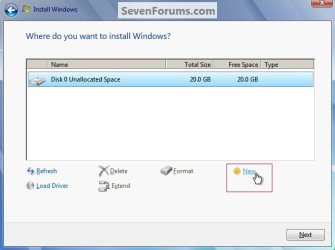
3) How do I create 3 partitions using DISKPART? = Don't use diskpart, use the Windows 7 installer to create all the partitions, have a look at these snips below to see what I'm referring to.

I would suggest you get a second HDD for a data drive so you don't have to be concerned with space issues on the Solid State Drive (SSD) that way, everything not OS related can be put on the HDD.

I'm running an 80GB SSD (actual size 74GB) and I have the page file set at default, I don't use hibernate so I have that disabled; and I have 30GB free of that 74GB SSD.

Just use caution handling the RAM, I'm sure you're aware that it's very susceptible to static electric charges from your body.


click to enlarge
New Partition.jpgNewPartition2.jpg
 

My Computer My Computer

Computer Manufacturer/Model Number
* BFK Customs *
OS
W 7 64-bit Ultimate
CPU
Intel Q9550 Yorkfield
Motherboard
ASUS P5Q Pro
Memory
8GB Dominator 8500C5D
Graphics Card(s)
ATI : XFX 5870
Sound Card
Realtek HD Audio 7-1
Monitor(s) Displays
1x 47" LCD HDMI & 3x 26" LCD HDMI
Screen Resolution
1920x1080P & 1920x1200
Hard Drives
1x 80GB Intel X25-M G2 SSD : 1x 500GB & 1x 640GB WD Caviar Black(s)
PSU
Corsair 620HX
Case
Cooler Master RC-690
Cooling
Tuniq Tower 120, 2x 140mm and 3x 120mm case fans
Keyboard
Microsoft 500
Mouse
Razer Diamondback 3G
Internet Speed
14 Mb/s
Other Info
1x Koutech 3Gb/s SATA HDD Hot Swap Rack
Hey Kid - Thanks so much for your reply.

I definitely do NOT want a separate 100MB "system" partition.

And yes, I've got plenty of other drives for storage.

I want to use the SSD for my OS, apps and scratch disk - that's it.

So if I don't want that 100MB partition, I think I have to use your "Option 1" don't I?

And you think I should do 50G just for the OS is right? Would you have any idea what happens if I create a partition that's only...25G... and I point the installer at that partition?

Thanks again for your help !
 

My Computer My Computer

Computer type
PC/Desktop
OS
Win7 Pro 64-bit sp1
CPU
core i7 980X
Motherboard
MSI Big-Bang XPower X58
Memory
G.Skill 4Gx3 F3-10666CL9T-12GBRL (x2)
Graphics Card(s)
EVGA 06G-P4-3787-KR
Monitor(s) Displays
HP LP2475w (x2)
Screen Resolution
3840x1200
Hard Drives
Crucial RealSSD CTFDDAC128MAG-1G1 (boot drive);
Crucial m4 128GB;
Samsung 1TB HD103SJ 32M 7200rpm (x2);
WD Black WD2002FAEX 2TB (x2)
PSU
Corsair CMPSU-850HX
Case
HAF X
Cooling
Intel DBX-B (stock)
If you do not want the 100MB boot partition, skip Step One (the "clean all") and just do Step Two to create a partition to install Windows 7 to.


You will be sorry in just a short time if you don't create at least a 40GB partition to do the install to, you will run out of space with a 25GB partition.
 

My Computer My Computer

Computer Manufacturer/Model Number
* BFK Customs *
OS
W 7 64-bit Ultimate
CPU
Intel Q9550 Yorkfield
Motherboard
ASUS P5Q Pro
Memory
8GB Dominator 8500C5D
Graphics Card(s)
ATI : XFX 5870
Sound Card
Realtek HD Audio 7-1
Monitor(s) Displays
1x 47" LCD HDMI & 3x 26" LCD HDMI
Screen Resolution
1920x1080P & 1920x1200
Hard Drives
1x 80GB Intel X25-M G2 SSD : 1x 500GB & 1x 640GB WD Caviar Black(s)
PSU
Corsair 620HX
Case
Cooler Master RC-690
Cooling
Tuniq Tower 120, 2x 140mm and 3x 120mm case fans
Keyboard
Microsoft 500
Mouse
Razer Diamondback 3G
Internet Speed
14 Mb/s
Other Info
1x Koutech 3Gb/s SATA HDD Hot Swap Rack
Okay I'll do 40-40-40 - something like that.

And so I'm doing Method One and skipping the "clean all" part in Step 1.

"you'll be sorry..."

Is that because of the programs I'll install?

What happens when the OS partition gets full? I definitely don't want to max it out - probably slows it down right? And then you have to reinstall - and get rid of programs...?

No - don't want to go through all that. I'm happy to take your advice and go 50G. I have another SSD with a XP on it - eventually I'll format that and install it in the new machine.

Any reason to go bigger than 50GB?

Thanks again! Your advice is very much appreciated!
 

My Computer My Computer

Computer type
PC/Desktop
OS
Win7 Pro 64-bit sp1
CPU
core i7 980X
Motherboard
MSI Big-Bang XPower X58
Memory
G.Skill 4Gx3 F3-10666CL9T-12GBRL (x2)
Graphics Card(s)
EVGA 06G-P4-3787-KR
Monitor(s) Displays
HP LP2475w (x2)
Screen Resolution
3840x1200
Hard Drives
Crucial RealSSD CTFDDAC128MAG-1G1 (boot drive);
Crucial m4 128GB;
Samsung 1TB HD103SJ 32M 7200rpm (x2);
WD Black WD2002FAEX 2TB (x2)
PSU
Corsair CMPSU-850HX
Case
HAF X
Cooling
Intel DBX-B (stock)
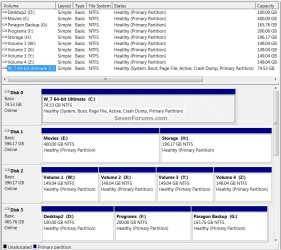
Why don't you install some of the programs/apps to a second HDD; have a look at these snips from my machine to see what I'm referring to; all I install to the SSD/OS is security prog/app and everything else goes to a spinner to save space on the SSD. ;)


click to enlarge
Programs.jpg
Disk Management.jpg
 

My Computer My Computer

Computer Manufacturer/Model Number
* BFK Customs *
OS
W 7 64-bit Ultimate
CPU
Intel Q9550 Yorkfield
Motherboard
ASUS P5Q Pro
Memory
8GB Dominator 8500C5D
Graphics Card(s)
ATI : XFX 5870
Sound Card
Realtek HD Audio 7-1
Monitor(s) Displays
1x 47" LCD HDMI & 3x 26" LCD HDMI
Screen Resolution
1920x1080P & 1920x1200
Hard Drives
1x 80GB Intel X25-M G2 SSD : 1x 500GB & 1x 640GB WD Caviar Black(s)
PSU
Corsair 620HX
Case
Cooler Master RC-690
Cooling
Tuniq Tower 120, 2x 140mm and 3x 120mm case fans
Keyboard
Microsoft 500
Mouse
Razer Diamondback 3G
Internet Speed
14 Mb/s
Other Info
1x Koutech 3Gb/s SATA HDD Hot Swap Rack
Nice! Thanks for the peek.

I plan something very similar. My SSD will need to host my Adobe apps and Cinema 4D (and the OS of course) because that's the whole point to buying the SSD for me - to get speedy response in the Creative Suite, especially After Effects. C4D too.

The Adobe products take about 16 - 20G, C4D much less, about 4G and the scratch space - another 35-45 total. I need Quicktime, VLC and a few raw converters that don't use much disk space, a browser and AV - and that's about it for the SSD.

Everything else will go on a 1TB Spinpoint and to external drives. Once I format my other SSD I'll install that too.

So space isn't really a concern - if you see what I mean. I need to allocate the proper amount for Windows and for my core products - but all in all I've got plenty of disk space.

Thanks again BFK! I appreciate it.
 

My Computer My Computer

Computer type
PC/Desktop
OS
Win7 Pro 64-bit sp1
CPU
core i7 980X
Motherboard
MSI Big-Bang XPower X58
Memory
G.Skill 4Gx3 F3-10666CL9T-12GBRL (x2)
Graphics Card(s)
EVGA 06G-P4-3787-KR
Monitor(s) Displays
HP LP2475w (x2)
Screen Resolution
3840x1200
Hard Drives
Crucial RealSSD CTFDDAC128MAG-1G1 (boot drive);
Crucial m4 128GB;
Samsung 1TB HD103SJ 32M 7200rpm (x2);
WD Black WD2002FAEX 2TB (x2)
PSU
Corsair CMPSU-850HX
Case
HAF X
Cooling
Intel DBX-B (stock)
Nice! Thanks for the peek.

I plan something very similar. My SSD will need to host my Adobe apps and Cinema 4D (and the OS of course) because that's the whole point to buying the SSD for me - to get speedy response in the Creative Suite, especially After Effects. C4D too.

The Adobe products take about 16 - 20G, C4D much less, about 4G and the scratch space - another 35-45 total. I need Quicktime, VLC and a few raw converters that don't use much disk space, a browser and AV - and that's about it for the SSD.

Everything else will go on a 1TB Spinpoint and to external drives. Once I format my other SSD I'll install that too.

So space isn't really a concern - if you see what I mean. I need to allocate the proper amount for Windows and for my core products - but all in all I've got plenty of disk space.

Thanks again BFK! I appreciate it.


Sounds lik 50GB to me! ;)
 

My Computer My Computer

Computer Manufacturer/Model Number
* BFK Customs *
OS
W 7 64-bit Ultimate
CPU
Intel Q9550 Yorkfield
Motherboard
ASUS P5Q Pro
Memory
8GB Dominator 8500C5D
Graphics Card(s)
ATI : XFX 5870
Sound Card
Realtek HD Audio 7-1
Monitor(s) Displays
1x 47" LCD HDMI & 3x 26" LCD HDMI
Screen Resolution
1920x1080P & 1920x1200
Hard Drives
1x 80GB Intel X25-M G2 SSD : 1x 500GB & 1x 640GB WD Caviar Black(s)
PSU
Corsair 620HX
Case
Cooler Master RC-690
Cooling
Tuniq Tower 120, 2x 140mm and 3x 120mm case fans
Keyboard
Microsoft 500
Mouse
Razer Diamondback 3G
Internet Speed
14 Mb/s
Other Info
1x Koutech 3Gb/s SATA HDD Hot Swap Rack
see yeah - that's where I guess I'm getting confooozed (!)

I thought the apps would be in their separate partition and the OS was approx. 35G - if you go by Microsoft's recommendation - 20 + 15 for XP mode.

But because I'm installing such heavy apps - does that mean the OS partition needs to bigger too?

I hope I explained my confusion - I can do 40G for the OS and 50G for the apps - the remaining for Scratch space. That's my plan now - but the way you say "sounds like 50G to me" it seems like the Apps have a greater impact on the OS size - more than I'm realizing I guess.
 

My Computer My Computer

Computer type
PC/Desktop
OS
Win7 Pro 64-bit sp1
CPU
core i7 980X
Motherboard
MSI Big-Bang XPower X58
Memory
G.Skill 4Gx3 F3-10666CL9T-12GBRL (x2)
Graphics Card(s)
EVGA 06G-P4-3787-KR
Monitor(s) Displays
HP LP2475w (x2)
Screen Resolution
3840x1200
Hard Drives
Crucial RealSSD CTFDDAC128MAG-1G1 (boot drive);
Crucial m4 128GB;
Samsung 1TB HD103SJ 32M 7200rpm (x2);
WD Black WD2002FAEX 2TB (x2)
PSU
Corsair CMPSU-850HX
Case
HAF X
Cooling
Intel DBX-B (stock)
Hope that BFK will agree.

Let me see if I got this right, you want to install the OS only on the first partition, from above will be 40GB.
Next partition is 50GB, Adobe apps and Cinema 4D and similar apps, the remainder for scratch.
Other apps on another SSD or HDD.

Is this close to what you're planning?

To get a handle on your reasoning behind this plan, is this so you can re-install/restore image of the OS without having to re-install the apps?
Clean install of the OS will require re-install of the apps but, if you get an image backup of the OS and apps partition after they are both running as you want and do not add anything to either partition, this should work. You can restore the OS partition at a later date if you need to.

Any added apps in any other partition, SSD or HDD, after your OS backup image, will need to be re-installed.

If this is the scenario then the OS partition can be a little smaller due to the fact that you aren't planning on putting any apps in that partition.
As mentioned I wouldn't make it smaller than 35GB.
The OS and apps partition, most of the time these are in the same partition, for your setup would be a total of 85-90GB and is big enough.

Let us know if this is anything close to what you're planning.
 

My Computer My Computer

Computer type
PC/Desktop
Computer Manufacturer/Model Number
76~2.0
OS
Windows 7 Ult x64 - SP1/ Windows 8 Pro x64
CPU
Intel Core i5-3570K 4.6GHz
Motherboard
Gigabyte GA-Z77X UD3H, f18
Memory
8GB (2X4GB) DDR3 1600 Corsair Vengeance CL8 1.5v
Graphics Card(s)
Sapphire HD 7770 Vapor-X OC 1GB DDR5
Sound Card
Onboard VIA VT2021
Monitor(s) Displays
22" LCD Dell
Screen Resolution
1680x1050
Hard Drives
Samsung 840Pro 128GB SSD,
Seagate Barracuda 500GB SATA2 7200rpm 32MB cache, Seagate Barracuda 1TB SATA2 7200rpm 32MB cache,
PSU
Corsair HX650W
Case
Cooler Master Storm Scout
Cooling
Corsair H80 2x12cm Noctua NF P12 , 2x14cm case fans
Keyboard
Logitech Wave
Mouse
CM Sentinel
Internet Speed
Dismal
Antivirus
Avast
Browser
Opera Next
Other Info
Haswell laptop: HP Envy 17t-j, i7-4700MQ, GeForce 740M 2GB DDR3, 17.3" Full HD 1920x1080, 16GB RAM, Samsung 840 Pro 128GB, 1TB Hitachi 7200 HDD,
Desktop: eSATA ports,
External eSATA Seagate 500GB SATA2 7200rpm,
External WD USB 500GB
Thanks for your reply Dave - between you and Kid I'm rethinking my partition strategy here.

I have 2 reasons for creating a separate partition for the OS (and avoiding that 100MB "system" partition). The first is organization. The 2nd is the one you mentioned, creating an image backup. I need to learn more about that strategy. Meanwhile at least I'll have the option once I get up to speed on its usefulness.

Beyond those 2 reasons I just like the idea of keeping the OS files in one place. Everything is easier for me when things are ordered. I've always partitioned my USB drives much the way Kid has his, probably for similar reasons: organization and ease of use.

The same thinking applies to my program files - when they're all on the same volume they're easier to find, to uninstall, etc.

I'm drawing the line at learning about partition alignment unless I really have to. Honestly I'm not looking to "reinvent the wheel" here; I just want a simple setup that has my major file-types together in one place - OS, Apps, Caches/Temp.

You mentioned putting the OS and the Apps on the same partition. Does that defeat my purpose - or does my purpose need defeating (lol, so to speak)? Like I said I'm rethinking the whole scheme here.

Thanks again for your reply Dave - I really appreciate you taking the time to respond.
 

My Computer My Computer

Computer type
PC/Desktop
OS
Win7 Pro 64-bit sp1
CPU
core i7 980X
Motherboard
MSI Big-Bang XPower X58
Memory
G.Skill 4Gx3 F3-10666CL9T-12GBRL (x2)
Graphics Card(s)
EVGA 06G-P4-3787-KR
Monitor(s) Displays
HP LP2475w (x2)
Screen Resolution
3840x1200
Hard Drives
Crucial RealSSD CTFDDAC128MAG-1G1 (boot drive);
Crucial m4 128GB;
Samsung 1TB HD103SJ 32M 7200rpm (x2);
WD Black WD2002FAEX 2TB (x2)
PSU
Corsair CMPSU-850HX
Case
HAF X
Cooling
Intel DBX-B (stock)
Back
Top