SSD / HDD : Optimize for Windows Reinstallation

How to Optimize an SSD / HDD When You're Ready to Reinstall the Operating System

This will show how to remove / over-write all existing data from a Solid State Drive (SSD) or a Hard Disk Drive (HDD), it'll work for both, then how to create a partition and then format that partition before install begins so you have a clean drive to start the installation with.

   Note

Before you start this, in the Windows start menu search box type diskmgmt.msc right click the entry and click "Run as Administrator" if you get a User Account Control (UAC) prompt enter your user credentials and click Yes; make very sure you know the correct drive number of the drive you want to do this to if you have more than one SSD / HDD in the machine, you don't want to do the wrong one.
   Warning

Do not do this to any SSD or HDD that has data on it you don't want to lose, the first thing this does is to mark the drive as "Unallocated Space" and then writes zeroes ( 0's ) to the entire drive, it's known as a "Secure Erase" and it will make data un-recoverable, it cannot be done to just a single partition on a drive, it will do the whole drive.
You have been warned!
   Information

It may be a help to over-write the HDD Master Boot Record (MBR) before you start any other procedure using the diskpart clean command, rather than the clean all; it takes just seconds to complete so you will have "unallocated" space to use either the Windows installer to create and format the partition(s) or use diskpart for that, however you choose.

Let's get started!


Step One

Boot To DISKPART


If need be, view this tutorial at the link below for an out-line of the process.
How to Boot to DISKPART at PC Startup

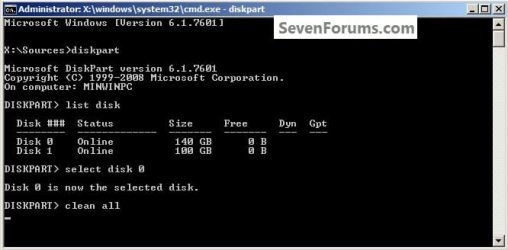
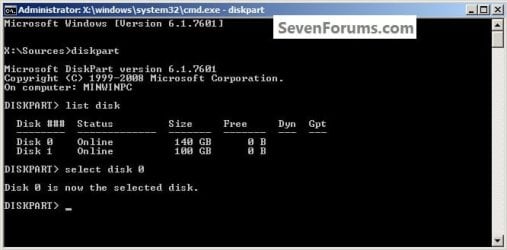
1) In the command window that opens type diskpart then hit the <enter> key then type list disk <enter> if you have more than one SSD / HDD in the machine it'll list them all.

Have a look here to view additional important information on this entire process.
click any image to enlarge
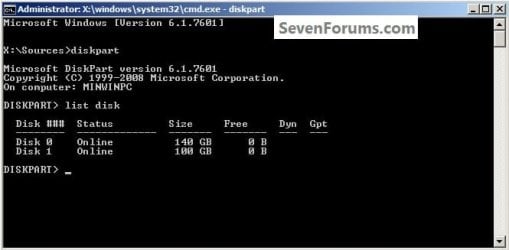
One_1.jpg
2) Now in the command window type select disk # (# = target disk number) then <enter>, you will get "Disk # is now the selected disk".
One_2.jpg
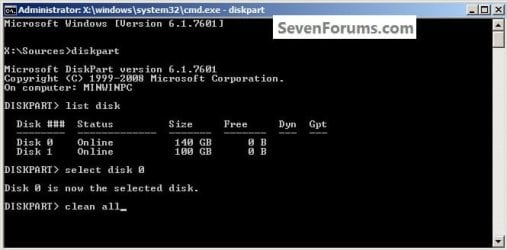
3) Now type clean <enter> you will get a blinking cursor telling you that clean all is working like in the second snip down, just relax and let it work.
One_3.1.jpg
One_3.2.jpg
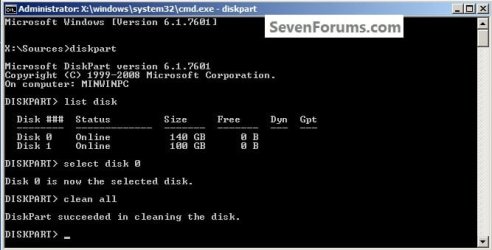
4) When it finishes you'll get "DiskPart succeeded in cleaning the disk" in the command window.
One_4.1.jpg
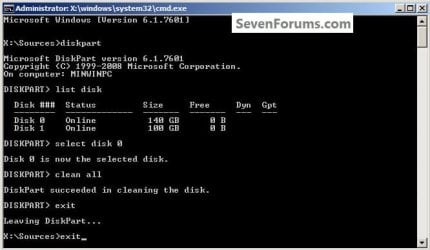
To leave diskpart at any time and return to the Windows 7 installer type exit two (2) separate times and hit <enter> after each and you will be returned to the installer to continue the installation process.
One_4.2.jpg


Step Two

Create a Partition


1) Create a single partition of the entire HDD / SSD

Still in the same command window, to create a partition of the entire HDD / SSD, it is suggested if you are using one of the larger, 1 - 2TB HDDs that you use the outline in #2 below to create a single 100GB partition to do the installation to or #3 below if you would like to include the new Windows 7 System Reserved partition, as we're now seeing serious issues with some trying to install to such large partitions.

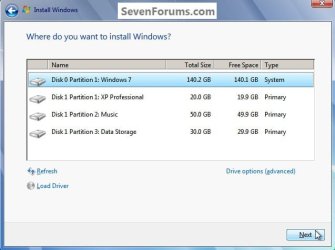
Do not format the created partition(s) with the installer if you create them using this process as the installer will delete all this info, the second snip shows how to select "where to install" during the installation process, click to highlight/select the "Windows 7" partition and click next.

Now skip down to #5 below to start the installation.
click any image to enlarge
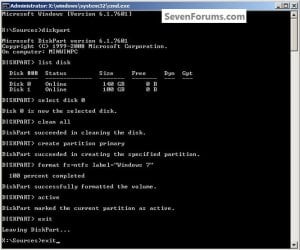
Two_1.1.jpg
Two_1.2.jpg
2) Create a specific size partition

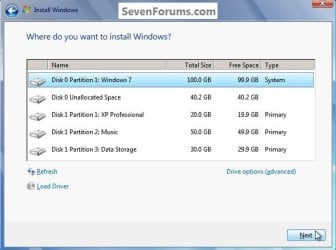
If you wanted to create a specific size partition, say 100GB you would add the size you want to create in MBs like in the command below.
create partition primary size=102400 <enter>
1024MB = 1GB - 1024x100 = 102400, you can use/create any size you like.

You can always extend the Windows partition to include the remaining unallocated space on the HDD / SSD or create additional Primary partitions or an Extended partition after the installation completes if you choose.

Do not format the created partition(s) with the installer if you create them using this process as the installer will delete all this info, the second snip shows how to select "where to install" during the installation process, click to highlight/select the "Windows 7" partition and click next.

Now skip down to #5 below to start the installation.
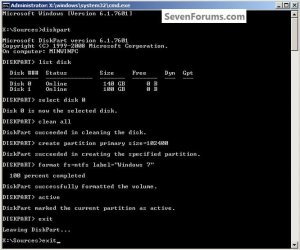
Two_2.1.jpg
Two_2.2.jpg
3) Create the System Reserved partition

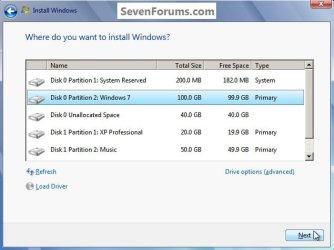
If you should want to add the "System Reserved" partition back after the clean all, see this snip; of course you would have to select to install Windows 7 to the partition labeled as "Windows 7" during the install and do not format either partition with the installer.

The reason for suggesting to create the System Reserved at 200MB instead of the new default of 100MB is an attempt to curb some of the issues we're now seeing with the partition being too small when dual/multi booting and it also being needed for use with the Windows 7 Backup and Restore and BitLocker programs.

You can always extend the Windows partition to include the remaining unallocated space on the HDD / SSD or create additional Primary partitions or an Extended partition after the installation completes if you choose.

The second snip shows how to select "where to install" during the installation process, click to highlight/select the "Windows 7" partition and click next.
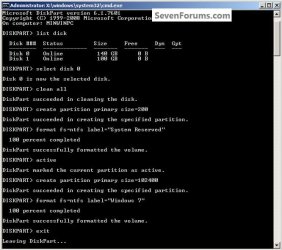
Two_3.1.jpg
Two_3.2.jpg
4) See this tutorial for the "align" argument

Align a Solid State Drive for Windows Installation
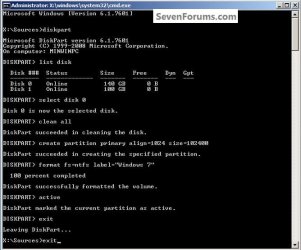
Two_4.1.jpg
5) That's it, you're now done with the command window, type exit <enter> to leave diskpart and exit <enter> again to close the command window; if you're using a Windows 7 full installer it will go to the "Select Language" screen to continue the installation process as usual.

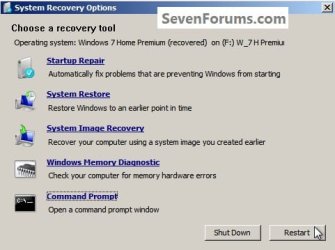
For those using a created repair CD or a Vista installer type exit <enter> to leave diskpart and exit <enter> again to close the command window; at the System Recovery Options dialog box that's still open click Restart to finish the process.
Restart.jpg
Enjoy! :)


Last edited by a moderator:
How you partition your drives is up to you, partitioning them like you have mentioned is just fine if that makes it easier for you.

You will need to be sure your SSD is aligned correctly, it will affect the performance.
Easiest way is to let Win7 do it on installation, if you leave a new SSD unformatted Win7 will recognize it and align it for you. After Win7 is installed you can shrink the partition and add new partitions.
Windows Disk Management should be able to do this for you, if you have any problems you can use "Partition Wizard" free version, which will do it easily.

Image backup and restore is the best way to keep backups of your SSD and HDDs.
If you have a Seagate or Western Digitial HDD in your system you can get a free version of Acronis, which is a very good image backup and restore program.
If you don't have either of these then Macrium Reflect Free Edition is highly recommended.

You can make backup images of your SSD and HDDs and restore them quickly if needed.
No re-installation of OS or programs will be needed, they will run exactly as the day you made the backup.

Here is a tutorial on using Macrium Reflect.
Imaging with free Macrium
 

My Computer My Computer

Computer type
PC/Desktop
Computer Manufacturer/Model Number
76~2.0
OS
Windows 7 Ult x64 - SP1/ Windows 8 Pro x64
CPU
Intel Core i5-3570K 4.6GHz
Motherboard
Gigabyte GA-Z77X UD3H, f18
Memory
8GB (2X4GB) DDR3 1600 Corsair Vengeance CL8 1.5v
Graphics Card(s)
Sapphire HD 7770 Vapor-X OC 1GB DDR5
Sound Card
Onboard VIA VT2021
Monitor(s) Displays
22" LCD Dell
Screen Resolution
1680x1050
Hard Drives
Samsung 840Pro 128GB SSD,
Seagate Barracuda 500GB SATA2 7200rpm 32MB cache, Seagate Barracuda 1TB SATA2 7200rpm 32MB cache,
PSU
Corsair HX650W
Case
Cooler Master Storm Scout
Cooling
Corsair H80 2x12cm Noctua NF P12 , 2x14cm case fans
Keyboard
Logitech Wave
Mouse
CM Sentinel
Internet Speed
Dismal
Antivirus
Avast
Browser
Opera Next
Other Info
Haswell laptop: HP Envy 17t-j, i7-4700MQ, GeForce 740M 2GB DDR3, 17.3" Full HD 1920x1080, 16GB RAM, Samsung 840 Pro 128GB, 1TB Hitachi 7200 HDD,
Desktop: eSATA ports,
External eSATA Seagate 500GB SATA2 7200rpm,
External WD USB 500GB

My Computer My Computer

Computer Manufacturer/Model Number
* BFK Customs *
OS
W 7 64-bit Ultimate
CPU
Intel Q9550 Yorkfield
Motherboard
ASUS P5Q Pro
Memory
8GB Dominator 8500C5D
Graphics Card(s)
ATI : XFX 5870
Sound Card
Realtek HD Audio 7-1
Monitor(s) Displays
1x 47" LCD HDMI & 3x 26" LCD HDMI
Screen Resolution
1920x1080P & 1920x1200
Hard Drives
1x 80GB Intel X25-M G2 SSD : 1x 500GB & 1x 640GB WD Caviar Black(s)
PSU
Corsair 620HX
Case
Cooler Master RC-690
Cooling
Tuniq Tower 120, 2x 140mm and 3x 120mm case fans
Keyboard
Microsoft 500
Mouse
Razer Diamondback 3G
Internet Speed
14 Mb/s
Other Info
1x Koutech 3Gb/s SATA HDD Hot Swap Rack
Thanks BFK, thanks Dave.

So the alignment is really an issue eh? (thought I could get away with not learning about it!)

But if I let Windows partition my drive, that means I'm not using BFK's Method then right? And that means I'll end up with that darn 100MB primary partition, which I do not want.

Can I follow BFK's Method, make my partitions in DISKPART and then have Windows align them (somehow)? Either right after I exit DISKPART maybe, or maybe after Windows finishes installing?

I didn't realize the alignment was such an issue. I'd like to do this installation right if I can - and "performance" is why I bought the SSD!

Thanks again for your help - if you can also advise me on the alignment issue I'd really appreciate it.
 

My Computer My Computer

Computer type
PC/Desktop
OS
Win7 Pro 64-bit sp1
CPU
core i7 980X
Motherboard
MSI Big-Bang XPower X58
Memory
G.Skill 4Gx3 F3-10666CL9T-12GBRL (x2)
Graphics Card(s)
EVGA 06G-P4-3787-KR
Monitor(s) Displays
HP LP2475w (x2)
Screen Resolution
3840x1200
Hard Drives
Crucial RealSSD CTFDDAC128MAG-1G1 (boot drive);
Crucial m4 128GB;
Samsung 1TB HD103SJ 32M 7200rpm (x2);
WD Black WD2002FAEX 2TB (x2)
PSU
Corsair CMPSU-850HX
Case
HAF X
Cooling
Intel DBX-B (stock)
Yes, you're correct.

Letting Win7 setup your partitions will give you the 100MB primary partition.

Using BFK's method you will have to set the alignment manually, I'll check on this if BFK doesn't beat me to it.


Edit:

Have a look at this tutorial:

SSD Alignment
 
Last edited:

My Computer My Computer

Computer type
PC/Desktop
Computer Manufacturer/Model Number
76~2.0
OS
Windows 7 Ult x64 - SP1/ Windows 8 Pro x64
CPU
Intel Core i5-3570K 4.6GHz
Motherboard
Gigabyte GA-Z77X UD3H, f18
Memory
8GB (2X4GB) DDR3 1600 Corsair Vengeance CL8 1.5v
Graphics Card(s)
Sapphire HD 7770 Vapor-X OC 1GB DDR5
Sound Card
Onboard VIA VT2021
Monitor(s) Displays
22" LCD Dell
Screen Resolution
1680x1050
Hard Drives
Samsung 840Pro 128GB SSD,
Seagate Barracuda 500GB SATA2 7200rpm 32MB cache, Seagate Barracuda 1TB SATA2 7200rpm 32MB cache,
PSU
Corsair HX650W
Case
Cooler Master Storm Scout
Cooling
Corsair H80 2x12cm Noctua NF P12 , 2x14cm case fans
Keyboard
Logitech Wave
Mouse
CM Sentinel
Internet Speed
Dismal
Antivirus
Avast
Browser
Opera Next
Other Info
Haswell laptop: HP Envy 17t-j, i7-4700MQ, GeForce 740M 2GB DDR3, 17.3" Full HD 1920x1080, 16GB RAM, Samsung 840 Pro 128GB, 1TB Hitachi 7200 HDD,
Desktop: eSATA ports,
External eSATA Seagate 500GB SATA2 7200rpm,
External WD USB 500GB
Thanks Dave!

I can google "manually aligning partitions on SSD" but if someone here has done it that would be great to learn from them.

Thanks again!
 

My Computer My Computer

Computer type
PC/Desktop
OS
Win7 Pro 64-bit sp1
CPU
core i7 980X
Motherboard
MSI Big-Bang XPower X58
Memory
G.Skill 4Gx3 F3-10666CL9T-12GBRL (x2)
Graphics Card(s)
EVGA 06G-P4-3787-KR
Monitor(s) Displays
HP LP2475w (x2)
Screen Resolution
3840x1200
Hard Drives
Crucial RealSSD CTFDDAC128MAG-1G1 (boot drive);
Crucial m4 128GB;
Samsung 1TB HD103SJ 32M 7200rpm (x2);
WD Black WD2002FAEX 2TB (x2)
PSU
Corsair CMPSU-850HX
Case
HAF X
Cooling
Intel DBX-B (stock)
Just Edited the above post, this tutorial tells you how to do it manually.
 

My Computer My Computer

Computer type
PC/Desktop
Computer Manufacturer/Model Number
76~2.0
OS
Windows 7 Ult x64 - SP1/ Windows 8 Pro x64
CPU
Intel Core i5-3570K 4.6GHz
Motherboard
Gigabyte GA-Z77X UD3H, f18
Memory
8GB (2X4GB) DDR3 1600 Corsair Vengeance CL8 1.5v
Graphics Card(s)
Sapphire HD 7770 Vapor-X OC 1GB DDR5
Sound Card
Onboard VIA VT2021
Monitor(s) Displays
22" LCD Dell
Screen Resolution
1680x1050
Hard Drives
Samsung 840Pro 128GB SSD,
Seagate Barracuda 500GB SATA2 7200rpm 32MB cache, Seagate Barracuda 1TB SATA2 7200rpm 32MB cache,
PSU
Corsair HX650W
Case
Cooler Master Storm Scout
Cooling
Corsair H80 2x12cm Noctua NF P12 , 2x14cm case fans
Keyboard
Logitech Wave
Mouse
CM Sentinel
Internet Speed
Dismal
Antivirus
Avast
Browser
Opera Next
Other Info
Haswell laptop: HP Envy 17t-j, i7-4700MQ, GeForce 740M 2GB DDR3, 17.3" Full HD 1920x1080, 16GB RAM, Samsung 840 Pro 128GB, 1TB Hitachi 7200 HDD,
Desktop: eSATA ports,
External eSATA Seagate 500GB SATA2 7200rpm,
External WD USB 500GB
excellent! Thank you very much Dave.

So I guess I do this after I create each partition? (I want 3 partitions on my SSD)

The other thing is I might need a little help with the exact syntax. Should it be part of the same command when I create the primary partition?

ie.
create partition primary align = 64 size=51200 <enter> //create 50G OS partition
create partition primary align = 64 size=51200 <enter> //create 50G Apps partition
create partition primary align = 64 size=25600 <enter> //create 25G scratch drive partition

Or one at a time, something like this:
create partition primary size=51200 <enter> //create 50G OS partition
list volume (i can't remember but I think that's how you call a partition)
select volume 0 //make newly created partition active
create partition primary align = 64 <enter> //align 50G OS partition


and then I can continue with BFK's steps?

(btw, the "64" in the tutorial - do you know how to calculate that? I assume it's different for every size SSD. Good to know you can check - it sounds like as long as the offset is divisible by 4 you're good to go - as long as that formulais the same for all SSDs...(?)

Thanks again Dave!
 

My Computer My Computer

Computer type
PC/Desktop
OS
Win7 Pro 64-bit sp1
CPU
core i7 980X
Motherboard
MSI Big-Bang XPower X58
Memory
G.Skill 4Gx3 F3-10666CL9T-12GBRL (x2)
Graphics Card(s)
EVGA 06G-P4-3787-KR
Monitor(s) Displays
HP LP2475w (x2)
Screen Resolution
3840x1200
Hard Drives
Crucial RealSSD CTFDDAC128MAG-1G1 (boot drive);
Crucial m4 128GB;
Samsung 1TB HD103SJ 32M 7200rpm (x2);
WD Black WD2002FAEX 2TB (x2)
PSU
Corsair CMPSU-850HX
Case
HAF X
Cooling
Intel DBX-B (stock)
The formula is same (ie: divisible by 4) I just let Windows take care of mine and have used Acronis a few times to create/restore an image of the drive. Will post my alignment size when I get home.
 

My Computer My Computer

Computer Manufacturer/Model Number
tw33k
OS
Windows 7 Ultimate (x64) SP1
CPU
Intel 3770k 4.6GHz
Motherboard
ASUS Maximus V Formula
Memory
8GB (2x 4GB) Crucial Ballistix
Graphics Card(s)
Sapphire 7950 (1060/1600)
Sound Card
On Board Realtek HD Audio
Monitor(s) Displays
27" Acer B273HU (via HDMI)
Screen Resolution
2048 x 1152
Hard Drives
Crucial M4 128GB
2TB WD Black
1TB Samsung F3 SATA
1TB WD Elite External
2TB WD USB 3.0
PSU
Corsair AX750 Gold
Case
Corsair Obsidian 800DW
Cooling
Corsair H100 (2x AP-121/2x UK-3000 push/pull)
Keyboard
Microsoft Wireless 5000
Mouse
Microsoft Wireless 5000
Internet Speed
5mb/s
Other Info
Logitech z-2300 2.1 speakers
Lamptron FC-5 v2
Last edited:

My Computer My Computer

Computer type
PC/Desktop
Computer Manufacturer/Model Number
76~2.0
OS
Windows 7 Ult x64 - SP1/ Windows 8 Pro x64
CPU
Intel Core i5-3570K 4.6GHz
Motherboard
Gigabyte GA-Z77X UD3H, f18
Memory
8GB (2X4GB) DDR3 1600 Corsair Vengeance CL8 1.5v
Graphics Card(s)
Sapphire HD 7770 Vapor-X OC 1GB DDR5
Sound Card
Onboard VIA VT2021
Monitor(s) Displays
22" LCD Dell
Screen Resolution
1680x1050
Hard Drives
Samsung 840Pro 128GB SSD,
Seagate Barracuda 500GB SATA2 7200rpm 32MB cache, Seagate Barracuda 1TB SATA2 7200rpm 32MB cache,
PSU
Corsair HX650W
Case
Cooler Master Storm Scout
Cooling
Corsair H80 2x12cm Noctua NF P12 , 2x14cm case fans
Keyboard
Logitech Wave
Mouse
CM Sentinel
Internet Speed
Dismal
Antivirus
Avast
Browser
Opera Next
Other Info
Haswell laptop: HP Envy 17t-j, i7-4700MQ, GeForce 740M 2GB DDR3, 17.3" Full HD 1920x1080, 16GB RAM, Samsung 840 Pro 128GB, 1TB Hitachi 7200 HDD,
Desktop: eSATA ports,
External eSATA Seagate 500GB SATA2 7200rpm,
External WD USB 500GB
Just got home and was about to post that. You are 100% correct Dave. 1024.
 

My Computer My Computer

Computer Manufacturer/Model Number
tw33k
OS
Windows 7 Ultimate (x64) SP1
CPU
Intel 3770k 4.6GHz
Motherboard
ASUS Maximus V Formula
Memory
8GB (2x 4GB) Crucial Ballistix
Graphics Card(s)
Sapphire 7950 (1060/1600)
Sound Card
On Board Realtek HD Audio
Monitor(s) Displays
27" Acer B273HU (via HDMI)
Screen Resolution
2048 x 1152
Hard Drives
Crucial M4 128GB
2TB WD Black
1TB Samsung F3 SATA
1TB WD Elite External
2TB WD USB 3.0
PSU
Corsair AX750 Gold
Case
Corsair Obsidian 800DW
Cooling
Corsair H100 (2x AP-121/2x UK-3000 push/pull)
Keyboard
Microsoft Wireless 5000
Mouse
Microsoft Wireless 5000
Internet Speed
5mb/s
Other Info
Logitech z-2300 2.1 speakers
Lamptron FC-5 v2
Thanks tw33k.
 

My Computer My Computer

Computer type
PC/Desktop
Computer Manufacturer/Model Number
76~2.0
OS
Windows 7 Ult x64 - SP1/ Windows 8 Pro x64
CPU
Intel Core i5-3570K 4.6GHz
Motherboard
Gigabyte GA-Z77X UD3H, f18
Memory
8GB (2X4GB) DDR3 1600 Corsair Vengeance CL8 1.5v
Graphics Card(s)
Sapphire HD 7770 Vapor-X OC 1GB DDR5
Sound Card
Onboard VIA VT2021
Monitor(s) Displays
22" LCD Dell
Screen Resolution
1680x1050
Hard Drives
Samsung 840Pro 128GB SSD,
Seagate Barracuda 500GB SATA2 7200rpm 32MB cache, Seagate Barracuda 1TB SATA2 7200rpm 32MB cache,
PSU
Corsair HX650W
Case
Cooler Master Storm Scout
Cooling
Corsair H80 2x12cm Noctua NF P12 , 2x14cm case fans
Keyboard
Logitech Wave
Mouse
CM Sentinel
Internet Speed
Dismal
Antivirus
Avast
Browser
Opera Next
Other Info
Haswell laptop: HP Envy 17t-j, i7-4700MQ, GeForce 740M 2GB DDR3, 17.3" Full HD 1920x1080, 16GB RAM, Samsung 840 Pro 128GB, 1TB Hitachi 7200 HDD,
Desktop: eSATA ports,
External eSATA Seagate 500GB SATA2 7200rpm,
External WD USB 500GB
Howdy guys!


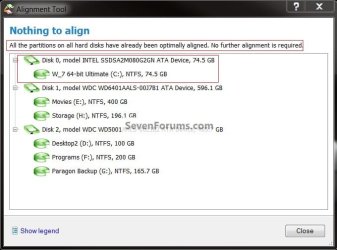
Maybe we're making too much of this alignment issue, unless it's SSD specific; my SSD has really been abused, I've done more "clean alls" to it than I could count and have re-loaded the created image to it close to a dozen times and have never aligned it at all.

I have a paid version of the Paragon alignment tool and I just ran it and got this out-come; I would like to 'here' some opinions on this if you care to carry on with this topic.


click to enlarge
Align.jpg
 

My Computer My Computer

Computer Manufacturer/Model Number
* BFK Customs *
OS
W 7 64-bit Ultimate
CPU
Intel Q9550 Yorkfield
Motherboard
ASUS P5Q Pro
Memory
8GB Dominator 8500C5D
Graphics Card(s)
ATI : XFX 5870
Sound Card
Realtek HD Audio 7-1
Monitor(s) Displays
1x 47" LCD HDMI & 3x 26" LCD HDMI
Screen Resolution
1920x1080P & 1920x1200
Hard Drives
1x 80GB Intel X25-M G2 SSD : 1x 500GB & 1x 640GB WD Caviar Black(s)
PSU
Corsair 620HX
Case
Cooler Master RC-690
Cooling
Tuniq Tower 120, 2x 140mm and 3x 120mm case fans
Keyboard
Microsoft 500
Mouse
Razer Diamondback 3G
Internet Speed
14 Mb/s
Other Info
1x Koutech 3Gb/s SATA HDD Hot Swap Rack
Thanks you guys!
 

My Computer My Computer

Computer type
PC/Desktop
OS
Win7 Pro 64-bit sp1
CPU
core i7 980X
Motherboard
MSI Big-Bang XPower X58
Memory
G.Skill 4Gx3 F3-10666CL9T-12GBRL (x2)
Graphics Card(s)
EVGA 06G-P4-3787-KR
Monitor(s) Displays
HP LP2475w (x2)
Screen Resolution
3840x1200
Hard Drives
Crucial RealSSD CTFDDAC128MAG-1G1 (boot drive);
Crucial m4 128GB;
Samsung 1TB HD103SJ 32M 7200rpm (x2);
WD Black WD2002FAEX 2TB (x2)
PSU
Corsair CMPSU-850HX
Case
HAF X
Cooling
Intel DBX-B (stock)
If the image your using is aligned then when you restore that image then it should be aligned by default.

Which method did you install the origional OS with?

I have installed win7 on a SSD once. It was an unformatted new SSD, according to several checks it is aligned.
Only read about alignment issues, so, you may be right, maybe we're making too much out of this.
 

My Computer My Computer

Computer type
PC/Desktop
Computer Manufacturer/Model Number
76~2.0
OS
Windows 7 Ult x64 - SP1/ Windows 8 Pro x64
CPU
Intel Core i5-3570K 4.6GHz
Motherboard
Gigabyte GA-Z77X UD3H, f18
Memory
8GB (2X4GB) DDR3 1600 Corsair Vengeance CL8 1.5v
Graphics Card(s)
Sapphire HD 7770 Vapor-X OC 1GB DDR5
Sound Card
Onboard VIA VT2021
Monitor(s) Displays
22" LCD Dell
Screen Resolution
1680x1050
Hard Drives
Samsung 840Pro 128GB SSD,
Seagate Barracuda 500GB SATA2 7200rpm 32MB cache, Seagate Barracuda 1TB SATA2 7200rpm 32MB cache,
PSU
Corsair HX650W
Case
Cooler Master Storm Scout
Cooling
Corsair H80 2x12cm Noctua NF P12 , 2x14cm case fans
Keyboard
Logitech Wave
Mouse
CM Sentinel
Internet Speed
Dismal
Antivirus
Avast
Browser
Opera Next
Other Info
Haswell laptop: HP Envy 17t-j, i7-4700MQ, GeForce 740M 2GB DDR3, 17.3" Full HD 1920x1080, 16GB RAM, Samsung 840 Pro 128GB, 1TB Hitachi 7200 HDD,
Desktop: eSATA ports,
External eSATA Seagate 500GB SATA2 7200rpm,
External WD USB 500GB
It seems like there's a lot being made about alignment on SSDs - I've read quite a bit in the last 2 days and I can't get a straight answer whether it really degrades performance or not.

I guess I'll just install Windows following BFK's Method, do the alignment if I can figure out how in DISKPART, and see what happens. I've been asking questions and gathering info for days now...eventually I just have to "do it!" I guess... :)

I appreciate very much everything I've read here - special thanks to Dave and BFK!
 

My Computer My Computer

Computer type
PC/Desktop
OS
Win7 Pro 64-bit sp1
CPU
core i7 980X
Motherboard
MSI Big-Bang XPower X58
Memory
G.Skill 4Gx3 F3-10666CL9T-12GBRL (x2)
Graphics Card(s)
EVGA 06G-P4-3787-KR
Monitor(s) Displays
HP LP2475w (x2)
Screen Resolution
3840x1200
Hard Drives
Crucial RealSSD CTFDDAC128MAG-1G1 (boot drive);
Crucial m4 128GB;
Samsung 1TB HD103SJ 32M 7200rpm (x2);
WD Black WD2002FAEX 2TB (x2)
PSU
Corsair CMPSU-850HX
Case
HAF X
Cooling
Intel DBX-B (stock)
Your welcome, You should have enough info to get started.

Let us know if you have any questions.
 

My Computer My Computer

Computer type
PC/Desktop
Computer Manufacturer/Model Number
76~2.0
OS
Windows 7 Ult x64 - SP1/ Windows 8 Pro x64
CPU
Intel Core i5-3570K 4.6GHz
Motherboard
Gigabyte GA-Z77X UD3H, f18
Memory
8GB (2X4GB) DDR3 1600 Corsair Vengeance CL8 1.5v
Graphics Card(s)
Sapphire HD 7770 Vapor-X OC 1GB DDR5
Sound Card
Onboard VIA VT2021
Monitor(s) Displays
22" LCD Dell
Screen Resolution
1680x1050
Hard Drives
Samsung 840Pro 128GB SSD,
Seagate Barracuda 500GB SATA2 7200rpm 32MB cache, Seagate Barracuda 1TB SATA2 7200rpm 32MB cache,
PSU
Corsair HX650W
Case
Cooler Master Storm Scout
Cooling
Corsair H80 2x12cm Noctua NF P12 , 2x14cm case fans
Keyboard
Logitech Wave
Mouse
CM Sentinel
Internet Speed
Dismal
Antivirus
Avast
Browser
Opera Next
Other Info
Haswell laptop: HP Envy 17t-j, i7-4700MQ, GeForce 740M 2GB DDR3, 17.3" Full HD 1920x1080, 16GB RAM, Samsung 840 Pro 128GB, 1TB Hitachi 7200 HDD,
Desktop: eSATA ports,
External eSATA Seagate 500GB SATA2 7200rpm,
External WD USB 500GB
thanks Dave -

I guess I do have one last question before installing Windows:

Does anyone know how to do the alignment while creating a partition in DISKPART? Would it be 2 separate commands, create partition primary size=x <ENTER> and then align - or should it be done all on the same line?

The link you showed me last night was great but it was for aligning an existing partition so I'm not sure how to go about aligning one that I'm also creating.

I'll read up on DISKPART - I'm sure I'll figure it out - but if anyone knows I could use the time-saver. If not, no biggie - you've all been super-helpful and I appreciate it.

[edit: I found out how to create and align a partition in DISKPART - good ol' google. If anyone's interested, the command is create partition primary [size=n] [offset=n] [id=byte/guid] [noerr]

The last 2 parameters - I don't quite understand those yet, but since BFK didn't mention them in his Method I think it's safe to ignore them.]

Thanks!
 
Last edited:

My Computer My Computer

Computer type
PC/Desktop
OS
Win7 Pro 64-bit sp1
CPU
core i7 980X
Motherboard
MSI Big-Bang XPower X58
Memory
G.Skill 4Gx3 F3-10666CL9T-12GBRL (x2)
Graphics Card(s)
EVGA 06G-P4-3787-KR
Monitor(s) Displays
HP LP2475w (x2)
Screen Resolution
3840x1200
Hard Drives
Crucial RealSSD CTFDDAC128MAG-1G1 (boot drive);
Crucial m4 128GB;
Samsung 1TB HD103SJ 32M 7200rpm (x2);
WD Black WD2002FAEX 2TB (x2)
PSU
Corsair CMPSU-850HX
Case
HAF X
Cooling
Intel DBX-B (stock)
Hello Dave, when I did the original install I created the partition first with diskpart and did not align the partition at all, in essence I did it the way out-lined in the tutorial.

clean all, create, used the installer to format


Hello again rcanino.

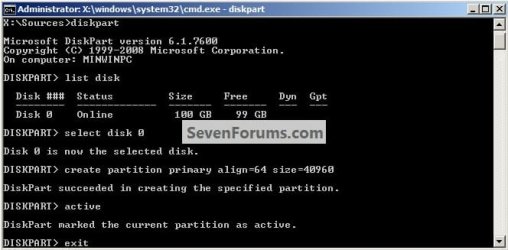
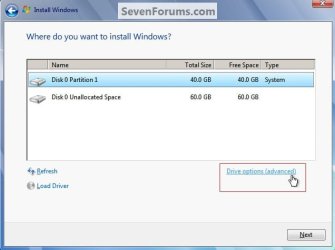
I just worked it out for you, have a look at the snips below; be sure to do a format when you reach the place of the second snip.

Of course you will need to use your disk/partition info.

I would just use Windows disk management to create the other partitions you need after the install completes.

I would only have the SSD and no other HDD connected for the install.

click to enlarge
Create_Align.jpg
Align_Active.jpg
 

My Computer My Computer

Computer Manufacturer/Model Number
* BFK Customs *
OS
W 7 64-bit Ultimate
CPU
Intel Q9550 Yorkfield
Motherboard
ASUS P5Q Pro
Memory
8GB Dominator 8500C5D
Graphics Card(s)
ATI : XFX 5870
Sound Card
Realtek HD Audio 7-1
Monitor(s) Displays
1x 47" LCD HDMI & 3x 26" LCD HDMI
Screen Resolution
1920x1080P & 1920x1200
Hard Drives
1x 80GB Intel X25-M G2 SSD : 1x 500GB & 1x 640GB WD Caviar Black(s)
PSU
Corsair 620HX
Case
Cooler Master RC-690
Cooling
Tuniq Tower 120, 2x 140mm and 3x 120mm case fans
Keyboard
Microsoft 500
Mouse
Razer Diamondback 3G
Internet Speed
14 Mb/s
Other Info
1x Koutech 3Gb/s SATA HDD Hot Swap Rack
You're the BEST BFK! (sorry Dave, you're the BEST too!)

Seriously -thanks very much. I wondered about that - just create the first partition and then use Windows to create the other 2 - and I meant to ask and now you've answered it - thanks again!

One thing - when you said "be sure to do a format when you reach the place of the second snip." I'm sure you mean that 40G partition right? And that's found under Drive Options (advanced)? I won't be dealing with the unallocated space until Windows is installed right?

sorry for the obvious questions.

Thanks again for your help BFK!
 

My Computer My Computer

Computer type
PC/Desktop
OS
Win7 Pro 64-bit sp1
CPU
core i7 980X
Motherboard
MSI Big-Bang XPower X58
Memory
G.Skill 4Gx3 F3-10666CL9T-12GBRL (x2)
Graphics Card(s)
EVGA 06G-P4-3787-KR
Monitor(s) Displays
HP LP2475w (x2)
Screen Resolution
3840x1200
Hard Drives
Crucial RealSSD CTFDDAC128MAG-1G1 (boot drive);
Crucial m4 128GB;
Samsung 1TB HD103SJ 32M 7200rpm (x2);
WD Black WD2002FAEX 2TB (x2)
PSU
Corsair CMPSU-850HX
Case
HAF X
Cooling
Intel DBX-B (stock)
You're the BEST BFK! (sorry Dave, you're the BEST too!)

Seriously -thanks very much. I wondered about that - just create the first partition and then use Windows to create the other 2 - and I meant to ask and now you've answered it - thanks again!

One thing - when you said "be sure to do a format when you reach the place of the second snip." I'm sure you mean that 40G partition right? And that's found under Drive Options (advanced)? I won't be dealing with the unallocated space until Windows is installed right?

sorry for the obvious questions.

Thanks again for your help BFK!


Correct and you are very welcome. :)
 

My Computer My Computer

Computer Manufacturer/Model Number
* BFK Customs *
OS
W 7 64-bit Ultimate
CPU
Intel Q9550 Yorkfield
Motherboard
ASUS P5Q Pro
Memory
8GB Dominator 8500C5D
Graphics Card(s)
ATI : XFX 5870
Sound Card
Realtek HD Audio 7-1
Monitor(s) Displays
1x 47" LCD HDMI & 3x 26" LCD HDMI
Screen Resolution
1920x1080P & 1920x1200
Hard Drives
1x 80GB Intel X25-M G2 SSD : 1x 500GB & 1x 640GB WD Caviar Black(s)
PSU
Corsair 620HX
Case
Cooler Master RC-690
Cooling
Tuniq Tower 120, 2x 140mm and 3x 120mm case fans
Keyboard
Microsoft 500
Mouse
Razer Diamondback 3G
Internet Speed
14 Mb/s
Other Info
1x Koutech 3Gb/s SATA HDD Hot Swap Rack
Back
Top