
How to Open and Set "Customize Start Menu" Settings in Windows 7
Information
This will show you how to customize the links, icons, and menus look and behave in the Windows 7 Start Menu using the Taskbar Start Menu Propertes page settings.
Note
- Display as a link - When the Start Menu button is clicked on, it opens a window for it.
- Display as a menu - When the Start Menu button is clicked on or hovered over, it expands a menu for it.
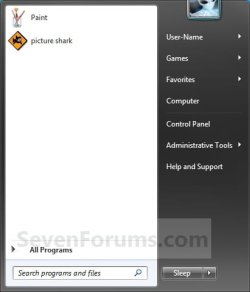
EXAMPLE: Customized Windows 7 Start Menu
OPTION ONE
Through Customize Start Menu Property Settings
2. Click on the Customize button. (See screenshot below)
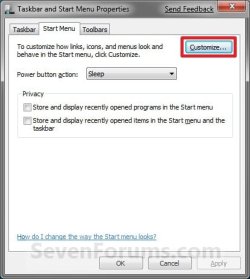
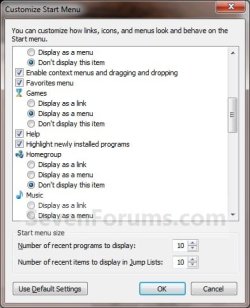
3. To Customize the Start MenuA) Dot, check, and uncheck the settings for how you want them to look and behave in the Start Menu.
NOTE: The four screenshots below show all available customize settings.



B) Go to step 5.
4. To Restore All Default Customize SettingsA) Click on the Use Default Settings button at the bottom. (See bottom right screenshot above)
5. Click on OK. (See screenshots below step 3A)
6. Click on OK. (See screenshot below step 2)
OPTION TWO
Manually Through Registry Editor
2. If prompted by UAC, then click on Yes.
3. In regedit, navigate to the location below. (see screenshot below)
Code:
HKEY_CURRENT_USER\Software\Microsoft\Windows\CurrentVersion\Explorer\Advanced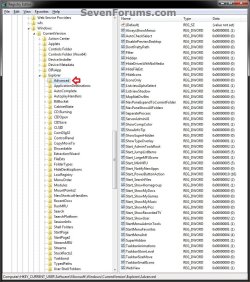
4. For User Folder, Computer, and Control Panel Links or Menu ButtonsA) In the right pane of Advanced, double click on the DWORD value for the Customize Start Menu option that you want to set. (see screenshot above and table below)
NOTE: If the DWORD value is not here, then right click on a blank space in the right pane of Advanced, click on New and DWORD (32-bit) value, type in the DWORD value name below and press enter.
| Customize Start Menu option | DWORD value |
|---|---|
| Computer | Start_ShowMyComputer |
| Control Panel | Start_ShowControlPanel |
| Documents | Start_ShowMyDocs |
| Downloads | Start_ShowDownloads |
| Games | Start_ShowMyGames |
| Music | Start_ShowMyMusic |
| Personal folder | Start_ShowUser |
| Pictures | Start_ShowMyPics |
| Recorded TV | Start_ShowRecordedTV |
| Videos | Start_ShowVideos |
B) Type in the Data value for the Display option that you want for the selected Customize Start Menu option (step 4A), then click on OK. (see screenshot below)
| Display option | Data value |
|---|---|
| Don't display this item | 0 |
| Display as link | 1 |
| Display as a menu | 2 |
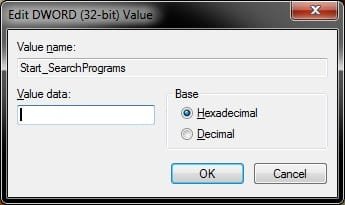
5. For Enable or Disable Only OptionsA) In the right pane of Advanced, double click on the DWORD value for the Customize Start Menu option that you want to set. (see screenshot below step 3 and table below)
NOTE: If the DWORD value is not here, then right click on a blank space in the right pane of Advanced, click on New and DWORD (32-bit) value, type in the DWORD value name below and press enter.
| Customize Start Menu option | DWORD value |
|---|---|
| Connect To | Start_ShowNetConn |
| Default Programs | Start_ShowSetProgramAccessAndDefaults |
| Devices and Printers | Start_ShowPrinters |
| Enable context menus and dragging and dropping | Start_EnableDragDrop |
| Favorites menu | StartMenuFavorites |
| Help | Start_ShowHelp |
| Highlight newly installed programs | Start_NotifyNewApps |
| Homegroup | Start_ShowHomegroup |
| Network | Start_ShowNetPlaces |
| Open submenus when I pause on them with the mouse pointer | Start_AutoCascade |
| Recent Items | Start_ShowRecentDocs |
| Run command | Start_ShowRun |
| Search programs and Control Pane | Start_SearchPrograms |
| Sort All Programs menu by name | Start_SortByName |
| Use large icons | Start_LargeMFUIcons |
B) Type in the Data value for the Display option that you want for the selected Customize Start Menu option (step 4A), then click on OK. (see screenshot below)
| Display option | Data value |
|---|---|
| Disable this item | 0 |
| Enable this item | 1 |
6. For the "Search other files and libraries" OptionA) In the right pane of Advanced, double click on the Start_SearchFiles. (see screenshot below step 3)
NOTE: If the Start_SearchFiles DWORD value is not here, then right click on a blank space in the right pane of Advanced, click on New and DWORD (32-bit) value, type in Start_SearchFiles and press enter.
B) Type in the Data value for the Display option that you want for this Customize Start Menu option, then click on OK. (see screenshot below)
| Display option | Data value |
|---|---|
| Don't search | 0 |
| Search without public folders | 1 |
| Search with public folders | 2 |
7. For the "System administrative tools" Option
A) See OPTION TWO or OPTION THREE at this tutorial link below for how.Administrative Tools - Add or Remove from Start Menu
8. Close regedit.
9. Log off and log on, or restart the computer to apply.
That's it,
Shawn Brink
Related Tutorials
- Download a Shortcut that Opens the Start Menu in Windows
- How to Change the Start Menu Button in Windows 7
- How to Add or Delete Start Menu All Programs Shortcuts in Windows 7
- How to Use Small or Large Icons in the Windows 7 Start Menu
- How to Change the Default Windows 7 Start Menu Power Button Action
- How to Change the Active Navigation Folder Icon in Windows 7
- How to Pin or Unpin a Program to the Windows 7 Start Menu
- How to Pin or Unpin a Folder to the Windows 7 Start Menu
- How to Enable or Disable Pin Folders and Libraries to Windows 7 Start Menu
- How to Turn Recent Programs On or Off in Windows 7
- How to Turn Recent Items On or Off in Windows 7
- How to Change the Number of Recent Items to Display in Windows 7 Jump Lists
- How to Change the Number of Recent Programs to Display in Windows 7 Start Menu
- How to Add or Remove Administrative Tools in Windows 7 Start Menu
- How to Add or Remove Switch User from CTRL+ALT+DEL Screen and Start Menu
- How to Make Windows 7 Start Menu User Folder Buttons Open to Users Instead of Libraries Location
- How to Enable or Disable Recent Programs in Windows 7
- How to Enable or Disable Recent Items in Windows 7 and Vista
- How to Create a Start Menu Properties Shortcut in Windows 7 and Vista
- How to Add or Remove the Search Button in the Windows 7 Start Menu
- How to Disable or Enable "Context Menus" and "Dragging and Dropping" in the Start Menu
- How to Enable or Disable Start Menu Auto Arrange by Name in Vista and Windows 7
Last edited:


