Startup Programs - Change

How to Change, Add, or Remove Startup Programs in Windows 7

   Information
This will show you how to either add, remove, enable, or disable a startup program in Windows 7.
   Note
You can also view the startup logs in Event Viewer (C:\Windows\system32\eventvwr.msc) under Applications and Services Logs, Microsoft, Windows, Diagnostics-Performance, and Operational. The logs will be in the middle to show you what ran at startup, how long it took, and more.
   Warning
User Account Control prevents programs that require elevated (run as administrator) permission or an administrator password from running automatically when Windows 7 starts. If a program is blocked, you'll see a message in the notification area that says some startup programs need permission to run. You can then right click on the notification area message and either select to run the blocked program by giving UAC permission, remove the blocked program from the startup program list, or ignore the notification and not run the program.


:note: For the Windows 10 tutorial please see here - Startup Items - Add, Delete, Enable, Disable in Windows 10 - Windows 10 Tutorials


METHOD ONE

Through the Program Itself


NOTE: Some programs may have a setting in them to allow it to run at startup or not. You will need to consult the program's documentations on how to do this specifically for their program if it is available for that program.
1. Open the program's settings menu.

2. To Add the Program to Startup
A) Select the program's Run at startup type option.
3. To Remove the Program from Startup
A) Unselect the program's Run at startup type option.


METHOD TWO

Through the Startup Folder


NOTE: You can add or remove shortcuts to programs or files from the Startup folder to have them run or open at the startup of Windows 7.

1. Right click on the exe file of the program you want to run at startup, or file to open at startup, and click on Create Shortcut.
NOTE: This is the shortcut that you will add to the Startup folder in either Option One or Option Two below. Skip this step if you are only removing a shortcut from the Startup folder.
A) Do either OPTION ONE "Current User" or OPTION TWO "All Users" below for what you want.


OPTION ONE

For Current Single User Only


:note:NOTE: The single (current) user Startup folder is a hidden system folder located at:
C:\Users\(User-Name)\AppData\Roaming\Microsoft\Windows\Start Menu\Programs\Startup
2. Open the Start Menu, click on All Programs, right click on the Startup folder, click on Open or Explore, and go to step 4 below. (See screenshot below)
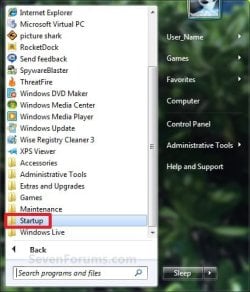
Start_Menu_Startup_Folder.jpg
OR

3. In the Start Menu search line, type shell:startup, press Enter, and go to step 4 below. (See screenshot below)
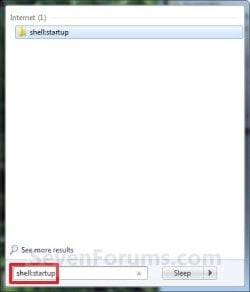
Start_Menu_shell-Startup.jpg
4. Do step 5 or 6 below for what you would like to do.

5. To Add a Startup Program or File Shortcut
A) Drag the shortcut created from step 1 to inside the Startup folder and drop it. (See screenshot below)
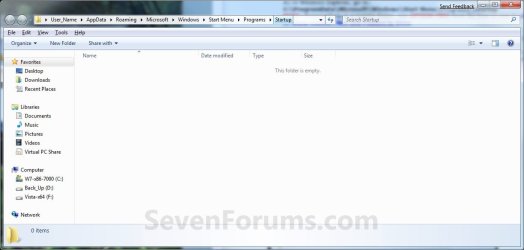
Startup_Folder.jpg
6. To Remove a Startup Program or File Shortcut
A) Right click on the shortcut in the Startup folder and click on Delete. (See screenshot above)
7. Close the Startup folder when done. (See screenshot below step 5A)


OPTION TWO

For All Users


:note:NOTE: The all users Startup folder is a hidden system folder located at:

C:\ProgramData\Microsoft\Windows\Start Menu\Programs\Startup
2. Open the Start Menu, click on All Programs, right click on the Startup folder, click on Open All Users or Explore All Users, and go to step 4 below. (See screenshot below)
Start_Menu_Startup_Folder.jpg
OR

3. In the Start Menu search line, type shell:common startup, press Enter, and go to step 4 below.

4. Do step 5 or 6 below for what you would like to do.

5. To Add a Startup Program or File Shortcut
A) Drag the shortcut created from step 1 to inside the Startup folder and drop it. (See screenshot below)
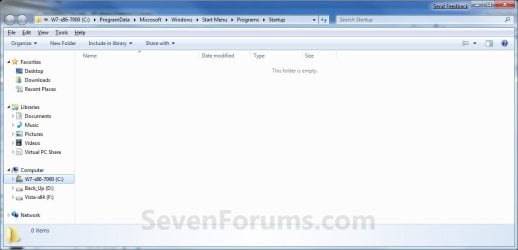
Startup_Folder_All.jpg
6. To Remove a Startup Program or File Shortcut
A) Right click on the shortcut in the Startup folder and click on Delete. (See screenshot above)
6. Close the Startup folder when done. (See screenshot below step 4A)


METHOD THREE

Through System Configuration (msconfig)


NOTE: Using the Selective Startup option in System Configuration (msconfig), you can enable or disable startup programs. You will need to be logged into an administator account, or provide the administrator password to open System Configuration.

WARNING: It would be best to also check the registry entries in METHOD FOUR below as well, since msconfig may not always show all startup programs.
1. Open the Start Menu, type msconfig in the search box, press Enter, and go to step 3 below. (See screenshot below)
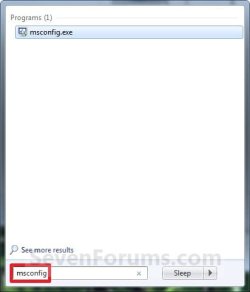
Start_Menu_msconfig.jpg
OR

2. Open the Control Panel (icons view) and click on the Administrative Tools icon, then click on System Configuration. Close the Control Panel and Administrative Tools windows.

3. If prompted, click on Continue for the UAC prompt, or type in the administrator's password.

4. Click on the Startup tab. (See screenshot below)

   Tip
If you look under the Location column for the Start Item, you will see the registry location for it that you can use to remove the startup item using METHOD FOUR below instead.
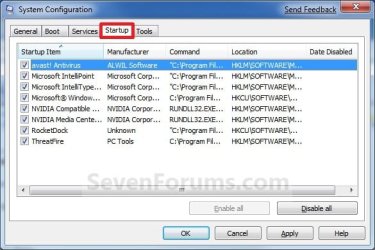
System_Configuration_Startup_Tab.jpg
5. To Disable a Startup Program
A) Select a listed startup program and uncheck it. (See screenshot above)

B) Repeat to disable anymore listed startup programs.
6. To Enable a Startup Program
A) Select a listed startup program and check it. (See screenshot below step 4)

B) Repeat to enable anymore listed startup programs.
7. To Disable All Listed Startup Programs
A) Click on the Disable all button. (See screenshot below step 4)

B) Go to step 9.
8. To Enable All Listed Startup Programs
A) Click on the Enable all button. (See screenshot below step 4)
9. Click on Apply. (See screenshot below step 4)

10. Click on the Boot tab, then check the Make all boot settings permanent box and click on OK. (See screenshot below)
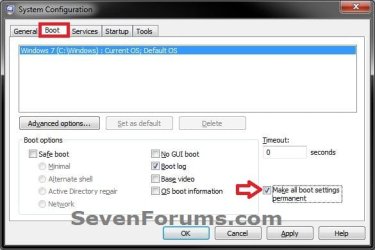
Boot-1.jpg
11. Click on Yes. (See screenshot below)
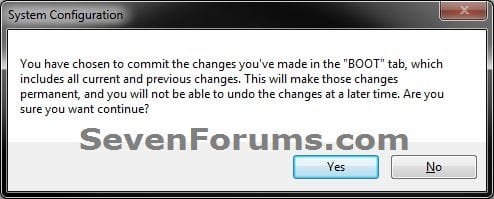
Boot-2.jpg
12. Click on the Restart button to apply. (See screenshot below)
WARNING: This will restart your computer immediately. Save and close anything that you are working on first.
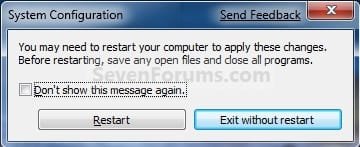
Restart.jpg


METHOD FOUR

Manually in Registry Editor


NOTE: This will allow you to remove a startup program for either the current single user or all users. If you wanted to add a startup program, then METHOD TWO above would be a safer and easier way to do so.
1. Open the Start Menu.

2. In the search line, type regedit and press Enter. (See screenshot below)
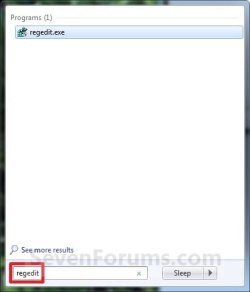
Start_Menu_regedit.jpg
3. For "Current User" Only Locations
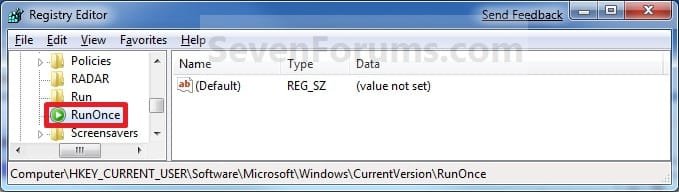
A) In regedit, go to: (See screenshots below)

HKEY_CURRENT_USER\Software\Microsoft\Windows\CurrentVersion\Run
AND
HKEY_CURRENT_USER\Software\Microsoft\Windows\CurrentVersion\RunOnce
Current_Reg_Run.jpg

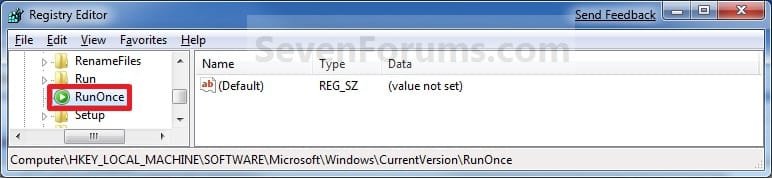
Current_Reg_RunOnce.jpg
4. For "All Users" Locations
A) In regedit, go to: (See screenshots below)
For 32-bit and 64-bit Windows 7:
HKEY_LOCAL_MACHINE\SOFTWARE\Microsoft\Windows\CurrentVersion\Run
AND
HKEY_LOCAL_MACHINE\SOFTWARE\Microsoft\Windows\CurrentVersion\RunOnce
AND (If added by Group Policy)
HKEY_CURRENT_USER\Software\Microsoft\Windows\CurrentVersion\Policies\Explorer\Run
AND (If added by Group Policy)
HKEY_LOCAL_MACHINE\SOFTWARE\Microsoft\Windows\CurrentVersion\Policies\Explorer\Run
AND
For 64-bit Windows 7 only:
HKEY_LOCAL_MACHINE\SOFTWARE\Wow6432Node\Microsoft\Windows\CurrentVersion\Run
AND
HKEY_LOCAL_MACHINE\SOFTWARE\Wow6432Node\Microsoft\Windows\CurrentVersion\RunOnce
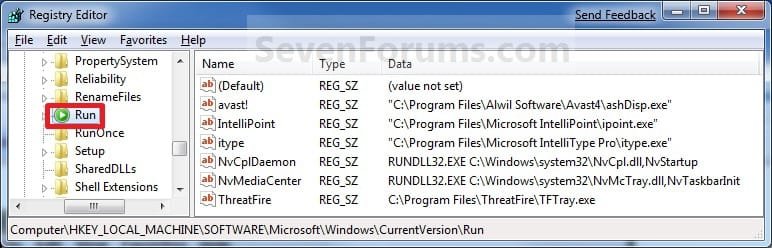
All_Users_Reg_Run.jpg

All_Users_Reg_RunOnce.jpg
5. In the right pane of Run and/or RunOnce, right click on the startup program you want to remove and click on Delete. (See screenshots above)
NOTE: RunOnce is only to run the program once for the next time that Windows 7 starts up. Run is to run the program everytime that Windows 7 starts up.

6. Click on Yes to confirm deletion.

7. When done, close regedit.


METHOD FIVE

Using CCleaner


1. If you have not already, download and install the free program CCleaner.

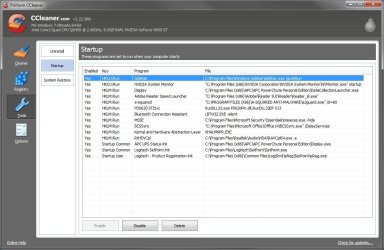
2. Open CCleaner, and click on the Tools icon (left side) and on the Startup button. (See screenshot below)
CCleaner.jpg
3. Select a startup item, then either enable, disable, or delete it from the Vista startup programs list. (See screenshot above)


METHOD SIX

Through Task Scheduler


   Note
By default, you cannot run a elevated (Run as administrator) program that requires UAC permission at startup using the normal Windows 7 startup programs above.

For a Administrator User Account:
You can have Run as administrator (elevated) programs run at startup for a administrator account by running it in a startup task in Task Scheduler.

For a Standard User Account:
You will not be able to run elevated programs at startup for a standard user account though. Only unelevated programs (ex: Notepad).


1. For how to create a startup task, see:

How to Create a Task to Run a Program at Startup and Log On in Windows 7
That's it,
Shawn


Last edited:
You're most welcome Kevin. Thank you for the kind words. :o
 

My Computer

Computer type
PC/Desktop
Computer Manufacturer/Model Number
Self built custom
OS
64-bit Windows 11 Pro for Workstations
CPU
Intel i7-8700K OC'd to 5 GHz
Motherboard
ASUS ROG Maximus XI Formula Z390
Memory
64 GB (4x16GB) G.SKILL TridentZ RGB DDR4 3600 MHz
Graphics Card(s)
ASUS ROG-STRIX-GTX1080TI-O11G-GAMING
Sound Card
Integrated
Monitor(s) Displays
2 x Samsung Odyssey G7 27"
Screen Resolution
2560x1440
Hard Drives
1TB Samsung 990 PRO M.2,
4TB Samsung 990 PRO PRO M.2,
TerraMaster F8 SSD Plus NAS
PSU
Seasonic Prime Titanium 850W
Case
Thermaltake Core P3
Cooling
Corsair Hydro H115i
Keyboard
Logitech wireless K800
Mouse
Logitech MX Master 4
Internet Speed
2 Gb/s Download and 100 Mb/s Upload
Antivirus
Malwarebyte Anti-Malware Premium
Browser
Google Chrome
Other Info
Logitech Z625 speaker system,
Logitech BRIO 4K Pro webcam,
HP Color LaserJet Pro MFP M477fdn,
APC SMART-UPS RT 1000 XL - SURT1000XLI,
Galaxy S23 Plus phone
Another great tutorial, I cant thank you guys enough, Ive learnt so much from this site, keep up the awesome work
 

My Computer

Computer Manufacturer/Model Number
Ecs
OS
Windows 7 Build 7100 32-bit
CPU
dual core 2.1
Motherboard
esc p4m900t-m2
Memory
2 gig ddr2 (667)
Graphics Card(s)
nvidia 7300 256mb
Sound Card
Onboard (high def audio device)
Monitor(s) Displays
Philips 19" flat crt
Hard Drives
160 gig seagate ide
80 gig seagare ide
PSU
none
Case
trinity case( self modded)
Cooling
standard air cooling
You're welcome Sam. :)
 

My Computer

Computer type
PC/Desktop
Computer Manufacturer/Model Number
Self built custom
OS
64-bit Windows 11 Pro for Workstations
CPU
Intel i7-8700K OC'd to 5 GHz
Motherboard
ASUS ROG Maximus XI Formula Z390
Memory
64 GB (4x16GB) G.SKILL TridentZ RGB DDR4 3600 MHz
Graphics Card(s)
ASUS ROG-STRIX-GTX1080TI-O11G-GAMING
Sound Card
Integrated
Monitor(s) Displays
2 x Samsung Odyssey G7 27"
Screen Resolution
2560x1440
Hard Drives
1TB Samsung 990 PRO M.2,
4TB Samsung 990 PRO PRO M.2,
TerraMaster F8 SSD Plus NAS
PSU
Seasonic Prime Titanium 850W
Case
Thermaltake Core P3
Cooling
Corsair Hydro H115i
Keyboard
Logitech wireless K800
Mouse
Logitech MX Master 4
Internet Speed
2 Gb/s Download and 100 Mb/s Upload
Antivirus
Malwarebyte Anti-Malware Premium
Browser
Google Chrome
Other Info
Logitech Z625 speaker system,
Logitech BRIO 4K Pro webcam,
HP Color LaserJet Pro MFP M477fdn,
APC SMART-UPS RT 1000 XL - SURT1000XLI,
Galaxy S23 Plus phone
Thanks Brink,it helps...
but,actually i'm using ashampoo start up tuner 2..what a great tools for me..i just wonder why start up menu is not include inside control panel..
 

My Computer

OS
Windows 7
CPU
Intel Core 2 Duo T5550 @1.83GHz
Memory
2.00Gb RAM
Graphics Card(s)
Intel Media Accelarator
Nudinsenin,

The Statup programs list use to be availble to be changed in Windows Defender in Vista, but this option was removed in Windows 7 since Windows Defender is stricktly a malware program now in Windows 7. It would be nice for a user friendly GUI other than msconfig to change them.
 

My Computer

Computer type
PC/Desktop
Computer Manufacturer/Model Number
Self built custom
OS
64-bit Windows 11 Pro for Workstations
CPU
Intel i7-8700K OC'd to 5 GHz
Motherboard
ASUS ROG Maximus XI Formula Z390
Memory
64 GB (4x16GB) G.SKILL TridentZ RGB DDR4 3600 MHz
Graphics Card(s)
ASUS ROG-STRIX-GTX1080TI-O11G-GAMING
Sound Card
Integrated
Monitor(s) Displays
2 x Samsung Odyssey G7 27"
Screen Resolution
2560x1440
Hard Drives
1TB Samsung 990 PRO M.2,
4TB Samsung 990 PRO PRO M.2,
TerraMaster F8 SSD Plus NAS
PSU
Seasonic Prime Titanium 850W
Case
Thermaltake Core P3
Cooling
Corsair Hydro H115i
Keyboard
Logitech wireless K800
Mouse
Logitech MX Master 4
Internet Speed
2 Gb/s Download and 100 Mb/s Upload
Antivirus
Malwarebyte Anti-Malware Premium
Browser
Google Chrome
Other Info
Logitech Z625 speaker system,
Logitech BRIO 4K Pro webcam,
HP Color LaserJet Pro MFP M477fdn,
APC SMART-UPS RT 1000 XL - SURT1000XLI,
Galaxy S23 Plus phone
Nudinsenin,

The Statup programs list use to be availble to be changed in Windows Defender in Vista, but this option was removed in Windows 7 since Windows Defender is stricktly a malware program now in Windows 7. It would be nice for a user friendly GUI other than msconfig to change them.

Yeah,you right.It is easier i think.Actually,not 100% I explored Windows 7 after i installed it.;)
 

My Computer

OS
Windows 7
CPU
Intel Core 2 Duo T5550 @1.83GHz
Memory
2.00Gb RAM
Graphics Card(s)
Intel Media Accelarator
Hi, I followed your way and find the startup list, however, I cannot find the program I want to start in the list, what should I do?

Thanks.
 

My Computer

OS
windows 7
Hello Jihe, and welcome to Seven Forums.

The program will not be listed unless it is already a startup program. Depending on what it is, you may be able to use METHOD ONE to add a shortcut of the program in the Startup folder to easily have it run at startup. :)

Hope this helps,
Shawn
 

My Computer

Computer type
PC/Desktop
Computer Manufacturer/Model Number
Self built custom
OS
64-bit Windows 11 Pro for Workstations
CPU
Intel i7-8700K OC'd to 5 GHz
Motherboard
ASUS ROG Maximus XI Formula Z390
Memory
64 GB (4x16GB) G.SKILL TridentZ RGB DDR4 3600 MHz
Graphics Card(s)
ASUS ROG-STRIX-GTX1080TI-O11G-GAMING
Sound Card
Integrated
Monitor(s) Displays
2 x Samsung Odyssey G7 27"
Screen Resolution
2560x1440
Hard Drives
1TB Samsung 990 PRO M.2,
4TB Samsung 990 PRO PRO M.2,
TerraMaster F8 SSD Plus NAS
PSU
Seasonic Prime Titanium 850W
Case
Thermaltake Core P3
Cooling
Corsair Hydro H115i
Keyboard
Logitech wireless K800
Mouse
Logitech MX Master 4
Internet Speed
2 Gb/s Download and 100 Mb/s Upload
Antivirus
Malwarebyte Anti-Malware Premium
Browser
Google Chrome
Other Info
Logitech Z625 speaker system,
Logitech BRIO 4K Pro webcam,
HP Color LaserJet Pro MFP M477fdn,
APC SMART-UPS RT 1000 XL - SURT1000XLI,
Galaxy S23 Plus phone
Yet again you have answered my question without me having to ask ......
(My Linksys <Skype> phone was loading at startup and had no "options".
I just HATE stuff that pleases itself! Now I click it's icon when I need it!)
Thanks Brink.
 

My Computer

OS
all
You're welcome Wazak. :)
 

My Computer

Computer type
PC/Desktop
Computer Manufacturer/Model Number
Self built custom
OS
64-bit Windows 11 Pro for Workstations
CPU
Intel i7-8700K OC'd to 5 GHz
Motherboard
ASUS ROG Maximus XI Formula Z390
Memory
64 GB (4x16GB) G.SKILL TridentZ RGB DDR4 3600 MHz
Graphics Card(s)
ASUS ROG-STRIX-GTX1080TI-O11G-GAMING
Sound Card
Integrated
Monitor(s) Displays
2 x Samsung Odyssey G7 27"
Screen Resolution
2560x1440
Hard Drives
1TB Samsung 990 PRO M.2,
4TB Samsung 990 PRO PRO M.2,
TerraMaster F8 SSD Plus NAS
PSU
Seasonic Prime Titanium 850W
Case
Thermaltake Core P3
Cooling
Corsair Hydro H115i
Keyboard
Logitech wireless K800
Mouse
Logitech MX Master 4
Internet Speed
2 Gb/s Download and 100 Mb/s Upload
Antivirus
Malwarebyte Anti-Malware Premium
Browser
Google Chrome
Other Info
Logitech Z625 speaker system,
Logitech BRIO 4K Pro webcam,
HP Color LaserJet Pro MFP M477fdn,
APC SMART-UPS RT 1000 XL - SURT1000XLI,
Galaxy S23 Plus phone
I've tried all these methods, but I couldn't find a way to stop "windows explorer" from starting when I start my pc.

Is there any other way to fix this?
 

My Computer

OS
Windows 7
Hello Joachim, and welcome to Seven Forums.

The process explorer.exe is a system process that must run at startup in order for you to have your Start Menu, taskbar, and to be able to open Windows Explorer. Without it running at startup, you would only have your desktop and a mouse point without being able to open anything. It needs to run at startup.

Please let me know if this is not what you meant.

Hope this helps,
Shawn
 

My Computer

Computer type
PC/Desktop
Computer Manufacturer/Model Number
Self built custom
OS
64-bit Windows 11 Pro for Workstations
CPU
Intel i7-8700K OC'd to 5 GHz
Motherboard
ASUS ROG Maximus XI Formula Z390
Memory
64 GB (4x16GB) G.SKILL TridentZ RGB DDR4 3600 MHz
Graphics Card(s)
ASUS ROG-STRIX-GTX1080TI-O11G-GAMING
Sound Card
Integrated
Monitor(s) Displays
2 x Samsung Odyssey G7 27"
Screen Resolution
2560x1440
Hard Drives
1TB Samsung 990 PRO M.2,
4TB Samsung 990 PRO PRO M.2,
TerraMaster F8 SSD Plus NAS
PSU
Seasonic Prime Titanium 850W
Case
Thermaltake Core P3
Cooling
Corsair Hydro H115i
Keyboard
Logitech wireless K800
Mouse
Logitech MX Master 4
Internet Speed
2 Gb/s Download and 100 Mb/s Upload
Antivirus
Malwarebyte Anti-Malware Premium
Browser
Google Chrome
Other Info
Logitech Z625 speaker system,
Logitech BRIO 4K Pro webcam,
HP Color LaserJet Pro MFP M477fdn,
APC SMART-UPS RT 1000 XL - SURT1000XLI,
Galaxy S23 Plus phone
No, I know that explorer.exe needs to run for pc to work properly, but that's not what I meant.

What I mean is that ever since I installed Windows 7, when I start my pc, windows explorer always automatically starts up showing my map "Libraries".

I was just wondering if there is any way to stop this.
 

My Computer

OS
Windows 7
Joachim,

I know you say it's not listed in all of the startup program locations in the tutorial, but double check to make sure. If still not there, then you might see if a repair install may help.
 

My Computer

Computer type
PC/Desktop
Computer Manufacturer/Model Number
Self built custom
OS
64-bit Windows 11 Pro for Workstations
CPU
Intel i7-8700K OC'd to 5 GHz
Motherboard
ASUS ROG Maximus XI Formula Z390
Memory
64 GB (4x16GB) G.SKILL TridentZ RGB DDR4 3600 MHz
Graphics Card(s)
ASUS ROG-STRIX-GTX1080TI-O11G-GAMING
Sound Card
Integrated
Monitor(s) Displays
2 x Samsung Odyssey G7 27"
Screen Resolution
2560x1440
Hard Drives
1TB Samsung 990 PRO M.2,
4TB Samsung 990 PRO PRO M.2,
TerraMaster F8 SSD Plus NAS
PSU
Seasonic Prime Titanium 850W
Case
Thermaltake Core P3
Cooling
Corsair Hydro H115i
Keyboard
Logitech wireless K800
Mouse
Logitech MX Master 4
Internet Speed
2 Gb/s Download and 100 Mb/s Upload
Antivirus
Malwarebyte Anti-Malware Premium
Browser
Google Chrome
Other Info
Logitech Z625 speaker system,
Logitech BRIO 4K Pro webcam,
HP Color LaserJet Pro MFP M477fdn,
APC SMART-UPS RT 1000 XL - SURT1000XLI,
Galaxy S23 Plus phone
Im sorry Ive read everything and maybe I just dont get but i just cant get "magnifier" not to start in windows 7. I know its not in the startup, or msconfig, I cant figure it out....
 

My Computer

Computer Manufacturer/Model Number
Toshiba Satellite A505-S6980
OS
windows 7 ultimate
CPU
Intel Core 2 Duo 6600
Memory
4gb DDR2
Hard Drives
500 GB

My Computer

Computer type
PC/Desktop
Computer Manufacturer/Model Number
Self built custom
OS
64-bit Windows 11 Pro for Workstations
CPU
Intel i7-8700K OC'd to 5 GHz
Motherboard
ASUS ROG Maximus XI Formula Z390
Memory
64 GB (4x16GB) G.SKILL TridentZ RGB DDR4 3600 MHz
Graphics Card(s)
ASUS ROG-STRIX-GTX1080TI-O11G-GAMING
Sound Card
Integrated
Monitor(s) Displays
2 x Samsung Odyssey G7 27"
Screen Resolution
2560x1440
Hard Drives
1TB Samsung 990 PRO M.2,
4TB Samsung 990 PRO PRO M.2,
TerraMaster F8 SSD Plus NAS
PSU
Seasonic Prime Titanium 850W
Case
Thermaltake Core P3
Cooling
Corsair Hydro H115i
Keyboard
Logitech wireless K800
Mouse
Logitech MX Master 4
Internet Speed
2 Gb/s Download and 100 Mb/s Upload
Antivirus
Malwarebyte Anti-Malware Premium
Browser
Google Chrome
Other Info
Logitech Z625 speaker system,
Logitech BRIO 4K Pro webcam,
HP Color LaserJet Pro MFP M477fdn,
APC SMART-UPS RT 1000 XL - SURT1000XLI,
Galaxy S23 Plus phone
thank you so much for explaining such a simple task. Sorry to waste time on things like that....
 

My Computer

Computer Manufacturer/Model Number
Toshiba Satellite A505-S6980
OS
windows 7 ultimate
CPU
Intel Core 2 Duo 6600
Memory
4gb DDR2
Hard Drives
500 GB
You're most welcome Heres. It's not a waste of time at all. That's what we are here to help for. :)
 

My Computer

Computer type
PC/Desktop
Computer Manufacturer/Model Number
Self built custom
OS
64-bit Windows 11 Pro for Workstations
CPU
Intel i7-8700K OC'd to 5 GHz
Motherboard
ASUS ROG Maximus XI Formula Z390
Memory
64 GB (4x16GB) G.SKILL TridentZ RGB DDR4 3600 MHz
Graphics Card(s)
ASUS ROG-STRIX-GTX1080TI-O11G-GAMING
Sound Card
Integrated
Monitor(s) Displays
2 x Samsung Odyssey G7 27"
Screen Resolution
2560x1440
Hard Drives
1TB Samsung 990 PRO M.2,
4TB Samsung 990 PRO PRO M.2,
TerraMaster F8 SSD Plus NAS
PSU
Seasonic Prime Titanium 850W
Case
Thermaltake Core P3
Cooling
Corsair Hydro H115i
Keyboard
Logitech wireless K800
Mouse
Logitech MX Master 4
Internet Speed
2 Gb/s Download and 100 Mb/s Upload
Antivirus
Malwarebyte Anti-Malware Premium
Browser
Google Chrome
Other Info
Logitech Z625 speaker system,
Logitech BRIO 4K Pro webcam,
HP Color LaserJet Pro MFP M477fdn,
APC SMART-UPS RT 1000 XL - SURT1000XLI,
Galaxy S23 Plus phone
Thanks a lot for this info.
and , how can I post some a little SW
 

My Computer

Computer Manufacturer/Model Number
Mercedes-Benz
OS
WinXP-Pro
CPU
P4-3.2GHz
Motherboard
ASUS-P4P800-E
Memory
OZ-4GB
Graphics Card(s)
GeForce
Sound Card
ASUS
Monitor(s) Displays
HP
Hard Drives
MAXTOR
Western Digital
Case
Full Tower Expert
Cooling
Fan
You're most welcome DuEm, and welcome to Seven Forums.

I'm sorry, but I do not know what you mean by "little SW". Could you explain? :)
 

My Computer

Computer type
PC/Desktop
Computer Manufacturer/Model Number
Self built custom
OS
64-bit Windows 11 Pro for Workstations
CPU
Intel i7-8700K OC'd to 5 GHz
Motherboard
ASUS ROG Maximus XI Formula Z390
Memory
64 GB (4x16GB) G.SKILL TridentZ RGB DDR4 3600 MHz
Graphics Card(s)
ASUS ROG-STRIX-GTX1080TI-O11G-GAMING
Sound Card
Integrated
Monitor(s) Displays
2 x Samsung Odyssey G7 27"
Screen Resolution
2560x1440
Hard Drives
1TB Samsung 990 PRO M.2,
4TB Samsung 990 PRO PRO M.2,
TerraMaster F8 SSD Plus NAS
PSU
Seasonic Prime Titanium 850W
Case
Thermaltake Core P3
Cooling
Corsair Hydro H115i
Keyboard
Logitech wireless K800
Mouse
Logitech MX Master 4
Internet Speed
2 Gb/s Download and 100 Mb/s Upload
Antivirus
Malwarebyte Anti-Malware Premium
Browser
Google Chrome
Other Info
Logitech Z625 speaker system,
Logitech BRIO 4K Pro webcam,
HP Color LaserJet Pro MFP M477fdn,
APC SMART-UPS RT 1000 XL - SURT1000XLI,
Galaxy S23 Plus phone
Back
Top