Solved Startup repair "cannot repair automatically"

blandade

New member
Local time
1:25 AM
Messages
10
This morning my computer just refused to start up (froze the screen with the windows logo) so I tried rebooting it a couple of times. Eventually it got to the startup repair screen but failed to finish it, saying it couldn't complete it automatically. .

That's what I got:
Problem Signature 01: 0.0.0.0
Problem Signature 02: 0.0.0.0
Problem Signature 03: unknown
Problem Signature 04: 0
Problem Signature 05: unknown
Problem Signature 01: 1
Problem Signature 01: unknown
OS Version: 6.1.7600.2.0.0.256.1
Locale ID: 1033

under Diagnosis and Repair details it gives Error code = 0x0 for most, but
Repair action: system files integrity check and repair gave an error code = 0x2

My Windows is genuine
 

My Computer My Computer

At a glance

Windows 7 64 bit
OS
Windows 7 64 bit
Hi,

I would suggest first trying a sfc /scannow

http://www.sevenforums.com/tutorials/139810-sfc-scannow-run-command-prompt-boot.html

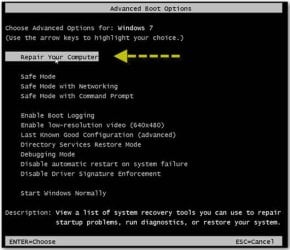
To run this, Turn on computer, and tap the F8 key, You will come to some more advanced options, Repair your computer
repair-your-computer-windows-71.jpg


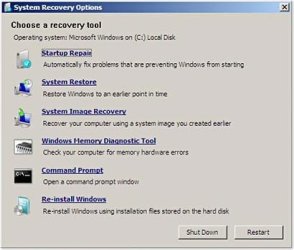
Then you should be prompted by a list of options:
65a1558c-4130-45c3-93b4-e1de3c40739d_0.jpg

select command prompt,
then type sfc /scannow
once the scan has finished, reboot your pc as normal.

If it still fails to boot,
re-run the Startup repair (if needed)
 

My Computer My Computer

At a glance

Windows 7 Home Premium 64 BitCore I7 1155 3.4GHZ8GB DDR 1600
Computer Manufacturer/Model Number
Cooler Master
OS
Windows 7 Home Premium 64 Bit
CPU
Core I7 1155 3.4GHZ
Memory
8GB DDR 1600
Hard Drives
64 GB SSD - OS
1TB - DATA
PSU
340 Watt Corsair
Case
Cooler Master
Cooling
Cooler Master
Didn't help. Seems it can't read the hard drive. Is it possible to recover any files even if it is the hard drive that's at fault?
 

My Computer My Computer

At a glance

Windows 7 64 bit
OS
Windows 7 64 bit
Possible bad sectors on the hard drive.

To check this,

Go back to the command prompt - using the steps above.

This time,
Type in chkdsk /F
press enter

Let me know if it picks up any errors.

What make is your hard drive?
 

My Computer My Computer

At a glance

Windows 7 Home Premium 64 BitCore I7 1155 3.4GHZ8GB DDR 1600
Computer Manufacturer/Model Number
Cooler Master
OS
Windows 7 Home Premium 64 Bit
CPU
Core I7 1155 3.4GHZ
Memory
8GB DDR 1600
Hard Drives
64 GB SSD - OS
1TB - DATA
PSU
340 Watt Corsair
Case
Cooler Master
Cooling
Cooler Master
I got:
"The type of the file system is NTFS
Cannot lock current drive.
Windows cannot run disk checking on this volume because it is write protected"
 

My Computer My Computer

At a glance

Windows 7 64 bit
OS
Windows 7 64 bit
Ok, Try:

chkdsk C: /f /r /x
 

My Computer My Computer

At a glance

Windows 7 Home Premium 64 BitCore I7 1155 3.4GHZ8GB DDR 1600
Computer Manufacturer/Model Number
Cooler Master
OS
Windows 7 Home Premium 64 Bit
CPU
Core I7 1155 3.4GHZ
Memory
8GB DDR 1600
Hard Drives
64 GB SSD - OS
1TB - DATA
PSU
340 Watt Corsair
Case
Cooler Master
Cooling
Cooler Master
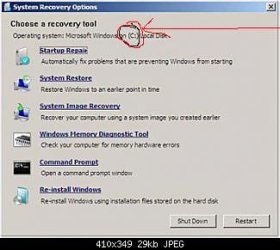
Few things to keep in mind. If your running off your recovery disk the OS drive might not be the C: drive.

The System file checker command sfc /scannow will not work, you must use
sfc /scannow /offbootdir=c:\ /offwindir=c:\windows

chkdsk /f is going to try to check the current running OS (which is technically in ram so will have no effect)

the /x option should not be needed because the drive is not mounted.

chkdsk c: /r /f


Anything Thats Red need to be the drive letter of your windows OS
 

Attachments

  • recovery options.jpg
    recovery options.jpg
    17 KB · Views: 54

My Computer My Computer

At a glance

Windows 7 Ultimate x64
OS
Windows 7 Ultimate x64
So turns out it was D disc not C..
but then I got (for the shorter commands):
"Cannot open volume for direct access"
and the long one gave me:
"Windows Resource Protection could not start the repair service"
 

My Computer My Computer

At a glance

Windows 7 64 bit
OS
Windows 7 64 bit
Boot into BIOS setup by tapping the key given on first boot screen, look at storage listings to see if the HD is even detected. If not change the cables and check the connection. If it still doesn't register try it in another PC to see if it's read when slaved. If not replace it.

If HD is detected then work through these steps which try everything possible for Troubleshooting Windows 7 Failure to Start

Fill in your System Specs in bottom left corner of post so we can help you better.
 
Back
Top