Startup Repair Infinite Loop Recovery

How to Recover from an Infinitely Looping Startup Repair Loop without Reinstalling Windows

If you've ever experienced a Startup Repair that continously loops and fails to fix the problem of not being able to load windows, even in safe mode, then you'll know that usually the only way to recover from this when System Restore does not work is to do a clean install of Windows.

Until now.

This tutorial will show you how to use the System Recovery Options provided by Windows to recover your system to a working state so that you don't have to risk losing data by performing a clean install.

   Warning
The instructions presented withing this tutorial must be followed correctly, or you can damage your Windows 7 installation even further. This tutorial is designed to help recover from a bad registry that is causing the startup repair loop. You should note that there may still be some issues remaining that cannot be fixed by manually restoring the registry.


Recovering Your System
  1. Boot to the System Recovery Options screen.
    • If Windows automatically opens Startup Repair, and subsequently fails to fix a problem, you can skip ahead to step 4 below.
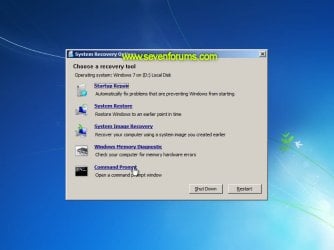
  2. In the System Recovery Options screen, click Startup Repair:
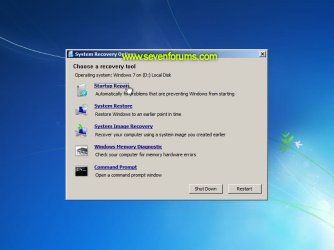
    Image05_startuprepair.jpg


  3. Windows will search for an attempt to repair startup problems:
    Image06_searching.jpg


  4. If startup problems could not be repaired, you will receive the message Windows cannot repair this computer automatically. Click View advanced options for system recovery and support:
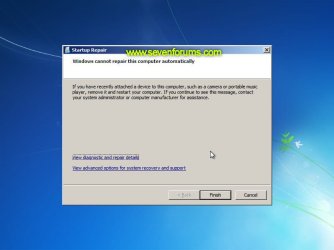
    Image07_cannotfix.jpg


  5. Click View advanced options for system recovery and support, which which bring you back to the main System Recovery Options screen.
  6. Click Command Prompt:
    Image08_clickcommand.jpg


  7. Command Prompt should open to X:, which is an internal ram disk use by System Repair:
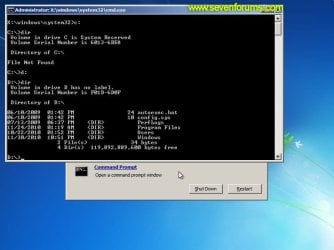
    Image10_changedrive.jpg


  8. Now you need to find your system drive. Depending on how your system is setup, this could be either C: or D:.
    • Type C: and press <ENTER>.
    • Verify that this is your system drive by typing DIR and pressing <ENTER>. If you see the Program Files, Users and Windows folders, then you have found your system drive, and can continue to step 9 below.
    • If the drive is not your system drive, repeat steps I and II above, changing the drive letter to D, E or some other letter until the system drive is located.
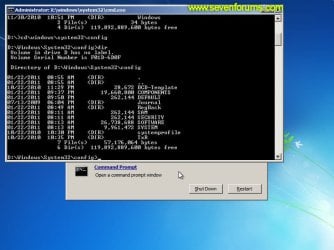
      Image11_chdir_config.jpg

  9. When you have located your Windows system drive, type CD \windows\system32\config and press <ENTER>:
  10. Type DIR and press <ENTER>, and verify that the following files and folders exist in the config folder:
    • RegBack (which is a folder)
    • DEFAULT
    • SAM
    • SECURITY
    • SOFTWARE
    • SYSTEM
      Image11_chdir_config.jpg

  11. Type MD mybackup and press <ENTER> to create a backup folder that you can use incase this procedure does not work as expected.
  12. Type copy *.* mybackup and press <ENTER>.
    • If you are prompted to overwrite existing files, press A to allow all backups to be overwritten.
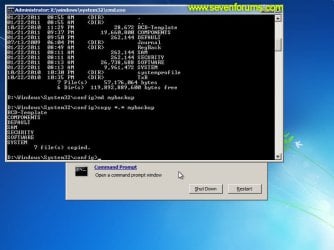
      Image12_mybackup.jpg

  13. Now you need to check if you can use the automatic Windows backups to restore your registry:
    • Type CD RegBack and press <ENTER> to go to the RegBack folder.
    • Type DIR and press <ENTER> to view the contents of the folder. All the following files must exist:
      • The DEFAULT, SAM and SECURITY files should each be about 262,000 bytes in size.
      • The SOFTWARE file should be about 26,000,000 bytes.
      • The SYSTEM file should be about 9,900,000 bytes.
      • The file sizes presented here are approximate estimations, and may vary depending on your system. If any one of them are 0 bytes, then you should stop what you're doing now and seek an alternative method of recovering your system, because Windows cannot function with a 0-byte size registry hive.
    • If the hive files listed in RegBack are ok, then proceed to step 14 of the tutorial.
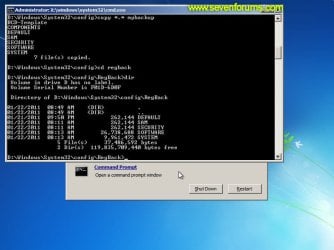
      Image13_checkregback.jpg


  14. Type copy *.* .. and press <ENTER> to copy the backup hive files to \Windows\System32\config.
    • If you are prompted to overwrite existing files, press A to allow all file to be overwritten.
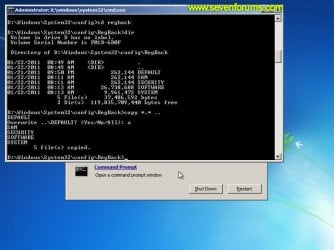
      Image14_copyregback.jpg

  15. Type exit and press <ENTER> to close the command prompt.
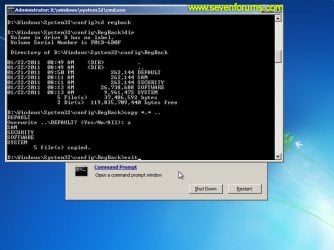
    Image15_exit.jpg


  16. Click the Restart button to reboot your computer. If all goes well, your system will boot normally.
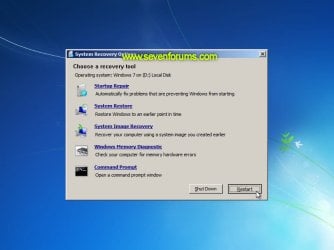
    Image16_restart.jpg
    Image17_working.jpg


Reference Information
This tutorial was made possible after learning how to manualy replace the Windows 7 Registry Hives after reading the Recovering Windows 7 Registry Hives/Files article on Microsoft Technet.


Attachments
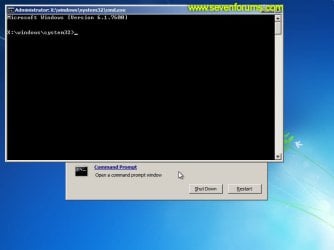
  • Image09_commandprompt.jpg
    Image09_commandprompt.jpg
    26.1 KB · Views: 373
Last edited by a moderator:
Thanks!
As it happens, persistence helped in this situation, after several attempts the options eventually loaded and I was able to load command prompt. I had an i/o error at step 12 but continued anyway. The troubleshoot worked and the computer booted. I'm currently backing everything up now before handling the new hard drive issue.
thanks again :)
 

My Computer My Computer

At a glance

Windows 7 home premiums 64bit
Computer type
PC/Desktop
OS
Windows 7 home premiums 64bit
That's great news Victoria. :)
 

My Computer My Computer

At a glance

64-bit Windows 11 Pro for WorkstationsIntel i7-8700K OC'd to 5 GHz64 GB (4x16GB) G.SKILL TridentZ RGB DDR4 3600...ASUS ROG-STRIX-GTX1080TI-O11G-GAMING
Computer type
PC/Desktop
Computer Manufacturer/Model Number
Self built custom
OS
64-bit Windows 11 Pro for Workstations
CPU
Intel i7-8700K OC'd to 5 GHz
Motherboard
ASUS ROG Maximus XI Formula Z390
Memory
64 GB (4x16GB) G.SKILL TridentZ RGB DDR4 3600 MHz
Graphics Card(s)
ASUS ROG-STRIX-GTX1080TI-O11G-GAMING
Sound Card
Integrated
Monitor(s) Displays
2 x Samsung Odyssey G7 27"
Screen Resolution
2560x1440
Hard Drives
1TB Samsung 990 PRO M.2,
4TB Samsung 990 PRO PRO M.2,
TerraMaster F8 SSD Plus NAS
PSU
Seasonic Prime Titanium 850W
Case
Thermaltake Core P3
Cooling
Corsair Hydro H115i
Keyboard
Logitech wireless K800
Mouse
Logitech MX Master 4
Internet Speed
2 Gb/s Download and 100 Mb/s Upload
Antivirus
Malwarebyte Anti-Malware Premium
Browser
Google Chrome
Other Info
Logitech Z625 speaker system,
Logitech BRIO 4K Pro webcam,
HP Color LaserJet Pro MFP M477fdn,
APC SMART-UPS RT 1000 XL - SURT1000XLI,
Galaxy S23 Plus phone
Hi, I have an issue where anything I do leads me to the startup repair screen. Even if I get into safe mode, it shows the safe mode background but still has the startup repair screen. Sometimes startup repair finishes and reboots and sometimes it freezes at "windows is loading files".
Also I put the hard drive in another computer and it yielded to he same results.
Anyway, I used a recovery disk and was able to get the system recovery options (although I have no disk image or restore point). I tried this command prompt method and went through all the steps and then rebooted. It didn't work.
BEFORE I did the cmd method, I had my main C: with all the program and user data. I also had an A: partition with other things. But seeing as the method didnt work, I took some other advise which was to type notepad in cmd and then press 'save as' which allowed me to look at my directory, which is now a mess.
NOW, It seems like my A: turned into my C:, while my original C: has disappeared. All i have is a mysterious D: that says its 100% full yet it is empty when I go into the folder. Im thinking this is my missing original C:.
My suspicion is that this 'windows startup repair cmd method' has somehow wiped my drive because before it was definitely there.
Now I am using Easeus recovery (through a usb drive) to see if I can extract anything from the D:.
Can anyone tell me why my A: got turned into the C: and why my original C: has turned into a corrupted D:? Im pretty sure it happened because I used this command prompt startup repair 'fix'.
Thanks
 

My Computer My Computer

At a glance

Windows 7 home premium 32 bit
Computer type
Laptop
Computer Manufacturer/Model Number
Toshiba
OS
Windows 7 home premium 32 bit
my friend dual-booted 8 and 7 and he has no idea what he did!
my problem is it had a bitlocked drive in my windows 7 and it was inaccessible in 8 and couldn't start its 7 so I tried this tutorial and fixed the boot; when I started its 7 the bitlocked drive was formatted and empty
I wanted to know does this process affect bitlocker and overwrites its ,I don't know, information and cause it to be formatted automatically or the data is lost at some other point:sarc:
 

My Computer My Computer

At a glance

Windows 7 Ultimate x64
Computer type
Laptop
OS
Windows 7 Ultimate x64
Well since no one has decided to help, I'll put an alternative method for those who just want to extract all their data from their hard drive before playing around with this command prompt method which ended up wiping out my drive.

1. Follow this method to extract your data easily: http://www.sevenforums.com/tutorials/93347-copy-paste-windows-recovery-console.html

2. Now, say your hard drive hasn't failed and is still capable of being used. I'd recommend using your installation CD to reformat your hard drive now that you have recovered the data you need. If you are desperate to not reformat it, THEN try the method in the first post in the thread.

3. Say something wrong happened when you used the method provided in the first post, and startup repair still pops up. IF your data was somehow wiped (which happened to me, and thus destroyed my hard drive). From another computer download 'Easeus data recovery' (recommended) or any other data recovery data software you see fit and copy the setup files into a USB. Repeat step 1 and go to command prompt like before on the pc with the failed hard drive. Open up notepad. Go to your USB and then install the data recovery software and then scan your hard drive. If you're fortunate, all the data will be recovered. Then, if needed, buy a new hard drive. These days, it's not that expensive.

I know this is slightly deviating in regards to the startup repair issue, but in the end, all we want is to extract our important data. Once you've got it, it's best just reformatting the hard drive instead of wasting hours trying to fix the startup repair loop.
 
Last edited by a moderator:

My Computer My Computer

At a glance

Windows 7 home premium 32 bit
Computer type
Laptop
Computer Manufacturer/Model Number
Toshiba
OS
Windows 7 home premium 32 bit
Thank You

I feared the worst when I was stuck in the repair loop and couldn't do a system restore. Followed the guide to the letter and it was easy as anything to do. Able to get onto my laptop and back up all the important stuff before I investigate the root of the problem.

THANK YOU

This information has saved me much stress and (probably money). I will be forever thankful for your selfless act of creating this guide.
 

My Computer My Computer

At a glance

Windows 7 64biti54GB
Computer type
Laptop
Computer Manufacturer/Model Number
Lenovo
OS
Windows 7 64bit
CPU
i5
Memory
4GB
Antivirus
Avast!
Browser
Chrome
Hi guys,
I believe no one had this problem yet.
After following all steps my computer restarted and windows seemed to start perfectly, however, I get the message that “Windows Explorer couldn’t find D:\...\Desktop” and enters on another loop where I’m unable to do anything.
I believe none of the drivers are loaded, I can’t connect to internet or any network, I can’t use my mouse. So everything I actually “can” do is via keyboard.
If I try to open the widows explorer it freezes after a few seconds. All this under normal or safe mode.
But the main problem I think is if I start on safe mode with command prompt, none of the commands are recognized! So I can’t use the backup I created on the steps to revert it back to the previous loop problem.

Any suggestions?
Including how to create a copy of some important files (not that many, apart from some photos) before reinstalling windows, but I would be really happy if I could save the time and trouble of reinstalling all softwares I use.

Thanks a lot!
 

My Computer My Computer

At a glance

Windows 7 64
Computer type
Laptop
Computer Manufacturer/Model Number
Samsung
OS
Windows 7 64
I followed the steps to manually replace the Windows 7 Registry Hives and it work!!! Thanks a million.

A note to add, during the "startup repair is checking your problems" running, it ran forever and even by clicking cancel, it said it can't be stopped or something similar.
So the next time I restarted PC again, once the box "startup repair is checking your problems" appeared, I QUICKLY click cancel and only then it came out with different pop up box messages and eventually I got the options "View advanced options for system recovery and support" which allow me to follow through the steps in this forum, which work!

Btw, at first I couldn't find my system drive in C: or D:, but my PC really only have these 2 partitions, and just as I thought my C drive has corrupted, then I tried E:, and it's there! I don't understand, but anyway, it works.

The only hiccups is that at first, after follow through the step on replacing the Windows 7 Registry Hives, during 1st attempt of restart, it still failed. Then I went into BIOS (press F2 during start up) to change the harddisk configuration back from IDE to AHCI. (I changed it from AHCI to IDE when follow through another tutorial I found on other forum before I found this tutorial in this forum) and VOILA!
 

My Computer My Computer

At a glance

selangor
Computer type
PC/Desktop
OS
selangor
You should be fine to do the tutorial if you are still getting a startup repair loop.

http://www.sevenforums.com/tutorial...ir-infinite-loop-recovery-20.html#post2224974

Hopefully your files may show up afterwards. If not, and you are able to boot into Windows, then you might see if you may be able to recover your files with Previous Versions and/or Recuva.


Hello Sir Brink. Long time, no read. I forgot to Update what happened to the Dell Inspiron that had the Deadly Repair Infinite Loop.

First, I had to remove the Hard Drive and it was quite challenging. You almost needed a Masters in Electronic Engineering to do it because Dell decided that you shouldn't mess with a PC that they made and sold it to you. In other words, it's not really yours and you must pay hard dough for a Stupid 3 year warranty.

After removing and connecting the HD to another PC, I used numerous recovery softwares to see if I would get lucky. I used DiskDigger, Recuva, Glary Undelete, Pandora Recovery, FreeUndelete, Undelete 360, Avir, EaseUS Data Recovery and Orion File Recovery. Of all those, I fared better with Glary Undelete (Excellent) and Undelete 360. Recuva was OK but not the best, Pandora was also OK and DiskDigger is quite good but it has one little defect: it names all the recovered files Sectornnnn.

After I finished using all those programs aforementioned, I put the HD back into the Dell Laptop. Then I followed the instructions from the Repair Infinite Loop Tutorial. When I rebooted the Laptop, the dreaded Loop was still with me. The only difference was that this time, I couldn't see the System Restore Points that I had before. Since I already "recovered" what I needed, I decided to do the Dell Recovery with the DVD's I created to bring it to Factory New, like Dell sold it to me. Now it's working, the Bluetooth (the main culprit for all this mess) works without any need to update it. It also has a Driver for the Samsung Galaxy S3 (the other culprit) so there's no need to use the Bluetooth to transfer files from the Android to the PC and vice versa.

Thanks for your suggestions and sorry that it took me this long to update my situation. Thanks to everyone that commented here. Take care.....:geek:
 

My Computer My Computer

At a glance

Windows XP 32-bit
OS
Windows XP 32-bit
That's great news skunky. Thank you for posting back with your results. :)
 

My Computer My Computer

At a glance

64-bit Windows 11 Pro for WorkstationsIntel i7-8700K OC'd to 5 GHz64 GB (4x16GB) G.SKILL TridentZ RGB DDR4 3600...ASUS ROG-STRIX-GTX1080TI-O11G-GAMING
Computer type
PC/Desktop
Computer Manufacturer/Model Number
Self built custom
OS
64-bit Windows 11 Pro for Workstations
CPU
Intel i7-8700K OC'd to 5 GHz
Motherboard
ASUS ROG Maximus XI Formula Z390
Memory
64 GB (4x16GB) G.SKILL TridentZ RGB DDR4 3600 MHz
Graphics Card(s)
ASUS ROG-STRIX-GTX1080TI-O11G-GAMING
Sound Card
Integrated
Monitor(s) Displays
2 x Samsung Odyssey G7 27"
Screen Resolution
2560x1440
Hard Drives
1TB Samsung 990 PRO M.2,
4TB Samsung 990 PRO PRO M.2,
TerraMaster F8 SSD Plus NAS
PSU
Seasonic Prime Titanium 850W
Case
Thermaltake Core P3
Cooling
Corsair Hydro H115i
Keyboard
Logitech wireless K800
Mouse
Logitech MX Master 4
Internet Speed
2 Gb/s Download and 100 Mb/s Upload
Antivirus
Malwarebyte Anti-Malware Premium
Browser
Google Chrome
Other Info
Logitech Z625 speaker system,
Logitech BRIO 4K Pro webcam,
HP Color LaserJet Pro MFP M477fdn,
APC SMART-UPS RT 1000 XL - SURT1000XLI,
Galaxy S23 Plus phone
Just found this link to replacing the hives and it saved my butt on the stupid FBI virus. Thank you, thank you and thank you again!!
 

My Computer My Computer

At a glance

Windows 7 Pro 32 bit
Computer type
PC/Desktop
Computer Manufacturer/Model Number
Dell
OS
Windows 7 Pro 32 bit
Cannot thank you enough !!! Worked perfectly in Windows 2012 server :cool:
 

My Computer My Computer

At a glance

Windows 8
Computer type
PC/Desktop
OS
Windows 8
Hi,

I tried to follow this tutorial but I got stuck at step 8.
(when it comes to selecting the system drive).

I tried all letters possible but it can't find any of my hdd's and ssd's.
What am I doing wrong?
 

My Computer My Computer

At a glance

Windows 7 Ultimate 64bit
Computer type
PC/Desktop
Computer Manufacturer/Model Number
Custom build
OS
Windows 7 Ultimate 64bit
Hi,

I tried to follow this tutorial but I got stuck at step 8.
(when it comes to selecting the system drive).

I tried all letters possible but it can't find any of my hdd's and ssd's.
What am I doing wrong?


You are missing drivers.
 

My Computer My Computer

At a glance

Windows 8
Computer type
PC/Desktop
OS
Windows 8
Where can I get these drivers?
 

My Computer My Computer

At a glance

Windows 7 Ultimate 64bit
Computer type
PC/Desktop
Computer Manufacturer/Model Number
Custom build
OS
Windows 7 Ultimate 64bit
Where can I get these drivers?

What kind of machine are you using ? Are you using raid or normal disk acess ?

If you are using drivers you'll need raid drivers, if you are using normal disk acess you have to get these from the manufacturer.
 

My Computer My Computer

At a glance

Windows 8
Computer type
PC/Desktop
OS
Windows 8
Well I have 2 ssd's that are in raid mode (where my os is installed) and 2 other hdd's.
I am using a custom build machine..

The weird part is when I put the ssd mode to native ide or ahci I can see them in system repair but I can't acces them, it says I need to format is first..
 

My Computer My Computer

At a glance

Windows 7 Ultimate 64bit
Computer type
PC/Desktop
Computer Manufacturer/Model Number
Custom build
OS
Windows 7 Ultimate 64bit
Well I have 2 ssd's that are in raid mode (where my os is installed) and 2 other hdd's.
I am using a custom build machine..

The weird part is when I put the ssd mode to native ide or ahci I can see them in system repair but I can't acces them, it says I need to format is first..

Get Bios back in Raid mode, find the raid drivers. And load them into Windows recovery. What version of Windows are you using ?
 

My Computer My Computer

At a glance

Windows 8
Computer type
PC/Desktop
OS
Windows 8
Well I have 2 ssd's that are in raid mode (where my os is installed) and 2 other hdd's.
I am using a custom build machine..

The weird part is when I put the ssd mode to native ide or ahci I can see them in system repair but I can't acces them, it says I need to format is first..

Get Bios back in Raid mode, find the raid drivers. And load them into Windows recovery. What version of Windows are you using ?

Okay it's back in Raid mode, but where can I find the drivers?
I'm using Win7 ultimate 64 bit.
 

My Computer My Computer

At a glance

Windows 7 Ultimate 64bit
Computer type
PC/Desktop
Computer Manufacturer/Model Number
Custom build
OS
Windows 7 Ultimate 64bit
Well I have 2 ssd's that are in raid mode (where my os is installed) and 2 other hdd's.
I am using a custom build machine..

The weird part is when I put the ssd mode to native ide or ahci I can see them in system repair but I can't acces them, it says I need to format is first..

Get Bios back in Raid mode, find the raid drivers. And load them into Windows recovery. What version of Windows are you using ?

Okay it's back in Raid mode, but where can I find the drivers?
I'm using Win7 ultimate 64 bit.

Board Manufacturer website.
 

My Computer My Computer

At a glance

Windows 8
Computer type
PC/Desktop
OS
Windows 8
Back
Top