Status Bar - Turn On or Off

How to Turn Windows Explorer Status Bar On or Off in Windows 7


   Information
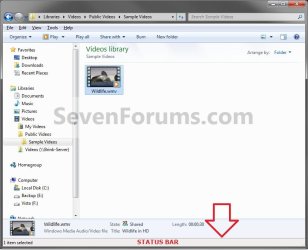
The Status bar shows you the status of how many items (ex: files and folders) you have selected in the current Windows Explorer window. The status bar is turned off by default in Windows 7.

This will show you how to turn the Status bar on or off in all Windows Explorer windows in your user account in Windows 7.


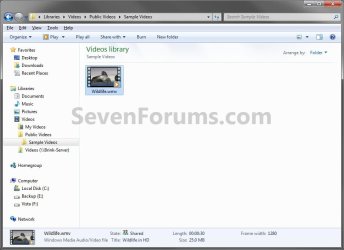
EXAMPLE: Windows Explorer Status bar On and Off
NOTE: The status bar is the far bottom bar right below the details pane in Windows Explorer.
Layout1.jpg
Layout2.jpg


OPTION ONE

In Windows Explorer

1. Open Windows Explorer (explorer.exe).

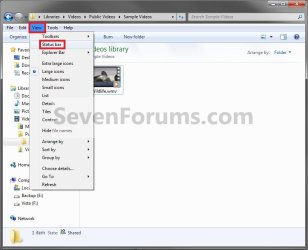
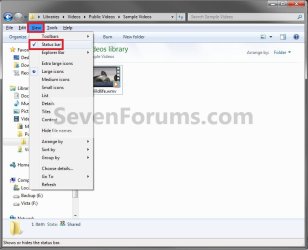
2. On the Menu bar, click on View. (see screenshots below) On.jpg
Off.jpg

3. To Turn On the Status Bar in Windows Explorer A) Select (click) Status bar to have it checked. (see screenshots above)
4. To Turn Off the Status Bar in Windows Explorer
NOTE: This is the default setting. A) Select (click) Status bar to have it unchecked with the icon now showing. (see screenshots above)
5. All Windows Explorer windows will now open as you set this.


OPTION TWO

Using a REG File Download

1. To Turn On the Status Bar in Windows Explorer A) Click on the Download button below to download the file below. Turn_On_Windows_Explorer_Status_Bar.reg

Download


B) Go to step 3.
2. To Turn Off the Status Bar in Windows Explorer
NOTE: This is the default setting. A) Click on the Download button below to download the file below. Turn_Off_Windows_Explorer_Status_Bar.reg

Download


3. Save the .reg file to the desktop.

4. Right click on the downloaded .reg file and click on Merge.

5. When prompted, click on Run, Yes, Yes, and OK to approve merging the .reg file.

6. If open, close and reopen Windows Explorer to apply.

7. You can now delete the downloaded .reg file if you like.
That's it,
Shawn


Attachments

Last edited:
Windows Registry Editor Version 5.00

[HKEY_CURRENT_USER\Software\Microsoft\Internet Explorer\Main]
"Show_StatusBar"="yes"
"StatusBarOther"=dword:00000001
 

My Computer My Computer

OS
windows7 ultimate x32
CPU
DualCore Intel Core 2 Duo E8400, 3000 MHz (9 x 333)
Motherboard
ASRock 4Core1333-GLAN (3 PCI,1 PCI-E x16,4 DDR2 DIMM...)
Memory
4Gb (1x4 DDR2-800 DDR2 SDRAM)
Graphics Card(s)
NVIDIA GeForce 9600 GT (512 mb)
Sound Card
onboard
Monitor(s) Displays
lg flatron w2242t
Screen Resolution
1680 x 1050
Hard Drives
WDC WD5000AAJS-00YFA0 ATA Device
PSU
-
Case
-
Cooling
-
Other Info
d-link dir100
Hello Nalbe,

Thank you. Added as OPTION TWO. :)
 

My Computer My Computer

Computer type
PC/Desktop
Computer Manufacturer/Model Number
Self built custom
OS
64-bit Windows 11 Pro for Workstations
CPU
Intel i7-8700K OC'd to 5 GHz
Motherboard
ASUS ROG Maximus XI Formula Z390
Memory
64 GB (4x16GB) G.SKILL TridentZ RGB DDR4 3600 MHz
Graphics Card(s)
ASUS ROG-STRIX-GTX1080TI-O11G-GAMING
Sound Card
Integrated
Monitor(s) Displays
2 x Samsung Odyssey G7 27"
Screen Resolution
2560x1440
Hard Drives
1TB Samsung 990 PRO M.2,
4TB Samsung 990 PRO PRO M.2,
TerraMaster F8 SSD Plus NAS
PSU
Seasonic Prime Titanium 850W
Case
Thermaltake Core P3
Cooling
Corsair Hydro H115i
Keyboard
Logitech wireless K800
Mouse
Logitech MX Master 4
Internet Speed
2 Gb/s Download and 100 Mb/s Upload
Antivirus
Malwarebyte Anti-Malware Premium
Browser
Google Chrome
Other Info
Logitech Z625 speaker system,
Logitech BRIO 4K Pro webcam,
HP Color LaserJet Pro MFP M477fdn,
APC SMART-UPS RT 1000 XL - SURT1000XLI,
Galaxy S23 Plus phone
Back
Top