Stop cloned D Drive from being active on boot?

Murklin

New member
Local time
10:58 PM
Messages
3
How I keep my systems backed up is to have 2 identical sized drives in the computer, the 2nd one is an exact clone of the C: boot drive. Nightly I sync changed documents, images, etc. from C to D. I might not make a fresh clone for 6 months to a year, there's no need to. If anything goes wrong with the C drive, a virus, bad software installation, hard drive failure, I just boot up into the 2nd drive and I'm back up and running in 2 minutes and can fix or replace the bad drive or reclone D to C. The system works perfect for me, and I've never had to use any special boot loader.

Now with Windows 7 though and UEFI partitions, it seems that the D drive is also active on boot up. If I change file placements in the Start Menu on D for instance, the change also immediately takes place on the C drive Start Menu. Some programs start up 2 copies on booting up because of this, and a few programs misbehave because of this.

How can I stop that from happening so D is treated simply like an additional storage drive on boot? I know I can hide the D Drive with other software and that probably will work for booting up, but I need to sync new files nightly to it, so that's not a solution for me at all.

Thanks for any suggestions.
 

My Computer My Computer

Computer type
PC/Desktop
Computer Manufacturer/Model Number
Custom build
OS
Windows 7 Professional x64
CPU
AMD FX-8320
Motherboard
Asus M5A97 R2.0
Memory
Corsair 16GB DDR3 CMZ8GX3M2A1600C9B
Graphics Card(s)
EVGA GTX 760
Hard Drives
2 - 1TB Western Digital
Antivirus
Kaspersky AV
Browser
Pale Moon
Last edited:

My Computer My Computer

Computer type
PC/Desktop
Computer Manufacturer/Model Number
Self built using existing case
OS
Windows 7 Home Premium 64 bit sp1
CPU
Intel i5 3570 3.4Ghz Ivy Bridge SKT 1155 quad core
Motherboard
Gigabyte Z77-HD3 SKT 1155 2xSata 3, 4x USB 3.0
Memory
G-Skill Rip Jaws 16Gb (8x2) DDR3 -1600 PC3 12800 CL 10 red
Graphics Card(s)
Gigabyte NVIDIA GT610 1Gb DDR3 810/1200 PCI-E 2.0 Silent
Sound Card
NVIDIA High Definition & Realtech High Definition Audio
Monitor(s) Displays
2 x Philips 226V4L 16:9 aspect ratio
Screen Resolution
1920 x 1080 HD
Hard Drives
Samsung 840 Pro 256gb SSD, SATA 3.
Hitachi Touro Portable 1tb, USB 3.0 HDD used for image b/ups.
PSU
Corsair VS450
Case
Codeng
Cooling
PSU fan & CPU fan
Keyboard
Logitech
Mouse
Logitech Wireless trackball M570
Internet Speed
Wireless 3G. 3mg down & 550kb up.
Antivirus
Bitdefender Internet Security 2020
Browser
Opera (Current Version) & Firefox
Other Info
MS Office 2013 Pro. Davis weather station software. MGE Nova 600 avr UPS.
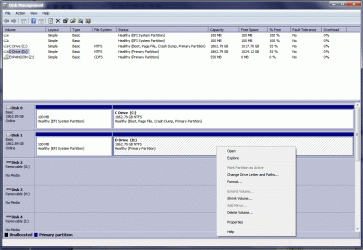
Here's the requested screenshot. Drive Z is just a game loaded in a virtual drive, and any above D is from an installed card reader with nothing in any of the 5 slots. I also showed the options available on D. C has the same options except for "Format" and "Delete." The 2 EFI partitions only have "Help" available as an option and nothing else.
 

Attachments

  • DiskManagement.gif
    DiskManagement.gif
    115.7 KB · Views: 3

My Computer My Computer

Computer type
PC/Desktop
Computer Manufacturer/Model Number
Custom build
OS
Windows 7 Professional x64
CPU
AMD FX-8320
Motherboard
Asus M5A97 R2.0
Memory
Corsair 16GB DDR3 CMZ8GX3M2A1600C9B
Graphics Card(s)
EVGA GTX 760
Hard Drives
2 - 1TB Western Digital
Antivirus
Kaspersky AV
Browser
Pale Moon
How do you boot your choice of drives, via the BIOS? Or did you add the other to a Windows Dual Boot menu?

If you boot into D will it show the same flags: Boot (signifying the partition presently booted) Page File and Crash Dump as we see in C which is booted in screenshot? Sharing the paging file can lead to issues.

I don't see why the drives wouldn't be independent because even if you configured a Dual Boot they would only share the boot files on one drive and nothing more.

But there is much yet to learn with UEFI installs which are different in many ways than MBR installs - no Active flag, different repair regimens, install workarounds, etc.
 
I did some experimenting with the drives last night. In the BIOS the boot selections are:
Windows Boot Manager (P2 WD drive number listed) - D drive on boot
Windows Boot manager (P1 WD drive number listed) - C drive on boot
P1: WD drive number listed - probably D drive but can't be sure
P0: WD drive number listed - probably C drive

I can't boot up without the Windows Boot Manager (which I'm assuming is because of the UEFI crap). Trying to boot up with P0 or P1 brings up the message "Reboot and Select Proper Boot Device."

Selecting the Windows Boot Manager P2 is the D drive, P1 is C drive. I can disconnect either drive and boot into the remaining single drive just fine, but when booting up with both drives connected, I end up with some programs starting twice, and if I make any changes moving the shortcuts around on the D drive, it's an instant change to the C drive functioning start menu, and I just don't see a way that should happen under any circumstances.

I've cloned drives like this for at least 10 years and I've never run into this mess, that I can only assume is caused by the UEFI partitions. When I set up this system, I remember trying to do it without the UEFI but couldn't find a way to do it, nothing worked to avoid the UEFI partitions.
 

My Computer My Computer

Computer type
PC/Desktop
Computer Manufacturer/Model Number
Custom build
OS
Windows 7 Professional x64
CPU
AMD FX-8320
Motherboard
Asus M5A97 R2.0
Memory
Corsair 16GB DDR3 CMZ8GX3M2A1600C9B
Graphics Card(s)
EVGA GTX 760
Hard Drives
2 - 1TB Western Digital
Antivirus
Kaspersky AV
Browser
Pale Moon
Back
Top