Solved Strange occurence in properties window

emilyan2010

New member
Member
VIP
Local time
5:12 AM
Messages
123
Location
Romania
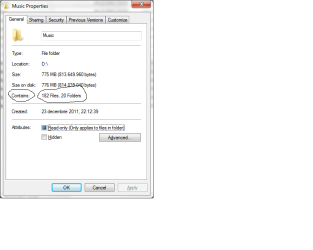
Hello. I have noticed a strange fact regarding my windows 7 32 bit operating system. When I delete some files in a folder, then go to properties, when i look at "Contains", it still shows the number of files i had before deletion, not the current number of files in that folder. Is there a way to repair this? Thanks in advance! (rebooted my pc, but with no success, if it is to mention)
BTW: Happy holidays :)
 

My Computer My Computer

OS
Windows 7 Ultimate 32 bit
CPU
Intel dual core 3.00 Ghz
Motherboard
Gigabyte series
Memory
2*2 GB RAM DDR2
Graphics Card(s)
ATI RADEON 4650 SERIES
Sound Card
HD
Monitor(s) Displays
CY199D
Screen Resolution
1280*1024
Hard Drives
1 Hard of 750 GB
Keyboard
RPC Standard Keyboard
Mouse
A4Tech Optical Mouse
Internet Speed
12 Mb/s
Browser
Firefox
Did you empty the Recycle Bin?

I don't see a "Contains" choice in any folder property menu. Can you tell me how you get to it, as following the directions you gave does not show it for me.

Maybe post a screen shot of it? Make sure the window you want to capture has the focus.
Press Alt+Print Screen. That will capture the active window.
Print Screen will capture the entire screen, including properties dialogs.
Start MSPaint - Start then Run, type mspaint and press Enter.
Press Ctrl+v to paste the picture in to MS Paint.
Click File then Save as and save it to your Desktop.

Start a new reply.
Click on the Browse button below the message input area.
Navigate to where you saved the picture, select it and click on Open.
Click on Attach This File.
Once uploaded, click on Add To Post to the far right of the uploaded file.
Scroll down and click Preview Post to verify the image shows.
 

My Computer My Computer

Computer type
PC/Desktop
Computer Manufacturer/Model Number
Lenovo IdeaCenter 450
OS
Windows 10 Pro X64
CPU
Intel Quad Core i7-4770 @ 3.4Ghz
Memory
16.0GB PC3-12800 DDR3 SDRAM 1600 MHz
Graphics Card(s)
Intel Integrated HD Graphics
Sound Card
Realtek HD Audio
Monitor(s) Displays
HP 22" LCD
Screen Resolution
1680 x 1050
Hard Drives
250GB Samsung EVO SATA-3 SSD
2TB Seagate ST2000DM001 SATA-2
1.5TB Seagate ST3150041AS SATA
Keyboard
Dell USB
Mouse
Lenovo USB
Internet Speed
Cable via Road Runner 3MB Upload, 30MB Download
Antivirus
Windows Defender, MBAM Pro, MBAE
Browser
Seamonkey
Other Info
UEFI/GPT
PLDS DVD-RW DH16AERSH
There should be around 130 files instead that number, also Recycle Bin is empty. Here you go:
 

Attachments

  • Untitled.png
    Untitled.png
    14.1 KB · Views: 24

My Computer My Computer

OS
Windows 7 Ultimate 32 bit
CPU
Intel dual core 3.00 Ghz
Motherboard
Gigabyte series
Memory
2*2 GB RAM DDR2
Graphics Card(s)
ATI RADEON 4650 SERIES
Sound Card
HD
Monitor(s) Displays
CY199D
Screen Resolution
1280*1024
Hard Drives
1 Hard of 750 GB
Keyboard
RPC Standard Keyboard
Mouse
A4Tech Optical Mouse
Internet Speed
12 Mb/s
Browser
Firefox
When I have bizarre things like that happen, here's what I do:

1) Create a new folder
2) Move the entire contents of the old folder into the new folder
3) Delete the old folder
4) Rename the new folder to that of the old folder's name.
 

My Computer My Computer

Computer Manufacturer/Model Number
Acer Aspire 7750G-9657
OS
Win 7 Pro x64
CPU
i7 2630QM @ 2Ghz
Memory
6 GB
Graphics Card(s)
Mobile Intel HD / Radeon 6650M
Screen Resolution
1600x900
Hard Drives
Toshiba 750GB
Case
Laptop
Mouse
Logitech M305 USB Wireless Mouse
Internet Speed
Whatever I can get for free. :)
When I have bizarre things like that happen, here's what I do:

1) Create a new folder
2) Move the entire contents of the old folder into the new folder
3) Delete the old folder
4) Rename the new folder to that of the old folder's name.

Well, this would be nice if it happened only to this folder. But this happens to any folder. For example, if I make a folder, put 4 files in it, delete 3, so it remains 1. When i look at properties, at "Contains" sais still 4 files. Not that it is a severe bug, but it wouldn't be bad for it to get fixed. So, waiting for future answers :). Thanks in advance!
 

My Computer My Computer

OS
Windows 7 Ultimate 32 bit
CPU
Intel dual core 3.00 Ghz
Motherboard
Gigabyte series
Memory
2*2 GB RAM DDR2
Graphics Card(s)
ATI RADEON 4650 SERIES
Sound Card
HD
Monitor(s) Displays
CY199D
Screen Resolution
1280*1024
Hard Drives
1 Hard of 750 GB
Keyboard
RPC Standard Keyboard
Mouse
A4Tech Optical Mouse
Internet Speed
12 Mb/s
Browser
Firefox
Yeah, the type of bug you describe is a rare occurrence for me - so the "stopgap" solution works well enough.
 

My Computer My Computer

Computer Manufacturer/Model Number
Acer Aspire 7750G-9657
OS
Win 7 Pro x64
CPU
i7 2630QM @ 2Ghz
Memory
6 GB
Graphics Card(s)
Mobile Intel HD / Radeon 6650M
Screen Resolution
1600x900
Hard Drives
Toshiba 750GB
Case
Laptop
Mouse
Logitech M305 USB Wireless Mouse
Internet Speed
Whatever I can get for free. :)
As a test, create a new account. See if it happens there as well. That will tell us whether it is a OS problem or a account specific problem.

Open Control Panel, User Accounts. Click on Manage another account then Create a new account. You may want to pick a name you like or can live with in case the problem is account specific, in which case you can keep the new account and copy all your data from the old to the new then at some point delete the old.
You can use the Windows Easy Transfer to transfer your profiles and settings to a new account:
  1. Go to Start –> type Easy Transfer –> Click Windows Easy Transfer in the search results.
  2. You will get a welcome message to Windows Easy Transfer. Click Next.
  3. Choose a different partition or internal hard drive, external hard disk or USB flash drive. Can't be the same drive you are transferring from (the "old computer").
  4. Select This is my old computer.
  5. Check the box before your current user account, and click Next.
  6. You can input a password if you want.
  7. Click Save to save the transfer file. The transfer file will be a single file with the extension .MIG. Please remember the location.
  8. Create a new account via Control Panel - User Accounts.
  9. Log off the current account and log on the new account.
  10. Open Windows Easy transfer again and click This is my New Computer.
  11. Choose "Yes, open the file" to navigate to the .MIG file.
  12. Check the box before your old account, then click the Advanced Options above the Transfer button, then you choose which user account you want to transfer.
  13. Click Save and Transfer. Now, you can see what are the files that were transferred.
Test if everything works correctly in the new account now. If yes you can delete the old account via User Accounts.

If not, please delete the new account via User Accounts. Go back to step 8, and repeat the step 9 and 10, then check the box before your old account, and click on the Customize button next to this old account, and uncheck the box before Windows Settings, then click the Transfer button.
 

My Computer My Computer

Computer type
PC/Desktop
Computer Manufacturer/Model Number
Lenovo IdeaCenter 450
OS
Windows 10 Pro X64
CPU
Intel Quad Core i7-4770 @ 3.4Ghz
Memory
16.0GB PC3-12800 DDR3 SDRAM 1600 MHz
Graphics Card(s)
Intel Integrated HD Graphics
Sound Card
Realtek HD Audio
Monitor(s) Displays
HP 22" LCD
Screen Resolution
1680 x 1050
Hard Drives
250GB Samsung EVO SATA-3 SSD
2TB Seagate ST2000DM001 SATA-2
1.5TB Seagate ST3150041AS SATA
Keyboard
Dell USB
Mouse
Lenovo USB
Internet Speed
Cable via Road Runner 3MB Upload, 30MB Download
Antivirus
Windows Defender, MBAM Pro, MBAE
Browser
Seamonkey
Other Info
UEFI/GPT
PLDS DVD-RW DH16AERSH
Just out of curiosity, how big is the MIG file likely to be? Not everyone has more than one partition or an external HDD.
 

My Computer My Computer

Computer Manufacturer/Model Number
Acer Aspire 7750G-9657
OS
Win 7 Pro x64
CPU
i7 2630QM @ 2Ghz
Memory
6 GB
Graphics Card(s)
Mobile Intel HD / Radeon 6650M
Screen Resolution
1600x900
Hard Drives
Toshiba 750GB
Case
Laptop
Mouse
Logitech M305 USB Wireless Mouse
Internet Speed
Whatever I can get for free. :)
Used windows easy transfer, made new account, transfered everything to new account, and it was success. Also, when i made a new folder on the new account and created some files, first time it showed their number correct, and when i deleted some of them, it showed the new number of files. So, on a new account this is working, it is displaying as it should. But, is there a way to fix this problem on the old account? Thanks in advance!
Well, the MIG file is 1.06 GB. If I had to select "Shared" as well in windows easy transfer, the file would have had around 70 gb.

EDIT: I have discovered a kinda strange thing. This problem with folders only applies to some folders, music folders which i have. Instead of showing the real number of files, it shows their number +2. Also, if i moved all the files from that folder, it will still show 2 files there, with a total capacity of 36 KB -52 KB. That happens for several music folders. If i delete the folder and recreate it, the problem disappears. Well, i tried to display the hidden files inside my pc, but on those folders it does not appear anything. What could it be?
 

My Computer My Computer

OS
Windows 7 Ultimate 32 bit
CPU
Intel dual core 3.00 Ghz
Motherboard
Gigabyte series
Memory
2*2 GB RAM DDR2
Graphics Card(s)
ATI RADEON 4650 SERIES
Sound Card
HD
Monitor(s) Displays
CY199D
Screen Resolution
1280*1024
Hard Drives
1 Hard of 750 GB
Keyboard
RPC Standard Keyboard
Mouse
A4Tech Optical Mouse
Internet Speed
12 Mb/s
Browser
Firefox
I don't know, but if the new account fixes it, why not use the new account and delete the old one?
 

My Computer My Computer

Computer type
PC/Desktop
Computer Manufacturer/Model Number
Lenovo IdeaCenter 450
OS
Windows 10 Pro X64
CPU
Intel Quad Core i7-4770 @ 3.4Ghz
Memory
16.0GB PC3-12800 DDR3 SDRAM 1600 MHz
Graphics Card(s)
Intel Integrated HD Graphics
Sound Card
Realtek HD Audio
Monitor(s) Displays
HP 22" LCD
Screen Resolution
1680 x 1050
Hard Drives
250GB Samsung EVO SATA-3 SSD
2TB Seagate ST2000DM001 SATA-2
1.5TB Seagate ST3150041AS SATA
Keyboard
Dell USB
Mouse
Lenovo USB
Internet Speed
Cable via Road Runner 3MB Upload, 30MB Download
Antivirus
Windows Defender, MBAM Pro, MBAE
Browser
Seamonkey
Other Info
UEFI/GPT
PLDS DVD-RW DH16AERSH
Are you using some sort of "media manager" software (e.g. iTunes)?

I've read a lot of comments from people using iTunes (in Windows) complaining about weird behaviour.
 

My Computer My Computer

Computer type
PC/Desktop
Computer Manufacturer/Model Number
n/a
OS
W7 Ultimate SP1, LM19.2 MATE, W10 Home 1703, W10 Pro 1703 VM, #All 64 bit
CPU
AMD Phenom II x6 1100T, 3.3 GHz
Motherboard
ASUS M4A88T-M/USB3 (AM3)
Memory
12GB DDR3 1333 G-Skill (4GB x 2), G-Skill (2GB x 2)
Graphics Card(s)
NVIDIA GeForce GTX 660
Sound Card
Realtek?
Monitor(s) Displays
Samsung S23B350
Screen Resolution
1920x1080
Hard Drives
WD Green 2TB (SATA), WD Green 3TB (SATA), WD Blue 4TB (SATA), WD Blue 6TB (SATA)
PSU
Cooler Master
Case
Antec GX300 Tower
Cooling
3x Antec TRICOOL 120mm Fans
Mouse
Wired Optical
Internet Speed
DSL
Antivirus
Avast
Browser
Pale Moon (64 bit)
Other Info
2018-12-27 Upgraded HDDs
2015-12-10 Upgraded case, graphics card, storage
2015-08-15 Upgraded motherboard & RAM
2015-07-15 Upgraded LM17.1 to LM17.2
Ok, the problem is solved (i guess). The additional files were in fact .jpg images used when playing an audio file. Those images were not shown even if you checked "Show hidden files, folder and drivers" in folder options window. But, if i went to start, type "cmd", go using "cd" command to that folder and then typing "dir /a", it would show them (a jpg file is called "AlbumArtSmall.jpg" for example). Strange thing, but i did not know about it until i searched a little more on google. Anyway, thanks for all your help! :)
EDIT: no, i do not use itunes, those music folders came with those .jpg files from the begining.
Happy hollidays!
 

My Computer My Computer

OS
Windows 7 Ultimate 32 bit
CPU
Intel dual core 3.00 Ghz
Motherboard
Gigabyte series
Memory
2*2 GB RAM DDR2
Graphics Card(s)
ATI RADEON 4650 SERIES
Sound Card
HD
Monitor(s) Displays
CY199D
Screen Resolution
1280*1024
Hard Drives
1 Hard of 750 GB
Keyboard
RPC Standard Keyboard
Mouse
A4Tech Optical Mouse
Internet Speed
12 Mb/s
Browser
Firefox
Back
Top