System Image - Recover a Broken Windows 7 System Image

How to Restore your System with a Broken Windows 7 System Image


   Information
There were many reports where people did rely on Windows 7 images. But, when their system became inoperable and they wanted to recover with their Windows7 image, it did not work. The reasons are not always very clear and it really does not matter. The fact that one cannot recover the system is a dramatic event.

This tutorial will explain a procedure how one may still be able to use this broken image for recovery if the following conditions are given:


  • The Windows 7 image is on an external drive or the drive can be externalized
  • You have another working system (Win7, Vista, or XP) to which you can attach the external drive
  • The VHD of the Windows7 image does still exist. The approach is to reimage the Windows7 VHD and restore from that image.
We will use free Macrium for that operation. You will find a tutorial on how to operate free Macrium on this tutorial page.

For the recovery you need to burn the WinPE DVD which is explained in the Macrium tutorial. The recovery steps using the WinPE DVD are explained in this tutorial by Kado, which you find at this YouTube site. Note that this tutorial has text but no narrative.

In addition, we will use the Windows Disk Management. If you type Disk Management into the Start/Search box and hit Enter, it should show up.


Step 1 - Check the Windows7 VHD

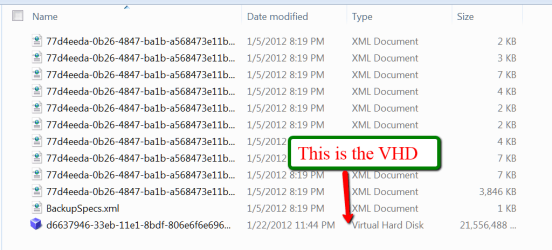
Attach the external disk on which the Windows7 image resides. The Windows7 image is in the root of that drive and the folder is called WindowsImageBackup. Open that folder (you may be asked for authorization) and the subsequent folders until you see a page like this:
2012-01-23_1634.png

If you can see the VHD, as in the picture, then you are most likely in good shape.


Step 2 - Attach the Windows 7 VHD

Go to Disk Management. In the top left next to the File button click on the Action button and then click on Attach VHD. Then navigate to the Windows7 VHD as in Step 1, double click on the VHD, and click on OK.

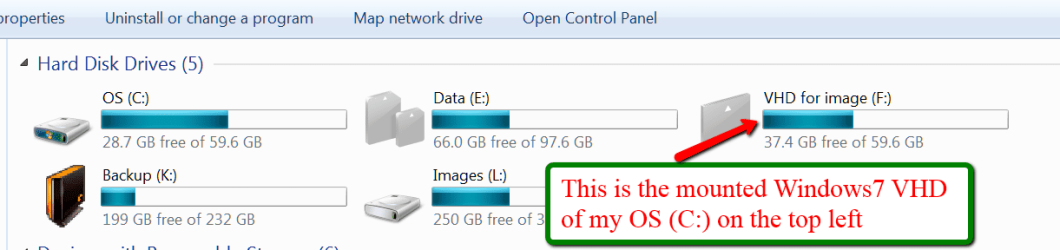
Now the VHD is attached (also called Mounted). If you roll down in Disk Management, you should see it as one of your volumes. You can also see it in Computer where it should show like this:
2012-01-23_1812.png

Make sure you write down the drive letter (which is 'F' in my example) because you will need that letter later.


Step 3 - Image the attached VHD

As a first step here, create a new folder on the same external disk where the Windows 7 image is. Call this folder Macrium Image. If you have a second external drive attached to that system, you can create the Macrium Image folder there. That will make the imaging step a bit faster.

Imaging an attached VHD is no different than imaging any other volume (partition or drive). Start Macrium and follow the steps explained in the Macrium imaging tutorial that is linked above. Just make sure you select the right volume (the letter you wrote down in Step 2) and that you select the Macrium Image folder you just created.

Then click Finish and OK and the image will be taken. That can take 30 minutes or more depending on the size of the data in your VHD.


Step 4 - Recover your system with the Macrium image

Attach the external disk to the system from where the Windows7 Image originally came. Boot that system from the DVD reader with the Macrium WinPE DVD. Follow the steps explained in Kados YouTube video which is linked above.

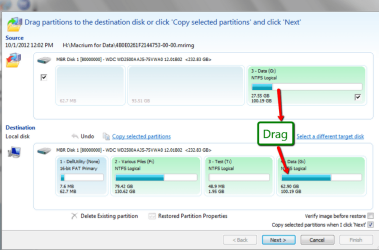
All you really need to do is to navigate to the Macrium image and drag it into the C: partition. The restoration of your system should be done in 30 minutes. After you close the WinPE window (after it told you that it was done), your system should reboot to the time when the Windows7 Image was taken.


Final Words

I am pretty sure that this procedure can also be applied to VHDs of other imaging programs that do not cooperate during the recovery step. But up to now, I have only seen people having those problems with Windoes7 imaging - on this and other forums.


Last edited:
Great, that was certainly the easiest solution. I forgot all about that option.Gruss aus dem Schwarzwald
 

My Computer My Computer

At a glance

Vista, Windows7, Mint Mate, Zorin, Windows 8from 1.6GHz Duo to i7
Computer Manufacturer/Model Number
HP, Dell, Gateway, Toshiba - 4 laptops and 2 desktops
OS
Vista, Windows7, Mint Mate, Zorin, Windows 8
CPU
from 1.6GHz Duo to i7
Monitor(s) Displays
2x HP w2207
Hard Drives
5x HDD, 7x SSD, 12x Externals
Keyboard
with trackball - no mices
Mouse
Trackball mice
Internet Speed
DSL 6000
How to add second VHD for the famous 100MB system Reserve partition while creating Macrium Image?


Sir,
I tried to restore my Lenovo ThinkPad X131E laptop via Windows Image Backup and didn’t succeed. I created this Image when my System was in working condition. Due to hard disk failure I replaced it and install a new hard disk. After this, System didn’t restore through the Windows Image Backup that I created earlier.
Some days later, I stopped on your tutorial.
Actually, I’m a visually impaired person so I can’t see a video tutorial and can’t give instructions to my sighted friends about the procedure of restoration of the System by using Macrium image.
By following the steps of your tutorial I successfully created a Macrium image of that Windows Image Backup by mount it as a Virtual disk and restore my System but it didn’t work.
I have a doubt regarding System Reserve partition. Please explain steps in written (not in video) that how I can add System Reserve partition in the Macrium Image.
I would very much appreciate your reply,
Shubham Sharma
 

My Computer My Computer

At a glance

Windows 7 Ultimate X86 SP1
Computer type
Laptop
Computer Manufacturer/Model Number
ASUSTeK Computer Inc.
OS
Windows 7 Ultimate X86 SP1
Antivirus
Microsoft Security Essentials
Browser
Internet Explorer 10

My Computer My Computer

At a glance

Vista, Windows7, Mint Mate, Zorin, Windows 8from 1.6GHz Duo to i7
Computer Manufacturer/Model Number
HP, Dell, Gateway, Toshiba - 4 laptops and 2 desktops
OS
Vista, Windows7, Mint Mate, Zorin, Windows 8
CPU
from 1.6GHz Duo to i7
Monitor(s) Displays
2x HP w2207
Hard Drives
5x HDD, 7x SSD, 12x Externals
Keyboard
with trackball - no mices
Mouse
Trackball mice
Internet Speed
DSL 6000
You have to deal with the system reserved like with C. Make a seperate Macrium image for it.

To restore those images, you have to use the Macrium WinPE CD. The iso for this CD you can download from my one Drive. The link is below. Just burn it to a CD.

https://onedrive.live.com/?cid=475a...cid=475A0A48CA6D4035&id=475A0A48CA6D4035!1812

Yeh, my doubt is clear now.
But I have two another questions about this whole process:
1) Can I boot my machine by this Macrium WinPE CD through bootable USB and
2) As I have two separate Macrium image so what is the procedure to restore both the images.
 

My Computer My Computer

At a glance

Windows 7 Ultimate X86 SP1
Computer type
Laptop
Computer Manufacturer/Model Number
ASUSTeK Computer Inc.
OS
Windows 7 Ultimate X86 SP1
Antivirus
Microsoft Security Essentials
Browser
Internet Explorer 10
ad 1) If you want a bootable USB stick, then burn the iso to a stick. You can easily do that with Rufus. The link is in the next line.

Rufus - Create bootable USB drives the easy way

ad 2) That depends. If you already have 2 partitions on the disk, just drag the images (once you loaded the WinPE you will see) to the corresponding partitions. If there are no partitions, you may want to first create those partitions. The 100MB partition must be a primary active partition. The C partition can be a logical partition.
 

My Computer My Computer

At a glance

Vista, Windows7, Mint Mate, Zorin, Windows 8from 1.6GHz Duo to i7
Computer Manufacturer/Model Number
HP, Dell, Gateway, Toshiba - 4 laptops and 2 desktops
OS
Vista, Windows7, Mint Mate, Zorin, Windows 8
CPU
from 1.6GHz Duo to i7
Monitor(s) Displays
2x HP w2207
Hard Drives
5x HDD, 7x SSD, 12x Externals
Keyboard
with trackball - no mices
Mouse
Trackball mice
Internet Speed
DSL 6000
ad 1) If you want a bootable USB stick, then burn the iso to a stick. You can easily do that with Rufus. The link is in the next line.

Rufus - Create bootable USB drives the easy way

ad 2) That depends. If you already have 2 partitions on the disk, just drag the images (once you loaded the WinPE you will see) to the corresponding partitions. If there are no partitions, you may want to first create those partitions. The 100MB partition must be a primary active partition. The C partition can be a logical partition.
By follow all of your suggestions, I tried to restore my System through Macrium Image but it didn't!
My question is that after loaded the WinPE there is a option called "Brows for an Image File to Restore" and only 1 Image file can be selected at a time. But you suggest to create 2 separate Images 1st for Windows files and 2nd for System Reserved.
Kindly try to understand this issue in detail and give your valuable suggestions on it.
I highly appreciate your reply in advance!
 

My Computer My Computer

At a glance

Windows 7 Ultimate X86 SP1
Computer type
Laptop
Computer Manufacturer/Model Number
ASUSTeK Computer Inc.
OS
Windows 7 Ultimate X86 SP1
Antivirus
Microsoft Security Essentials
Browser
Internet Explorer 10
Please post the window where the VHD is shown.
 

My Computer My Computer

At a glance

Vista, Windows7, Mint Mate, Zorin, Windows 8from 1.6GHz Duo to i7
Computer Manufacturer/Model Number
HP, Dell, Gateway, Toshiba - 4 laptops and 2 desktops
OS
Vista, Windows7, Mint Mate, Zorin, Windows 8
CPU
from 1.6GHz Duo to i7
Monitor(s) Displays
2x HP w2207
Hard Drives
5x HDD, 7x SSD, 12x Externals
Keyboard
with trackball - no mices
Mouse
Trackball mice
Internet Speed
DSL 6000
There are 2 VHDees one is Windows Partition and another is System Reserved. I think they are ok.
 

My Computer My Computer

At a glance

Windows 7 Ultimate X86 SP1
Computer type
Laptop
Computer Manufacturer/Model Number
ASUSTeK Computer Inc.
OS
Windows 7 Ultimate X86 SP1
Antivirus
Microsoft Security Essentials
Browser
Internet Explorer 10
That's what I thought. You can mount (Attach) each one individually and reimage them. Then you restore those images seperately - best into predefined partitions. The system partition (100MB) has to go into a primary, active partition. The C partition (the big one) can be primary or logical.
 

My Computer My Computer

At a glance

Vista, Windows7, Mint Mate, Zorin, Windows 8from 1.6GHz Duo to i7
Computer Manufacturer/Model Number
HP, Dell, Gateway, Toshiba - 4 laptops and 2 desktops
OS
Vista, Windows7, Mint Mate, Zorin, Windows 8
CPU
from 1.6GHz Duo to i7
Monitor(s) Displays
2x HP w2207
Hard Drives
5x HDD, 7x SSD, 12x Externals
Keyboard
with trackball - no mices
Mouse
Trackball mice
Internet Speed
DSL 6000
You suggest to restore my System through these 2 Images separately.
I created 2 separate Images.
What procedure I need to follow?
Should I restore separately through each Image file after reboot?
If no, tell me the right way.
If yes, which Image I have to restore 1st?
Many thanks for your early replys!
 

My Computer My Computer

At a glance

Windows 7 Ultimate X86 SP1
Computer type
Laptop
Computer Manufacturer/Model Number
ASUSTeK Computer Inc.
OS
Windows 7 Ultimate X86 SP1
Antivirus
Microsoft Security Essentials
Browser
Internet Explorer 10
Yes, restore them seperately into the predefined partitions. It does not matter in which order. You can only reboot this system once both image files are restored. Make sure that the disk onto which you restore is first in the BIOS boot order.
 

My Computer My Computer

At a glance

Vista, Windows7, Mint Mate, Zorin, Windows 8from 1.6GHz Duo to i7
Computer Manufacturer/Model Number
HP, Dell, Gateway, Toshiba - 4 laptops and 2 desktops
OS
Vista, Windows7, Mint Mate, Zorin, Windows 8
CPU
from 1.6GHz Duo to i7
Monitor(s) Displays
2x HP w2207
Hard Drives
5x HDD, 7x SSD, 12x Externals
Keyboard
with trackball - no mices
Mouse
Trackball mice
Internet Speed
DSL 6000
Hello,
I followed all of your instructions and tried to restore my System.
But some confusion!
I already created 2 partitions in the System for the restoration process.
I boot my System through WIN PE and restore the System from both Images separately.
But something went wrong. 1st of all, I restored System Reserved partition.
Then restoration of 2nd (Windows) partition has completed successfully.
But when I check System's partitions there are only 1 partition left. Another partition has been vanished.
Please tell where I might gone wrong? What is the cause of this issue?
 

My Computer My Computer

At a glance

Windows 7 Ultimate X86 SP1
Computer type
Laptop
Computer Manufacturer/Model Number
ASUSTeK Computer Inc.
OS
Windows 7 Ultimate X86 SP1
Antivirus
Microsoft Security Essentials
Browser
Internet Explorer 10
You probably did not move the images to the right partitions. When it comes to a point that looks appr. like my picture, you have to drag the image into the appropriate partition. Back to square 1.
 

Attachments

  • 2014-10-02_2127.png
    2014-10-02_2127.png
    71.7 KB · Views: 153

My Computer My Computer

At a glance

Vista, Windows7, Mint Mate, Zorin, Windows 8from 1.6GHz Duo to i7
Computer Manufacturer/Model Number
HP, Dell, Gateway, Toshiba - 4 laptops and 2 desktops
OS
Vista, Windows7, Mint Mate, Zorin, Windows 8
CPU
from 1.6GHz Duo to i7
Monitor(s) Displays
2x HP w2207
Hard Drives
5x HDD, 7x SSD, 12x Externals
Keyboard
with trackball - no mices
Mouse
Trackball mice
Internet Speed
DSL 6000
You probably did not move the images to the right partitions. When it comes to a point that looks appr. like my picture, you have to drag the image into the appropriate partition. Back to square 1.
Firstly, I restored System Reserved partition and then Windows partition.
My question is that why former partition vanished when I restored latter one?
(Note that to restore latter, I select a different partition not System Reserved)
 

My Computer My Computer

At a glance

Windows 7 Ultimate X86 SP1
Computer type
Laptop
Computer Manufacturer/Model Number
ASUSTeK Computer Inc.
OS
Windows 7 Ultimate X86 SP1
Antivirus
Microsoft Security Essentials
Browser
Internet Explorer 10
While drag the partitions, should I select or deselect any option?
 

My Computer My Computer

At a glance

Windows 7 Ultimate X86 SP1
Computer type
Laptop
Computer Manufacturer/Model Number
ASUSTeK Computer Inc.
OS
Windows 7 Ultimate X86 SP1
Antivirus
Microsoft Security Essentials
Browser
Internet Explorer 10
Did you use the drag method ??
 

My Computer My Computer

At a glance

Vista, Windows7, Mint Mate, Zorin, Windows 8from 1.6GHz Duo to i7
Computer Manufacturer/Model Number
HP, Dell, Gateway, Toshiba - 4 laptops and 2 desktops
OS
Vista, Windows7, Mint Mate, Zorin, Windows 8
CPU
from 1.6GHz Duo to i7
Monitor(s) Displays
2x HP w2207
Hard Drives
5x HDD, 7x SSD, 12x Externals
Keyboard
with trackball - no mices
Mouse
Trackball mice
Internet Speed
DSL 6000

My Computer My Computer

At a glance

Windows 7 Ultimate X86 SP1
Computer type
Laptop
Computer Manufacturer/Model Number
ASUSTeK Computer Inc.
OS
Windows 7 Ultimate X86 SP1
Antivirus
Microsoft Security Essentials
Browser
Internet Explorer 10
Then do as I showed in the picture.
 
Last edited:

My Computer My Computer

At a glance

Vista, Windows7, Mint Mate, Zorin, Windows 8from 1.6GHz Duo to i7
Computer Manufacturer/Model Number
HP, Dell, Gateway, Toshiba - 4 laptops and 2 desktops
OS
Vista, Windows7, Mint Mate, Zorin, Windows 8
CPU
from 1.6GHz Duo to i7
Monitor(s) Displays
2x HP w2207
Hard Drives
5x HDD, 7x SSD, 12x Externals
Keyboard
with trackball - no mices
Mouse
Trackball mice
Internet Speed
DSL 6000
I have two vhd files too.. I did the drag and drop, restored both images into my SSD, but, all partitions are in NTFS..
I think it has to be in FAT to be bootable from UEFI. boot fix option from restore menu didn't help either..
:cry::cry::cry::cry:
Any help would be really really appreciated.
 

My Computer My Computer

At a glance

Windows 8
Computer type
PC/Desktop
OS
Windows 8
Do you know if the same can be accomplished through the WIN 7 BACKUP utility itself? In other words, you mount the .vhd files & then run the utility to create a new image? This new image could then replace the broken image?
 

My Computer My Computer

At a glance

Windows 7 Home Prem 32 bit
Computer type
PC/Desktop
OS
Windows 7 Home Prem 32 bit
Back
Top