System Image Recovery

How to Do a System Image Recovery in Windows 7


   Information
This will show you how to restore your Windows 7 hard disk back to exactly how it was when you created a system image backup.
   Warning

  • You can only do a system image recovery to a HDD that is the same size or larger than the one the system image was created from. You will not be able to do a system image recovery to a smaller HDD.
  • When you restore your computer from a image backup, it is a complete restoration. You can't choose individual items to restore, and all of your current programs, system settings, and files are replaced.
  • If your backup image is on a external device (ex: USB drive), then make sure it is connected before starting. If USB drive, then also make sure that you have your BIOS settings (ex: Legacy USB) set to allow USB devices at boot.
  • A system image recovery will format everything on each hard drive that was included in a system image, and will only restore what is included (see steps 7-9 in STEP TWO below) in the system image back. Be sure to backup anything that you do not want to lose that is not included in the system image backup first.


STEP ONE

Only if You Renamed the "WindowsImageBackup" Folder


   Note
To be able to have multiple versions of system images saved on the same drive or partition, you would need to rename the older WindowsImageBackup folder from the previously created system image as described in the NOTE box at the top of this tutorial.

If you renamed the WindowsImageBackup folder for the system image version that you wanted to restore, then you will need to do the steps below before you will be able to restore that system image.

1. If you are "Able to Boot" into Windows 7 A) In Windows Explorer, navigate to the renamed (drive letter)\WindowsImageBackup folder location of the system image that you want to restore.

B) If you already have a folder named WindowsImageBackup that is not the system image version that you want to restore, then you will need to right click on it, click on Rename, and type in say WindowsImageBackup-Copy-2 as an example.

C) Now, right click on the renamed system image version (ex: WindowsImageBackup-Copy-1) that you did want to restore, click on Rename, type in WindowsImageBackup an press enter.

D) Go to the STEP TWO section below to do the System Image Recovery.
2. If you are "Not Able to Boot" into Windows 7 A) If you have the system image backup save to an external device, be sure that it is connected now.

B) Open a command prompt at boot.

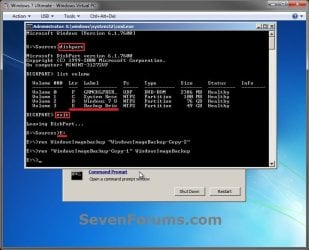
C) In the command prompt, type diskpart and press enter. (see screenshot below)

D) In the command prompt, type list volume and press enter. (see screenshot below)

E) Make note of the drive letter (ex: E: ) that you have the system image backup saved to.

F) In the command prompt, type exit and press enter. (see screenshot below)

G) In the command prompt, type the E: and press enter. (see screenshot below)
NOTE: Subsititute E: for your actual drive letter at step 2E instead.

H) If you already have a folder named "WindowsImageBackup"

NOTE: This is if you already have a folder named WindowsImageBackup that is not the system image version that you want to restore. If so, you would need to rename it to say WindowsImageBackup-Copy-2 as an example.
  • In the command prompt, type the command below and press enter. (see screenshot below)
    NOTE: Substitute WindowsImageBackup-Copy-2 in the command below with any name in quotes that you would like to rename it to instead.
Code:
[B]ren WindowsImageBackup "[COLOR=red]WindowsImageBackup-Copy-2[/COLOR]"[/B]
I) In the command prompt, type the command below and press enter. (see screenshot below)
NOTE: Substitute WindowsImageBackup-Copy-1 in the command below with the actual name of your renamed system image folder in quotes that you want to use to restore instead.
Code:
[B]ren "[COLOR=red]WindowsImageBackup-Copy-1[/COLOR]" WindowsImageBackup[/B]
J) Close the command prompt window. (see screenshot below)

K) Continue on to step 3B in the STEP TWO section below to do the System Image Recovery.
Rename-1.jpg


STEP TWO

To Do the System Image Recovery

1. If you have the system image backup save to an external device, be sure that it is connected and turned on (powered up) now.
A) Start with either step 2 or step 3 below first.
2. From "Backup and Restore" in the Control Panel while in Windows 7 A) Open the Control Panel (icons view), and click on Backup and Restore.

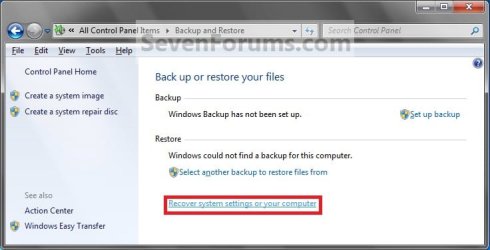
B) Click on the Recover system settings on your computer link. (see screenshot below) Step1.jpg
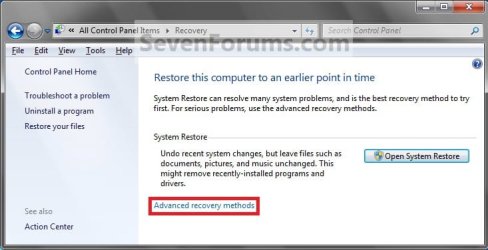
C) Click on the Advanced recovery methods link. (see screenshot below) Step2.jpg
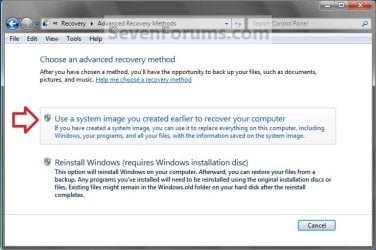
D) Select the Use a system image you created earlier to recover your computer option. (see screenshot below) Step3.jpg
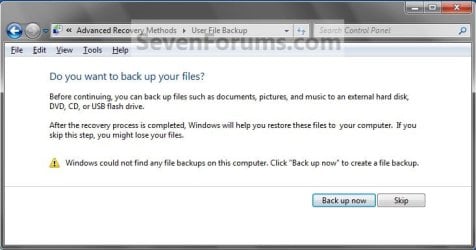
E) Select to either create a Back up now, or to Skip it and continue the system image recovery without backing up any of your current files.
NOTE: If you select Back up now, it will take you to step 6 in this tutorial link to create a User and System File back up of your current files first before continuing to step 1F. (see screenshot below) Step4A.jpg
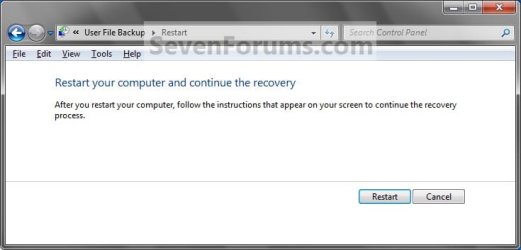
F) Click on Restart. (see screenshot below) Step5A.jpg
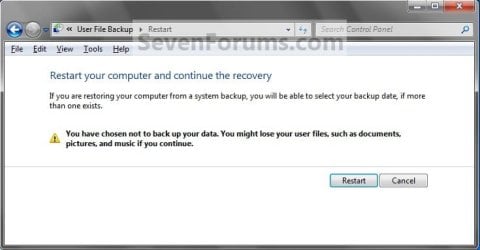
Step5B.jpg

G) Select a languange to be used for your keyboard input and click on Next. (see screenshot below) Step6.jpg
H) Go to step 4.
3. From the System Recovery Options Screen at Boot A) Boot to the System Recovery Options screen from your Windows 7 installation DVD/USB, or System Repair Disc.

B) Select the System Image Recovery option. (see screenshot below) System_Recovery_Options.jpg
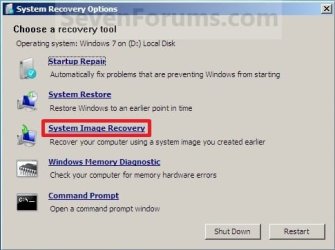
4. If you saved the system image backup to a set of DVDs, then insert the last DVD from the set when prompted. If not, go to step 5 for a system image backup on a hard drive. A) Go to step 7 below.
5. To Use the Latest System Image A) Select (dot) Use the latest available system image and click on Next. (see screenshot below) Step7.jpg
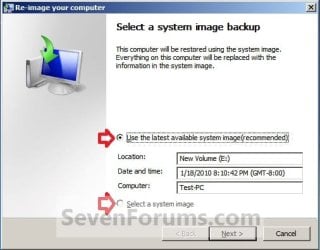
B) Go to step 7.
6. To Select a System Image A) Select (dot) Select a system image, and click on Next. (see screenshot above)
NOTE: This is if the system image that you want to use is not listed here and is at another location that you wish to choose from instead.

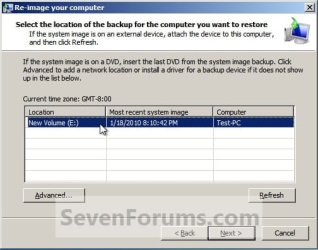
B) Select the location of the backup image for the computer you want to restore from the list, and click on Next. (see screenshot below)

   Note
To add a image from a network location, click on the Advanced button, and on the Search for a system image on the network option.

If the drive cannot be seen to select a system image from, then you may need to use the tutorial below to load your SATA or RAID drivers before it will be seen. You would click on the Advanced button, and on the Install a driver option.

SATA Drivers - Load in Windows 8 System Image Recovery
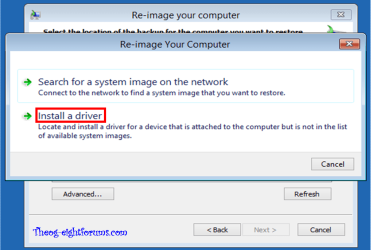
RecoveryBackup004-8.PNG


Step8A.jpg
C) Select the date and time of the system image to restore, and click on Next. (see screenshot below) Step8B.jpg
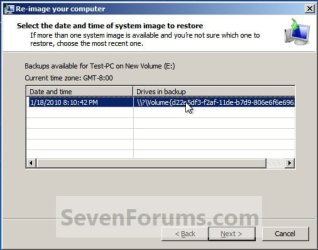
7. To Do a Full System Image Recovery
NOTE: This option will format everything on each hard disk drive that was included in the system image, then restore them as they were when the system image was created.

   Note
Format and repartition disks box:
NOTE: Special thanks to MJF for this addition. 1) Grayed out and selected
You are forced to have the whole disk formatted and repartitioned to match the partition structure of the disk the image was made from. This can occur when restoring an image to a new disk or the original disk with a modified partition structure. Data on other partitions on the disk you are restoring to will be lost.

2) Grayed out and unselected
You are not given the option to format and repartition the disk. This will occur if you are restoring Windows from a partition on the same disk.

3) Not grayed out and unselected
Here you have the option to select format the whole disk and repartition or not. In this case the disk the image was taken from has a matching partition structure to the disk you are restoring the image to. By not selecting the format and repartition option your image will be restored and other partitions untouched such as valuable data partitions.
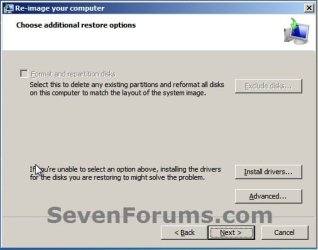
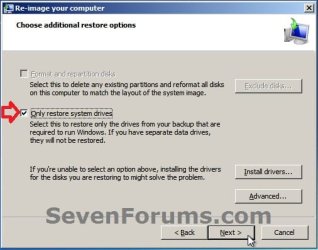
A) Check the Format and repartition disks box (if not grayed out) and uncheck Only restore system drives box (if available), and click on Next. (see screenshots below) Exclude_Disks.jpg
Step9.jpg
System_Drives.jpg
B) Go to step 10.
8. To Only Restore System Drives in System Image Recovery
NOTE: When restoring to the same disk containing data partitions, the Format and repartition disks option may format the data partitions as well. If this is the case and you have the option to leave the Format and repartition disks box unchecked, then initially attempt your image recovery with the Format and repartition disks box unchecked. If recovery is unsuccessful, repeat the process with the format box ticked. A) If available, check the Only restore system drives box, and click on Next. (see screenshot below) System_Drives.jpg
B) Go to step 10.
9. To Exclude Restoring Specific Drives in System Image Recovery
NOTE: Since a system image recovery will format everything on each hard disk drive that was included in a system image, this will allow you to exclude specific disks so that specific disk will not be formated or restored. A) Check the Format and repartition disks box , and click on the Exclude disks button (if not grayed out). (see screenshot below)
NOTE: If the Exclude disks button is grayed out, then the HDD that you are restoring to is empty, or you do not have any disks in the system image that are able to be excluded from being restored. Exclude 001.JPG
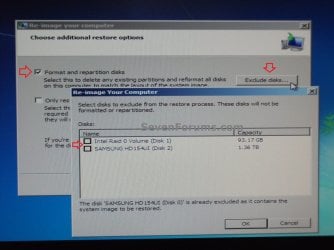
B) Unselect the drives that you want to exclude from being restored.

C) Click on Next.
10. Click on Finish. (see screenshot below) Step10.jpg
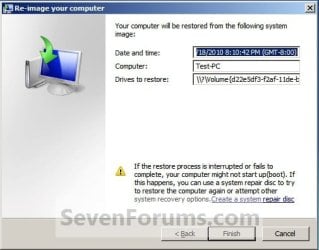
11. Click on Yes. (See screenshot below) Step11.jpg
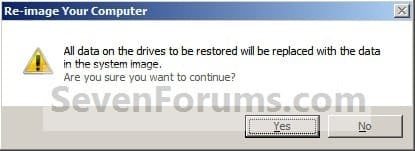
12. You will now see this screenshot below.
NOTE: If you have the backup image on DVDs, have them ready. See step 4 above. Step12.jpg
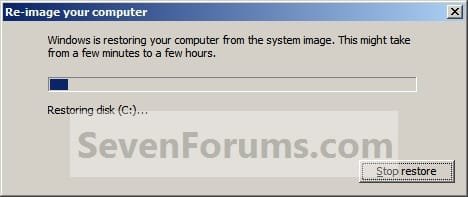
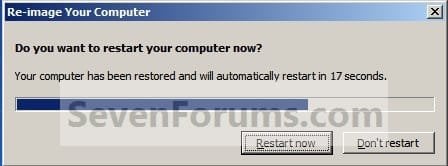
13. When it is through, click on Restart Now to finish. (see screenshot below)
NOTE: Your computer will restart and the backup image restoration will be done. Step13.jpg
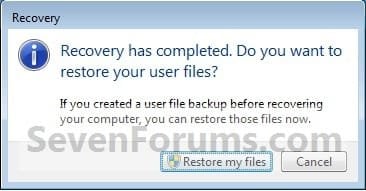
14. If you created a backup in step 1E, then you will now see this option to Restore my files after the computer restarts. (see screenshot below) Step14.jpg
That's it,
Shawn


Attachments

  • Step6A.jpg
    Step6A.jpg
    12.7 KB · Views: 244
Last edited:
It looks to me that the disk is definitely on its last legs. Both Windows and Acronis are baulking I doubt anything like Macrium will perform any magic.

At this stage your first priority should be to get all her personal data off the disk onto some storage media. Ideally an external HDD.
(1) Can you do this?

(2) You say every time you you boot (presumably the failing disk) you get boot manager missing - what do you do then?

(3) Do you have the OS disks and apps to rebuild the system? Is the OS retail or OEM?

(4) You attempted to reimage to a 400GB HDD - Yes? How big was the partition the images came from?
Thanks for the replay. :)

1) Yes, since I can still boot into Windows and everything but backing up seems to be working, I think I can copy her data.

2) I only get the Missing boot mgr message after the failed back-up attempts. In that situation, restarts (CTL+ALT+DEL) don't work. I completely shut it down, wait a minute, and then start up again. It will generally start up then. (Though I had to run Windows Start-up repair a couple times.) Once the system is running normally, I can shut down and restart without issue.....it's only after back-up attempts that it's messed up.

3) It's an OEM OS, and yes, I have the discs to rebuild it.

4) Yes, I used a 400Gb drive as the destination. The failing 1Tb Seagate only has the System Reserved (100 Mb) and C: volumes. The failed Windows Backup images ranged between 25 and 45Gb.
 

My Computer

OS
Windows 7 Pro 64bit
Ok get the data off ASAP.

Still some confusion you have:
1 TB failing - with 100MB sys reserved + ONE extra C: partition

Is the 400GB the only other HDD and is it now internal.
You need source disk --> image to 2nd disk ----> replacement disk
1TB Seagate .....................400G?............................? 400G??

Do you have an external USB HDD??? If so use it to extract her data.

Also You cannot restore a Windows image made on a larger partition straight to a smaller partition.

I would recommend saving the data and clean install OS & apps. If the apps are activated attempt to deactivate them before proceeding along this path.
 

My Computer

Computer type
PC/Desktop
Computer Manufacturer/Model Number
Own build
OS
Windows 7x64 Home Premium SP1
CPU
Intel i7 2600k
Motherboard
ASUS P8Z68 Deluxe
Memory
G.Skill Ripjaws (DDR3-1600) 2x4GB
Graphics Card(s)
Nvidia GeForce GTS 450; Intel HD Graphics 3000(GT2+)
Monitor(s) Displays
Dell Ultrasharp IPS panel U2311H, Samsung SyncMaster P2350
Screen Resolution
1920x1080
Hard Drives
Samsung 850 Pro SSD 256GB, Samsung SSD 840 120GB, Seagates 1TB Barracuda ST31000528AS x2
PSU
Seasonic M12II 520W
Case
Lian Li Lancool PC-K60
Cooling
Case: 1x120mm, 3x140mm CPU: Hyper 212+
Keyboard
Logitech MK520 (wireless)
Mouse
Logitech MK520
Internet Speed
6-7 Mbps
Antivirus
Norton Security Premium, Malwarebytes on 2 (MSE on 3rd PC)
Browser
FireFox
Other Info
Audio: Logitech Z523 2.1
The 400Gb HDD is internal, installed only for the purposes of providing a back-up destination. I don't have an external USB drive. (Actually I do, but they're older WDs and they don't seem to work under Win 7.)

The replacement WD is a 1Tb drive, just like the Seagate that's failing.

Source Disc (Seagate 1Tb) ----> Image Destination Disc (400Gb Hitachi)
----> Replacement Disc (WD 1Tb)

So, the partition sizes should be okay, right? The issue lies in just getting a valid image to work with, if I still can.

I understand the recommendation to rebuild, and if I have to, I will. But it took me several days to get everything she wanted installed and tweaked to her liking. (She's completely unable to do any of this herself.) It just seems like, if it's working as well as it is (aside from back-up failures), I ought to be able to salvage all that effort somehow.....:(

BTW, thanks for your patience, mjf.....sorry I haven't been more clear in my descriptions. I am very appreciative of your time and input.
 
Last edited by a moderator:

My Computer

OS
Windows 7 Pro 64bit
Got it now!
so get the personal data onto the 400G.

You could try to scan & sector repair and attempt another image with both Acronis and Windows. Downloading and installing Macrium would appear to me to be just wasting time. I don't know a faster way to do a scan and repair than with windows and this will take hours on a 1TB HDD.

It's your call OP.
I can only hang on for a little longer. Please ask any questions now.
 

My Computer

Computer type
PC/Desktop
Computer Manufacturer/Model Number
Own build
OS
Windows 7x64 Home Premium SP1
CPU
Intel i7 2600k
Motherboard
ASUS P8Z68 Deluxe
Memory
G.Skill Ripjaws (DDR3-1600) 2x4GB
Graphics Card(s)
Nvidia GeForce GTS 450; Intel HD Graphics 3000(GT2+)
Monitor(s) Displays
Dell Ultrasharp IPS panel U2311H, Samsung SyncMaster P2350
Screen Resolution
1920x1080
Hard Drives
Samsung 850 Pro SSD 256GB, Samsung SSD 840 120GB, Seagates 1TB Barracuda ST31000528AS x2
PSU
Seasonic M12II 520W
Case
Lian Li Lancool PC-K60
Cooling
Case: 1x120mm, 3x140mm CPU: Hyper 212+
Keyboard
Logitech MK520 (wireless)
Mouse
Logitech MK520
Internet Speed
6-7 Mbps
Antivirus
Norton Security Premium, Malwarebytes on 2 (MSE on 3rd PC)
Browser
FireFox
Other Info
Audio: Logitech Z523 2.1
Where's scan & sector repair...in Disc Management? I wasn't aware that Windows had anything but chkdsk.

I'll go copy data, etc., and then do that (scan & repair, re-try the back-ups). Just need to know exactly which utility we're talking about.

Thanks again.....very much appreciated. :)
 

My Computer

OS
Windows 7 Pro 64bit
First try the following:
Type cmd in the bottom left "Search programs & file"
Right click on cmd.exe and run as Administrator
type>sfc/scannow
if you get errors run a number of times to see if it can fix errors.
then try your imaging again
If this fails do below:
----------------------------------------------------------------------

Chkdsk basically same thing.
If you are comfortable with chkdsk from the command line ok.

From windows > goto Computer. Your drive c: will be shown>right click, select properties>Tools>Check now> click 2 boxes >start
The computer should restart and take ages to finish the job.
Try the imaging again
 

My Computer

Computer type
PC/Desktop
Computer Manufacturer/Model Number
Own build
OS
Windows 7x64 Home Premium SP1
CPU
Intel i7 2600k
Motherboard
ASUS P8Z68 Deluxe
Memory
G.Skill Ripjaws (DDR3-1600) 2x4GB
Graphics Card(s)
Nvidia GeForce GTS 450; Intel HD Graphics 3000(GT2+)
Monitor(s) Displays
Dell Ultrasharp IPS panel U2311H, Samsung SyncMaster P2350
Screen Resolution
1920x1080
Hard Drives
Samsung 850 Pro SSD 256GB, Samsung SSD 840 120GB, Seagates 1TB Barracuda ST31000528AS x2
PSU
Seasonic M12II 520W
Case
Lian Li Lancool PC-K60
Cooling
Case: 1x120mm, 3x140mm CPU: Hyper 212+
Keyboard
Logitech MK520 (wireless)
Mouse
Logitech MK520
Internet Speed
6-7 Mbps
Antivirus
Norton Security Premium, Malwarebytes on 2 (MSE on 3rd PC)
Browser
FireFox
Other Info
Audio: Logitech Z523 2.1
Got it!! Will follow those steps....I'm comfortable working from the command line Will post back tomorrow on whether it was successful.

Thanks again.
 

My Computer

OS
Windows 7 Pro 64bit
Just to clarify what mjf recommended:

There is a space between sfc and /scannow. :)
 

My Computer

Computer type
Laptop
Computer Manufacturer/Model Number
Sony Vaio VPCEB47GM Laptop
OS
Win 7 Pro 64-bit
CPU
Intel i5 2.4 Ghz
Memory
8GB DDR3
Graphics Card(s)
Intel HD 3000
Sound Card
IDT High Definition
Monitor(s) Displays
15.6 WGXA Anti-Glare LED
Screen Resolution
1280x800
Hard Drives
640Gb 7200rpm
Antivirus
MSE
Browser
Opera (primary) with IE9 backup
Just to clarify what mjf recommended:

There is a space between sfc and /scannow. :)
Now that one I knew! :geek:

I've run all these scans, and they found.....NOTHING. I can't believe it. I even ran chkdsk /f from the recovery command prompt, to be sure the drive was not in use (and therefore able to defer any tests)......I ran it on the System Reserved volume as well as the primary system volume. Nothing. No bad sectors, no repairs. "Windows has checked the file system and found no problem."

These scans didn't take all that long, either. Isn't /f the correct parameter when you want it to check for physical errors? Did I miss something?

I'm reluctant to attempt another image when it appears that nothing has changed.
 

My Computer

OS
Windows 7 Pro 64bit
Just to clarify what mjf recommended:

There is a space between sfc and /scannow. :)
yes strictly the syntax has a space but it's not needed.
 

My Computer

Computer type
PC/Desktop
Computer Manufacturer/Model Number
Own build
OS
Windows 7x64 Home Premium SP1
CPU
Intel i7 2600k
Motherboard
ASUS P8Z68 Deluxe
Memory
G.Skill Ripjaws (DDR3-1600) 2x4GB
Graphics Card(s)
Nvidia GeForce GTS 450; Intel HD Graphics 3000(GT2+)
Monitor(s) Displays
Dell Ultrasharp IPS panel U2311H, Samsung SyncMaster P2350
Screen Resolution
1920x1080
Hard Drives
Samsung 850 Pro SSD 256GB, Samsung SSD 840 120GB, Seagates 1TB Barracuda ST31000528AS x2
PSU
Seasonic M12II 520W
Case
Lian Li Lancool PC-K60
Cooling
Case: 1x120mm, 3x140mm CPU: Hyper 212+
Keyboard
Logitech MK520 (wireless)
Mouse
Logitech MK520
Internet Speed
6-7 Mbps
Antivirus
Norton Security Premium, Malwarebytes on 2 (MSE on 3rd PC)
Browser
FireFox
Other Info
Audio: Logitech Z523 2.1
I'm starting to wonder/speculate on something. Any feedback & corrections appreciated.

The self-monitoring feature built into modern HDDs seems to work like this:

  • It triggers a S.M.A.R.T. error when it detects a problem.
  • It "flags" the drive as BAD.
  • Disc diagnostic tools see the error condition, and immediately report "Ooh, we found an error...BAD DRIVE!" Even though they don't actually identify any specific problems.
  • When Windows boots, it, too sees the flag & immediately says there's a serious drive problem, better back-up data ASAP, etc., etc. But it's only reading that flag...it doesn't independently validate the diagnosis.
  • Once this "bad" drive is flagged in Windows, maybe certain applications (like back-up programs?) will in turn presume they're operating on a bad drive and trigger conditional behavior based on Windows' report.

Everything "downstream" trusts the S.M.A.R.T. report....but what if S.M.A.R.T. itself has malfunctioned? If NO other disc utility actually finds any errors other than the flag in the drive's self-report, and the only programs having conniptions are the back-up programs.....are we sure that drive is really bad?

If I disable S.M.A.R.T. monitoring, might the error flag be removed and the responses it triggers in Windows be avoided? Is it worth trying? Or do I have have my head totally lodged up a dark place here....?
 

My Computer

OS
Windows 7 Pro 64bit
If I'm repeating something others have suggested I apologize. Have you tried running an independent hard drive testing tool like SeaTools? You don't have to be using a Seagate drive to run the tool.

SeaTools for Windows | Seagate
 

My Computer

Computer type
Laptop
Computer Manufacturer/Model Number
Sony Vaio VPCEB47GM Laptop
OS
Win 7 Pro 64-bit
CPU
Intel i5 2.4 Ghz
Memory
8GB DDR3
Graphics Card(s)
Intel HD 3000
Sound Card
IDT High Definition
Monitor(s) Displays
15.6 WGXA Anti-Glare LED
Screen Resolution
1280x800
Hard Drives
640Gb 7200rpm
Antivirus
MSE
Browser
Opera (primary) with IE9 backup
BrodyBoy,
I don't dismiss anything including your SMART hypothesis. But I think I think it may be stretching it a little to think that Windows would allow (be "smart" enough") use this data in the way you suggest. I don't think disabling it would hurt. I forget what you are using for SMART reporting ---try CrystalDiskInfo.

By all means use SeaTools I have some Seagate drives and use the tool occasionally but generally feel comfortable with the Windows check. A proper sector scan & repair on a 1TB drive is SLOW. I suggest you run the disk scan as I suggested earlier from Windows
From windows > goto Computer. Your drive c: will be shown>right click, select properties>Tools>Check now> click 2 boxes >start
Because you are checking the OS drive the computer should restart and take ages to finish the job.


This should take on the order of an hour or more for 1TB. I've done it heaps of times you will also see progress feedback.
 

My Computer

Computer type
PC/Desktop
Computer Manufacturer/Model Number
Own build
OS
Windows 7x64 Home Premium SP1
CPU
Intel i7 2600k
Motherboard
ASUS P8Z68 Deluxe
Memory
G.Skill Ripjaws (DDR3-1600) 2x4GB
Graphics Card(s)
Nvidia GeForce GTS 450; Intel HD Graphics 3000(GT2+)
Monitor(s) Displays
Dell Ultrasharp IPS panel U2311H, Samsung SyncMaster P2350
Screen Resolution
1920x1080
Hard Drives
Samsung 850 Pro SSD 256GB, Samsung SSD 840 120GB, Seagates 1TB Barracuda ST31000528AS x2
PSU
Seasonic M12II 520W
Case
Lian Li Lancool PC-K60
Cooling
Case: 1x120mm, 3x140mm CPU: Hyper 212+
Keyboard
Logitech MK520 (wireless)
Mouse
Logitech MK520
Internet Speed
6-7 Mbps
Antivirus
Norton Security Premium, Malwarebytes on 2 (MSE on 3rd PC)
Browser
FireFox
Other Info
Audio: Logitech Z523 2.1
If I'm repeating something others have suggested I apologize. Have you tried running an independent hard drive testing tool like SeaTools? You don't have to be using a Seagate drive to run the tool.

SeaTools for Windows | Seagate

Yes, that was the first thing I did. It appeared to me that it just saw the S.M.A.R.T. flag and made the "bad disc" call as I described above. The short test didn't actually report errors other than that the disc had been marked as bad. The long test would abort, say that S.M.A.R.T. had found irreparable errors, and issue a Warranty Validation Code.

So that didn't get very far at all. I trust the error code too, and I don't want a new computer running a problem drive. I've already RMA'd it. But it seems to work fine, so I thought I could just create an image to replicate the installation on the new drive. That's when all these failed back-up attempts started.

To be clear, it's only when trying to create a system image that there's any problem. Otherwise, it seems to boot up and run normally.
 

My Computer

OS
Windows 7 Pro 64bit
@mjf:

SMART monitoring was enabled by default in the ASUS motherboard. I've never used another program for that....I've never had a disc trigger a SMART error. Lucky I guess.

Windows flashes a pop-up about the drive problem immediately upon booting....that's what makes me suspect it's just using the SMART flag.....and then at regular intervals (~10-15min) after that.

I'll try running the scan again. I went outside Windows to do it because the other method would say that access to the disc was prevented by a recently-installed program. I assumed that was Acronis. I'll try uninstalling it and running the Windows test again as you described.
 

My Computer

OS
Windows 7 Pro 64bit
The boot manager and BCD live in the 100MB system reserved partition and Windows uses that partition as part of its imaging. This might explain your boot manager getting corrupted. If there isn't at least 50MB free in this partition windows imaging is likely to fail.

You think your drive is bad enough to return it. Yet you would trust an image from it - if you could make one. Acronis doesn't like imaging the drive???

So keep going if you like. Download Macrium and try it. I use it also and have restored from its images.

I meant also to ask - Are you confident that your 400GB internal HDD is installed ok?
 

My Computer

Computer type
PC/Desktop
Computer Manufacturer/Model Number
Own build
OS
Windows 7x64 Home Premium SP1
CPU
Intel i7 2600k
Motherboard
ASUS P8Z68 Deluxe
Memory
G.Skill Ripjaws (DDR3-1600) 2x4GB
Graphics Card(s)
Nvidia GeForce GTS 450; Intel HD Graphics 3000(GT2+)
Monitor(s) Displays
Dell Ultrasharp IPS panel U2311H, Samsung SyncMaster P2350
Screen Resolution
1920x1080
Hard Drives
Samsung 850 Pro SSD 256GB, Samsung SSD 840 120GB, Seagates 1TB Barracuda ST31000528AS x2
PSU
Seasonic M12II 520W
Case
Lian Li Lancool PC-K60
Cooling
Case: 1x120mm, 3x140mm CPU: Hyper 212+
Keyboard
Logitech MK520 (wireless)
Mouse
Logitech MK520
Internet Speed
6-7 Mbps
Antivirus
Norton Security Premium, Malwarebytes on 2 (MSE on 3rd PC)
Browser
FireFox
Other Info
Audio: Logitech Z523 2.1
The boot manager and BCD live in the 100MB system reserved partition and Windows uses that partition as part of its imaging. This might explain your boot manager getting corrupted. If there isn't at least 50MB free in this partition windows imaging is likely to fail.

You think your drive is bad enough to return it. Yet you would trust an image from it - if you could make one. Acronis doesn't like imaging the drive???

So keep going if you like. Download Macrium and try it. I use it also and have restored from its images.

I meant also to ask - Are you confident that your 400GB internal HDD is installed ok?
Yes, I'm confident in the 400Gb drive...the M/B & Windows both recognized it immediately, the format completed normally, items copied to it normally. Why would you suspect that I shouldn't have confidence in it (or its installation)?

"You think your drive is bad enough to return it."
I based that on the SMART error. The minute she called and said she saw that on start-up three days ago, I felt I should replace the drive. (She'd had the computer less than a week.) I went over to create an image then.....and thought I had.

FWIW, chkdsk found no problems in the System Reserved partition. No errors, and nearly 70Mb of free space.

You've been very patient, and I sincerely appreciate it. But I suspect I've exhausted your patience with this odd & intractable issue. I may try a few more things...if they work, great...if not, I rebuild. Thanks for all your suggestions.
 
Last edited:

My Computer

OS
Windows 7 Pro 64bit
System Image Recovery in Windows Home Premium

I have been trying to do an Image Recovery. The Windows Backup Image is on an external HD. Nothing shows up in the "Re-image your Computer" selection (I do not get the selection box in your System Image Recovery step 3) when I enter the network path in the search network option I get a network connection error. I have tried copying the Image to an Internal drive (not C:) but the same thing happens.

I have just read the "Warnings" in the Create an Image Backup Forum and it says "Only the Windows 7 Professional, Ultimate, and Enterprise Editions can backup to a network location."

Does this mean that as I am using Home Premium I must use the Command Prompt at Boot option, will I be able to access my external drive backup, will it work?
 

My Computer

OS
Windows 7 Home Premium 64bit.
Hello Gringoal, and welcome to Seven Forums.

Does any of the NOTE box under STEP ONE apply to you? If so, be sure that you do that first.

If the external drive is connected via a USB port, do you have your BIOS set to see USB devices at boot?


If all else fails, you will be able to manually extract any files that you may need from the system image backup using the tutorial below to help show you how to.

http://www.sevenforums.com/tutorials/24771-system-image-extract-files-using-disk-management.html

Hope this helps for now,
Shawn
 

My Computer

Computer type
PC/Desktop
Computer Manufacturer/Model Number
Self built custom
OS
64-bit Windows 11 Pro for Workstations
CPU
Intel i7-8700K OC'd to 5 GHz
Motherboard
ASUS ROG Maximus XI Formula Z390
Memory
64 GB (4x16GB) G.SKILL TridentZ RGB DDR4 3600 MHz
Graphics Card(s)
ASUS ROG-STRIX-GTX1080TI-O11G-GAMING
Sound Card
Integrated
Monitor(s) Displays
2 x Samsung Odyssey G7 27"
Screen Resolution
2560x1440
Hard Drives
1TB Samsung 990 PRO M.2,
4TB Samsung 990 PRO PRO M.2,
TerraMaster F8 SSD Plus NAS
PSU
Seasonic Prime Titanium 850W
Case
Thermaltake Core P3
Cooling
Corsair Hydro H115i
Keyboard
Logitech wireless K800
Mouse
Logitech MX Master 4
Internet Speed
2 Gb/s Download and 100 Mb/s Upload
Antivirus
Malwarebyte Anti-Malware Premium
Browser
Google Chrome
Other Info
Logitech Z625 speaker system,
Logitech BRIO 4K Pro webcam,
HP Color LaserJet Pro MFP M477fdn,
APC SMART-UPS RT 1000 XL - SURT1000XLI,
Galaxy S23 Plus phone
Thanks Brink.

My head is spinning here ! hope you're still around

Firstly i have never moved or renamed WindowsImageBackup since it was first created it is located on an external USB3 1TB Western Digital drive H:

I do not see the words "see USB devices at boot" in the BIOS but all references to USB are "enabled."

I tried Extracting files using Disk management but when I hit OK after Step 6 my computer froze for a long time and then rebooted with a "Recovery from a Major Widows Error" message

It might help if I understood what this process is trying to do. If I am navigating to external drive H: to find the Image where am I extracting it to and how does a new partition get created ?
 

My Computer

OS
Windows 7 Home Premium 64bit.
Back
Top