How to Delete System Protection Restore Points in Windows 7 and Windows 8
Information
This will show you how to delete all, all but the most recent, or individual System Protection restore points for a selected hard disk in Windows 7 and Windows 8.
System Restore isn't available for Windows RT.
System Restore isn't available for Windows RT.
Warning
If you delete all of the restore points, then you cannot restore the disk until System Protection is on and a restore point is created for the hard disk again.
It has been reported that some 3rd party disk defragmentation programs could also delete your restore points when used.
It has been reported that some 3rd party disk defragmentation programs could also delete your restore points when used.
OPTION ONE
Use System Protection Properties to Delete Restore Points
:warn:WARNING: This will delete all restore points (system settings and previous versions of files) for the selected hard disk.
1. Open the Control Panel (icons view) in Windows 7 or Windows 8, and click/tap on the System icon.
2. In the left side of System, click/tap on the System Protection link. (See screenshot below)
3. If prompted by UAC, then click/tap on Yes.
4. Close the System window. (See screenshot below)
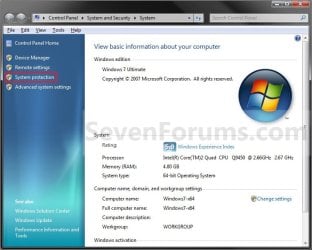
5. Click/tap on the available hard disk drive or partition, that you want to delete the System Protection restore points for, to select it. (See screenshot below step 6)
NOTE: Windows should be the C: disk with (System). System Protection will need to be turned on for the selected disk to be able to delete the restore points.
6. Click/tap on the Configure button. (See screenshot below)
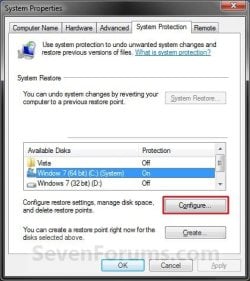
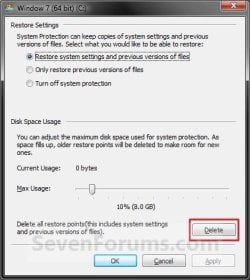
7. Click/tap on the Delete button. (See screenshot below)
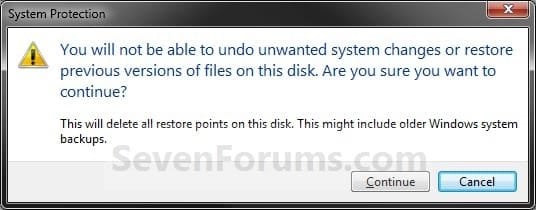
8. Click/tap on the Continue button to confirm the deletion. (See screenshot below)
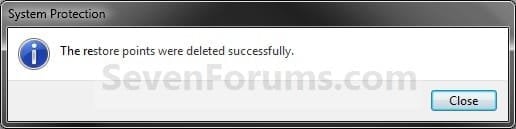
9. Click/tap on Close in the success prompt. (See screenshot below)
10. Click/tap on OK. (See screenshot below step 7)
11. Click/tap on OK. (See screenshot below step 6)
OPTION TWO
Use Disk Cleanup to Delete Restore Points
NOTE: This will help free up more disk space for the selected hard disk by removing all but the most recent restore point. This will also include deleting shadow copies (Previous Versions) that were created with a deleted restore point.
1. Press the Windows + R keys to open the Run dialog, type cleanmgr, and press Enter.
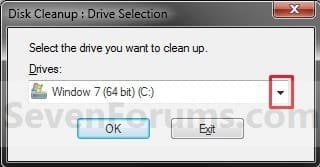
2. Select the hard disk you want to use Disk Cleanup on, and click/tap on OK. (See screenshot below)
NOTE: You will not see this window unless you have more than one drive or partition on your computer.
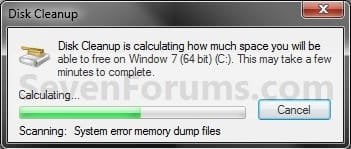
3. You will now see this scanning screenshot below for a few seconds.
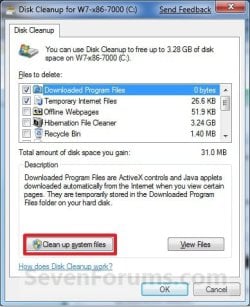
4. Click/tap on the Clean up system files button. (See screenshot below)
5. If prompted by UAC, then click/tap on Yes.
6. Select the hard disk you want to use Disk Cleanup on, and click/tap on OK. (See screenshot below step 2)
NOTE: You will not see this window unless you have more than one drive or partition on your computer.
7. Click/tap on the More Options tab, and click/tap on the Clean up button under the System Restore and Shadow Copies section. (See screenshot below)
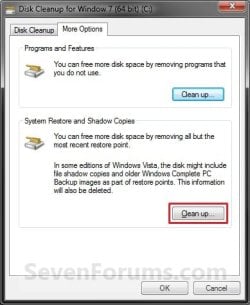
8. Click/tap on the Delete button in the confirm deletion window. (See screenshot below)

9. Close the Disk Cleanup window. (See screenshot below step 7)
WARNING: Do not click on OK unless you wanted to delete the checked files in the Disk Cleanup tab.
OPTION THREE
Use CCleaner to Delete Individual Restore Points
1. If you have not already, download and install the free program CCleaner and run it.
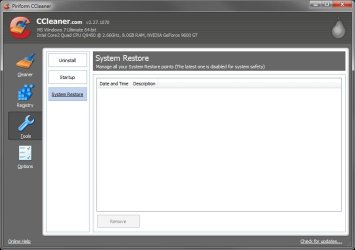
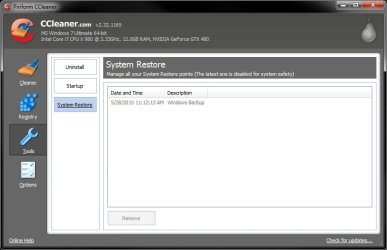
2. In CCleaner, click on the Tools icon, System Restore button, then select the restore points that you wish to delete and click on Remove. (see screenshot below)
NOTE: You can press and hold the CTRL key while clicking on the restore points to be able to select random restore points.
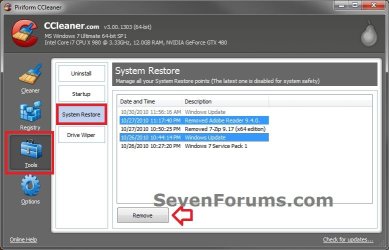
3. Click on OK to confirm deleting them. (see screenshot below)

4. When finished, close CCleaner. The selected restore points have been deleted.
OPTION FOUR
Use "System Restore Explorer" to Delete Individual Restore Points
Note
You could also use the System Restore Explorer program to mount specific restore points to be able to browse and copy individual files and folders from a mounted restore point back into Windows without having to use Previous Versions or to do a full System Restore.
For more on this, see:
How to Extract Files and Folders from System Restore Points in Windows 7 and Vista
For more on this, see:
How to Extract Files and Folders from System Restore Points in Windows 7 and Vista
1. If you have not already, download and install the free program System Restore Explorer and run it.
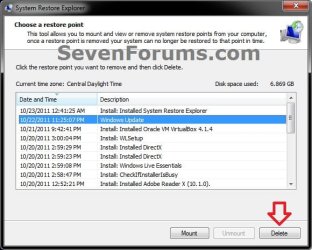
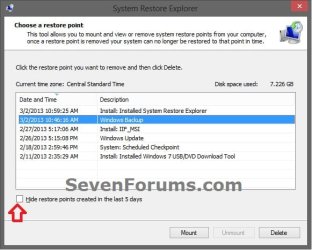
2. In System Restore Explorer, select a specific restore point that you would like to delete, and click on the Delete button. (see screenshot below)
NOTE: If displayed, uncheck the Hide restore points created in last 5 days box to see all restore points.
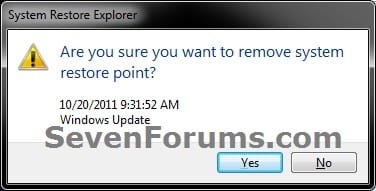
3. Click on Yes to confirm the deletion. (see screenshot below)
4. When finished, close System Restore Explorer. The selected restore points have been deleted.
OPTION FIVE
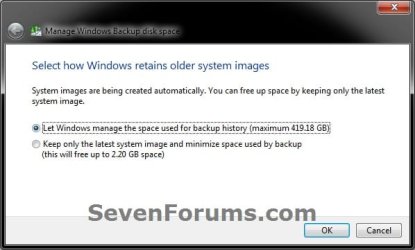
Use "Manage Windows Backup disk space" to Delete System Image Restore Points
Note
This option is good to delete the System Image Restore Point "Backup" type restore points like below.
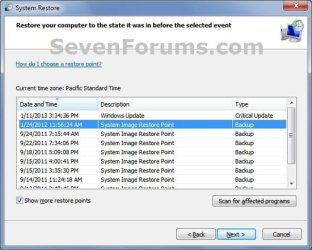
1. Use step 5 in OPTION ONE of the tutorial below to select the Keep only the latest system image and minimum space used by backup option, and click/tap on OK.
How to Delete Windows 7 User Data and System Image Backup Files
That's it,
Shawn
Related Tutorials
- How to Change the System Protection Disk Space Usage in Window 7
- How to Turn System Protection On or Off in Windows 7
- How to Make a "Create System Restore Point" Shortcut in XP, Vista, Windows 7, and Windows 8
- How to Add "Create Restore Point" to Context Menu in XP, Vista, Windows 7, and Windows 8
- How to Create a System Restore Point in Windows 7
- How to Do a System Restore in Windows 7
- How to Create a Windows 7 System Protection Properties Shortcut
- How to Automatically Create A System Restore Point at Startup
- How to Enable or Disable Windows 7 System Restore Configuration
- How to Enable or Disable Windows 7 System Restore
- How to Free Up and Recover Hard Drive Space in Windows 7
- How to Stop System Restore Points from being Deleted in Vista and Windows 7 when Dual Booting with XP
- How to Delete Shadow Copies in Vista and Windows 7
- How to Extract Files and Folders from System Restore Points in Windows 7 and Vista
- How to Use File History Cleanup to Delete Older Versions of Files in Windows 8
Attachments
Last edited: