System Reserved HD?

Well, my grain of salt is that unless someone has the need for that special setup where the limited number of primary partitions comes into play, System Reserved should be left alone. For one, it's the quickest way to fully recover a computer using a system image created by Windows 7 Backup utility.
 

My Computer

Computer Manufacturer/Model Number
Asus N73SV
OS
Windows 7 x64 Ultimate SP1
CPU
Core i7-2630QM
Motherboard
Intel HM 65
Memory
6 GB DDR3
Graphics Card(s)
Nvidia GT 540M / Intel HD 3000 - Optimus switching
Sound Card
HD Audio (Intel Azalia/Realtek) ALC269
Monitor(s) Displays
LED flat panel
Screen Resolution
1920 x 1080
Hard Drives
2x Seagate Momentus 640 GB - 1,28 TB in total
Internet Speed
4 MB/256 kbps
Other Info
External HDs

WD Elements 1,5 TB
WD MyBook 500 GB
Well, my grain of salt is that unless someone has the need for that special setup where the limited number of primary partitions comes into play, System Reserved should be left alone. For one, it's the quickest way to fully recover a computer using a system image created by Windows 7 Backup utility.

Please explain.

If you are referring to SysReserved making the Repair Console available by tapping F8 at bootup, be aware that in many cases it will not load WinRE sufficiently into memory to "Recover Using a System Image," but instead require you to reboot with the DVD or Repair CD.
 
For one, it's the quickest way to fully recover a computer using a system image created by Windows 7 Backup utility.
For imaging, this seperate partition containing the MBR creates a few challenges.

1. You should make a seperate image of this small partition containing the MBR just to be sure you have it if the drive goes south. You need to make that image only once because it does not change over time. Restoring this little partition is not required as long as the disk drive remains operational.

2. During the restoration of the OS partition from an image, you must not mark the OS partition as active nor must you restore the MBR because the active partition is the little partition and the MBR was not imaged when you imaged the OS partition.

3. If the little MBR partition resides on a seperate physical drive as is the case of the OP desktop, there is the additional problem that you need 2 physical drives for booting and problems with any one drive will make booting impossible.
 

My Computer

Computer Manufacturer/Model Number
HP, Dell, Gateway, Toshiba - 4 laptops and 2 desktops
OS
Vista, Windows7, Mint Mate, Zorin, Windows 8
CPU
from 1.6GHz Duo to i7
Monitor(s) Displays
2x HP w2207
Hard Drives
5x HDD, 7x SSD, 12x Externals
Keyboard
with trackball - no mices
Mouse
Trackball mice
Internet Speed
DSL 6000
Well, my grain of salt is that unless someone has the need for that special setup where the limited number of primary partitions comes into play, System Reserved should be left alone. For one, it's the quickest way to fully recover a computer using a system image created by Windows 7 Backup utility.

Please explain.

If you are referring to SysReserved making the Repair Console available by tapping F8 at bootup, be aware that in many cases it will not load WinRE sufficiently into memory to "Recover Using a System Image," but instead require you to reboot with the DVD or Repair CD.

Really? Well, I will readily admit I didn't try that in person, so I took the documentation at face value. Therefore, I humbly remove myself from this discussion.. :D

I must admit that the OP's original disk & boot setup looks superbly weird. It looks like he installed Win 7 on one partition, than on the other, then wiped the first one. :D
 

My Computer

Computer Manufacturer/Model Number
Asus N73SV
OS
Windows 7 x64 Ultimate SP1
CPU
Core i7-2630QM
Motherboard
Intel HM 65
Memory
6 GB DDR3
Graphics Card(s)
Nvidia GT 540M / Intel HD 3000 - Optimus switching
Sound Card
HD Audio (Intel Azalia/Realtek) ALC269
Monitor(s) Displays
LED flat panel
Screen Resolution
1920 x 1080
Hard Drives
2x Seagate Momentus 640 GB - 1,28 TB in total
Internet Speed
4 MB/256 kbps
Other Info
External HDs

WD Elements 1,5 TB
WD MyBook 500 GB
We see this about once a month here. It apparently happens when OP chooses one HD for install, it creates the 100mb System Reserved partition there, then OP perhaps inadvertantly clicks on another HD and OS install begins there.

Another good reason to unplug any extra HD during install.
 
When you are ready to do this, post back a screenshot of your full Disk Management drive map as it exists then and we will give you more exact steps.

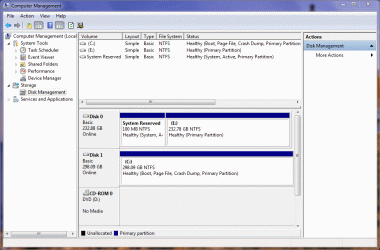
Here's a screenshot of how it is now....
 

Attachments

  • systemreserved.gif
    systemreserved.gif
    55.2 KB · Views: 23

My Computer

OS
Windows 7 Home Premium
CPU
Intel Q6600 SLACR (2.7GHz)
Motherboard
Gigabyte P35-DS4 (Rev 2.1)
Memory
8GB G.SKILL PC6400
Graphics Card(s)
ASUS EN9600GSO GeForce 9600 GSO 512MB
Monitor(s) Displays
LG W2252TQ 22" Widescreen
Screen Resolution
1680 x 1050
Hard Drives
2 x SeaGate Barracuda SATA (250GB, 320GB)
PSU
PCP&C Silencer 610
Case
Ultra m998
Cooling
ThermalRight Ultra 120E
Keyboard
Logitech K360
Mouse
Logitech Performance MX
Backup your files and save a Win7 Backup Image externally so you an start over if necessary, since resizing a partiiton can fail - although we haven't had it fail yet here using free Partition Wizard bootable CD.

Boot PW CD, allow files to load, choose 1 for Screen Res, rightclick System Reserved partition to Delete, OK.

Now rightclick E, select Resize, drag left grey border all the way to the left over deleted 100mb space, OK.

Next rightclick Win7 partition, select Modify>Set to Active, OK. Apply all Steps.

When steps complete, shut down and swap HD cables, or set Win7 HD as first HD to boot (after DVD) in BIOS setup.

Now boot the Win7 DVD Repair console or Repair CD, click through to Recovery Tools list to run Startup Repair up to 3 separate times with reboots to write the MBR to Win7.
 
Backup your files and save a Win7 Backup Image externally so you an start over if necessary, since resizing a partiiton can fail - although we haven't had it fail yet here using free Partition Wizard bootable CD.

Boot PW CD, allow files to load, choose 1 for Screen Res, rightclick System Reserved partition to Delete, OK.

Now rightclick E, select Resize, drag left grey border all the way to the left over deleted 100mb space, OK.

Next rightclick Win7 partition, select Modify>Set to Active, OK. Apply all Steps.

When steps complete, shut down and swap HD cables, or set Win7 HD as first HD to boot (after DVD) in BIOS setup.

Now boot the Win7 DVD Repair console or Repair CD, click through to Recovery Tools list to run Startup Repair up to 3 separate times with reboots to write the MBR to Win7.

Sorry, but I'm totally lost on all that.
 

My Computer

OS
Windows 7 Home Premium
CPU
Intel Q6600 SLACR (2.7GHz)
Motherboard
Gigabyte P35-DS4 (Rev 2.1)
Memory
8GB G.SKILL PC6400
Graphics Card(s)
ASUS EN9600GSO GeForce 9600 GSO 512MB
Monitor(s) Displays
LG W2252TQ 22" Widescreen
Screen Resolution
1680 x 1050
Hard Drives
2 x SeaGate Barracuda SATA (250GB, 320GB)
PSU
PCP&C Silencer 610
Case
Ultra m998
Cooling
ThermalRight Ultra 120E
Keyboard
Logitech K360
Mouse
Logitech Performance MX
Sorry, but I'm totally lost on all that.
That's what I was afraid you would say. Although all these steps are easy (for us geeky guys), there are enough traps in it for failure. You are liable to end up with a bunch of problems.
Your current setup is a little unusual and none of us would probably leave it at that, but it works and the risks are not too great. Short of a disk failure or damage to one of the 2 partitions, you will stay operational.
I suggest you leave it as is for the time being and come back to it once you have a better understanding of:

- Live bootable CDs and how to get them to boot
- Manipulating partitions
- BIOS settings
- Use of the Repair Console

I personally think that "do nothing" is the safest way for you to proceed right now. In the meantime you might want to aquaint yourself with each of the above subjects one by one.
 

My Computer

Computer Manufacturer/Model Number
HP, Dell, Gateway, Toshiba - 4 laptops and 2 desktops
OS
Vista, Windows7, Mint Mate, Zorin, Windows 8
CPU
from 1.6GHz Duo to i7
Monitor(s) Displays
2x HP w2207
Hard Drives
5x HDD, 7x SSD, 12x Externals
Keyboard
with trackball - no mices
Mouse
Trackball mice
Internet Speed
DSL 6000
I'm sorry I don't understand, but I appreciate everyone's help. whs, could you tell me why my set up is "unusual"?
 

My Computer

OS
Windows 7 Home Premium
CPU
Intel Q6600 SLACR (2.7GHz)
Motherboard
Gigabyte P35-DS4 (Rev 2.1)
Memory
8GB G.SKILL PC6400
Graphics Card(s)
ASUS EN9600GSO GeForce 9600 GSO 512MB
Monitor(s) Displays
LG W2252TQ 22" Widescreen
Screen Resolution
1680 x 1050
Hard Drives
2 x SeaGate Barracuda SATA (250GB, 320GB)
PSU
PCP&C Silencer 610
Case
Ultra m998
Cooling
ThermalRight Ultra 120E
Keyboard
Logitech K360
Mouse
Logitech Performance MX
Hi desktop, well your setup is unusual basically because you have your Windows 7 partition and your System Reserved Partition on 2 different hard drives, as whs said, if either of those hard drives fail, then Windows will be unbootable.

Unfortunately I am at work at the moment, so I cant post a picture of what it usually looks like, so ill try with words, this is my setup (my setup is a little complicated, but hopefully you can see what I mean):

Disk 0 - 100MB system reserved partition - 200GB Windows 7 Partion - 300GB Data Partition
Disk 1 - 136GB Backup Partion - 4GB Recovery Partition

basically, in my setup, if Disk1 fails, it doesnt matter, because Disk 1 doesnt have anything critical for windows on it, In your setup, if either Disk 0 OR Disk 1 fails, then Windows will be unbootable
 

My Computer

Computer type
PC/Desktop
Computer Manufacturer/Model Number
Medion Erazer (note to self: insert model number) - with custom additions
OS
Windows 10 Pro x64
CPU
Intel Core i5 7400 @ 3.00GHz
Motherboard
OEM supllied with PC
Memory
8GB 2133Mhz DDR4 (OEM supplied)
Graphics Card(s)
Gygabyte Windforce GTX 1050Ti (Factory Overclocked)
Sound Card
Realtek
Monitor(s) Displays
Acer Al1980 + HKC
Screen Resolution
1360*768(HKC) / 1280*1024(Acer)
Hard Drives
1TB Toshiba
1TB WD Caviar Green
120GB Samsung Evo 840
PSU
OEM supplied (no power rating on case)
Case
OEM Supplied
Cooling
Stock
Keyboard
Logitech Wireless
Mouse
Logitect Wireless
Internet Speed
40Mb/s Down 10Mb/s Up
Antivirus
Defender
Browser
Firefox
severedsolo, thank you for your reply and your explanation. So if I'm understanding this right then the best option would be to re-install Win7 and take care of the HD situation while installing the OS (?).

If so would it be something like this here? I can always print the instructions on that page and follow them when I re-install.

Of course I could always unplug my second HD before re-installing the OS, then Windows would install everything on one HD, correct? I can plug the second HD in after the install and just format it like a regular drive.
 
Last edited:

My Computer

OS
Windows 7 Home Premium
CPU
Intel Q6600 SLACR (2.7GHz)
Motherboard
Gigabyte P35-DS4 (Rev 2.1)
Memory
8GB G.SKILL PC6400
Graphics Card(s)
ASUS EN9600GSO GeForce 9600 GSO 512MB
Monitor(s) Displays
LG W2252TQ 22" Widescreen
Screen Resolution
1680 x 1050
Hard Drives
2 x SeaGate Barracuda SATA (250GB, 320GB)
PSU
PCP&C Silencer 610
Case
Ultra m998
Cooling
ThermalRight Ultra 120E
Keyboard
Logitech K360
Mouse
Logitech Performance MX
Sorry I am late. But severedsolo gave the answer. Should you reinstall, your best bet is to unplug the second HDD. But as I said, your current setup is workable as long as the hardware stays intact. And you could image both partitions to protect yourself. Here is how.
 

My Computer

Computer Manufacturer/Model Number
HP, Dell, Gateway, Toshiba - 4 laptops and 2 desktops
OS
Vista, Windows7, Mint Mate, Zorin, Windows 8
CPU
from 1.6GHz Duo to i7
Monitor(s) Displays
2x HP w2207
Hard Drives
5x HDD, 7x SSD, 12x Externals
Keyboard
with trackball - no mices
Mouse
Trackball mice
Internet Speed
DSL 6000
whs, thanks for the reply, but I'm not sure about the image thing. Common practice for me is "if I don't understand it then don't do it."
 

My Computer

OS
Windows 7 Home Premium
CPU
Intel Q6600 SLACR (2.7GHz)
Motherboard
Gigabyte P35-DS4 (Rev 2.1)
Memory
8GB G.SKILL PC6400
Graphics Card(s)
ASUS EN9600GSO GeForce 9600 GSO 512MB
Monitor(s) Displays
LG W2252TQ 22" Widescreen
Screen Resolution
1680 x 1050
Hard Drives
2 x SeaGate Barracuda SATA (250GB, 320GB)
PSU
PCP&C Silencer 610
Case
Ultra m998
Cooling
ThermalRight Ultra 120E
Keyboard
Logitech K360
Mouse
Logitech Performance MX
It would be helpful if you would ask specific questions about what you don't understand, instead of letting us explain everything so thoroughly and then repeatedly get a blanket response that you don't understand.

You chose a very youthful avatar - may I ask how old you are? Please don't take offense, but this often explains these types of responses and can help us in helping you.
 
You chose a very youthful avatar...

Thanks! I am 49 years old (lol). I'm an illustrator and that's just my usual "caricature" that I use most places.

Since I don't understand this stuff then I don't know what specific things to ask. Basically, I don't understand anything about imaging or the steps you outlined in your earlier post. I am not comfortable messing around with things on my computer that I do not understand.

My apologies for being so vague. I just don't know what to say to these things. I do appreciate all your help and time taken to explain things for me.
 

My Computer

OS
Windows 7 Home Premium
CPU
Intel Q6600 SLACR (2.7GHz)
Motherboard
Gigabyte P35-DS4 (Rev 2.1)
Memory
8GB G.SKILL PC6400
Graphics Card(s)
ASUS EN9600GSO GeForce 9600 GSO 512MB
Monitor(s) Displays
LG W2252TQ 22" Widescreen
Screen Resolution
1680 x 1050
Hard Drives
2 x SeaGate Barracuda SATA (250GB, 320GB)
PSU
PCP&C Silencer 610
Case
Ultra m998
Cooling
ThermalRight Ultra 120E
Keyboard
Logitech K360
Mouse
Logitech Performance MX
Wish we could be more help. You'll be fine unless you try to remove a HD. Check back then for the steps to accomplish this.
 
if I don't understand it then don't do it
I sure got a good laugh out of this one - because I am the same way. But you are in good hands here. As was said, it helps us if you specifie exactly what you do not understand. Then we can explain it in small steps.
For an introduction to imaging I refer again to the video tutorial I made. It takes 30 minutes of your time, but I am sure you will get a better understanding.
The concept of imaging is really simple. The imaging program makes a copy of the partition you specify and when you are in trouble, you restore this copy. (And remember, we are working on partition level, not disk level - a disk can contain a lot of partitions).
And there are some other terms with which you should familiarize yourself:

Active partition - that is the one from which the system boots. You can only have one per disk, else the BIOS (that is looking for it) will mess you up.

Primary partition - You can only have a maximum of 4 of those on a physical disk. If you force a 5th one, you'll be in trouble because all your partitions will be converted into Dynamic partition which have a lot of drawbacks that I do not want to explain here.

Extended or simple partition - An extended partition is a primary partition which contains secondary simple partition (also referred to as logical partitions). Of those you can have a maximum of 128 (I believe).

So a setup with many partitions is typically 3 primaries (of which one is usually active), one extended and then many logical.
 

My Computer

Computer Manufacturer/Model Number
HP, Dell, Gateway, Toshiba - 4 laptops and 2 desktops
OS
Vista, Windows7, Mint Mate, Zorin, Windows 8
CPU
from 1.6GHz Duo to i7
Monitor(s) Displays
2x HP w2207
Hard Drives
5x HDD, 7x SSD, 12x Externals
Keyboard
with trackball - no mices
Mouse
Trackball mice
Internet Speed
DSL 6000
I'm about to reformat my computer. I've been having some bizarre issues which has led me to believe that a reformat is in order. I'm going to unplug my second HD so when I do a clean install of Win7 it will put that reserved file on the same HD as the OS. Afterward I will plug in my second HD and use it normally.

Update: Ok, that didn't work. I unplugged one of my HDs and then inserted the Win7 disc and restarted. I got an error screen that said it could not locate the HD (sorry, but I didn't write down the error code). So I turned the computer off, plugged in the other HD and unplugged the other one and restarted. This time I got to the Windows install screen, but I received the following error message saying that, "A required CD/DVD drive device driver is missing."

Strange. So I shut down again, plugged both HDs in, and restarted and now here I am. Any suggestions?
 
Last edited:

My Computer

OS
Windows 7 Home Premium
CPU
Intel Q6600 SLACR (2.7GHz)
Motherboard
Gigabyte P35-DS4 (Rev 2.1)
Memory
8GB G.SKILL PC6400
Graphics Card(s)
ASUS EN9600GSO GeForce 9600 GSO 512MB
Monitor(s) Displays
LG W2252TQ 22" Widescreen
Screen Resolution
1680 x 1050
Hard Drives
2 x SeaGate Barracuda SATA (250GB, 320GB)
PSU
PCP&C Silencer 610
Case
Ultra m998
Cooling
ThermalRight Ultra 120E
Keyboard
Logitech K360
Mouse
Logitech Performance MX
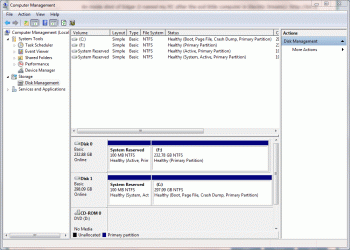
I managed to reinstall the OS - I just restarted a couple times and it finally worked. Once it was done I plugged the other HD back in. I took a screenshot of Disk Management to show the new formation...

It seems that Win7 made a system reserved on both the HDs now, or at least reserved a part of the HDs. I'm not sure what this means. I was wondering why it would do a system reserved on the second HD, since I didn't plug it in until after the install. I guess Win7 does a system reserve on any HD you plug in?

Thanks.
 

Attachments

  • systemreserved2.gif
    systemreserved2.gif
    54.2 KB · Views: 16
Last edited:

My Computer

OS
Windows 7 Home Premium
CPU
Intel Q6600 SLACR (2.7GHz)
Motherboard
Gigabyte P35-DS4 (Rev 2.1)
Memory
8GB G.SKILL PC6400
Graphics Card(s)
ASUS EN9600GSO GeForce 9600 GSO 512MB
Monitor(s) Displays
LG W2252TQ 22" Widescreen
Screen Resolution
1680 x 1050
Hard Drives
2 x SeaGate Barracuda SATA (250GB, 320GB)
PSU
PCP&C Silencer 610
Case
Ultra m998
Cooling
ThermalRight Ultra 120E
Keyboard
Logitech K360
Mouse
Logitech Performance MX
Back
Top