System Restore Point : Create at System Startup

How to Automatically Create System Restore Points in Windows 7 and 8


The two (2) separate methods outlined herein make it very easy to have fresh, reliable System Restore points available for use whenever needed; whether created by a system startup/restart or created by the Windows Task Scheduler; once it's setup you never have to be concerned with it again, it's all completely automatic.​


   Note
System Restore isn't available for Windows RT.

Credit for this goes to our own Microsoft MVP and all around good guy Brink who wrote these "Restore Point" scripts, without whose dedication and hard work with the Windows Operating Systems none of this would even be possible. Thanks Shawn! :)

Please view his original tutorial for pertinent Windows 7 information .

Windows 7 System Restore Point Shortcut

This will also work with Windows Vista.
Please view the relevant tutorial at Vista Forums at the link below.

Vista System Restore Point Shortcut
   Information
For those of you that would like to have the option to create restore points without restarting the system have a look at step #4 A below to add a shortcut to the desktop or the taskbar that can be used whenever needed without a system restart.

Be sure to have a look at Method Two below to see the steps to use the Windows Task Scheduler to automatically create System Restore points, once the task is created there is nothing further to do, there will always be daily, fresh System Restore points available for use if needed, even if the PC is never restarted at all.

Let's get started!


Method One

System Startup / Restart


1) The first thing that needs done is to download the file you want to use; to create a restore point with a description click the button below and select to save the file to the desktop.
Restore_Point_Shortcut.zip file (with description)


Download


2) To create a restore point without a description click the button below and save the file to the desktop.
Instant_Restore_Point.zip file (without description)


Download


3) Open the downloaded zip file, extract (drag and drop) the VBS file to the desktop, and unblock the VBS file.


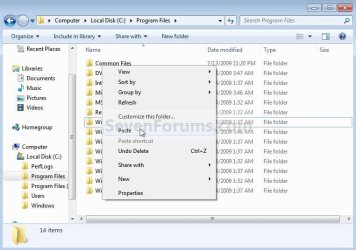
4) Navigate to "C:\Program Files" in Windows Explorer (not "Program Files (x86)" if you have 64-bit Windows), move the extracted and unblocked VBS file into the "C:\Program Files" folder, then close the "Program Files" window.
click any image to enlarge
Cut.jpg

Paste.jpg

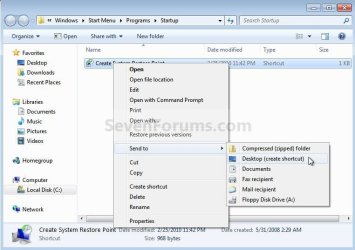
5) Now in the start menu navigate to and r click the "Startup File" to open the "Startup" file window; now back at the "Restore_Point Shortcut" window r click the "Create System Restore Point" shortcut and click cut, then in the "Startup" window at an empty spot click paste. A) Now if you want a shortcut on the desktop to create a restore point whenever needed (without restarting the PC) r click the "Instant Restore Point" shortcut in the "Startup" window and select "Send to, Desktop (create shortcut)" to place a shortcut on the desktop.
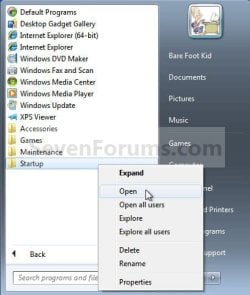
Start.jpg

Desktop Shortcut.jpg

6) You're done, now close all the windows and if you want, the zip and the restore point files that you downloaded can be deleted from the desktop.

To use the shortcut you just created.

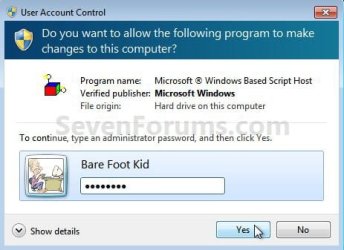
7) Whenever the PC boots to the desktop the first prompt you'll get is "Do you want to open this file?" click open then enter your user credentials for the UAC prompt and click yes.
click any image to enlarge
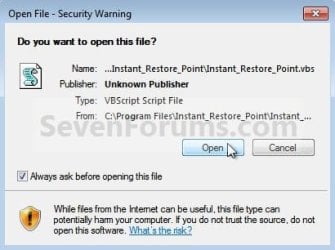
File Prompt.jpg

Prompt.jpg

8) If you have chosen to use the restore point creator with a description this last snip is the last step in the process, enter the description you want to use and click ok to finish up, that's all there is to it. I use the one with no description and with 2 clicks at bootup it's done.
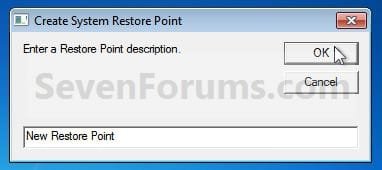
Description.jpg


Method Two

Windows Task Scheduler


1) Start by downloading this zip file to the Windows desktop.
Scheduled_Instant_Restore_Point.zip

Download


2) Open the downloaded zip file, extract (drag and drop) the VBS file to the desktop, and unblock the VBS file.

3) Navigate to "C:\Program Files" in Windows Explorer (not "Program Files (x86)" if you have 64-bit Windows), move the extracted and unblocked VBS file into the "C:\Program Files" folder, then close the "Program Files" window.
Cut.jpg

Paste.jpg

4) In the "Access Denied" dialog box that opens click Continue, if you get a UAC prompt, enter your user credentials and click Yes; then just close the Program Files window that opens.

You can now delete the downloaded Zip file from the desktop if you like.
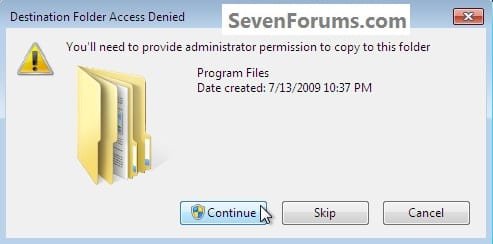
Continue.jpg
Now in the Windows start menu search box type taskschd.msc and hit the <enter> key. In the Task Scheduler window that opens at the right pane Actions column, click Create Task.

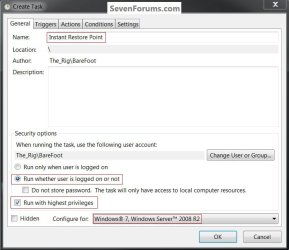
5) In the "Create Task" window that opens at the General tab, give the new task a Name, a description is optional, dot "Run whether user ... " put a check/tic at "Run with highest ... " and "Configure for ... " your flavor Windows.
click any image to enlarge
Task_General.jpg
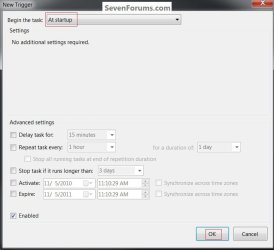
6) Now still in the "Create Task" window click the Triggers tab, at the bottom left click the New button, in the New Trigger dialog box that opens be sure to select when you want the task to run and the daily time you want it to run and click OK.
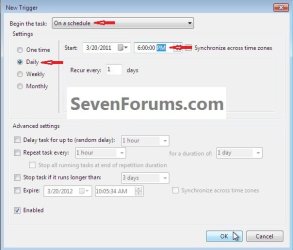
Task_Trigger.jpg
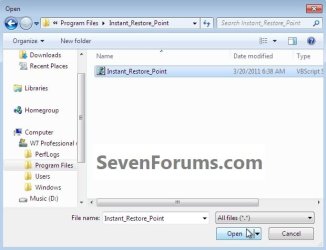
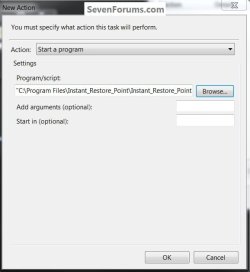
7) Now back at the "Create Task" window click the Actions tab, at the bottom left click the New button, in the New Action dialog box that opens click Browse (see #8 below), now browse to C:\Program Files and click the Instant_Restore_Point file you extracted there in step #2 above and click Open, then click the Instant_Restore_Point script and click Open again.
click any image to enlarge
Action_File.jpg

Action_Script.jpg

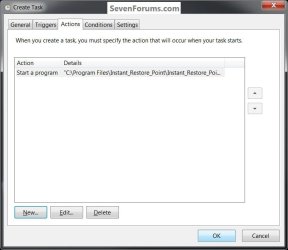
8) Now at the New Action dialog box that's still open click OK.
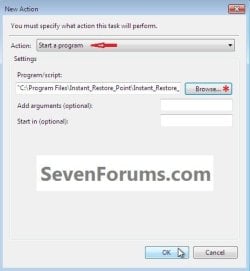
Action.jpg
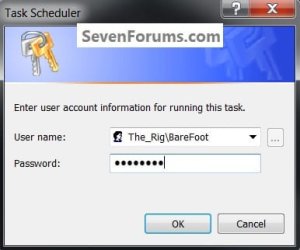
9) In the Create Task window that's still open click OK, in the Account Information dialog box that opens add your user credentials and click OK.

That's all, you are now finished and you can close the Task Scheduler.
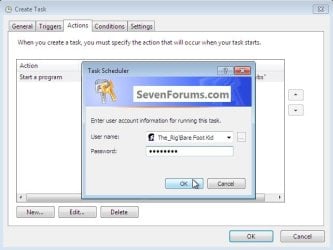
Password.jpg
Enjoy! :)
 

Attachments

Last edited by a moderator:
Using the Windows Task Scheduler

OK here's how to do it.


Just add the "Instant Restore Point" file to the "Program Files" folder, do not add the shortcut to the "Startup" file in the start menu.

Then type taskschd.msc in windows start menu search box and click the entry.

At the far right click "Create Task" in the first dialog box at the "General" tab.
click to enlarge
General.jpg
Then at the "Triggers" tab click the "New" button.
Trigger.jpg
Now click the "Action" tab, in the "New Action" dialog box that opens browse to the Instant Restore Point file you placed in the Program Files folder and click ok.
Action.jpg
Now click OK.
OK.jpg
The last step is to enter your password to complete the process.
Pass.jpg

Please remember to post back to let me know if this works for you too. ;)
 

My Computer

Computer Manufacturer/Model Number
* BFK Customs *
OS
W 7 64-bit Ultimate
CPU
Intel Q9550 Yorkfield
Motherboard
ASUS P5Q Pro
Memory
8GB Dominator 8500C5D
Graphics Card(s)
ATI : XFX 5870
Sound Card
Realtek HD Audio 7-1
Monitor(s) Displays
1x 47" LCD HDMI & 3x 26" LCD HDMI
Screen Resolution
1920x1080P & 1920x1200
Hard Drives
1x 80GB Intel X25-M G2 SSD : 1x 500GB & 1x 640GB WD Caviar Black(s)
PSU
Corsair 620HX
Case
Cooler Master RC-690
Cooling
Tuniq Tower 120, 2x 140mm and 3x 120mm case fans
Keyboard
Microsoft 500
Mouse
Razer Diamondback 3G
Internet Speed
14 Mb/s
Other Info
1x Koutech 3Gb/s SATA HDD Hot Swap Rack
Thanks anyway, but my method works just fine.
 

My Computer

Computer Manufacturer/Model Number
* BFK Customs *
OS
W 7 64-bit Ultimate
CPU
Intel Q9550 Yorkfield
Motherboard
ASUS P5Q Pro
Memory
8GB Dominator 8500C5D
Graphics Card(s)
ATI : XFX 5870
Sound Card
Realtek HD Audio 7-1
Monitor(s) Displays
1x 47" LCD HDMI & 3x 26" LCD HDMI
Screen Resolution
1920x1080P & 1920x1200
Hard Drives
1x 80GB Intel X25-M G2 SSD : 1x 500GB & 1x 640GB WD Caviar Black(s)
PSU
Corsair 620HX
Case
Cooler Master RC-690
Cooling
Tuniq Tower 120, 2x 140mm and 3x 120mm case fans
Keyboard
Microsoft 500
Mouse
Razer Diamondback 3G
Internet Speed
14 Mb/s
Other Info
1x Koutech 3Gb/s SATA HDD Hot Swap Rack
Thanks for the modified instructions. Got a wee glitch, however. When I get to your fourth screen, (the 'Create Task' window, which shows the path to the vbs file) and click OK, I don't get the fifth screen, the Password box in which you've entered your username and password. All I get is a message that says:
"An error has occurred for task Instant Restore Point. Error message: User account restriction error. The possible reasons are that blank passwords are not allowed, or that a policy restriction has been enforced.

I'm unable to proceed further.

This PC has only one user (except for the hidden admin account, which isn't enabled) and I haven't made it necessary to enter a logon password. UAC is in effect, but at level 1, ie, not the bottom 'Never Notify' bar, but the first one up, the 'Notify me only when......(don't dim desktop). Win7 is Ultimate.

Any suggestions? :-)
 

My Computer

Computer type
PC/Desktop
Computer Manufacturer/Model Number
My build
OS
Win7 Ultimate SP1
CPU
Intel Core i5 9400 Coffee Lake 14nm
Motherboard
Asus Prime H310M-E R2.0 (LGA1151)
Memory
16G DDR4
Graphics Card(s)
NVidia GeForce GTX 960
Sound Card
Realtek High Definition Audio (mobo)
Monitor(s) Displays
Asus PA248 24" 16:10 format
Screen Resolution
1920x1200@59Hz
Hard Drives
1863GB Seagate ST2000DM
3726GB Seagate ST4000DM
1863GB Seagate ST2000DM
6TB Seagate
465GB NVMe Samsung SSD 970
PSU
750G2
Case
Tower
Cooling
Standard
Keyboard
USB
Mouse
USB
Internet Speed
920Mbs/480Mbs
Antivirus
Malwarebytes
Browser
Firefox
I'm afraid the task won't be created if a password is not entered.
 

My Computer

Computer Manufacturer/Model Number
* BFK Customs *
OS
W 7 64-bit Ultimate
CPU
Intel Q9550 Yorkfield
Motherboard
ASUS P5Q Pro
Memory
8GB Dominator 8500C5D
Graphics Card(s)
ATI : XFX 5870
Sound Card
Realtek HD Audio 7-1
Monitor(s) Displays
1x 47" LCD HDMI & 3x 26" LCD HDMI
Screen Resolution
1920x1080P & 1920x1200
Hard Drives
1x 80GB Intel X25-M G2 SSD : 1x 500GB & 1x 640GB WD Caviar Black(s)
PSU
Corsair 620HX
Case
Cooler Master RC-690
Cooling
Tuniq Tower 120, 2x 140mm and 3x 120mm case fans
Keyboard
Microsoft 500
Mouse
Razer Diamondback 3G
Internet Speed
14 Mb/s
Other Info
1x Koutech 3Gb/s SATA HDD Hot Swap Rack
Well, yes, I'm sure you're correct. But why am I not getting a password requester, as you evidently did?
 

My Computer

Computer type
PC/Desktop
Computer Manufacturer/Model Number
My build
OS
Win7 Ultimate SP1
CPU
Intel Core i5 9400 Coffee Lake 14nm
Motherboard
Asus Prime H310M-E R2.0 (LGA1151)
Memory
16G DDR4
Graphics Card(s)
NVidia GeForce GTX 960
Sound Card
Realtek High Definition Audio (mobo)
Monitor(s) Displays
Asus PA248 24" 16:10 format
Screen Resolution
1920x1200@59Hz
Hard Drives
1863GB Seagate ST2000DM
3726GB Seagate ST4000DM
1863GB Seagate ST2000DM
6TB Seagate
465GB NVMe Samsung SSD 970
PSU
750G2
Case
Tower
Cooling
Standard
Keyboard
USB
Mouse
USB
Internet Speed
920Mbs/480Mbs
Antivirus
Malwarebytes
Browser
Firefox
Well, yes, I'm sure you're correct. But why am I not getting a password requester, as you evidently did?


Maybe you didn't do one of the steps correctly or if the user doesn't have a registered password it knows and won't complete; I don't have a definitive answer for you.
 

My Computer

Computer Manufacturer/Model Number
* BFK Customs *
OS
W 7 64-bit Ultimate
CPU
Intel Q9550 Yorkfield
Motherboard
ASUS P5Q Pro
Memory
8GB Dominator 8500C5D
Graphics Card(s)
ATI : XFX 5870
Sound Card
Realtek HD Audio 7-1
Monitor(s) Displays
1x 47" LCD HDMI & 3x 26" LCD HDMI
Screen Resolution
1920x1080P & 1920x1200
Hard Drives
1x 80GB Intel X25-M G2 SSD : 1x 500GB & 1x 640GB WD Caviar Black(s)
PSU
Corsair 620HX
Case
Cooler Master RC-690
Cooling
Tuniq Tower 120, 2x 140mm and 3x 120mm case fans
Keyboard
Microsoft 500
Mouse
Razer Diamondback 3G
Internet Speed
14 Mb/s
Other Info
1x Koutech 3Gb/s SATA HDD Hot Swap Rack
I have now added a Method Two to this showing how to do this with the Windows Task Scheduler, I like that method better than Method One TBH; I hope some find it useful.
 

My Computer

Computer Manufacturer/Model Number
* BFK Customs *
OS
W 7 64-bit Ultimate
CPU
Intel Q9550 Yorkfield
Motherboard
ASUS P5Q Pro
Memory
8GB Dominator 8500C5D
Graphics Card(s)
ATI : XFX 5870
Sound Card
Realtek HD Audio 7-1
Monitor(s) Displays
1x 47" LCD HDMI & 3x 26" LCD HDMI
Screen Resolution
1920x1080P & 1920x1200
Hard Drives
1x 80GB Intel X25-M G2 SSD : 1x 500GB & 1x 640GB WD Caviar Black(s)
PSU
Corsair 620HX
Case
Cooler Master RC-690
Cooling
Tuniq Tower 120, 2x 140mm and 3x 120mm case fans
Keyboard
Microsoft 500
Mouse
Razer Diamondback 3G
Internet Speed
14 Mb/s
Other Info
1x Koutech 3Gb/s SATA HDD Hot Swap Rack
I have now added a Method Two to this showing how to do this with the Windows Task Scheduler, I like that method better than Method One TBH; I hope some find it useful.
Hi Ted just tried method two again on both 32-bit and 64-bit and worked perfectly! Thank you again.
Jerry
 

My Computer

Computer type
Laptop
Computer Manufacturer/Model Number
Sager NP9170
OS
Win 7 Pro x64 / Win 10 Pro
CPU
Intel(R) Core(TM) i7-3630QM CPU @ 2.40GHz
Motherboard
CLEVO P170EM
Memory
12 GB
Graphics Card(s)
(1) Intel(R) HD Graphics 4000 (2) NVIDIA GeForce GTX 675M
Sound Card
(1) Realtek High Definition Audio (2) Intel(R) Display Aud
Monitor(s) Displays
17.3
Screen Resolution
1920x1080
Hard Drives
(1) Samsung 860 EVO 500GB(OS) (1) Samsung 860 EVO 500GB(Data)
Keyboard
Backlite
Antivirus
MSE, Malwarebytes Pro
Browser
Firefox
Other Info
DESKTOP: Custom-built.
OS: Win 10 Pro x64.
CASE: Rosewill R5.
CPU: Intel I5 4670K CPU @ 3.40GHz.
CPU COOLER: Cool Master Hyper 212 EVO.
MOTHERBOARD: Asus Z87-A.
MEMORY: Kingston HyperX 2x4 GB.
GPU: Nvidia Geforce 650 TI.
PSU: Corsair TX750.
DRIVES: (1) Samsung 840 120 GB SSD (2) Western Digital blue 500 GB 7200 RPM.
Hello Jerry.

I'm pleased it worked for you; to me, Method Two is a better way than Method One. ;)
 

My Computer

Computer Manufacturer/Model Number
* BFK Customs *
OS
W 7 64-bit Ultimate
CPU
Intel Q9550 Yorkfield
Motherboard
ASUS P5Q Pro
Memory
8GB Dominator 8500C5D
Graphics Card(s)
ATI : XFX 5870
Sound Card
Realtek HD Audio 7-1
Monitor(s) Displays
1x 47" LCD HDMI & 3x 26" LCD HDMI
Screen Resolution
1920x1080P & 1920x1200
Hard Drives
1x 80GB Intel X25-M G2 SSD : 1x 500GB & 1x 640GB WD Caviar Black(s)
PSU
Corsair 620HX
Case
Cooler Master RC-690
Cooling
Tuniq Tower 120, 2x 140mm and 3x 120mm case fans
Keyboard
Microsoft 500
Mouse
Razer Diamondback 3G
Internet Speed
14 Mb/s
Other Info
1x Koutech 3Gb/s SATA HDD Hot Swap Rack
Hello Jerry.

I'm pleased it worked for you; to me, Method Two is a better way than Method One. ;)
I agree sometimes I leave my computer on for days and wish I would have had a restore point now I will.
Jerry
 

My Computer

Computer type
Laptop
Computer Manufacturer/Model Number
Sager NP9170
OS
Win 7 Pro x64 / Win 10 Pro
CPU
Intel(R) Core(TM) i7-3630QM CPU @ 2.40GHz
Motherboard
CLEVO P170EM
Memory
12 GB
Graphics Card(s)
(1) Intel(R) HD Graphics 4000 (2) NVIDIA GeForce GTX 675M
Sound Card
(1) Realtek High Definition Audio (2) Intel(R) Display Aud
Monitor(s) Displays
17.3
Screen Resolution
1920x1080
Hard Drives
(1) Samsung 860 EVO 500GB(OS) (1) Samsung 860 EVO 500GB(Data)
Keyboard
Backlite
Antivirus
MSE, Malwarebytes Pro
Browser
Firefox
Other Info
DESKTOP: Custom-built.
OS: Win 10 Pro x64.
CASE: Rosewill R5.
CPU: Intel I5 4670K CPU @ 3.40GHz.
CPU COOLER: Cool Master Hyper 212 EVO.
MOTHERBOARD: Asus Z87-A.
MEMORY: Kingston HyperX 2x4 GB.
GPU: Nvidia Geforce 650 TI.
PSU: Corsair TX750.
DRIVES: (1) Samsung 840 120 GB SSD (2) Western Digital blue 500 GB 7200 RPM.

My Computer

Computer Manufacturer/Model Number
* BFK Customs *
OS
W 7 64-bit Ultimate
CPU
Intel Q9550 Yorkfield
Motherboard
ASUS P5Q Pro
Memory
8GB Dominator 8500C5D
Graphics Card(s)
ATI : XFX 5870
Sound Card
Realtek HD Audio 7-1
Monitor(s) Displays
1x 47" LCD HDMI & 3x 26" LCD HDMI
Screen Resolution
1920x1080P & 1920x1200
Hard Drives
1x 80GB Intel X25-M G2 SSD : 1x 500GB & 1x 640GB WD Caviar Black(s)
PSU
Corsair 620HX
Case
Cooler Master RC-690
Cooling
Tuniq Tower 120, 2x 140mm and 3x 120mm case fans
Keyboard
Microsoft 500
Mouse
Razer Diamondback 3G
Internet Speed
14 Mb/s
Other Info
1x Koutech 3Gb/s SATA HDD Hot Swap Rack

My Computer

Computer Manufacturer/Model Number
* BFK Customs *
OS
W 7 64-bit Ultimate
CPU
Intel Q9550 Yorkfield
Motherboard
ASUS P5Q Pro
Memory
8GB Dominator 8500C5D
Graphics Card(s)
ATI : XFX 5870
Sound Card
Realtek HD Audio 7-1
Monitor(s) Displays
1x 47" LCD HDMI & 3x 26" LCD HDMI
Screen Resolution
1920x1080P & 1920x1200
Hard Drives
1x 80GB Intel X25-M G2 SSD : 1x 500GB & 1x 640GB WD Caviar Black(s)
PSU
Corsair 620HX
Case
Cooler Master RC-690
Cooling
Tuniq Tower 120, 2x 140mm and 3x 120mm case fans
Keyboard
Microsoft 500
Mouse
Razer Diamondback 3G
Internet Speed
14 Mb/s
Other Info
1x Koutech 3Gb/s SATA HDD Hot Swap Rack
VBS opens in Notepad

Hi, I followed the instructions wrt Instant restore point. But when I click on the desktop shortcut it opens in a notepad.

Pl. halp/advice me how to correct the anamoly.
Also, i am a novice and have just started using Win 7 Ultimate 64 bit OS. My sytem is an Dell laptop 6420. Thank.
 

My Computer

Computer Manufacturer/Model Number
Dell 6420
OS
Win 6 Ultimate 64 bit
Hello futuristic6, welcome to Seven Forums!


When you open the Start Menu / Startup File like in the snip below, what do you see?

Is the "Create System Restore Point" shortcut there, like in Step #4 of the tutorial?


click to enlarge


My Computer

Computer Manufacturer/Model Number
* BFK Customs *
OS
W 7 64-bit Ultimate
CPU
Intel Q9550 Yorkfield
Motherboard
ASUS P5Q Pro
Memory
8GB Dominator 8500C5D
Graphics Card(s)
ATI : XFX 5870
Sound Card
Realtek HD Audio 7-1
Monitor(s) Displays
1x 47" LCD HDMI & 3x 26" LCD HDMI
Screen Resolution
1920x1080P & 1920x1200
Hard Drives
1x 80GB Intel X25-M G2 SSD : 1x 500GB & 1x 640GB WD Caviar Black(s)
PSU
Corsair 620HX
Case
Cooler Master RC-690
Cooling
Tuniq Tower 120, 2x 140mm and 3x 120mm case fans
Keyboard
Microsoft 500
Mouse
Razer Diamondback 3G
Internet Speed
14 Mb/s
Other Info
1x Koutech 3Gb/s SATA HDD Hot Swap Rack
Hi, I followed the instructions wrt Instant restore point. But when I click on the desktop shortcut it opens in a notepad.

Pl. halp/advice me how to correct the anamoly.
Also, i am a novice and have just started using Win 7 Ultimate 64 bit OS. My sytem is an Dell laptop 6420. Thank.

Hello Futuristic, and welcome to Seven Forums.

It sounds like your VBS file extension association may be messed up. Download and merge the VBS option in the tutorial below to see if the Instant restore point works afterwards. :)

http://www.sevenforums.com/tutorials/19449-default-file-type-associations-restore.html

Hope this helps,
Shawn
 

My Computer

Computer type
PC/Desktop
Computer Manufacturer/Model Number
Self built custom
OS
64-bit Windows 11 Pro for Workstations
CPU
Intel i7-8700K OC'd to 5 GHz
Motherboard
ASUS ROG Maximus XI Formula Z390
Memory
64 GB (4x16GB) G.SKILL TridentZ RGB DDR4 3600 MHz
Graphics Card(s)
ASUS ROG-STRIX-GTX1080TI-O11G-GAMING
Sound Card
Integrated
Monitor(s) Displays
2 x Samsung Odyssey G7 27"
Screen Resolution
2560x1440
Hard Drives
1TB Samsung 990 PRO M.2,
4TB Samsung 990 PRO PRO M.2,
TerraMaster F8 SSD Plus NAS
PSU
Seasonic Prime Titanium 850W
Case
Thermaltake Core P3
Cooling
Corsair Hydro H115i
Keyboard
Logitech wireless K800
Mouse
Logitech MX Master 4
Internet Speed
2 Gb/s Download and 100 Mb/s Upload
Antivirus
Malwarebyte Anti-Malware Premium
Browser
Google Chrome
Other Info
Logitech Z625 speaker system,
Logitech BRIO 4K Pro webcam,
HP Color LaserJet Pro MFP M477fdn,
APC SMART-UPS RT 1000 XL - SURT1000XLI,
Galaxy S23 Plus phone
Issues with System restore

Hi,

I can now create automatic system restore. But I have an irritating problem.

Whenever I shutdown and reboot my laptop, Everytime, I need to remerge the default VBS file. Is there a way I can solve the problem permanently?

I also noticed that when I go "Open with"and go to "other programs" the option stating "always use this program to open this kind of file is greyed out"and I cannot check thsi option.

I use win 7 64 bit OS.

Thanks for all the help.
 

My Computer

Computer Manufacturer/Model Number
Dell 6420
OS
Win 6 Ultimate 64 bit
Hello Futuristic,

Unless you really have a need to create a restore point at every startup, I wouldn't recommend doing this since it will use up all of your max restore space faster and delete older restore points faster.

Did you unblock the VBS file?

What are you using "Open with" on, and where are you using it at (ex: in Default Programs or right clicking on file)?
 

My Computer

Computer type
PC/Desktop
Computer Manufacturer/Model Number
Self built custom
OS
64-bit Windows 11 Pro for Workstations
CPU
Intel i7-8700K OC'd to 5 GHz
Motherboard
ASUS ROG Maximus XI Formula Z390
Memory
64 GB (4x16GB) G.SKILL TridentZ RGB DDR4 3600 MHz
Graphics Card(s)
ASUS ROG-STRIX-GTX1080TI-O11G-GAMING
Sound Card
Integrated
Monitor(s) Displays
2 x Samsung Odyssey G7 27"
Screen Resolution
2560x1440
Hard Drives
1TB Samsung 990 PRO M.2,
4TB Samsung 990 PRO PRO M.2,
TerraMaster F8 SSD Plus NAS
PSU
Seasonic Prime Titanium 850W
Case
Thermaltake Core P3
Cooling
Corsair Hydro H115i
Keyboard
Logitech wireless K800
Mouse
Logitech MX Master 4
Internet Speed
2 Gb/s Download and 100 Mb/s Upload
Antivirus
Malwarebyte Anti-Malware Premium
Browser
Google Chrome
Other Info
Logitech Z625 speaker system,
Logitech BRIO 4K Pro webcam,
HP Color LaserJet Pro MFP M477fdn,
APC SMART-UPS RT 1000 XL - SURT1000XLI,
Galaxy S23 Plus phone
Back
Top