System Restore Point : Create at System Startup

How to Automatically Create System Restore Points in Windows 7 and 8


The two (2) separate methods outlined herein make it very easy to have fresh, reliable System Restore points available for use whenever needed; whether created by a system startup/restart or created by the Windows Task Scheduler; once it's setup you never have to be concerned with it again, it's all completely automatic.​


   Note
System Restore isn't available for Windows RT.

Credit for this goes to our own Microsoft MVP and all around good guy Brink who wrote these "Restore Point" scripts, without whose dedication and hard work with the Windows Operating Systems none of this would even be possible. Thanks Shawn! :)

Please view his original tutorial for pertinent Windows 7 information .

Windows 7 System Restore Point Shortcut

This will also work with Windows Vista.
Please view the relevant tutorial at Vista Forums at the link below.

Vista System Restore Point Shortcut
   Information
For those of you that would like to have the option to create restore points without restarting the system have a look at step #4 A below to add a shortcut to the desktop or the taskbar that can be used whenever needed without a system restart.

Be sure to have a look at Method Two below to see the steps to use the Windows Task Scheduler to automatically create System Restore points, once the task is created there is nothing further to do, there will always be daily, fresh System Restore points available for use if needed, even if the PC is never restarted at all.

Let's get started!


Method One

System Startup / Restart


1) The first thing that needs done is to download the file you want to use; to create a restore point with a description click the button below and select to save the file to the desktop.
Restore_Point_Shortcut.zip file (with description)


Download


2) To create a restore point without a description click the button below and save the file to the desktop.
Instant_Restore_Point.zip file (without description)


Download


3) Open the downloaded zip file, extract (drag and drop) the VBS file to the desktop, and unblock the VBS file.


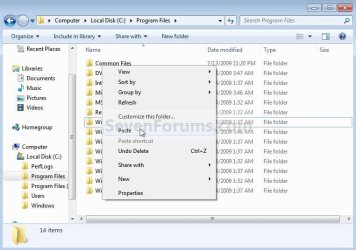
4) Navigate to "C:\Program Files" in Windows Explorer (not "Program Files (x86)" if you have 64-bit Windows), move the extracted and unblocked VBS file into the "C:\Program Files" folder, then close the "Program Files" window.
click any image to enlarge
Cut.jpg

Paste.jpg

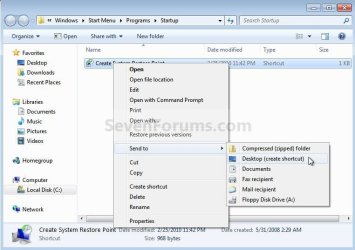
5) Now in the start menu navigate to and r click the "Startup File" to open the "Startup" file window; now back at the "Restore_Point Shortcut" window r click the "Create System Restore Point" shortcut and click cut, then in the "Startup" window at an empty spot click paste. A) Now if you want a shortcut on the desktop to create a restore point whenever needed (without restarting the PC) r click the "Instant Restore Point" shortcut in the "Startup" window and select "Send to, Desktop (create shortcut)" to place a shortcut on the desktop.
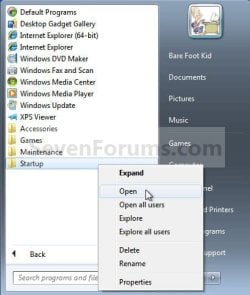
Start.jpg

Desktop Shortcut.jpg

6) You're done, now close all the windows and if you want, the zip and the restore point files that you downloaded can be deleted from the desktop.

To use the shortcut you just created.

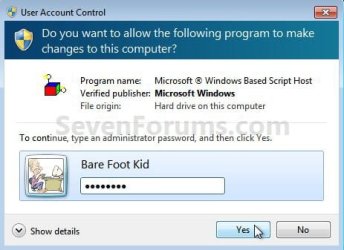
7) Whenever the PC boots to the desktop the first prompt you'll get is "Do you want to open this file?" click open then enter your user credentials for the UAC prompt and click yes.
click any image to enlarge
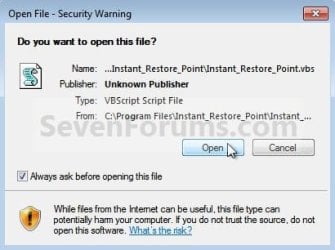
File Prompt.jpg

Prompt.jpg

8) If you have chosen to use the restore point creator with a description this last snip is the last step in the process, enter the description you want to use and click ok to finish up, that's all there is to it. I use the one with no description and with 2 clicks at bootup it's done.
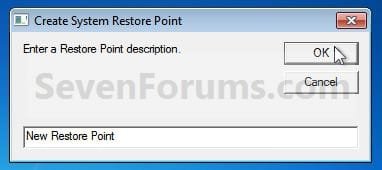
Description.jpg


Method Two

Windows Task Scheduler


1) Start by downloading this zip file to the Windows desktop.
Scheduled_Instant_Restore_Point.zip

Download


2) Open the downloaded zip file, extract (drag and drop) the VBS file to the desktop, and unblock the VBS file.

3) Navigate to "C:\Program Files" in Windows Explorer (not "Program Files (x86)" if you have 64-bit Windows), move the extracted and unblocked VBS file into the "C:\Program Files" folder, then close the "Program Files" window.
Cut.jpg

Paste.jpg

4) In the "Access Denied" dialog box that opens click Continue, if you get a UAC prompt, enter your user credentials and click Yes; then just close the Program Files window that opens.

You can now delete the downloaded Zip file from the desktop if you like.
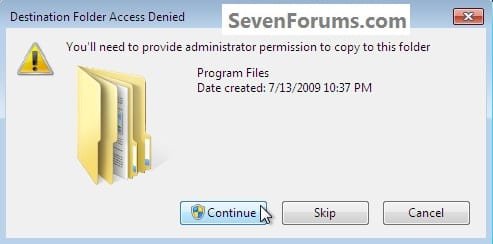
Continue.jpg
Now in the Windows start menu search box type taskschd.msc and hit the <enter> key. In the Task Scheduler window that opens at the right pane Actions column, click Create Task.

5) In the "Create Task" window that opens at the General tab, give the new task a Name, a description is optional, dot "Run whether user ... " put a check/tic at "Run with highest ... " and "Configure for ... " your flavor Windows.
click any image to enlarge
Task_General.jpg
6) Now still in the "Create Task" window click the Triggers tab, at the bottom left click the New button, in the New Trigger dialog box that opens be sure to select when you want the task to run and the daily time you want it to run and click OK.
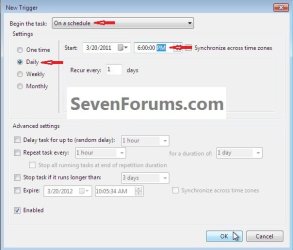
Task_Trigger.jpg
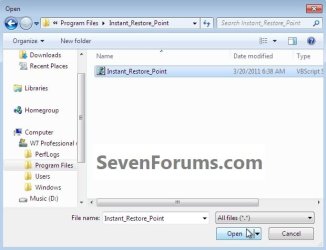
7) Now back at the "Create Task" window click the Actions tab, at the bottom left click the New button, in the New Action dialog box that opens click Browse (see #8 below), now browse to C:\Program Files and click the Instant_Restore_Point file you extracted there in step #2 above and click Open, then click the Instant_Restore_Point script and click Open again.
click any image to enlarge
Action_File.jpg

Action_Script.jpg

8) Now at the New Action dialog box that's still open click OK.
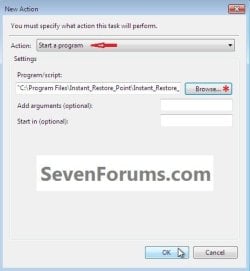
Action.jpg
9) In the Create Task window that's still open click OK, in the Account Information dialog box that opens add your user credentials and click OK.

That's all, you are now finished and you can close the Task Scheduler.
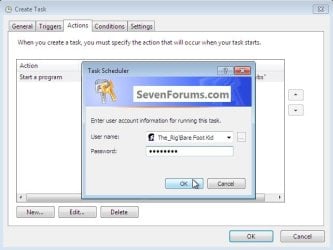
Password.jpg
Enjoy! :)
 

Attachments

Last edited by a moderator:
MadDemon64,

It looks like you used the existing System Restore library for the task instead of creating a new one for the task under "Task Scheduler Library".

I don't see anything wrong with your settings for the task though.

As a test, create a completely new task for this to see if it may work.
 

My Computer My Computer

At a glance

64-bit Windows 11 Pro for WorkstationsIntel i7-8700K OC'd to 5 GHz64 GB (4x16GB) G.SKILL TridentZ RGB DDR4 3600...ASUS ROG-STRIX-GTX1080TI-O11G-GAMING
Computer type
PC/Desktop
Computer Manufacturer/Model Number
Self built custom
OS
64-bit Windows 11 Pro for Workstations
CPU
Intel i7-8700K OC'd to 5 GHz
Motherboard
ASUS ROG Maximus XI Formula Z390
Memory
64 GB (4x16GB) G.SKILL TridentZ RGB DDR4 3600 MHz
Graphics Card(s)
ASUS ROG-STRIX-GTX1080TI-O11G-GAMING
Sound Card
Integrated
Monitor(s) Displays
2 x Samsung Odyssey G7 27"
Screen Resolution
2560x1440
Hard Drives
1TB Samsung 990 PRO M.2,
4TB Samsung 990 PRO PRO M.2,
TerraMaster F8 SSD Plus NAS
PSU
Seasonic Prime Titanium 850W
Case
Thermaltake Core P3
Cooling
Corsair Hydro H115i
Keyboard
Logitech wireless K800
Mouse
Logitech MX Master 4
Internet Speed
2 Gb/s Download and 100 Mb/s Upload
Antivirus
Malwarebyte Anti-Malware Premium
Browser
Google Chrome
Other Info
Logitech Z625 speaker system,
Logitech BRIO 4K Pro webcam,
HP Color LaserJet Pro MFP M477fdn,
APC SMART-UPS RT 1000 XL - SURT1000XLI,
Galaxy S23 Plus phone
It looks like you used the existing System Restore library for the task instead of creating a new one for the task under "Task Scheduler Library". As a test, create a completely new task for this to see if it may work.

I'm sorry, but what? I have no idea what any of that means. What do you want me to do and how?
 

My Computer My Computer

At a glance

Windows 10 64 bit
Computer type
Laptop
Computer Manufacturer/Model Number
MSI
OS
Windows 10 64 bit
You created or used a task in the existing "SystemRestore" library/folder in the left pane of Task Scheduler.

Instead, see if creating a new task with "Task Scheduler Library" selected in the left pane may work better.
 

My Computer My Computer

At a glance

64-bit Windows 11 Pro for WorkstationsIntel i7-8700K OC'd to 5 GHz64 GB (4x16GB) G.SKILL TridentZ RGB DDR4 3600...ASUS ROG-STRIX-GTX1080TI-O11G-GAMING
Computer type
PC/Desktop
Computer Manufacturer/Model Number
Self built custom
OS
64-bit Windows 11 Pro for Workstations
CPU
Intel i7-8700K OC'd to 5 GHz
Motherboard
ASUS ROG Maximus XI Formula Z390
Memory
64 GB (4x16GB) G.SKILL TridentZ RGB DDR4 3600 MHz
Graphics Card(s)
ASUS ROG-STRIX-GTX1080TI-O11G-GAMING
Sound Card
Integrated
Monitor(s) Displays
2 x Samsung Odyssey G7 27"
Screen Resolution
2560x1440
Hard Drives
1TB Samsung 990 PRO M.2,
4TB Samsung 990 PRO PRO M.2,
TerraMaster F8 SSD Plus NAS
PSU
Seasonic Prime Titanium 850W
Case
Thermaltake Core P3
Cooling
Corsair Hydro H115i
Keyboard
Logitech wireless K800
Mouse
Logitech MX Master 4
Internet Speed
2 Gb/s Download and 100 Mb/s Upload
Antivirus
Malwarebyte Anti-Malware Premium
Browser
Google Chrome
Other Info
Logitech Z625 speaker system,
Logitech BRIO 4K Pro webcam,
HP Color LaserJet Pro MFP M477fdn,
APC SMART-UPS RT 1000 XL - SURT1000XLI,
Galaxy S23 Plus phone
You created or used a task in the existing "SystemRestore" library/folder in the left pane of Task Scheduler.

Instead, see if creating a new task with "Task Scheduler Library" selected in the left pane may work better.

It's still not working. I tried using the script alone and it worked fine.

Could the problem possibly be that it is blocked? When I click on the script it runs after giving me a "Do you want to run this?" popup. The properties doesn't show that it's blocked in the general tab, but when I go to the security tab SYSTEM, USERNAME and Administrators allow it full control, modify, read & execute, read, and write, but Users and ALL APPLICATION PACKAGES only give it read & execute and read only, no full control, modify, or write. Additionally nothing allows it special permissions.

Is that the problem?
 

My Computer My Computer

At a glance

Windows 10 64 bit
Computer type
Laptop
Computer Manufacturer/Model Number
MSI
OS
Windows 10 64 bit
Could be. Download the script again to your desktop, unblock it, then move it to Program Files to see if that may be it.
 

My Computer My Computer

At a glance

64-bit Windows 11 Pro for WorkstationsIntel i7-8700K OC'd to 5 GHz64 GB (4x16GB) G.SKILL TridentZ RGB DDR4 3600...ASUS ROG-STRIX-GTX1080TI-O11G-GAMING
Computer type
PC/Desktop
Computer Manufacturer/Model Number
Self built custom
OS
64-bit Windows 11 Pro for Workstations
CPU
Intel i7-8700K OC'd to 5 GHz
Motherboard
ASUS ROG Maximus XI Formula Z390
Memory
64 GB (4x16GB) G.SKILL TridentZ RGB DDR4 3600 MHz
Graphics Card(s)
ASUS ROG-STRIX-GTX1080TI-O11G-GAMING
Sound Card
Integrated
Monitor(s) Displays
2 x Samsung Odyssey G7 27"
Screen Resolution
2560x1440
Hard Drives
1TB Samsung 990 PRO M.2,
4TB Samsung 990 PRO PRO M.2,
TerraMaster F8 SSD Plus NAS
PSU
Seasonic Prime Titanium 850W
Case
Thermaltake Core P3
Cooling
Corsair Hydro H115i
Keyboard
Logitech wireless K800
Mouse
Logitech MX Master 4
Internet Speed
2 Gb/s Download and 100 Mb/s Upload
Antivirus
Malwarebyte Anti-Malware Premium
Browser
Google Chrome
Other Info
Logitech Z625 speaker system,
Logitech BRIO 4K Pro webcam,
HP Color LaserJet Pro MFP M477fdn,
APC SMART-UPS RT 1000 XL - SURT1000XLI,
Galaxy S23 Plus phone
Could be. Download the script again to your desktop, unblock it, then move it to Program Files to see if that may be it.

Do I have to download a new version? Can't I just edit the existing one to give it full permissions?
 

My Computer My Computer

At a glance

Windows 10 64 bit
Computer type
Laptop
Computer Manufacturer/Model Number
MSI
OS
Windows 10 64 bit

My Computer My Computer

At a glance

64-bit Windows 11 Pro for WorkstationsIntel i7-8700K OC'd to 5 GHz64 GB (4x16GB) G.SKILL TridentZ RGB DDR4 3600...ASUS ROG-STRIX-GTX1080TI-O11G-GAMING
Computer type
PC/Desktop
Computer Manufacturer/Model Number
Self built custom
OS
64-bit Windows 11 Pro for Workstations
CPU
Intel i7-8700K OC'd to 5 GHz
Motherboard
ASUS ROG Maximus XI Formula Z390
Memory
64 GB (4x16GB) G.SKILL TridentZ RGB DDR4 3600 MHz
Graphics Card(s)
ASUS ROG-STRIX-GTX1080TI-O11G-GAMING
Sound Card
Integrated
Monitor(s) Displays
2 x Samsung Odyssey G7 27"
Screen Resolution
2560x1440
Hard Drives
1TB Samsung 990 PRO M.2,
4TB Samsung 990 PRO PRO M.2,
TerraMaster F8 SSD Plus NAS
PSU
Seasonic Prime Titanium 850W
Case
Thermaltake Core P3
Cooling
Corsair Hydro H115i
Keyboard
Logitech wireless K800
Mouse
Logitech MX Master 4
Internet Speed
2 Gb/s Download and 100 Mb/s Upload
Antivirus
Malwarebyte Anti-Malware Premium
Browser
Google Chrome
Other Info
Logitech Z625 speaker system,
Logitech BRIO 4K Pro webcam,
HP Color LaserJet Pro MFP M477fdn,
APC SMART-UPS RT 1000 XL - SURT1000XLI,
Galaxy S23 Plus phone
You could move it back to your desktop instead, unblock it if not already, then move it back.

http://www.sevenforums.com/tutorials/124367-open-file-security-warning-unblock-file.html

I tried doing that but I did not see unblock in the general tab in properties, I did not see anything that asked me if I wanted my computer to ask me if I wanted to open the file every time it tried to open, and there was no smart screen.

I do not know how to unblock it or if it is even blocked.
 

My Computer My Computer

At a glance

Windows 10 64 bit
Computer type
Laptop
Computer Manufacturer/Model Number
MSI
OS
Windows 10 64 bit

My Computer My Computer

At a glance

64-bit Windows 11 Pro for WorkstationsIntel i7-8700K OC'd to 5 GHz64 GB (4x16GB) G.SKILL TridentZ RGB DDR4 3600...ASUS ROG-STRIX-GTX1080TI-O11G-GAMING
Computer type
PC/Desktop
Computer Manufacturer/Model Number
Self built custom
OS
64-bit Windows 11 Pro for Workstations
CPU
Intel i7-8700K OC'd to 5 GHz
Motherboard
ASUS ROG Maximus XI Formula Z390
Memory
64 GB (4x16GB) G.SKILL TridentZ RGB DDR4 3600 MHz
Graphics Card(s)
ASUS ROG-STRIX-GTX1080TI-O11G-GAMING
Sound Card
Integrated
Monitor(s) Displays
2 x Samsung Odyssey G7 27"
Screen Resolution
2560x1440
Hard Drives
1TB Samsung 990 PRO M.2,
4TB Samsung 990 PRO PRO M.2,
TerraMaster F8 SSD Plus NAS
PSU
Seasonic Prime Titanium 850W
Case
Thermaltake Core P3
Cooling
Corsair Hydro H115i
Keyboard
Logitech wireless K800
Mouse
Logitech MX Master 4
Internet Speed
2 Gb/s Download and 100 Mb/s Upload
Antivirus
Malwarebyte Anti-Malware Premium
Browser
Google Chrome
Other Info
Logitech Z625 speaker system,
Logitech BRIO 4K Pro webcam,
HP Color LaserJet Pro MFP M477fdn,
APC SMART-UPS RT 1000 XL - SURT1000XLI,
Galaxy S23 Plus phone
I must admit that I'm not sure why it's not working for you.

If you like as a test, create an elevated shortcut of the .vbs using the tutorial below first. Afterwards, set the task to run the elevated shortcut to see if it may run via the task.

http://www.sevenforums.com/tutorials/11949-elevated-program-shortcut-without-uac-prompt-create.html

The elevated shortcut worked. So how do I use this knowledge to make the task scheduler automatically create a weekly system restore point?
 

My Computer My Computer

At a glance

Windows 10 64 bit
Computer type
Laptop
Computer Manufacturer/Model Number
MSI
OS
Windows 10 64 bit
I must admit that I'm not sure why it's not working for you.

If you like as a test, create an elevated shortcut of the .vbs using the tutorial below first. Afterwards, set the task to run the elevated shortcut to see if it may run via the task.

http://www.sevenforums.com/tutorials/11949-elevated-program-shortcut-without-uac-prompt-create.html

The elevated shortcut worked. So how do I use this knowledge to make the task scheduler automatically create a weekly system restore point?


Good news so far.

You would use the same original "System Restore" task, but edit it to have it run the elevated shortcut instead.
 

My Computer My Computer

At a glance

64-bit Windows 11 Pro for WorkstationsIntel i7-8700K OC'd to 5 GHz64 GB (4x16GB) G.SKILL TridentZ RGB DDR4 3600...ASUS ROG-STRIX-GTX1080TI-O11G-GAMING
Computer type
PC/Desktop
Computer Manufacturer/Model Number
Self built custom
OS
64-bit Windows 11 Pro for Workstations
CPU
Intel i7-8700K OC'd to 5 GHz
Motherboard
ASUS ROG Maximus XI Formula Z390
Memory
64 GB (4x16GB) G.SKILL TridentZ RGB DDR4 3600 MHz
Graphics Card(s)
ASUS ROG-STRIX-GTX1080TI-O11G-GAMING
Sound Card
Integrated
Monitor(s) Displays
2 x Samsung Odyssey G7 27"
Screen Resolution
2560x1440
Hard Drives
1TB Samsung 990 PRO M.2,
4TB Samsung 990 PRO PRO M.2,
TerraMaster F8 SSD Plus NAS
PSU
Seasonic Prime Titanium 850W
Case
Thermaltake Core P3
Cooling
Corsair Hydro H115i
Keyboard
Logitech wireless K800
Mouse
Logitech MX Master 4
Internet Speed
2 Gb/s Download and 100 Mb/s Upload
Antivirus
Malwarebyte Anti-Malware Premium
Browser
Google Chrome
Other Info
Logitech Z625 speaker system,
Logitech BRIO 4K Pro webcam,
HP Color LaserJet Pro MFP M477fdn,
APC SMART-UPS RT 1000 XL - SURT1000XLI,
Galaxy S23 Plus phone
You would use the same task, but edit it to have it run the elevated shortcut instead.

So you want me to create an automatic task that is scheduled to run an elevated shortcut that runs a task?

Isn't there a way to just create an elevated task? Can't I just write a new task that is a copy of the elevated one and give it a trigger to run once a week?
 

My Computer My Computer

At a glance

Windows 10 64 bit
Computer type
Laptop
Computer Manufacturer/Model Number
MSI
OS
Windows 10 64 bit
Basically yes.

It's the only workaround that I know of to have a task run an elevated task/shortcut when the method on the first page doesn't work. :(
 

My Computer My Computer

At a glance

64-bit Windows 11 Pro for WorkstationsIntel i7-8700K OC'd to 5 GHz64 GB (4x16GB) G.SKILL TridentZ RGB DDR4 3600...ASUS ROG-STRIX-GTX1080TI-O11G-GAMING
Computer type
PC/Desktop
Computer Manufacturer/Model Number
Self built custom
OS
64-bit Windows 11 Pro for Workstations
CPU
Intel i7-8700K OC'd to 5 GHz
Motherboard
ASUS ROG Maximus XI Formula Z390
Memory
64 GB (4x16GB) G.SKILL TridentZ RGB DDR4 3600 MHz
Graphics Card(s)
ASUS ROG-STRIX-GTX1080TI-O11G-GAMING
Sound Card
Integrated
Monitor(s) Displays
2 x Samsung Odyssey G7 27"
Screen Resolution
2560x1440
Hard Drives
1TB Samsung 990 PRO M.2,
4TB Samsung 990 PRO PRO M.2,
TerraMaster F8 SSD Plus NAS
PSU
Seasonic Prime Titanium 850W
Case
Thermaltake Core P3
Cooling
Corsair Hydro H115i
Keyboard
Logitech wireless K800
Mouse
Logitech MX Master 4
Internet Speed
2 Gb/s Download and 100 Mb/s Upload
Antivirus
Malwarebyte Anti-Malware Premium
Browser
Google Chrome
Other Info
Logitech Z625 speaker system,
Logitech BRIO 4K Pro webcam,
HP Color LaserJet Pro MFP M477fdn,
APC SMART-UPS RT 1000 XL - SURT1000XLI,
Galaxy S23 Plus phone
Basically yes.

It's the only workaround that I know of to have a task run an elevated task/shortcut when the method on the first page doesn't work. :(

Can I place the shortcut in a separate folder or does it need to stay on the desktop?
 

My Computer My Computer

At a glance

Windows 10 64 bit
Computer type
Laptop
Computer Manufacturer/Model Number
MSI
OS
Windows 10 64 bit
Yes, you can move the shortcut to anywhere you like. You'll just need to specify that location in the task.
 

My Computer My Computer

At a glance

64-bit Windows 11 Pro for WorkstationsIntel i7-8700K OC'd to 5 GHz64 GB (4x16GB) G.SKILL TridentZ RGB DDR4 3600...ASUS ROG-STRIX-GTX1080TI-O11G-GAMING
Computer type
PC/Desktop
Computer Manufacturer/Model Number
Self built custom
OS
64-bit Windows 11 Pro for Workstations
CPU
Intel i7-8700K OC'd to 5 GHz
Motherboard
ASUS ROG Maximus XI Formula Z390
Memory
64 GB (4x16GB) G.SKILL TridentZ RGB DDR4 3600 MHz
Graphics Card(s)
ASUS ROG-STRIX-GTX1080TI-O11G-GAMING
Sound Card
Integrated
Monitor(s) Displays
2 x Samsung Odyssey G7 27"
Screen Resolution
2560x1440
Hard Drives
1TB Samsung 990 PRO M.2,
4TB Samsung 990 PRO PRO M.2,
TerraMaster F8 SSD Plus NAS
PSU
Seasonic Prime Titanium 850W
Case
Thermaltake Core P3
Cooling
Corsair Hydro H115i
Keyboard
Logitech wireless K800
Mouse
Logitech MX Master 4
Internet Speed
2 Gb/s Download and 100 Mb/s Upload
Antivirus
Malwarebyte Anti-Malware Premium
Browser
Google Chrome
Other Info
Logitech Z625 speaker system,
Logitech BRIO 4K Pro webcam,
HP Color LaserJet Pro MFP M477fdn,
APC SMART-UPS RT 1000 XL - SURT1000XLI,
Galaxy S23 Plus phone
Yes, you can move the shortcut to anywhere you like. You'll just need to specify that location in the task.

Ok. So: do I just create a regular scheduled task that uses the elevated shortcut, or do I have to write it like I wrote the task for the elevated shortcut so it's elevated itself?
 

My Computer My Computer

At a glance

Windows 10 64 bit
Computer type
Laptop
Computer Manufacturer/Model Number
MSI
OS
Windows 10 64 bit
You'd basically just repeat the tutorial on the first page here, but use the elevated shortcut instead of the .vbs file.
 

My Computer My Computer

At a glance

64-bit Windows 11 Pro for WorkstationsIntel i7-8700K OC'd to 5 GHz64 GB (4x16GB) G.SKILL TridentZ RGB DDR4 3600...ASUS ROG-STRIX-GTX1080TI-O11G-GAMING
Computer type
PC/Desktop
Computer Manufacturer/Model Number
Self built custom
OS
64-bit Windows 11 Pro for Workstations
CPU
Intel i7-8700K OC'd to 5 GHz
Motherboard
ASUS ROG Maximus XI Formula Z390
Memory
64 GB (4x16GB) G.SKILL TridentZ RGB DDR4 3600 MHz
Graphics Card(s)
ASUS ROG-STRIX-GTX1080TI-O11G-GAMING
Sound Card
Integrated
Monitor(s) Displays
2 x Samsung Odyssey G7 27"
Screen Resolution
2560x1440
Hard Drives
1TB Samsung 990 PRO M.2,
4TB Samsung 990 PRO PRO M.2,
TerraMaster F8 SSD Plus NAS
PSU
Seasonic Prime Titanium 850W
Case
Thermaltake Core P3
Cooling
Corsair Hydro H115i
Keyboard
Logitech wireless K800
Mouse
Logitech MX Master 4
Internet Speed
2 Gb/s Download and 100 Mb/s Upload
Antivirus
Malwarebyte Anti-Malware Premium
Browser
Google Chrome
Other Info
Logitech Z625 speaker system,
Logitech BRIO 4K Pro webcam,
HP Color LaserJet Pro MFP M477fdn,
APC SMART-UPS RT 1000 XL - SURT1000XLI,
Galaxy S23 Plus phone
You'd basically just repeat the tutorial on the first page here, but use the elevated shortcut instead of the .vbs file.

Can I just edit the original task that failed to use the elevated shortcut, or do I have to make a new one from scratch?
 

My Computer My Computer

At a glance

Windows 10 64 bit
Computer type
Laptop
Computer Manufacturer/Model Number
MSI
OS
Windows 10 64 bit
You could edit the task to run the elevated shortcut, but you don't want to edit the task used to create the shortcut.
 

My Computer My Computer

At a glance

64-bit Windows 11 Pro for WorkstationsIntel i7-8700K OC'd to 5 GHz64 GB (4x16GB) G.SKILL TridentZ RGB DDR4 3600...ASUS ROG-STRIX-GTX1080TI-O11G-GAMING
Computer type
PC/Desktop
Computer Manufacturer/Model Number
Self built custom
OS
64-bit Windows 11 Pro for Workstations
CPU
Intel i7-8700K OC'd to 5 GHz
Motherboard
ASUS ROG Maximus XI Formula Z390
Memory
64 GB (4x16GB) G.SKILL TridentZ RGB DDR4 3600 MHz
Graphics Card(s)
ASUS ROG-STRIX-GTX1080TI-O11G-GAMING
Sound Card
Integrated
Monitor(s) Displays
2 x Samsung Odyssey G7 27"
Screen Resolution
2560x1440
Hard Drives
1TB Samsung 990 PRO M.2,
4TB Samsung 990 PRO PRO M.2,
TerraMaster F8 SSD Plus NAS
PSU
Seasonic Prime Titanium 850W
Case
Thermaltake Core P3
Cooling
Corsair Hydro H115i
Keyboard
Logitech wireless K800
Mouse
Logitech MX Master 4
Internet Speed
2 Gb/s Download and 100 Mb/s Upload
Antivirus
Malwarebyte Anti-Malware Premium
Browser
Google Chrome
Other Info
Logitech Z625 speaker system,
Logitech BRIO 4K Pro webcam,
HP Color LaserJet Pro MFP M477fdn,
APC SMART-UPS RT 1000 XL - SURT1000XLI,
Galaxy S23 Plus phone
You could edit the task to run the elevated shortcut, but you don't want to edit the task used to create the shortcut.

Ok I will try that.
 

My Computer My Computer

At a glance

Windows 10 64 bit
Computer type
Laptop
Computer Manufacturer/Model Number
MSI
OS
Windows 10 64 bit
Back
Top