
Thumbnail Cache - Enable or Disable

How to Enable or Disable the Thumbnail Cache in Windows


   Information
By default Windows stores the images for thumbnail previews in cache memory so that it can redisplay the images quickly each time you reopen a folder in Windows Explorer. However, with thumbnail caching enabled by default, this may pose a security issue with some people or companies since all of the thumbnail picture view images stored in the thumbnail cache can be view by anyone.

This will show you how to enable or disable thumbnail views from being cached in thumbs_*.db files, and force Vista, Windows 7, or Windows 8 to load the thumbnail picture views each time you reopen a folder.

You must be logged in as an administrator to be able to do the steps in this tutorial.

   Note
The thumbnail cache thumbs_*.db database files are stored at the hidden system folder below:

C:\Users\User-Name\AppData\Local\Microsoft\Windows\Explorer

   Warning
When the thumbnail cache is disabled, it may cause a delay when opening folders while the thumbnail picture views are loaded from the hard disk instead of the thumbnail cache.
   Tip
If you like you can use the free ThumbCacheViewer program to automatically detect the thumbnail caches present on your computer, and lets you view all the thumbnail images in each cache.

This way you can verify that your thumbnails are gone or not.

thumbcache1.jpg


OPTION ONE

To Enable or Disable Thumbnail Caching using a REG File


NOTE: This option is recommended to use and is more thorough than OPTION TWO below.
1. To Enable Thumbnail Caching for All Users
A) Click/tap on the Download button below to download the file below.
Enable_Thumbnail_Cache.reg

Download


B) Go to step 3.
2. To Disable Thumbnail Caching for All Users
A) Click/tap on the Download button below to download the file below.
Disable_Thumbnail_Cache.reg

Download


3. Save the .reg file to your desktop.

4. Double click/tap on the downloaded .reg file to merge it.

6. Click/tap on Run, Yes, Yes, and OK when prompted.

7. Log off and log on, or restart the computer to apply.

8. When done, you can delete the downloaded .reg file if you like.


OPTION TWO

To Enable or Disable Thumbnail Caching in Group Policy


1. Open the all users, specific users or groups, or all users except administrators Local Group Policy Editor for how you want this policy applied.

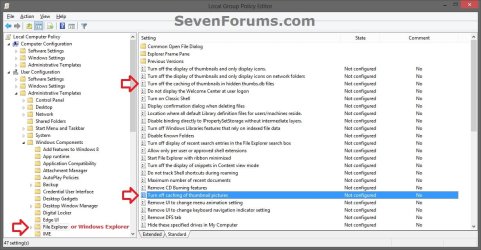
2. In the left pane, click/tap on the arrow to expand User Configuration, Administrative Templates, Windows Components, and on Windows Explorer (Windows 7) or File Explorer (Windows 8). (See screenshot below)
GPEDIT-1.jpg
3. In the right pane of Windows Explorer (Windows 7) or File Explorer (Windows 8), double click/tap on Turn off caching of thumbnail pictures to edit it. (See screenshot above)

4. To Enable Thumbnail Caching
A) Select (dot) Not Configured or Disabled. (See screenshot below step 6)

B) Go to step 6.
5. To Disable Thumbnail Caching
A) Select (dot) Enabled. (See screenshot below step 6)
6. Click/tap on OK. (See screenshot below)
Properties.jpg
7. In the right pane of Windows Explorer (Windows 7) or File Explorer (Windows 8), double click/tap on Turn off the caching of thumbnails in hidden thumbs.db files to edit it. (see screenshot below step 2)

8. Do step 4 or 5 above, and go to step 9 below.

9. Close the Local Group Policy Editor. (See screenshot below step 2)

10. Log off and log on, or restart the computer to apply.
That's it,
Shawn


Attachments

Last edited:
You have missed the point that when browsing a network share with write permission, for some reason Windows 7 does not store the thumbs.db in Appdata. Instead it creates a hidden thumbs.db inside the folder containing the files like Windows XP used to...

Part 1 and Part 2 in your guide do different things

Part 1: Disables all local thumbnail caching, and I'm not really sure if it affects remote network shares.

Part 2: disables thumbnail caching on remote shares only.
 

My Computer

Computer Manufacturer/Model Number
Sony Vaio VGN-FE31M
OS
Windows 7 Ultimate 32bit
CPU
Core 2 Duo Mobile
Motherboard
Sony
Memory
2gb Corsair
Graphics Card(s)
Geforce GO! 7600
Sound Card
Sony
Monitor(s) Displays
Sony
Hard Drives
OCZ Vertex 2E Sandforce SSD
PSU
Sony
Case
Sony
Cooling
Sony
Hello Ten,

This tutorial is meant for use on a person's single local computer, and not over a remote network. ;)

Thank you for the additional information though.
 

My Computer

Computer type
PC/Desktop
Computer Manufacturer/Model Number
Self built custom
OS
64-bit Windows 11 Pro for Workstations
CPU
Intel i7-8700K OC'd to 5 GHz
Motherboard
ASUS ROG Maximus XI Formula Z390
Memory
64 GB (4x16GB) G.SKILL TridentZ RGB DDR4 3600 MHz
Graphics Card(s)
ASUS ROG-STRIX-GTX1080TI-O11G-GAMING
Sound Card
Integrated
Monitor(s) Displays
2 x Samsung Odyssey G7 27"
Screen Resolution
2560x1440
Hard Drives
1TB Samsung 990 PRO M.2,
4TB Samsung 990 PRO PRO M.2,
TerraMaster F8 SSD Plus NAS
PSU
Seasonic Prime Titanium 850W
Case
Thermaltake Core P3
Cooling
Corsair Hydro H115i
Keyboard
Logitech wireless K800
Mouse
Logitech MX Master 4
Internet Speed
2 Gb/s Download and 100 Mb/s Upload
Antivirus
Malwarebyte Anti-Malware Premium
Browser
Google Chrome
Other Info
Logitech Z625 speaker system,
Logitech BRIO 4K Pro webcam,
HP Color LaserJet Pro MFP M477fdn,
APC SMART-UPS RT 1000 XL - SURT1000XLI,
Galaxy S23 Plus phone
HKEY_CURRENT_USER\Software\Microsoft\Windows\CurrentVersion\Policies\Explorer
"NoThumbnailCache"
"DisableThumbnailCache"

HKEY_LOCAL_MACHINE\SOFTWARE\Microsoft\Windows\CurrentVersion\Policies\Explorer
"NoThumbnailCache"
"DisableThumbnailCache"

HKEY_CURRENT_USER\Software\Microsoft\Windows\CurrentVersion\Explorer\Advanced
"DisableThumbnailCache"
"NoThumbnailCache"

HKEY_LOCAL_MACHINE\SOFTWARE\Microsoft\Windows\CurrentVersion\Explorer\Advanced
"DisableThumbnailCache"
"NoThumbnailCache"

Hello there. If possible for someone with the Local Group Policy Editor to verify, which of the entries at the top does disabling cache for all users/computer actually create? Thanks!
 

My Computer

OS
Seven Home Premium x64
CPU
Intel Core i3 330M
Internet Speed
2Mbps
Hello o770, and welcome to Seven Forums.

Group Policy adds this entry below into the registry when enabled. The REG files available for download are the same for this, but they also include the other options to do this in them as well to be extra thorough to make sure they work no matter what method was used. :)

Code:
HKEY_CURRENT_USER\Software\Microsoft\Windows\CurrentVersion\Policies\Explorer
"NoThumbnailCache"=dword:00000001
 

My Computer

Computer type
PC/Desktop
Computer Manufacturer/Model Number
Self built custom
OS
64-bit Windows 11 Pro for Workstations
CPU
Intel i7-8700K OC'd to 5 GHz
Motherboard
ASUS ROG Maximus XI Formula Z390
Memory
64 GB (4x16GB) G.SKILL TridentZ RGB DDR4 3600 MHz
Graphics Card(s)
ASUS ROG-STRIX-GTX1080TI-O11G-GAMING
Sound Card
Integrated
Monitor(s) Displays
2 x Samsung Odyssey G7 27"
Screen Resolution
2560x1440
Hard Drives
1TB Samsung 990 PRO M.2,
4TB Samsung 990 PRO PRO M.2,
TerraMaster F8 SSD Plus NAS
PSU
Seasonic Prime Titanium 850W
Case
Thermaltake Core P3
Cooling
Corsair Hydro H115i
Keyboard
Logitech wireless K800
Mouse
Logitech MX Master 4
Internet Speed
2 Gb/s Download and 100 Mb/s Upload
Antivirus
Malwarebyte Anti-Malware Premium
Browser
Google Chrome
Other Info
Logitech Z625 speaker system,
Logitech BRIO 4K Pro webcam,
HP Color LaserJet Pro MFP M477fdn,
APC SMART-UPS RT 1000 XL - SURT1000XLI,
Galaxy S23 Plus phone
Did this actually work ?

I tried disabling W7 thumb caching, both using GPE and Regedit, and subsequently used Linux to remove the thumb folders completely, but a W7 reboot would immediately recreate the folders, and viewing images would immediately repopulate them with thumbs.
The only way I could prevent W7 recreating them was to remove system privileges from the folders and make them read only for my own userID.
That finally created a situation in which no thumbnail cache appears to exist, and a "disk cleanup" on the W7 partition finds no thumbnails to remove, but in truth, there must be another cache somewhere.
Proof of this is simple to demonstrate on my PC, where I can view thumbs which were created when I scanned colour negatives. These scans were reversed, edited, cropped and saved, so in theory, viewing thumbs of these images, should dynamically recreate a thumb of a positive cropped image, but in fact a negative uncropped thumb will appear for an image which hasn't existed for several years in that form.
In the years since these ghost thumbs were created, the cache has been "cleaned" out multiple times, removed, recreated, removed again, disabled and apparently no longer exists, and yet there they still are.
All thumbs.db files from XP and Vista versions of the same image folder based caches were also scrubbed from the system, and yet they're still being conjured up from somewhere !
There's a longer, detailed discussion in another forum, with attached proof of my ghost thumbs existing despite total absence of any official cache, but I haven't linked it, not wishing to infringe site etiquette as a new poster.
I'm a long-time mod in the other place, and can link it if required.
 

My Computer

OS
Windows 7 Enterprise x64
Hello Terry, and welcome to Seven Forums.

Sorry, if I may have misunderstood you, but.....

Disabling the thumbnail cache doesn't stop thumbnails from being created or loaded. It only make Windows load the thumbnails in memory on the fly each time instead of from the preloaded cache.

Could you post a screenshot showing this?
 

My Computer

Computer type
PC/Desktop
Computer Manufacturer/Model Number
Self built custom
OS
64-bit Windows 11 Pro for Workstations
CPU
Intel i7-8700K OC'd to 5 GHz
Motherboard
ASUS ROG Maximus XI Formula Z390
Memory
64 GB (4x16GB) G.SKILL TridentZ RGB DDR4 3600 MHz
Graphics Card(s)
ASUS ROG-STRIX-GTX1080TI-O11G-GAMING
Sound Card
Integrated
Monitor(s) Displays
2 x Samsung Odyssey G7 27"
Screen Resolution
2560x1440
Hard Drives
1TB Samsung 990 PRO M.2,
4TB Samsung 990 PRO PRO M.2,
TerraMaster F8 SSD Plus NAS
PSU
Seasonic Prime Titanium 850W
Case
Thermaltake Core P3
Cooling
Corsair Hydro H115i
Keyboard
Logitech wireless K800
Mouse
Logitech MX Master 4
Internet Speed
2 Gb/s Download and 100 Mb/s Upload
Antivirus
Malwarebyte Anti-Malware Premium
Browser
Google Chrome
Other Info
Logitech Z625 speaker system,
Logitech BRIO 4K Pro webcam,
HP Color LaserJet Pro MFP M477fdn,
APC SMART-UPS RT 1000 XL - SURT1000XLI,
Galaxy S23 Plus phone
Hi Shawn, thanks for the reply.
All the images demonstrating this can be found here in the thread I mentioned.
The W7 cache(s), as I said no longer exist. The .user\myname\appdata\....\explorer folder now contains just a couple of startuplog.etl files and absolutely no .db files. The picture folders themselves contain no .db files.
Just to emphasize the point, I'll attach one specific example, where you can see a negative has been scanned upside down, turned 180 degrees, colour reversed, cropped and saved.
Despite the fact that the thumbnail cache has been subjected to "disk cleanup", deleted with Ubuntu, prevented from being recreated, and to all intents and purposes just doesn't exist anymore, the thumbnail still remains as originally created.

Where is it picking it up from ?
 

Attachments

  • ollie.JPG
    ollie.JPG
    166.1 KB · Views: 2,162

My Computer

OS
Windows 7 Enterprise x64
Terry,

I must admit that I don't know where it may be pulling the thumbnail image from since you have the thumbnail cache disabled, and still after refreshing the window or restarting the computer.

I suppose it wouldn't hurt to rebuild the icon cache as well to test, but I wouldn't think it would come from there though.
 

My Computer

Computer type
PC/Desktop
Computer Manufacturer/Model Number
Self built custom
OS
64-bit Windows 11 Pro for Workstations
CPU
Intel i7-8700K OC'd to 5 GHz
Motherboard
ASUS ROG Maximus XI Formula Z390
Memory
64 GB (4x16GB) G.SKILL TridentZ RGB DDR4 3600 MHz
Graphics Card(s)
ASUS ROG-STRIX-GTX1080TI-O11G-GAMING
Sound Card
Integrated
Monitor(s) Displays
2 x Samsung Odyssey G7 27"
Screen Resolution
2560x1440
Hard Drives
1TB Samsung 990 PRO M.2,
4TB Samsung 990 PRO PRO M.2,
TerraMaster F8 SSD Plus NAS
PSU
Seasonic Prime Titanium 850W
Case
Thermaltake Core P3
Cooling
Corsair Hydro H115i
Keyboard
Logitech wireless K800
Mouse
Logitech MX Master 4
Internet Speed
2 Gb/s Download and 100 Mb/s Upload
Antivirus
Malwarebyte Anti-Malware Premium
Browser
Google Chrome
Other Info
Logitech Z625 speaker system,
Logitech BRIO 4K Pro webcam,
HP Color LaserJet Pro MFP M477fdn,
APC SMART-UPS RT 1000 XL - SURT1000XLI,
Galaxy S23 Plus phone
Hi Shawn, thanks for the reply.
All the images demonstrating this can be found here in the thread I mentioned.
The W7 cache(s), as I said no longer exist. The .user\myname\appdata\....\explorer folder now contains just a couple of startuplog.etl files and absolutely no .db files. The picture folders themselves contain no .db files.
Just to emphasize the point, I'll attach one specific example, where you can see a negative has been scanned upside down, turned 180 degrees, colour reversed, cropped and saved.
Despite the fact that the thumbnail cache has been subjected to "disk cleanup", deleted with Ubuntu, prevented from being recreated, and to all intents and purposes just doesn't exist anymore, the thumbnail still remains as originally created.

Where is it picking it up from ?

Hi Terry,

I created an account just to reply to your quandry, because I'm almost certain that I know whats going on here. Almost all (but not 100%) of the popular image formats allow for embedded metadata and embedded thumbnails. The concept is that for larger files thumbnail generation could be time consuming, so by embedded a thumbnail in the image the image can be quickly previewed etc.
The embedded thumbnail needs to be regenerated when modifying an image with an embedded thumbnail, for example if you edit a jpeg file with a embedded thumbnail (btw: JPEG File Interchange Format - Wikipedia, the free encyclopedia and they discuss this a bit), and you make visual changes to it, the thumbnail should be updated by your editing software when you save the file.

Long story shorter - Not all photo editing software, especially command line tools and automated cropping and rotating scripts update embedded thumbnails, and even in photoshop when you edit a photo you can tell photoshop to not update the embedded thumbnail, in which case you will get what you see in your example.

An image with an older version thumbnail that does not visually agree with the full image content of the file.
 

My Computer

OS
Win7 64 SP1
I did think about the metadata as a source, and checked in properties>details but that's no help.
You prompted me to search for a better metadata tool and ExifTool would suggest that there is an embedded thumbnail.
However I'm not fully convinced that that is the source in Explorer for a reason I didn't detail before.
If you drag the scale up or down in the X-Large/Large/Medium/Small/List/Details/Tiles/Content dropdown, the upside-down, negative image suddenly becomes OK, then flips back, suggesting that more than one thumbnail exists at different scales, in exactly the way that explorer saves different sizes in its multiple dbs.
There's no indication in the exif that multiple thumbnails are embedded, but I'm going to look more deeply and I'll copy it back into the camera and see whether the Olympus firmware sees it wrong.
 

My Computer

OS
Windows 7 Enterprise x64
Long time later, but just for completeness.

This problem (registry and Group Policy both being ignored - thumbs cached regardless) still exists in Windows 8.
The solution of denying access to the .user\myname\appdata\....\explorer folder to all users and leaving it read-only for myself still works however.

Since the W8 system is completely new and the ghost (negative) thumbs mentioned are still around, "evolved"'s explanation of thumbs embedded in the metadata must be correct. W8 cannot possibly know that the image originated as a negative scan, so it must be finding it with the image.
Still a bit of a puzzle though.
W8 no longer has thumb-size slider in its ribbon so the positive/negative flip/flop doesn't occur, but no matter which thumbnail size is chosen, a negative thumb appears, indicating that W8 Explorer must be resizing the embedded metadata thumb, not the final image.
Here's a very useful website
Jeffrey's Exif viewer
which proves that the thumbnail is embedded in the metadata
 

Attachments

  • exif.JPG
    exif.JPG
    210.2 KB · Views: 614
Last edited:

My Computer

OS
Windows 7 Enterprise x64
Astounding Matter

Astounding Matter,

I was looking for a solution for an user that posted a problem in an other forum where a user was having a problem with a *.mp4 video file were instead of the video preview thumbnail there was exibited a thumbnail of the DVD cover of that movie.

I must say that when I looked into your problem I got amazed. I didn't even know that windows looks in metadata to exhibit thumbnails.

Have you tried right clicking the file, Proprieties, Details tab and remove personal information to see what happens?
 

My Computer

OS
Windows 7 64 bit Ultimate
I have found that Paint.NET will refresh the metadata thumbnail and align it with the actual image.
Just open/save without even making changes is sufficient.
Not sure what the situation is with movie files.
 

My Computer

OS
Windows 7 Enterprise x64
Didn't work for me

I tried this tutorial but unfortunately no luck for me. Despite disabling the thumbnail cache as per the instructions and deleting the thumbnail files from the drive, new thumbnail files are created the instant that I select a thumbnail view mode in explorer.

Originally I suspected this might be due to the fact that I use Directory Opus as my file manager, not Windows Explorer (because Windows Explorer sucks). But even when I explicitly use Windows explorer to preview folder contents in thumbnail mode, the thumbnail .db files are recreated.

GroupPolicyEditor.png
 

My Computer

Computer type
PC/Desktop
Computer Manufacturer/Model Number
Custom Build
OS
Windows 7 Professional x64
CPU
INTEL Core i7 4820K
Motherboard
Gigabyte X79-UP4
Memory
4x 4GB DDR3 Performance Desktop Memory - 16GB Total
Hard Drives
2x500GB SATA
PSU
Corsair GS700
Cooling
Coolermaster Sedion CPU Water Cooler
Antivirus
AVG Internet Security
Browser
Chrome
Did you read on down the thread ?
In post #6 I mentioned the only thing that actually works.
Ignore all the subsequent stuff about the cats, turns out that that was just embedded metadata and nothing to do with caching at all.
Setting group policy etc. has no effect whatsoever, so why MS provides such policy settings when they do nothing is a major question.
Turns out, the only way to prevent W7 (and W8) from cluttering your valuable SSD C drive space with unwanted junk in the form of thumbnails, is to navigate down to ...Users/yourname/appdata/local/Microsoft/Windows/Explorer
right click on that folder, select properties> security and remove all access to it.
Leave it so that only you (not the system) have access and remove your own ability to write inside it.
Just leave yourself with ownership and read access.

Make sure you do a disk cleanup first, or what's inside the cache will be stuck there forever wasting space.
 
Last edited:

My Computer

OS
Windows 7 Enterprise x64
Did you read on down the thread ?
In post #6 I mentioned the only thing that actually works.

Hello Terry.

Yes I did see your posts about preventing system access to the thumbnails folder. I accept this method as a potential solution. I guess I was still a bit confused as to why the original tutorial method doesn't work - I assume the author will have tested it and confirmed it to be working for him/her?

Anyway I agree - your method achieves what I want. Thanks for the input!

:)
 

My Computer

Computer type
PC/Desktop
Computer Manufacturer/Model Number
Custom Build
OS
Windows 7 Professional x64
CPU
INTEL Core i7 4820K
Motherboard
Gigabyte X79-UP4
Memory
4x 4GB DDR3 Performance Desktop Memory - 16GB Total
Hard Drives
2x500GB SATA
PSU
Corsair GS700
Cooling
Coolermaster Sedion CPU Water Cooler
Antivirus
AVG Internet Security
Browser
Chrome
I don't know if the author was just helpfully publishing the theoretical method or passing on practical experience.
I suspect the former, since my personal experience on Windows 7 and 8 on two PCs, is that though the GPE is quite unequivocal - "Turn off caching......", whoever coded explorer clearly doesn't consult that resource, since it demonstrably has absolutely no effect whatsoever on the caching behaviour implemented.
I imagine that there must be a fair number of PCs out there whose installers imagine them to be safe, but are actually replete with confidential images just waiting to be exploited by financially motivated end-users.
 

My Computer

OS
Windows 7 Enterprise x64
Yes indeed. I agree with your points and would echo your concerns about misguided impressions of privacy. You would hope that people will test the results of changing the group policies before relying upon it. Skepticism is our friend here ;)

Cheers,

Brian
 

My Computer

Computer type
PC/Desktop
Computer Manufacturer/Model Number
Custom Build
OS
Windows 7 Professional x64
CPU
INTEL Core i7 4820K
Motherboard
Gigabyte X79-UP4
Memory
4x 4GB DDR3 Performance Desktop Memory - 16GB Total
Hard Drives
2x500GB SATA
PSU
Corsair GS700
Cooling
Coolermaster Sedion CPU Water Cooler
Antivirus
AVG Internet Security
Browser
Chrome
Ok fellas, I've updated the .reg file in step 2 OPTION ONE to see if that may help more.

I just love it when a group policy doesn't do completely what it claims anymore.
 

My Computer

Computer type
PC/Desktop
Computer Manufacturer/Model Number
Self built custom
OS
64-bit Windows 11 Pro for Workstations
CPU
Intel i7-8700K OC'd to 5 GHz
Motherboard
ASUS ROG Maximus XI Formula Z390
Memory
64 GB (4x16GB) G.SKILL TridentZ RGB DDR4 3600 MHz
Graphics Card(s)
ASUS ROG-STRIX-GTX1080TI-O11G-GAMING
Sound Card
Integrated
Monitor(s) Displays
2 x Samsung Odyssey G7 27"
Screen Resolution
2560x1440
Hard Drives
1TB Samsung 990 PRO M.2,
4TB Samsung 990 PRO PRO M.2,
TerraMaster F8 SSD Plus NAS
PSU
Seasonic Prime Titanium 850W
Case
Thermaltake Core P3
Cooling
Corsair Hydro H115i
Keyboard
Logitech wireless K800
Mouse
Logitech MX Master 4
Internet Speed
2 Gb/s Download and 100 Mb/s Upload
Antivirus
Malwarebyte Anti-Malware Premium
Browser
Google Chrome
Other Info
Logitech Z625 speaker system,
Logitech BRIO 4K Pro webcam,
HP Color LaserJet Pro MFP M477fdn,
APC SMART-UPS RT 1000 XL - SURT1000XLI,
Galaxy S23 Plus phone
Back
Top