USB Windows 7 Installation Key Drive - Create

How to Create a Bootable Windows 7 Installation USB Flash Drive


   Information
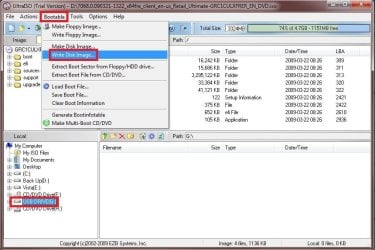
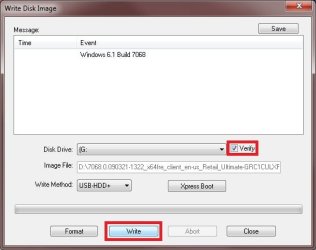
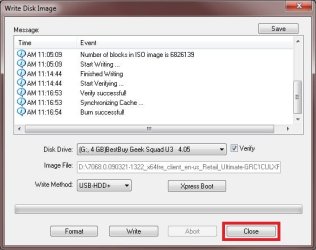
This will show you how to create a USB flash key drive that you can boot from to install Windows 7 with.
   Tip
If the USB flash drive is of sufficient capacity, say 8GB, then after copying the Windows 7 installation DVD onto it, you can create a new folder (ex: Device Drivers) in the USB key and place all of your latest driver installation files in it. This way you will have them handy to manually install the drivers after installing Windows 7 from the USB key.
   Note
If you booted from the USB drive to install Windows 7, then you may need to change the hard drive back to being listed before the USB key in the boot order in BIOS after the computer restarts during installation to prevent the computer from booting right back into the USB key starting the installation process over and over.
   Warning

  • The USB key needs to be at least 4 GB in size.
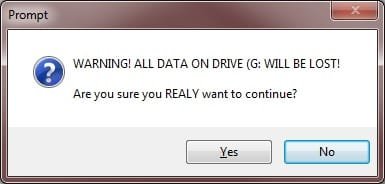
  • This will delete everything on the USB key. Be sure to save anything that you do not want to lose on it somewhere else.
  • Before installing Windows 7 from the USB key, you will need to:
    • Enable Legacy USB storage detect in the BIOS.
  • When ready to install Windows 7 from the USB key:
    • Connect the USB key.
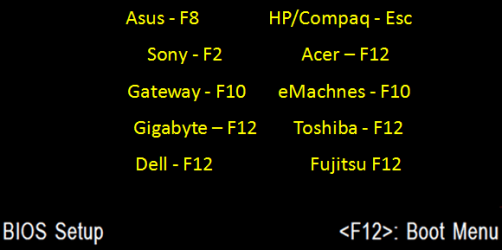
    • Restart the computer, and keep tapping the F key (see screenshot below) responsible to open the Boot Menu screen for the brand and model of your motherboard or computer until it does.

      • Boot-Menu.png
    • Select the USB key to boot from.
    • Start installing Windows 7.

CONTENTS:
  • Option One: Use "Windows 7 USB/DVD Download Tool" to Create Bootable Windows 7 Installation USB
  • Option Two: Use "Rufus" to Create Bootable Windows 7 Installation USB
  • Option Three: Manually Create Bootable Windows 7 Installation USB Flash Drive


OPTION ONE

Use "Windows 7 USB/DVD Download Tool" to Create Bootable Windows 7 Installation USB


   Tip
If you do not have a Windows 7 ISO file, then you can either download the latest ISO version at the links below.

:ar: Microsoft Software Recovery

:ar: Microsoft: Windows 7 Direct Download Links

You could also use a free program like ImgBurn or ISODisk to create a ISO from your Windows 7 installation DVD.


1. For how, see the Part 2 section here: Windows 7 USB/DVD Download Tool.


OPTION TWO

Use "Rufus" to Create Bootable Windows 7 Installation USB


1. Download the latest version of Rufus at the link below, and save it's .exe file to your desktop.
:ar: Rufus - Create bootable USB drives the easy way
   Note
This is a standalone exe file that doesn't install anything to your PC.

For Rufus FAQs, see: https://github.com/pbatard/rufus/wiki/FAQ
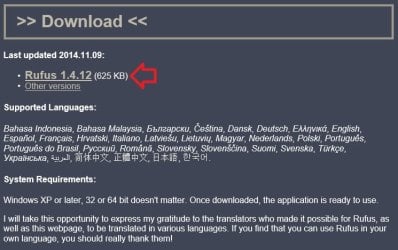

download_rufus.jpg
2. Connect your USB flash drive if you have not already.

3. Run the rufus_v###.exe file, and click/tap on Yes if prompted by UAC.
NOTE: ### = latest version number.

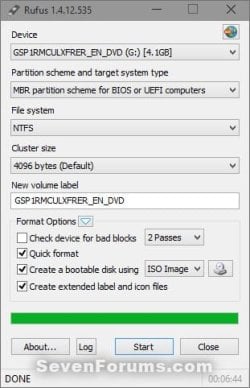
4. Set Rufus with the settings below: (see screenshot below step 5)

  • [Under Device, select the USB flash drive you want to format and use.
  • Under Format Options, check Create a bootable disk using, click/tap on the browse icon to navigate to and select your 64-bit Windows 7 ISO file.
  • Under Partition scheme and target system type, select MBR partition scheme for BIOS or UEFI computers.
  • Under File system, select NTFS.
  • Under Cluster size, select the (Default) (ex: 16 kilobytes or 4096 bytes) it has listed.
  • Under Format Options, check Quick format.
  • Under Format Options, check Create extended label and icon files.
  • Under New volume label, you can enter any name you like for the USB flash drive, or leave the default name.
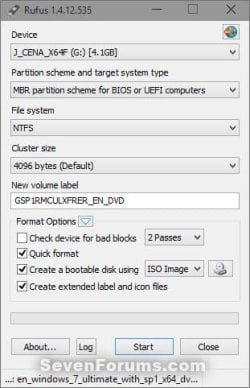
5. When ready, click/tap on Start. (see screenshot below)
Rufus-1.jpg
6. Click/tap on OK to confirm. (see screenshot below)
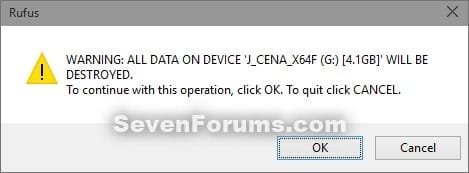
Rufus-2.jpg
7. Rufus will now start creating the bootable UEFI USB flash drive. (see screenshot below)
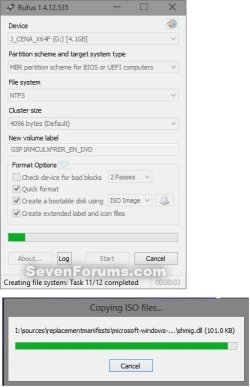
Rufus-3.jpg
8. When Rufus is "DONE", you can close Rufus. (see screenshot below)
NOTE: It could take a little while to finish.
Rufus-4.jpg
9. You are now ready to installWindows 7 with your bootable USB flash drive.


OPTION THREE

Manually Create Bootable Windows 7 Installation USB Flash Drive


   Warning
Using this method:
  • You will only be able to create a 64-bit Windows 7 bootable USB flash drive if your current Windows 7 installation is also 64-bit.
  • You will be able to create a 32-bit Windows 7 bootable USB flash drive if your current Windows 7 installation is 32-bit or 64-bit.
64-bit installation + 64-bit ISO = 64-bit flash drive
64-bit installation + 32-bit ISO = 32-bit flash drive
32-bit installation + 32-bit ISO = 32-bit flash drive
32-bit installation + 64-bit ISO = unable to create

1. Plug the USB key in.

2. If AutoPlay opens a pop-up for the USB key, then just close it.
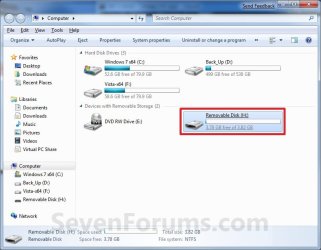
NOTE: Make note of what the drive size is for the USB key for use in step 6 below. You can also open Computer (step 19) to see what the drive size is to. For example, mine is 3920 MB. (See screenshot below)
Computer.jpg
3. Open an elevated command prompt.

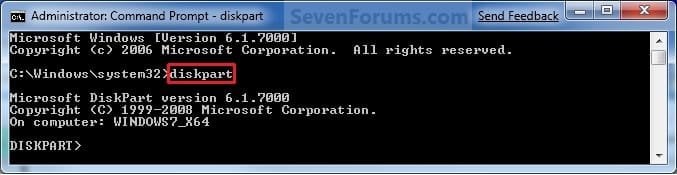
4. In the elevated command prompt, type diskpart and press Enter. (See screenshot below)
Step1.jpg
5. In the elevated command prompt, type list disk and press Enter. (See screenshot below)
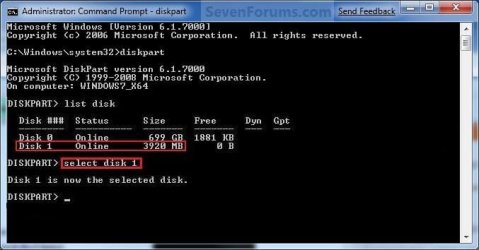
NOTE: Make note of what disk # your USB key is listed as to use in step 6 below. You can also look for the drive size (step 2) of the USB key to help ID the disk number. For example, mine is listed as Disk 1 here for the 3920 MB disk.
Step2.jpg
6. In the elevated command prompt, type select disk # (your USB disk #) and press Enter. (See screenshot below)
NOTE: For example, my USB key is listed as Disk 1, so I would type select disk 1 and press Enter.
Step3.jpg
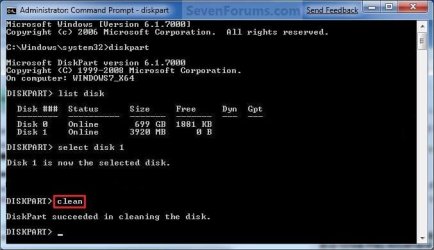
7. In the elevated command prompt, type clean and press Enter. (See screenshot below)
Step4.jpg
8. In the elevated command prompt, type create partition primary and press Enter. (See screenshot below)
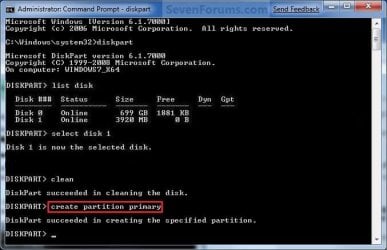
Step5.jpg
9. In the elevated command prompt, type select partition 1 and press Enter. (See screenshot below)
Step6.jpg
10. In the elevated command prompt, type active and press Enter. (See screenshot below)
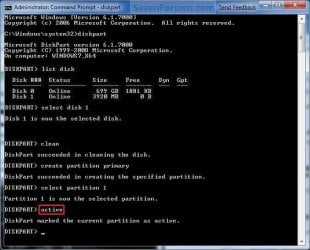
Step7.jpg
11. In the elevated command prompt, type in the command below to format the USB as NTFS or FAT32, and press Enter. (See screenshot below)
NOTE: This may take a few moments to finish formatting the USB key.

   Note
You can substitute Windows 7 within quotes in the commands below with whatever name (drive label) you would like to have displayed for the USB drive instead.

See also: Choosing between NTFS, FAT, and FAT32


FAT32 volume labels
  • If you have an UEFI instead of BIOS motherboard, then you will need to use FAT32 and not NTFS.
  • Volume labels can contain as many as 11 characters and can include spaces but no tabs.
  • Volume labels cannot contain the following characters: ? / \ | . , ; : + = [ ] < > "
  • Volume labels are stored as uppercase regardless of whether they contain lowercase letters.
NTFS volume labels

  • Volume labels can contain as many as 32 characters.
format fs=ntfs label="Windows 7" quick

OR

format fs=fat32 label="Windows 7" quick
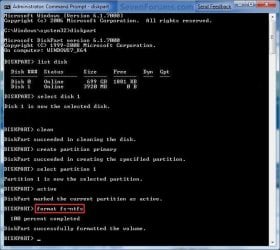
Step8.jpg
12. If AutoPlay opens a pop-up for the USB key, then just close it.

13. In the elevated command prompt, type assign and press Enter. (See screenshot below)
NOTE: This will assign a new drive letter to the USB key. Make note of the new USB drive letter to use in step 22 below. For example, mine is now H.
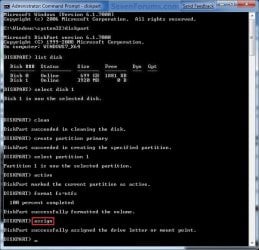
Step9.jpg
14. If AutoPlay opens a pop-up for the USB key, then just close it.

15. In the elevated command prompt, type exit and press Enter. (See screenshot below)
NOTE: This will exit you from DiskPart from step 4.
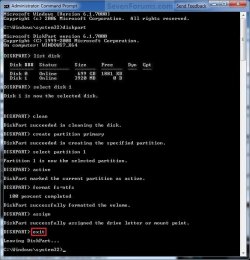
Step10.jpg
16. Close the elevated command prompt.

17. Insert your Windows 7 installation DVD into the DVD drive.

18. If AutoPlay opens a pop-up for the Windows 7 installation DVD, then just close it.

19. Open the Start Menu, right click on the Computer button, and click on Open.

20. Right click on the DVD drive (ex: E: ) that has the Windows 7 installation DVD in it, and click on Open. (See screenshot below)
Open.jpg
21. Highlight all of the contents, right click on the highlighted contents, and click on Copy. (See screenshot below)
NOTE: You will need to copy all of the files and folders on the Windows 7 installation DVD to the USB key.
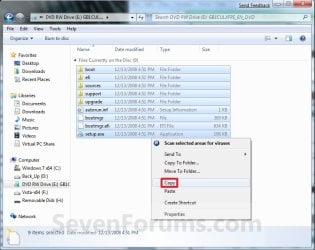
Copy.jpg
22. Go back to Computer, right click on the USB key drive (ex: H ), and click on Paste. (See screenshot below)
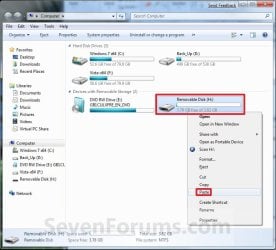
Paste.jpg
23. The contents of the Windows 7 installation DVD will now start copying over to the USB key. (See screenshot below)
NOTE: This may take a few moments to complete.
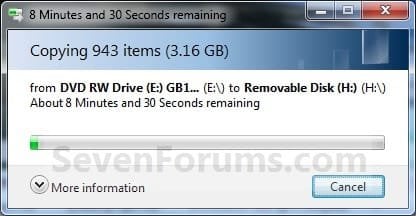
Copying.jpg
24. When finished, you can close the Computer window and unplug the USB key.

25. You now have a Windows 7 Installation USB key. ;)

   Warning
If you have UEFI instead of BIOS motherboard, then you will need to temporarily disable Secure Boot to use the USB to install Windows. After installation is complete, you can enable Secure Boot again.

That's it,
Shawn


Attachments

  • Computer-9.jpg
    Computer-9.jpg
    209.3 KB · Views: 103
  • UltrISO-2.jpg
    UltrISO-2.jpg
    108.9 KB · Views: 13,126
  • UltrISO-3.jpg
    UltrISO-3.jpg
    154.1 KB · Views: 13,576
  • UltrISO-5.jpg
    UltrISO-5.jpg
    148.2 KB · Views: 15,194
  • UltrISO-6.jpg
    UltrISO-6.jpg
    48.6 KB · Views: 12,843
  • UltrISO-7.jpg
    UltrISO-7.jpg
    20.5 KB · Views: 11,222
  • UltrISO-8.jpg
    UltrISO-8.jpg
    70.9 KB · Views: 11,724
Last edited:
Nope, I used method 2 (manual) and still got the same error. I changed formatted the drive as NFTS and that didn't help either.

The same error:

File: \Boot\Bcd
Status: 0xc000000e
Info: An error occurred while attempting to read the boot configuration data

I don't really want to give up -- I am checking the error number in google to see if anything comes up, but I would appreciate any thoughts on this

rgds, Punda
 

My Computer

OS
Windows 7
Punda,

Double check to make sure that you have the USB drive listed first in the boot order in the BIOS. See WARNING box at the top of the tutorial for more on this.

Is this the only partition on the USB key?

If you unplug the USB key and plug it back in, does AutoPlay have the option to run the setup.exe file?
 

My Computer

Computer type
PC/Desktop
Computer Manufacturer/Model Number
Self built custom
OS
64-bit Windows 11 Pro for Workstations
CPU
Intel i7-8700K OC'd to 5 GHz
Motherboard
ASUS ROG Maximus XI Formula Z390
Memory
64 GB (4x16GB) G.SKILL TridentZ RGB DDR4 3600 MHz
Graphics Card(s)
ASUS ROG-STRIX-GTX1080TI-O11G-GAMING
Sound Card
Integrated
Monitor(s) Displays
2 x Samsung Odyssey G7 27"
Screen Resolution
2560x1440
Hard Drives
1TB Samsung 990 PRO M.2,
4TB Samsung 990 PRO PRO M.2,
TerraMaster F8 SSD Plus NAS
PSU
Seasonic Prime Titanium 850W
Case
Thermaltake Core P3
Cooling
Corsair Hydro H115i
Keyboard
Logitech wireless K800
Mouse
Logitech MX Master 4
Internet Speed
2 Gb/s Download and 100 Mb/s Upload
Antivirus
Malwarebyte Anti-Malware Premium
Browser
Google Chrome
Other Info
Logitech Z625 speaker system,
Logitech BRIO 4K Pro webcam,
HP Color LaserJet Pro MFP M477fdn,
APC SMART-UPS RT 1000 XL - SURT1000XLI,
Galaxy S23 Plus phone
I think the issue is related to my bios.

I plugged the same USB drive into another laptop around, and it booted fine.

So, it must be my system-specific -- as evidenced by a lot of posts on "boot/bcd errors" in google.

Now, I have to figure out what to do. I think it is possible to edit the bcd.exe file, but I am not sure...

if you have any ideas, please let me know.

rgds, Punda
 

My Computer

OS
Windows 7
What brand and model is your motherboard? Perhaps someone with the same one or similar may know a specific setting in the BIOS for your motherboard that you will need to have set for this.
 
Last edited:

My Computer

Computer type
PC/Desktop
Computer Manufacturer/Model Number
Self built custom
OS
64-bit Windows 11 Pro for Workstations
CPU
Intel i7-8700K OC'd to 5 GHz
Motherboard
ASUS ROG Maximus XI Formula Z390
Memory
64 GB (4x16GB) G.SKILL TridentZ RGB DDR4 3600 MHz
Graphics Card(s)
ASUS ROG-STRIX-GTX1080TI-O11G-GAMING
Sound Card
Integrated
Monitor(s) Displays
2 x Samsung Odyssey G7 27"
Screen Resolution
2560x1440
Hard Drives
1TB Samsung 990 PRO M.2,
4TB Samsung 990 PRO PRO M.2,
TerraMaster F8 SSD Plus NAS
PSU
Seasonic Prime Titanium 850W
Case
Thermaltake Core P3
Cooling
Corsair Hydro H115i
Keyboard
Logitech wireless K800
Mouse
Logitech MX Master 4
Internet Speed
2 Gb/s Download and 100 Mb/s Upload
Antivirus
Malwarebyte Anti-Malware Premium
Browser
Google Chrome
Other Info
Logitech Z625 speaker system,
Logitech BRIO 4K Pro webcam,
HP Color LaserJet Pro MFP M477fdn,
APC SMART-UPS RT 1000 XL - SURT1000XLI,
Galaxy S23 Plus phone
It is an Asus system with an Asus Motherboard: Further details are below:

BIOS Type: AMI
BIOS Date: February 8th 2006
BIOS ID: 63-0801-000010-00101111-020806-I915M-A0120000
BIOS OEM: BIOS Date: 02/08/06 14:05:10 Ver: 08.00.10 - 0801
Chipset: Intel 2590 rev 4
SuperIO: Unknown
Manufacturer: ASUSTeK Computer INC.
Motherboard: W3A


Hope this helps --


Punda
 

My Computer

OS
Windows 7
You shouldn't have to even go into the bius there to boot from the flash drive. Simply pressing the F8 button right when you first the drives being listed on the first post screen at startup will bring up a boot device menu for choosing floppy, which hard drive or usb flash drive listed by make and model, optical drives.

The Fat volume automatically made on the first attempt as well as reformat to NTFS for the second later both saw working installs. The two file systems worked since you always see the same thing at first being the setup files being copied to the hard drive, intended partition where Windows will be installed.

Here the 7 installer started while being booted in 7 to see one installation go right on without even booting off of the flash drive itself. The installer will see that the system restarted on it's own once all files are copied over.
 

My Computers

System One System Two

  • Computer type
    PC/Desktop
    Computer Manufacturer/Model Number
    Custom builds = 2
    OS
    W7 Ultimate x64/W10 Pro x64/W11 Pro Triple Boot - Main PC W7 Remote PC Micro ATX W7 Pro x64/W11 Pro
    CPU
    AMD Phenom II X4 975 Deneb 3.6ghz - 965 2nd remote pc
    Motherboard
    Gigabyte GA-790XTA-UD4-Gigabyte GA-880GM-D2H remote pc
    Memory
    Kingston Hyper X DDR3 1600 1.5v 16gb - Hyper X Fury 8gb 2nd
    Graphics Card(s)
    MSI HD Radeon 5750 1gb - MSI HD Radeon 6450 on mini tower
    Sound Card
    Creative Labs X-Fi Xtreme Audio P - Realtek onooard 2nd case
    Monitor(s) Displays
    ASUS VW199T-P 19" HP 2082a Main-HP 2082a 20" remote pc
    Screen Resolution
    Asus 1440x900 - HP 1600x900
    Hard Drives
    WD Black 1TB HD per OS W7, W10, and pending W11 presently on 500gb OS Drive - Pending Triple 1TB HDs for Spanned Storage/backup volume
    Single 2TB external USB enclosure, single 1TB System 7 Host/Boot drive, Pending 8TB external HD for system image b
    PSU
    Corsair 750TX - primary / Corsair CX600 - second
    Case
    Antec 900-2 - SSD compatible / NZXT Vulcan mini tower
    Cooling
    Zalman CNPS9900A
    Keyboard
    AZIO L70 Backlit Letters Gaming - ONN Cordless/USB
    Mouse
    MSI DS200 Programmable, Logitech Cordless
    Internet Speed
    30mbps upgrade - primary hard wired - mini tower usb WiFi
    Antivirus
    GFI VIPRE Internet Security 2014 on W7 2016 beta on W10,
    Browser
    Cyberfox, WaterFox 64bit FF variants, FireFox x64, Pale Moon
    Other Info
    Accomdata fan cooled usb 2.0 PIDE/Sata II, III external enclosure.
    Sambient usb/eSata PATA/Sata II, III external enclosure.
  • Computer type
    PC/Desktop
    System Manufacturer/Model Number
    CUSTOM ASSEMBLY
    OS
    W7 Pro x64/W11 Pro
    CPU
    AMD Deneb 3.6ghz - 965
    Motherboard
    Gigabyte GA-880GM-D2H remote pc
    Memory
    Kingston Hyper X Fury 8gb
    Graphics Card(s)
    MSI HD Radeon 6450 DVI Output
    Sound Card
    Realtek onooard Creative or Other separate PENDING
    Monitor(s) Displays
    VIZIO 32" LCD TV Separate LCD Pending
    Screen Resolution
    1600x1080
    Hard Drives
    WD 500GB OS Host/Boot WD Green 1TB Storage/Backup
    PSU
    Corsair 600W - THERMALTAKE 600W spare case
    Case
    NZXT Vulcan mini tower
    Cooling
    Twin 120mm Top Fans - 240mm Side Cover
    Keyboard
    ONN Cordless/USB Logitech Cordless
    Mouse
    ONN USB/Cordless - Logitech Cordless
    Internet Speed
    DSL 5G
    Browser
    MS Edge, FireFox, WaterFox x64, FireFox Nightly
    Other Info
    OS Testing-Remote Access to Main TeamViewer
Will I lose my usb pen drive or after installation i can reformat and reuse it as a normal usb flash drive?
 

My Computer

Computer Manufacturer/Model Number
Sony VAIO VGN-CS14G
OS
Vista Home Premium 32-bit/ Win7 RC/ Debian Lenny
CPU
Core 2 Duo 2.2GHz
Memory
2GB
Hard Drives
250GB SATA
Internet Speed
192Kbps/ 2Mbps
Hello Mukul,

Sure you can format it afterwards and use it as any other flash drive afterwards. :)

Shawn
 

My Computer

Computer type
PC/Desktop
Computer Manufacturer/Model Number
Self built custom
OS
64-bit Windows 11 Pro for Workstations
CPU
Intel i7-8700K OC'd to 5 GHz
Motherboard
ASUS ROG Maximus XI Formula Z390
Memory
64 GB (4x16GB) G.SKILL TridentZ RGB DDR4 3600 MHz
Graphics Card(s)
ASUS ROG-STRIX-GTX1080TI-O11G-GAMING
Sound Card
Integrated
Monitor(s) Displays
2 x Samsung Odyssey G7 27"
Screen Resolution
2560x1440
Hard Drives
1TB Samsung 990 PRO M.2,
4TB Samsung 990 PRO PRO M.2,
TerraMaster F8 SSD Plus NAS
PSU
Seasonic Prime Titanium 850W
Case
Thermaltake Core P3
Cooling
Corsair Hydro H115i
Keyboard
Logitech wireless K800
Mouse
Logitech MX Master 4
Internet Speed
2 Gb/s Download and 100 Mb/s Upload
Antivirus
Malwarebyte Anti-Malware Premium
Browser
Google Chrome
Other Info
Logitech Z625 speaker system,
Logitech BRIO 4K Pro webcam,
HP Color LaserJet Pro MFP M477fdn,
APC SMART-UPS RT 1000 XL - SURT1000XLI,
Galaxy S23 Plus phone
Some of the more expensive models even have an onboard data backup program that comes to live when simply pressing a button. Once pressed you browse for the files and folders you want backed up.

As far as being reusable after any reformat you know who to ask about some of the reformats on the ones used here! :D Right Shawn!
 

My Computers

System One System Two

  • Computer type
    PC/Desktop
    Computer Manufacturer/Model Number
    Custom builds = 2
    OS
    W7 Ultimate x64/W10 Pro x64/W11 Pro Triple Boot - Main PC W7 Remote PC Micro ATX W7 Pro x64/W11 Pro
    CPU
    AMD Phenom II X4 975 Deneb 3.6ghz - 965 2nd remote pc
    Motherboard
    Gigabyte GA-790XTA-UD4-Gigabyte GA-880GM-D2H remote pc
    Memory
    Kingston Hyper X DDR3 1600 1.5v 16gb - Hyper X Fury 8gb 2nd
    Graphics Card(s)
    MSI HD Radeon 5750 1gb - MSI HD Radeon 6450 on mini tower
    Sound Card
    Creative Labs X-Fi Xtreme Audio P - Realtek onooard 2nd case
    Monitor(s) Displays
    ASUS VW199T-P 19" HP 2082a Main-HP 2082a 20" remote pc
    Screen Resolution
    Asus 1440x900 - HP 1600x900
    Hard Drives
    WD Black 1TB HD per OS W7, W10, and pending W11 presently on 500gb OS Drive - Pending Triple 1TB HDs for Spanned Storage/backup volume
    Single 2TB external USB enclosure, single 1TB System 7 Host/Boot drive, Pending 8TB external HD for system image b
    PSU
    Corsair 750TX - primary / Corsair CX600 - second
    Case
    Antec 900-2 - SSD compatible / NZXT Vulcan mini tower
    Cooling
    Zalman CNPS9900A
    Keyboard
    AZIO L70 Backlit Letters Gaming - ONN Cordless/USB
    Mouse
    MSI DS200 Programmable, Logitech Cordless
    Internet Speed
    30mbps upgrade - primary hard wired - mini tower usb WiFi
    Antivirus
    GFI VIPRE Internet Security 2014 on W7 2016 beta on W10,
    Browser
    Cyberfox, WaterFox 64bit FF variants, FireFox x64, Pale Moon
    Other Info
    Accomdata fan cooled usb 2.0 PIDE/Sata II, III external enclosure.
    Sambient usb/eSata PATA/Sata II, III external enclosure.
  • Computer type
    PC/Desktop
    System Manufacturer/Model Number
    CUSTOM ASSEMBLY
    OS
    W7 Pro x64/W11 Pro
    CPU
    AMD Deneb 3.6ghz - 965
    Motherboard
    Gigabyte GA-880GM-D2H remote pc
    Memory
    Kingston Hyper X Fury 8gb
    Graphics Card(s)
    MSI HD Radeon 6450 DVI Output
    Sound Card
    Realtek onooard Creative or Other separate PENDING
    Monitor(s) Displays
    VIZIO 32" LCD TV Separate LCD Pending
    Screen Resolution
    1600x1080
    Hard Drives
    WD 500GB OS Host/Boot WD Green 1TB Storage/Backup
    PSU
    Corsair 600W - THERMALTAKE 600W spare case
    Case
    NZXT Vulcan mini tower
    Cooling
    Twin 120mm Top Fans - 240mm Side Cover
    Keyboard
    ONN Cordless/USB Logitech Cordless
    Mouse
    ONN USB/Cordless - Logitech Cordless
    Internet Speed
    DSL 5G
    Browser
    MS Edge, FireFox, WaterFox x64, FireFox Nightly
    Other Info
    OS Testing-Remote Access to Main TeamViewer
Hello Mukul,

Sure you can format it afterwards and use it as any other flash drive afterwards. :)

Shawn
Thanks for the info.
I finally gave it a go. Did a clean install of Win7 using USB. Took 25 mins including creating the usb boot disk. But I must admit there's a huge diff in boot up time. Win7 boots really fast. In a flash.:D
 

My Computer

Computer Manufacturer/Model Number
Sony VAIO VGN-CS14G
OS
Vista Home Premium 32-bit/ Win7 RC/ Debian Lenny
CPU
Core 2 Duo 2.2GHz
Memory
2GB
Hard Drives
250GB SATA
Internet Speed
192Kbps/ 2Mbps
You're welcome Mukul.

It's a lot better now. I really do like W7.
 

My Computer

Computer type
PC/Desktop
Computer Manufacturer/Model Number
Self built custom
OS
64-bit Windows 11 Pro for Workstations
CPU
Intel i7-8700K OC'd to 5 GHz
Motherboard
ASUS ROG Maximus XI Formula Z390
Memory
64 GB (4x16GB) G.SKILL TridentZ RGB DDR4 3600 MHz
Graphics Card(s)
ASUS ROG-STRIX-GTX1080TI-O11G-GAMING
Sound Card
Integrated
Monitor(s) Displays
2 x Samsung Odyssey G7 27"
Screen Resolution
2560x1440
Hard Drives
1TB Samsung 990 PRO M.2,
4TB Samsung 990 PRO PRO M.2,
TerraMaster F8 SSD Plus NAS
PSU
Seasonic Prime Titanium 850W
Case
Thermaltake Core P3
Cooling
Corsair Hydro H115i
Keyboard
Logitech wireless K800
Mouse
Logitech MX Master 4
Internet Speed
2 Gb/s Download and 100 Mb/s Upload
Antivirus
Malwarebyte Anti-Malware Premium
Browser
Google Chrome
Other Info
Logitech Z625 speaker system,
Logitech BRIO 4K Pro webcam,
HP Color LaserJet Pro MFP M477fdn,
APC SMART-UPS RT 1000 XL - SURT1000XLI,
Galaxy S23 Plus phone
I keep a usb key for both of the RCs even if only to repair any start up problem that most likely won't but could come up. A small usb key can also replace the need to burn a recovery disk completely even while 7 now has that option included.
 

My Computers

System One System Two

  • Computer type
    PC/Desktop
    Computer Manufacturer/Model Number
    Custom builds = 2
    OS
    W7 Ultimate x64/W10 Pro x64/W11 Pro Triple Boot - Main PC W7 Remote PC Micro ATX W7 Pro x64/W11 Pro
    CPU
    AMD Phenom II X4 975 Deneb 3.6ghz - 965 2nd remote pc
    Motherboard
    Gigabyte GA-790XTA-UD4-Gigabyte GA-880GM-D2H remote pc
    Memory
    Kingston Hyper X DDR3 1600 1.5v 16gb - Hyper X Fury 8gb 2nd
    Graphics Card(s)
    MSI HD Radeon 5750 1gb - MSI HD Radeon 6450 on mini tower
    Sound Card
    Creative Labs X-Fi Xtreme Audio P - Realtek onooard 2nd case
    Monitor(s) Displays
    ASUS VW199T-P 19" HP 2082a Main-HP 2082a 20" remote pc
    Screen Resolution
    Asus 1440x900 - HP 1600x900
    Hard Drives
    WD Black 1TB HD per OS W7, W10, and pending W11 presently on 500gb OS Drive - Pending Triple 1TB HDs for Spanned Storage/backup volume
    Single 2TB external USB enclosure, single 1TB System 7 Host/Boot drive, Pending 8TB external HD for system image b
    PSU
    Corsair 750TX - primary / Corsair CX600 - second
    Case
    Antec 900-2 - SSD compatible / NZXT Vulcan mini tower
    Cooling
    Zalman CNPS9900A
    Keyboard
    AZIO L70 Backlit Letters Gaming - ONN Cordless/USB
    Mouse
    MSI DS200 Programmable, Logitech Cordless
    Internet Speed
    30mbps upgrade - primary hard wired - mini tower usb WiFi
    Antivirus
    GFI VIPRE Internet Security 2014 on W7 2016 beta on W10,
    Browser
    Cyberfox, WaterFox 64bit FF variants, FireFox x64, Pale Moon
    Other Info
    Accomdata fan cooled usb 2.0 PIDE/Sata II, III external enclosure.
    Sambient usb/eSata PATA/Sata II, III external enclosure.
  • Computer type
    PC/Desktop
    System Manufacturer/Model Number
    CUSTOM ASSEMBLY
    OS
    W7 Pro x64/W11 Pro
    CPU
    AMD Deneb 3.6ghz - 965
    Motherboard
    Gigabyte GA-880GM-D2H remote pc
    Memory
    Kingston Hyper X Fury 8gb
    Graphics Card(s)
    MSI HD Radeon 6450 DVI Output
    Sound Card
    Realtek onooard Creative or Other separate PENDING
    Monitor(s) Displays
    VIZIO 32" LCD TV Separate LCD Pending
    Screen Resolution
    1600x1080
    Hard Drives
    WD 500GB OS Host/Boot WD Green 1TB Storage/Backup
    PSU
    Corsair 600W - THERMALTAKE 600W spare case
    Case
    NZXT Vulcan mini tower
    Cooling
    Twin 120mm Top Fans - 240mm Side Cover
    Keyboard
    ONN Cordless/USB Logitech Cordless
    Mouse
    ONN USB/Cordless - Logitech Cordless
    Internet Speed
    DSL 5G
    Browser
    MS Edge, FireFox, WaterFox x64, FireFox Nightly
    Other Info
    OS Testing-Remote Access to Main TeamViewer
when making the usb and transferring the windows 7 32 bit or 64 bit does it matter if i am using vista 32 bit or 64 bit?
 

My Computer

Computer Manufacturer/Model Number
HP Pavilion dv5t-1200SE
OS
Windows 7 Ultimate X86
CPU
C2D 2.0GHz (T6400)
Memory
3GB
Graphics Card(s)
Intel GMA 4500MHD
Hard Drives
160GB
Nello Nab,

If you're using METHOD ONE, then it will not matter. If you are using METHOD TWO, then it will matter as per the red warning box.

Hope this helps,
Shawn
 

My Computer

Computer type
PC/Desktop
Computer Manufacturer/Model Number
Self built custom
OS
64-bit Windows 11 Pro for Workstations
CPU
Intel i7-8700K OC'd to 5 GHz
Motherboard
ASUS ROG Maximus XI Formula Z390
Memory
64 GB (4x16GB) G.SKILL TridentZ RGB DDR4 3600 MHz
Graphics Card(s)
ASUS ROG-STRIX-GTX1080TI-O11G-GAMING
Sound Card
Integrated
Monitor(s) Displays
2 x Samsung Odyssey G7 27"
Screen Resolution
2560x1440
Hard Drives
1TB Samsung 990 PRO M.2,
4TB Samsung 990 PRO PRO M.2,
TerraMaster F8 SSD Plus NAS
PSU
Seasonic Prime Titanium 850W
Case
Thermaltake Core P3
Cooling
Corsair Hydro H115i
Keyboard
Logitech wireless K800
Mouse
Logitech MX Master 4
Internet Speed
2 Gb/s Download and 100 Mb/s Upload
Antivirus
Malwarebyte Anti-Malware Premium
Browser
Google Chrome
Other Info
Logitech Z625 speaker system,
Logitech BRIO 4K Pro webcam,
HP Color LaserJet Pro MFP M477fdn,
APC SMART-UPS RT 1000 XL - SURT1000XLI,
Galaxy S23 Plus phone
Hi Brink--

I want to complement you and Shawn and the rest. These forums do a great job and the tutorials are excellent and extremely well formated and designed. I referred to many of them for Vista Help and linked to them profusely.

I wonder if you can clear up a little bit of confusion for me. A few hours ago I wanted to help a friend out who did not have a working optical drive and had XP installed on his five year old laptop. I should have come here perhaps, but I read through a number of guides on installing Win 7 via USB stick.

I only had an 8 GB LG USB stick to use. I couldn't compare others, because people have suggested to me that the necessity of running that bootsect switch depends on what USB stick you use. What I found was, I had to eliminate the bootsect command simply because it would not run for me on an XP box or on a Win 7 box when I was making my USB stick which worked fine without it.

I understand that the bootsect command switch according to
http://technet.microsoft.com/en-us/library/cc749177(WS.10).aspx and a number of other resources is to
Apply the master boot code that is compatible with BOOTMGR to SYS, ALL, or <DriveLetter>. The operating system installed on SYS, ALL, or <DriveLetter> must be Windows Vista.

I've seen it used on forums when people overwrite their MBR often when installing an older OS last instead of first for example, when trying to dual boot Vista and XP. I first ran across it when Vista's Beta testing was revving up, and some of the setup team for Vista was quick to offer it for people who had overwritten their MBRs in attempting dual boots (because they installed the newest OS prior to the old one and had to fix the MBR--and a few months later Neosmart and other websites came out with methods to fix this as well.

But while it seems to be recommended in many of the instructions on thumb booting Win 7, it doesn't seem to be needed at all, and I couldn't make it run on a Win 7 or XP box. I just wanted to comment/bounce off you an experience I had .

wanted to help my friend install Win 7 RC1 on his older laptop whose optical drive was brokena before MSFT makes it unvailable August 1. I decided to do it with a thumb drive and it was easy. However, in checking out several of the many links, they all had a step that I could never make happen, and I noticed a lot of people couldn't either. I tested this command on XP boxes and Win 7 boxes. I didn't have a Vista box to test them on any more, but some of the threads I've read said the command would run on a Win 7 box.d

The command is bootsect /nt60 g: where g would be the target drive that is the thumb drive letter (of course it would be whatever letter the thumb drive assumes. The instructions all call this command the command that "codes" the USB drive. I have no idea explicitly what they mean by "coding" the USB drive. I just know I couldn't/didn't run the command but it doesn't stop my thumb drive from installing Win 7 on a box (either upgrading or custom (formatting the drive with a previous or no OS on it).

Another part of most instructions that I found unnecessary was running the diskpart and list disk commands to find out what number the usb drive is. You could get the same information by simply going to diskmgmt.msc and seeing what number it's assigned, but I fail to see the point since you don't need the number assigned to the USB drive for anything.

I wondered if you knew the rationale for these.

I did follow the part of the directions in the link you offered that changed the USB drive from Fat 32 to NTFS. I didn't know why that was necessary, since I've never needed to change a USB drive to transfer files before, but simply since Windows has gone NTFS from XP on, I decided to go on and do that.

What worked fine for me then was:

1) Extract the files from an .iso or a magic iso file via Win Rar. Right clicking the file and selecting "Extract here" gets the job done.
2) Convert the thumb drive from Fat32 to NTFS.
3) Format the drive simply by right clicking it from Disk Management reached by typing diskmgmt.msc into the run box or Search box or typing Disk Management into the Search box.
4) Select all the extracted files and folders (3 folders and five files for a total of 8) and right click copy them to the USB drive.
5) Insert USB drive into target computer and click setup and Win 7 setup will run.


Thanks,

HKLM
 

My Computer

OS
Windows 7
Hello HKLM, and welcome to Seven Forums.

I'm happy to hear that you got it to work for you. :)

I didn't include the BOOTSECT command in the manual part of this tutorial since it is not needed when the ISO or installation DVD contains the boot files. When the USB key is marked active with the boot files, then it should become a bootable USB key afterwards.

The main point of using the DISKPART command was mostly for steps 7 to 10 in the manual section of this tutorial to wipe the USB clean and prepare it to be bootable, then copy over the Windows 7 installation files afterwards. Using LIST DISK was used since we were already in DISKPART to help verify the drive volume number.

Hope this helps with some of it,
Shawn
 

My Computer

Computer type
PC/Desktop
Computer Manufacturer/Model Number
Self built custom
OS
64-bit Windows 11 Pro for Workstations
CPU
Intel i7-8700K OC'd to 5 GHz
Motherboard
ASUS ROG Maximus XI Formula Z390
Memory
64 GB (4x16GB) G.SKILL TridentZ RGB DDR4 3600 MHz
Graphics Card(s)
ASUS ROG-STRIX-GTX1080TI-O11G-GAMING
Sound Card
Integrated
Monitor(s) Displays
2 x Samsung Odyssey G7 27"
Screen Resolution
2560x1440
Hard Drives
1TB Samsung 990 PRO M.2,
4TB Samsung 990 PRO PRO M.2,
TerraMaster F8 SSD Plus NAS
PSU
Seasonic Prime Titanium 850W
Case
Thermaltake Core P3
Cooling
Corsair Hydro H115i
Keyboard
Logitech wireless K800
Mouse
Logitech MX Master 4
Internet Speed
2 Gb/s Download and 100 Mb/s Upload
Antivirus
Malwarebyte Anti-Malware Premium
Browser
Google Chrome
Other Info
Logitech Z625 speaker system,
Logitech BRIO 4K Pro webcam,
HP Color LaserJet Pro MFP M477fdn,
APC SMART-UPS RT 1000 XL - SURT1000XLI,
Galaxy S23 Plus phone
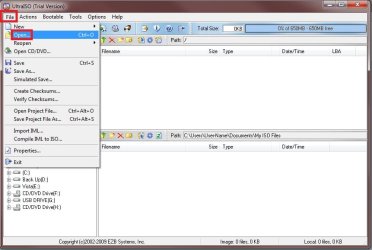
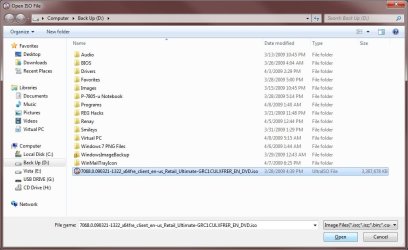
One thing I noticed right off using the UltraISO tool there is the format option included. When going to reuse a flash drive on different occasions that can be a time saver since you are already running that for seeing the iso written anyways.
 

My Computers

System One System Two

  • Computer type
    PC/Desktop
    Computer Manufacturer/Model Number
    Custom builds = 2
    OS
    W7 Ultimate x64/W10 Pro x64/W11 Pro Triple Boot - Main PC W7 Remote PC Micro ATX W7 Pro x64/W11 Pro
    CPU
    AMD Phenom II X4 975 Deneb 3.6ghz - 965 2nd remote pc
    Motherboard
    Gigabyte GA-790XTA-UD4-Gigabyte GA-880GM-D2H remote pc
    Memory
    Kingston Hyper X DDR3 1600 1.5v 16gb - Hyper X Fury 8gb 2nd
    Graphics Card(s)
    MSI HD Radeon 5750 1gb - MSI HD Radeon 6450 on mini tower
    Sound Card
    Creative Labs X-Fi Xtreme Audio P - Realtek onooard 2nd case
    Monitor(s) Displays
    ASUS VW199T-P 19" HP 2082a Main-HP 2082a 20" remote pc
    Screen Resolution
    Asus 1440x900 - HP 1600x900
    Hard Drives
    WD Black 1TB HD per OS W7, W10, and pending W11 presently on 500gb OS Drive - Pending Triple 1TB HDs for Spanned Storage/backup volume
    Single 2TB external USB enclosure, single 1TB System 7 Host/Boot drive, Pending 8TB external HD for system image b
    PSU
    Corsair 750TX - primary / Corsair CX600 - second
    Case
    Antec 900-2 - SSD compatible / NZXT Vulcan mini tower
    Cooling
    Zalman CNPS9900A
    Keyboard
    AZIO L70 Backlit Letters Gaming - ONN Cordless/USB
    Mouse
    MSI DS200 Programmable, Logitech Cordless
    Internet Speed
    30mbps upgrade - primary hard wired - mini tower usb WiFi
    Antivirus
    GFI VIPRE Internet Security 2014 on W7 2016 beta on W10,
    Browser
    Cyberfox, WaterFox 64bit FF variants, FireFox x64, Pale Moon
    Other Info
    Accomdata fan cooled usb 2.0 PIDE/Sata II, III external enclosure.
    Sambient usb/eSata PATA/Sata II, III external enclosure.
  • Computer type
    PC/Desktop
    System Manufacturer/Model Number
    CUSTOM ASSEMBLY
    OS
    W7 Pro x64/W11 Pro
    CPU
    AMD Deneb 3.6ghz - 965
    Motherboard
    Gigabyte GA-880GM-D2H remote pc
    Memory
    Kingston Hyper X Fury 8gb
    Graphics Card(s)
    MSI HD Radeon 6450 DVI Output
    Sound Card
    Realtek onooard Creative or Other separate PENDING
    Monitor(s) Displays
    VIZIO 32" LCD TV Separate LCD Pending
    Screen Resolution
    1600x1080
    Hard Drives
    WD 500GB OS Host/Boot WD Green 1TB Storage/Backup
    PSU
    Corsair 600W - THERMALTAKE 600W spare case
    Case
    NZXT Vulcan mini tower
    Cooling
    Twin 120mm Top Fans - 240mm Side Cover
    Keyboard
    ONN Cordless/USB Logitech Cordless
    Mouse
    ONN USB/Cordless - Logitech Cordless
    Internet Speed
    DSL 5G
    Browser
    MS Edge, FireFox, WaterFox x64, FireFox Nightly
    Other Info
    OS Testing-Remote Access to Main TeamViewer
Shawn --

It does help. One thing that kept puzzling me is that I just could not run the bootsect command, but now I think I have a clue as to why. After reading over several sets of directions, including yours it seems that in order to run the bootsect command you have to actually put a DVD in a drive and change directories to the DVD drive after that where bootsect lives. In other words, correct me if I'm wrong, you can't just throw up a command prompt without a DVD actually in the DVD drive and run a bootsect command can you?

For example with the DVD in drive (say) d you would typed:
cd d:\boot

then bootsect /nt60 g: if the USB drive were g:


HKLM
 
Last edited by a moderator:

My Computer

OS
Windows 7
HKLM,

The BOOTSECT command for this would work like step 19 in METHOD TWO of the Vista USB tutorial. It's not needed though when using a Windows 7 installation DVD though. :)
 

My Computer

Computer type
PC/Desktop
Computer Manufacturer/Model Number
Self built custom
OS
64-bit Windows 11 Pro for Workstations
CPU
Intel i7-8700K OC'd to 5 GHz
Motherboard
ASUS ROG Maximus XI Formula Z390
Memory
64 GB (4x16GB) G.SKILL TridentZ RGB DDR4 3600 MHz
Graphics Card(s)
ASUS ROG-STRIX-GTX1080TI-O11G-GAMING
Sound Card
Integrated
Monitor(s) Displays
2 x Samsung Odyssey G7 27"
Screen Resolution
2560x1440
Hard Drives
1TB Samsung 990 PRO M.2,
4TB Samsung 990 PRO PRO M.2,
TerraMaster F8 SSD Plus NAS
PSU
Seasonic Prime Titanium 850W
Case
Thermaltake Core P3
Cooling
Corsair Hydro H115i
Keyboard
Logitech wireless K800
Mouse
Logitech MX Master 4
Internet Speed
2 Gb/s Download and 100 Mb/s Upload
Antivirus
Malwarebyte Anti-Malware Premium
Browser
Google Chrome
Other Info
Logitech Z625 speaker system,
Logitech BRIO 4K Pro webcam,
HP Color LaserJet Pro MFP M477fdn,
APC SMART-UPS RT 1000 XL - SURT1000XLI,
Galaxy S23 Plus phone
Thanks Shawn.

Have you seen these instructions floating around to also make the USB stick act as a live CD for Win 7?

How To Install & Carry Windows 7 On Your USB Flash Drive

How To Install & Carry Windows 7 On Your USB Flash Drive - Windows Help Forum

I haven't tried it yet but I'm tempted.

Also I've had a lot of trouble signing in. I've signed up 3 times but I never get the email to activate, and my password for the first time I signed up in April doesn't seem to work. Appreciate any help you can give me to reinstate my original password.

Thanks,

HKLM
 

My Computer

OS
Windows 7
Back
Top