USB Windows 7 Installation Key Drive - Create

How to Create a Bootable Windows 7 Installation USB Flash Drive


   Information
This will show you how to create a USB flash key drive that you can boot from to install Windows 7 with.
   Tip
If the USB flash drive is of sufficient capacity, say 8GB, then after copying the Windows 7 installation DVD onto it, you can create a new folder (ex: Device Drivers) in the USB key and place all of your latest driver installation files in it. This way you will have them handy to manually install the drivers after installing Windows 7 from the USB key.
   Note
If you booted from the USB drive to install Windows 7, then you may need to change the hard drive back to being listed before the USB key in the boot order in BIOS after the computer restarts during installation to prevent the computer from booting right back into the USB key starting the installation process over and over.
   Warning

  • The USB key needs to be at least 4 GB in size.
  • This will delete everything on the USB key. Be sure to save anything that you do not want to lose on it somewhere else.
  • Before installing Windows 7 from the USB key, you will need to:
    • Enable Legacy USB storage detect in the BIOS.
  • When ready to install Windows 7 from the USB key:
    • Connect the USB key.
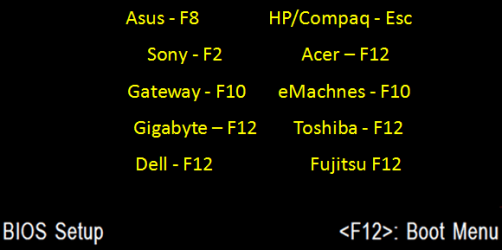
    • Restart the computer, and keep tapping the F key (see screenshot below) responsible to open the Boot Menu screen for the brand and model of your motherboard or computer until it does.

      • Boot-Menu.png
    • Select the USB key to boot from.
    • Start installing Windows 7.

CONTENTS:
  • Option One: Use "Windows 7 USB/DVD Download Tool" to Create Bootable Windows 7 Installation USB
  • Option Two: Use "Rufus" to Create Bootable Windows 7 Installation USB
  • Option Three: Manually Create Bootable Windows 7 Installation USB Flash Drive


OPTION ONE

Use "Windows 7 USB/DVD Download Tool" to Create Bootable Windows 7 Installation USB


   Tip
If you do not have a Windows 7 ISO file, then you can either download the latest ISO version at the links below.

:ar: Microsoft Software Recovery

:ar: Microsoft: Windows 7 Direct Download Links

You could also use a free program like ImgBurn or ISODisk to create a ISO from your Windows 7 installation DVD.


1. For how, see the Part 2 section here: Windows 7 USB/DVD Download Tool.


OPTION TWO

Use "Rufus" to Create Bootable Windows 7 Installation USB


1. Download the latest version of Rufus at the link below, and save it's .exe file to your desktop.
:ar: Rufus - Create bootable USB drives the easy way
   Note
This is a standalone exe file that doesn't install anything to your PC.

For Rufus FAQs, see: https://github.com/pbatard/rufus/wiki/FAQ
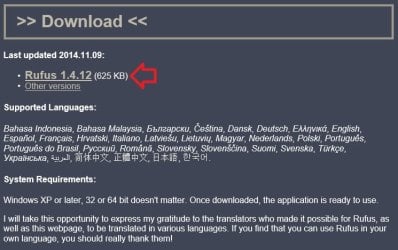

download_rufus.jpg
2. Connect your USB flash drive if you have not already.

3. Run the rufus_v###.exe file, and click/tap on Yes if prompted by UAC.
NOTE: ### = latest version number.

4. Set Rufus with the settings below: (see screenshot below step 5)

  • [Under Device, select the USB flash drive you want to format and use.
  • Under Format Options, check Create a bootable disk using, click/tap on the browse icon to navigate to and select your 64-bit Windows 7 ISO file.
  • Under Partition scheme and target system type, select MBR partition scheme for BIOS or UEFI computers.
  • Under File system, select NTFS.
  • Under Cluster size, select the (Default) (ex: 16 kilobytes or 4096 bytes) it has listed.
  • Under Format Options, check Quick format.
  • Under Format Options, check Create extended label and icon files.
  • Under New volume label, you can enter any name you like for the USB flash drive, or leave the default name.
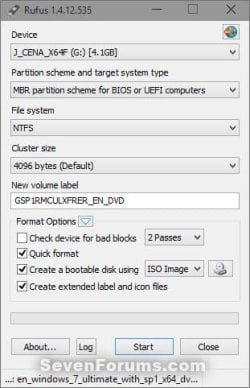
5. When ready, click/tap on Start. (see screenshot below)
Rufus-1.jpg
6. Click/tap on OK to confirm. (see screenshot below)
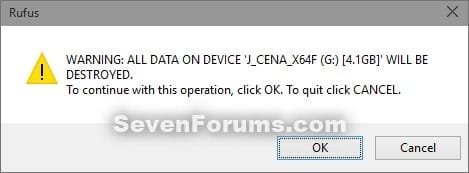
Rufus-2.jpg
7. Rufus will now start creating the bootable UEFI USB flash drive. (see screenshot below)
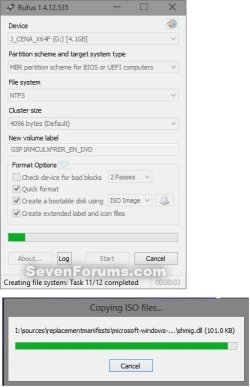
Rufus-3.jpg
8. When Rufus is "DONE", you can close Rufus. (see screenshot below)
NOTE: It could take a little while to finish.
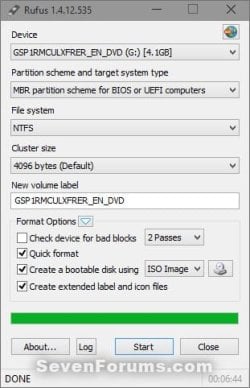
Rufus-4.jpg
9. You are now ready to installWindows 7 with your bootable USB flash drive.


OPTION THREE

Manually Create Bootable Windows 7 Installation USB Flash Drive


   Warning
Using this method:
  • You will only be able to create a 64-bit Windows 7 bootable USB flash drive if your current Windows 7 installation is also 64-bit.
  • You will be able to create a 32-bit Windows 7 bootable USB flash drive if your current Windows 7 installation is 32-bit or 64-bit.
64-bit installation + 64-bit ISO = 64-bit flash drive
64-bit installation + 32-bit ISO = 32-bit flash drive
32-bit installation + 32-bit ISO = 32-bit flash drive
32-bit installation + 64-bit ISO = unable to create

1. Plug the USB key in.

2. If AutoPlay opens a pop-up for the USB key, then just close it.
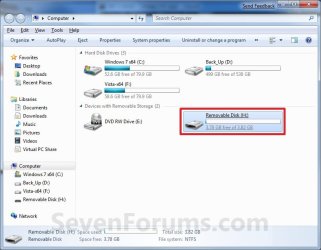
NOTE: Make note of what the drive size is for the USB key for use in step 6 below. You can also open Computer (step 19) to see what the drive size is to. For example, mine is 3920 MB. (See screenshot below)
Computer.jpg
3. Open an elevated command prompt.

4. In the elevated command prompt, type diskpart and press Enter. (See screenshot below)
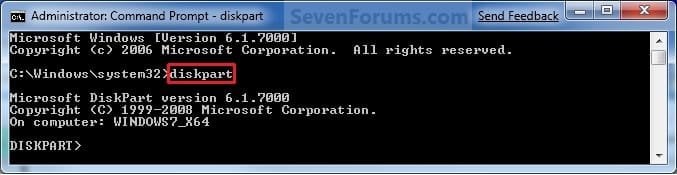
Step1.jpg
5. In the elevated command prompt, type list disk and press Enter. (See screenshot below)
NOTE: Make note of what disk # your USB key is listed as to use in step 6 below. You can also look for the drive size (step 2) of the USB key to help ID the disk number. For example, mine is listed as Disk 1 here for the 3920 MB disk.
Step2.jpg
6. In the elevated command prompt, type select disk # (your USB disk #) and press Enter. (See screenshot below)
NOTE: For example, my USB key is listed as Disk 1, so I would type select disk 1 and press Enter.
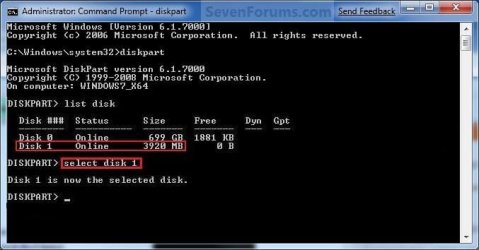
Step3.jpg
7. In the elevated command prompt, type clean and press Enter. (See screenshot below)
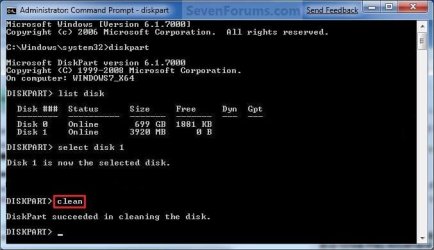
Step4.jpg
8. In the elevated command prompt, type create partition primary and press Enter. (See screenshot below)
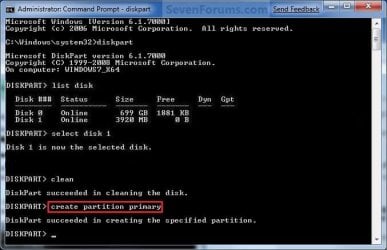
Step5.jpg
9. In the elevated command prompt, type select partition 1 and press Enter. (See screenshot below)
Step6.jpg
10. In the elevated command prompt, type active and press Enter. (See screenshot below)
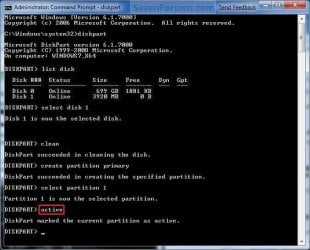
Step7.jpg
11. In the elevated command prompt, type in the command below to format the USB as NTFS or FAT32, and press Enter. (See screenshot below)
NOTE: This may take a few moments to finish formatting the USB key.

   Note
You can substitute Windows 7 within quotes in the commands below with whatever name (drive label) you would like to have displayed for the USB drive instead.

See also: Choosing between NTFS, FAT, and FAT32


FAT32 volume labels
  • If you have an UEFI instead of BIOS motherboard, then you will need to use FAT32 and not NTFS.
  • Volume labels can contain as many as 11 characters and can include spaces but no tabs.
  • Volume labels cannot contain the following characters: ? / \ | . , ; : + = [ ] < > "
  • Volume labels are stored as uppercase regardless of whether they contain lowercase letters.
NTFS volume labels

  • Volume labels can contain as many as 32 characters.
format fs=ntfs label="Windows 7" quick

OR

format fs=fat32 label="Windows 7" quick
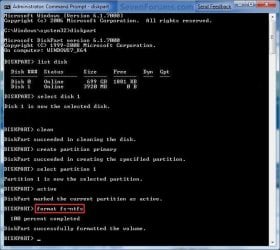
Step8.jpg
12. If AutoPlay opens a pop-up for the USB key, then just close it.

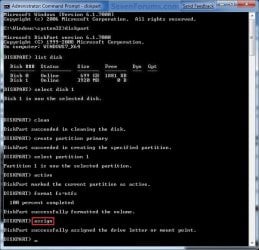
13. In the elevated command prompt, type assign and press Enter. (See screenshot below)
NOTE: This will assign a new drive letter to the USB key. Make note of the new USB drive letter to use in step 22 below. For example, mine is now H.
Step9.jpg
14. If AutoPlay opens a pop-up for the USB key, then just close it.

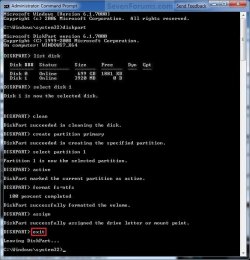
15. In the elevated command prompt, type exit and press Enter. (See screenshot below)
NOTE: This will exit you from DiskPart from step 4.
Step10.jpg
16. Close the elevated command prompt.

17. Insert your Windows 7 installation DVD into the DVD drive.

18. If AutoPlay opens a pop-up for the Windows 7 installation DVD, then just close it.

19. Open the Start Menu, right click on the Computer button, and click on Open.

20. Right click on the DVD drive (ex: E: ) that has the Windows 7 installation DVD in it, and click on Open. (See screenshot below)
Open.jpg
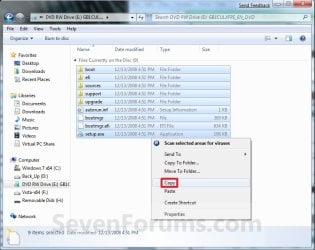
21. Highlight all of the contents, right click on the highlighted contents, and click on Copy. (See screenshot below)
NOTE: You will need to copy all of the files and folders on the Windows 7 installation DVD to the USB key.
Copy.jpg
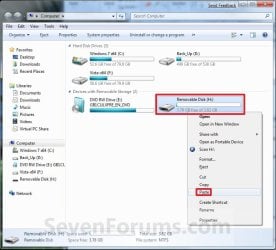
22. Go back to Computer, right click on the USB key drive (ex: H ), and click on Paste. (See screenshot below)
Paste.jpg
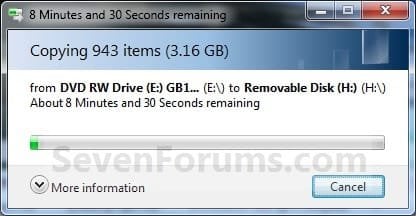
23. The contents of the Windows 7 installation DVD will now start copying over to the USB key. (See screenshot below)
NOTE: This may take a few moments to complete.
Copying.jpg
24. When finished, you can close the Computer window and unplug the USB key.

25. You now have a Windows 7 Installation USB key. ;)

   Warning
If you have UEFI instead of BIOS motherboard, then you will need to temporarily disable Secure Boot to use the USB to install Windows. After installation is complete, you can enable Secure Boot again.

That's it,
Shawn


Attachments

  • Computer-9.jpg
    Computer-9.jpg
    209.3 KB · Views: 103
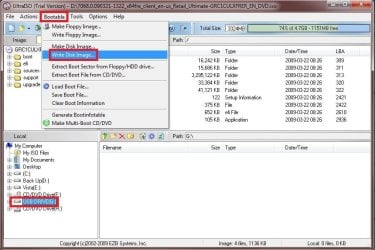
  • UltrISO-2.jpg
    UltrISO-2.jpg
    108.9 KB · Views: 13,126
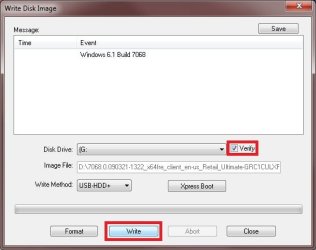
  • UltrISO-3.jpg
    UltrISO-3.jpg
    154.1 KB · Views: 13,576
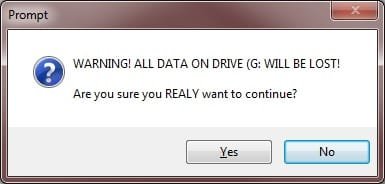
  • UltrISO-5.jpg
    UltrISO-5.jpg
    148.2 KB · Views: 15,194
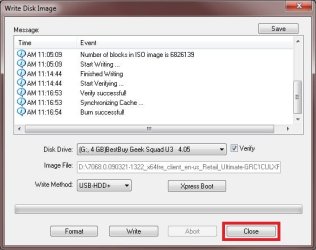
  • UltrISO-6.jpg
    UltrISO-6.jpg
    48.6 KB · Views: 12,843
  • UltrISO-7.jpg
    UltrISO-7.jpg
    20.5 KB · Views: 11,222
  • UltrISO-8.jpg
    UltrISO-8.jpg
    70.9 KB · Views: 11,724
Last edited:
Hello Amelie,

Oh no. I hate it when that happens. :(

You might check to see if your motherboard has a newer BIOS update available that hopefully adds that option. If not, then you will need to create a bootable DVD with it instead.
 

My Computer

Computer type
PC/Desktop
Computer Manufacturer/Model Number
Self built custom
OS
64-bit Windows 11 Pro for Workstations
CPU
Intel i7-8700K OC'd to 5 GHz
Motherboard
ASUS ROG Maximus XI Formula Z390
Memory
64 GB (4x16GB) G.SKILL TridentZ RGB DDR4 3600 MHz
Graphics Card(s)
ASUS ROG-STRIX-GTX1080TI-O11G-GAMING
Sound Card
Integrated
Monitor(s) Displays
2 x Samsung Odyssey G7 27"
Screen Resolution
2560x1440
Hard Drives
1TB Samsung 990 PRO M.2,
4TB Samsung 990 PRO PRO M.2,
TerraMaster F8 SSD Plus NAS
PSU
Seasonic Prime Titanium 850W
Case
Thermaltake Core P3
Cooling
Corsair Hydro H115i
Keyboard
Logitech wireless K800
Mouse
Logitech MX Master 4
Internet Speed
2 Gb/s Download and 100 Mb/s Upload
Antivirus
Malwarebyte Anti-Malware Premium
Browser
Google Chrome
Other Info
Logitech Z625 speaker system,
Logitech BRIO 4K Pro webcam,
HP Color LaserJet Pro MFP M477fdn,
APC SMART-UPS RT 1000 XL - SURT1000XLI,
Galaxy S23 Plus phone
Yes, you can add the ability to boot from usb:

D/L and install the Free Easybcd 2.0 from here:

EasyBCD 2.0 Beta Builds - The NeoSmart Forums

It's very small to d/l. If you are installing Easybcd on XP - also d/l and install .Net Framework 2.0


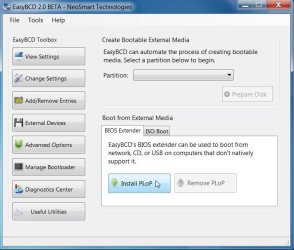
Then click External Devices>Install Plop:


EASY-INSTALL-PLOP2009-12-23_041808.jpg

When you restart - select Easybcd bios extender from the boot menu -Plop will start - (outer space theme ) then select usb from the list of options Plop gives you.


Great tutorial, did everything.. but if only I had paid attention to my BIOS first lol. I don't have the option to boot from USB with my old motherboard. Any other suggestions, other than buying a new PC? :)
 

My Computers

System One System Two

  • Computer type
    PC/Desktop
    OS
    7 X64
    CPU
    i5 8400
    Motherboard
    gigabyte b365m ds3h
    Memory
    2x8gb 3200mhz
    Hard Drives
    various
    PSU
    pure power 11 400w cm
    Case
    Coolermaster
    Cooling
    cryorig m9i
  • Computer type
    PC/Desktop
    OS
    7x64
    CPU
    g5400
    Motherboard
    ga b365m ds3h
    Memory
    8gb ddr4 2400
    PSU
    xfx pro 450w
Aw, very nice SIW2. :)
 

My Computer

Computer type
PC/Desktop
Computer Manufacturer/Model Number
Self built custom
OS
64-bit Windows 11 Pro for Workstations
CPU
Intel i7-8700K OC'd to 5 GHz
Motherboard
ASUS ROG Maximus XI Formula Z390
Memory
64 GB (4x16GB) G.SKILL TridentZ RGB DDR4 3600 MHz
Graphics Card(s)
ASUS ROG-STRIX-GTX1080TI-O11G-GAMING
Sound Card
Integrated
Monitor(s) Displays
2 x Samsung Odyssey G7 27"
Screen Resolution
2560x1440
Hard Drives
1TB Samsung 990 PRO M.2,
4TB Samsung 990 PRO PRO M.2,
TerraMaster F8 SSD Plus NAS
PSU
Seasonic Prime Titanium 850W
Case
Thermaltake Core P3
Cooling
Corsair Hydro H115i
Keyboard
Logitech wireless K800
Mouse
Logitech MX Master 4
Internet Speed
2 Gb/s Download and 100 Mb/s Upload
Antivirus
Malwarebyte Anti-Malware Premium
Browser
Google Chrome
Other Info
Logitech Z625 speaker system,
Logitech BRIO 4K Pro webcam,
HP Color LaserJet Pro MFP M477fdn,
APC SMART-UPS RT 1000 XL - SURT1000XLI,
Galaxy S23 Plus phone
Yes. Easy 2.0 is great.

Except, because Easy will want to add the plop entry to the bcd store -if you only have XP, you don't have a bcd store - you need to either add plop to boot.ini by hand , or put a copy of the Vista/7 Boot folder into XP.

Extract this:

View attachment 43202

put the folder in XP's C:\Windows.

Easy will ask if you want to repair the Vista/7 bootloader - say yes - give it the letter of your XP drive when it asks for the Vista drive letter - and again when it asks for the Boot drive.
 

Attachments

My Computers

System One System Two

  • Computer type
    PC/Desktop
    OS
    7 X64
    CPU
    i5 8400
    Motherboard
    gigabyte b365m ds3h
    Memory
    2x8gb 3200mhz
    Hard Drives
    various
    PSU
    pure power 11 400w cm
    Case
    Coolermaster
    Cooling
    cryorig m9i
  • Computer type
    PC/Desktop
    OS
    7x64
    CPU
    g5400
    Motherboard
    ga b365m ds3h
    Memory
    8gb ddr4 2400
    PSU
    xfx pro 450w

My Computers

System One System Two

  • Computer type
    PC/Desktop
    OS
    7 X64
    CPU
    i5 8400
    Motherboard
    gigabyte b365m ds3h
    Memory
    2x8gb 3200mhz
    Hard Drives
    various
    PSU
    pure power 11 400w cm
    Case
    Coolermaster
    Cooling
    cryorig m9i
  • Computer type
    PC/Desktop
    OS
    7x64
    CPU
    g5400
    Motherboard
    ga b365m ds3h
    Memory
    8gb ddr4 2400
    PSU
    xfx pro 450w
I had to format my usb to fat32 to ntfs to write the iso to it.
 

My Computer

OS
windows 7/windows xp/windows vista
CPU
AMD Phenom II X2 550 Black Edition Callisto 3.1GHz
Motherboard
Gigabyte AM3 785G ATX
Memory
Mushkin Enhanced Silverline 2GB 240-Pin DDR3
Hard Drives
Western Digitial Cavier Blue 500GB
PSU
Earthwatts 500w
Case
Antec Sonata III
Hello Jradicle,

In Computer, you can right click on the USB and click on Format. In the format options, just select NTFS for the file system and let it format it. Afterwards you will be good to go. :)
 

My Computer

Computer type
PC/Desktop
Computer Manufacturer/Model Number
Self built custom
OS
64-bit Windows 11 Pro for Workstations
CPU
Intel i7-8700K OC'd to 5 GHz
Motherboard
ASUS ROG Maximus XI Formula Z390
Memory
64 GB (4x16GB) G.SKILL TridentZ RGB DDR4 3600 MHz
Graphics Card(s)
ASUS ROG-STRIX-GTX1080TI-O11G-GAMING
Sound Card
Integrated
Monitor(s) Displays
2 x Samsung Odyssey G7 27"
Screen Resolution
2560x1440
Hard Drives
1TB Samsung 990 PRO M.2,
4TB Samsung 990 PRO PRO M.2,
TerraMaster F8 SSD Plus NAS
PSU
Seasonic Prime Titanium 850W
Case
Thermaltake Core P3
Cooling
Corsair Hydro H115i
Keyboard
Logitech wireless K800
Mouse
Logitech MX Master 4
Internet Speed
2 Gb/s Download and 100 Mb/s Upload
Antivirus
Malwarebyte Anti-Malware Premium
Browser
Google Chrome
Other Info
Logitech Z625 speaker system,
Logitech BRIO 4K Pro webcam,
HP Color LaserJet Pro MFP M477fdn,
APC SMART-UPS RT 1000 XL - SURT1000XLI,
Galaxy S23 Plus phone
Hi Brink, is this an installation of the OS off the USB key, meaning prep-ing the USB key as a boot device and have it also stored the OS files?

If so, i wonder how it compares to setting it all up using MDT. I tried using MDT and created a USB installation Media, and it's pretty simple.
 

My Computer

Computer Manufacturer/Model Number
Lenovo ThinkPad T60
OS
Windows 7 Ultimate 64Bit
CPU
GenuineIntel Intel(R) Core(TM) DuoCore T2400 @ 1.83GHz
Motherboard
Intel(R) 82801G (ICH7 Family)
Memory
2.00 GB
Graphics Card(s)
Mobile Intel(R) 945 Express Chipset
Sound Card
SoundMAX Integrated Digital HD Audio
Monitor(s) Displays
ThinkPad Display
Screen Resolution
1400x1050
Hard Drives
100Gb SATA
Keyboard
Standard Keyboard
Mouse
HID-compliant Mouse
Internet Speed
Cable Broadband - 54Mbps
Other Info
Intel(R) PRO/1000 PL Network Connection
11a/b/g Wireless LAN Mini PCI Express Adapter
Hello AEM,

It's basically having the USB key drive act the same way as a Windows 7 installation DVD, but on a USB key drive instead.

I haven't tried it with MDT, so I'm not sure of the differences. Using the PowerISO program to create and burn the Windows 7 ISO from a Windows 7 installation disk is pretty simple though.
 

My Computer

Computer type
PC/Desktop
Computer Manufacturer/Model Number
Self built custom
OS
64-bit Windows 11 Pro for Workstations
CPU
Intel i7-8700K OC'd to 5 GHz
Motherboard
ASUS ROG Maximus XI Formula Z390
Memory
64 GB (4x16GB) G.SKILL TridentZ RGB DDR4 3600 MHz
Graphics Card(s)
ASUS ROG-STRIX-GTX1080TI-O11G-GAMING
Sound Card
Integrated
Monitor(s) Displays
2 x Samsung Odyssey G7 27"
Screen Resolution
2560x1440
Hard Drives
1TB Samsung 990 PRO M.2,
4TB Samsung 990 PRO PRO M.2,
TerraMaster F8 SSD Plus NAS
PSU
Seasonic Prime Titanium 850W
Case
Thermaltake Core P3
Cooling
Corsair Hydro H115i
Keyboard
Logitech wireless K800
Mouse
Logitech MX Master 4
Internet Speed
2 Gb/s Download and 100 Mb/s Upload
Antivirus
Malwarebyte Anti-Malware Premium
Browser
Google Chrome
Other Info
Logitech Z625 speaker system,
Logitech BRIO 4K Pro webcam,
HP Color LaserJet Pro MFP M477fdn,
APC SMART-UPS RT 1000 XL - SURT1000XLI,
Galaxy S23 Plus phone
Yes, i would have thought so, you wouldnt be wasting your valuable time on just make a bootable USB lol (I should've thought about that).

With MDT you can do the same thing, and more eg. adding apps to the image. But we proprably won't go there unless the need arises i suppose. :)
 

My Computer

Computer Manufacturer/Model Number
Lenovo ThinkPad T60
OS
Windows 7 Ultimate 64Bit
CPU
GenuineIntel Intel(R) Core(TM) DuoCore T2400 @ 1.83GHz
Motherboard
Intel(R) 82801G (ICH7 Family)
Memory
2.00 GB
Graphics Card(s)
Mobile Intel(R) 945 Express Chipset
Sound Card
SoundMAX Integrated Digital HD Audio
Monitor(s) Displays
ThinkPad Display
Screen Resolution
1400x1050
Hard Drives
100Gb SATA
Keyboard
Standard Keyboard
Mouse
HID-compliant Mouse
Internet Speed
Cable Broadband - 54Mbps
Other Info
Intel(R) PRO/1000 PL Network Connection
11a/b/g Wireless LAN Mini PCI Express Adapter
Sounds like it can be more customizable, but just a bit more involved.
 

My Computer

Computer type
PC/Desktop
Computer Manufacturer/Model Number
Self built custom
OS
64-bit Windows 11 Pro for Workstations
CPU
Intel i7-8700K OC'd to 5 GHz
Motherboard
ASUS ROG Maximus XI Formula Z390
Memory
64 GB (4x16GB) G.SKILL TridentZ RGB DDR4 3600 MHz
Graphics Card(s)
ASUS ROG-STRIX-GTX1080TI-O11G-GAMING
Sound Card
Integrated
Monitor(s) Displays
2 x Samsung Odyssey G7 27"
Screen Resolution
2560x1440
Hard Drives
1TB Samsung 990 PRO M.2,
4TB Samsung 990 PRO PRO M.2,
TerraMaster F8 SSD Plus NAS
PSU
Seasonic Prime Titanium 850W
Case
Thermaltake Core P3
Cooling
Corsair Hydro H115i
Keyboard
Logitech wireless K800
Mouse
Logitech MX Master 4
Internet Speed
2 Gb/s Download and 100 Mb/s Upload
Antivirus
Malwarebyte Anti-Malware Premium
Browser
Google Chrome
Other Info
Logitech Z625 speaker system,
Logitech BRIO 4K Pro webcam,
HP Color LaserJet Pro MFP M477fdn,
APC SMART-UPS RT 1000 XL - SURT1000XLI,
Galaxy S23 Plus phone
Thanks for this guide, but I'm having a bit of trouble. I have the files that I extracted from my original x86 ISO, but not the ISO itself, and I believe that is the reason why.

When I load my x64 ISO, it automatically brings up the autorun/view files window, but the ISO I made with the x86 files, doesn't, so information has been lost I would assume?, when I copied the x86 files from the disk I had made, when what I should have done is make a copy, or just bloody kept the original ISO in the first place.

Do I need to download the x86 ISO again, or can I do something whilst making an ISO to make it recognise it as bootable? I'd stick with with 64, but it's going on an Acer netbook with an Atom.
 

My Computer

Computer Manufacturer/Model Number
Sony Vaio FZ21Z
OS
Windows 7 Ultimate x64 ®™
CPU
Intel Core 2 Duo (2.2 GHz)
Motherboard
Sony (Intel Chipset)
Memory
2x 2GB Corsair (667 MHz)
Graphics Card(s)
NVIDIA 8600M GS (256MB)
Sound Card
Sigmatel
Monitor(s) Displays
15.4" TFT X-Black
Screen Resolution
1280x800
Hard Drives
Western Digital 300GB Scorpio Black (7200rpm)
Mouse
Logitech Anywhere MX
Internet Speed
Sky 5MB

My Computers

System One System Two

  • Computer type
    PC/Desktop
    OS
    7 X64
    CPU
    i5 8400
    Motherboard
    gigabyte b365m ds3h
    Memory
    2x8gb 3200mhz
    Hard Drives
    various
    PSU
    pure power 11 400w cm
    Case
    Coolermaster
    Cooling
    cryorig m9i
  • Computer type
    PC/Desktop
    OS
    7x64
    CPU
    g5400
    Motherboard
    ga b365m ds3h
    Memory
    8gb ddr4 2400
    PSU
    xfx pro 450w
Thanks, but still to no avail...
 

My Computer

Computer Manufacturer/Model Number
Sony Vaio FZ21Z
OS
Windows 7 Ultimate x64 ®™
CPU
Intel Core 2 Duo (2.2 GHz)
Motherboard
Sony (Intel Chipset)
Memory
2x 2GB Corsair (667 MHz)
Graphics Card(s)
NVIDIA 8600M GS (256MB)
Sound Card
Sigmatel
Monitor(s) Displays
15.4" TFT X-Black
Screen Resolution
1280x800
Hard Drives
Western Digital 300GB Scorpio Black (7200rpm)
Mouse
Logitech Anywhere MX
Internet Speed
Sky 5MB
Looks like you are missing a few files.

Have a look in the sources folder - see if you can the setup.exe in there.
 
Last edited:

My Computers

System One System Two

  • Computer type
    PC/Desktop
    OS
    7 X64
    CPU
    i5 8400
    Motherboard
    gigabyte b365m ds3h
    Memory
    2x8gb 3200mhz
    Hard Drives
    various
    PSU
    pure power 11 400w cm
    Case
    Coolermaster
    Cooling
    cryorig m9i
  • Computer type
    PC/Desktop
    OS
    7x64
    CPU
    g5400
    Motherboard
    ga b365m ds3h
    Memory
    8gb ddr4 2400
    PSU
    xfx pro 450w
I'm not sure I am, it just doesn't seem to want to work...
 

My Computer

Computer Manufacturer/Model Number
Sony Vaio FZ21Z
OS
Windows 7 Ultimate x64 ®™
CPU
Intel Core 2 Duo (2.2 GHz)
Motherboard
Sony (Intel Chipset)
Memory
2x 2GB Corsair (667 MHz)
Graphics Card(s)
NVIDIA 8600M GS (256MB)
Sound Card
Sigmatel
Monitor(s) Displays
15.4" TFT X-Black
Screen Resolution
1280x800
Hard Drives
Western Digital 300GB Scorpio Black (7200rpm)
Mouse
Logitech Anywhere MX
Internet Speed
Sky 5MB
I now have a bootable x86 ISO, so the issue isn't with that, I don't think, because when I load it up in MagicISO, it gives me the autorun window, but when I burn it to my Kingston 4GB card, it doesn't.
 

My Computer

Computer Manufacturer/Model Number
Sony Vaio FZ21Z
OS
Windows 7 Ultimate x64 ®™
CPU
Intel Core 2 Duo (2.2 GHz)
Motherboard
Sony (Intel Chipset)
Memory
2x 2GB Corsair (667 MHz)
Graphics Card(s)
NVIDIA 8600M GS (256MB)
Sound Card
Sigmatel
Monitor(s) Displays
15.4" TFT X-Black
Screen Resolution
1280x800
Hard Drives
Western Digital 300GB Scorpio Black (7200rpm)
Mouse
Logitech Anywhere MX
Internet Speed
Sky 5MB
Hello Jradicle,

In Computer, you can right click on the USB and click on Format. In the format options, just select NTFS for the file system and let it format it. Afterwards you will be good to go. :)

Well, I already did that, I was just saying that that's what I had to do for it to work.

Regardless, thanks for the help:p.
 

My Computer

OS
windows 7/windows xp/windows vista
CPU
AMD Phenom II X2 550 Black Edition Callisto 3.1GHz
Motherboard
Gigabyte AM3 785G ATX
Memory
Mushkin Enhanced Silverline 2GB 240-Pin DDR3
Hard Drives
Western Digitial Cavier Blue 500GB
PSU
Earthwatts 500w
Case
Antec Sonata III
Hello Jradicle,

In Computer, you can right click on the USB and click on Format. In the format options, just select NTFS for the file system and let it format it. Afterwards you will be good to go. :)

Well, I already did that, I was just saying that that's what I had to do for it to work.

Regardless, thanks for the help:p.
:doh:LOL, ok. I missed that little "had" part. :o
 

My Computer

Computer type
PC/Desktop
Computer Manufacturer/Model Number
Self built custom
OS
64-bit Windows 11 Pro for Workstations
CPU
Intel i7-8700K OC'd to 5 GHz
Motherboard
ASUS ROG Maximus XI Formula Z390
Memory
64 GB (4x16GB) G.SKILL TridentZ RGB DDR4 3600 MHz
Graphics Card(s)
ASUS ROG-STRIX-GTX1080TI-O11G-GAMING
Sound Card
Integrated
Monitor(s) Displays
2 x Samsung Odyssey G7 27"
Screen Resolution
2560x1440
Hard Drives
1TB Samsung 990 PRO M.2,
4TB Samsung 990 PRO PRO M.2,
TerraMaster F8 SSD Plus NAS
PSU
Seasonic Prime Titanium 850W
Case
Thermaltake Core P3
Cooling
Corsair Hydro H115i
Keyboard
Logitech wireless K800
Mouse
Logitech MX Master 4
Internet Speed
2 Gb/s Download and 100 Mb/s Upload
Antivirus
Malwarebyte Anti-Malware Premium
Browser
Google Chrome
Other Info
Logitech Z625 speaker system,
Logitech BRIO 4K Pro webcam,
HP Color LaserJet Pro MFP M477fdn,
APC SMART-UPS RT 1000 XL - SURT1000XLI,
Galaxy S23 Plus phone
Right, on my sisters Dell with XP, it boots from the card after restarting, i.e proceeds to load Windows 7 files to do a clean install, so I guess it must work to a degree, however on my system, with bios settings changed, it gives me a black screen with the option to load 7 normally, or run the memory diagnostic tool, but no option to do a fresh install.
 

My Computer

Computer Manufacturer/Model Number
Sony Vaio FZ21Z
OS
Windows 7 Ultimate x64 ®™
CPU
Intel Core 2 Duo (2.2 GHz)
Motherboard
Sony (Intel Chipset)
Memory
2x 2GB Corsair (667 MHz)
Graphics Card(s)
NVIDIA 8600M GS (256MB)
Sound Card
Sigmatel
Monitor(s) Displays
15.4" TFT X-Black
Screen Resolution
1280x800
Hard Drives
Western Digital 300GB Scorpio Black (7200rpm)
Mouse
Logitech Anywhere MX
Internet Speed
Sky 5MB
Back
Top