User Folders - Change Default Location

How to Change the Default Location of User Folders in Windows 7 and Windows 8

   Information
This will show you how to change (move) the default location of your account's C:\Users\(user-name) folders to another location of your choice instead in Windows 7 and Windows 8, and still have access to the user folder from the Start Menu (Windows 7 only) location.

   Tip
If you are just wanting to save HDD space, then you might consider this below to be able to access the files from your libraries with the files actually located where you like instead. This way you will not have to worry about any potential issues that come with moving user folder locations. For example, whatever partition you move your user folders to will now be included in a system image in Windows 7 and Windows 8.

  • Create a new folder at any location you want.
  • Move any files you want into the new folder.
  • Include the new folder into a library (Windows 7 or Windows 8) of your choice.
  • If you like, you can also set the new folder to be the default save to location (Windows 7 or Windows 8) for the library as well.
   Warning
If you change the default location of your Favorites folder in Windows 8 or 8.1, your Favorites in Internet Explorer will no longer be available until you move your Favorites back to the default "C:\Users\(user-name)" location.


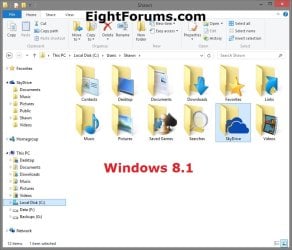
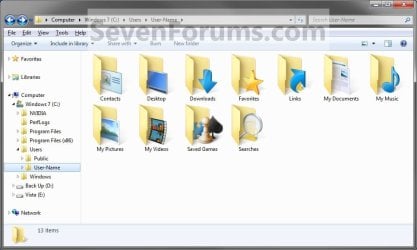
EXAMPLE: User Folders
NOTE: This is at the default C:\Users\(user-name) location.
Example1.jpg

Windows_8.1.jpg


OPTION ONE

To Change Main User Profile Folder Location


1. For how, see:
http://www.sevenforums.com/tutorials/87555-user-profile-change-default-location.html

OR

How to Relocate User Profiles to another Partition or Disk in Windows 8


OPTION TWO

To Change User Folders Location from within User Profile Folder


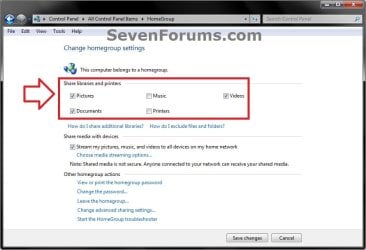
1. If you a part of a homegroup, then you will need to change the homegroup settings to no longer share the user folder (ex: My Music) that you want to move first by unchecking the folder and clicking on Save Changes. (see screenshot below)
NOTE: This is so the user folder (ex: My Music) will not be shared on the homegroup anymore.
Homegroup.jpg
2. In Windows Explorer, navigate to where (ex: D: drive) you want to move the default user folder (ex: My Music) location to.

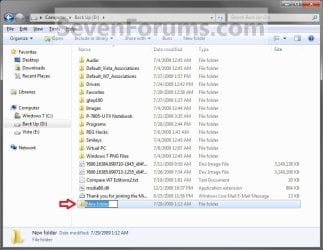
3. Create a New Folder by right clicking or press and hold on a empty space in the main window there, and click/tap on New and Folder. Name the new folder without spaces (ex: "Music" for My Music) for the user folder that you want to move there. (See screenshots below)
NOTE: The name that you type in for the new folder will be what you see as the user folder name in the Start Menu (shell:UsersFilesFolder) location when finished with all of these steps. It would be best to use the same name as the user folder to avoid confusion.
Rename1.jpg

Rename2.jpg

4. Close this window. (See screenshots above)

5. Press the Windows+R keys to open the Run dialog, type shell:UsersFilesFolder, and press enter.
NOTE: This will open your C:\Users\(user-name) folder.

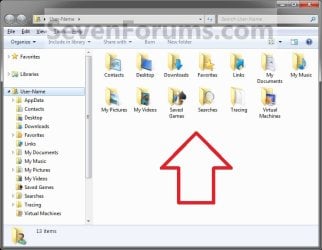
6. Right click or press and hold on a user folder (ex: My Music, My Documents, My Pictures, etc.....) that you want to move the default location for, and click/tap on Properties. (See screenshot below)
Right_Click_On_A_User_Folder.jpg
7. Click/tap on the Location tab, and Move button. (See screenshot below)
Properties1.jpg
8. Navigate to the same location as in step 2 and 3 above, then select the renamed new folder (ex: Music), and click/tap on the Select Folder button. (See screenshot below)
Properties2.jpg
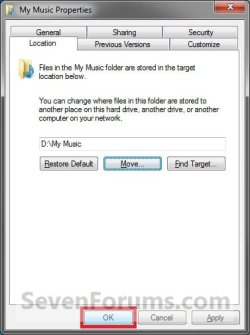
9. Click/tap on OK. (See screenshot below)
Properties3.jpg
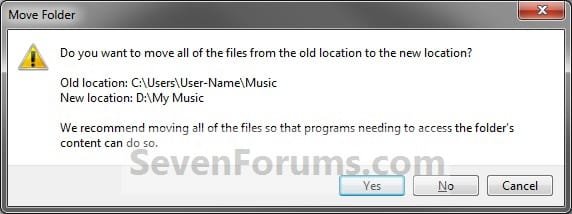
10. Click/tap on Yes. (See screenshot below)
Properties4.jpg
11. After a few seconds when the location has been changed, the Properties window (screenshot under step 9) will then close.

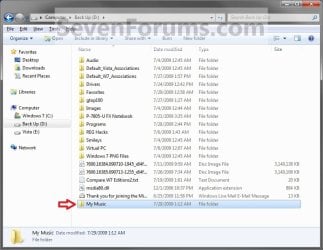
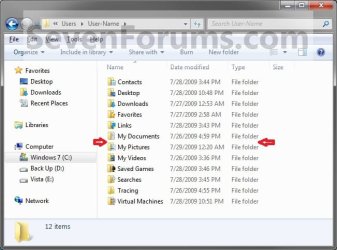
12. Check back at the C:\Users\(user-name) location to make sure that the old user folder (ex: My Music) that you moved is no longer there. If it is, then make sure that the contents of the folder were moved to the new location, and delete it. (See screenshot below)
NOTE: If you are unable to delete the folder, then restart the computer and try again.
Finished2.jpg
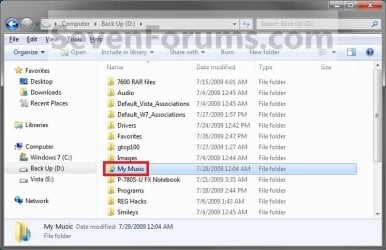
13. You will notice that the folder at the shell:UsersFilesFolder location and the new location (ex: D drive) you moved the user folder to, now has the default user folder (ex: My Music) icon. (See screenshot below)
NOTE: The Start Menu in Windows 7 now opens the user folder from the new location (ex: D: drive) that you moved the user folder to.
Finished.jpg
14. If you a part of a homegroup, then you can now change the homegroup settings back to share the user folder (ex: My Music) again if you like by checking the folder, and click/tap on Save Changes. (see screenshot below)
Homegroup.jpg
   Tip
If you wanted to restore the default location of the user folder, then see:

How to Restore the Default Location of User Folders in Windows 7 and Windows 8


That's it,
Shawn


Last edited:
  • Like
Reactions: Lee
Hi Brink,

Today I received an email saying that 'nancybikburn8' had responded to this thread. When I clicked on the link, I was brought here. But there seems to be no response from her and your last response was two weeks ago.
 

My Computer

Computer Manufacturer/Model Number
Dell Inspiron 1720
OS
Windows 7 Home Premium 32 bit SP1
CPU
Intel T5250
Motherboard
Dell OUK437
Memory
4gb
Graphics Card(s)
Nvdia GeForce 8400M GS
Sound Card
Sigma Tel High Definition Audio CODEC
Hard Drives
2 3tb Seagate GoFlex Desktops
1 1tb Seagate Free Agent
Mouse
Logitech M305
Internet Speed
Free Wi-Fi provided to residents of building, too slow!
Hi Brink,

Today I received an email saying that 'nancybikburn8' had responded to this thread. When I clicked on the link, I was brought here. But there seems to be no response from her and your last response was two weeks ago.

It was just a spammer that got banned, and all posts removed. :)
 

My Computer

Computer type
PC/Desktop
Computer Manufacturer/Model Number
Self built custom
OS
64-bit Windows 11 Pro for Workstations
CPU
Intel i7-8700K OC'd to 5 GHz
Motherboard
ASUS ROG Maximus XI Formula Z390
Memory
64 GB (4x16GB) G.SKILL TridentZ RGB DDR4 3600 MHz
Graphics Card(s)
ASUS ROG-STRIX-GTX1080TI-O11G-GAMING
Sound Card
Integrated
Monitor(s) Displays
2 x Samsung Odyssey G7 27"
Screen Resolution
2560x1440
Hard Drives
1TB Samsung 990 PRO M.2,
4TB Samsung 990 PRO PRO M.2,
TerraMaster F8 SSD Plus NAS
PSU
Seasonic Prime Titanium 850W
Case
Thermaltake Core P3
Cooling
Corsair Hydro H115i
Keyboard
Logitech wireless K800
Mouse
Logitech MX Master 4
Internet Speed
2 Gb/s Download and 100 Mb/s Upload
Antivirus
Malwarebyte Anti-Malware Premium
Browser
Google Chrome
Other Info
Logitech Z625 speaker system,
Logitech BRIO 4K Pro webcam,
HP Color LaserJet Pro MFP M477fdn,
APC SMART-UPS RT 1000 XL - SURT1000XLI,
Galaxy S23 Plus phone
dear brink, hello.. i have a question, regarding moving user folder location with using 2 drive on 1 laptop.

previously my laptop has C and D as primary, and 2 extended partition. I've used your tutorials since 1-1/2 years ago, and I set Downloads on D, and other stuffs (docs musics and pics) on the extended partition. It went smoothly without a hitch.
I just now decide to move to SSD. So now my laptop has 2 drive, drive 1 is C the SSD, and drive 2 is the old HDD, (im formatting the old HDD atm).

I'd like to ask, i want to make C (SSD) the drive for windows (which i've done), but i'd like to move downloads to D primary (the old hdd), and the other user folders (music pics and videos), to extended partition of the old HDD...

is it possible to move Docs, Pics, Musics, and Downloads to different disk, and is it a good idea to do it...?

===
it's not about saving the SSD space really, i would like to do it just because i like it organized, but i'd like to ask here first because i don't want to reinstall and format stuff in case something goes wrong due to moving the user folder to different disk along the way...
===


i hope my question make sense, sorry for the long post,

cheers,

KP
 
Last edited:

My Computer

Computer type
Laptop
Computer Manufacturer/Model Number
Asus K43S
OS
windows 7 home premium 64bit
CPU
Intel Core i3-2330m
Memory
6 Gib 10600 DDR3 RAM
Graphics Card(s)
Radeon 6730
Monitor(s) Displays
Generic PnP Monitor
Hard Drives
Intel SSD 330 Series 120 Gb
Seagate Momentus 750 Gb
Internet Speed
Slow, lol
Antivirus
KIS 2013
Hello KP,

Sure you could move each user folder to any internal hard drive or partition location you like using Option Two.

However, you might consider doing the yellow tip box for libraries at the top of the tutorial instead. This way you will still get the same effect with a new folder included a library, and is safer to use.

Either way will work.

Hope this helps, :)
Shawn
 

My Computer

Computer type
PC/Desktop
Computer Manufacturer/Model Number
Self built custom
OS
64-bit Windows 11 Pro for Workstations
CPU
Intel i7-8700K OC'd to 5 GHz
Motherboard
ASUS ROG Maximus XI Formula Z390
Memory
64 GB (4x16GB) G.SKILL TridentZ RGB DDR4 3600 MHz
Graphics Card(s)
ASUS ROG-STRIX-GTX1080TI-O11G-GAMING
Sound Card
Integrated
Monitor(s) Displays
2 x Samsung Odyssey G7 27"
Screen Resolution
2560x1440
Hard Drives
1TB Samsung 990 PRO M.2,
4TB Samsung 990 PRO PRO M.2,
TerraMaster F8 SSD Plus NAS
PSU
Seasonic Prime Titanium 850W
Case
Thermaltake Core P3
Cooling
Corsair Hydro H115i
Keyboard
Logitech wireless K800
Mouse
Logitech MX Master 4
Internet Speed
2 Gb/s Download and 100 Mb/s Upload
Antivirus
Malwarebyte Anti-Malware Premium
Browser
Google Chrome
Other Info
Logitech Z625 speaker system,
Logitech BRIO 4K Pro webcam,
HP Color LaserJet Pro MFP M477fdn,
APC SMART-UPS RT 1000 XL - SURT1000XLI,
Galaxy S23 Plus phone
Hello KP,

Sure you could move each user folder to any internal hard drive or partition location you like using Option Two.

However, you might consider doing the yellow tip box for libraries at the top of the tutorial instead. This way you will still get the same effect with a new folder included a library, and is safer to use.

Either way will work.

Hope this helps, :)
Shawn


dear Brink, tq for the response. I've just finished installing the OS on the SSD and formatting the HDD

i hv a follow-up question, normally, i only move music picts downloads and documents, i know from my own experience that it's save enough to move the above,, but then i read another thread of yours http://www.sevenforums.com/tutorials/18583-user-folders-restore-default-location.html

1) my Q is.. does Desktop, Favorites, and Contacts movable from SSD C drive to the HDD D/E drive...?
is it as simple as moving music and picts or does moving Desktop Favorites and Contacts warrants extra precaution and is better to be left alone..?

(i saved many stuff on the desktop so moving it to the HDD D drive would make it more organized really.)
because, i've read another thread as well long time ago regarding moving user profiles to another partition, which... i've decide not to do from a long time ago, moving user folders is enough.


2) I've just finished installing all my drivers and win updates, so the laptop is still empty at this point. My laptop bluetooth driver create some bluetooth folder on My Docs (which now sits on HDD drive), if for example, i want to move the My Docs to its default C:\Users location, is it only possible to be done when it's empty or can i move it when I already use the laptop at any point later on.

For example now, the bluetooth driver created a folder on My Docs, idk a lot abt registry but i assume the bluetooth driver pointed the installation and linked some registry to the direction of My Docs user folder, can i move it back to C without a hitch if i decide to do so in the future?


again, not an english native.. so, apologies for the long not-concise Qs.


cheers and hv a great weekend,

KP
 

My Computer

Computer type
Laptop
Computer Manufacturer/Model Number
Asus K43S
OS
windows 7 home premium 64bit
CPU
Intel Core i3-2330m
Memory
6 Gib 10600 DDR3 RAM
Graphics Card(s)
Radeon 6730
Monitor(s) Displays
Generic PnP Monitor
Hard Drives
Intel SSD 330 Series 120 Gb
Seagate Momentus 750 Gb
Internet Speed
Slow, lol
Antivirus
KIS 2013
KP,

You can move or restore your user folders when they are empty or have files in them. It doesn't matter. However, if you do have files in them, it's always better to make a backup of them first just to be safe.

While it's safe to move your uses folders, I just personally prefer to use libraries instead as mentioned in the yellow tip box at the top of the tutorial. This way you do not have to worry about whatever drive you moved the user folders to being included in system images and cannot be unselected. You also do not have to worry about some older program still trying to save something to the old location despite you moving the user folder to another location.
 

My Computer

Computer type
PC/Desktop
Computer Manufacturer/Model Number
Self built custom
OS
64-bit Windows 11 Pro for Workstations
CPU
Intel i7-8700K OC'd to 5 GHz
Motherboard
ASUS ROG Maximus XI Formula Z390
Memory
64 GB (4x16GB) G.SKILL TridentZ RGB DDR4 3600 MHz
Graphics Card(s)
ASUS ROG-STRIX-GTX1080TI-O11G-GAMING
Sound Card
Integrated
Monitor(s) Displays
2 x Samsung Odyssey G7 27"
Screen Resolution
2560x1440
Hard Drives
1TB Samsung 990 PRO M.2,
4TB Samsung 990 PRO PRO M.2,
TerraMaster F8 SSD Plus NAS
PSU
Seasonic Prime Titanium 850W
Case
Thermaltake Core P3
Cooling
Corsair Hydro H115i
Keyboard
Logitech wireless K800
Mouse
Logitech MX Master 4
Internet Speed
2 Gb/s Download and 100 Mb/s Upload
Antivirus
Malwarebyte Anti-Malware Premium
Browser
Google Chrome
Other Info
Logitech Z625 speaker system,
Logitech BRIO 4K Pro webcam,
HP Color LaserJet Pro MFP M477fdn,
APC SMART-UPS RT 1000 XL - SURT1000XLI,
Galaxy S23 Plus phone
thanks again Brink for the exp. regarding possible future complications of moving user folders

cheers,

KP
 

My Computer

Computer type
Laptop
Computer Manufacturer/Model Number
Asus K43S
OS
windows 7 home premium 64bit
CPU
Intel Core i3-2330m
Memory
6 Gib 10600 DDR3 RAM
Graphics Card(s)
Radeon 6730
Monitor(s) Displays
Generic PnP Monitor
Hard Drives
Intel SSD 330 Series 120 Gb
Seagate Momentus 750 Gb
Internet Speed
Slow, lol
Antivirus
KIS 2013
You're most welcome KP. :)
 

My Computer

Computer type
PC/Desktop
Computer Manufacturer/Model Number
Self built custom
OS
64-bit Windows 11 Pro for Workstations
CPU
Intel i7-8700K OC'd to 5 GHz
Motherboard
ASUS ROG Maximus XI Formula Z390
Memory
64 GB (4x16GB) G.SKILL TridentZ RGB DDR4 3600 MHz
Graphics Card(s)
ASUS ROG-STRIX-GTX1080TI-O11G-GAMING
Sound Card
Integrated
Monitor(s) Displays
2 x Samsung Odyssey G7 27"
Screen Resolution
2560x1440
Hard Drives
1TB Samsung 990 PRO M.2,
4TB Samsung 990 PRO PRO M.2,
TerraMaster F8 SSD Plus NAS
PSU
Seasonic Prime Titanium 850W
Case
Thermaltake Core P3
Cooling
Corsair Hydro H115i
Keyboard
Logitech wireless K800
Mouse
Logitech MX Master 4
Internet Speed
2 Gb/s Download and 100 Mb/s Upload
Antivirus
Malwarebyte Anti-Malware Premium
Browser
Google Chrome
Other Info
Logitech Z625 speaker system,
Logitech BRIO 4K Pro webcam,
HP Color LaserJet Pro MFP M477fdn,
APC SMART-UPS RT 1000 XL - SURT1000XLI,
Galaxy S23 Plus phone
Hi Shawn,

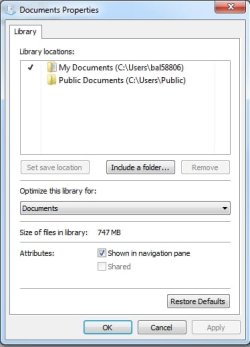
Is this the same as right clicking at the original library folder location from C drive (ex. Documents) and then going to the properties >>> "Remove" original folder location>>> then "Include a folder..." which is the new folder I created in another drive? This method is a lot faster to do but is this ok?

Here's a snapshot of what I am talking about (showing original folder location at c drive):
 

Attachments

  • mydocs.jpg
    mydocs.jpg
    86.6 KB · Views: 313
Last edited:

My Computer

Computer type
PC/Desktop
Computer Manufacturer/Model Number
HP
OS
Win 7 64
CPU
i5

My Computer

Computer type
PC/Desktop
Computer Manufacturer/Model Number
Self built custom
OS
64-bit Windows 11 Pro for Workstations
CPU
Intel i7-8700K OC'd to 5 GHz
Motherboard
ASUS ROG Maximus XI Formula Z390
Memory
64 GB (4x16GB) G.SKILL TridentZ RGB DDR4 3600 MHz
Graphics Card(s)
ASUS ROG-STRIX-GTX1080TI-O11G-GAMING
Sound Card
Integrated
Monitor(s) Displays
2 x Samsung Odyssey G7 27"
Screen Resolution
2560x1440
Hard Drives
1TB Samsung 990 PRO M.2,
4TB Samsung 990 PRO PRO M.2,
TerraMaster F8 SSD Plus NAS
PSU
Seasonic Prime Titanium 850W
Case
Thermaltake Core P3
Cooling
Corsair Hydro H115i
Keyboard
Logitech wireless K800
Mouse
Logitech MX Master 4
Internet Speed
2 Gb/s Download and 100 Mb/s Upload
Antivirus
Malwarebyte Anti-Malware Premium
Browser
Google Chrome
Other Info
Logitech Z625 speaker system,
Logitech BRIO 4K Pro webcam,
HP Color LaserJet Pro MFP M477fdn,
APC SMART-UPS RT 1000 XL - SURT1000XLI,
Galaxy S23 Plus phone
Hello Ganie,

You're snapshot doesn't work.
http://www.sevenforums.com/tutorials/9733-screenshots-files-upload-post-seven-forums.html
If you mean to add a new folder to a library, then you don't need to remove any of the old one's unless you just wanted to or moved one of them. Otherwise, you could just include the new one to add it.

Hope this helps for now. :)

My purpose is to direct all user files to another physical drive. That is why I removed the default location and added a new location on the drive location I want. It also works that way. But yeah, I guess I didn't have to remove the default folder, but I just don't wanna see those folders there anymore as I am not using them. Let me try again that snapshot here (I followed the tutorial before about uploading snapshots):
 

Attachments

  • mydocs.jpg
    mydocs.jpg
    86.6 KB · Views: 396

My Computer

Computer type
PC/Desktop
Computer Manufacturer/Model Number
HP
OS
Win 7 64
CPU
i5
Ganie,

If you used the method on the yellow tip box at the top of the tutorial, then I would recommend to go ahead and leave the default folders included in the library and just include any new folders.

This way if a program saves anything into the default locations, you'll be able to see them in the library.
 

My Computer

Computer type
PC/Desktop
Computer Manufacturer/Model Number
Self built custom
OS
64-bit Windows 11 Pro for Workstations
CPU
Intel i7-8700K OC'd to 5 GHz
Motherboard
ASUS ROG Maximus XI Formula Z390
Memory
64 GB (4x16GB) G.SKILL TridentZ RGB DDR4 3600 MHz
Graphics Card(s)
ASUS ROG-STRIX-GTX1080TI-O11G-GAMING
Sound Card
Integrated
Monitor(s) Displays
2 x Samsung Odyssey G7 27"
Screen Resolution
2560x1440
Hard Drives
1TB Samsung 990 PRO M.2,
4TB Samsung 990 PRO PRO M.2,
TerraMaster F8 SSD Plus NAS
PSU
Seasonic Prime Titanium 850W
Case
Thermaltake Core P3
Cooling
Corsair Hydro H115i
Keyboard
Logitech wireless K800
Mouse
Logitech MX Master 4
Internet Speed
2 Gb/s Download and 100 Mb/s Upload
Antivirus
Malwarebyte Anti-Malware Premium
Browser
Google Chrome
Other Info
Logitech Z625 speaker system,
Logitech BRIO 4K Pro webcam,
HP Color LaserJet Pro MFP M477fdn,
APC SMART-UPS RT 1000 XL - SURT1000XLI,
Galaxy S23 Plus phone
Ganie,

If you used the method on the yellow tip box at the top of the tutorial, then I would recommend to go ahead and leave the default folders included in the library and just include any new folders.

This way if a program saves anything into the default locations, you'll be able to see them in the library.

Thanks a lot Shawn... I will bring back the default location folder. Cheers!
 

My Computer

Computer type
PC/Desktop
Computer Manufacturer/Model Number
HP
OS
Win 7 64
CPU
i5
You're most welcome. :)
 

My Computer

Computer type
PC/Desktop
Computer Manufacturer/Model Number
Self built custom
OS
64-bit Windows 11 Pro for Workstations
CPU
Intel i7-8700K OC'd to 5 GHz
Motherboard
ASUS ROG Maximus XI Formula Z390
Memory
64 GB (4x16GB) G.SKILL TridentZ RGB DDR4 3600 MHz
Graphics Card(s)
ASUS ROG-STRIX-GTX1080TI-O11G-GAMING
Sound Card
Integrated
Monitor(s) Displays
2 x Samsung Odyssey G7 27"
Screen Resolution
2560x1440
Hard Drives
1TB Samsung 990 PRO M.2,
4TB Samsung 990 PRO PRO M.2,
TerraMaster F8 SSD Plus NAS
PSU
Seasonic Prime Titanium 850W
Case
Thermaltake Core P3
Cooling
Corsair Hydro H115i
Keyboard
Logitech wireless K800
Mouse
Logitech MX Master 4
Internet Speed
2 Gb/s Download and 100 Mb/s Upload
Antivirus
Malwarebyte Anti-Malware Premium
Browser
Google Chrome
Other Info
Logitech Z625 speaker system,
Logitech BRIO 4K Pro webcam,
HP Color LaserJet Pro MFP M477fdn,
APC SMART-UPS RT 1000 XL - SURT1000XLI,
Galaxy S23 Plus phone
What is UsersFilesFolder in shell:UsersFilesFolder in Setp 3.? I thought it is Favorites when I wanted to relocate this folder but it does not seems to be so.

The shell:UsersFilesFolder is the system identifier for the user folder which appers as the user name in the start menu or explorer.

My question is what the UsersFilesFolder is. Whereas your answer is shell:UsersFilesFolder is ........ Please provide what goes in place of UsersFilesFolder by a spcific example.

'UsersFilesFolder' Does not exist
 

My Computer

Computer type
PC/Desktop
Computer Manufacturer/Model Number
Awesome Custom
OS
Windows 7 Home Premium SP1 64-bit (second reinstall)
CPU
Intel(R) Core(TM) i7-3770 CPU @ 3.40GHz Quad Core
Motherboard
ASUS P8Z77-V Pro
Memory
2 x 4GB Corsair Vengeance DDR3 gaming RAM with Heatsink
Graphics Card(s)
AMD Sapphire Radeon HD6670 1GB GDDR5
Sound Card
Onboard Realtek HD Audio, Onboard HDMI Intel Display Audio
Monitor(s) Displays
Philips E-line 23" (58.4cm)
Screen Resolution
1680x1050@60Hz
Hard Drives
Main: 320GB laptop harddrive, 283GB NTFS Partition called Windows 7 set to drive C: (See 'other info' for more)
PSU
Corsair Enthusiast Series Modular TX550M (550 W)
Case
NZXT Tempest 410 Elite
Cooling
Case comes with 3 fans, PSU, CPU and graphics each have one
Keyboard
Dell RT7D00
Mouse
Normal Office Mouse
Antivirus
MSE, SUPERAntiSpyware and MBAM
Browser
Google Chrome and Firefox as main, 9 browsers in total
Other Info
walkman100.github.com/specs
Go there for a complete view of my specs.
Harddrives:
WDC WD3200BEVT-75A23T0 ATA Device - 320GB, laptop harddrive with Windows 7 OS, only partitions are 100MB OEM, 15GB Recovery NTFS set to drive A:, 283GB NTFS Windows 7 set to drive C:
Welcome to the Seven Forums, Matthew.

When you paste shell:UsersFilesFolder into the Start Menu search field and press enter, what do you see?
 

My Computer

Computer type
Laptop
Computer Manufacturer/Model Number
Employer provided Dell Latitude
OS
W7 Pro SP1 64bit
CPU
i7
Memory
8GB
Graphics Card(s)
Intel HD Graphics
Hard Drives
crappy SSD
Antivirus
Employer mandated Symantec Endpoint Protection
Browser
Pale Moon 64bit, IE11 64bit & Chrome 64bit
The shell:UsersFilesFolder is the system identifier for the user folder which appers as the user name in the start menu or explorer.

My question is what the UsersFilesFolder is. Whereas your answer is shell:UsersFilesFolder is ........ Please provide what goes in place of UsersFilesFolder by a spcific example.

'UsersFilesFolder' Does not exist
Very strange first post from a new member. The fact that you do not know something does not automatically mean it does not exist.

Welcome to the Seven Forums, Matthew.

When you paste shell:UsersFilesFolder into the Start Menu search field and press enter, what do you see?
Or simply type or copy & paste shell:UsersFilesFolder to Explorer addressbar and hit Enter.
 

My Computer

Computer type
Laptop
Computer Manufacturer/Model Number
HP ENVY 17-1150eg
OS
Windows 10 Pro x64 EN-GB
CPU
1.6 GHz Intel Core i7-720QM Processor
Memory
6 GB
Graphics Card(s)
ATI Mobility Radeon HD 5850 Graphics
Sound Card
Beats sound system with integrated subwoofer
Monitor(s) Displays
17" laptop display, 22" LED and 32" Full HD TV through HDMI
Screen Resolution
1600*900 (1), 1920*1080 (2&3)
Hard Drives
Internal: 2 x 500 GB SATA Hard Disk Drive 7200 rpm
External: 2TB for backups, 3TB USB3 network drive for media
Cooling
As Envy runs a bit warm, I have it on a Cooler Master pad
Keyboard
Logitech diNovo Media Desktop Laser (bluetooth)
Mouse
Logitech Performance Mouse MX
Internet Speed
50/10 Mbps VDSL
Antivirus
Windows Defender 4.3.9431.0
Browser
Maxthon 3.5.2., IE11
Welcome to the Seven Forums, Matthew.

When you paste shell:UsersFilesFolder into the Start Menu search field and press enter, what do you see?

Sure, shell:UsersFilesFolder works, but not UsersFilesFolder
 

My Computer

Computer type
PC/Desktop
Computer Manufacturer/Model Number
Awesome Custom
OS
Windows 7 Home Premium SP1 64-bit (second reinstall)
CPU
Intel(R) Core(TM) i7-3770 CPU @ 3.40GHz Quad Core
Motherboard
ASUS P8Z77-V Pro
Memory
2 x 4GB Corsair Vengeance DDR3 gaming RAM with Heatsink
Graphics Card(s)
AMD Sapphire Radeon HD6670 1GB GDDR5
Sound Card
Onboard Realtek HD Audio, Onboard HDMI Intel Display Audio
Monitor(s) Displays
Philips E-line 23" (58.4cm)
Screen Resolution
1680x1050@60Hz
Hard Drives
Main: 320GB laptop harddrive, 283GB NTFS Partition called Windows 7 set to drive C: (See 'other info' for more)
PSU
Corsair Enthusiast Series Modular TX550M (550 W)
Case
NZXT Tempest 410 Elite
Cooling
Case comes with 3 fans, PSU, CPU and graphics each have one
Keyboard
Dell RT7D00
Mouse
Normal Office Mouse
Antivirus
MSE, SUPERAntiSpyware and MBAM
Browser
Google Chrome and Firefox as main, 9 browsers in total
Other Info
walkman100.github.com/specs
Go there for a complete view of my specs.
Harddrives:
WDC WD3200BEVT-75A23T0 ATA Device - 320GB, laptop harddrive with Windows 7 OS, only partitions are 100MB OEM, 15GB Recovery NTFS set to drive A:, 283GB NTFS Windows 7 set to drive C:
UsersFilesFolder is an OS variable.

Option 2, step #3 of this tutorial thread that you are posting in says to do what I mentioned.

Are you able to do what you need to do? Are you able to move the folder of interest?


Churin probably has this sorted out by now. The post that you quoted was from 2009. If you have/had the same question as Churin, then hopefully I've answered it. If you would like to know more about OS variable, we can help you with that too.
 

My Computer

Computer type
Laptop
Computer Manufacturer/Model Number
Employer provided Dell Latitude
OS
W7 Pro SP1 64bit
CPU
i7
Memory
8GB
Graphics Card(s)
Intel HD Graphics
Hard Drives
crappy SSD
Antivirus
Employer mandated Symantec Endpoint Protection
Browser
Pale Moon 64bit, IE11 64bit & Chrome 64bit
Back
Top